How to fix
POOL_CORRUPTION_IN_FILE_AREA
on Windows
Resolve the POOL_CORRUPTION_IN_FILE_AREA error on Windows 10 quickly and effectively. Follow our expert-tested solutions for a hassle-free fix.

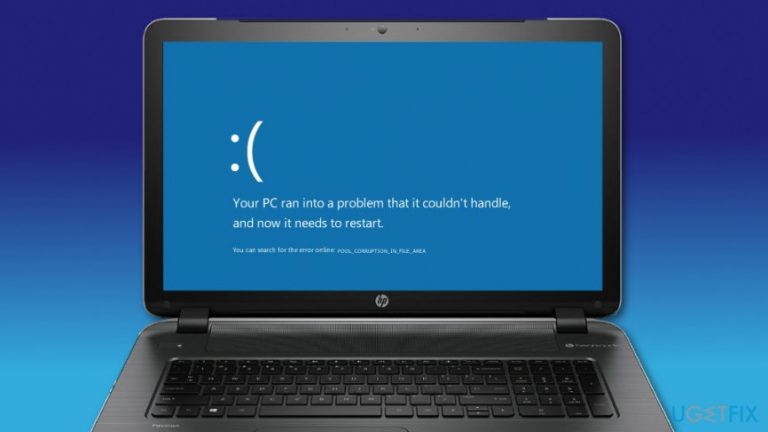
What causes How to fix POOL_CORRUPTION_IN_FILE_AREA on Windows 10?
- Outdated drivers
- Outdated software
- File or program corruption
- Problems with antivirus program
- Malware infection
Repairs Windows system files, removes malware, and restores a clean OS state — without reinstalling.
My Windows 10 computer often restarts and gives blue screen of death where it informs about POOL_CORRUPTION_IN_FILE_AREA error. What can I do about it?
POOL_CORRUPTION_IN_FILE_AREA is one of the annoying Blue Screen Of Death[ref en-1] errors that trigger computer restart. There are many issues that might cause the problem. Typically, the error is caused by outdated drivers or software, file or program corruption, or some problems with an antivirus program.
When something goes wrong, Windows delivers a Blue Screen of Death and reboots the computer. Meanwhile, users see the following message:
Your PC ran into a problem and needs to restart. We’re just collecting some error info, and we’ll restart for you.
As soon as the computer is turned on, users should install the available OS, software or driver updates, check for corrupted software or files, and make sure that your computer is not infected with a virus. Malware[ref en-2] infection is one of the possible reasons for the POOL_CORRUPTION_IN_FILE_AREA error. So, you should scan the device with [rev id=“Reimage”].
However, if malware infection is not the case, you should try other methods to fix POOL_CORRUPTION_IN_FILE_AREA error that are presented below.
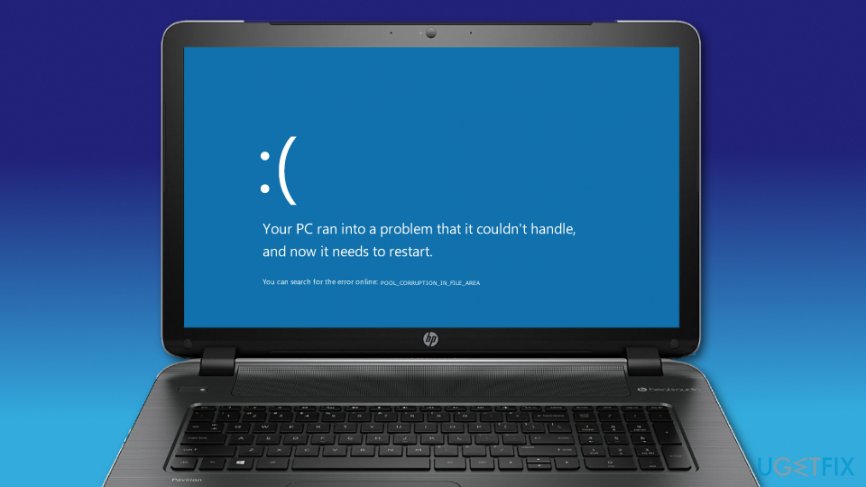
Possible ways to fix POOL_CORRUPTION_IN_FILE_AREA error on Windows 10
If you scanned the system with security software and it detected nothing, the error is related to some computer-related problem. Therefore, you have to install all possible updates for the system, programs, and drivers.
Method 1. Update computer drivers
Blue Screen of Death is often triggered by outdated drivers. However, this problem can be solved by following these steps:
- Press Windows Key + X and choose Device Manager from the list.
- In the device manager, find the driver, you need to update, right-click it and choose Update Driver Software.
- In the appeared window choose Search automatically for updated driver software.
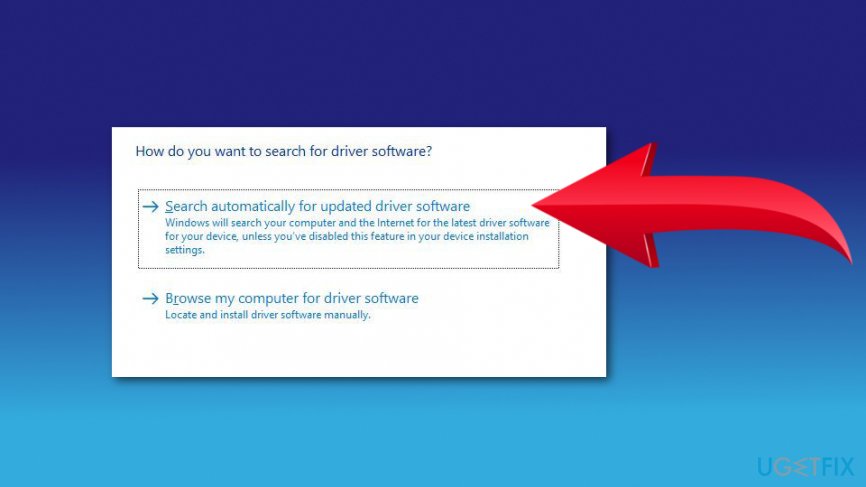
Update driver software - Wait until Windows finds updated and install them by following instructions on the screen.
However, in some cases, the OS cannot find newest versions of drivers.[ref en-3] Thus, you should check the latest version on the manufacturer’s website.
Method 2. Download available Windows 10 updates
- Click Start and navigate to Settings.
- Choose Update & security.
- Click on Windows Update option.
- Hit Check for updates button.
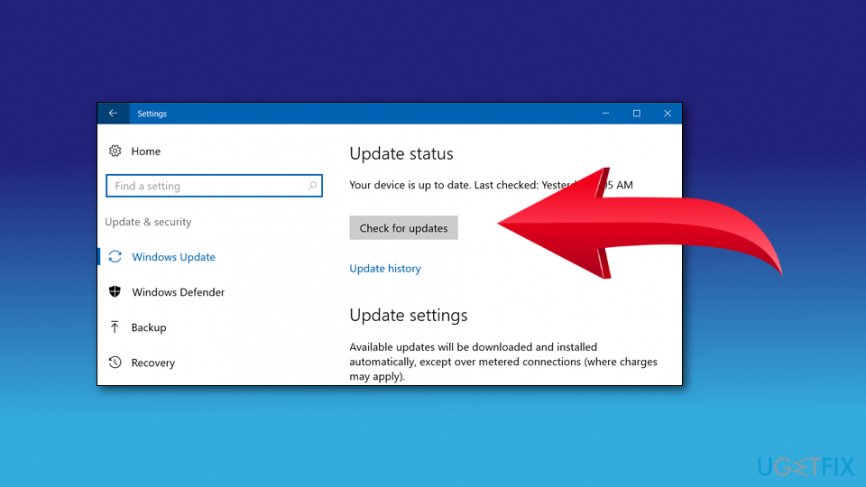
Install windows 10 updates - Then install available updates as explained in the on-screen guide.
Method 3. Uninstall antivirus
This might seem not a pleasant suggestion if you care about your computer’s security. However, some security programs can be the reason of POOL CORRUPTION IN FILE AREA error. Hence, you have to check it.
In order to uninstall your antivirus, you have to access Program’s list and remove it like any other program. If the problem is gone, you should try using another antivirus or rely on Windows Defender which is built-in antivirus of Windows 10.
Method 4. Perform System Restore
- Restart your PC during the boot a couple of times to launch Automatic Repair.
- Choose Troubleshoot.
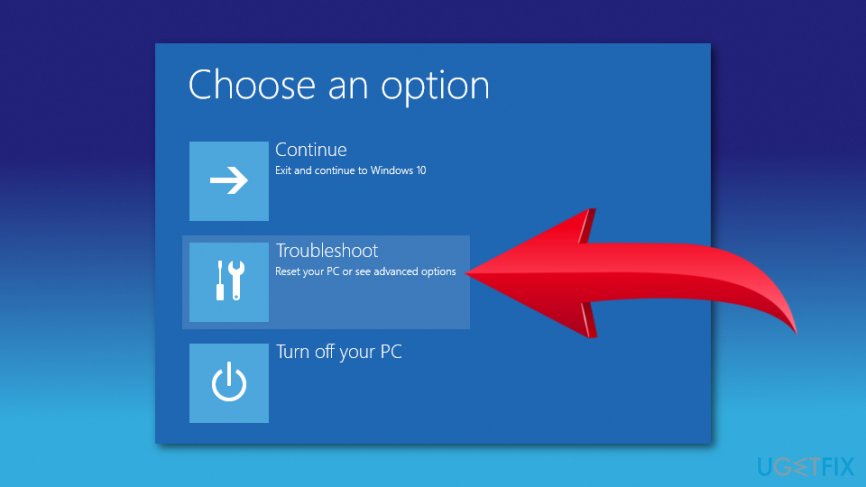
System restore on windows - Click Advanced options.
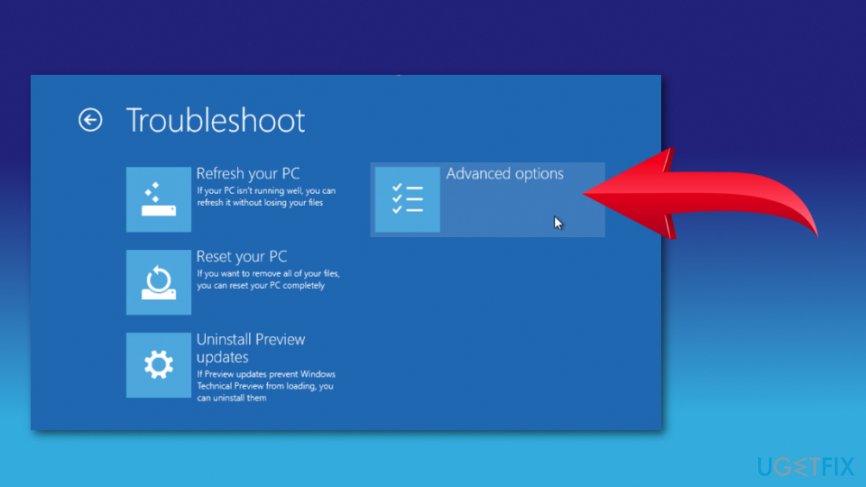
Troubleshoot advanced options - Then click System Restore.
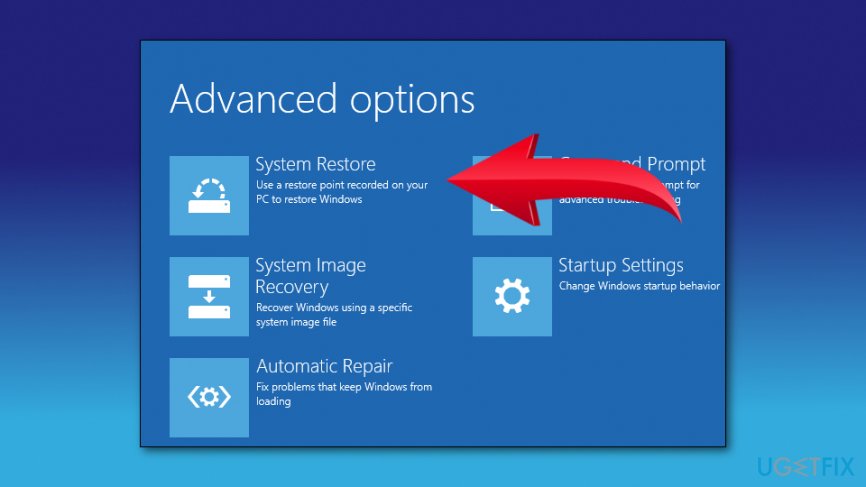
Choose system restore - Select your username and type the password.
- Click Choose a different restore point and click Next.
- Select your preferred restore point and click Next.
- Wait until the task is finished.
Method 5. Reset Windows 10
If System Restore did not help to fix POOL_CORRUPTION_IN_FILE_AREA error, you should try resetting your OS. This method is similar to clean install.[ref en-4] Hence, you have to create data backups and find bootable USB flash drive with Windows 10.
- Restart your computer a couple of times during reboot to run Automatic Repair.
- Select Troubleshoot and choose Reset this PC.
- Choose Remove everything. You might be asked to insert Windows 10 installation media. Do not forget to connect your bootable USB flash drive too.
- Choose Only the drive where Windows is installed option.
- Then select Just remove my files and click Reset.
- Follow the reset instructions on the screen.
Method 6. Check hardware issues
If none of the above-mentioned methods helped to fix POOL_CORRUPTION_IN_FILE_AREA error, the issue seems to be related to hardware. There might be problems with RAM, motherboard, and processor.
Bottom line
To fix the POOL_CORRUPTION_IN_FILE_AREA error, users should update their computer drivers, download available Windows 10 updates, and scan for malware. If these methods do not resolve the issue, further investigation into other potential computer-related problems may be necessary.
Frequently asked questions
This error typically occurs due to issues with drivers, corrupt system files, or hardware malfunctions affecting memory management in Windows 10.
You can troubleshoot this error by updating your drivers, running a system file check, and performing a memory diagnostic test on Windows 10.
Reinstalling Windows 10 may resolve the POOL_CORRUPTION_IN_FILE_AREA error by replacing corrupted system files, but it should be considered a last resort after other troubleshooting steps.




Report an issue
What's wrong with this guide? We review every report and update or remove content.
Report received — thank you. We'll review and fix it.
You need a free account to submit a report.
Be the first to comment