How to fix
Print to PDF not working
on Windows
Resolve Print to PDF issues in Windows 10 and 11 quickly with our expert tips. Get back to printing in minutes with step-by-step troubleshooting solutions.

What causes How to fix Print to PDF not working in Windows?
- Browsers become unresponsive
- Download processes cannot start
- Save prompts do not appear
- Corrupted PDF printer functionality
- Damaged or corrupted system files
- Malware infection or leftovers
Repairs Windows system files, removes malware, and restores a clean OS state — without reinstalling.
Hello. I need help because Windows cannot properly print to PDF for me. The functionality is not working, and the message appears informing me that Microsoft can't open the print to PDF. I cannot solve this myself. Can you help me?
Print to PDF not working in Windows is the problem occurring recently in reports of users of Windows 10 or Windows 11 machines. The functionality allows printing a web page, file, images, and Word files as PDFs. This is the function of the integrated PDF Printer by Microsoft.
Users[ref en-1] experience the issue when the Print to PDF tool stops working. These complaints state that issues are coming when browsers become unresponsive, download processes cannot start, and save prompts do not appear. This is the useful feature that gets corrupted on the device, unfortunately.[ref en-2]
The Print to PDF not working in Windows issue can be resolved, but this is the irritating problem. Updating printer drivers can be a quick solution or checking user folders. But sometimes, these issues are caused by seriously damaged or corrupted files on the machine, so running a proper scan for affected or missing system files can help.
Damaged or otherwise affected data in the system can be a result of malware[ref en-3] infection or leftovers, so clearing those issues with tools properly designed to clear affected pieces can help. Run a check using [d1] and repair corrupted files or remove any leftovers of threats to fix this Print to PDF not working in Windows issue.
This feature is an option that people can activate on the machine via Windows settings. If you experience the issues, it can be related to recent changes in settings or the corrupted module, issues with the printer app, or major problems within the application, or the file you try to print using the function. However, we list a few methods, and you can try to fix Print to PDF not working in Windows yourself.
1. Turn the option off and back on again
- Go to Programs and Features by right-clicking on the Start button on the bottom left corner of your screen.
- In the left-side panel, choose Turn Windows features on or off.
- In the Windows Features section, uncheck the box next to where it says Microsoft Print to PDF.
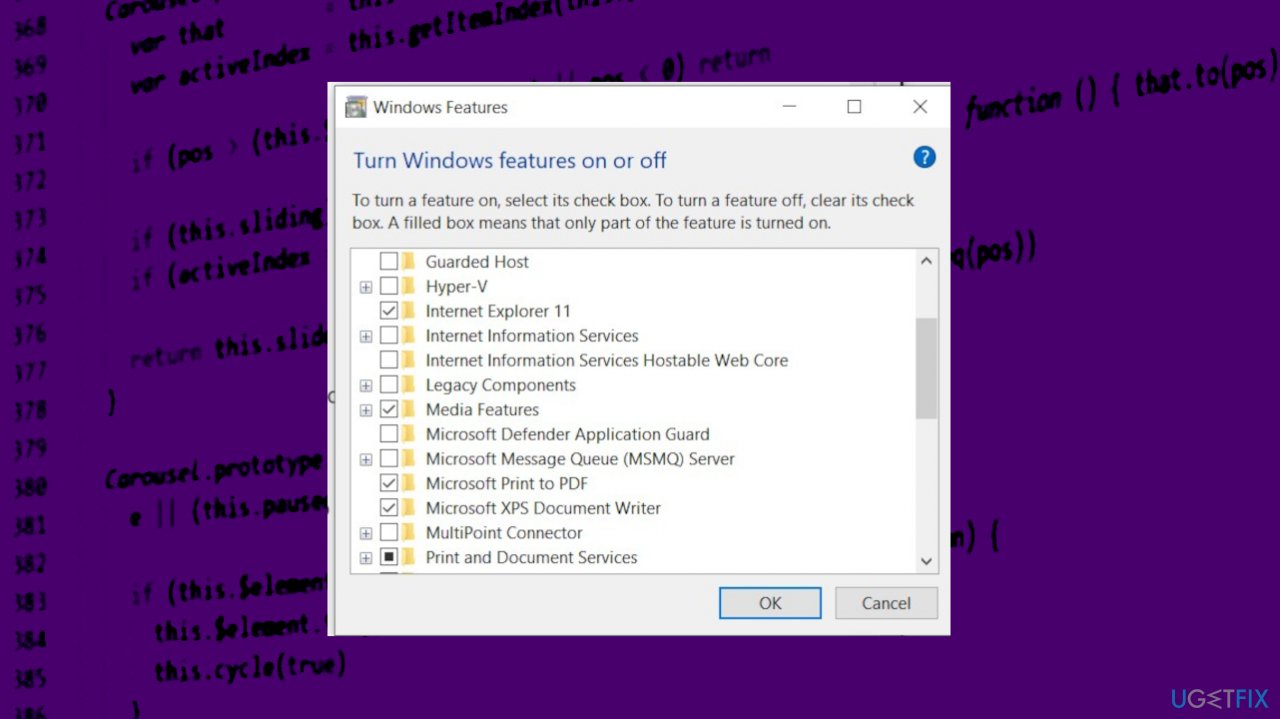
Print to padf printer windows features - Then click OK to save the change.
- Next, restart your PC.
- When your computer has restarted, go to the same menu option and check the box next to the Microsoft Print to PDF feature.
2. Check your user folder for PDFs
- Press the Windows + R keys on your keyboard to open the Run application.
- Type in the following line and hit the Enter key: C:\users\%username%
- Check if you find any of the PDF files you've been saving in this folder.
- If you still don't find anything, try the following folder: C:\users\%username%\Documents
3. Update the printer driver
- Go to Search, type device manager, and open Device Manager.
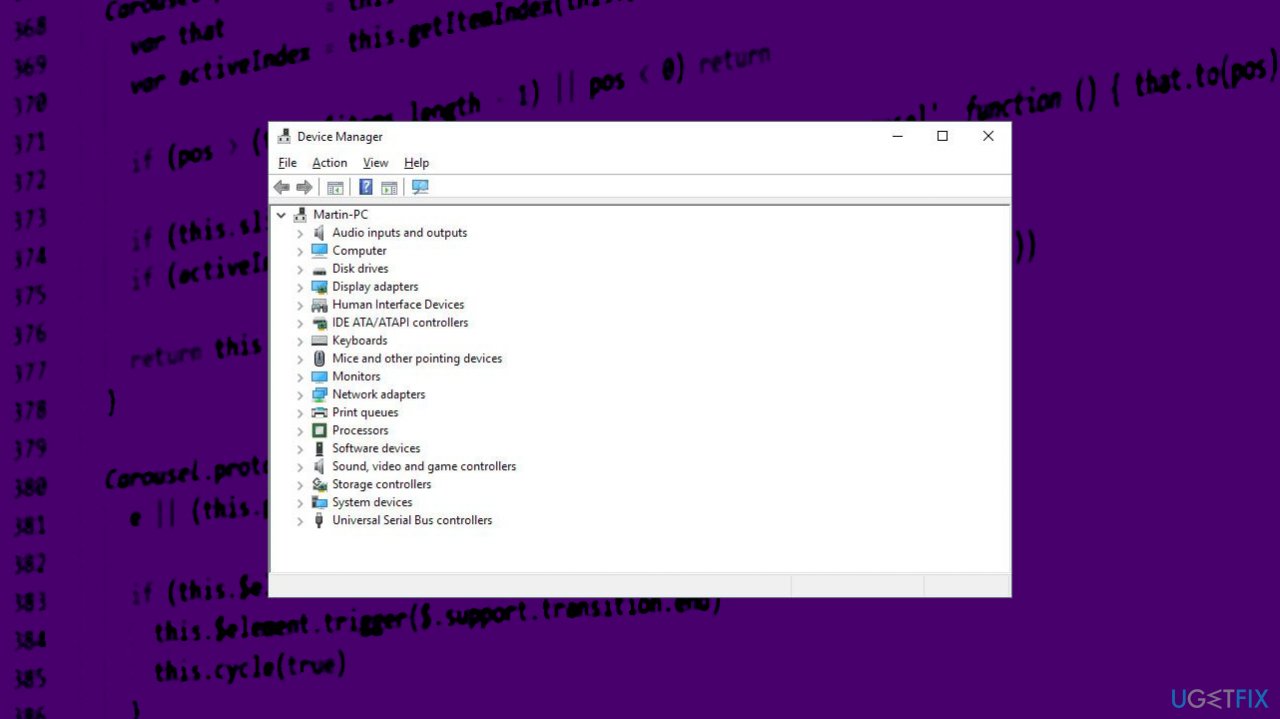
Print to padf printer device manager - Expand Print queues.
- Right-click Microsoft Print to PDF, and go to Update driver.
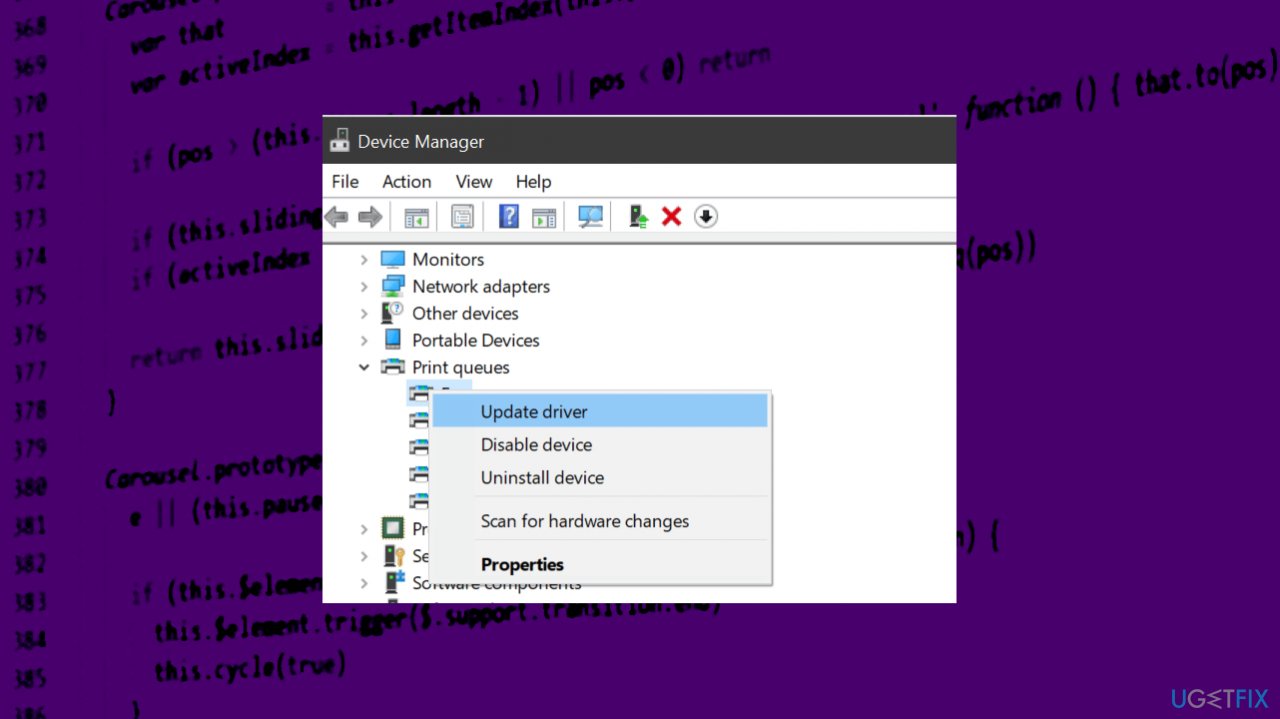
Print to padf printer drivers - Follow further on-screen instructions.
- Restart your computer.
You can also use the program that scans the machine and finds damaged or outdated drivers and damaged pieces on the machine. Run [rev id= "Driver Fix"] and allow the program to check for the best driver versions available, and it can make sure that drivers are compatible and correct for the machine, so it saves time and hassle for you.
4. Set print to PDF as the default printer
- Press Windows Key + S and enter printers in the search box or enter that in the bar at the bottom.
- Select Devices and Printers from the list of results.
- When the Devices and Printers window opens, navigate to the Printers section.
- Locate the Print to PDF option.
- Right-click it and choose Set as default printer from the menu.
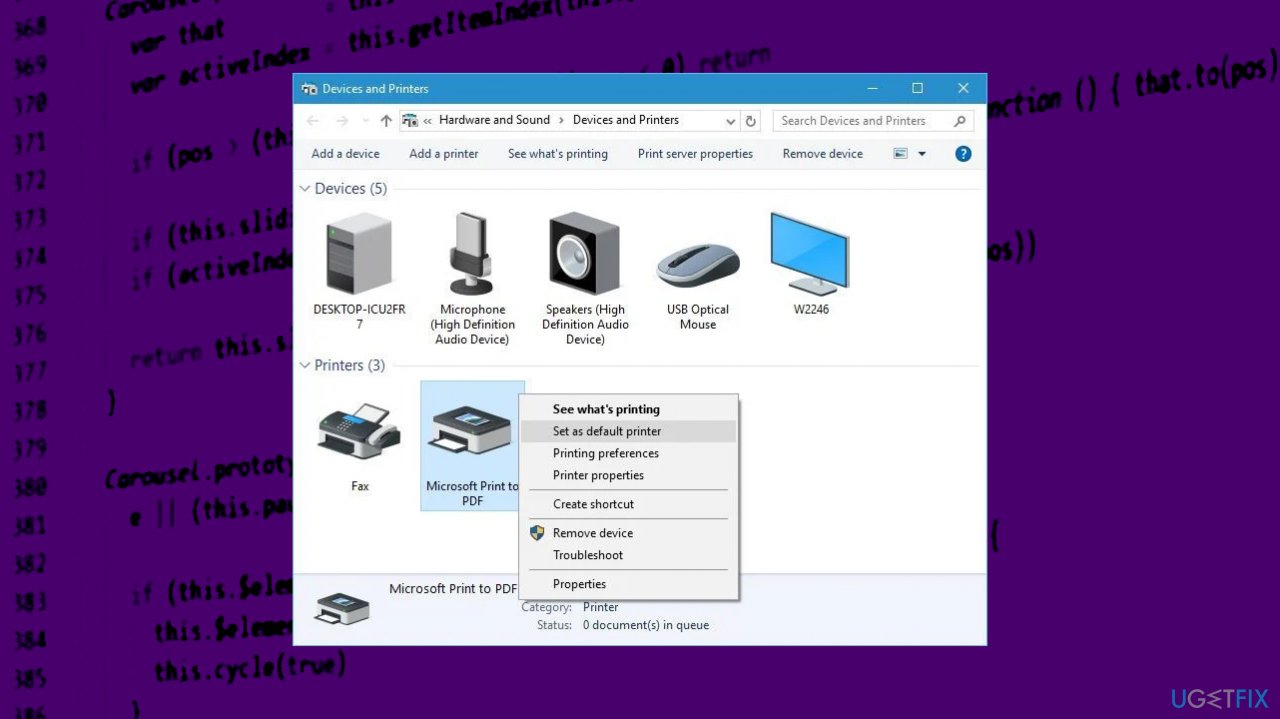
Print to padf printer set dfault
5. Remove the Microsoft Print to PDF and replace the driver
- Go to the Devices and Printers section.
- Locate Microsoft Print to PDF and right-click it.
- Choose Remove Device.
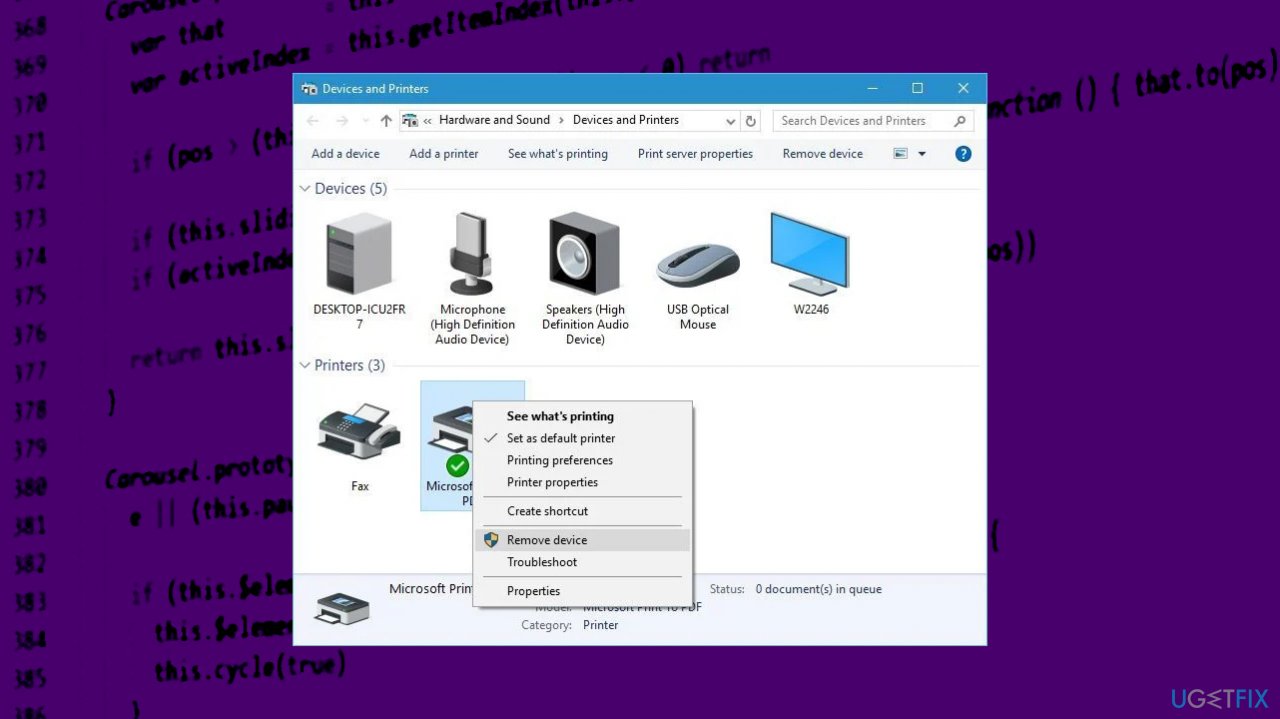
Print to padf printer remove device - After you've removed Microsoft Print to PDF, click the Add a printer button.
- Click The printer that I want isn't listed.
- Select Add a local printer or network printer with manual settings and click Next.
- Choose PORTPROMPT: (Local Port) from the menu and click Next.
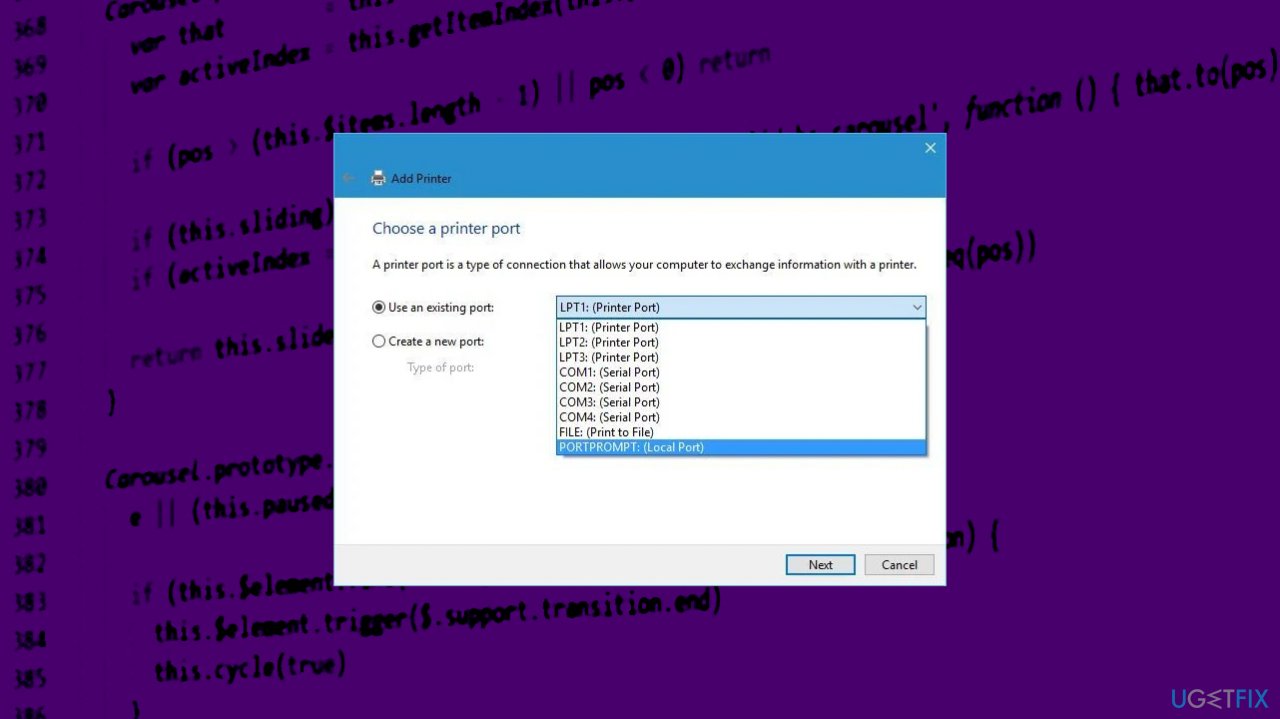
Print to padf printer port - Hit Microsoft and Microsoft Print to PDF.
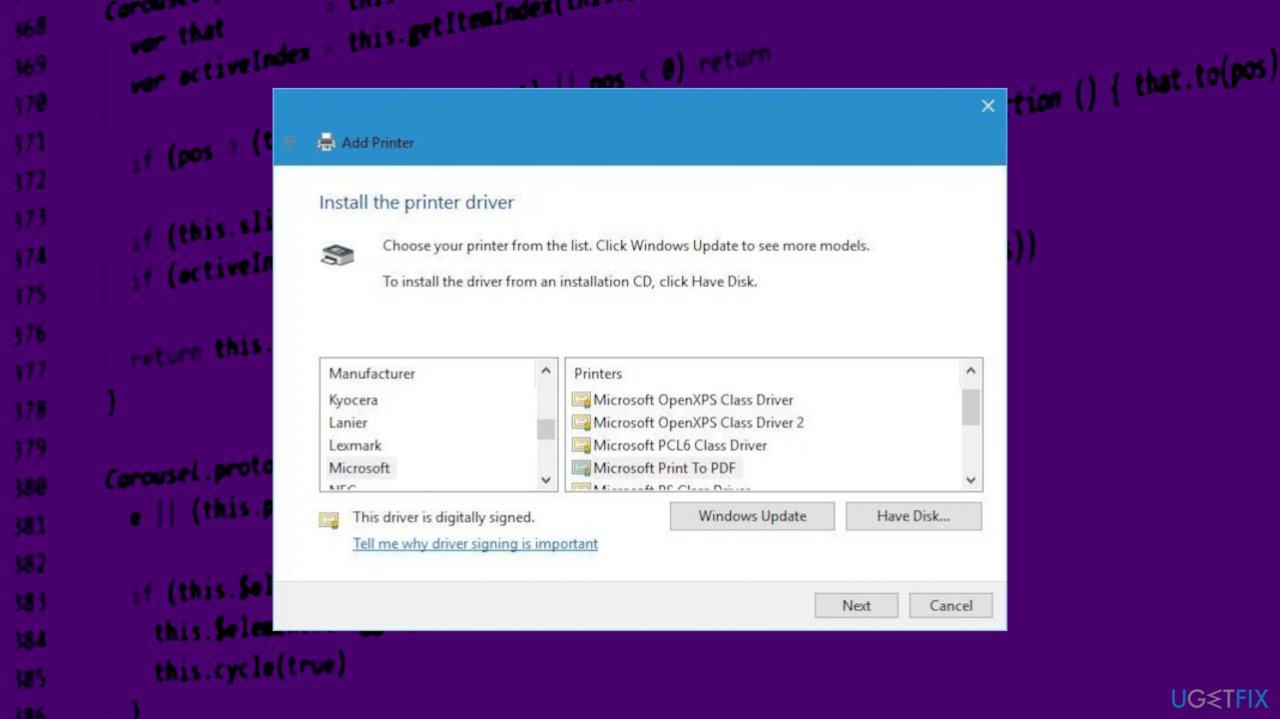
Print to padf printer driver - Select Replace the current driver option and click Next.
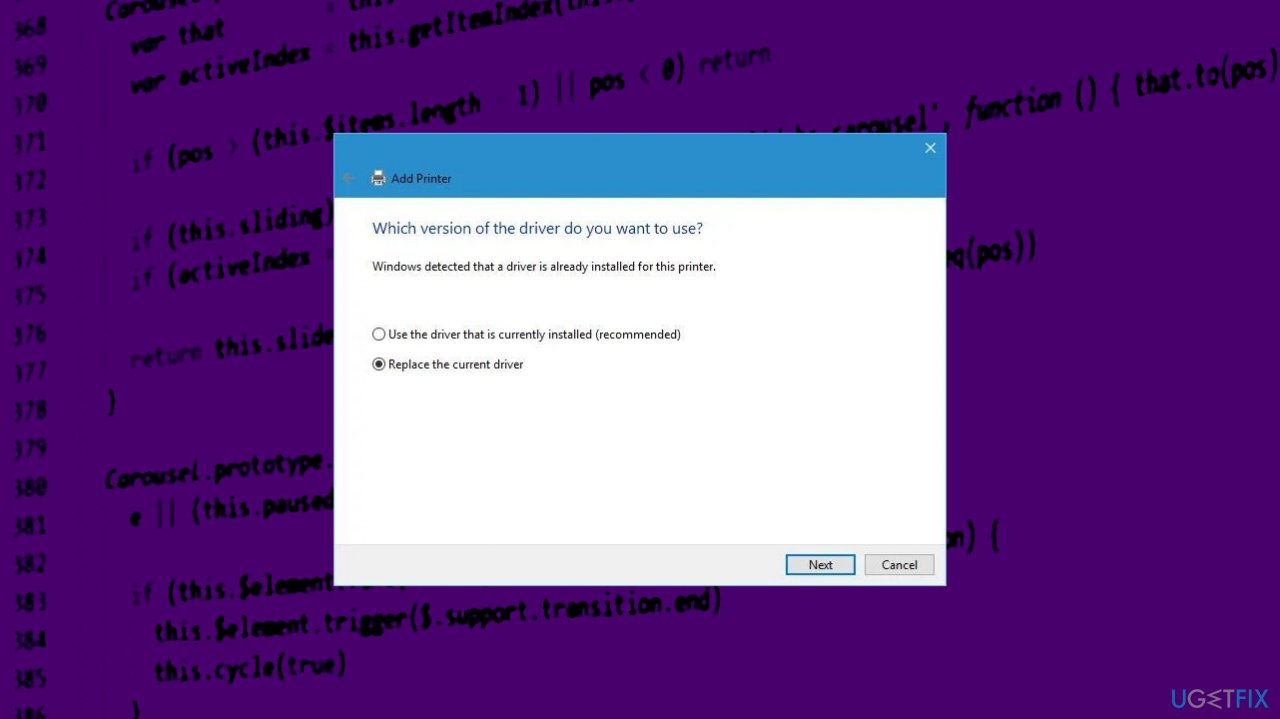
Print to padf printer replace driver - Add a name for the printer and wait for Windows to end the installation.
Bottom line
To fix the Print to PDF not working issue, you can try updating printer drivers, checking user folders, or running a scan for affected or missing system files. If these methods do not resolve the problem, consider clearing malware or using tools designed to repair corrupted files.
Frequently asked questions
First, ensure that the Microsoft Print to PDF feature is enabled in the Windows Features settings. You can access this by searching for 'Turn Windows features on or off' in the Start menu.
Try restarting the Print Spooler service by typing 'services.msc' in the Run dialog, locating Print Spooler, and clicking 'Restart.' Additionally, check for any pending Windows updates that might address printing issues.
This could be due to insufficient permissions in the save location; ensure you have write access. Also, check if the file name includes any invalid characters that may prevent saving.




Report an issue
What's wrong with this guide? We review every report and update or remove content.
Report received — thank you. We'll review and fix it.
You need a free account to submit a report.
Be the first to comment