How to fix
Printer error 0x80070077
on Windows
Resolve printer error 0x80070077 on Windows 10 or 11 quickly and effectively. Troubleshooting tips that ensure your printer works seamlessly. Expert-tes…

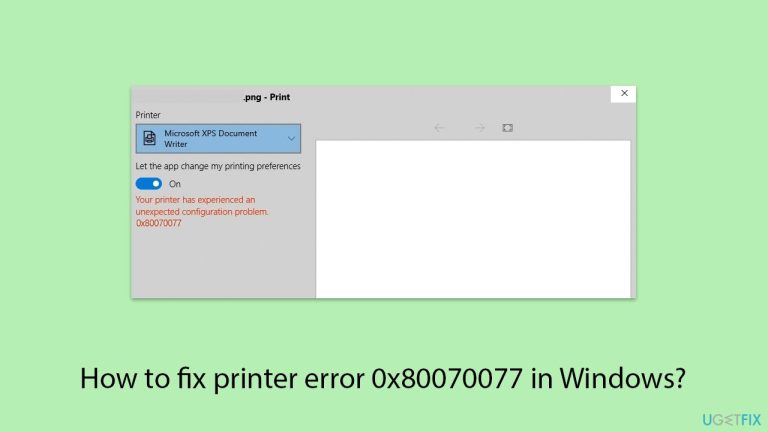
What causes How to fix printer error 0x80070077 in Windows?
- Corrupted printer drivers
- Out-of-date printer drivers
- Lost or corrupted system files (PrintConfig.dll)
- Connectivity problems with network printers
- Incorrectly configured sharing settings
- Issues after upgrading to Windows 11 and rolling back to Windows 10
Repairs Windows system files, removes malware, and restores a clean OS state — without reinstalling.
It's been a few days now that I'm facing the following error when trying to print: ""Your printer has experienced an unexpected configuration problem. 0x80070077." How do I fix that?
Although printers have always been a necessary component of both homes and offices, it has never been easy to get them to function as well as they should. Error 0x80070077 is one of the more annoying printer-related problems that Windows users encounter.
This is because the error prevents documents from printing and causes an unforeseen configuration issue. For someone who uses printers on a daily basis, this error could easily bring the printing activity to a complete halt, whether it is a local printer or one connected over a network. This would cause needless headaches.
What specifically is causing the 0x80070077 error, then? There could be several factors involved. One of the more frequent offenders is corrupted or out-of-date printer drivers, which obstruct Windows' ability to communicate with the printer. Additionally, system files, especially PrintConfig.dll, which is essential for correct printer configuration, may be lost or corrupted. Connectivity problems or incorrectly configured sharing settings may also be to blame if you're using a network printer.
The 0x80070077 error has also been reported by some users to occur after upgrading to Windows 11 and then rolling back to Windows 10. This could indicate that some system modifications made during the upgrade process may affect printer functionality. Some people identify the error when attempting to print particular file types, like PDFs, which may indicate that Windows' built-in print-to-file features aren't working properly.
The bottom line is that you cannot ignore error 0x80070077. You will need to reassess potential driver conflicts, system file issues, or even deeper settings in Windows if your printer isn't working or is giving you trouble. Use these solutions if you want to resolve the problem. Before beginning, think about utilizing an all-in-one PC repair tool [d1] that can assist in automatically identifying and resolving any underlying Windows problems.

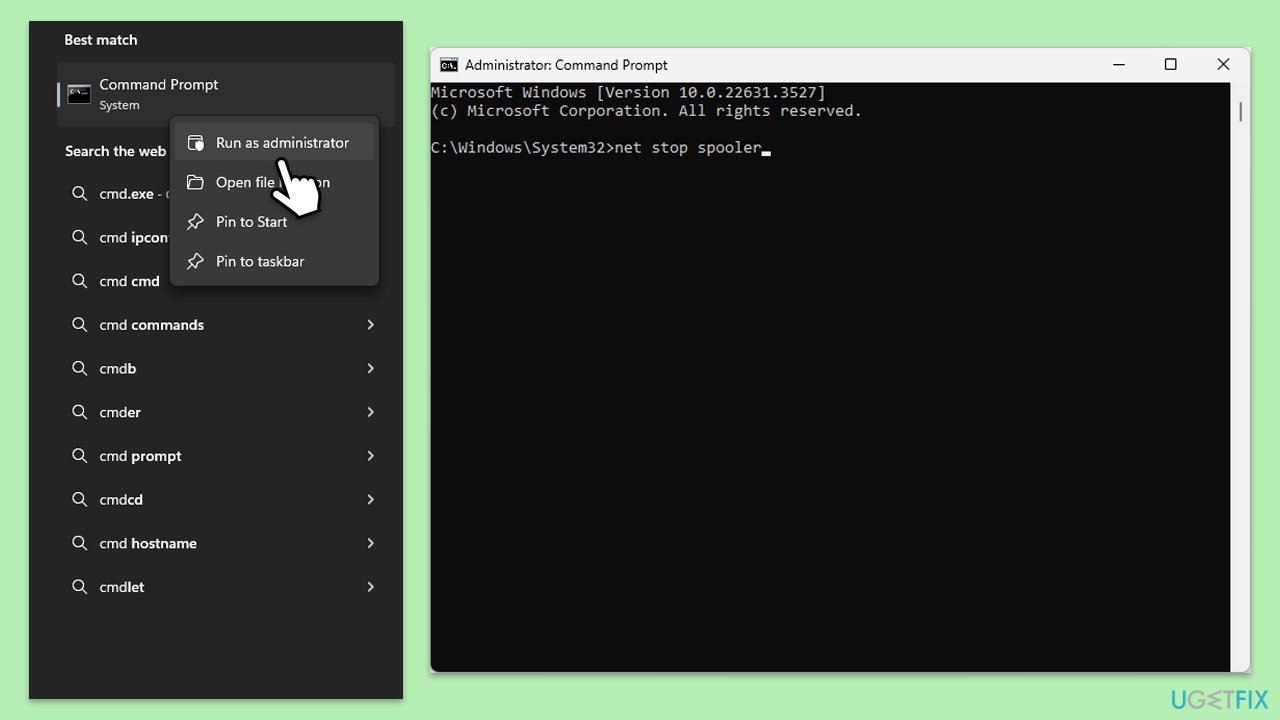
Fix 1. Restart the Print Spooler service
The Print Spooler is responsible for managing print jobs in Windows.
- Type cmd in Windows search.
- Right-click on the Command Prompt result and pick Run as administrator.
- When User Account Control shows up, click Yes.
- Type in the following command, and press Enter after each:
net stop spooler
del %systemroot%\System32\spool\printers* /Q”
net start spooler - Close down the Command Prompt and restart your system.
Fix 2. Update or reinstall printer drivers
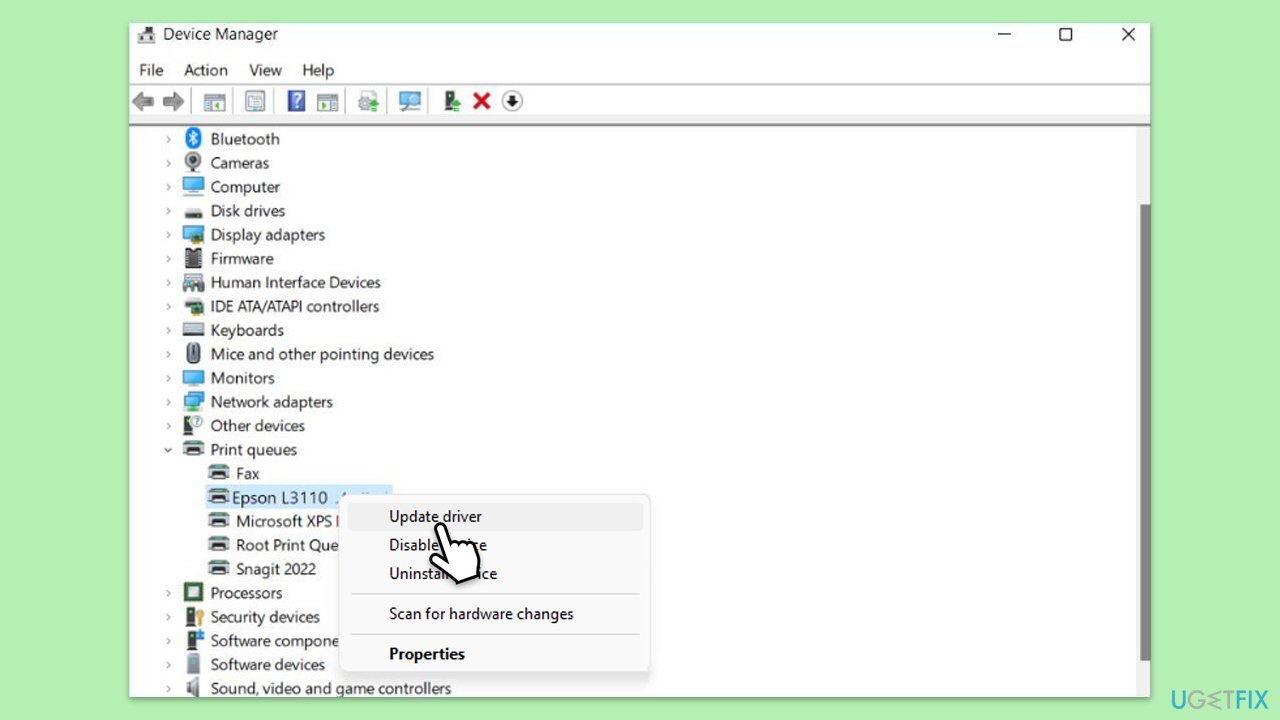
Outdated or corrupted printer drivers can cause communication issues between Windows and the printer.
- Right-click on the Start menu and select Device Manager.
- Expand the Printers section.
- Find your printer in the list, right-click on it, and select Update driver.
- Choose Search automatically for drivers.
- Follow the on-screen instructions to complete the update process.
- Restart your computer after the driver update is completed.
- Alternatively, you can always employ an automatic driver updater such as [rev id="DriverFix"] for all your driver updates.
- If the error persists, right-click the printer again and select Uninstall device.
- Restart the computer and reconnect the printer to reinstall its driver.
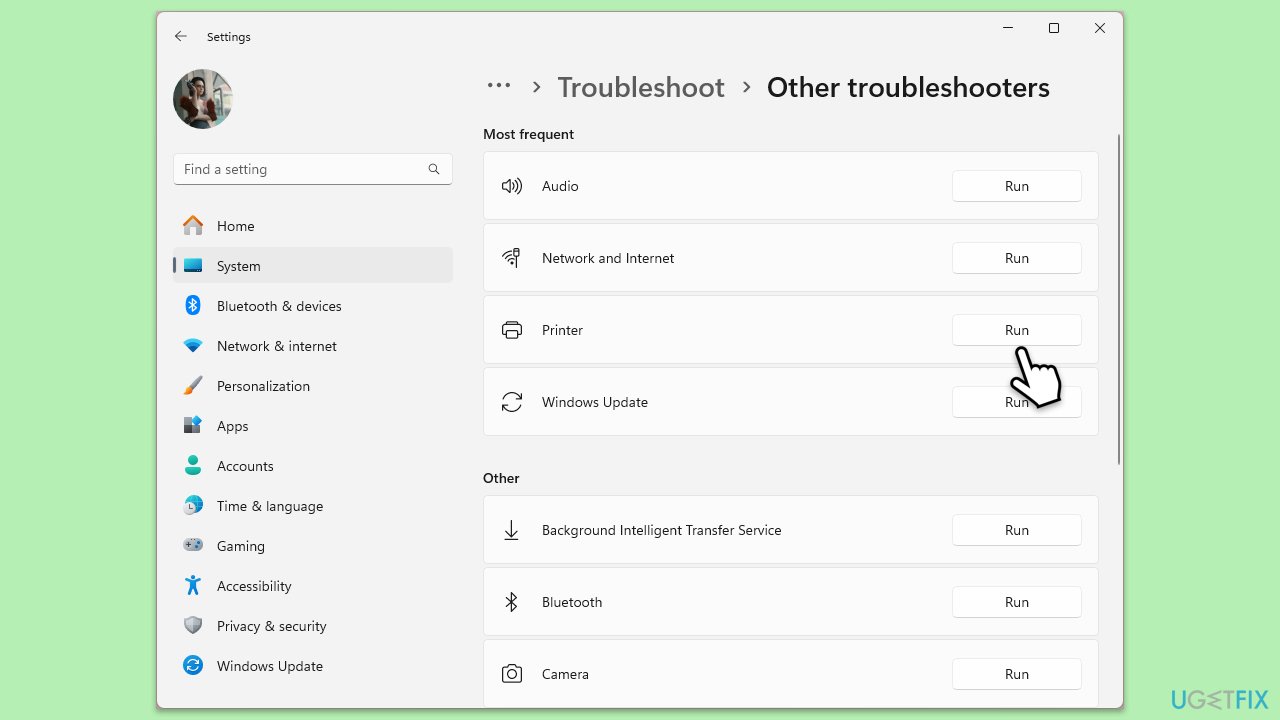
Fix 3. Run the Windows Printer Troubleshooter
Windows includes a built-in troubleshooting tool that can automatically detect and fix common printer-related errors, including 0x80070077.
- Go to the Windows search bar, type Troubleshoot, and press Enter.
- Select Additional troubleshooters/Other troubleshooters.
- Click on Printer, then select Run the troubleshooter/Run.
- Follow the on-screen instructions to diagnose and fix issues.
Fix 4. Delete temporary printer files
Corrupted print spooler files can interfere with normal printing operations. Clearing these files can help resolve error 0x80070077.
- Type Services in Windows search and press Enter.
- Find the Print Spooler service in the list, right-click on it, and select Stop.
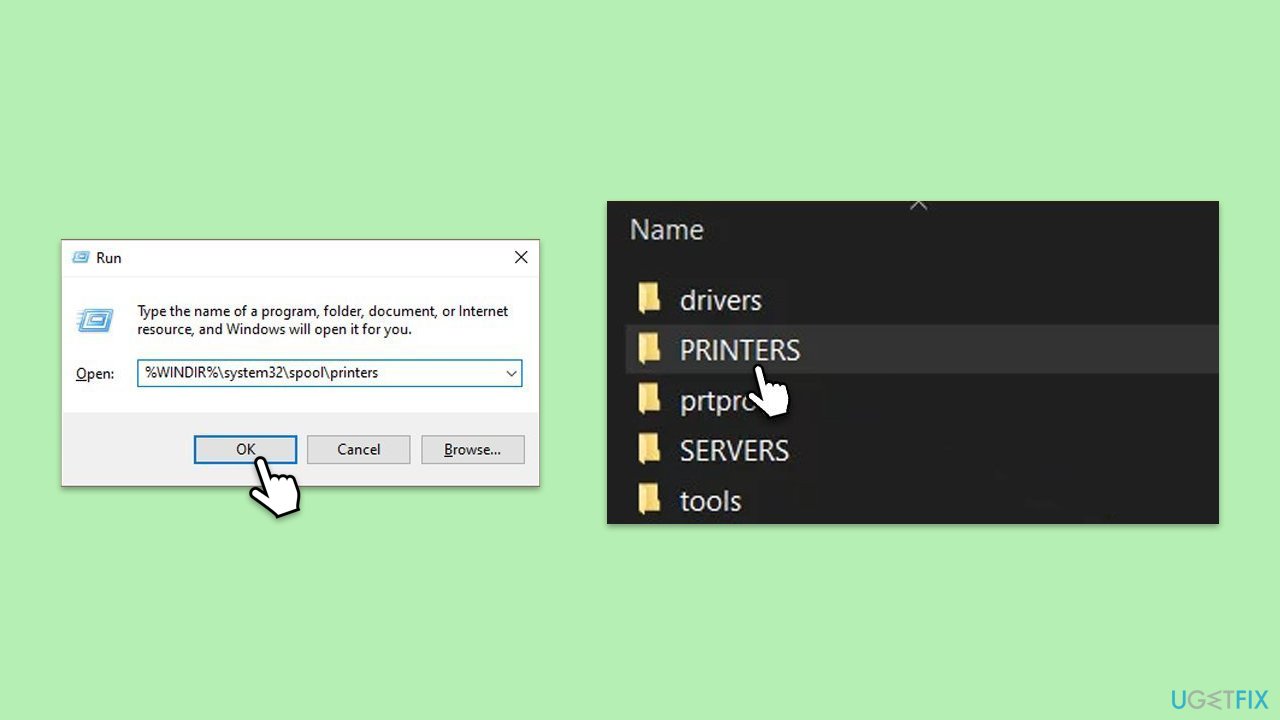
- Once the service has stopped, press the Win + R.
- Type %WINDIR%\system32\spool\printers and hit Enter. This should open the Printers folder.
- Delete all files within this folder.
- After clearing it, go back to the services window, find the Print Spooler service, right-click, and select Start.
- Close the services window and attempt to print your document again.
Fix 5. Check for Windows updates
Microsoft frequently releases updates that include bug fixes for printing issues. Installing the latest updates may resolve error 0x80070077.
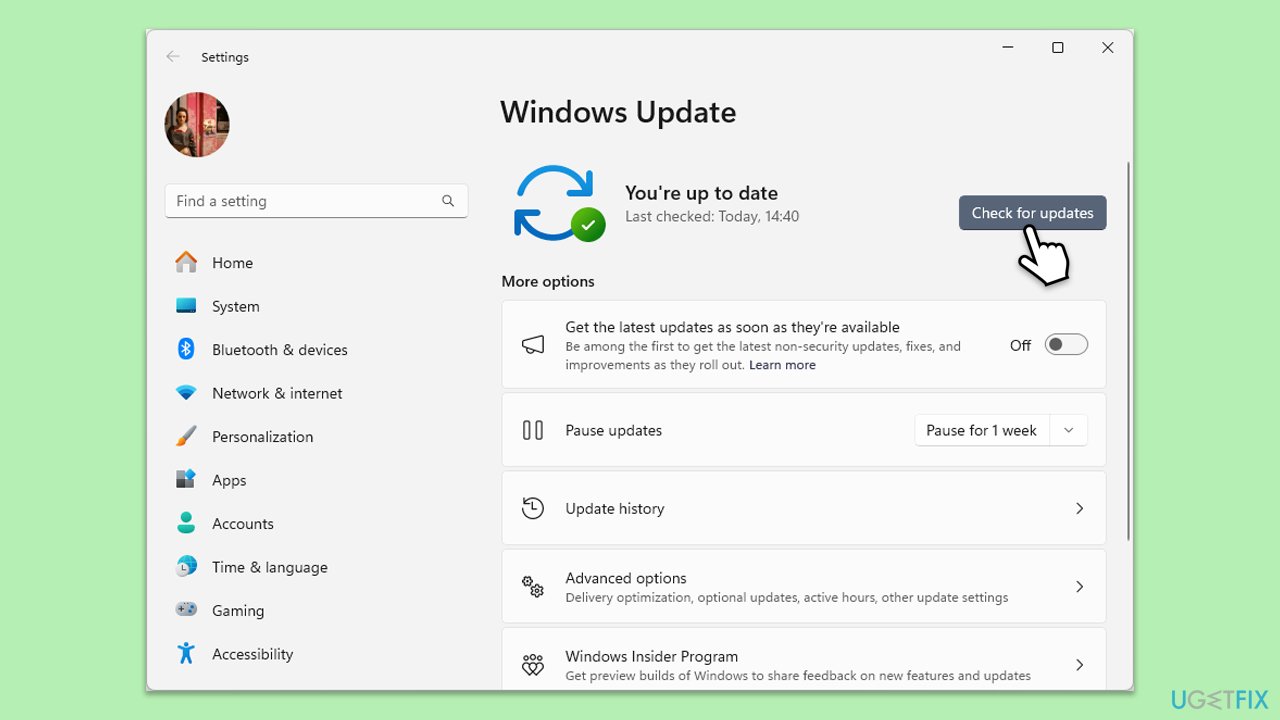
- Type Updates in the Windows search box and press Enter.
- Click Check for Updates or Install all.
- Ensure optional and pending updates are installed as well.
- Wait till the process is finished.
- Restart your device.
Fix 6. Manually install the printer
If the printer is not being detected correctly by Windows, manually adding it can help establish a proper connection and bypass any misconfigurations.
- Right-click on Start and pick Settings.
- Go to Bluetooth & devices and click Printers & scanners.
- Click Add a printer or scanner and wait for Windows to search for available printers.
- If your printer is not found, click The printer that I want isn’t listed.
- Select Add a local printer or network printer with manual settings and follow the prompts.
- Once added, try printing again.
Fix 7. Check network printer settings (for shared printers)
If the error occurs when using a network printer, connection issues might be the cause. Verifying network and sharing settings can help restore access.
- Type Control printers in Windows search and press Enter.
- Right-click on the network printer and select Printer properties.
- Go to the Ports tab and make sure the correct network port is selected.
- Click Configure Port and verify that the network settings are correct.
- If the printer is shared, ensure the correct permissions are set under the Sharing tab.
Fix 8. Perform a Clean Boot
Conflicts with background applications or third-party services can interfere with printer functionality. Performing a clean boot can help determine if another program is causing the issue.
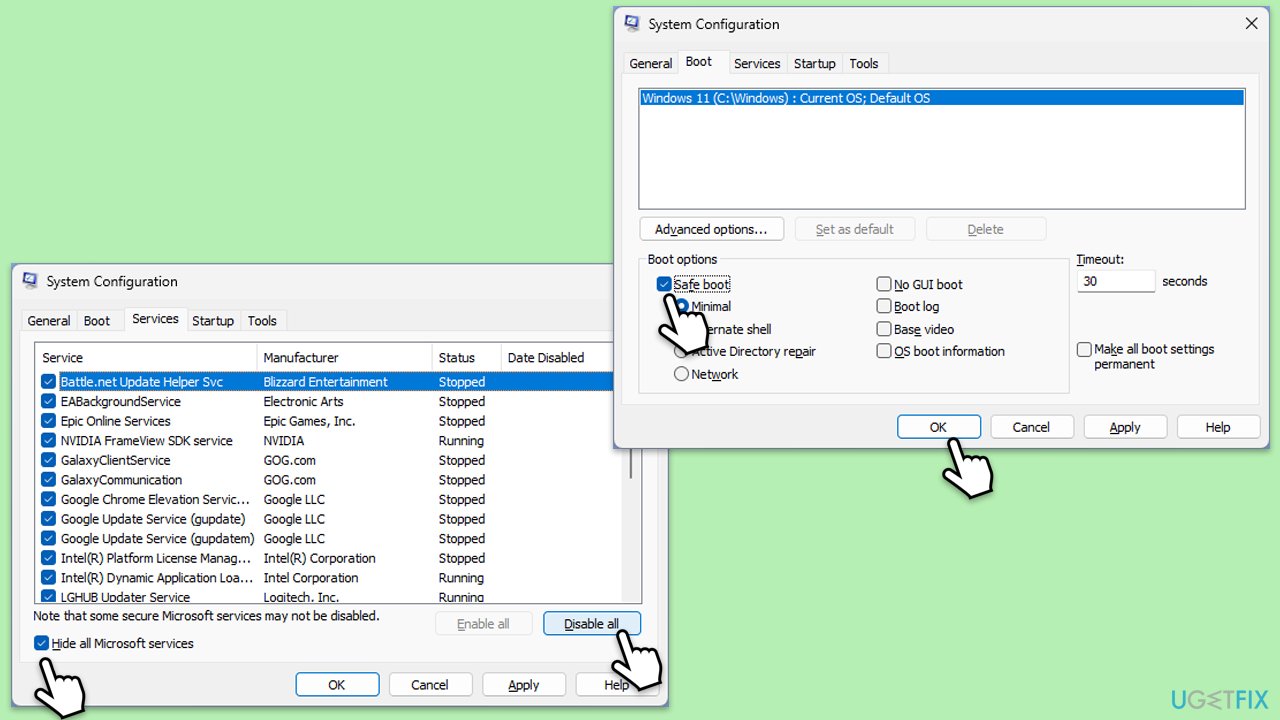
- Type msconfig in Windows search and press Enter.
- Go to the Services tab.
- Mark Hide all Microsoft services and select Disable all.
- Go to the Startup tab and click Open Task Manager.
- In the Task Manager, right-click on each of the items and select Disable, then close the Task Manager.
- Go to the Boot tab, and tick Safe Boot.
- Click Apply and OK, and restart your PC.
- To find out which app(s) is causing conflicts, enable each of the processes (or you can do it in groups), restart, and see if the problem persists. Repeat until you find the faulty app, then either update or uninstall it.
Bottom line
To fix printer error 0x80070077, you can restart the Print Spooler service, check for driver conflicts, and reassess system file issues. If these solutions do not resolve the problem, consider using an all-in-one PC repair tool to identify and fix underlying Windows issues.
Frequently asked questions
This error typically occurs due to issues with printer drivers, network connectivity, or incorrect printer settings. It can also be triggered by conflicts with other installed software.
You can start troubleshooting by updating your printer drivers through Device Manager and ensuring that your printer is properly connected to the network. Additionally, running the Windows Printer Troubleshooter can help identify and resolve the issue.
Yes, check the printer's default settings in the Control Panel and ensure that the printer is set to online and not paused. Also, verify that the correct printer port is selected in the printer properties.




Report an issue
What's wrong with this guide? We review every report and update or remove content.
Report received — thank you. We'll review and fix it.
You need a free account to submit a report.
Be the first to comment