How to fix
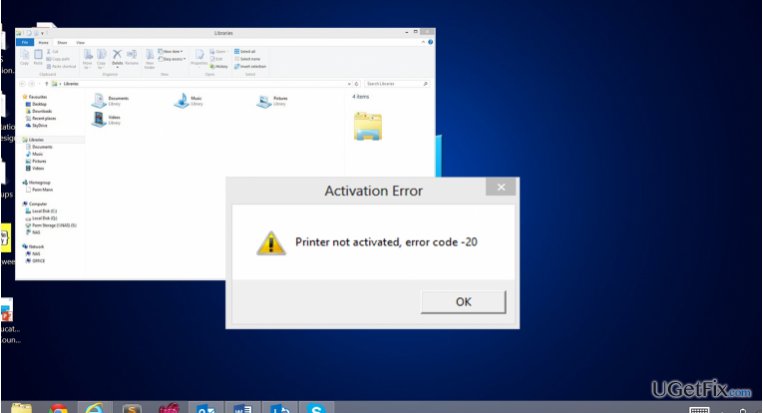
Printer not activated – error code -20
on Windows
Resolve the Printer not activated – error code -20 on Windows 10 or Windows 11 with our expert-tested solutions for seamless printing. Fixed in minutes!

What causes How to fix Printer not activated – error code -20?
- Deleted HKEY_CURRENT_CONFIG\Software key
- Malfunctioning of system functions
- Incompatibility of Quickbooks versions with Windows 8
- Outdated registry key preventing printer from working
- Improper printer selection in Control Panel
Repairs Windows system files, removes malware, and restores a clean OS state — without reinstalling.
After installing Windows 8, my printer stopped working. It says: "Printer not activated – error code -20." I reinstalled the drivers but to no avail. The printer doesn‘t print, and that annoying error message still shows up. I ran out of solutions. Can you help me?
“Printer not activated – error code -20” is a common issue encountered by users who decided to install or upgrade to a newer Windows version. Usually, the cause of this phenomenon is the deleted HKEY_CURRENT_CONFIG\Software key. Several programs employ the same registry key which results in malfunctioning of system functions. Specifically, the error is likely to occur for those users who use Quickbooks application. As previously mentioned, this software exploits the same registry key. Consequently, the outdated key prevents the program and the printer from working effectively. Some Quickbooks versions might not be compatible with Windows 8. Visit its official website to find out the requirements of the software: http://support.quickbooks.intuit.com/support/Articles/INF12609.
How to fix Printer not activated – error code -20 on Windows OS?
Luckily, there is no problem which cannot be solved. We will present you several options how to fix printer not activated – error code -20 without trouble. Prior using these methods, make sure that the connectivity between the computer and the printer is secure. You should also take a look at Control Panel and Printers and Drivers to ensure that the right printer is chosen. Lastly, we would like to warn you to back up your registry and set a system restore point before proceeding further.
- Create a Registry Backup. Enter the Registry Editor, select “Computer” in the left pane and then click “File", "Export" and "Save it.”
- Afterward, you need to create a system restore point. Click on the Start button, find System Restore. You will see the option to “create a restore point.” Once a system properties window appears, find and enable “Protection Settings” on your Local Disk C. If the function is disabled, click “Configure” and set the protection. Finish with clicking Apply and Ok. These settings should force the automatic creation of system restore points.
Method 1. This method focuses on repairing the Quickbooks program. After the upgrade, the registry key is not updated so it or possibly missing files might be at fault.
- Reinstall Quickbooks. The best way would be to completely remove the application and install it again. Enter the Control Panel --> Programs (Apps) and Features and locate the software. Click “Uninstall” and then download the proper version of Quickbooks compatible with the operating system. After the reinstallation, the program, and the printer should work again. In case you encounter some problems which state that the uninstallation could not be completed because some files are missing, use system security applications, such as [d1] or [rev id=”RegCure Pro”], to clean the computer from corrupted files.
Method 2. The latter encompasses two options how to renew the registry key manually. It highly important that you should follow the following guidelines with utmost attention and precision as missing a detail might cause bigger registry problems than Printer not activated – error code -20 itself. What you need to do is grant permissions for registry editing using the Registry Editor.
- Enter the Registry Editor. Press “Start” button on the keyboard and type regedit. Do not press “Enter”. When it appears, right-click on it and select “Run as administrator.”
- Find HKEY_CURRENT_CONFIG folder, in which you will be able to locate Software folder. Right-click on it and choose “Permissions.” After the new window emerges, check whether is Full Control for the Users is enabled. Finish by clicking “Ok.” Exit the Registry Editor.
There is another option how to grant the permissions using a Powershell Script. This solution works only in Windows 10 OS.
- Click the “Start” button and type cmd. Right-click on the program and again choose “Run as Administrator.”
- When the Command Prompt opens, type powershell and then click “Enter.”
- In the emerged window type the entire command. Make sure not to miss any sign or character:
PowerShell.exe -NoProfile -NoLogo -NonInteractive -Command “$key = [Microsoft.Win32.Registry]::CurrentConfig.OpenSubKey(‘Software’,[Microsoft.Win32.RegistryKeyPermissionCheck]::ReadWriteSubTree,[System.Security.AccessControl.RegistryRights]::ChangePermissions); $acl =$key.GetAccessControl(); $rule = New-Object System.Security.AccessControl.RegistryAccessRule (‘Users’,’FullControl’,’ObjectInherit,ContainerInherit’,’None’,’Allow’); $acl.SetAccessRule($rule); $key.SetAccessControl($acl);”
Finally, users, who see this message, but cannot save any files in a pdf format, can get the solution as well. Press “Start” and find “Final Draft” application. Depending on the version of your operating system, choose the application “Final Draft 8/9” and run it as the administrator. Afterward, the error should stop appearing. On the final note, check USB connections once in a while and run scans with the security programs to lower the risk of such issues.
Bottom line
To fix the 'Printer not activated – error code -20', ensure a secure connection between the computer and printer, back up your registry, and create a system restore point. If the issue persists, consider reinstalling the printer drivers or checking for Quickbooks compatibility. If none of these solutions work, further troubleshooting may be necessary.
Frequently asked questions
The error code -20 typically indicates that the printer driver is not activated or there is a communication issue between the printer and the operating system.
To fix this issue, try updating or reinstalling the printer drivers through Device Manager, and ensure that the printer is set as the default printer in your Windows settings.
Yes, check the printer properties in the Control Panel to ensure that the correct driver is selected and that the 'Use printer offline' option is unchecked.




Report an issue
What's wrong with this guide? We review every report and update or remove content.
Report received — thank you. We'll review and fix it.
You need a free account to submit a report.
Be the first to comment