How to fix
Printer setup error 740
on Windows
Resolve printer setup error 740 on Windows 10 and 11 quickly with our expert-tested solutions. Get your printer working effortlessly! Fixed in minutes.

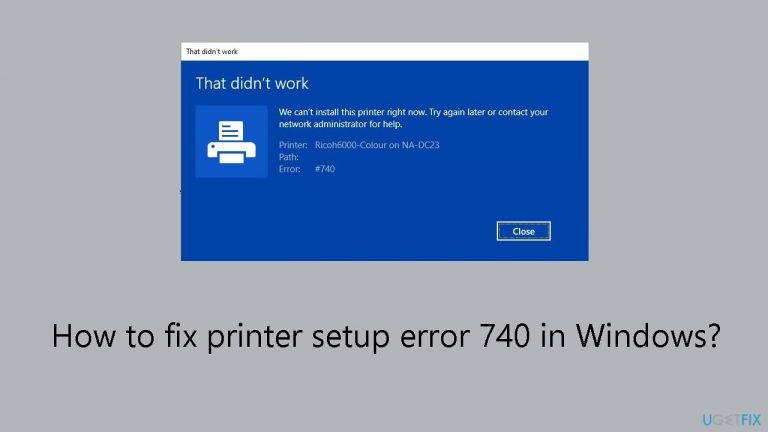
What causes How to fix printer setup error 740 in Windows?
- Insufficient permissions even with an administrator account
- Common in domain environments
- Issues with Type 3/4 PCL6 drivers
- Faulty or outdated printer drivers
- User does not have required access rights
Repairs Windows system files, removes malware, and restores a clean OS state — without reinstalling.
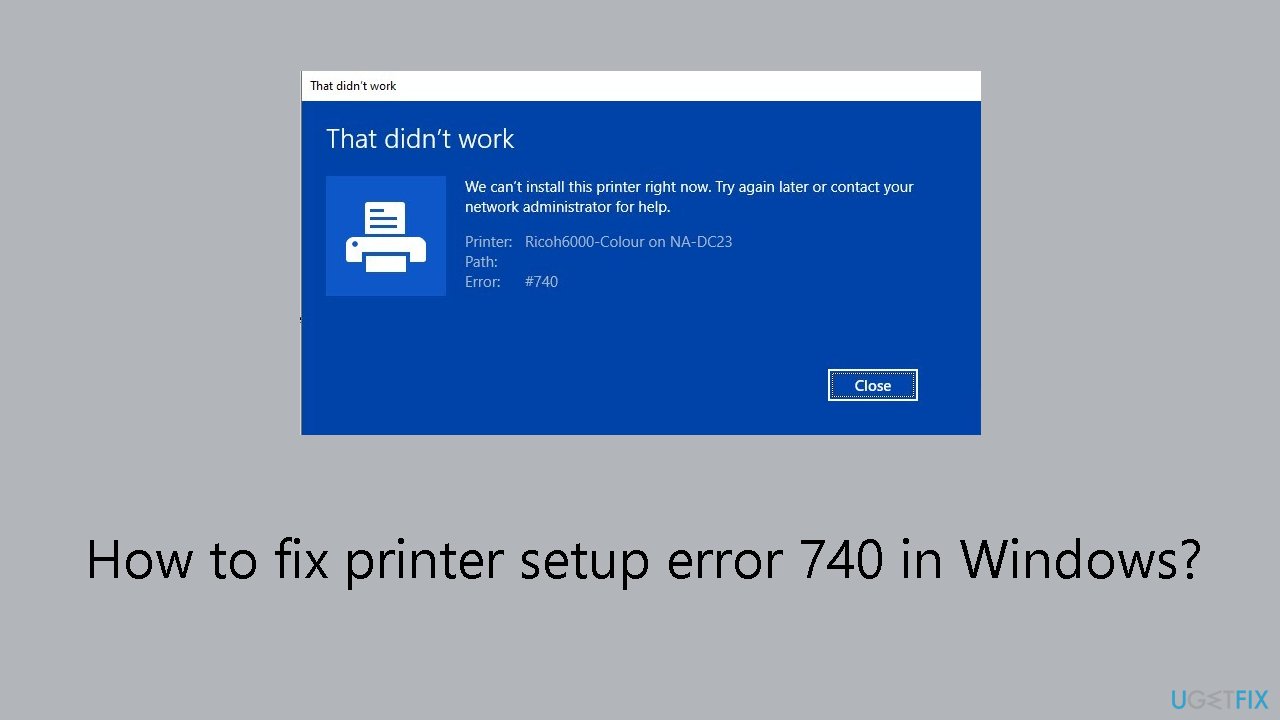
Hello. I tried adding a printer on Windows and I got a "We can't install this printer right now" error message. Is there a way to fix this?
Error 740 in printer setup on Windows can be a frustrating challenge for users, denying permission when attempting to add a printer. Users may encounter difficulties establishing their printing devices due to insufficient permissions, even if they are working from an administrator account. This problem is more common in domain environments and is more noticeable when printing to printers that use Type 3/4 PCL6 drivers.
This issue could have a major impact on users by making it more difficult for them to properly set up and use printers. Being unable to add printers might interfere with everyday duties, productivity, and teamwork in settings where seamless printing is essential, such as an office or shared network.
The issue is further complicated by the fact that faulty or outdated printer drivers are frequently the source of the problem. Even with an administrator account, users may still experience error 740, which emphasizes the need for a thorough fix that takes care of the issue's permission- and driver-related components.
Addressing the underlying reasons for this printer setup problem requires careful attention to detail. This entails installing or updating printer drivers, paying particular attention to Type 3/4 PCL6 drivers that are known to cause the problem. Resolving Error 740 also requires properly establishing permissions and making sure the user has the required access rights.
In this guide, you will find 7 steps that should help you fix printer setup error 740 in Windows. You can also run a maintenance tool like [d1] that can fix most system errors, BSODs,[ref en-1] corrupted files, and registry[ref en-2] issues. Otherwise, follow the step-by-step instructions below.
Solution 1. Add the Printer with Administrator Privileges
- Press the Windows key to open the Start Menu.
- Type Command Prompt, right-click on it, and choose Run as administrator.
- Enter the following command and press Enter: rundll32 printui.dll,PrintUIEntry /il

- Wait for the printer search to complete.
- Select your printer from the list.
- Click Next to install the necessary files.
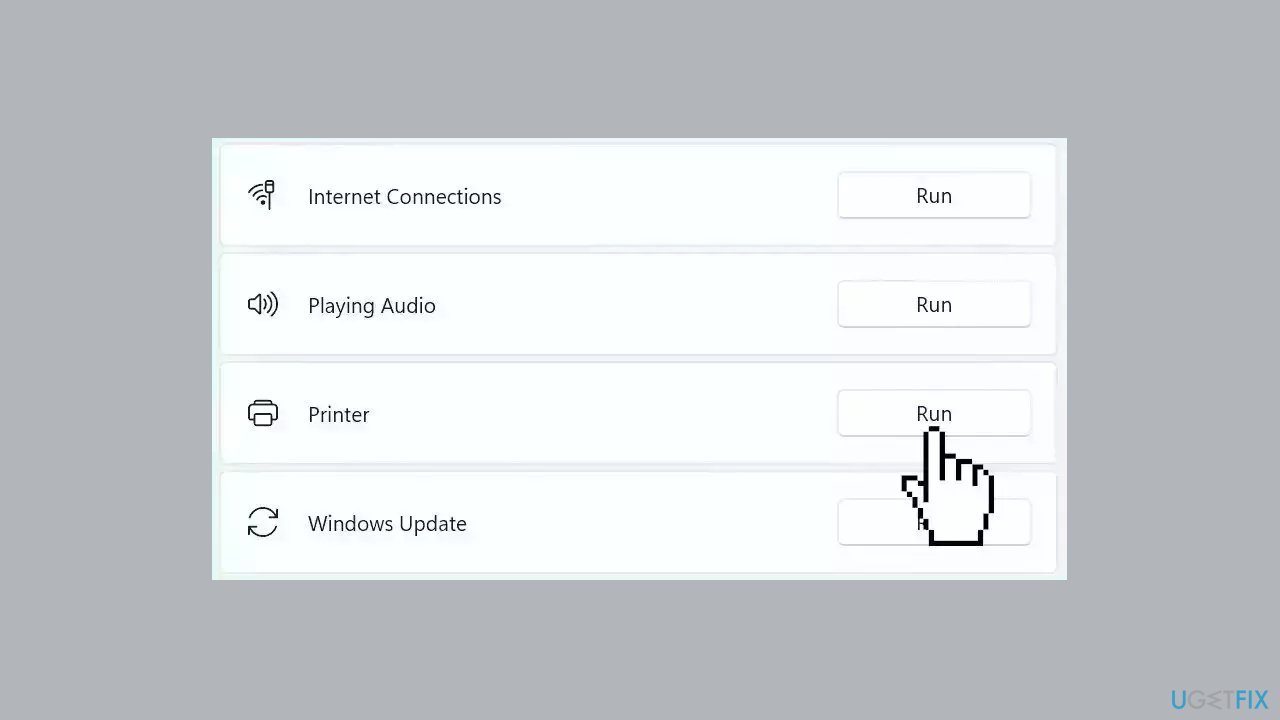
Solution 2. Run the Printer Troubleshooter
- Navigate to Settings.
- Open the System.
- Select Troubleshooters.
- Select Other troubleshooter.
- Run the Printer troubleshooter from the following menu and follow the on-screen instructions.
Solution 3. Disable UAC Temporarily
- Access the Start Menu and type UAC.
- Click on Change User Account Control Settings.
- If prompted for administrative permissions, click Yes.
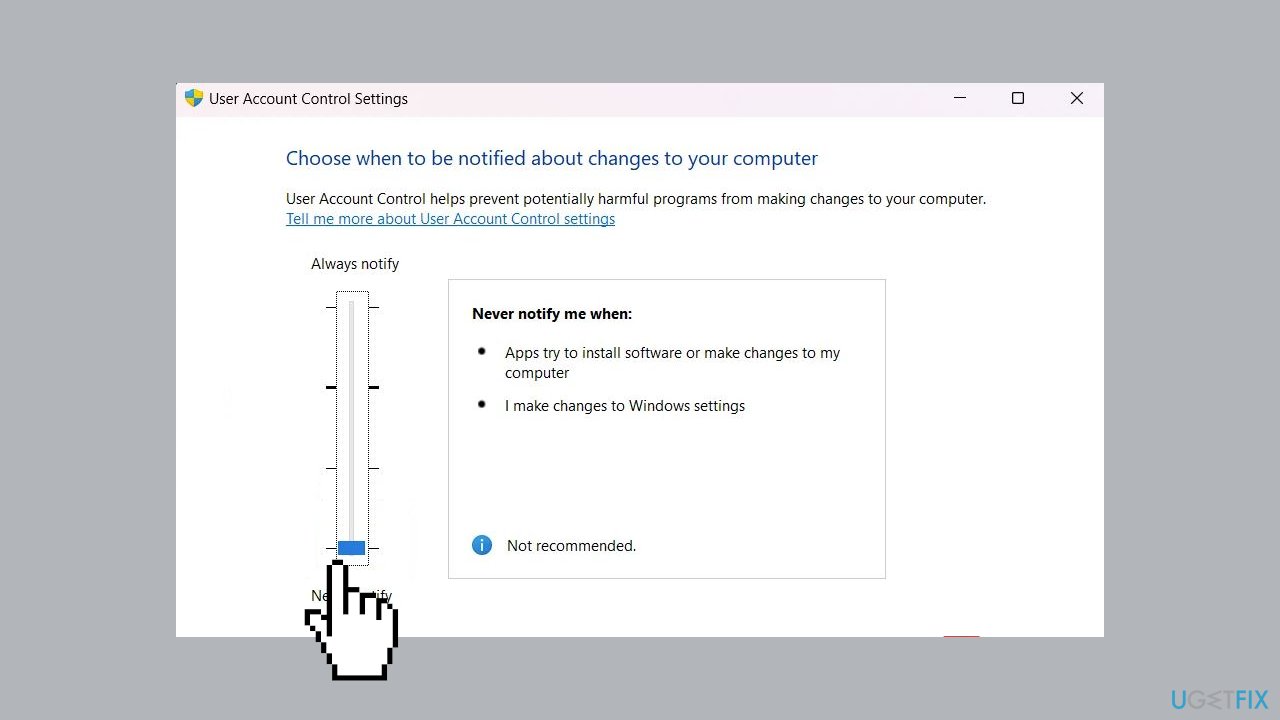
- Adjust the UAC settings by dragging the slider to the lowest setting.
- Click OK to save and exit.
- Verify if the error still occurs.
Solution 4. Add Printer Manually
- Press the Windows key + I to open Settings.
- Navigate to Bluetooth & Devices > Printers & Scanners.
- Click on Add device.
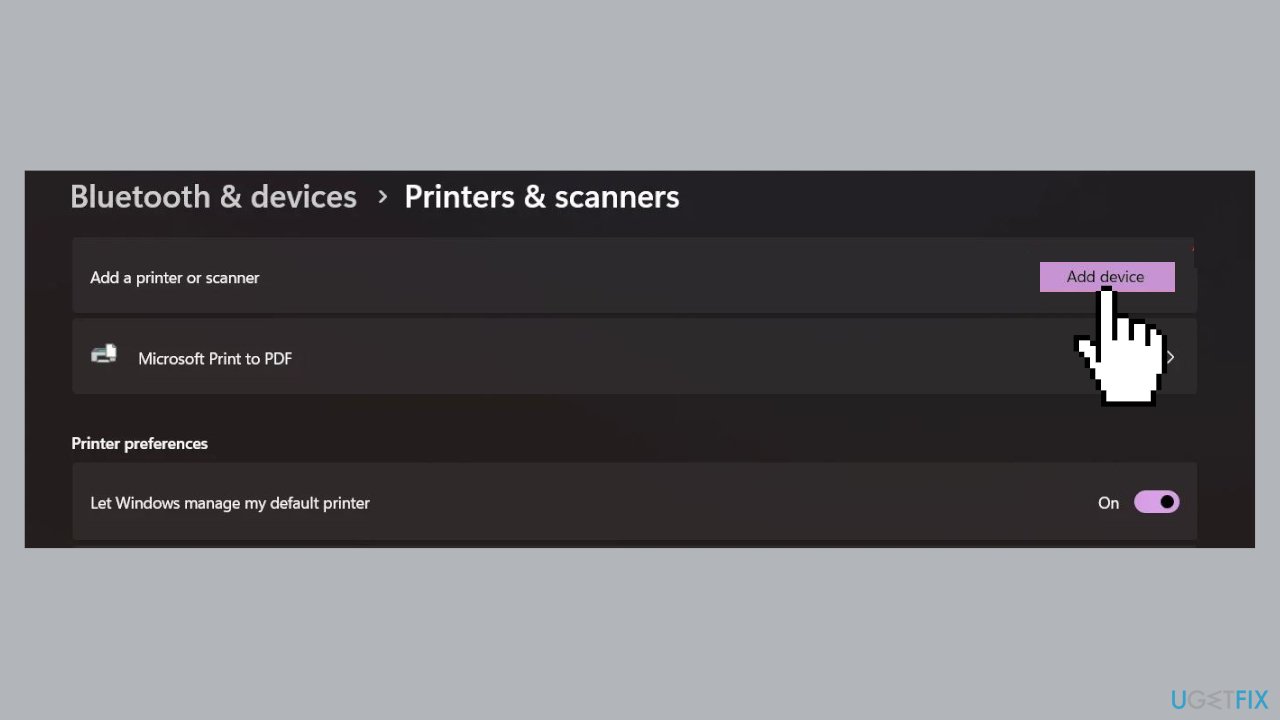
- Select your printer from the list that appears.
Solution 5. Install Windows Updates
- Press the Windows key + R to open the Run box.
- Type ms-settings:windowsupdate in the text box and press Enter.
- Click the Check for updates button.
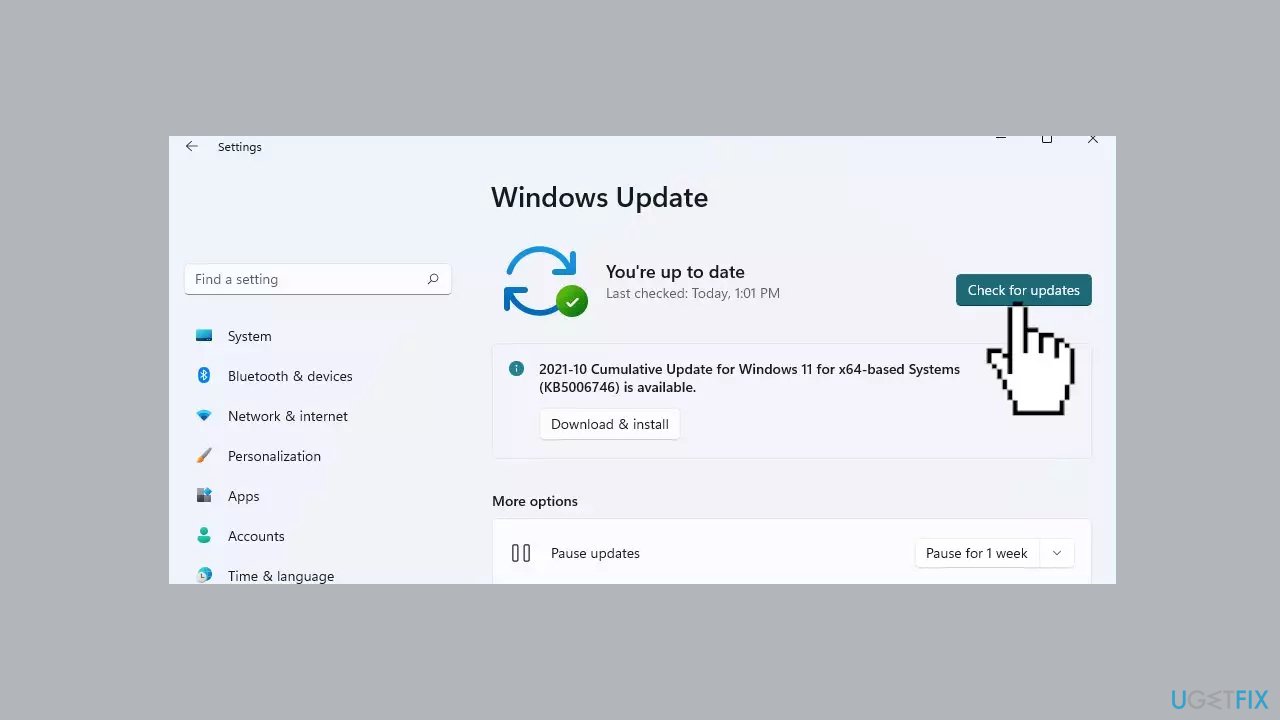
- If a new update is available, click the Download & Install all button.
- Restart your computer after the process is finished and check to see if the problem is fixed.
Solution 6. Create a Local Administrator Account
- Access Windows Settings using the Windows key + I.
- Go to Accounts > Other users.
- Select Add an Account.
- Choose I don’t have this person’s sign-in information.
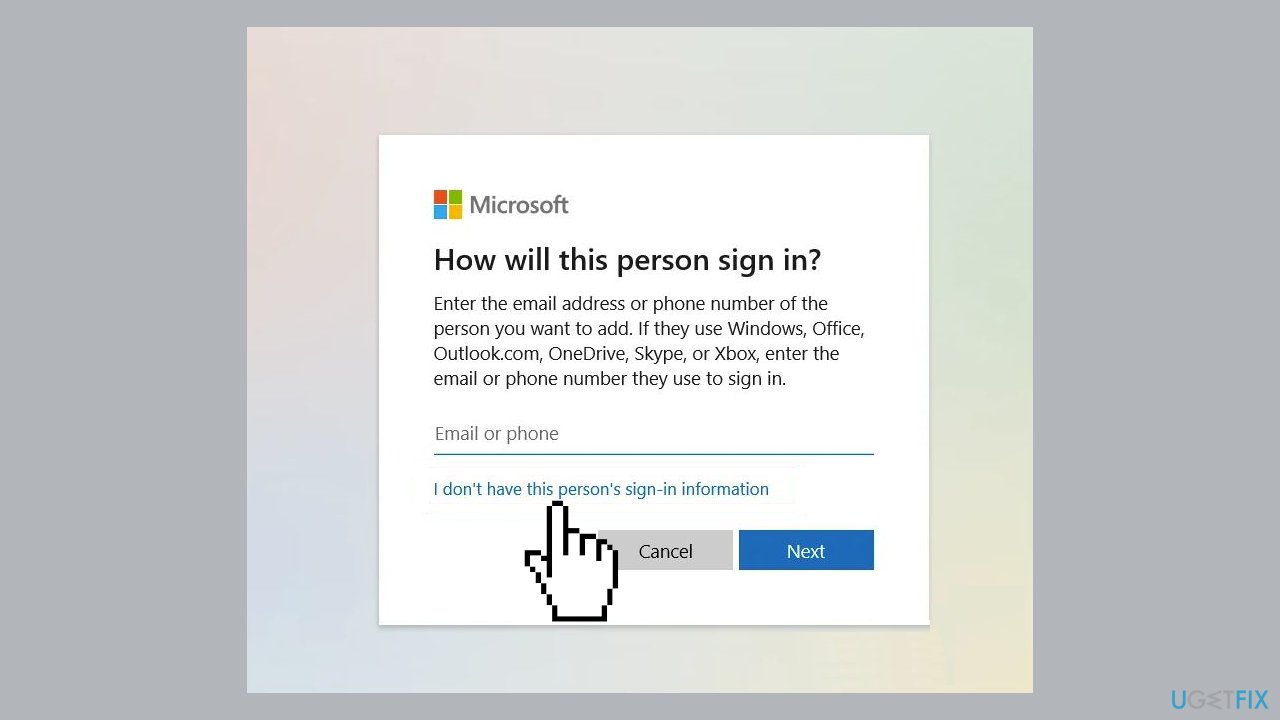
- Click Add a user without a Microsoft Account.
- Enter a username and password for the local account, then click Next.
- After creating the account, use the dropdown icon to find Change Account type.
- Switch the Account type from Standard User to Administrator and click OK.
- Log into the new administrator account.
- Attempt to add the printer via settings to check if the error has been resolved.
Solution 7. Reinstall the Printer Driver
You can also use a dedicated tool like [rev id="DriverFix"] that can find the best drivers for your device and install them automatically.
- Right-click the Start Menu and choose Device Manager.
- Expand the Printers section.
- Right-click on your printer driver and select Uninstall device.
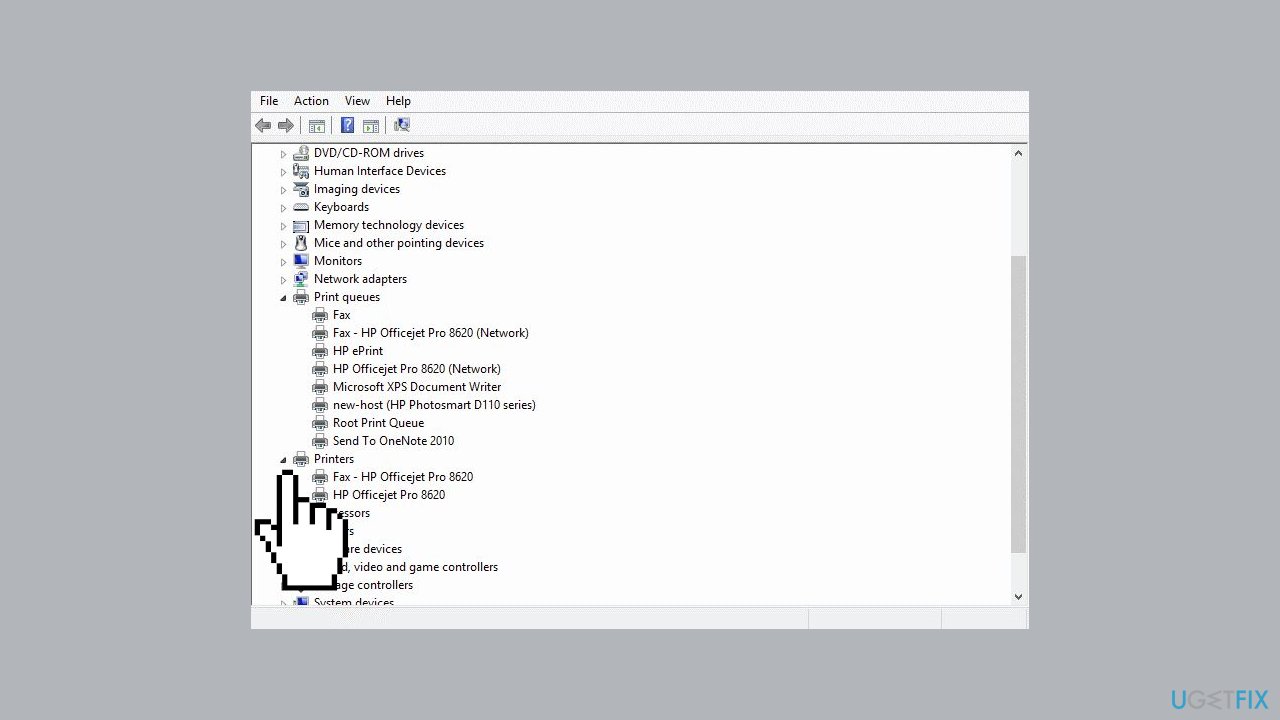
- Confirm by clicking Uninstall again.
- Visit the printer manufacturer’s official website to download the latest driver.
- After downloading, install the driver.
- Attempt to add your printer after the installation is complete.
Bottom line
To fix printer setup error 740 in Windows, users should install or update printer drivers, particularly Type 3/4 PCL6 drivers, and ensure proper permissions are established. If these steps do not resolve the issue, consider using a maintenance tool to address system errors.
Frequently asked questions
Printer setup error 740 typically indicates that the printer installation process requires administrative privileges to complete on Windows 10 or Windows 11.
To fix printer setup error 740 on Windows 11, try running the printer installation as an administrator by right-clicking the setup file and selecting 'Run as administrator'.
Yes, ensure that User Account Control (UAC) settings are not set too high, and check if your user account has administrative rights on Windows 10.




Report an issue
What's wrong with this guide? We review every report and update or remove content.
Report received — thank you. We'll review and fix it.
You need a free account to submit a report.
Be the first to comment