How to fix
Printing error code 0x0000070c
on Windows
Resolve the 0x0000070c printing error on Windows 10 and 11 quickly with effective solutions. Expert-tested tips ensure your printer works flawlessly.


What causes How to fix printing error code 0x0000070c in Windows?
- Conflicts with recent security updates to the Print Spooler service
- Corrupted print spooler settings
- Outdated printer drivers
- Problematic registry entries related to printer configurations
- Residual files left in the Print Spooler folder
Repairs Windows system files, removes malware, and restores a clean OS state — without reinstalling.
When I try to print documents, I sometimes get 0x0000070c error, even though this does not happen every time. Sometimes, I don't get an error but nothing is coming out of the printer. I'm using Windows 11 Home. Could you help me fix this?
The printing error code 0x0000070c in Windows is a common issue that prevents users from completing print jobs, often resulting in queued or stalled print tasks. This error has been frequently associated with network printers and shared printers connected through a network, especially following specific Windows updates aimed at enhancing security in the Print Spooler.
The primary cause of the 0x0000070c error seems to be conflicts with recent security updates to the Print Spooler service, which inadvertently created compatibility issues with certain networked printers. Users have also reported that this issue may arise from corrupted print spooler settings, outdated printer drivers, or problematic registry entries related to printer configurations. In some cases, residual files left in the Print Spooler folder can also lead to this error, causing the spooler service to malfunction.
Potential fixes for error code 0x0000070c include clearing the Print Spooler cache to remove any leftover files that may be blocking printing tasks, updating or reinstalling the printer drivers, and making adjustments in the Windows registry to revert to settings that may bypass the security changes causing the error. Disabling any recent problematic updates temporarily or rolling back specific updates might also help resolve the issue.
For users looking for a quicker way to address underlying system issues related to printing errors, using a reliable [d1] repair tool can help diagnose and correct any system conflicts or damaged files contributing to the error, ensuring smoother print operations without additional complications.

Fix 1. Restart the Print Spooler service
Restarting the Print Spooler can clear up minor issues and refresh the printing process, often resolving the 0x0000070c error.
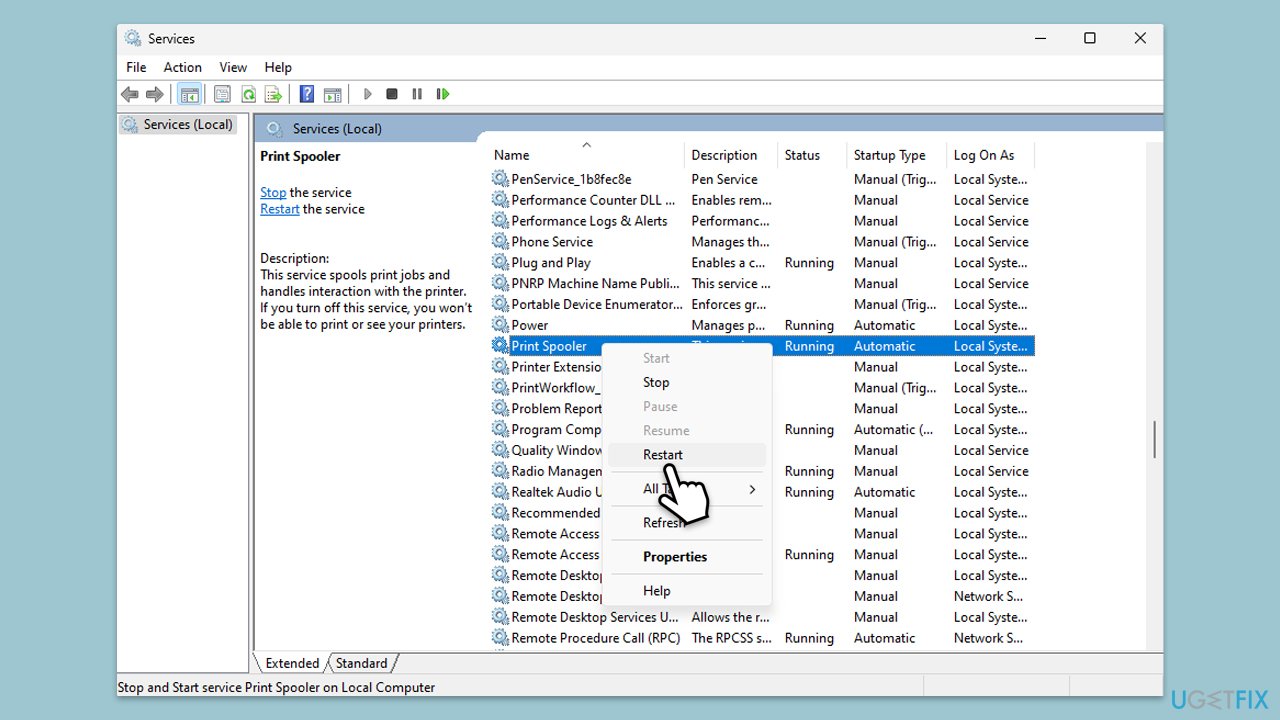
- Type services.msc and hit Enter.
- Find the Print Spooler service in the list.
- Right-click on it and select Restart.
- If the service is not running, double-click on Print Spooler to open Properties.
- Under Startup Type, select Automatic from the drop-down menu.
- Click Start, Apply, and OK.
Fix 2. Clear the Print Spooler cache
Leftover files in the Print Spooler cache can cause errors by clogging up the spooler service. Clearing the cache removes these files and can resolve the issue.
- Type Services in Windows search and hit Enter.
- Find the Print Spooler service in the list, right-click on it, and select Stop.
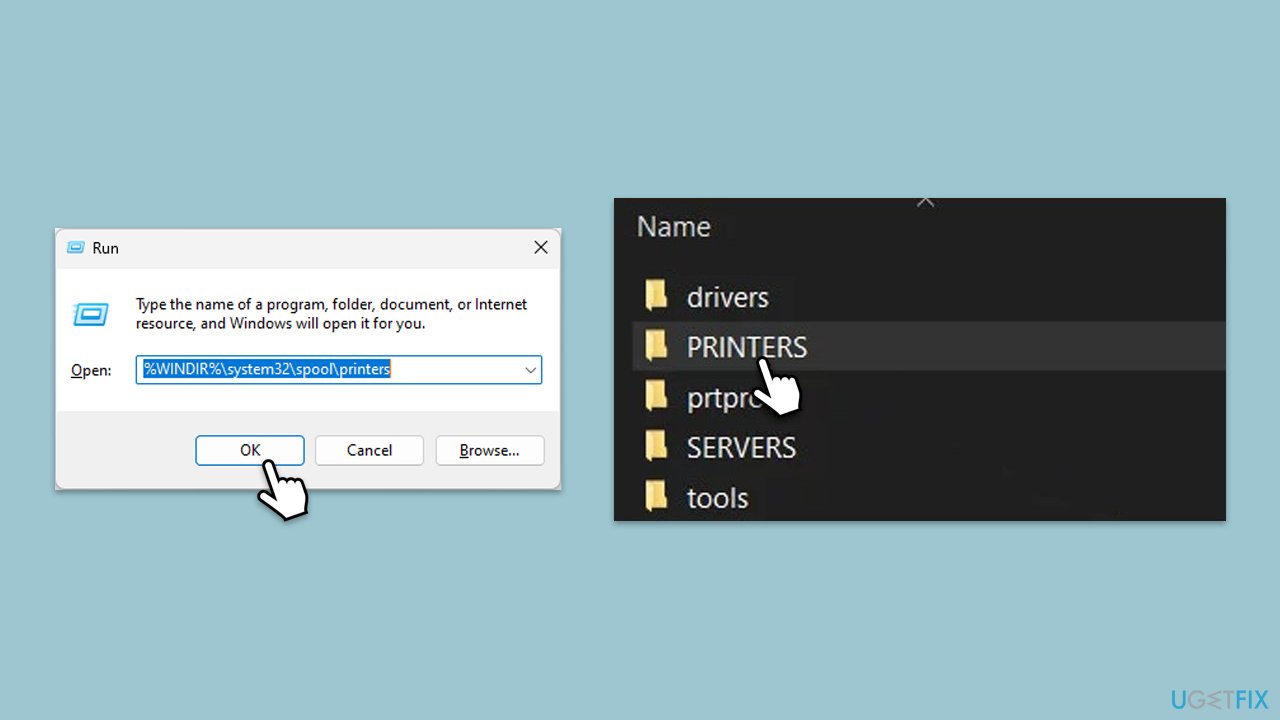
- Once the service has stopped, press the Windows key + R.
- Type %WINDIR%\system32\spool\printers and press Enter. This should open the Printers folder.
- Delete all files within this folder.
- After clearing the folder, go back to the services window, find the Print Spooler service, right-click on it, and select Start.
- Close the services window and attempt to use your printer again.
Fix 3. Update or reinstall printer drivers
Outdated or incompatible drivers can cause printing errors, including 0x0000070c. Updating or reinstalling drivers ensures they are compatible with your Windows version.
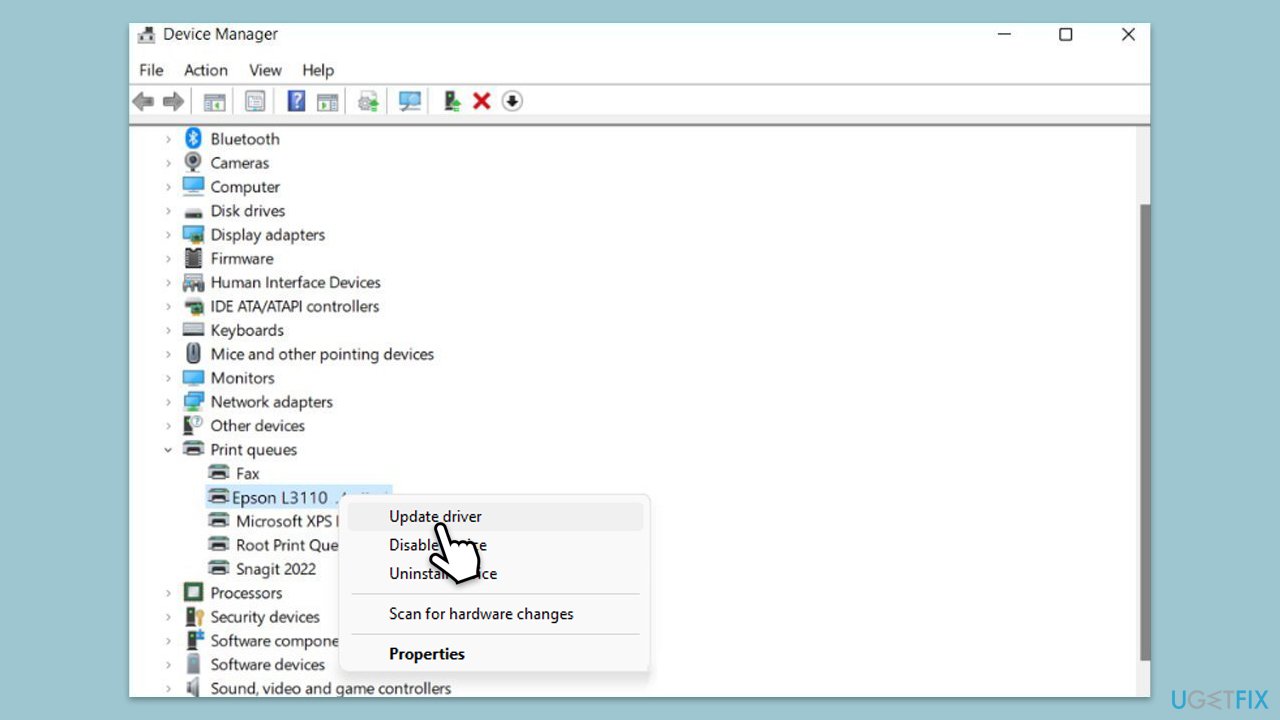
- Right-click on the Start menu and select Device Manager.
- Expand the Printers section.
- Find your printer in the list, right-click on it, and select Update driver.
- Choose Search automatically for drivers.
- Follow the on-screen instructions to complete the update process.
- Restart your computer after the driver update is completed.
- Alternatively, you can always employ an automatic driver updater such as [rev id="DriverFix"] for all your driver updates.
- To reinstall the drivers, right-click on the printer in Device Manager and select Uninstall, then reboot your PC.
Fix 4. Run the Printer troubleshooter
The Windows Printer Troubleshooter can automatically identify and fix issues with the printer, including spooler errors.
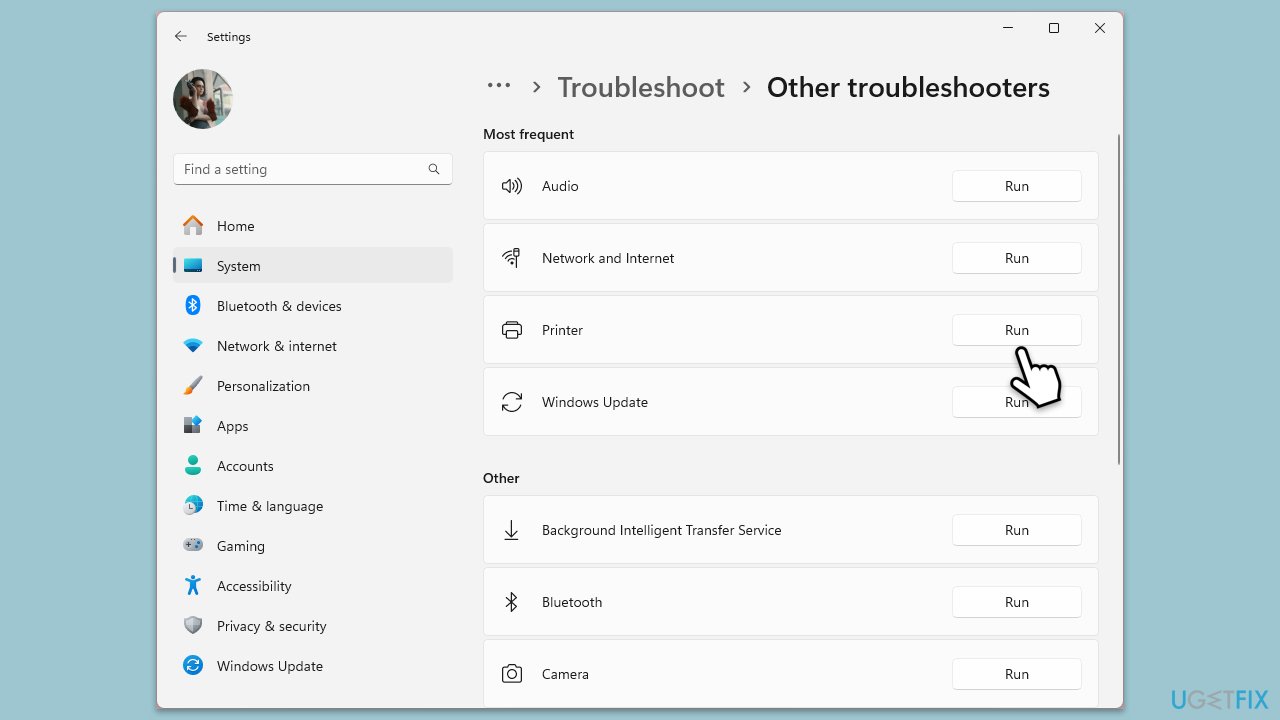
- Type in Troubleshoot in Windows search and hit Enter.
- Go to Additional Troubleshooters/Other troubleshooters.
- Select Printer and click Run the troubleshooter/Run.
- Wait till the scan is finished, and then apply the suggested fixes.
- Restart your system.
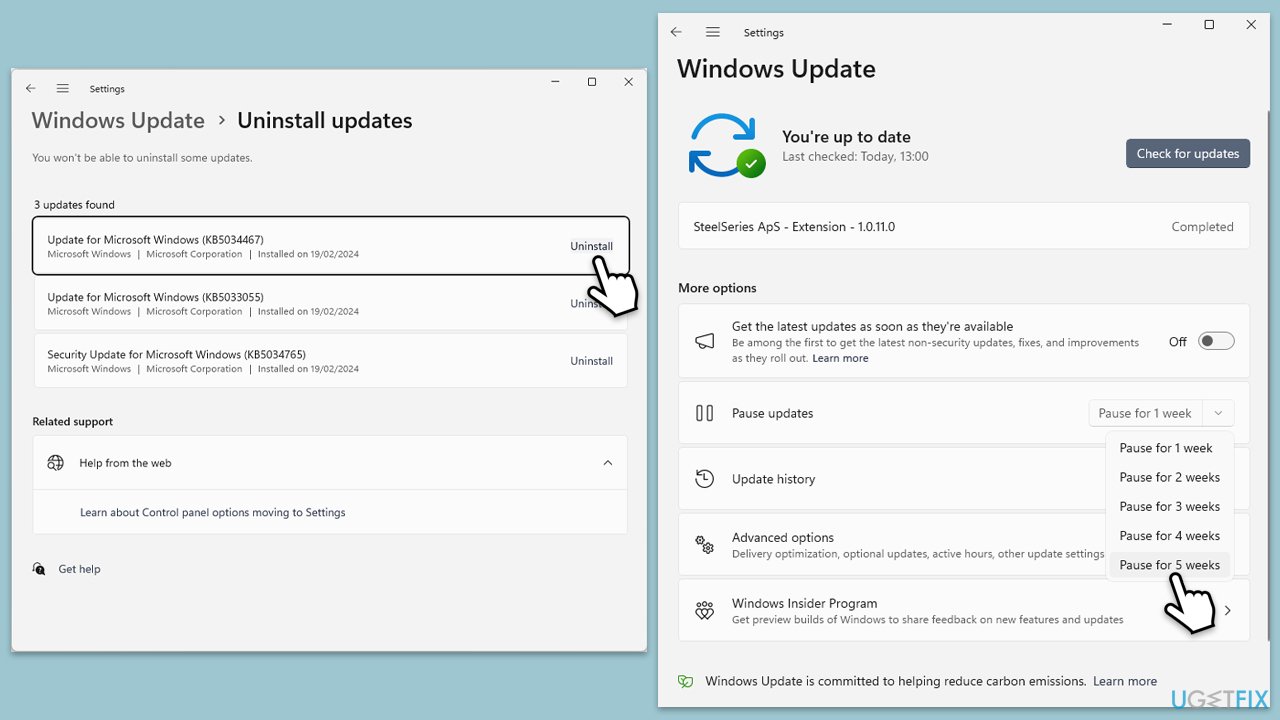
Fix 5. Temporarily disable recent updates affecting the Print Spooler
Certain Windows updates targeting Print Spooler security may cause compatibility issues with network printers. Disabling these updates temporarily may restore printing functionality.
- Type Control Panel in Windows search and press Enter.
- Select Programs > Uninstall a program.
- Click on View installed updates on the left side of the window.
- Uninstall the most recent update.
- Proceed with on-screen instructions.
- Don't forget to pause the update.
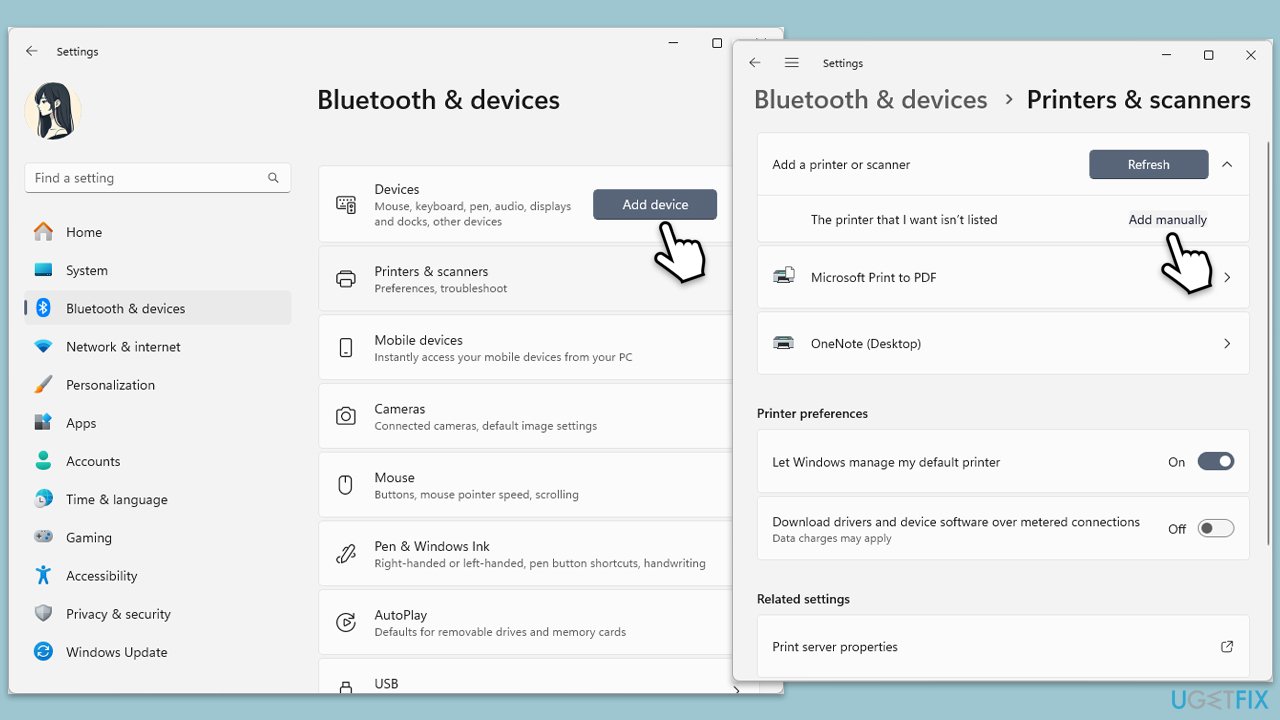
Fix 6. Add the printer manually with a local port
If network issues are causing 0x0000070c, adding the printer as a local device with a new port can sometimes bypass these problems.
- Go to Settings > Bluetooth & Devices > Printers & Scanners.
- Under Add a printer or scanner, select Add device and click The printer I want isn’t listed > Add manually.
- Choose Add a local printer or network printer with manual settings.
- Create a new port, enter the printer’s IP address, and complete the installation process.
Bottom line
To fix the printing error code 0x0000070c, you can try restarting the Print Spooler service, clearing the Print Spooler cache, updating or reinstalling printer drivers, and adjusting Windows registry settings. If these solutions do not resolve the issue, consider temporarily disabling recent updates or using a reliable repair tool to diagnose and correct system conflicts.
Frequently asked questions
The error code 0x0000070c typically indicates a problem with the printer driver or a communication issue between the printer and the computer. This can prevent documents from being printed properly.
To fix the 0x0000070c error on Windows 11, try updating or reinstalling the printer drivers through Device Manager, or use the built-in Troubleshooter for printers available in the Settings app.
Yes, you can reset the print spooler by opening the Services app, locating 'Print Spooler', right-clicking it, and selecting 'Restart'. This can help clear any stuck print jobs that may be causing the error.




Report an issue
What's wrong with this guide? We review every report and update or remove content.
Report received — thank you. We'll review and fix it.
You need a free account to submit a report.
Be the first to comment