How to fix
“Product activation failed” error in Microsoft Office
on Windows
Resolve the "Product activation failed" error in Microsoft Office on Windows 10 or 11. Get expert-tested solutions and fix the issue in minutes!

What causes How to fix “Product activation failed” error in Microsoft Office?
- Improper software activation
- Invalid license
- Outdated software
- Corrupted installation
- User permissions issue
Repairs Windows system files, removes malware, and restores a clean OS state — without reinstalling.
Hello. When I try to open any Microsoft Office application on my Windows PC I receive the "Product activation failed" error. How do I get rid of it?
Microsoft Office is a productivity suite that includes programs such as Word, Excel, PowerPoint, and Outlook. It is widely used in businesses, schools, and homes because it offers numerous benefits such as improved efficiency, collaboration, and data management.
The "Product activation failed" error in Microsoft Office is a common issue that arises when there is a problem with the Office suite's activation. One of the most common causes of activation errors is improper software activation. When you install Microsoft Office, you must activate it before you can use all of its features. If the activation process fails or the license is invalid, the "Product activation failed" error message may appear.
People may be affected in a variety of ways depending on how they use the Office suite. The error may prevent business owners, or students from completing critical tasks, resulting in delays and decreased productivity. Fortunately, there are several possible solutions to this issue.
You can, for example, try resetting Microsoft Office to its default settings or using an activation verifier such as OSPREARM.EXE. It's also critical to make sure you have a valid license and that your software is up to date. If everything else fails, you may need to contact Microsoft support.
In this guide, you will find 9 steps that should help you fix "Product activation failed" error in Microsoft Office applications. If you experience any other Windows OS issues, you can try using a maintenance tool like [d1] that can fix most system errors, BSODs,[ref en-1] corrupted files, registry[ref en-2] issues, or clear cookies and cache.[ref en-3] Otherwise, follow the step-by-step instructions below.
Solution 1. Run the App as Administrator
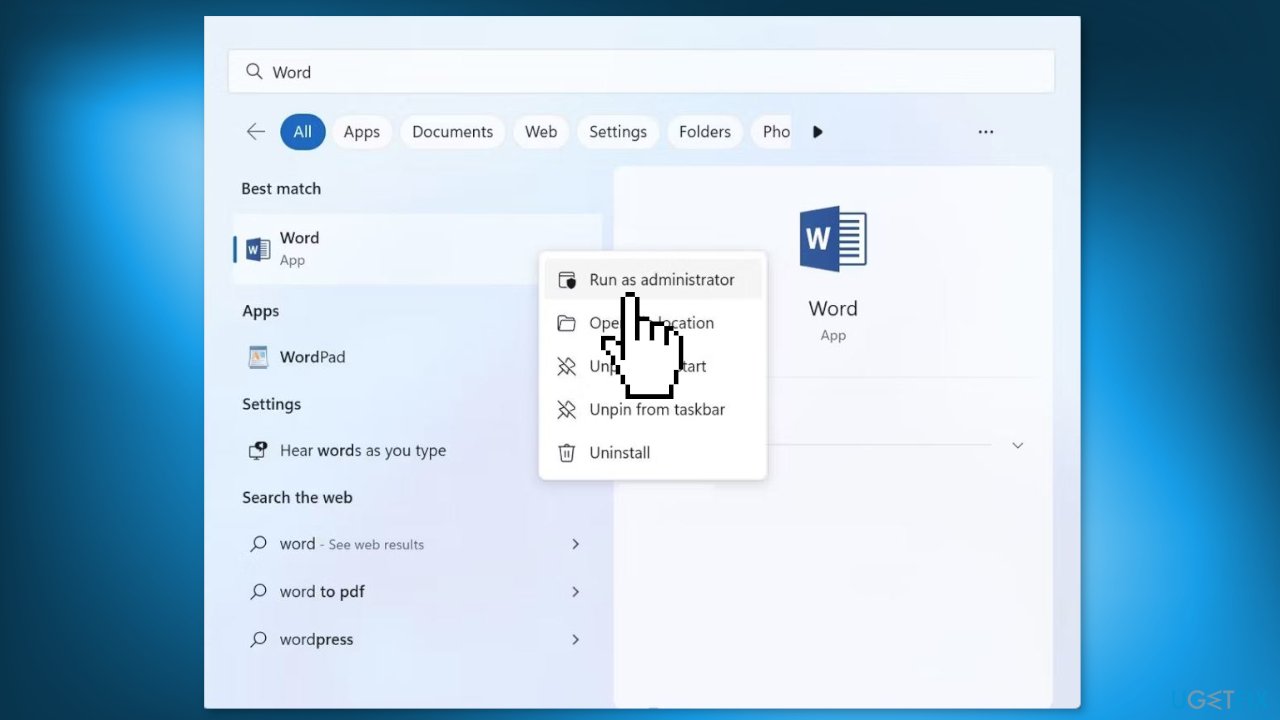
- Open the Windows Search bar
- Type the name of the Office application you want to run as an administrator
- Once you see the app's icon appear in the search results, right-click on it
- In the context menu that appears, click Run as administrator
- If prompted by Windows User Account Control, click Yes to allow the app to make changes to your device
- The Office application should now launch with administrative privileges
Solution 2. Update the Application
- Open the Microsoft Office app you want to update, such as Microsoft Word or Microsoft Excel
- Navigate to the File tab at the top left of the app window
- In the menu that appears, click Account on the left sidebar
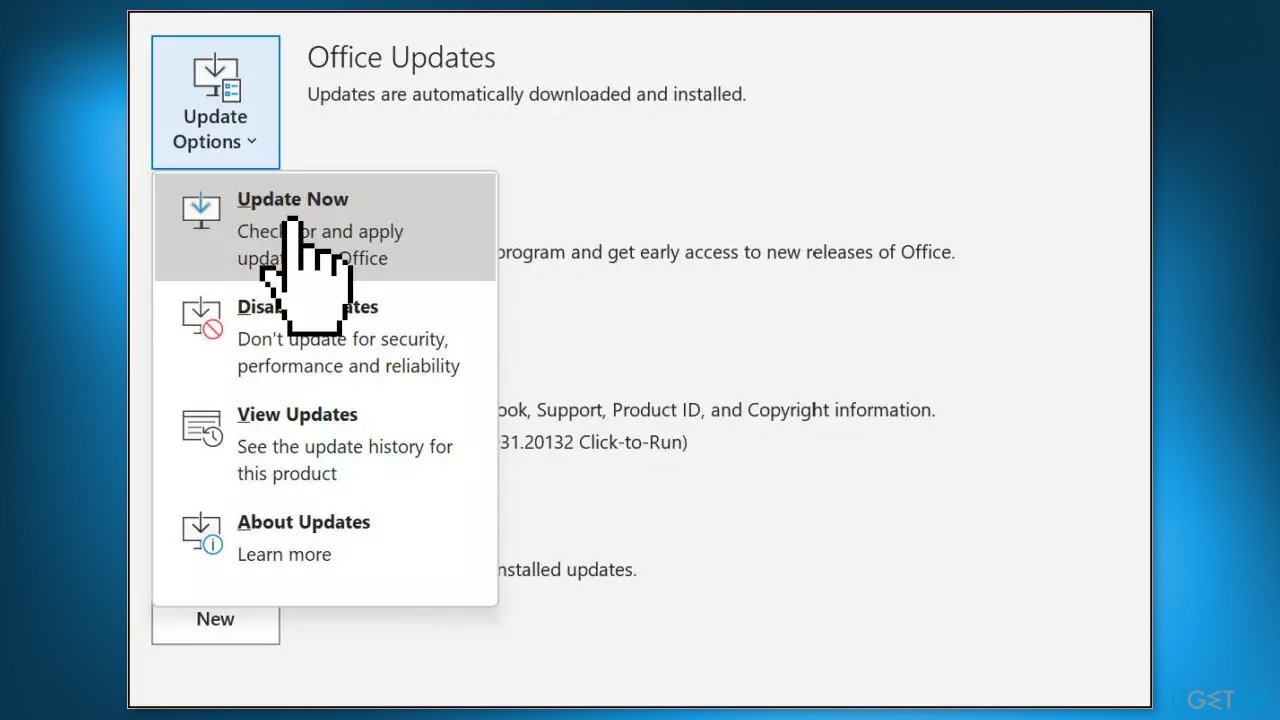
- Look for the Product Information section and check the Update Options dropdown
- Click on Update Now to check for and install any available updates
- Follow the on-screen prompts to complete the update process
- Once the update is complete, restart the app to ensure that the changes take effect
Solution 3. Do not use Pirated Versions
Activating Microsoft Office apps legally requires purchasing a subscription from Microsoft's website or authorized partners. If you use a crack or third-party activator to activate these apps, Microsoft may detect the unauthorized activation and block it. Similarly, activating Windows through unauthorized means can result in Microsoft blocking access to certain apps and features.
Using a pirated copy of Windows may also affect the functioning of your legitimate Office subscription. Therefore, if you're using an illegitimate copy of Windows, it's advisable to consider buying a license to avoid any potential issues.
Solution 4. Check Subscription Status
To check if your Microsoft 365 subscription has expired, start by checking your email account for any recent emails from Microsoft. If you receive an email about subscription expiration, log in to your Microsoft 365 account to verify the information.
If the subscription has indeed expired, you'll need to renew it to resolve the issue. However, if you haven't received any such email and your subscription is still active, it's possible that you might be logged in to Microsoft apps using a different account.
Solution 5. Sign In with the Correct Microsoft Account
- Open the Office application where you are experiencing the error
- Navigate to the File tab
- Select Account on the left sidebar
- Under User Information, you can find the account information
- If you see a different account there, click on Sign out
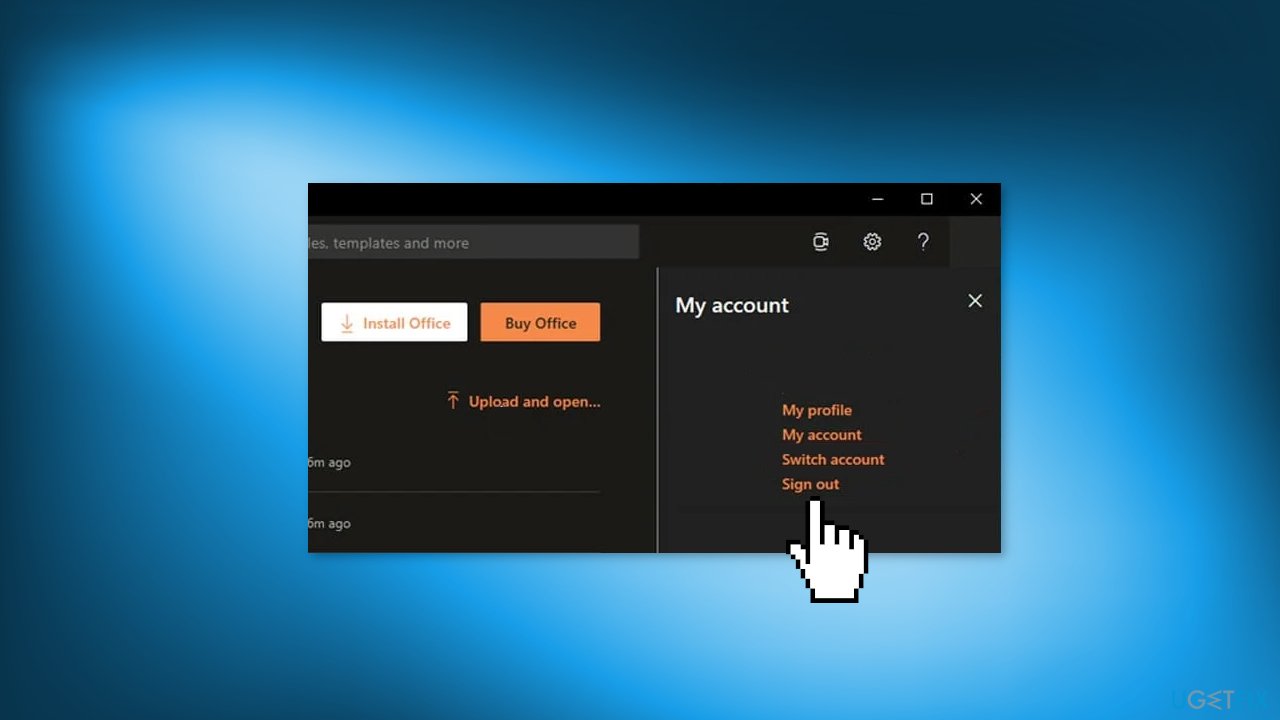
- Sign in again using the account that has an active subscription
Solution 6. Remove Office Copies
- Press the Windows key + R on your keyboard to launch the Run window
- Type Control and press Enter or click on OK
- In the Control Panel window, click on Uninstall a program, which can be found under the Programs section
- Type the name of the program you want to uninstall into the search bar located in the top-right-hand corner of the window
- If multiple versions of the program appear, right-click the version that you're not using and select Uninstall
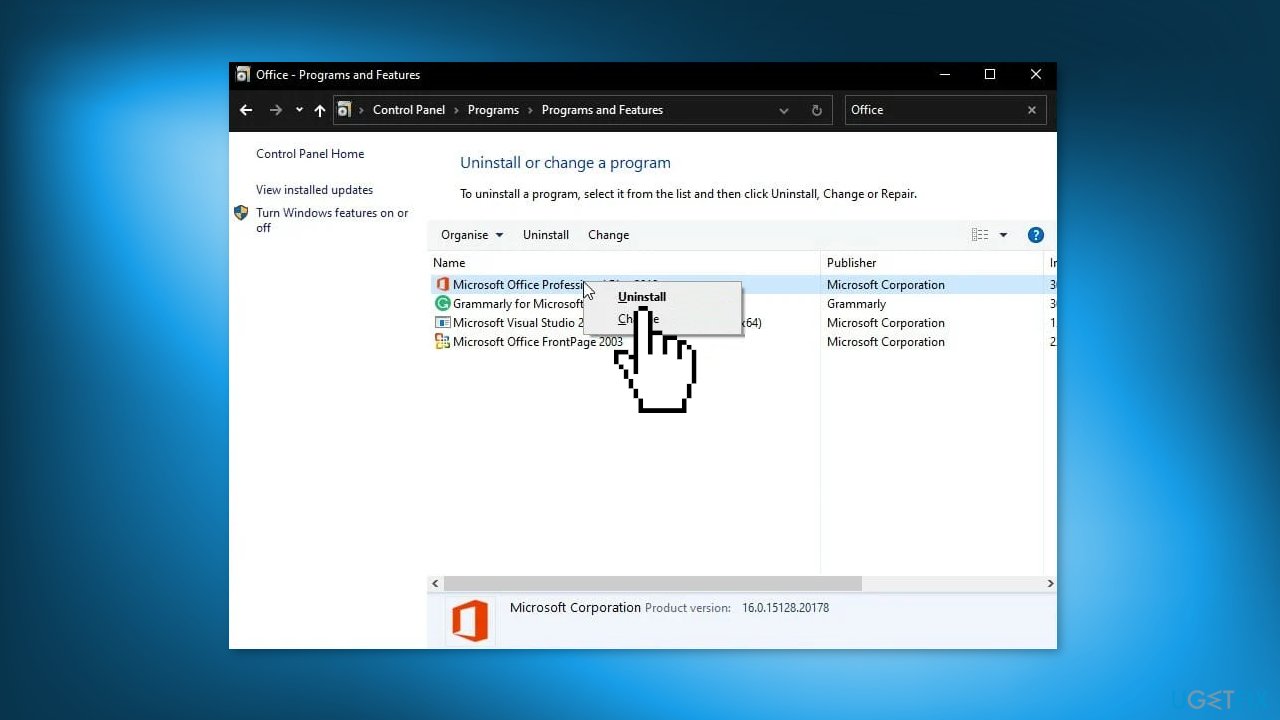
- Follow the on-screen prompts to uninstall the program
- Once the program has been uninstalled, press the Windows key + F4 on your keyboard to open the Windows Shut Down prompt
- Click on the drop-down menu and select Restart
- Click on OK to restart your computer
Solution 7. Check Date and Time Settings
- Close all instances of the program
- Right-click on the time and date in the bottom right corner of your screen
- Click on Adjust date/time
- Ensure that the Set time automatically option is enabled
- If available, make sure the Set time zone automatically option is also enabled. If the option is grayed out, manually select your time zone from the drop-down menu under it.
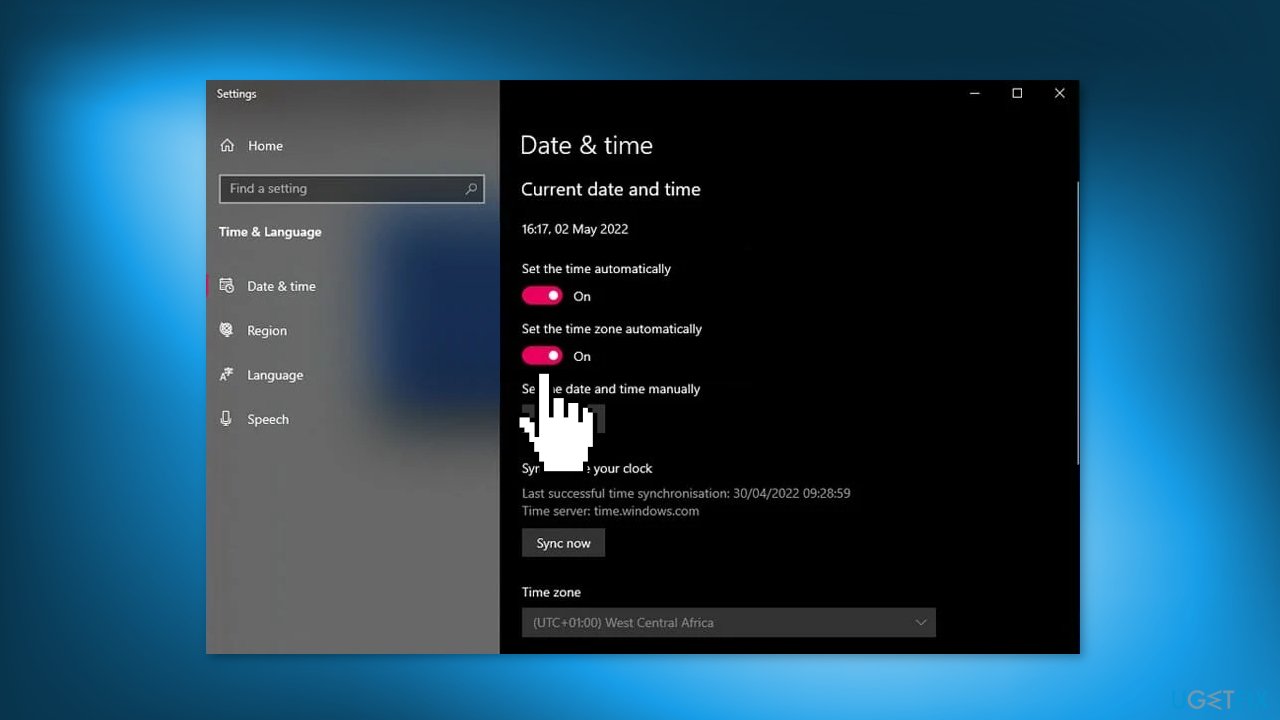
- Click on Sync now to synchronize the time and date with the internet time server
- Once the synchronization is complete, restart the program that you want to use
Solution 8. Reset Office
- Press Windows + S to open the search box
- Type Office in the search box
- Right-click on Office App and select the App settings option
- In the pop-up window, scroll down to find the Reset section
- Click the Reset button
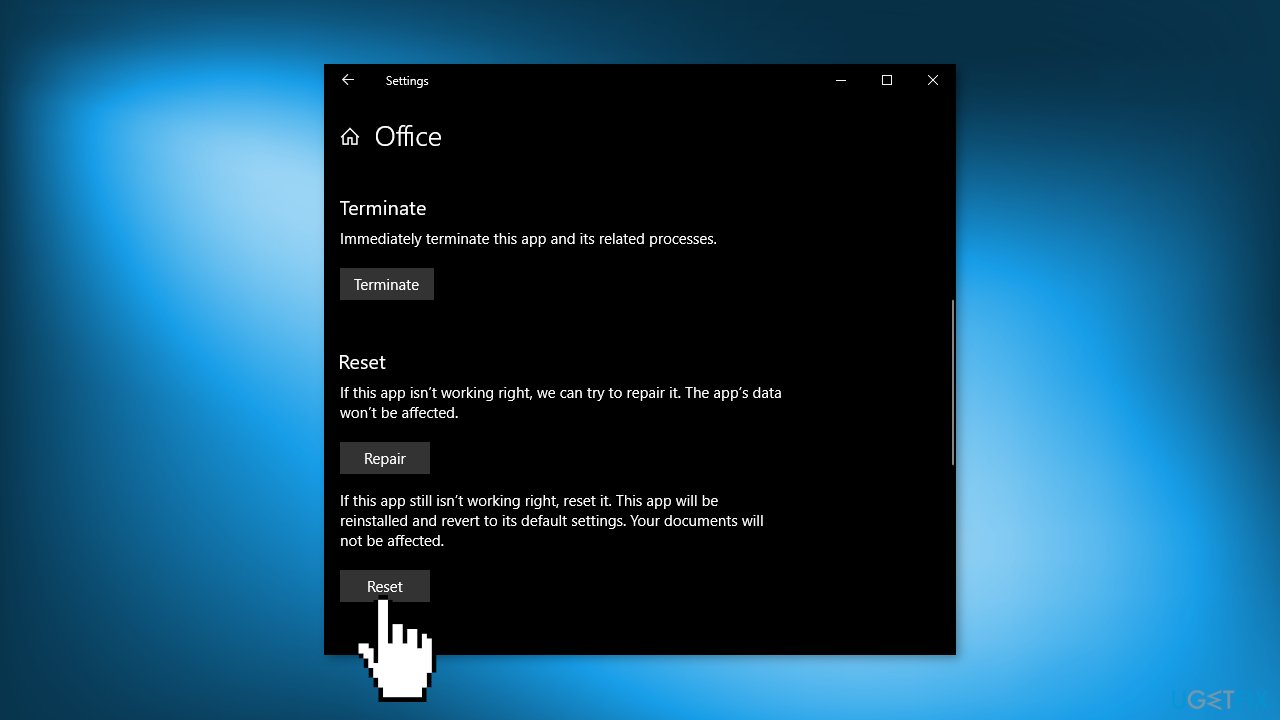
- Wait for the reset process to complete, which may take a few minutes
Solution 9. Run the OSPREARM.exe File
If you've been unable to resolve the error, you can attempt to use OSPREARM.EXE, an activation verifier that has been known to resolve most activation issues.
- Open File Explorer by pressing the Windows key + E
- Go to the following path: C:\Program Files\Microsoft Office\Office16
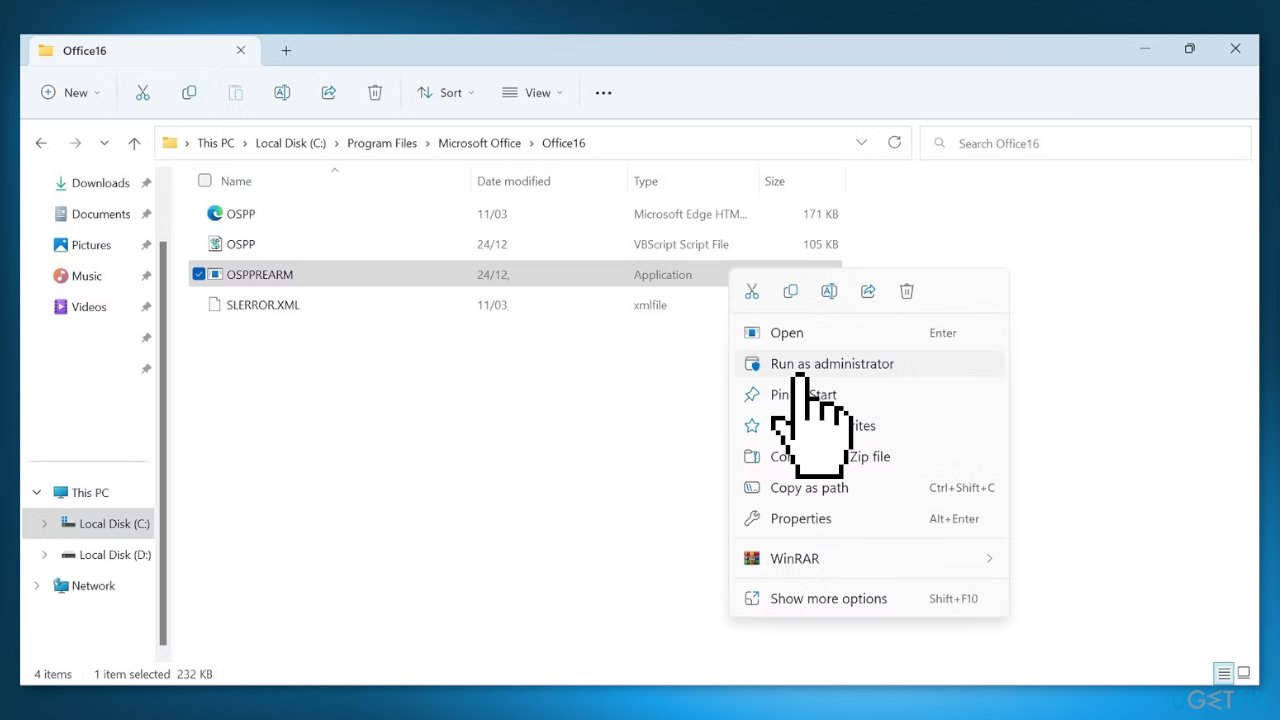
- Locate the OSPREARM.EXE file
- Right-click on it and select Run as administrator
- If prompted by the User Account Control (UAC) window, click Yes to allow the program to make changes to your device
Bottom line
To fix the 'Product activation failed' error in Microsoft Office, you can try running the app as an administrator, resetting Microsoft Office to its default settings, or using an activation verifier like OSPREARM.EXE. Ensure you have a valid license and that your software is up to date. If none of these solutions work, consider contacting Microsoft support.
Frequently asked questions
First, ensure your internet connection is stable, then try activating Office again. If the problem persists, run the Office Repair tool from the Control Panel.
Check if your Office product key is correct and hasn't been used on another device. If everything seems fine, consider reinstalling Office or contacting Microsoft support for further assistance.
Yes, keeping your Windows system updated can help fix compatibility issues that may lead to activation errors in Microsoft Office.




Report an issue
What's wrong with this guide? We review every report and update or remove content.
Report received — thank you. We'll review and fix it.
You need a free account to submit a report.
Be the first to comment