How to fix
Profile picture not showing up
on Windows
Resolve the profile picture issue in Windows 10 or 11 with our expert-tested solutions and clear screenshots. Get your picture back in minutes!

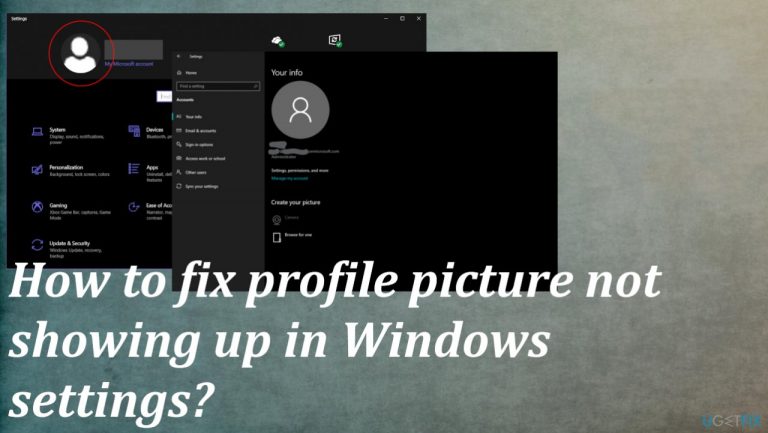
What causes How to fix profile picture not showing up in Windows settings?
- Settings issue
- Login information problem
- File corruption
- Momentary bug
- Operating system issue
Repairs Windows system files, removes malware, and restores a clean OS state — without reinstalling.
Hello. I run the Windows 10 device, and my settings do not show my profile picture. I am logged in to my account, and the profile picture was set before, but it doesn't show up now. How can I enable the picture again to show up? I haven't changed anything, so this happened for some other reason.
When the profile picture not showing up in Windows settings, it can be an issue with your settings, login information, and file corruption issue. Users[ref en-1] claim that this is an unfortunate issue and that it is annoying and frustrating. The issue might be related to a momentary bug or the issue with your operating system too.
There can be some problems that lead to this profile picture, so some particular fixes and troubleshooting methods can be helpful for some of the people and other ones for others. lean install of the Windows or the update to a later version of Windows 10 might fix some possible bugs and issues with the system itself.[ref en-2]
As for other possible issues, malware[ref en-3] shouldn't be the reason for this particular problem, but there are various issues that cyber infections leave behind even when the threat is already terminated. We recommend getting a tool that could check for file corruption, data damage, and the issues related to unwanted alterations.
[d1] should be helpful because it finds and fixes any altered parts for you. This could be the first step if finding the root cause and trying to fix the profile picture not showing up in the Windows settings issue. Follow up with solutions listed in the step-by-step guide.
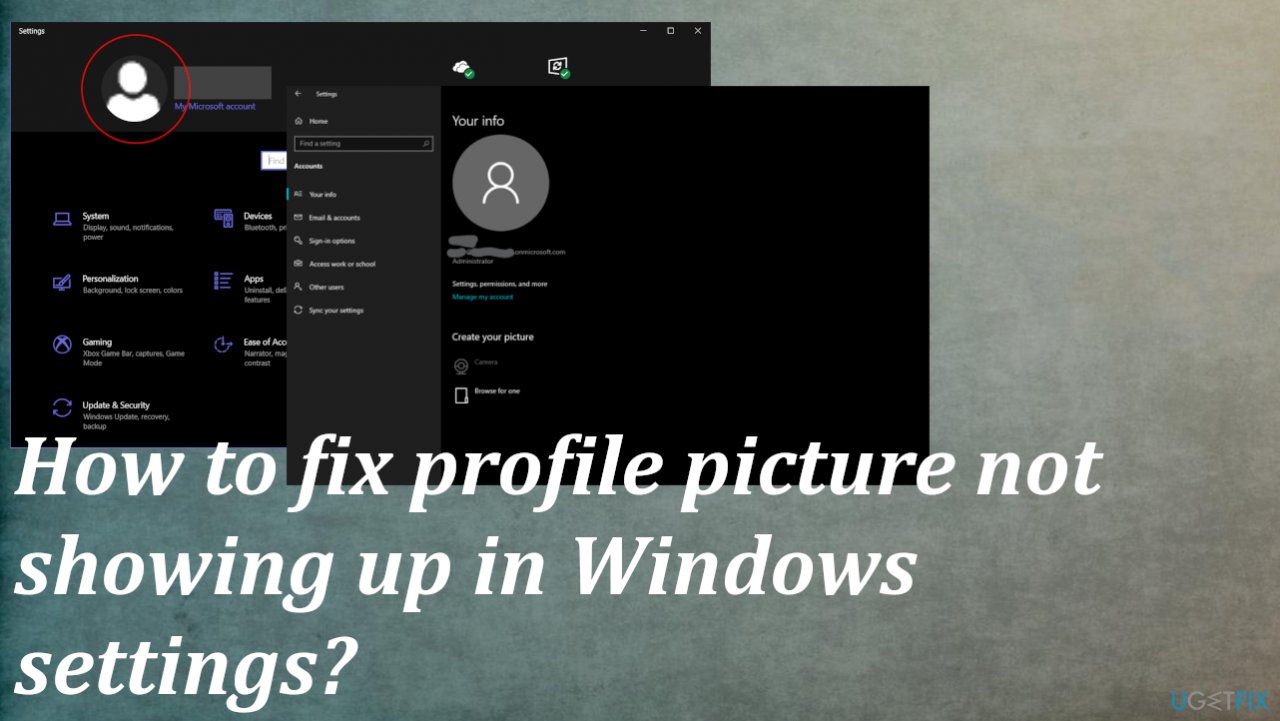
1. Quick solutions
- Try to reboot the machine.
- Check the connection to the internet.
- Log in to your Microsoft Account again.
2. Run System File Checker scan
- Type CMD in search.
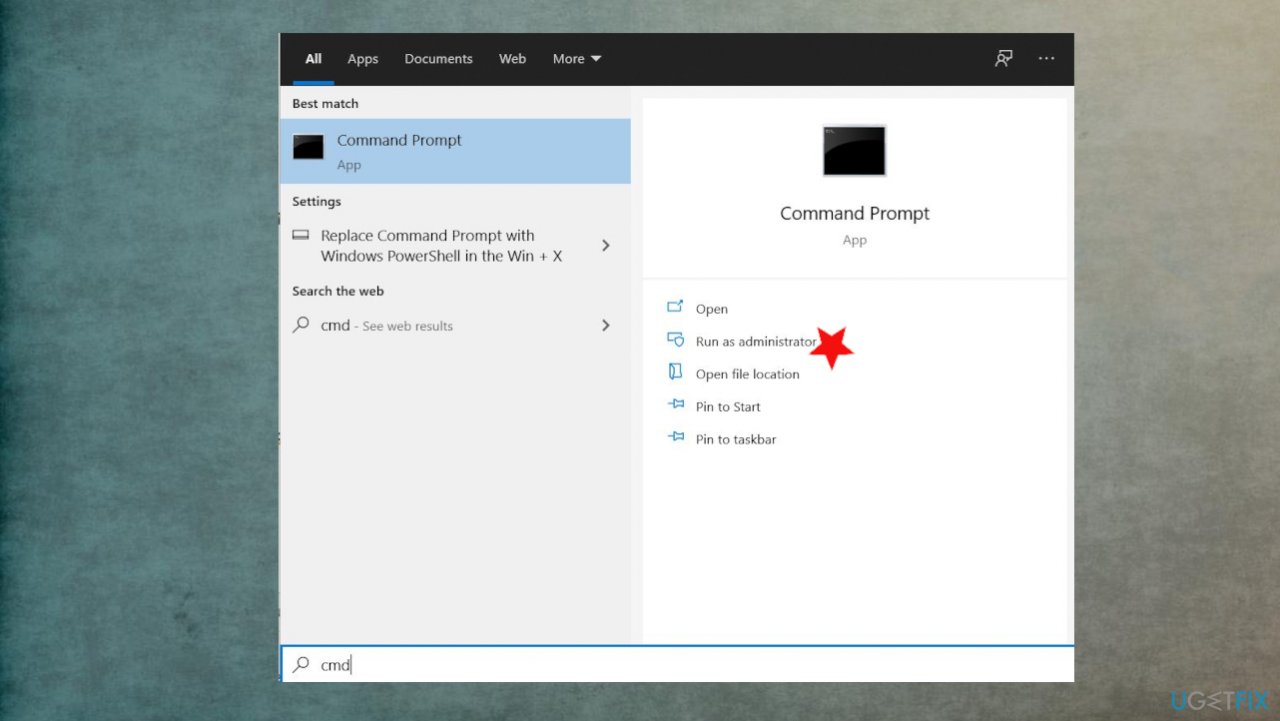
Profile picture not showing in settings on windows fix command prompt - Choose the Command Prompt with administrator rights
- Once the black screen opens, type sfc /scannow and hit ENTER.
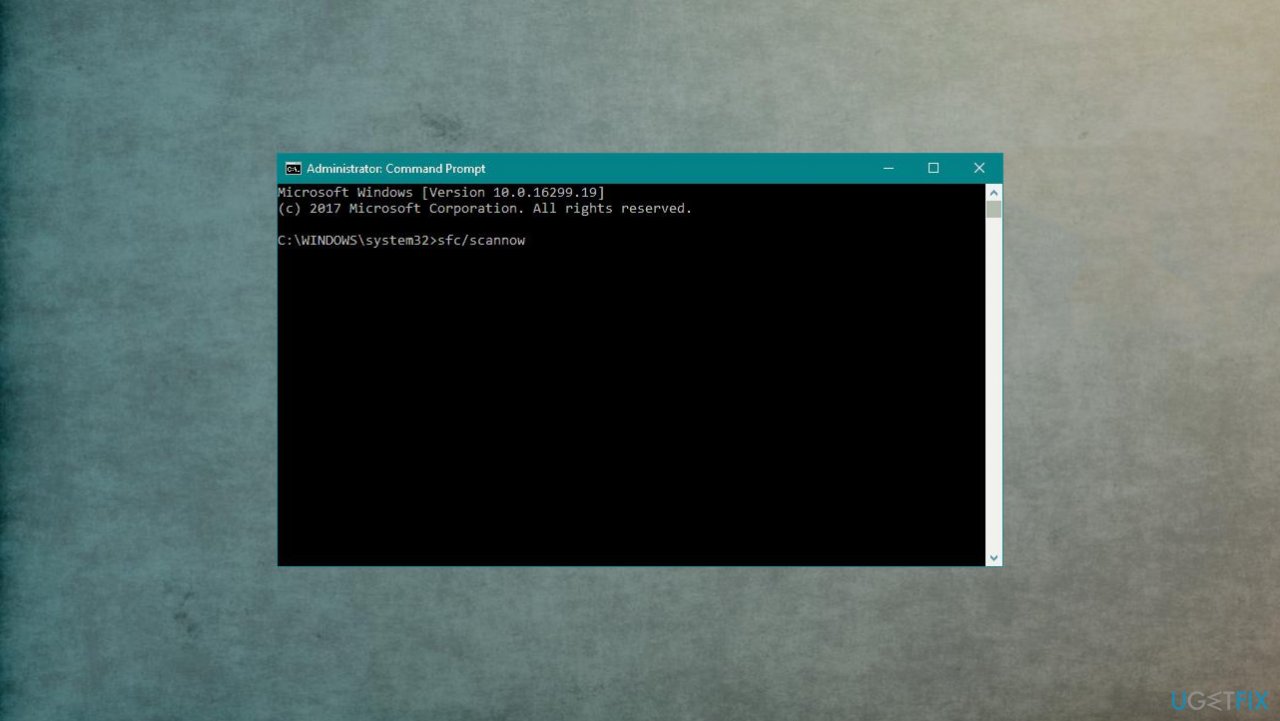
Profile picture not showing in settings on windows fix sfc scan - SFC will begin scanning for issues.
- Follow commands and complete the process.
3. Troubleshoot issues
- Click the Start button.
- Go to Settings.
- Choose Update & Security section.
- Locate the Troubleshooter.
- Click Additional troubleshooters.
- Check issues with Windows Apps, for example, or run the general troubleshooting process.
4. Check for old pictures
Older pictures saved automatically in settings might interfere with the new account picture, and some bugs keep the picture from appearing so:
- Press Windows key + R to open the run command box.
- Copy and paste the following command and press enter:
%appdata%\\Microsoft\\Windows\\AccountPictures - If the other account pictures are listed, delete them and restart the computer.
5. Check or OS updates
- Hit the Windows Start button.
- Go to Settings.
- Click Update & Security section.
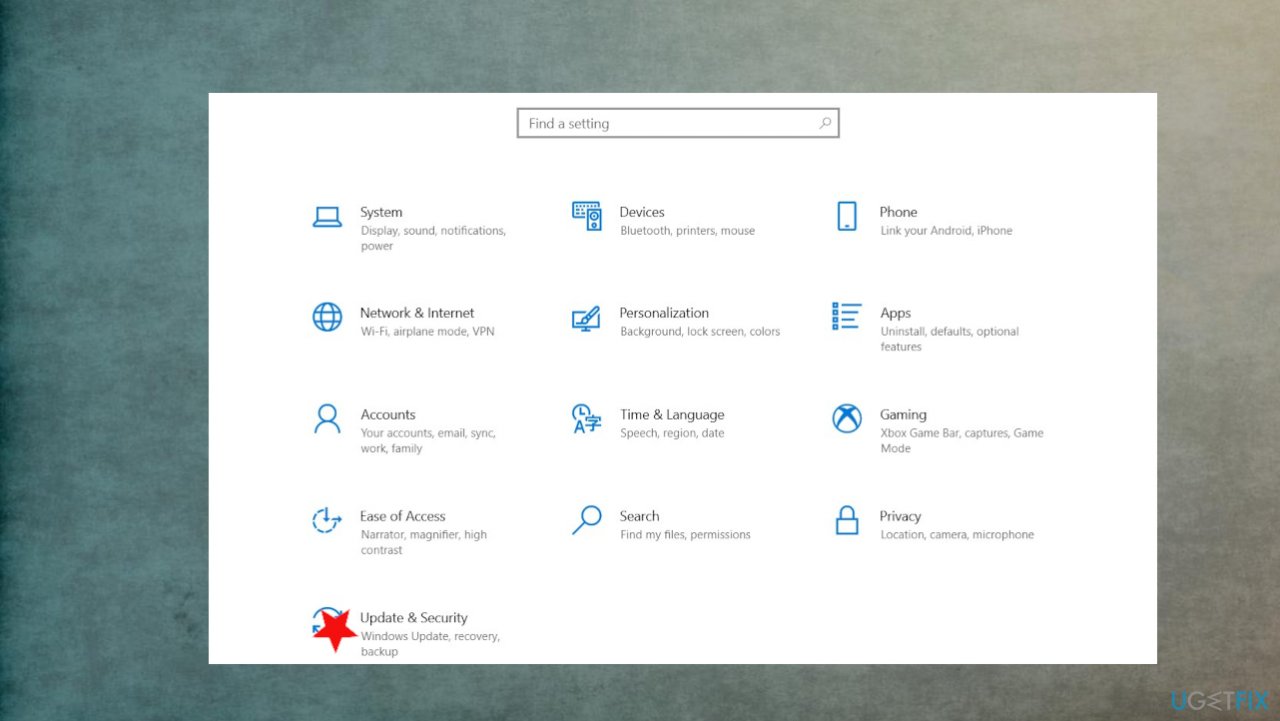
Profile picture not showing in settings on windows fix updtae - Find the Windows Update section and hit Check for Updates.
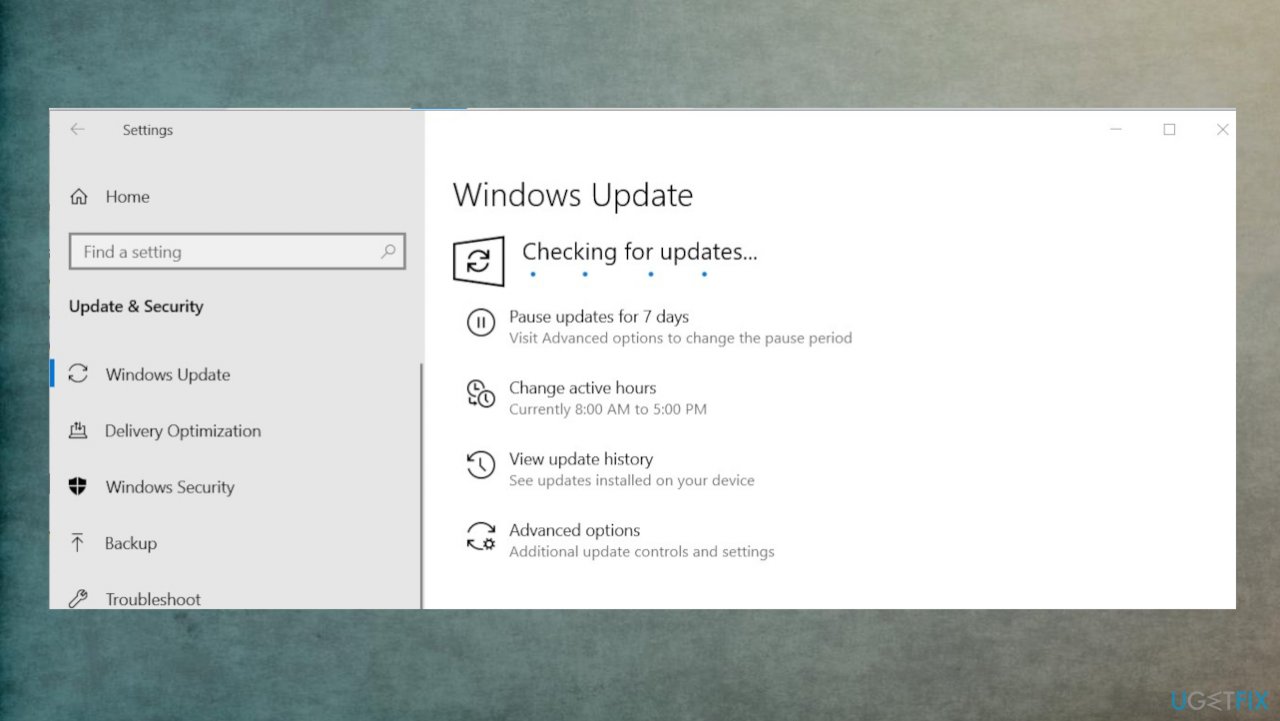
Profile picture not showing in settings on windows fix updt check - If updates are available for download, click Install Updates.
- After the update is completed, restart your PC.
6. Change the picture in settings
- Open Settings and click Accounts.
- Click Browse for one under Create your picture.
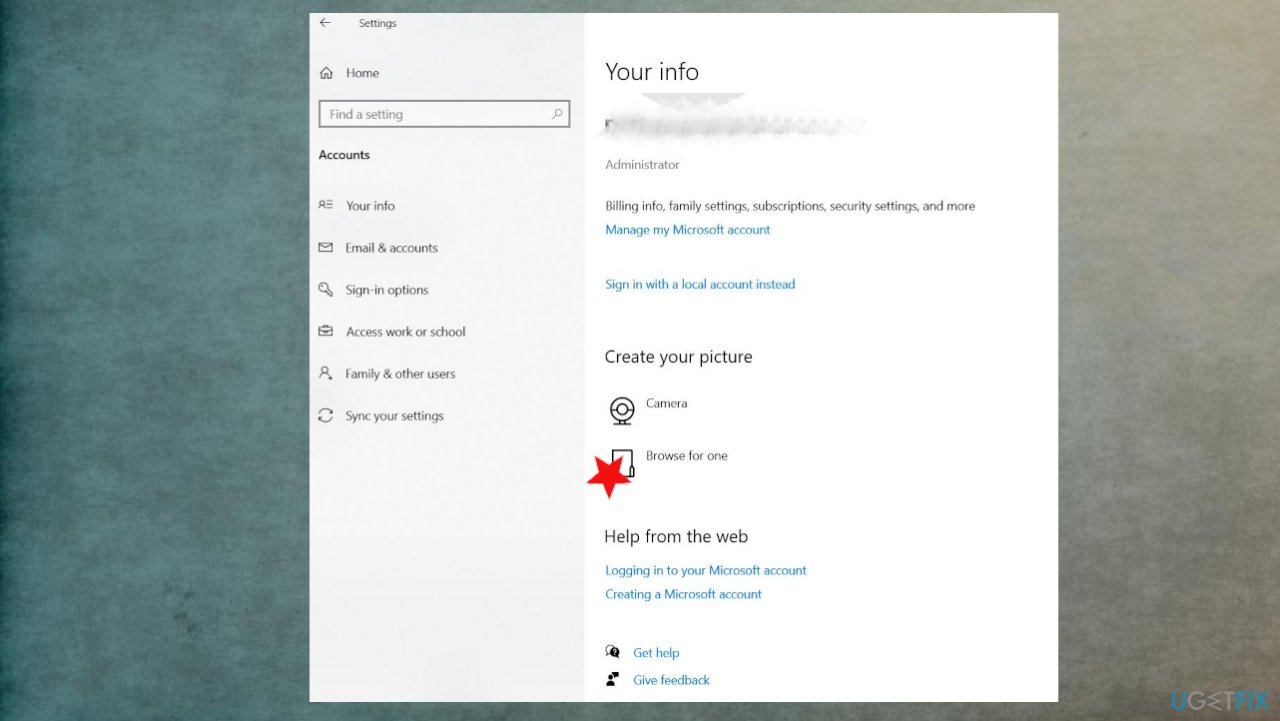
Profile picture not showing in settings on windows fix browse for one - Find the file that you want and Choose the picture.
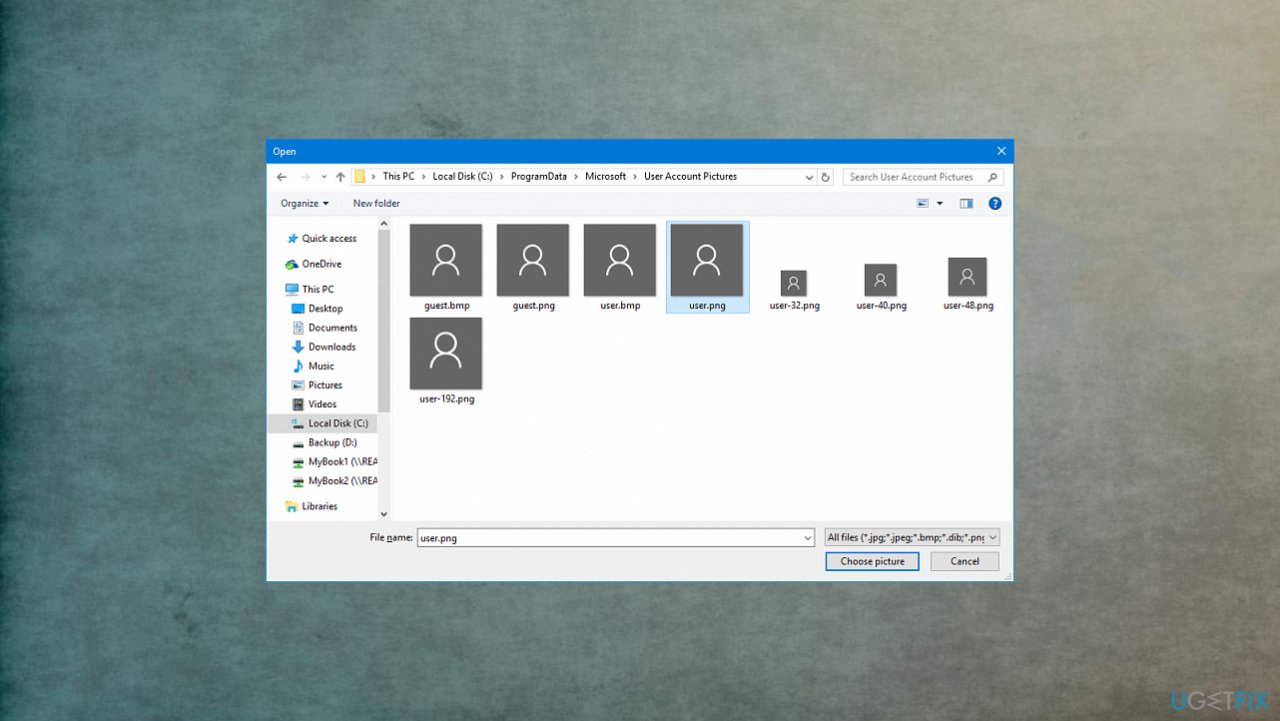
Profile picture not showing in settings on windows fix choose picture - Close settings. Reboot and check if the picture remains changed or disappears again ut of nowhere.
Bottom line
To fix the profile picture not showing up in Windows settings, try rebooting your machine, checking your internet connection, and logging back into your Microsoft Account. If the issue persists, run a System File Checker scan and use the Troubleshooter in the Update & Security section. If none of these solutions work, consider performing a clean install of Windows or updating to a later version.
Frequently asked questions
This issue can occur due to corrupted user profile settings or outdated graphics drivers. Try updating your drivers or resetting your profile settings to resolve the problem.
You can refresh your profile picture by navigating to Settings > Accounts > Your info and re-uploading the image. Ensure that the image format is supported by Windows 11.
If the issue persists, consider creating a new user account to see if the problem is specific to your current profile. Additionally, running the Windows Troubleshooter for accounts may help identify and fix the issue.




Report an issue
What's wrong with this guide? We review every report and update or remove content.
Report received — thank you. We'll review and fix it.
You need a free account to submit a report.
Be the first to comment