How to fix
Program Compatibility Troubleshooter not working
on Windows
Resolve the Program Compatibility Troubleshooter issue in Windows 10 and 11 effortlessly. Get expert-tested solutions for quick fixes today!

What causes How to fix Program Compatibility Troubleshooter not working in Windows?
- Program Compatibility Troubleshooter does not launch
- Troubleshooter becomes stuck during the scanning process
- Troubleshooter fails to provide accurate solutions
- Corrupted system files
- Outdated Windows or software
Repairs Windows system files, removes malware, and restores a clean OS state — without reinstalling.
Hello. I tried running the Windows Program Compatibility troubleshooter but it is not working. Is there any way I can fix this issue?
The Program Compatibility Troubleshooter in Windows is a useful tool that assists users in resolving compatibility issues with older or incompatible programs. It is intended to detect issues with running programs created for previous versions of Windows and to provide solutions to make those programs work properly.
However, there may be times when the Program Compatibility Troubleshooter encounters problems and fails to function properly. Users may encounter situations in which the troubleshooter does not launch, becomes stuck during the scanning process, or fails to provide accurate or effective solutions to compatibility issues.
When the Program Compatibility Troubleshooter fails to function, users who are attempting to run older software or applications on their Windows system may become frustrated. Compatibility issues can cause program crashes, error messages, or even the inability to use certain program features. This can have a significant impact on productivity, particularly if the program in question is required for work or personal tasks.
There are a few possible solutions that users can try in such situations. To begin, making sure that Windows and all relevant software are up to date can help with compatibility issues. Manually adjusting compatibility settings for the problematic program can also sometimes resolve the issue. Users can also run the program in compatibility mode for an earlier version of Windows.
In this guide, you will find 4 steps that should help you fix Program Compatibility troubleshooter not working. You can also try a maintenance tool like [d1] that can fix most system errors, BSODs,[ref en-1] corrupted files, and registry[ref en-2] issues. Otherwise, follow the step-by-step instructions below.
Method 1. Fix Corrupted System Files
Use Command Prompt commands to repair system file corruption:
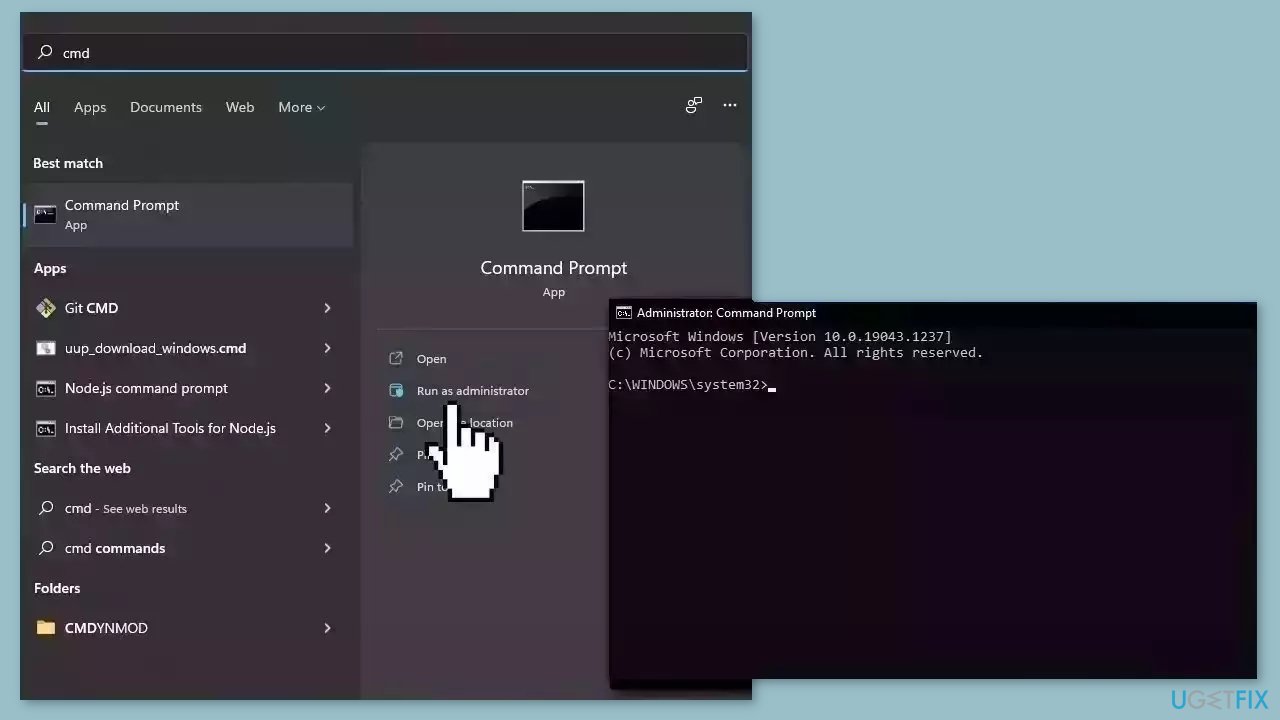
- Open Command Prompt as administrator
- Use the following command and press Enter:
sfc /scannow
- Reboot your system
- If SFC returned an error, then use the following command lines, pressing Enter after each:
DISM /Online /Cleanup-Image /CheckHealth
DISM /Online /Cleanup-Image /ScanHealth
DISM /Online /Cleanup-Image /RestoreHealth
Method 2. Restart the Diagnostic Policy Service
- Press the Windows key + R simultaneously to open the Run dialog box.
- Type services.msc in the text field of the Run dialog box.
- Press the Enter key or click OK to open the Services window.
- Scroll down in the Services window to locate the Diagnostic Policy Service entry.
- Click on the Diagnostic Policy Service entry to select it.
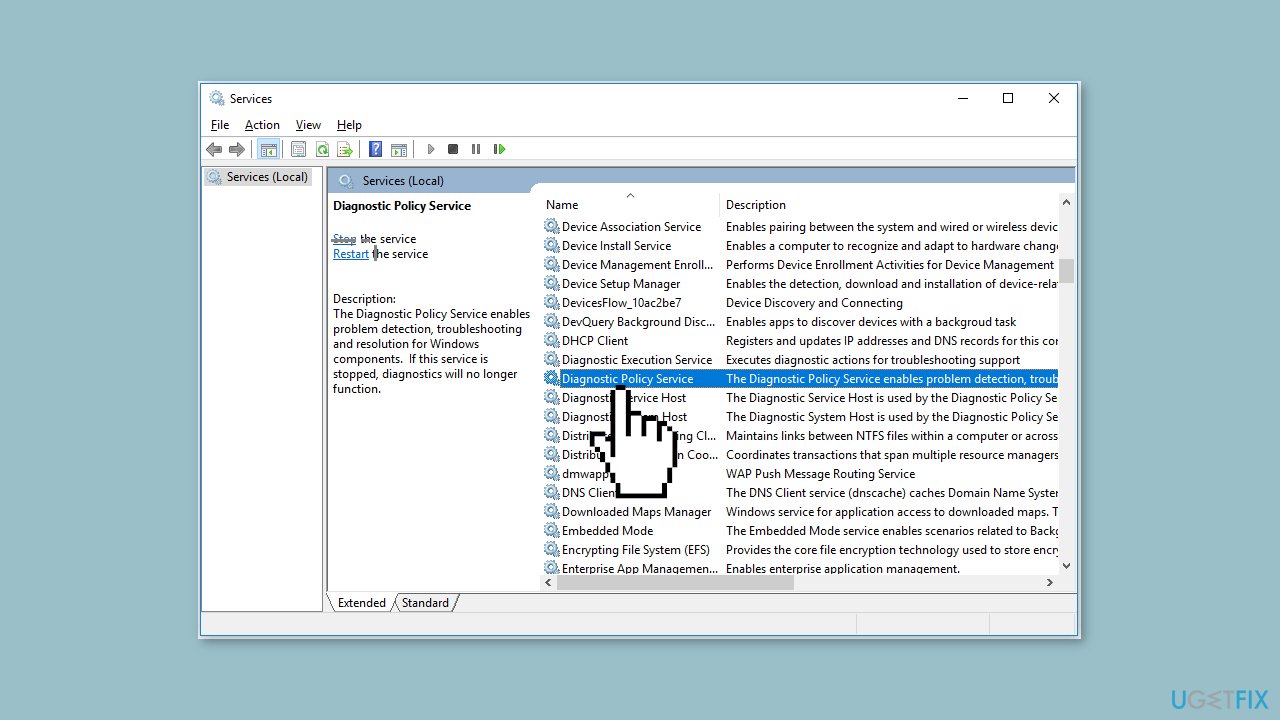
- In the left panel of the Services window, click on the Restart button to restart the service.
- Alternatively, you can right-click on the Diagnostic Policy Service entry and select Restart from the context menu.
- After restarting the service, close the Services window.
- Restart your computer to ensure that the problem has been resolved.
Method 3. Run Program Compatibility Troubleshooter in Safe Mode
- Restart your computer and enter Safe Mode. You can do this by pressing the F8 key repeatedly during the boot-up process until you see the Advanced Boot Options menu.
- Use the arrow keys on your keyboard to select Safe Mode from the menu and press Enter.
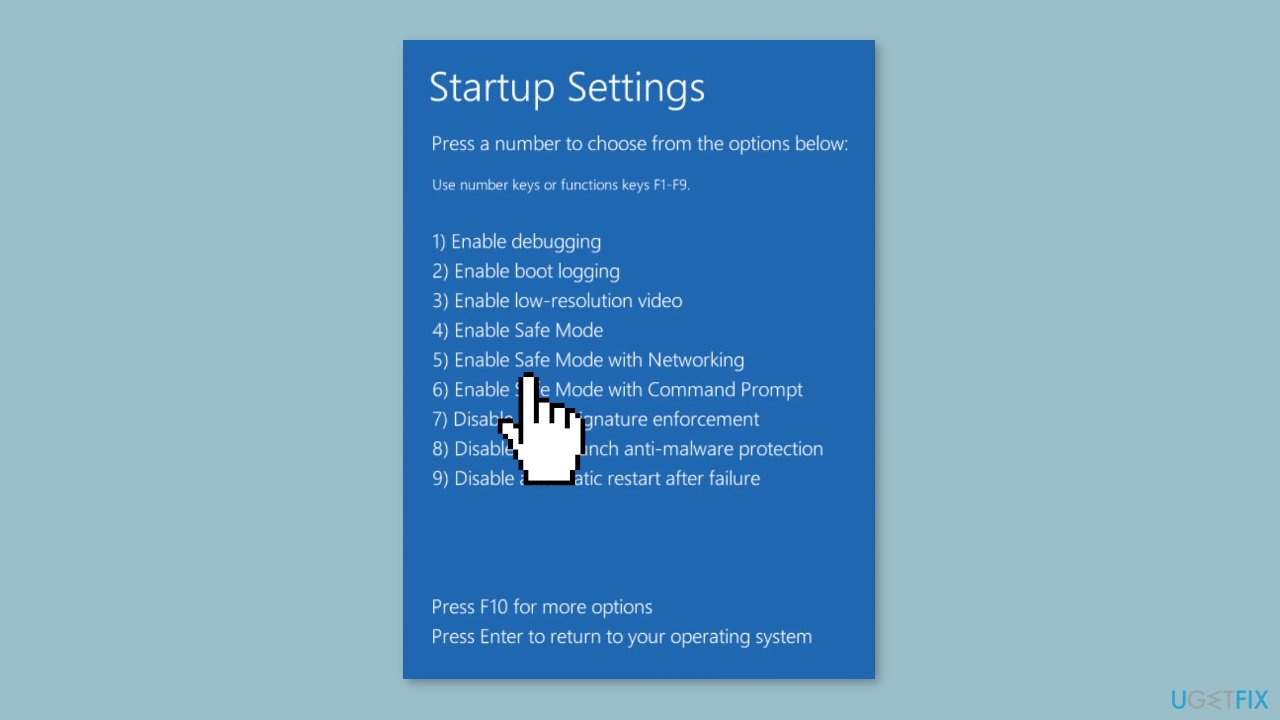
- Once your computer has booted into Safe Mode, press the Windows key + R simultaneously to open the Run dialog box.
- Type control in the text field of the Run dialog box and press Enter. This will open the Control Panel.
- In the Control Panel window, change the View by option to Large icons or Small icons to see all the available options.
- Scroll down and locate the Troubleshooting option. Click on it to open the Troubleshooting window.
- In the Troubleshooting window, click on the Programs option.
- Next, click on the Run programs made for previous versions of Windows link. This will launch the Program Compatibility Troubleshooter.
- Follow the on-screen instructions provided by the Program Compatibility Troubleshooter to troubleshoot and fix compatibility issues with programs.
- Once you have completed the troubleshooting process, close the Troubleshooting window.
- Restart your computer normally to exit Safe Mode and boot into the regular Windows environment.
Method 4. Reset Windows
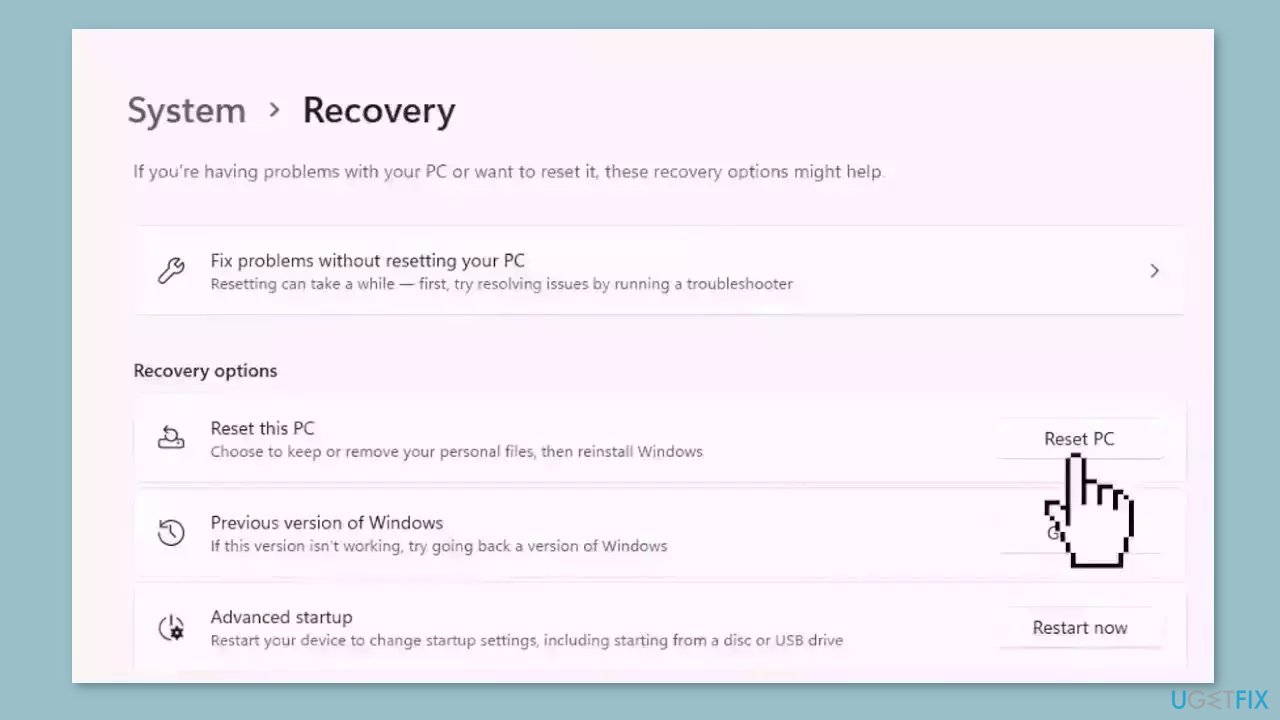
- Click on Start.
- Select Settings.
- From the right panel, click on Recovery.
- Click the Reset PC option.
Bottom line
To fix the Program Compatibility Troubleshooter not working, users can ensure that Windows and all relevant software are up to date, manually adjust compatibility settings, and run the program in compatibility mode for an earlier version of Windows. If these steps do not resolve the issue, consider using a maintenance tool to fix system errors.
Frequently asked questions
Try running the troubleshooter as an administrator by right-clicking on it and selecting 'Run as administrator.' If that doesn't work, check for any pending Windows updates and install them.
You can reset the troubleshooter settings by navigating to Settings > Update & Security > Troubleshoot > Additional troubleshooters, then select the Program Compatibility Troubleshooter and choose 'Run the troubleshooter' to reset its configurations.
Certain applications may require additional compatibility settings or updates that the troubleshooter cannot automatically fix; you may need to manually adjust compatibility settings by right-clicking the application, selecting Properties, and modifying the Compatibility tab.




Report an issue
What's wrong with this guide? We review every report and update or remove content.
Report received — thank you. We'll review and fix it.
You need a free account to submit a report.
Be the first to comment