How to fix
Proxy Authentication error 2606 in OneDrive
on Windows
Resolve the Proxy Authentication error 2606 in OneDrive on Windows 10 or 11 easily. Boost your connectivity today with expert-tested solutions.


What causes How to fix Proxy Authentication error 2606 in OneDrive?
- Misconfigurations within the network proxy settings
- Outdated network drivers
- Invalid certificates
- Firewall restrictions
- Group policies or security software
Repairs Windows system files, removes malware, and restores a clean OS state — without reinstalling.
So my OneDrive doesn't work for some reason. Whenever I try to log in, I keep getting Proxy Authentication error 2606. This started happening randomly, I wouldn't say I've made any changes to my computer.
OneDrive is a robust offering from Microsoft in cloud-based storage, seamlessly aimed at file sharing across devices. You can store, share, and collaborate on files with ease anywhere, whether it be at home, from the office, or on the go, with OneDrive. It integrates seamlessly with Windows and all products in Microsoft 365 to enable users who want accessibility across platforms to have things well organized.
However, like all applications, there are some bugs that manifest through extremely annoying hiccups, and one such issue is the Proxy Authentication Error 2606 that has recently been reported by quite a few OneDrive users.
Proxy Authentication Error 2606 usually occurs when a failure happens with OneDrive attempting to connect through a proxy server. It can happen while trying to sign in or during file synchronization and breaks the functionality chain of OneDrive.
This error has been observed to be more frequently encountered in an environment where access to the Internet has to be proxied via a proxy server, such as in the case of corporate networks or institutions with tight access controls. While the error itself does not point to one single cause, it generally means that the communication between OneDrive and whatever authentication mechanism is in use on the network is not working.
The reasons behind the OneDrive Error 2606 often stem from misconfigurations within the network proxy settings or issues related to how OneDrive handles authentication requests. In many cases, outdated network drivers, invalid certificates, or firewall restrictions may interfere with the communication channels needed for smooth authentication. Additionally, system-level configurations - such as group policies or security software - can further complicate the process.
To address Proxy Authentication Error 2606, a detailed review of your network and security settings is often necessary. This may involve checking proxy configurations, updating drivers, or adjusting firewall rules. It’s also worth considering whether group policies or security restrictions are preventing proper authentication.
For underlying Windows issues that might contribute to this error, using a trusted PC repair tool like [d1] can help resolve these system conflicts automatically.

Fix 1. Check for Windows updates
Outdated system files can interfere with OneDrive’s authentication process. Installing the latest Windows updates can ensure all necessary files are up to date.
- Type Updates in Windows search and press Enter.
- Here, click Check for updates.
- Wait till Windows downloads and installs all the files.
- If optional updates are available, install them as well.
- Restart your computer and test OneDrive.

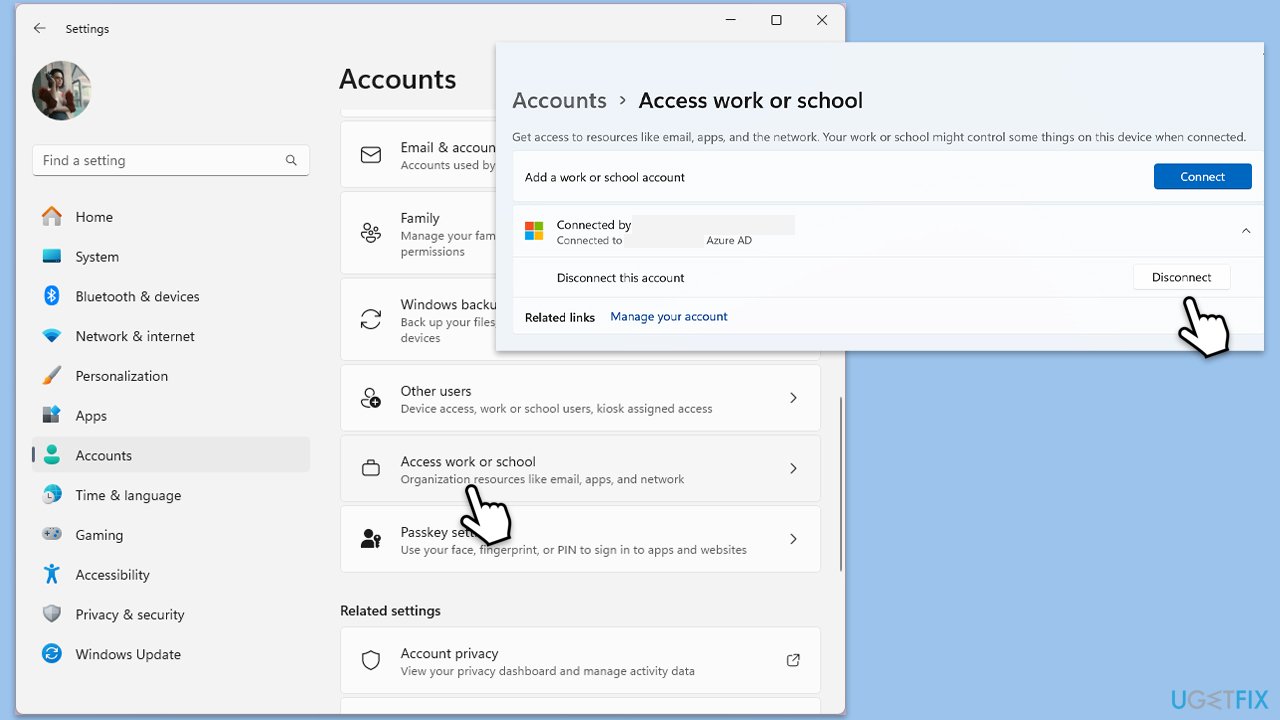
Fix 2. Reconnect Work or School account
- Right-click on Start and pick Settings.
- Click on Accounts.
- Select Access work or school.
- If connected, click Disconnect.
- Navigate to C:\users\USERNAME\AppData\Local\Packages (replace USERNAME with your actual username).
- Delete the contents of the folder.
- Restart your computer.
- Return to Access work or school and connect your account again.
Fix 3. Adjust security software settings
Security software, such as antivirus programs, may block OneDrive’s connection to proxy servers. Adjusting these settings or adding OneDrive as an exception can fix the error.
- Open your antivirus software.
- Navigate to the firewall or network protection settings.
- Add OneDrive to the list of exceptions.
- Restart your system and check if the error persists.
Fix 4. Check proxy settings
Proxy Authentication Error 2606 often occurs due to misconfigurations in your network's proxy settings. Ensuring that OneDrive has proper access through the proxy server can resolve the issue.
- Open Control Panel.
- Go to Network and Internet > Internet Options.
- Select the Connections tab and click on LAN settings.
- Make sure Use a proxy server for your LAN is configured correctly.
- Test OneDrive to see if the error persists.
If you did not intend to use a proxy, follow these steps to disable it:
- Right-click on Start and pick Network connections.
- Navigate to the VPN section and disable it if it's connected.
- Then back and select Proxy.
- Here, disable Proxy if it's enabled.

Fix 5. Reset OneDrive
Resetting OneDrive can help resolve issues caused by corrupted settings or sync conflicts that could lead to the Proxy Authentication Error 2606.
- Press Win + R on your keyboard.
- When the Run window opens, copy and paste the following text into it:
%localappdata%\Microsoft\OneDrive\onedrive.exe /reset
(use %programfiles(x86)%\Microsoft OneDrive\onedrive.exe /reset instead if you get an error here) - Press Enter or click OK.
- After this command is executed, the app should be reset, and OneDrive should open.
- If it doesn't, wait a few minutes, then open the Run window again and use the following command:
%localappdata%\Microsoft\OneDrive\onedrive.exe - Press Enter.

Bottom line
To address Proxy Authentication Error 2606, you should review your network and security settings, check proxy configurations, update drivers, and adjust firewall rules. If these steps do not resolve the issue, consider further investigation into group policies or security restrictions.
Frequently asked questions
The Proxy Authentication error 2606 in OneDrive typically occurs due to incorrect proxy settings or authentication issues with your network. It can also result from outdated or corrupted network drivers.
To fix the Proxy Authentication error 2606 in OneDrive on Windows 11, check your internet connection settings, ensure that your proxy server settings are correct, and try resetting your network settings.
Yes, you can disable the proxy for OneDrive by going to Settings > Network & Internet > Proxy on Windows 10 or Windows 11, and turning off the use of a proxy server.




Report an issue
What's wrong with this guide? We review every report and update or remove content.
Report received — thank you. We'll review and fix it.
You need a free account to submit a report.
Be the first to comment