How to fix
Purple Screen of Death
on Windows
Resolve the Purple Screen of Death on Windows 10 and 11 with our expert-tested solutions. Fix it quickly and effectively, with zero traces left.

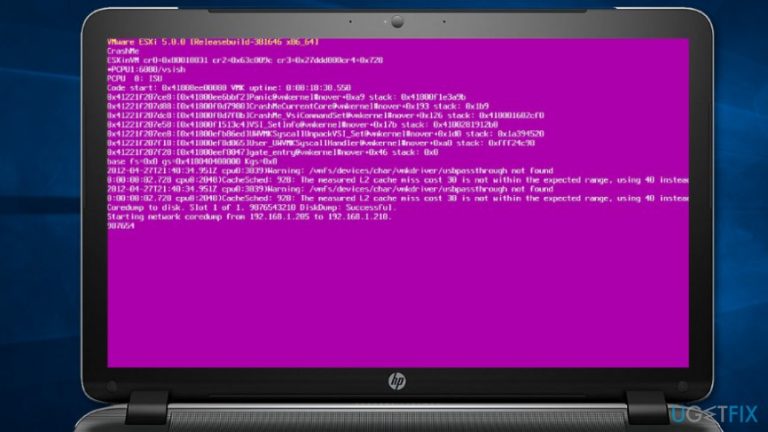
What causes How to fix Purple Screen of Death?
- Critical error on VMkernel of an ESX/ESXi host
- Outdated drivers
- External hardware issues
- Unstable GPU
- Misconfigured computer settings
Repairs Windows system files, removes malware, and restores a clean OS state — without reinstalling.
I’ve just received a Purple Screen of Death on my Windows computer. Is it different from Blue Screen of Death? How can I fix it? I hope it’s still possible… I am really concerned about my PC.
Purple Screen of Death (PSOD)[ref en-3] is quite an unusual problem which might be encountered by any Windows computer user. On some level, Blue Screen of Death[ref en-1] is similar to this purple issue. However, they might inform about different problems with your device. Fortunately, all of these issues can be solved.
Typically, the Purple Screen of Death appears when a critical error occurs on VMkernel of an ESX/ESXi host. However, the problem might also be related to outdated drivers, external hardware, unstable GPU or other misconfigured computer settings. Hence, you can easily solve the issue by following our suggested methods below.
However, some users report that the Purple Screen of Death appears during a system upgrade. We have received several complaints about crashing computer when upgrading to Windows 10 from an older version of the operating system.
The latter case might be complicated because users cannot reboot or shut down the machine. However, we can ensure that it’s still possible to fix Purple Screen of Death on Windows.
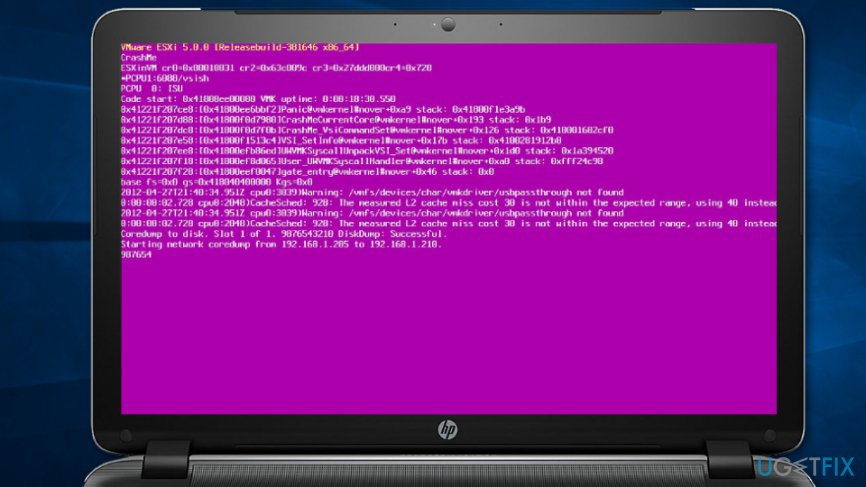
Possible methods to fix Purple Screen of Death
When Purple Screen of Death appears, you should try to reboot the computer first. You can do it by holding down the power button for a while. In most cases, it’s enough to solve this unusual Windows issue. However, if it shows up again, try the following methods.
Method 1. Disconnect external drives and hardware
It might sound strange or unusual, but sometimes printers, mouse or other computer components might be causing such problems. Therefore, you should unplug all of the unnecessary devices and check if it helped to solve the issue.
Method 2. Update graphics card drivers
Finally, the issue might be related to the outdated graphics card drivers. Follow these steps to update them and check if it helped to fix Purple Screen of Death error:
- Open Start.
- Type Device Manager in the Windows search box.
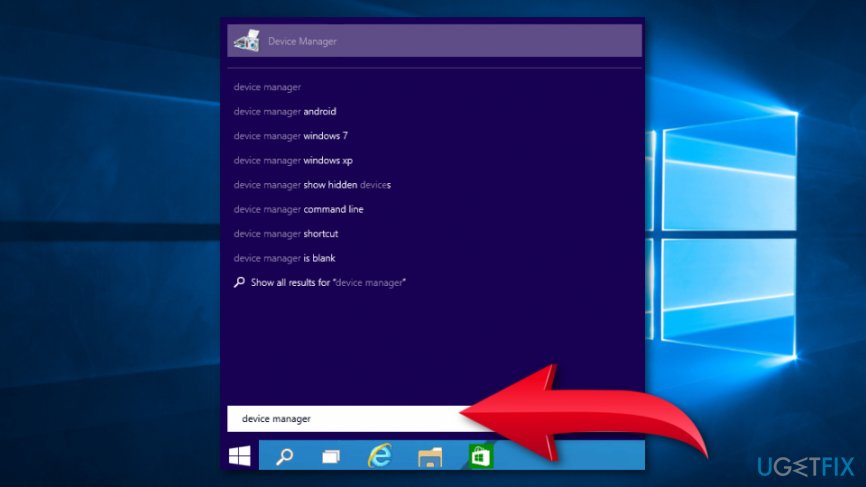
Open device manager - When in Device Manager, expand the Display adapters category.
- Right-click on the graphics card you want to update.
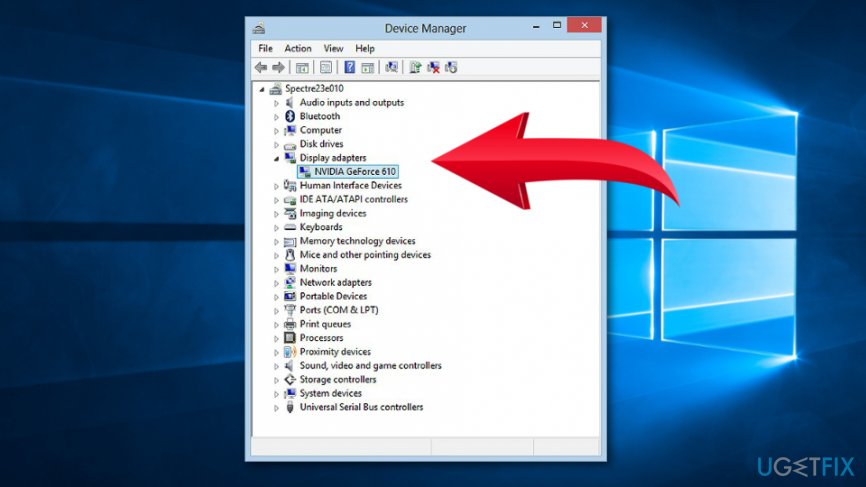
Expand display adapters - Choose Update Driver (or Update Driver Software) option.
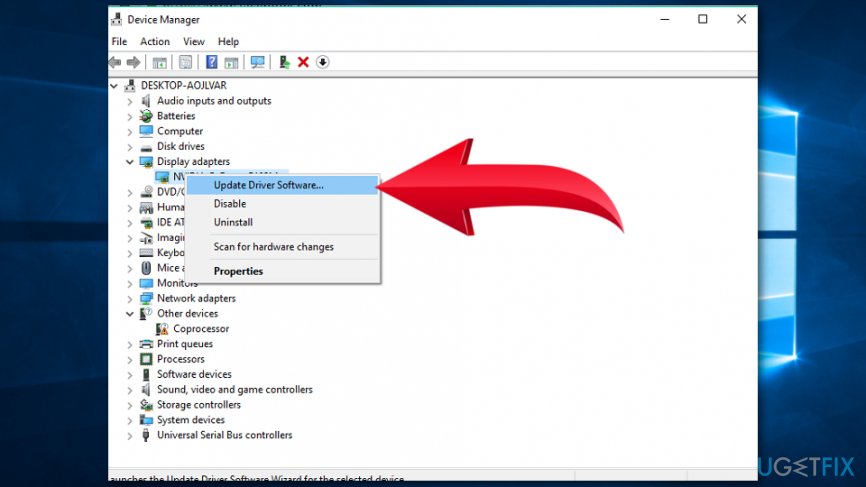
Click update driver software - Then click Search automatically for updated driver software option.
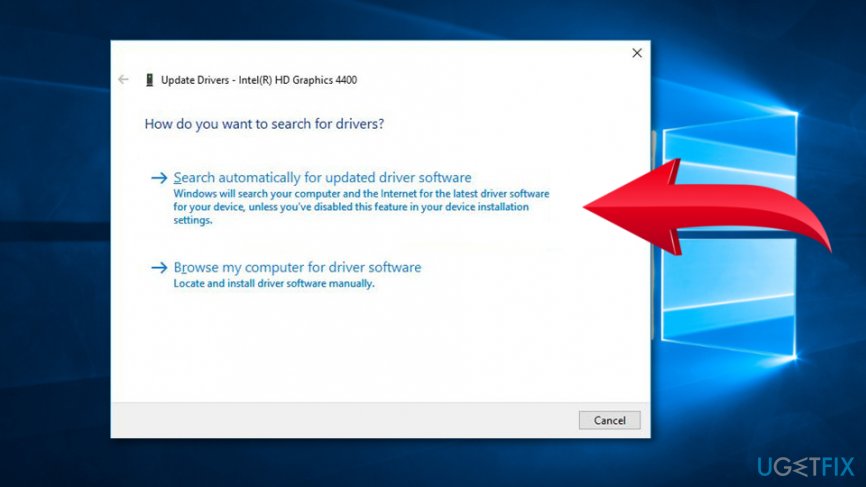
Search automatically for updated driver software - Wait until Windows find available drivers. However, if the search does not give needed results, you should access manufacturer’s website, and download needed drivers from there.
Method 3. Clean the heat sink
Often Purple Screen of Death appears due to the GPU overheat. Hence, you should clean the heat sink[ref en-2] in order to decrease the heat. In order to do that, you have to turn off the computer, open the case and clean the dust carefully from all the components. However, if you still notice that your PC tends to overheat, you should consider adding an extra fan.
Method 4. Disable overclock settings
The overlocked computer might result in a high temperature of the machine. Therefore, device’s CPU or GPU might be high and unstable. In order to do so, you need to perform a BIOS or CMOS reset. It’s quite a complicated task, so if you are not sure how it’s done, you should consider contacting an IT specialist.
Bottom line
To fix the Purple Screen of Death, you can try rebooting your computer, disconnecting external drives and hardware, and updating your graphics card drivers. If these methods do not resolve the issue, further troubleshooting may be necessary.
Frequently asked questions
The Purple Screen of Death typically occurs due to critical system errors, often linked to hardware failures or corrupt system files. It indicates a serious issue that requires immediate troubleshooting.
You can troubleshoot the Purple Screen of Death by booting into Safe Mode and running a system scan using the Command Prompt to check for file corruption. Additionally, consider updating your drivers and checking your hardware for issues.
To help prevent the Purple Screen of Death, ensure that your Windows 10 system is regularly updated, and run hardware diagnostics to check for potential hardware failures. Regularly backing up your data can also minimize loss in case of such errors.




Report an issue
What's wrong with this guide? We review every report and update or remove content.
Report received — thank you. We'll review and fix it.
You need a free account to submit a report.
Be the first to comment