How to fix
Push notifications not working
on Windows
Resolve push notification issues in Windows 10 and 11 effortlessly with our expert tips and tricks. Get your alerts working again, fixed in minutes!

What causes How to fix push notifications not working in Windows?
- Incorrect settings
- Outdated software
- App conflicts
- Network issues
- Corrupted system or application files
Repairs Windows system files, removes malware, and restores a clean OS state — without reinstalling.
I recently stopped getting push notifications and sound alerts from the Notification Center. This is a huge problem for me because I keep missing important emails via Outlook. I've got no idea how to fix notifications that aren't working.
Windows push notifications, integrated since Windows 8, serve as a crucial communication link between apps and their users. Through these notifications, applications can deliver real-time updates, reminders, and alerts directly to a user's desktop. These alerts aim to keep users informed and engaged without the necessity of manually checking each application. While they might be a source of distraction for some, for others, they represent a convenient way to stay updated. However, it becomes a significant concern when these push notifications are not working in Windows.
There are several reasons why push notifications might stop working in Windows. One common cause is incorrect settings; notifications might be disabled either for the entire system or for specific apps. Users may accidentally turn off notifications or might have done so intentionally to avoid disturbances, only to forget to turn them back on later.
Another issue could be outdated software; an older version of Windows or a specific application might not support the latest push notification protocols. App conflicts are also a potential reason; certain apps might interfere with the functionality of others, causing disruptions in notifications.
Additionally, since push notifications rely heavily on an active internet connection, any inconsistency or issues with the network can impede their delivery. Lastly, if certain system or application files become corrupted, this can hamper the notification system's overall functionality.

While the underlying reasons for malfunctioning push notifications can vary, solutions often revolve around checking and adjusting system settings, updating the software to the latest version, resolving any app conflicts, and ensuring a stable network connection. A thorough diagnosis is often required to identify the exact cause and determine the appropriate steps for resolution.
For those seeking an all-encompassing solution to general Windows issues, consider using the [d1] PC repair tool. This can address many common problems and ensure the smooth operation of push notifications and other features.
Fix 1. Enable notifications in settings
This solution addresses the most common reason for push notifications not working, which is them being turned off in system settings. Windows allows users to customize which notifications they receive, and it's possible to accidentally or intentionally disable them.
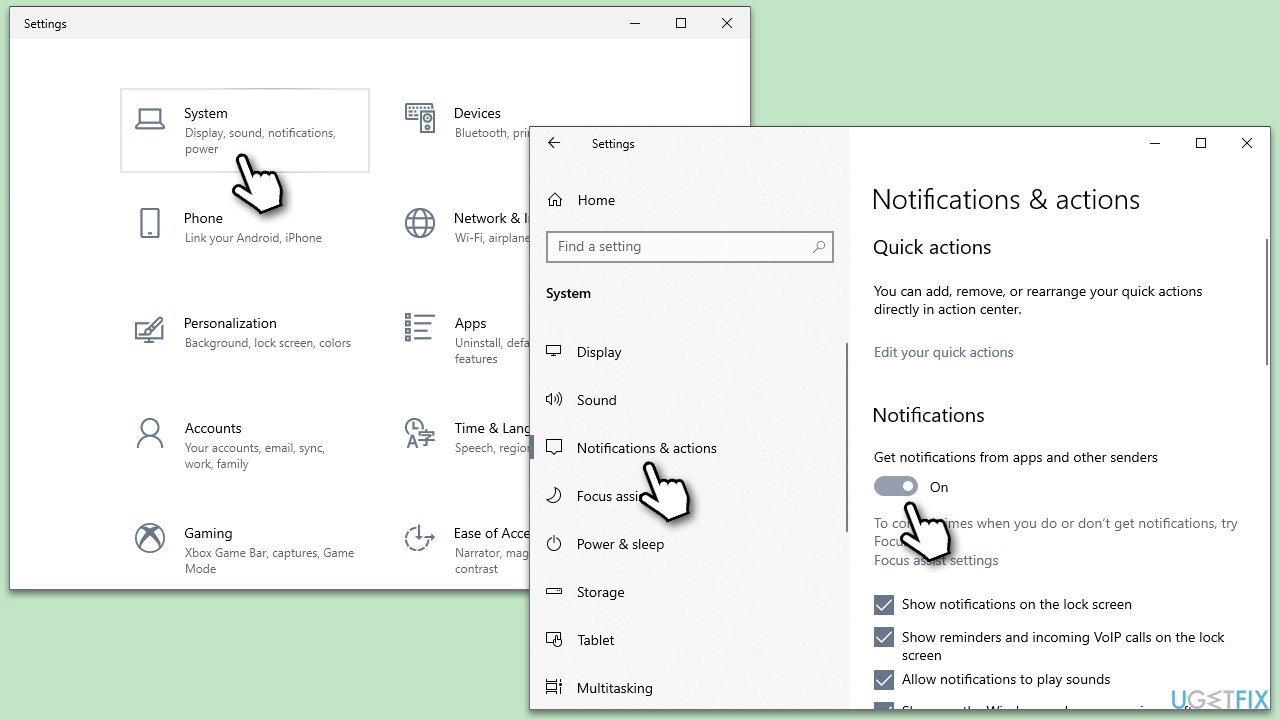
- Open Start and select Settings (gear-shaped icon).
- Click on System.
- Select Notifications & actions from the left pane.
- Ensure that the toggle for Get notifications from apps and other senders is turned on.
- Below, scroll through the list of apps to ensure that individual app notifications are also enabled.
Fix 2. Run SFC and DISM
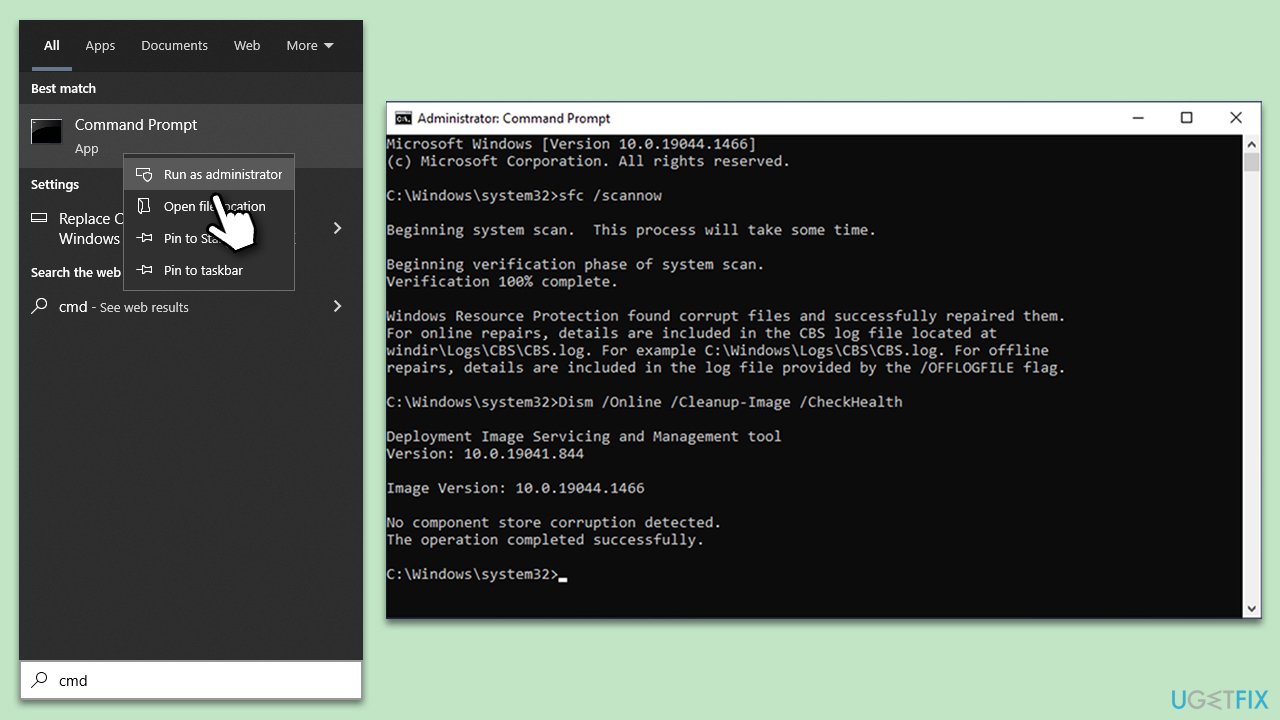
System File Checker and Deployment Image Servicing and Management are built-in Windows tools that can repair corrupted system files, which might be causing the notification issue.
- Type cmd in Windows search.
- Right-click on Command Prompt and pick Run as administrator.
- User Account Control will ask you whether you want to allow changes – click Yes.
- Copy and paste this command and hit Enter:
sfc /scannow - Wait for the scan to finish.
- As soon as it finishes, Windows will report whether integrity violations were found and if they could be fixed. Regardless of the outcome, use these commands next, pressing Enter after each:
Dism /Online /Cleanup-Image /CheckHealth
Dism /Online /Cleanup-Image /ScanHealth
Dism /Online /Cleanup-Image /RestoreHealth - Close down the Command Prompt and restart your computer.
Fix 3. Disable Focus Assist
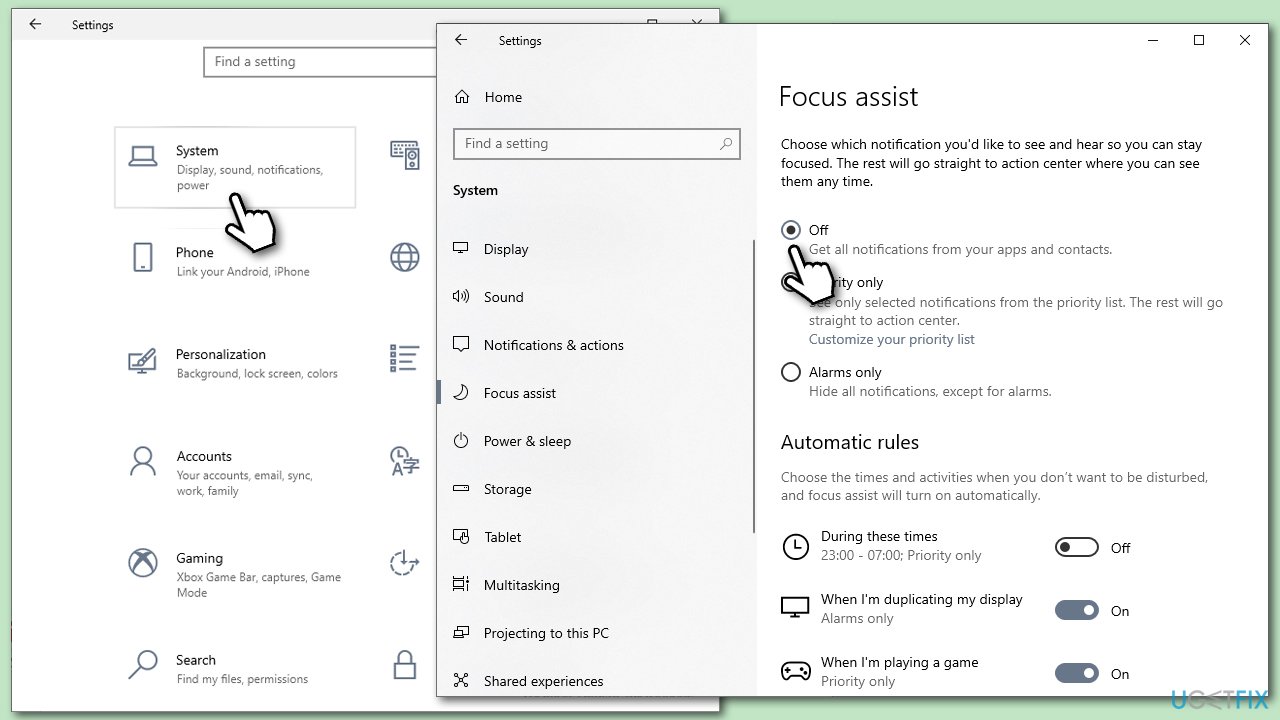
Focus Assist is a feature in Windows designed to minimize distractions by suppressing notifications. Disabling it ensures notifications aren't being suppressed.
- Go to Settings.
- Click on System.
- Choose Focus Assist.
- Turn off any automatic rules or set it to Off.
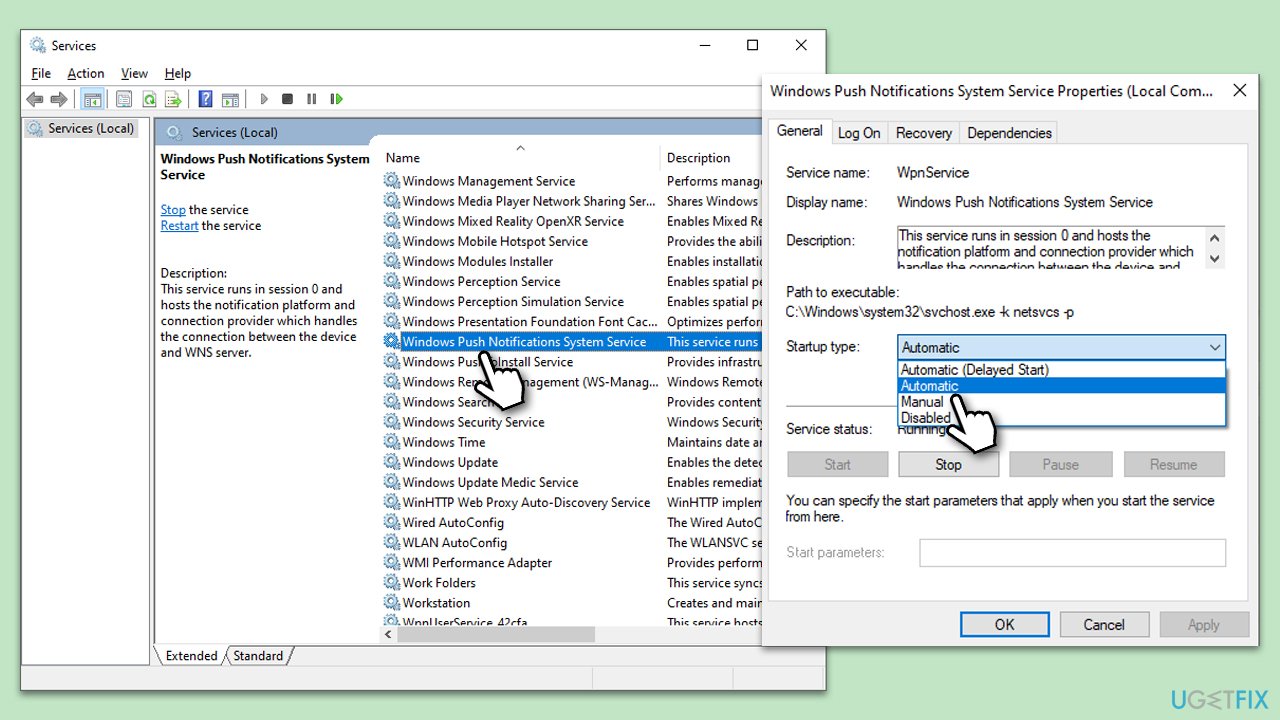
Fix 4. Restart or enable the Windows Push Notification System Service
This service manages the delivery of push notifications. If it's stopped or disabled, notifications won't work.
- Type Services in Windows search and press Enter.
- Scroll down and find Windows Push Notification System Service.
- Right-click and select Properties.
- Set the Startup type to Automatic and click Start if it's not running.
- Click Apply and OK to apply changes.
Fix 5. Re-register Windows apps
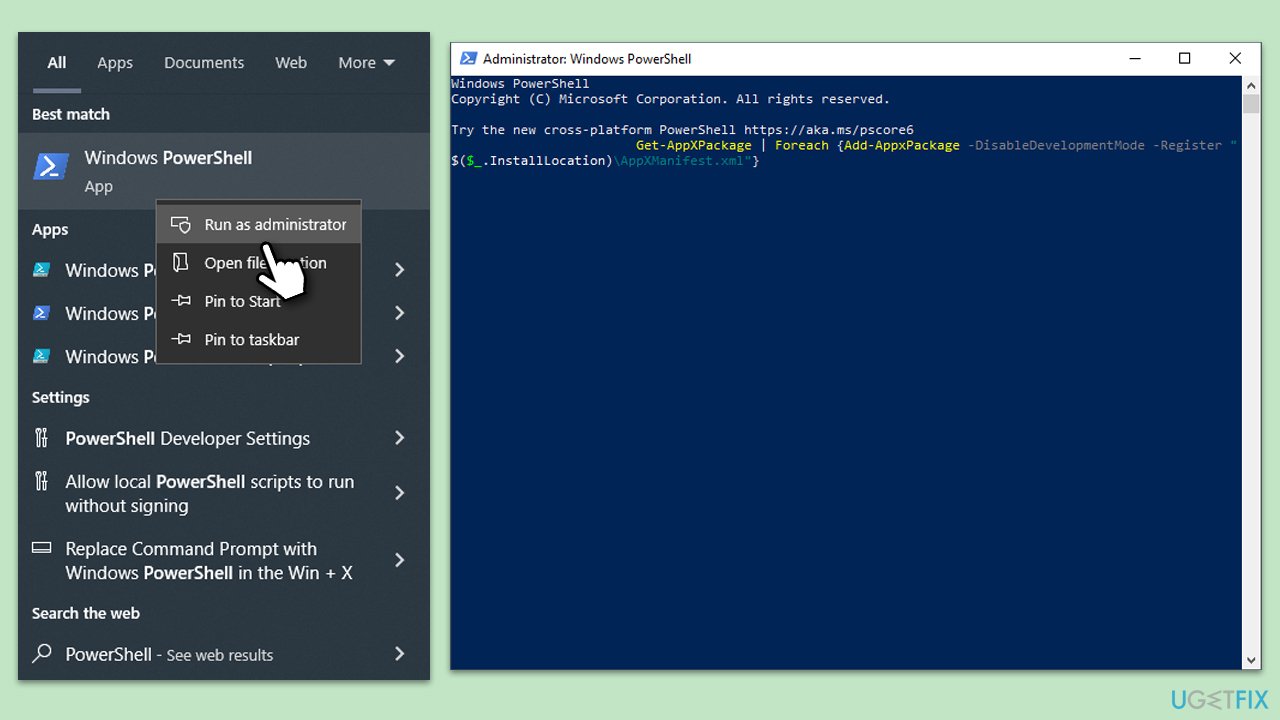
If specific apps aren't sending notifications, they might be malfunctioning. Re-registering them can reset them to their default states.
- Type PowerShell in Windows search.
- Right-click on PowerShell and select Run as administrator.
- When UAC shows up, click Yes.
- Copy and paste the following command and press Enter:
Get-AppxPackage | % { Add-AppxPackage -DisableDevelopmentMode -Register "$($_.InstallLocation)\AppxManifest.xml" -verbose } - Close down everything and reboot your system.
Fix 6. Re-register Action Center
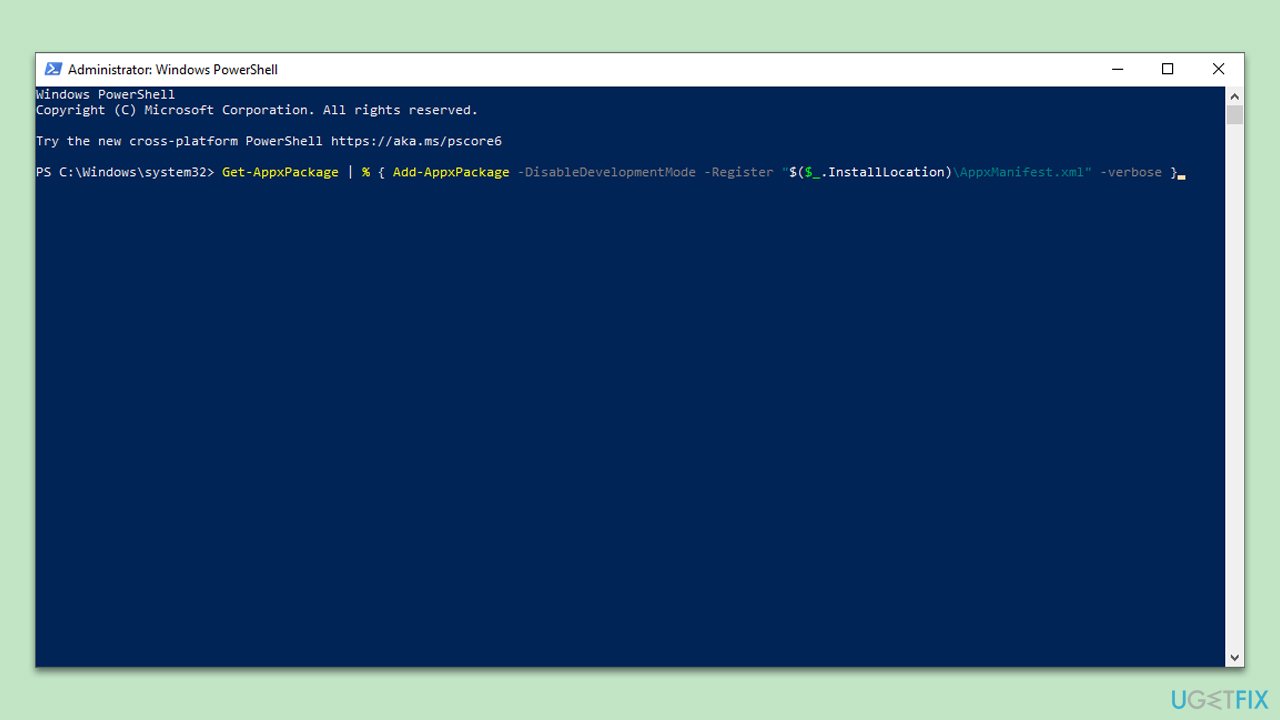
The Action Center handles notifications. If it's malfunctioning, re-registering can fix the issue.
- Open PowerShell as administrator.
- In the new window, copy and paste the following command, pressing Enter after:
Get-AppxPackage | % { Add-AppxPackage -DisableDevelopmentMode -Register "$($_.InstallLocation)\AppxManifest.xml" -verbose } - Wait for a confirmation message, and then restart your computer.
Fix 7. Check for Windows updates
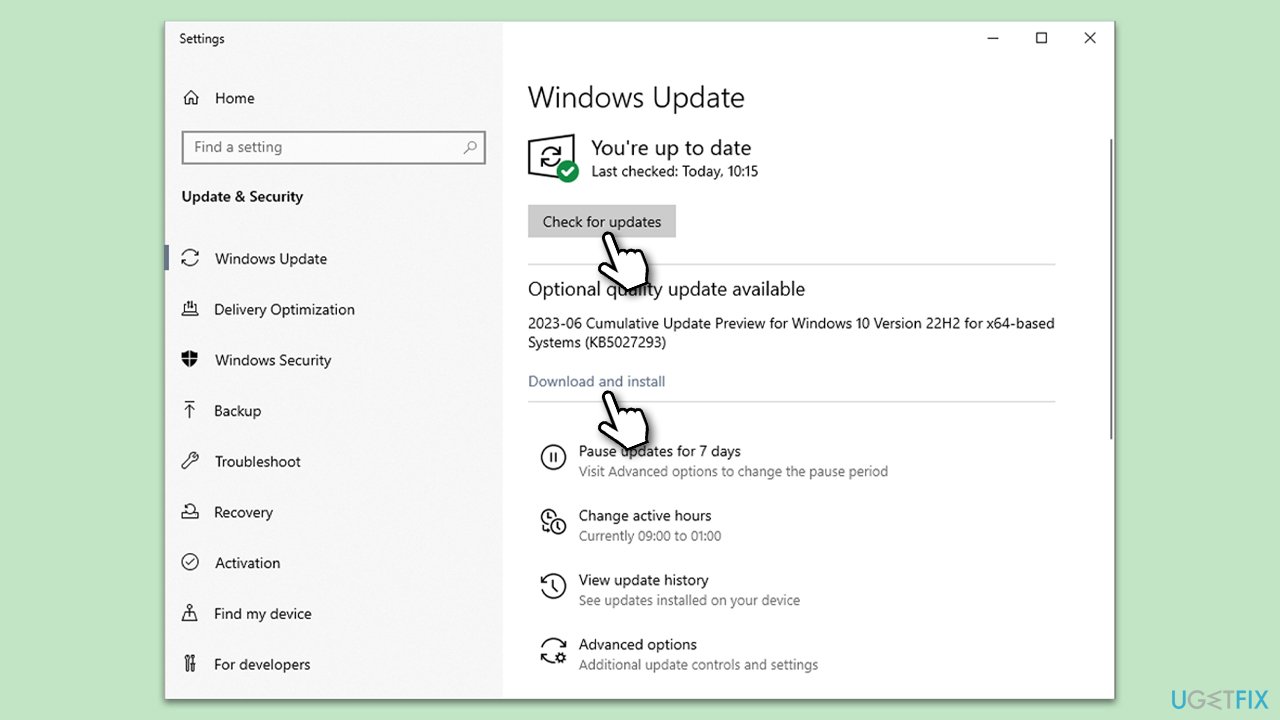
Outdated software can lead to issues with notifications. Ensuring your system and apps are updated can resolve potential incompatibilities.
- Type Updates in Windows search and press Enter.
- In this window, click Check for updates.
- If optional updates are available, install them too.
- When everything is installed, restart your system.
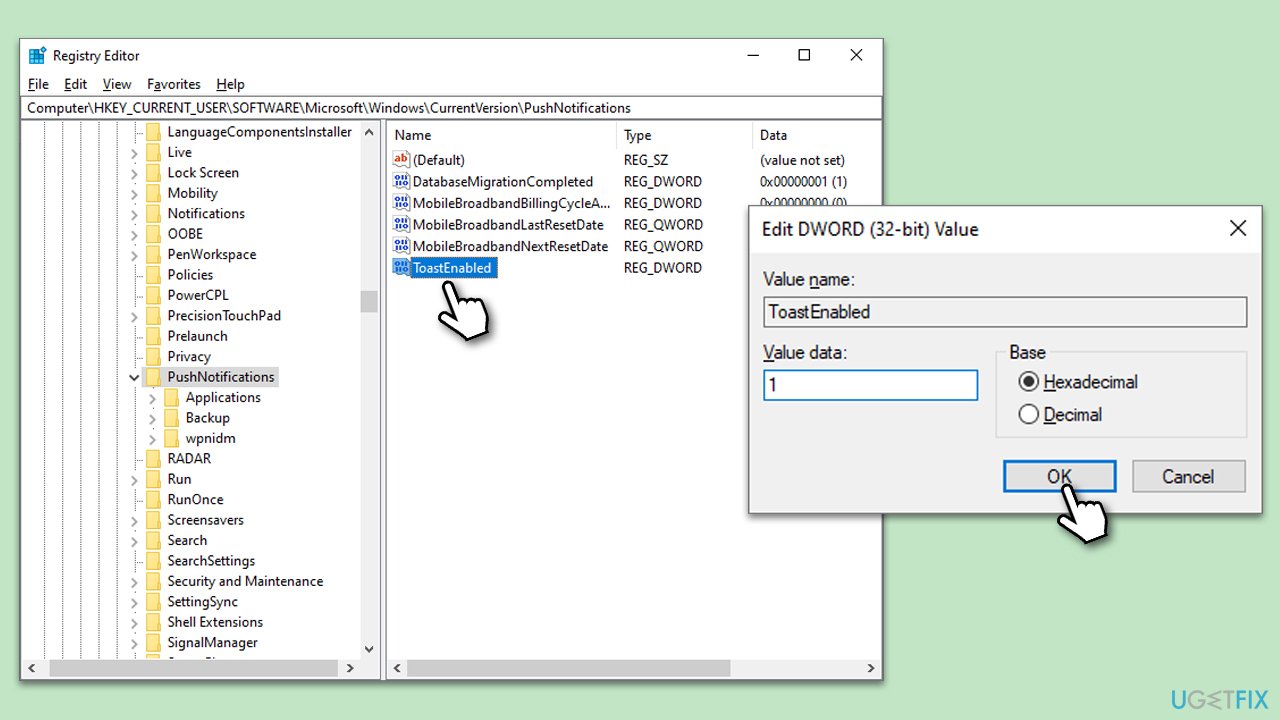
Fix 8. Use Windows Registry
It's important to note that modifying the registry incorrectly might have a negative effect on Windows usability, thus, make sure you create a backup of the Registry database.
- Type regedit in Windows search and press Enter.
- When UAC shows up, click Yes.
- Navigate to the following location:
HKEY_CURRENT_USER\Software\Microsoft\Windows\CurrentVersion\PushNotifications - On the right side of the window, double-click on ToastEnabled. If it doesn't exist, right-click on an empty space and select New > DWORD (32-bit) Value, then name it ToastEnabled.
- Set the value to 1 and click OK.
Bottom line
To fix push notifications not working in Windows, check and adjust your system settings, update your software to the latest version, resolve any app conflicts, and ensure a stable network connection. If these solutions do not resolve the issue, consider using a PC repair tool to address common problems.
Frequently asked questions
Go to Settings > System > Notifications & actions, and ensure that 'Get notifications from apps and other senders' is turned on.
You can reset the notifications settings by navigating to Settings > System > Notifications & actions, then toggle 'Get notifications from apps and other senders' off and back on.
Check the individual app settings under Settings > System > Notifications & actions, and ensure that notifications are allowed for those specific apps.




Report an issue
What's wrong with this guide? We review every report and update or remove content.
Report received — thank you. We'll review and fix it.
You need a free account to submit a report.
Be the first to comment