How to fix
Qcamain10x64.sys BSOD
on Windows
Resolve the Qcamain10x64.sys BSOD error in Windows 10 effortlessly with expert-tested solutions. Get back to smooth performance in minutes!


What causes How to fix Qcamain10x64.sys BSOD in Windows 10?
- Last Windows Update has bugs or security issues
- Improper installation of updates
- Corrupted or outdated system files
- Outdated wireless LAN drivers
- Driver issues causing crashes
Repairs Windows system files, removes malware, and restores a clean OS state — without reinstalling.
Hello, I get this Blue screen error repeatedly. I updated to Windows 10 recently, and since then, the error with an indication about Qcamain10x64.sys is displayed. I don't know what is this file, but it is the problematic one. I have no idea how to fix the issue, can you help me solve it?
Qcamain10x64.sys BSOD[ref en-1] in Windows 10 is the common issue, based on various user reports[ref en-2]. The worst thing about the problem is the fact that it appears randomly and without particularly detectable triggers. Encountering the error may mean that the last Windows Update has some bugs or security issues. There are particular updates with problems[ref en-3] that can trigger the issue like this and many other problems
If you installed the update and it didn't install properly, you may need to resolve those issues to solve these system crashes and other errors. Installing every pending update should be the habit since all the issues detected by developers et fixed in later updates or gets patches for the particular bugs.
Another problem that can trigger this Qcamain10x64.sys Blue Screen Of Death error in Windows is related to corrupted or outdated pieces in the system. Driver and other file issues can trigger problems with the crashes and processes failure on the machine. Particular wireless LAN drivers that are outdated can trigger these BSOD errors and other issues.
You can solve these problems with files and outdated drivers manually, ut there are quicker ways to check for files that are affected or corrupted. You can run the tool like [d1] and check the system for corruption of data and even repair those pieces properly. This is one of the ways to fix Qcamain10x64.sys BSOD in Windows 10 too. However, do not skip through the steps below and make sure to follow methods properly to solve the error once and for all.

Option 1. Install the latest Windows Updates
- Hit the Windows Start button.
- Go to Settings.
- Click Update & Security section.
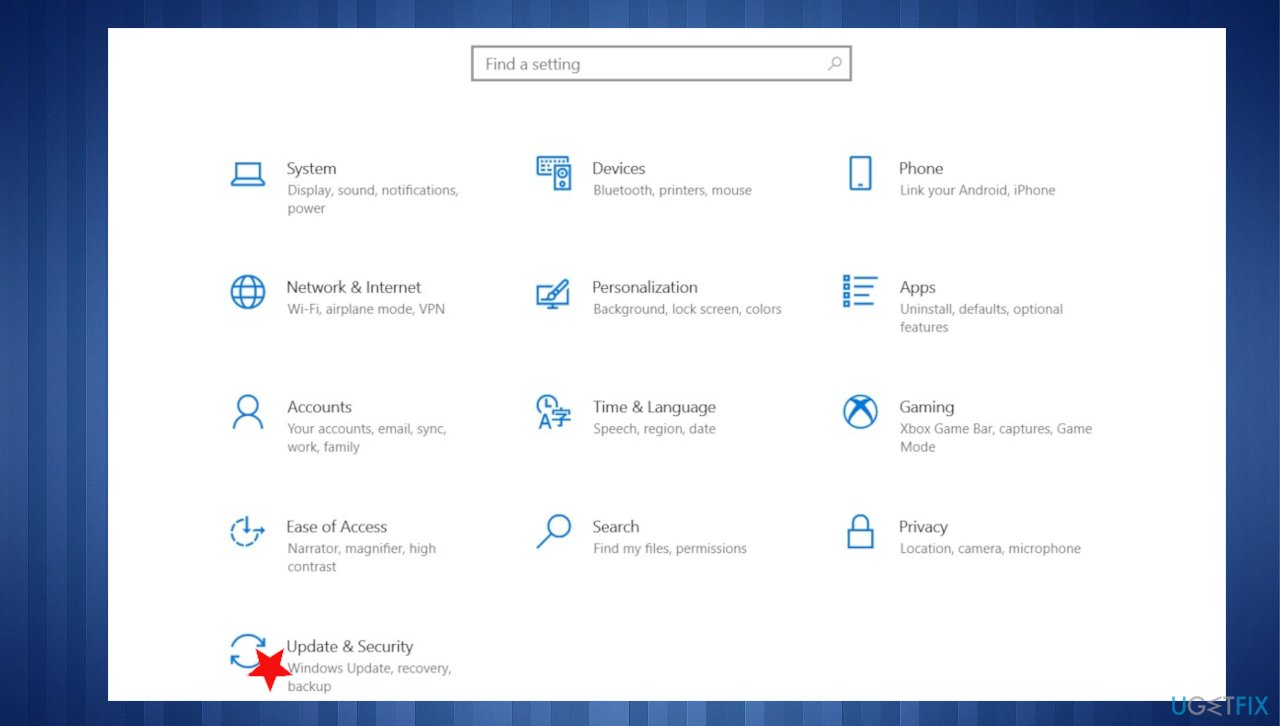
Fix bsod qcamain10x64 sys update - Find the Windows Update section and hit Check for Updates.
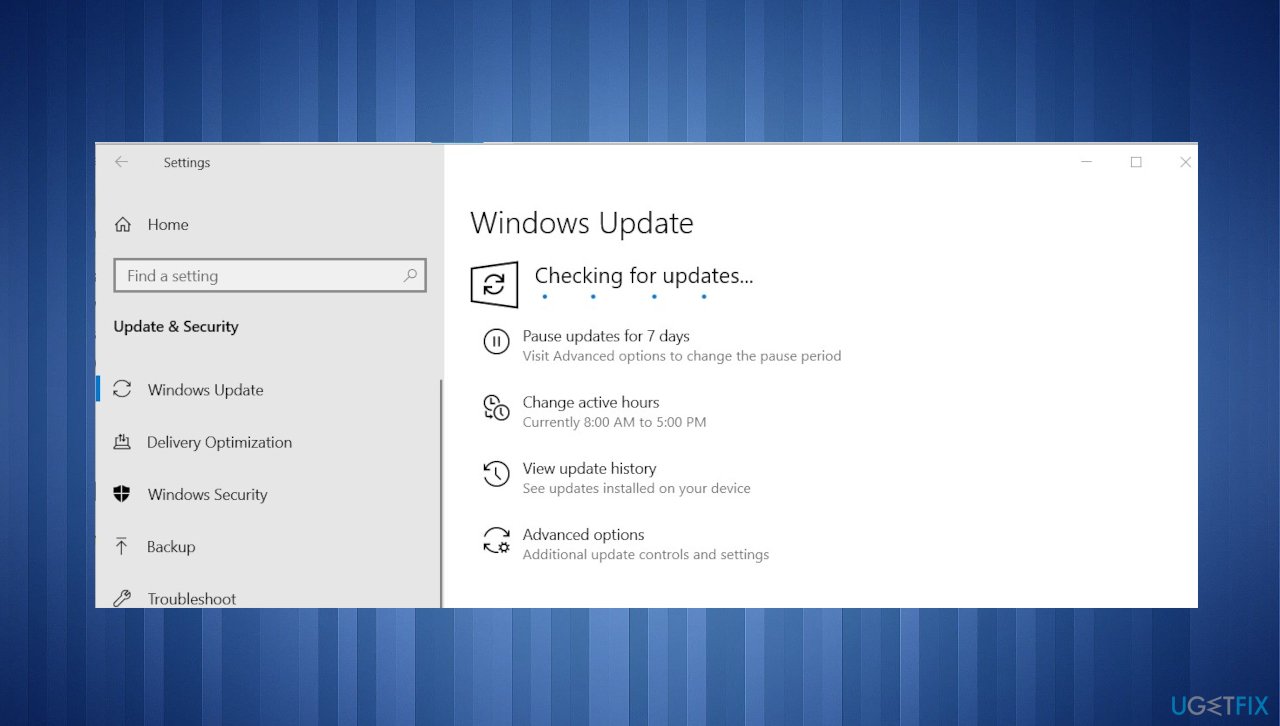
Fix bsod qcamain10x64 sys check os - If updates are available for download, click Install Updates.
- After the update is completed, restart your PC.
Option 2. Update the Wireless LAN driver
- Press Windows key + R to open up a Run dialog box.
- Type devmgmt.msc inside the text box and press Enter to open up Device Manager.
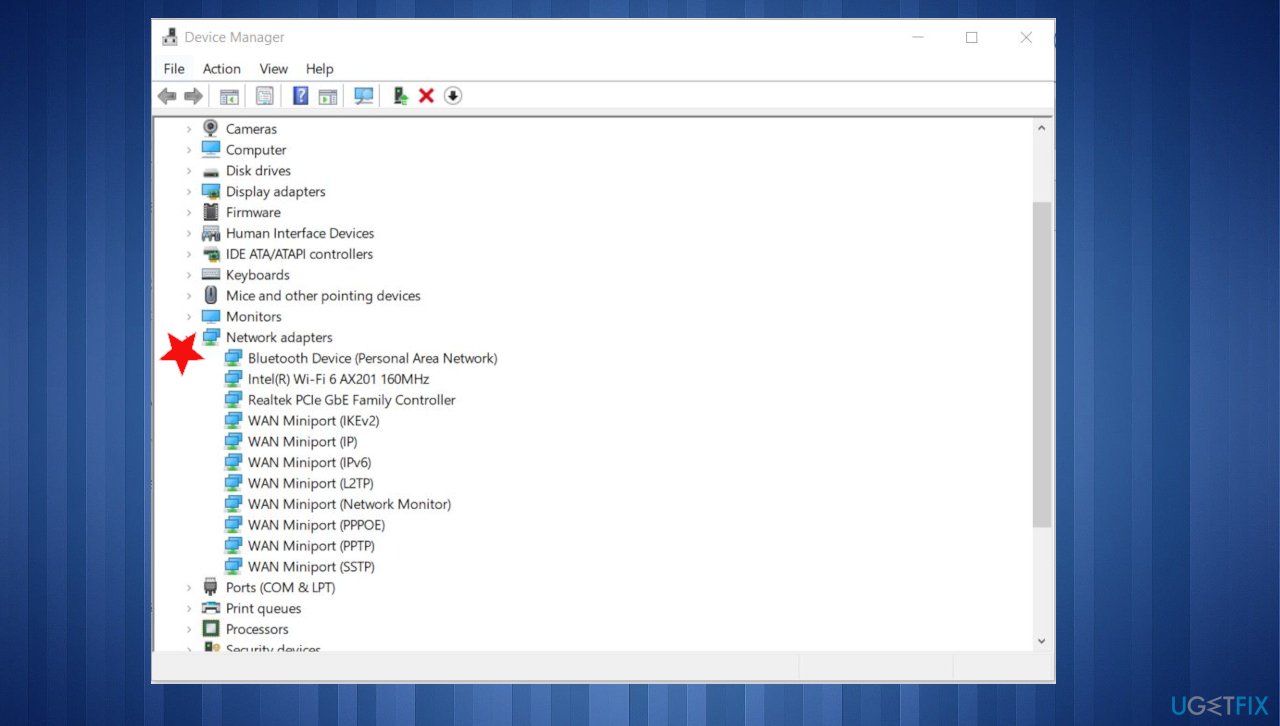
Fix bsod qcamain10x64 sys network adapter - On Device Manager, scroll through the list and expand the menu for Network Adapters.
- Right-click on the Wireless Network Adapter driver.
- Click on Update Driver.
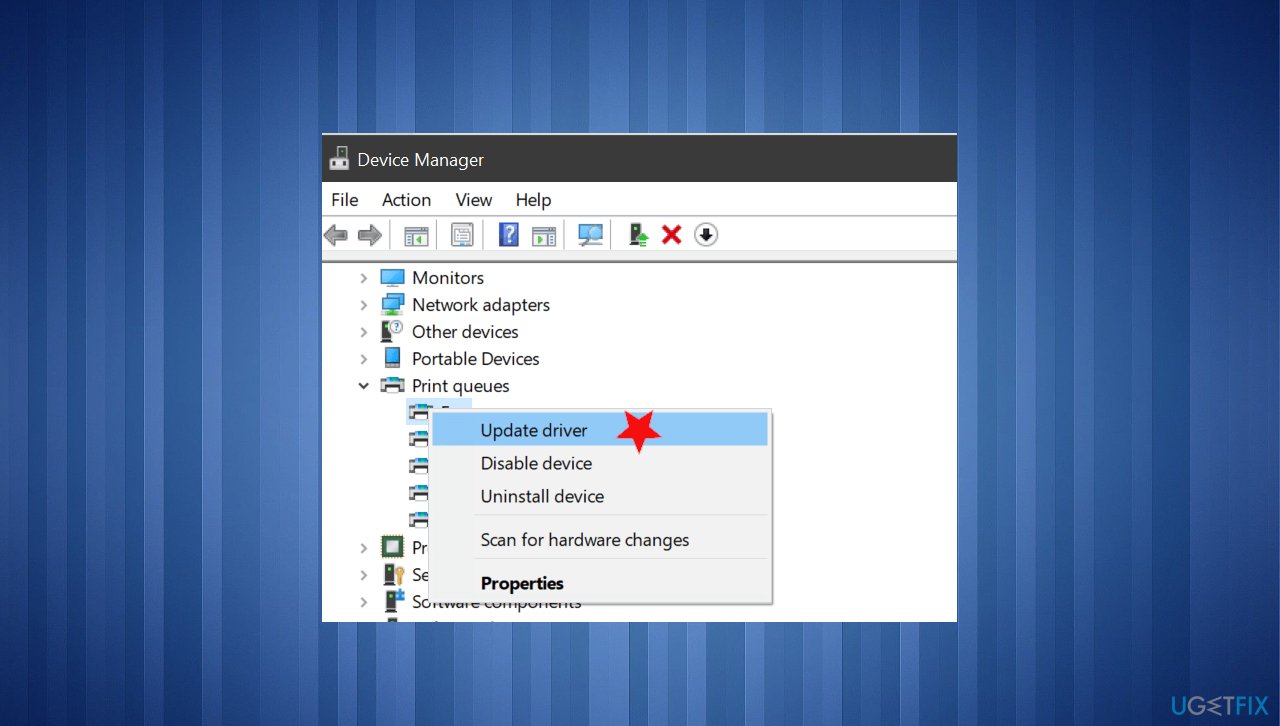
Fix bsod qcamain10x64 sys update driver - Click on Search automatically for updated driver software to force the search for an updated driver version.
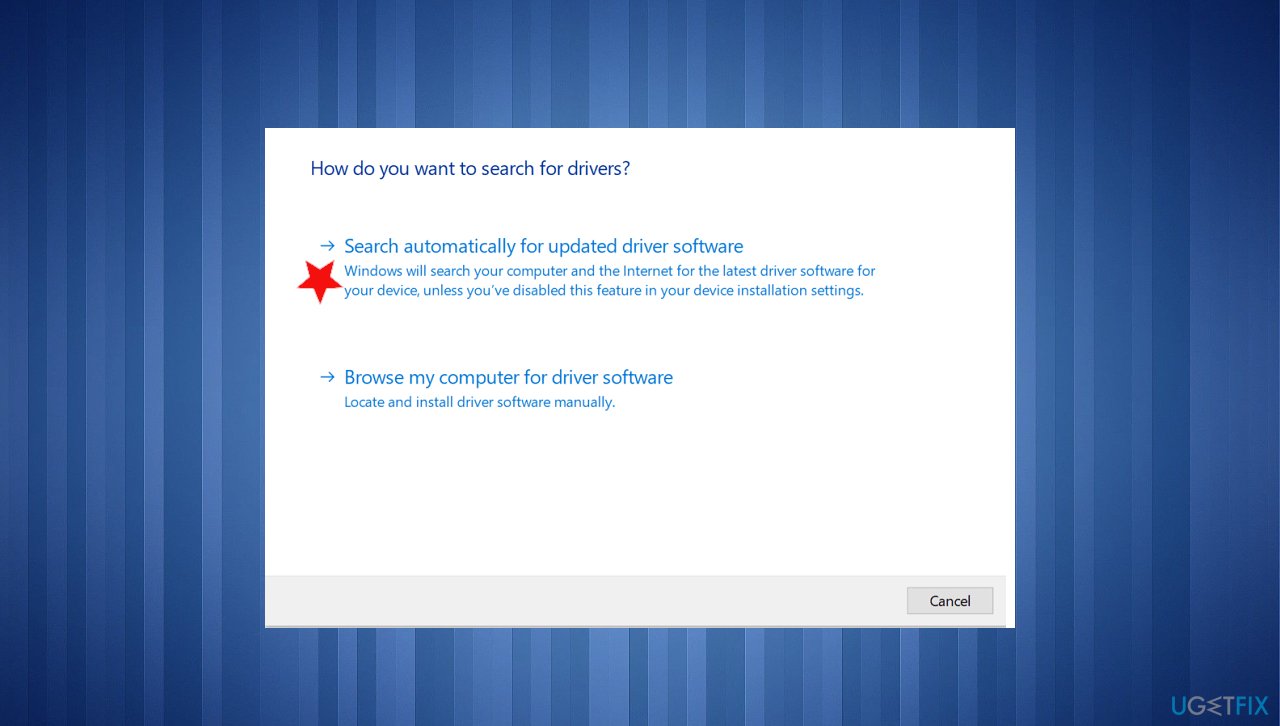
Fix bsod qcamain10x64 sys search
You can automatically run these driver updates with tools like [rev id="DriverFix"] that can find perfectly compatible driver versions in the database. It saves time and does the most important driver updates for you without any hassle.
Option 3. Reinstall the driver
- Go to Device Manager.
- Expand the drop-down menu associated with Network Adapters.
- Right-click on the Wireless Network Adapter driver and choose Properties.
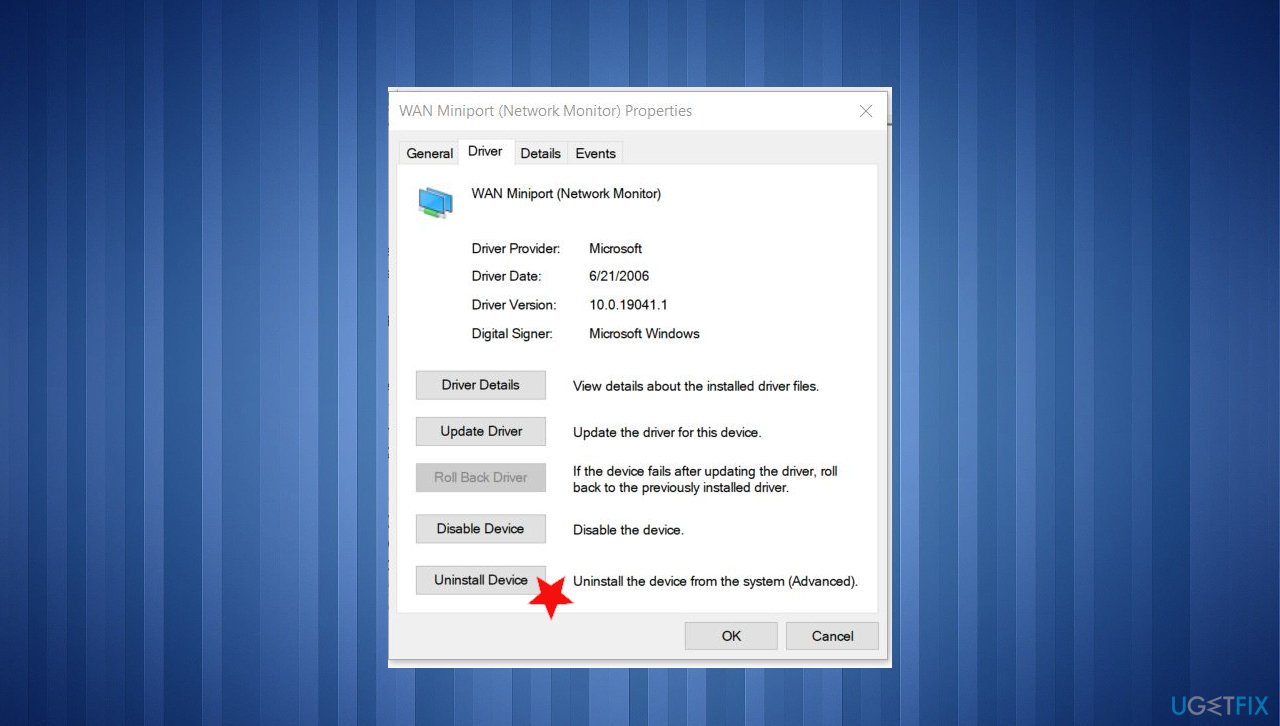
Fix bsod qcamain10x64 sys uninstall - Select the Driver tab and click on Uninstall Device.
- Restart your computer when it is done.
- Allow Windows to install the replacement for the driver at the next startup.
Option 4. Run a disk check
- Click on the Start menu and type cmd.
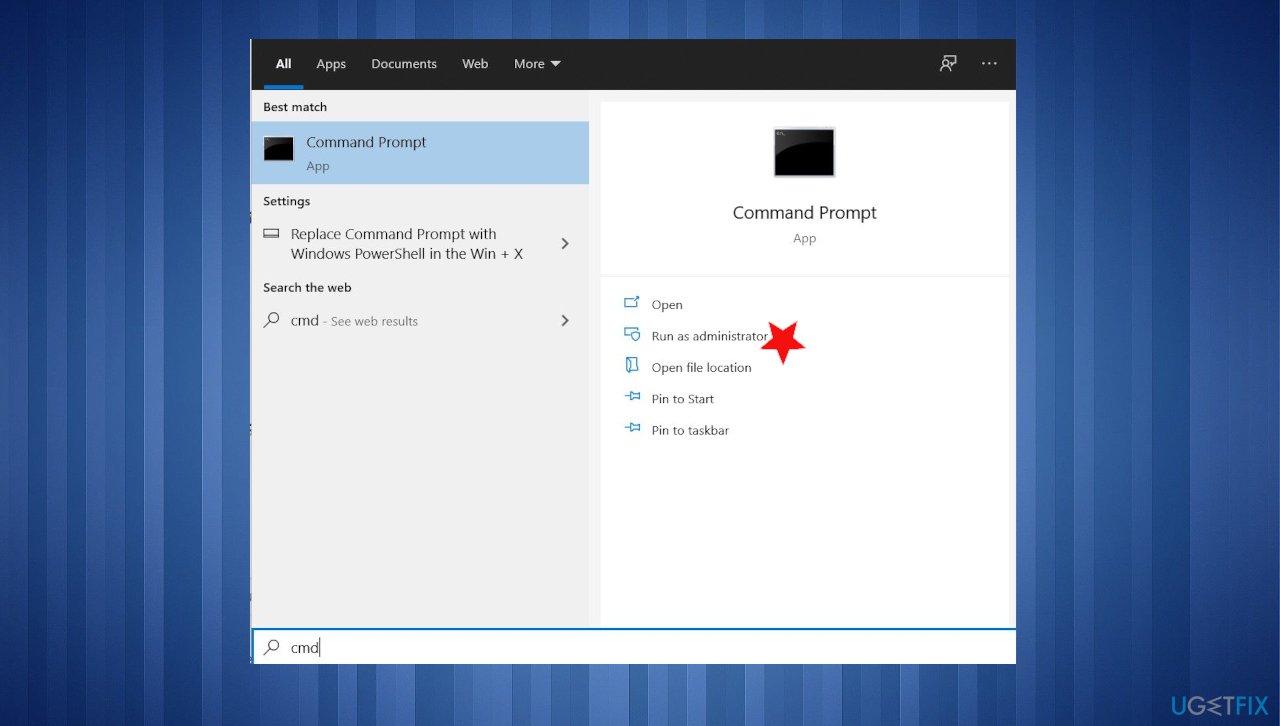
Fix bsod qcamain10x64 sys cmd - Right-click on CMD in the result and select Run as administrator.
- Click Yes when prompted. The command prompt opens.
- Type chkdsk c: /f and press Enter.
- Restart your computer to complete the scan.
Bottom line
To fix the Qcamain10x64.sys BSOD, ensure you install the latest Windows updates and check for corrupted files using system tools. If the problem persists, consider updating your drivers or seeking further assistance.
Frequently asked questions
The Qcamain10x64.sys BSOD error is typically caused by outdated or corrupted drivers, particularly related to the QuickCam device. This can happen after a Windows update or due to incompatible software installations.
To update the Qcamain10x64.sys driver, go to Device Manager, locate the QuickCam device, right-click it, and select 'Update driver'. You can also visit the manufacturer's website for the latest driver version.
If updating the driver does not resolve the issue, try uninstalling the QuickCam software, running the Windows Memory Diagnostic tool, or performing a system restore to a point before the error occurred.




Report an issue
What's wrong with this guide? We review every report and update or remove content.
Report received — thank you. We'll review and fix it.
You need a free account to submit a report.
Be the first to comment