How to fix
Qtcore4.dll is missing error
on Windows
Resolve the Qtcore4.dll missing error on Windows 10 and Windows 11 quickly and effortlessly. Expert-tested solutions to get you back on track, fixed in …

What causes How to fix Qtcore4.dll is missing error?
- Incorrectly shut operating system
- Malware infection
- Missing QtCore4.dll file
- Corrupted application installation
- Issues during operating system startup
Repairs Windows system files, removes malware, and restores a clean OS state — without reinstalling.
I received the following error message and the come through for before my computer was upgraded to Windows 10 and is still reoccurring after the upgrade:
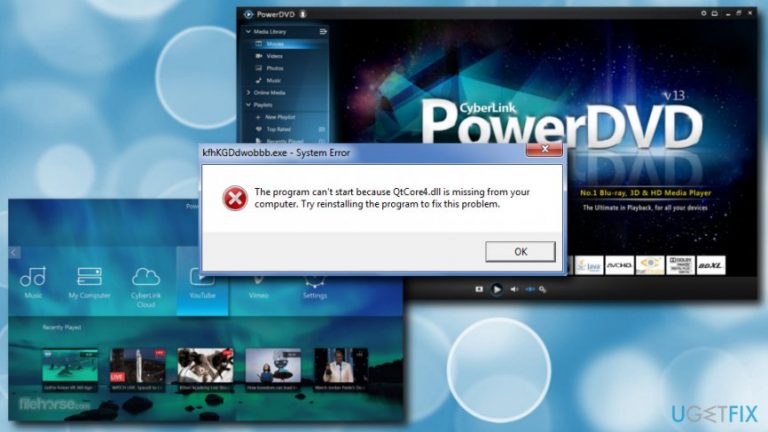
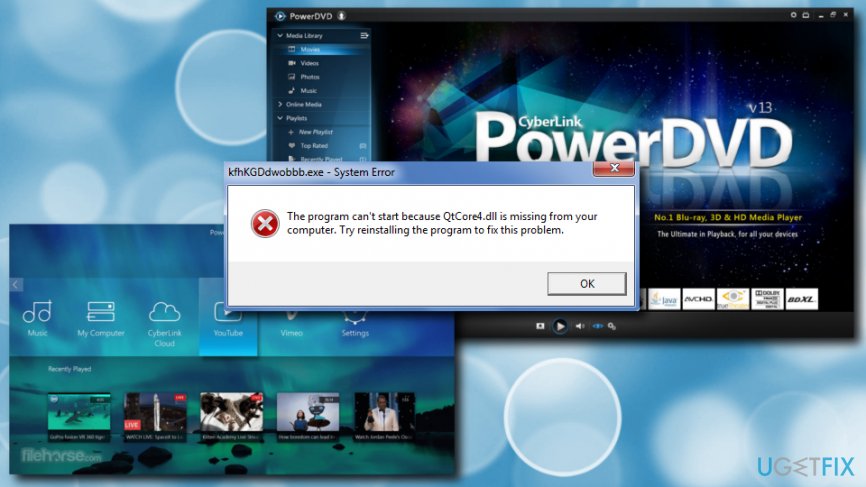
"the program cant start because of QtCore4.dll is missing from your computer. try the reinstalling the program to fix this problem.”
QtCore4.dll is a Dynamic Link Library[ref en-1] file that belongs to Dell Application For Reinstalling Cyberlink PowerDVD DX 8.2 Software by Dell for Windows OS. DLL files allow your operating system to perform same tasks in different applications (for example, printing).
Dynamic Link Library files are shared files and exist outside of software program. Therefore, they sometimes might cause problems and come up with error messages. Numerous reasons can cause these error messages; however, Windows will show them because it cannot correctly load the.dll file and users struggle to fix the QtCore4.dll error.
QtCore4.dll errors usually occur during startup of the operating system, a startup of the application or while trying to perform a certain task. Here are few examples of different error messages related to QtCore4.dll:
QtCore4.dll not found
Cannot find C:\\Windows\\System32\\\\QtCore4.dll
This application failed to start because QtCore4.dll was not found. Re-installing the application may fix this problem
Cannot start Dell Application For Reinstalling Cyberlink PowerDVD DX 8.2 Software. A required component is missing: QtCore4.dll. Please install Dell Application For Reinstalling Cyberlink PowerDVD DX 8.2 Software again
Thus, it is essential to make sure that no malware is affecting your computer. For that purpose, you should restart your machine in Safe Mode with Networking and run robust security software, such as [rev id=“Reimage”].
If you used the computer scanner and it did not find any infections, please proceed with the following QtCore4.dll error fixes.
Fix 1. Reinstall the application related to QtCore4.dll
As we already mentioned, the QtCore4.dll file is related to Dell Application For Reinstalling Cyberlink PowerDVD DX 8.2 Software. Thus, reinstalling application might help.
- Click Start and type in Control Panel into the search box
- Go to Programs and then choose Programs and Features
- Find a QtCore4.dll-associated program (e.g., Dell Application For Reinstalling Cyberlink PowerDVD DX 8.2 Software) under the Name column
- Right-click on it, press Uninstall and follow the on-screen instructions
Fix 2. Clean your Registry entries

We do not recommend manual Registry modification as the process is too complicated and should only be performed by IT professionals. If you are not one of them, run a [rev id=“Reimage"] Registry cleaner which will fix everything automatically.
Fix 3. Repair QtCore4.dll related errors using System File Checker
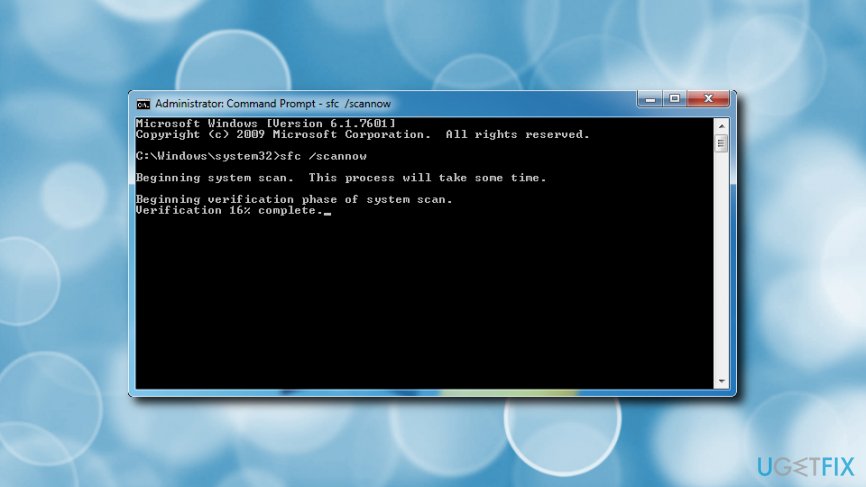
- Click Start button and type in Command
- Hold CTRL+SHIFT and press Enter
- Command Prompt Window with a blinking cursor will open
- Type sfc /scannow and press Enter
- After the scan is complete, restart your computer
Fix 4. Manually Register QtCore4.dll file
When software that uses QtCore4.dll is installed, it should register the file automatically. In some cases, this procedure fails and users get the "QtCore4.dll not registered" error. To fix that, manually register QtCore4.dll file using Microsoft Register Server.
- Click Start button and type in Command
- Hold CTRL+SHIFT and press Enter
- The Command Prompt Window should show up
- Type in the following: regsvr32 /u QtCore4.dll. and hit Enter
- Then, type in regsvr32 /i QtCore4.dll, and press Enter again
- Close down the window and restart your computer
Fix 5. Make sure Windows is up to date
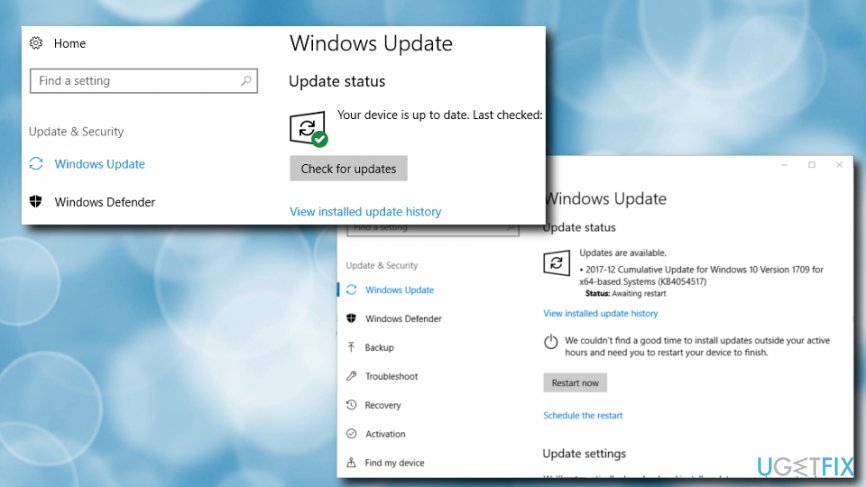
- Press Start button and then pick Windows Update
- Click on Check for updates
- If updates are available, press Download
- After the the process is complete, restart your machine
Bottom line
To fix the QtCore4.dll is missing error, you can try reinstalling the application related to the DLL file, running a malware scan in Safe Mode, or checking for corrupted system files. If none of these solutions work, further investigation into system settings or additional software may be necessary.
Frequently asked questions
You can restore the Qtcore4.dll file by reinstalling the application that requires it or by downloading the DLL file from a reliable source and placing it in the application's directory. After that, run a system scan using the System File Checker to ensure all Windows files are intact.
If the Qtcore4.dll error appears after a Windows 11 update, try rolling back the update or performing a system restore to a point before the update was installed. Additionally, you can check for any available updates that might resolve known issues.
Downloading Qtcore4.dll from third-party websites can pose risks, as these files might be outdated or infected with malware. It is safer to reinstall the software that requires the DLL or use Windows' built-in repair tools.




Report an issue
What's wrong with this guide? We review every report and update or remove content.
Report received — thank you. We'll review and fix it.
You need a free account to submit a report.
Be the first to comment