How to fix
QtWebEngineProcess.exe process taking too many resources
on Windows
Is QtWebEngineProcess.exe consuming your Windows 10 or Windows 11 resources? Discover quick fixes and expert tips that ensure smooth performance, update…


What causes How to fix QtWebEngineProcess.exe process taking too many resources?
- Related to Origin gaming platform
- High resource consumption similar to Origin.exe
- Updates causing instability
- Possible relation to other applications like Ring Central and BitLord
- Corrupted or malicious file errors
Repairs Windows system files, removes malware, and restores a clean OS state — without reinstalling.
Hi guys. I have recently noticed that my computer is running louder and the fans are spinning faster. To find out what is causing it, I opened Task Manager and saw a process called QtWebEngineProcess.exe running. In some cases, I can see several instances of it running, and taking up to 200 MB of RAM and 20% of CPU while I'm not even doing anything with my computer. How is that possible? Is there some sort of bug? And what is the process for? Please help me!
QtWebEngineProcess.exe process is typically related to Origin gaming platform developed by Electronic Arts[ref en-1] which is similar to Steam. Users can purchase, download, install and update games, save game progress, manage the user profile, stream via Twitch TV, and even share a game library with sites like Xbox Live,[ref en-2] Facebook, PlayStation Network, and similar. To make use of this platform, gamers have to download Origin client available on the official website.
Just like many other applications, Origin is presenting updates to improve its stability, security, improved configuration, and other factors. However, one of these updates can bring QtWebEngineProcess.exe to the system which sometimes causes a high amount of CUP used. According to some users, it consumes almost the same amount of resources as Origin.exe without even doing anything.
Some users offered to close down the client running in the background. However, it is not the answer to the problem, as, if the game is launched, computer resources would jump up even more and slow down the computer. Therefore, our team piled up a few solutions for this problem and hopefully you can find a way how to fix QtWebEngineProcess.exe taking too many resources.

Alternatively, the QtWebEngineProcess.exe process can be related to Ring Central, BitLord, Steam, Glyph, PlayTV,[ref en-3] programs or some browsers. The file is digitally signed by DropBox.
In this case, Qtwebengineprocess.exe process brings up errors that notify about corrupted or even possibly malicious file:
- QtWebEngineProcess.exe Application Error.
- QtWebEngineProcess.exe has encountered a problem and needs to close. We are sorry for the inconvenience.
- Cannot find QtWebEngineProcess.exe.
- Error starting program: QtWebEngineProcess.exe.
- QtWebEngineProcess.exe failed.
- QtWebEngineProcess.exe is not a valid Win32 application.
Methods to fix the Qtwebengineprocess.exe issue
Because it is an executable file, we suggest you scan your device with [d1] to make sure that it is not misused by malware, including trojans, backdoors, ransomware, rootkits,[ref en-4] spyware, worms, etc. We suggest this procedure in the first place because malware tends to use the names of legitimate processes to disguise itself as a legitimate system component. You should be extremely suspicious if the executable is located in C:\\Windows\\ or C:\\Windows\\System32, and not in C:\\Program Files. If the scam came up clean, follow the methods presented below.
Re-install Origin or other related-application
In case the increased CPU usage comes from a corrupt download of the Origin or its patch, we recommend to uninstall and then re-install the application (do the same if another program uses the file):
- Right-click on the Start button and select Settings
- Go to Apps > Apps & Features
- Scroll down and find Origin App in the list
- Click on it and press Uninstall
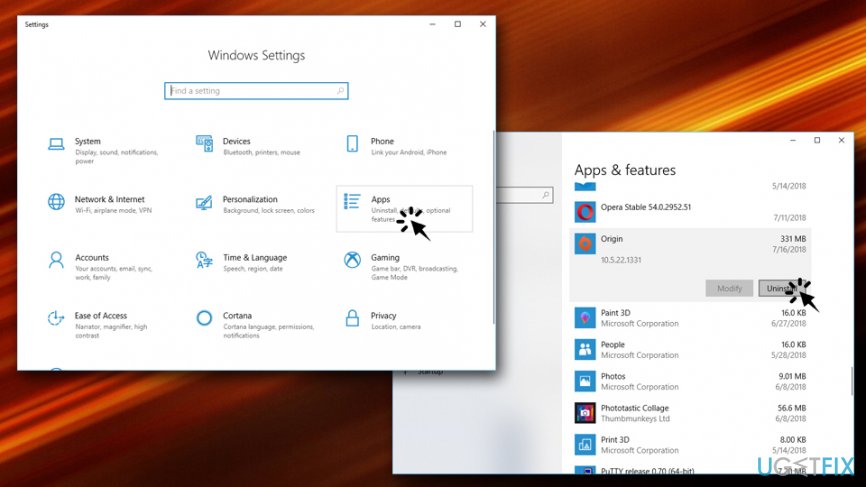
Qtwebengineprocess exe process taking too many resources ununstall origin - Next, go to the official website, download and install the client again
Run System File Checker
SFK (System File Checker) is a great tool to fix many Windows-related issues, like fixing corrupt or missing files. Follow these steps:
- Type in Command Prompt into the search box
- Right-click on the search results and select Run as administrator
- When User account control shows up, click Yes
- Then, type in sfc /scannow into the Command Prompt window and press Enter
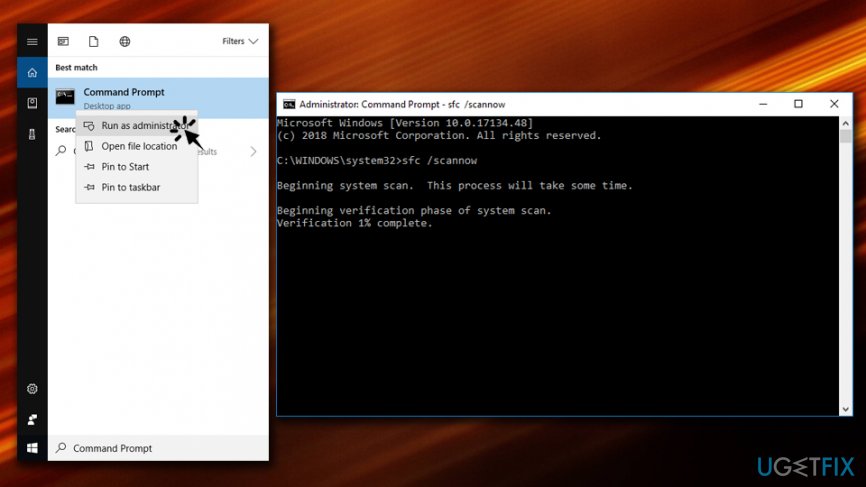
Qtwebengineprocess exe process taking too many resources run system file checker - Wait till the scan is complete. Windows will find and repair all issues automatically
Use DISM Scan to fix QtWebEngineProcess.exe errors
- Open Administrator: Command Prompt as explained above
- Type in the following: DISM /Online /Cleanup-Image /RestoreHealth and press Enter
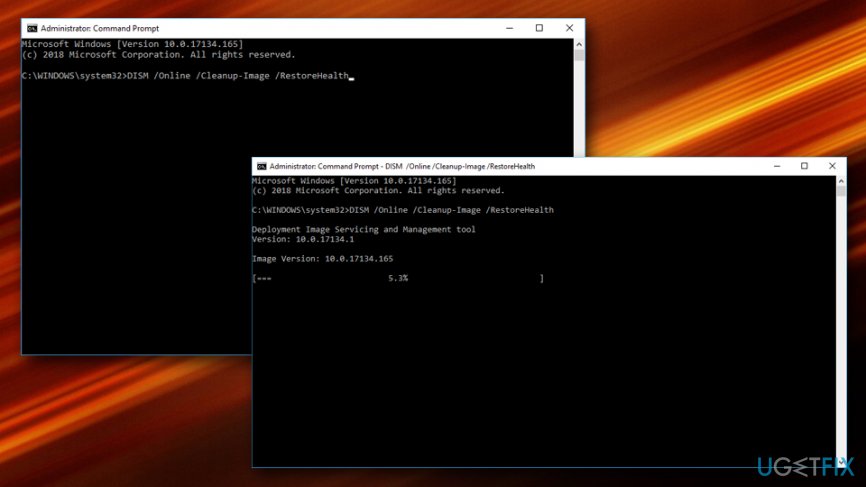
Qtwebengineprocess exe process taking too many resources run dism - Wait till scan is complete and see if the problem persists
Stop QtWebEngineProcess.exe process
You can use Task Manager or system monitoring program that provides information about processes running in the background. You can also indicate the use of computer resources like CPU, using these features.
- Start the Task Manager and find QtWebEngineProcess.exe process.
- Right-click on it and choose End task.
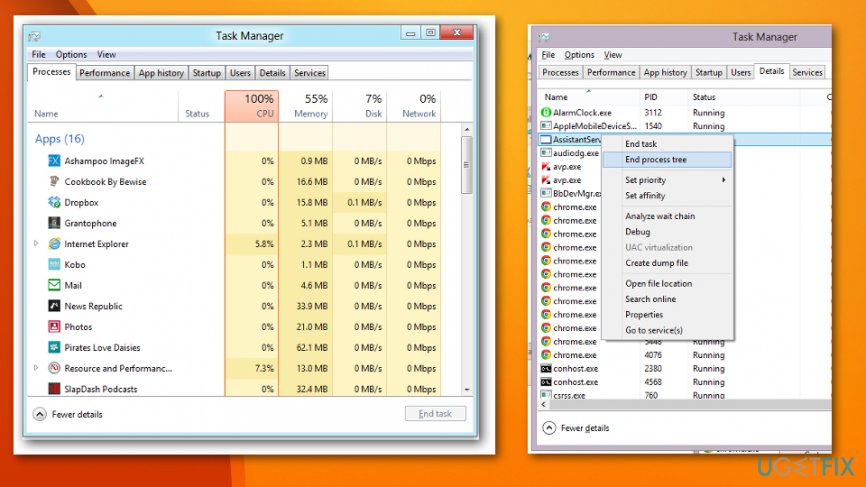
Qtwebengineprocess exe fix task manager
You can also find out which software is using this file and causing issues on the system.
- Right-click the QtWebEngineProcess.exe in the Task Manager and select Open file location.
- Determine if the software is legitimate and important. If the process is associated with a Windows OS program, you should keep it on the device.
Use Windows System Restore
You can employ this Windows OS feature to undo the recent changes and restore of your OS to a previous state.
- Click the Start button.
- Locate or search for System Restore.
- Enter the administration password if needed.
- Choose the restore point and follow with the process.
Update drivers on your PC
The issue with executable files may be caused by outdated drivers or software, so you may need to check for possible updates and the issue with QtWebEngineProcess.exe errors could disappear.
- You can use driver updater tool that indicates all outdated drivers and update them at the instance.
- Also, you can check for updates manually for each one but this method takes time and installing a bad driver can cause more problems.
Install Windows updates
Microsoft is constantly updating Windows systems and since QtWebEngineProcess.exe may be associated with OS programs you should find available updates and install them as a solution for resolving the issue.
- Click the Start button.
- Enter Update to a search box and press Enter.
- When Windows Update dialog windows appear it shows if there any available.

Qtwebengineprocess exe fix windows updates - If there are recent updates click Install Updates and proceed with the installation.
Bottom line
To fix the high resource usage of QtWebEngineProcess.exe, users can try closing the Origin client, checking for updates, or uninstalling conflicting applications. If these solutions do not resolve the issue, consider scanning for malware or reinstalling the affected programs.
Frequently asked questions
QtWebEngineProcess.exe can consume high CPU resources due to multiple open tabs or heavy web applications. Closing unnecessary tabs or updating your browser may help reduce its resource usage.
You can disable QtWebEngineProcess.exe by uninstalling applications that rely on it or by adjusting the settings in your web browser to prevent it from launching.
If QtWebEngineProcess.exe is freezing your Windows 10, try terminating the process via Task Manager or updating your graphics drivers, as outdated drivers can lead to performance issues.




Report an issue
What's wrong with this guide? We review every report and update or remove content.
Report received — thank you. We'll review and fix it.
You need a free account to submit a report.
Be the first to comment