How to fix
Rainbow Six Siege error 3-0x00030089
on Windows
Resolve the Rainbow Six Siege error 3-0x00030089 on Windows 10 and 11 effortlessly. Enjoy uninterrupted gaming with expert-tested solutions!

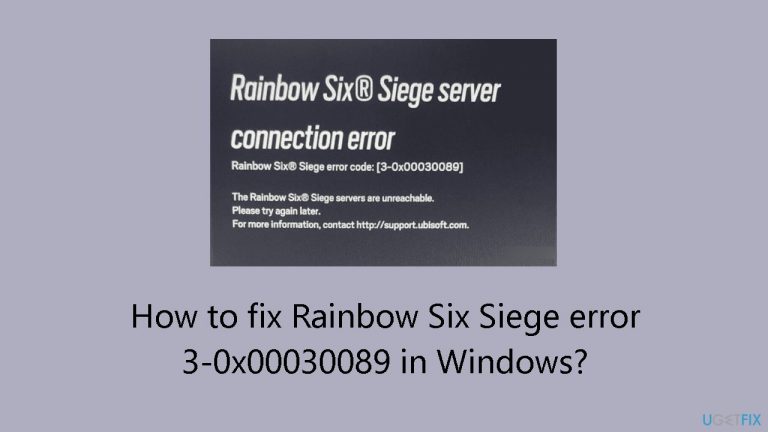
What causes How to fix Rainbow Six Siege error 3-0x00030089 in Windows?
- Server maintenance or outages
- Conflicting third-party firewalls
- Antivirus software interference
- Network connectivity problems
- Missing or corrupt integrity files
Repairs Windows system files, removes malware, and restores a clean OS state — without reinstalling.
Hello. When I try to play Rainbow Six Siege multiplayer on Windows, I get the 3-0x00030089 error code. Any way to fix this?
An enormous number of people have played the tactical shooter game Rainbow Six Siege online. On Windows PCs, however, some players experience a persistent problem indicated by the error number 3-0x00030089. This error has become a common concern among the gaming community.
Error number 3-0x00030089 is frequently associated with issues related to servers. This error may appear to players during maintenance or outage periods on the Rainbow Six Siege servers, interfering with their ability to interact with other players and play the game online.
Error code 3-0x00030089 may also arise due to external problems like conflicting third-party firewalls or antivirus software. Due to its dependency on network connections, the game is vulnerable to problems caused by these outside security programs.
This problem jeopardizes Rainbow Six Siege's smooth gameplay, which has a significant negative impact on players. Gamers may become frustrated and have a worse overall gaming experience if they are unable to join matches, communicate with friends, or take part in essential gameplay elements.
In addition to server-related issues and interference from security software, 3-0x00030089 error code can also be caused by network connectivity problems, such as slow internet. The error may also occur as a result of missing or corrupt integrity files in the game installation.
In this guide, you will find 4 steps that should help you fix Rainbow Six Siege error 3-0x00030089 in Windows. You can also run a maintenance tool like [d1] that can fix most system errors, BSODs,[ref en-1] corrupted files, registry[ref en-2] issues, or clear cookies and cache[ref en-3] automatically. Otherwise, follow the step-by-step instructions below.
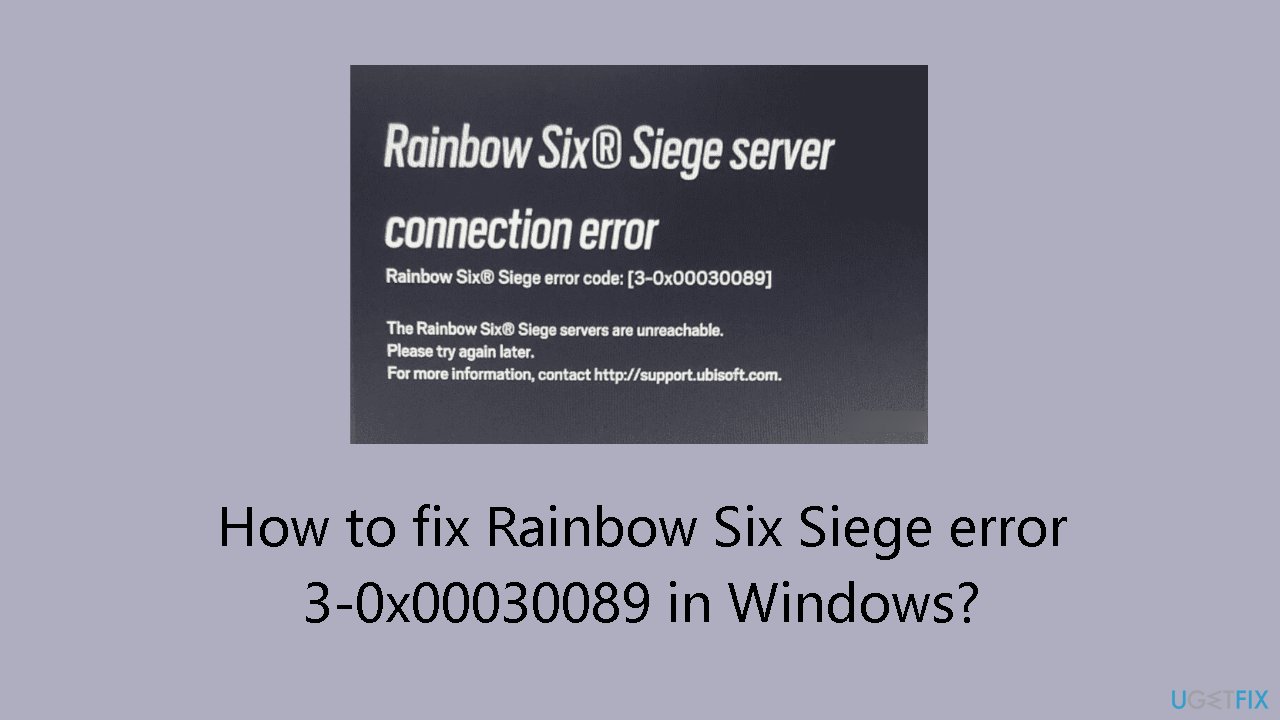
Method 1. Check Servers Status
- Go to the Ubisoft website
- Navigate to the Global Servers section.
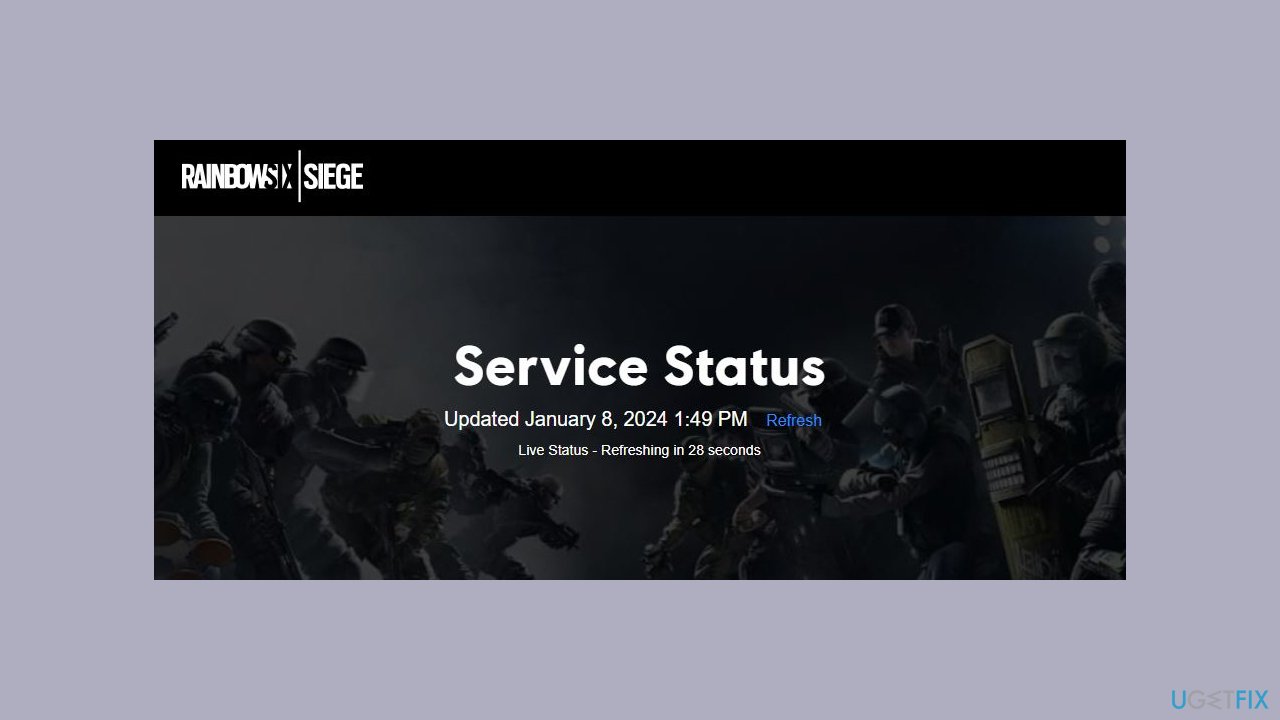
- Locate the PC option and click on it.
- Check for any green-colored indicators labeled No Issues immediately following the PC option.
- If there are no issues indicated, the PC servers are working fine.
- Additionally, inspect the servers for PS4 and Xbox One, as issues with either may cause error codes when playing Rainbow Six Siege.
- If Ubisoft servers are down, be patient as they may take some time to come back online.
Method 2. Restart the Computer
Rebooting your system assists in clearing temporary files and cache, addressing potential connection issues with the Rainbow Six Siege server. This approach can refresh network settings and resolve glitches that might hinder the game from establishing a connection to the servers.
Method 3. Verify Integrity of Game Files
- Open Steam and go to the Library.
- Right-click on the Rainbow Six Siege game.
- Choose Properties.
- Select Local Files.
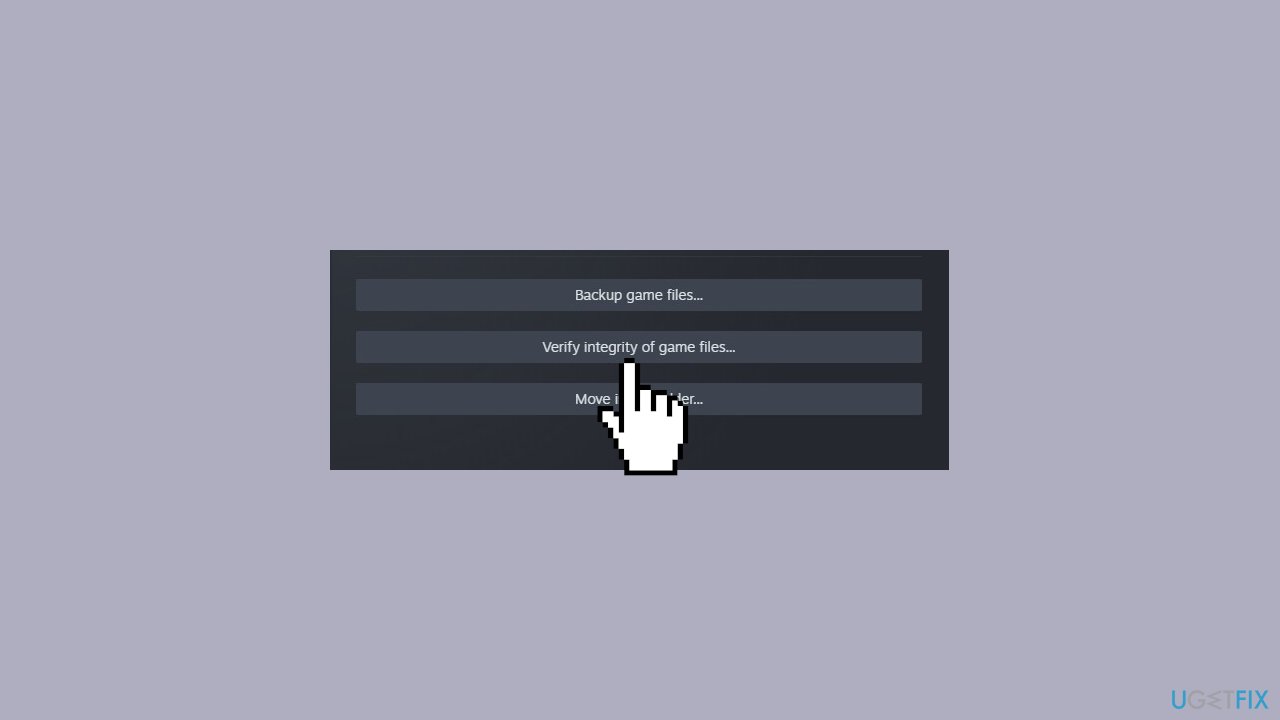
- Click on Verify integrity of game files.
- Wait for the file verification process to complete.
Method 4. Disable Microsoft Defender
- Press the Windows key and type Security in the search bar.
- Select Windows Security from the search results.
- Click on Firewall & network protection.
- Choose the type of network you are currently using: Public, Private, or Domain.
- Toggle off the switch for Microsoft Defender Firewall. It is recommended to disable the Firewall for all three networks.
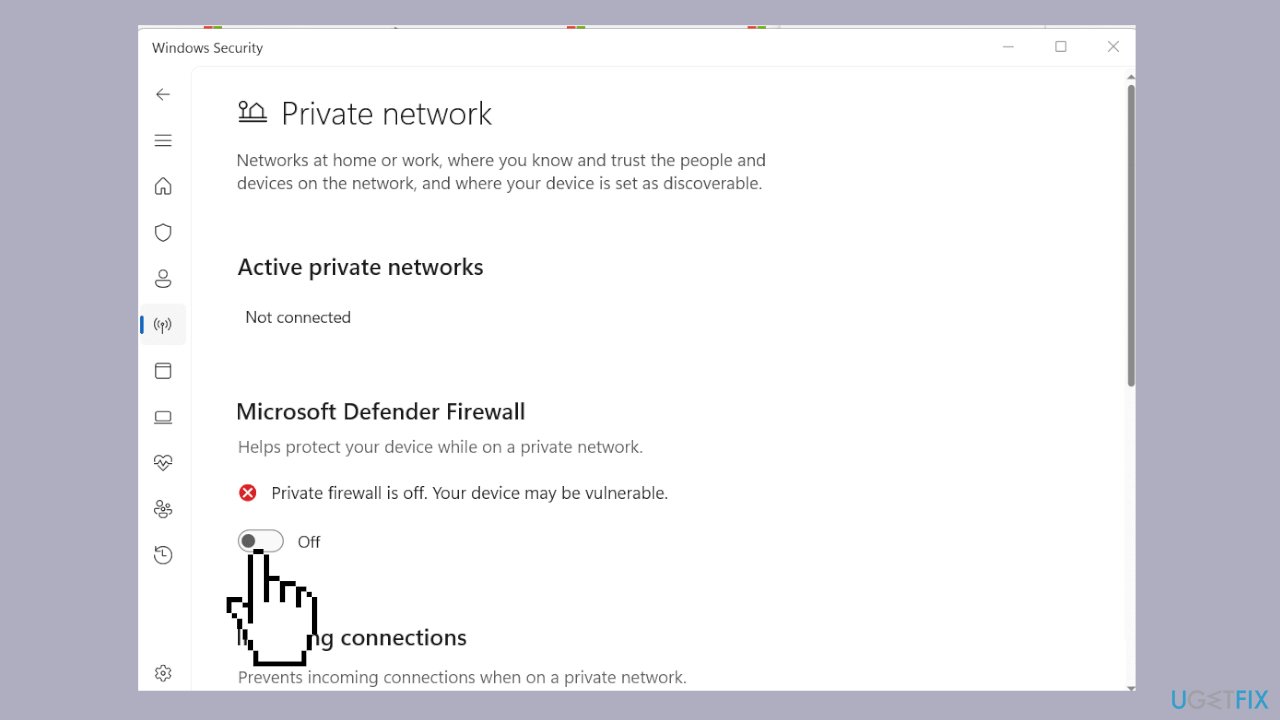
- Click on the Start button, type Security, and press Enter.
- From the left panel, choose Privacy & security.
- On the right, click on Windows Security.
- Then, click on Firewall & network protection.
- Select Allow an app through firewall.
- In the new window, click the Change settings button.
- Choose Allow another app...
- Click on Browse in the Add an app window.
- Locate and choose the Rainbow Six Siege executable file, then click Add.
- After adding the file, select OK on the Windows Defender Firewall window.
- Close the windows to complete the process and enjoy uninterrupted gameplay.
- Next, go to Windows Security > Virus & threat protection.
- Turn on Real-time protection in Windows Defender.
Bottom line
To fix the Rainbow Six Siege error 3-0x00030089, you can check the server status, disable conflicting firewalls and antivirus software, ensure stable network connectivity, and verify the integrity of game files. If these steps do not resolve the issue, consider using a maintenance tool to address system errors.
Frequently asked questions
This error typically indicates a problem with the game's files or connection issues with the Ubisoft servers. It can occur due to corrupted game files or network settings.
To verify game files, open Ubisoft Connect, navigate to your games library, click on Rainbow Six Siege, and select 'Verify files' to check for any missing or corrupted files.
Yes, ensure that your firewall or antivirus is not blocking Rainbow Six Siege and consider resetting your network settings by running 'netsh int ip reset' in Command Prompt.




Report an issue
What's wrong with this guide? We review every report and update or remove content.
Report received — thank you. We'll review and fix it.
You need a free account to submit a report.
Be the first to comment