How to fix
Rainbow Six Siege error code 3-0x000c0054
on Windows
Resolve Rainbow Six Siege error code 3-0x000c0054 on Windows 10 and 11 quickly with our expert-tested solutions. Get back to gaming in minutes!

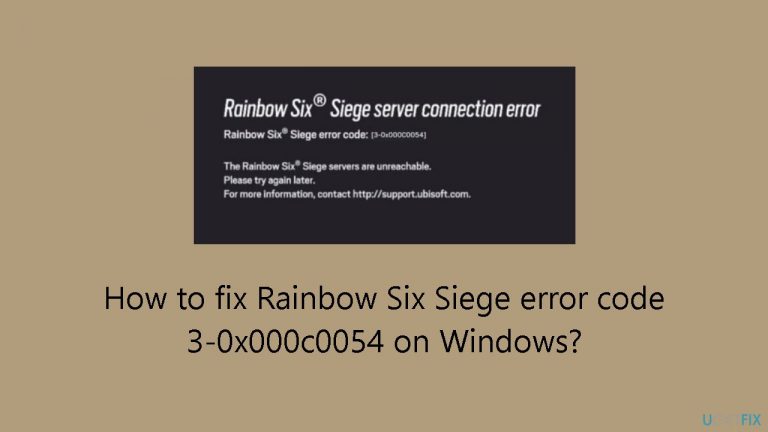
What causes How to fix Rainbow Six Siege error code 3-0x000c0054 on Windows?
- Network configurations are not optimal
- Game files may be corrupted
- Program issues may exist
- DNS cache may be outdated
Repairs Windows system files, removes malware, and restores a clean OS state — without reinstalling.
Hello. When I try to load a Rainbow Six Siege game on Windows, I get the 3-0x000c0054 error code saying servers are unreachable. Is there a way to fix this?
Rainbow Six Siege is a popular tactical first-person shooter developed by Ubisoft. Since its introduction, the game has attracted a sizable player community thanks to its emphasis on strategic gaming and teamwork. In this competitive online game, players take on the roles of different counterterrorism operators from across the globe.
But when trying to start Rainbow Six Siege, certain Windows users have run into a particular error number, 3-0x000c0054. Players seem to become frustrated because this problem appears to interfere with the game's regular launch process. This problem usually arises during the initialization phase and stops users from accessing the game and playing matches. The exact reason for the error may vary.
Users may face negative effects from seeing the error code 3-0x000c0054, such as interruptions to their gaming sessions and inability to fully enjoy Rainbow Six Siege. Players may feel inconvenienced as a result of this problem and find it more difficult to interact with the game's community or take part in planned events.
Users have reported using a variety of troubleshooting techniques, while the exact solutions for this error code may vary depending on the underlying cause. These consist of making sure network configurations are optimal confirming the integrity of game files, and looking for program issues.
In this guide, you will find 6 steps that should help you fix Rainbow Six Siege error code 3-0x000c0054 on Windows. You can also run a maintenance tool like [d1] that can fix most system errors, BSODs,[ref en-1] corrupted files, and registry[ref en-2] issues. Otherwise, follow the step-by-step instructions below.
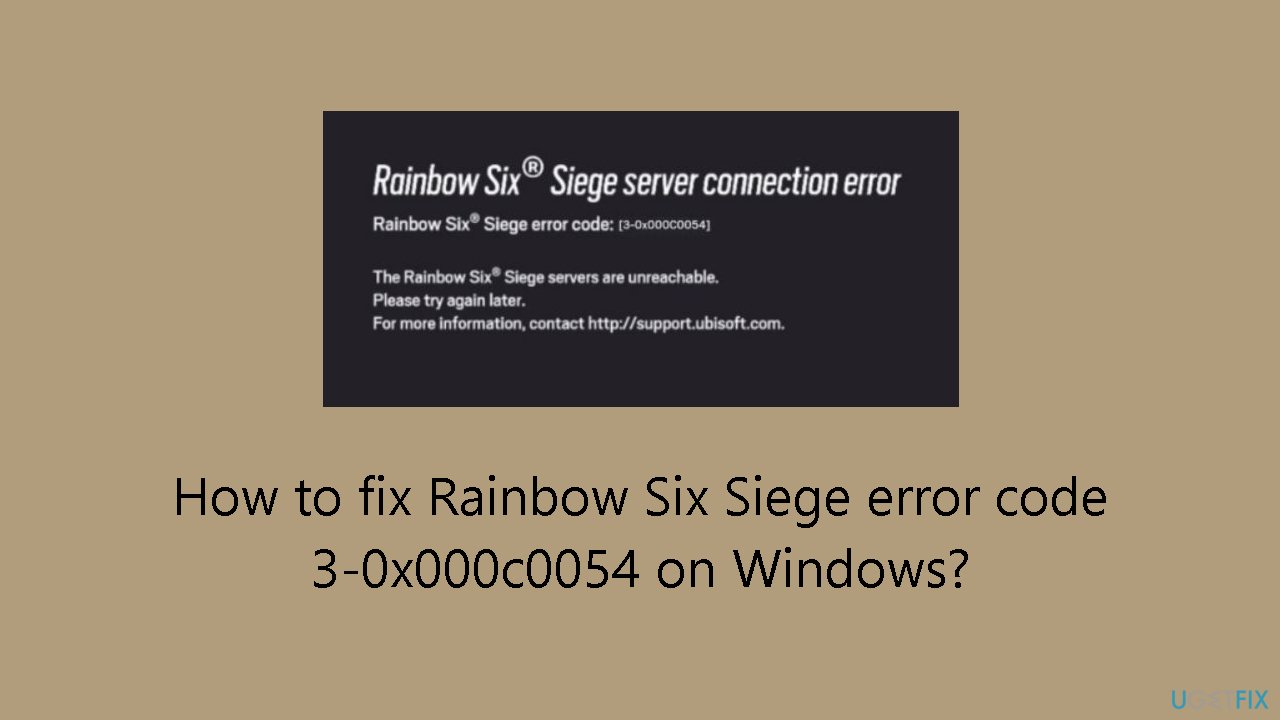
Solution 1. Clear DNS Cache
- Press the Windows key.
- Type cmd in the search box.
- Click Run as administrator.
- Type the following commands one by one:
ipconfig /flushdns
ipconfig /registerdns
ipconfig /release
ipconfig /renew
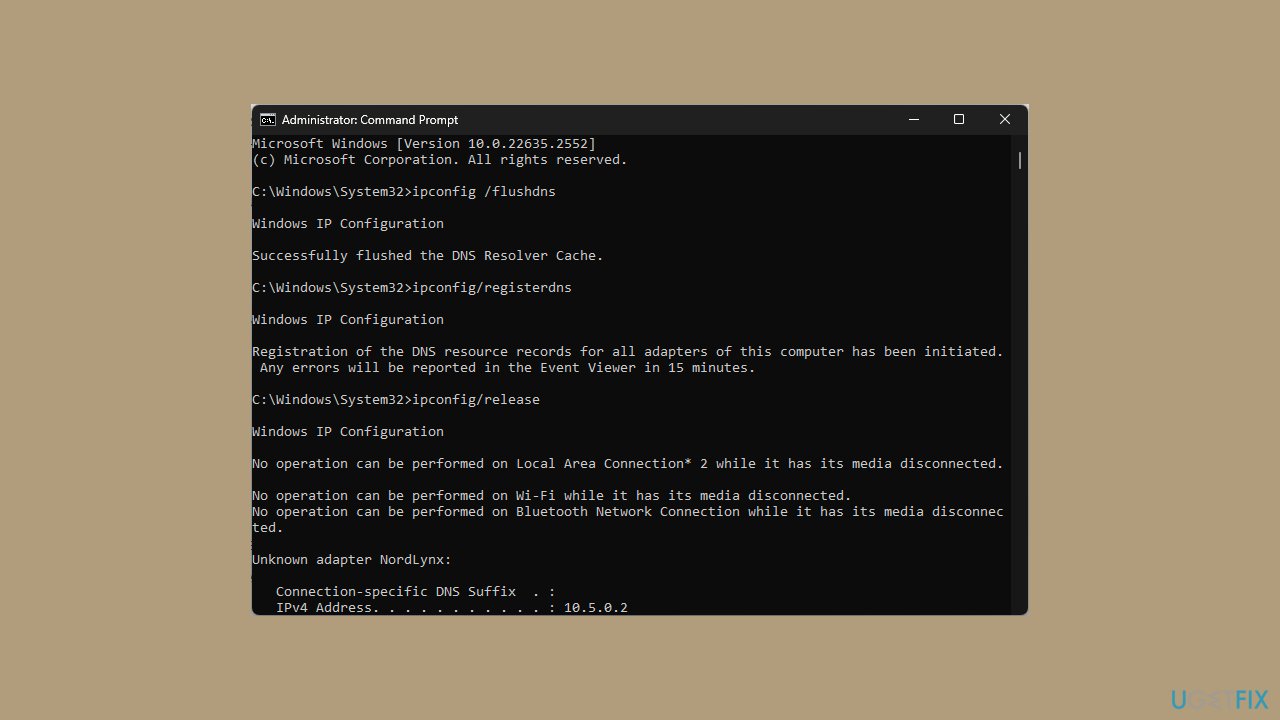
- Hit Enter after every command.
- Restart your computer.
Solution 2. Change DNS Server
- Press the Windows key + R to open the Run window.
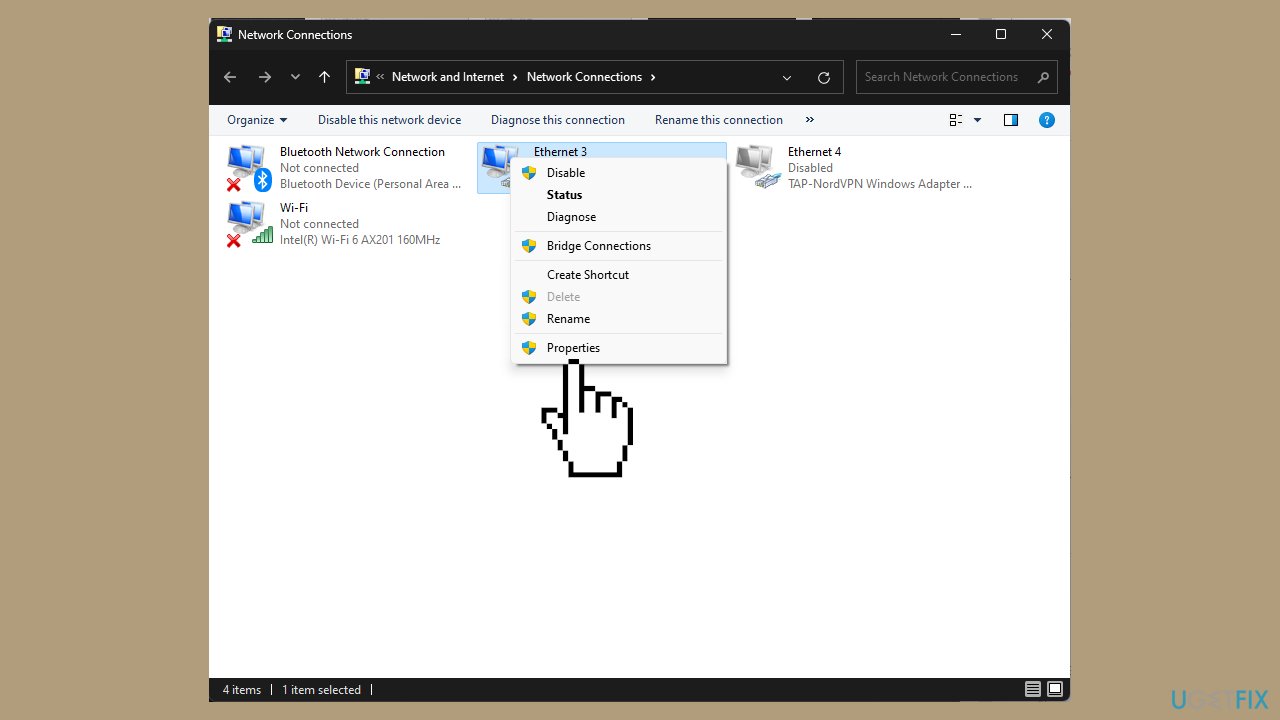
- Type ncpa.cpl and click OK to open the Network Connections.
- Locate the Network connection you use, right-click it, and select Properties.
- Select Internet Protocol Version 4 (TCP/IPv4) from This connection uses the following items box and click Properties.
- Click the radio button next to Use the following DNS server addresses.
- Set Preferred DNS server as 8.8.8.8 and Alternate DNS server as 8.8.4.4.
- Click OK, then OK to confirm the change.
Solution 3. Reset your Network Settings
- Press the Windows key + I to open the Settings app.
- Go to Network & Internet, then select Advanced network settings.
- Under More settings, select Network reset.
- On the following page, click the Reset now button.
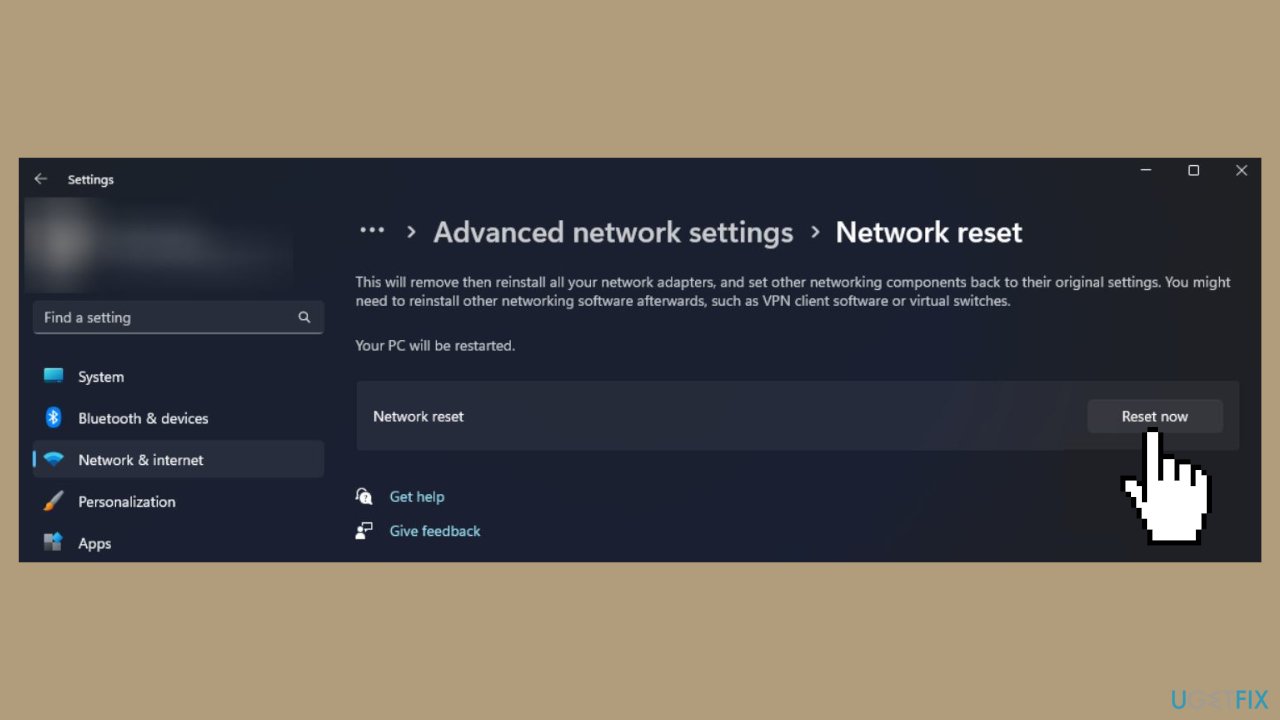
- Click Yes to confirm the choice.
- Your computer will restart in 5 minutes after resetting the network, so make sure you save your work before it reboots.
Solution 4. Allow the App through Windows Firewall
- Press the Windows key.
- Type control panel in the search box and click Open.
- Select Category for View by and click System and Security.
- Under Windows Defender Firewall, select Allow an app through Windows Firewall.
- On the Allowed apps page, click Change settings.
- Select Allow another app.
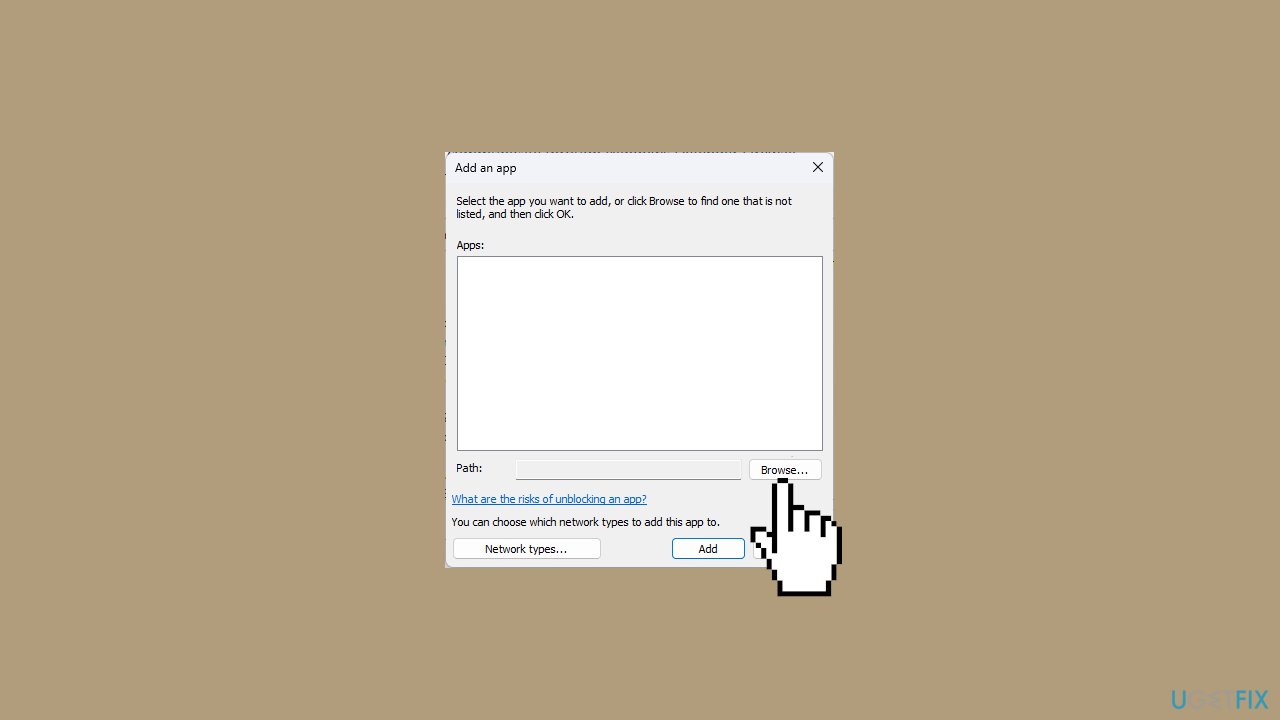
- Click Browse and locate the executable file of Rainbow Six Siege.
- Click Add.
- On the Allowed apps window, Rainbow Six Siege will be added to the list.
- Place a checkmark next to Private and Public.
- Click OK to save the changes.
Solution 5. Edit the Game Settings Folder
- Press the Windows key + E to open the File Explorer window.
- Navigate to this path:
Documents\MyGame\Rainbow Six – Siege\7564b1ec-0856-4f93-8aef-71232c035d75
- Locate the GameSettings folder and double-click it to open it on Notepad.
- Scroll and find the DataCenterHint=default line.
- Change the default to the closest server you have.
- You can find a list of servers on the Ubisoft website.
- Press Ctrl + S to save the changes.
Solution 6. Verify Integrity of Game Files
- Press the Windows key.
- Type ubisoft connect and click Open.
- Go to the Games tab and select Rainbow Six Siege.
- From the left side pane, click Properties.
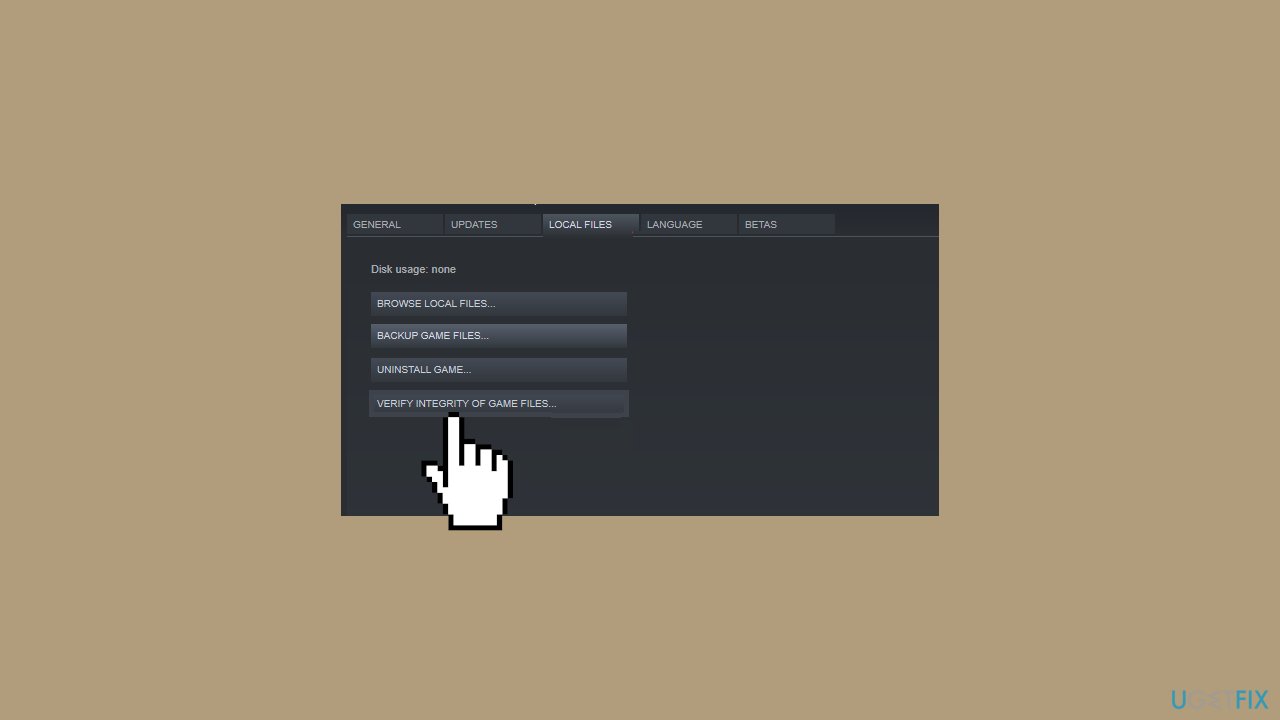
- Locate Local files and click Verify Integrity of game files.
- Click Repair, and the broken files will be fixed.
- Restart the Ubisoft Connect software, then relaunch the game.
Bottom line
To fix the Rainbow Six Siege error code 3-0x000c0054, users can clear the DNS cache and change their DNS settings. If these solutions do not resolve the issue, consider running a maintenance tool or further troubleshooting steps.
Frequently asked questions
This error typically occurs due to corrupted game files, issues with the Ubisoft Connect client, or network connectivity problems. Ensuring your game files are intact and your internet connection is stable can help resolve this issue.
To verify game files, open Ubisoft Connect, go to your game library, right-click on Rainbow Six Siege, select Properties, and click on 'Verify files'. This process will check for any missing or corrupted files and replace them.
Yes, ensure that your firewall or antivirus software is not blocking Rainbow Six Siege and check your router settings for any restrictions. Additionally, using a wired connection instead of Wi-Fi can improve stability and reduce the chances of encountering this error.




Report an issue
What's wrong with this guide? We review every report and update or remove content.
Report received — thank you. We'll review and fix it.
You need a free account to submit a report.
Be the first to comment