How to fix
Rainbow Six Siege error code 4-0xFFF0BE25
on Windows
Resolve Rainbow Six Siege error code 4-0xFFF0BE25 on Windows 10 or 11 quickly and effectively. Expert-tested solutions provided for seamless gaming.


What causes How to fix Rainbow Six Siege error code 4-0xFFF0BE25 in Windows?
- Problems with the user's local system settings
- Server issues
- Problems with network access
- Unwanted processes running in the background
Repairs Windows system files, removes malware, and restores a clean OS state — without reinstalling.
Hello. When I try to connect to a Rainbow Six Siege multiplayer match in Windows I get the 4-0xFFF0BE25 error code. Any way to fix this?
Ubisoft is the developer of the well-known tactical first-person shooter video game Rainbow Six Siege. The gameplay is strategic and team-based, with players taking on the roles of several operatives from various counterterrorism teams, each with their special skills and equipment. The game is well known for its realistic gameplay mechanics, destructible settings, and emphasis on teamwork.
A common problem that users may run into when trying to connect to Rainbow Six Siege is the "Connection Failure" error on Windows, which has the exact error number 4-0xFFF0BE25. This problem usually happens while the game is trying to establish a connection and can keep users from using the online multiplayer capabilities.
There are several possible causes of the error code 4-0xFFF0BE25, such as problems with the user's local system settings, server issues, or problems with network access. Because it prevents them from joining matches and taking advantage of Rainbow Six Siege's multiplayer features, users may find this issue to be annoying.
Users may be greatly impacted by this connection failure issue, particularly those who play online multiplayer games. It's possible that players won't be able to use all of the game's features, play matches, or work together with teammates. This may cause the player base to become less satisfied and have a worse gaming experience.
In this guide, you will find 5 steps that should help you fix Rainbow Six Siege error code 4-0xFFF0BE25 in Windows. You can also try running a maintenance tool like [d1] that can fix most system errors, BSODs,[ref en-1] corrupted files, and registry[ref en-2] issues. Otherwise, follow the step-by-step instructions below.
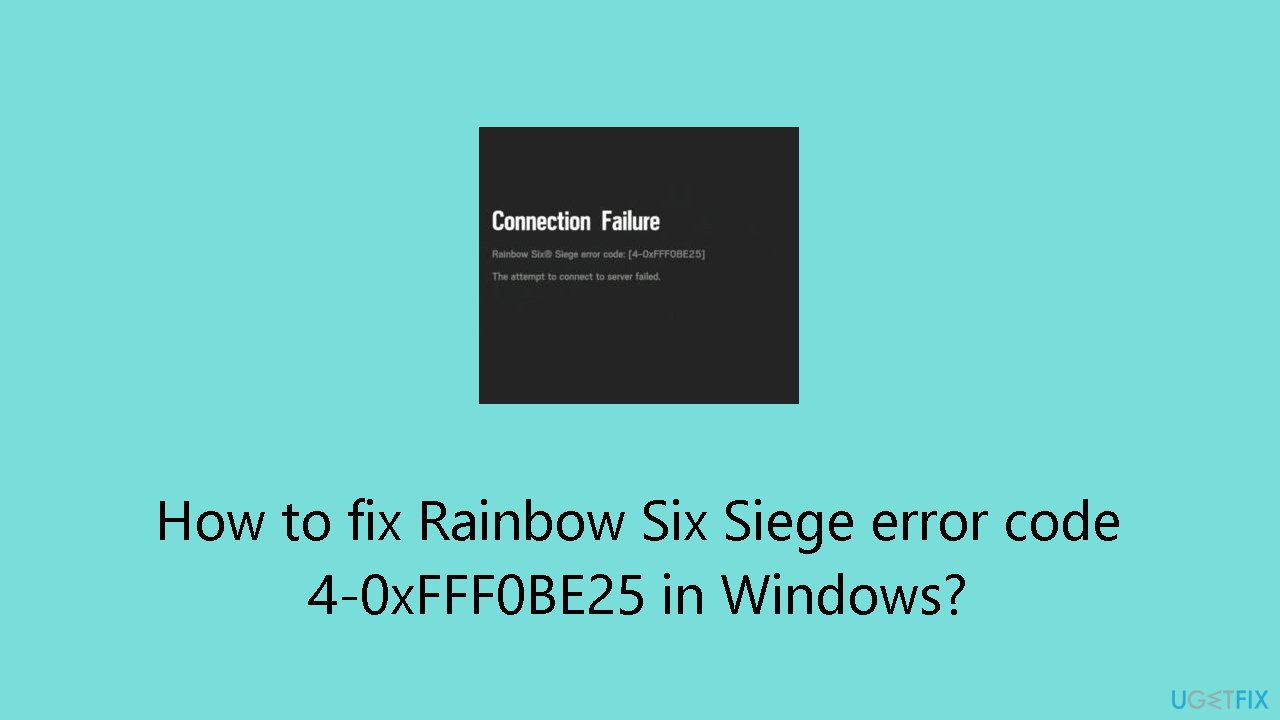
Solution 1. Restart the Game
- Open Task Manager by pressing Ctrl + Shift + Esc.
- Navigate to the Processes tab.
- Right-click on Rainbow Six Siege in the list.
- Select End task from the context menu.
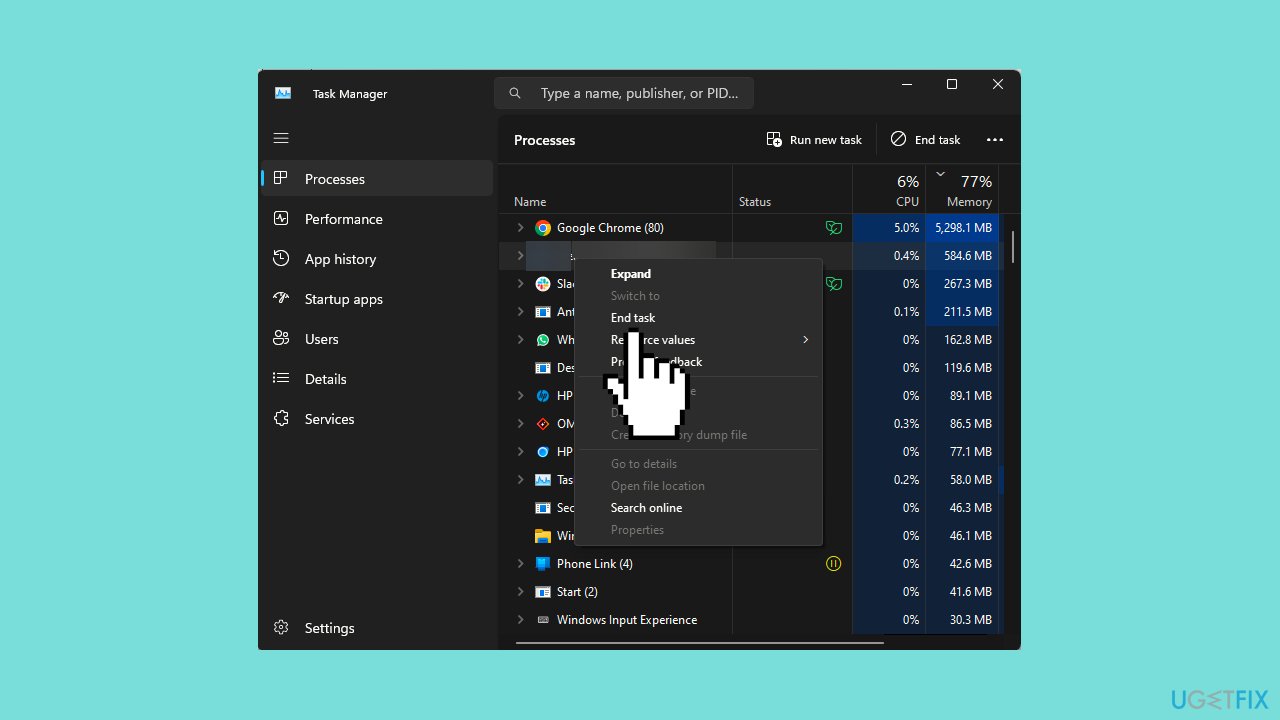
- Repeat the process to close any other unwanted processes and apps.
- Close Task Manager.
- Relaunch the Rainbow Six Siege game.
Solution 2. Clear the DNS Cache
- Press the Windows key and type cmd, then click on Run as administrator.
- Clear the DNS resolver cache by typing the following command and pressing Enter:
ipconfig/flushdns
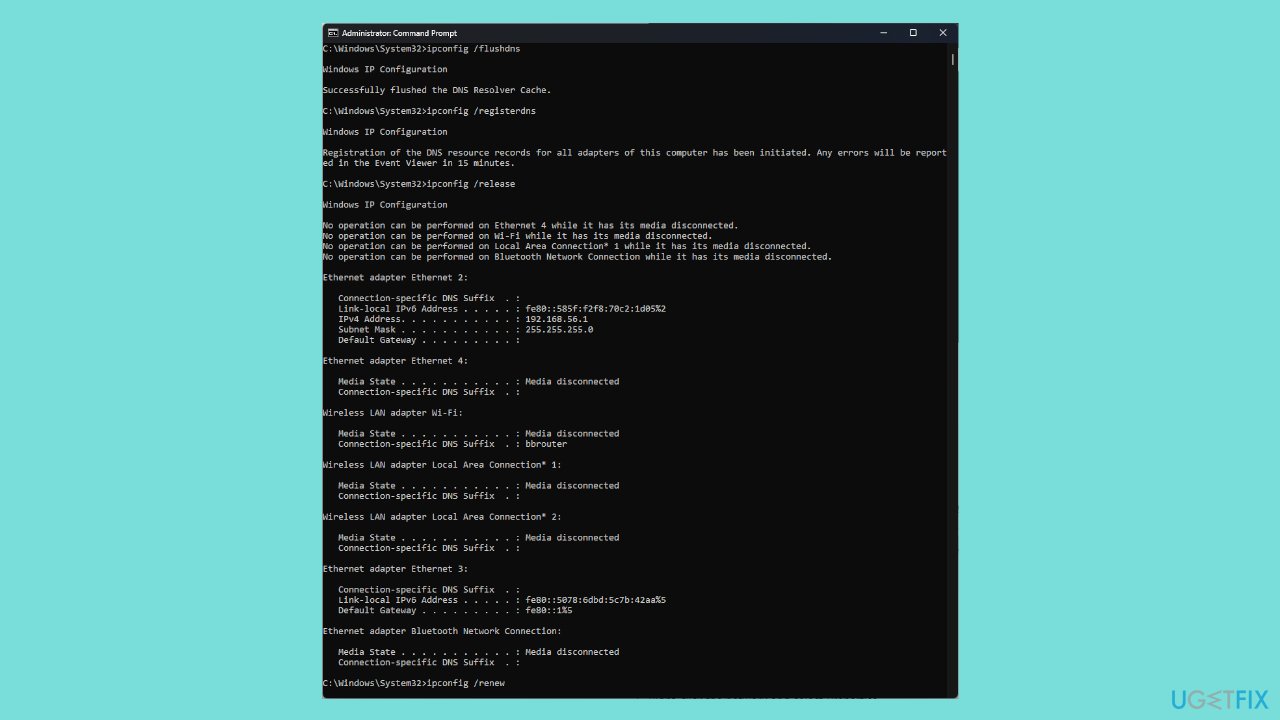
- Register all DNS records for your computer with the command:
ipconfig/registerdns
- Release the assigned IP address of the network interface by typing:
ipconfig/releaseand pressing Enter. - Request a new IP address from a Dynamic Host Configuration Protocol (DHCP) server for the network interface with the command:
ipconfig/renew
- Confirm the action by restarting your computer.
Solution 3. Use Google DNS
- Open the Run dialog box by pressing the Windows key + R.
- Type ncpa.cpl and click OK to access the Network Connections window.
- Right-click on the active network connection and choose Properties.
- Under This connection uses the following items, select Internet Protocol Version 4 (TCP/IPv4) and click Properties.
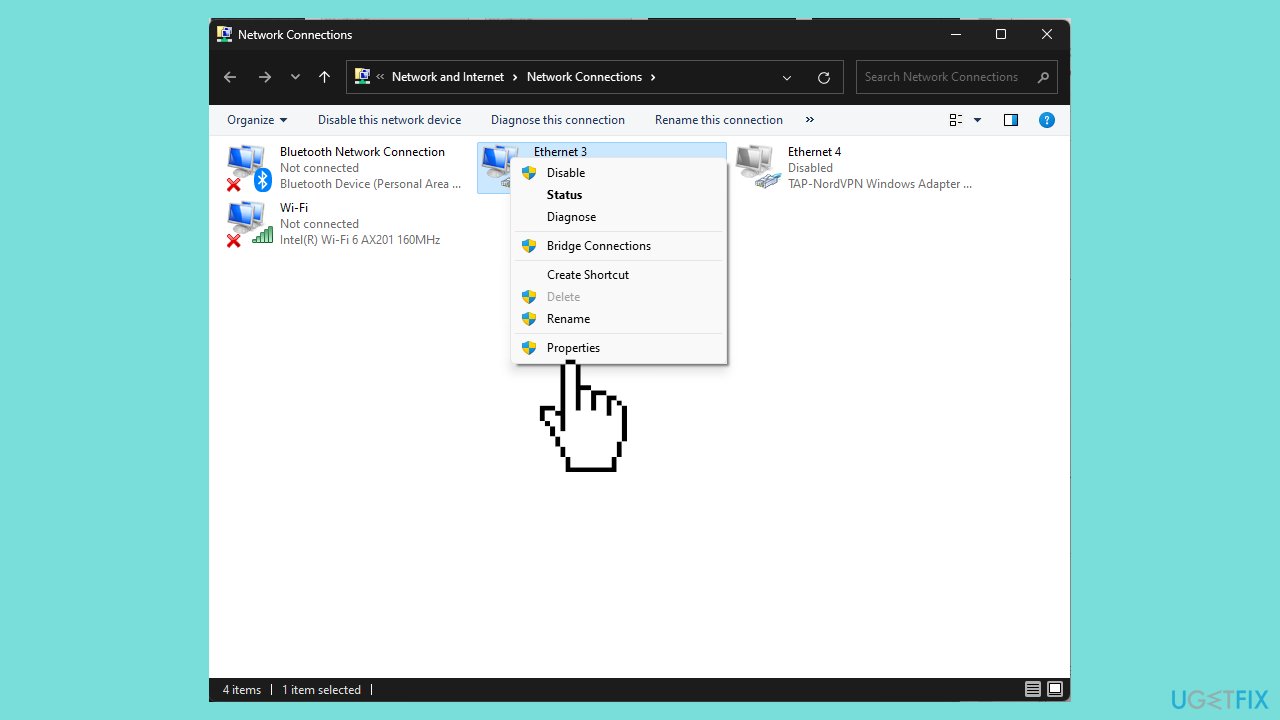
- Choose the radio button next to Use the following DNS server addresses.
- For the Preferred DNS server, enter 8.8.8.8, and for the Alternate DNS server, enter 8.8.4.4.
- Click OK to apply the changes.
- Click Close to exit the settings.
Solution 4. Allow the app through the Windows Firewall
- Press the Windows key and type control panel in the search box, then click Open.
- Select Category for View by and choose System and Security.
- Under Windows Defender Firewall, click Allow an app through Windows Firewall.
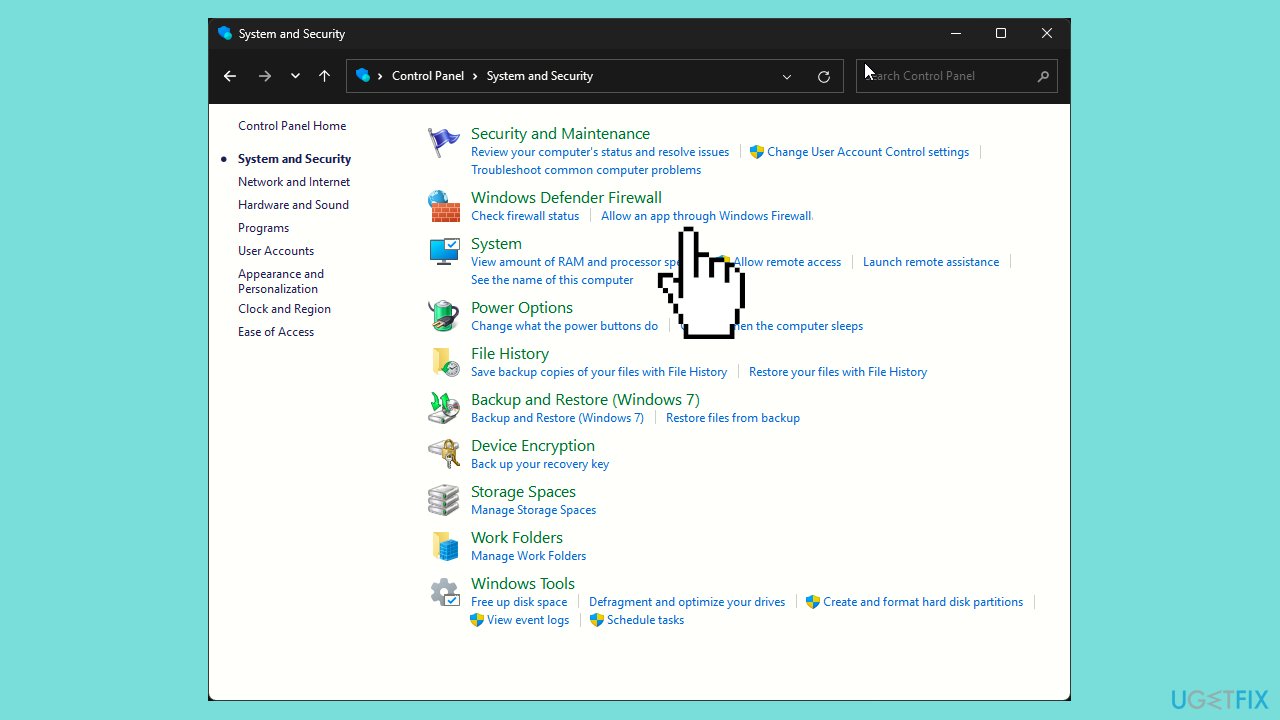
- On the Allowed apps screen, locate Rainbow Six Siege; if not found, click Change settings, then click Allow another app."
- Click Browse, find the game’s executable file on the system drive, select it, and click Open.
- Click Add. Once added to the Allowed apps page, checkmark both Private and Public for the game.
- Click OK to save the changes.
Solution 5. Modify the GameSettings File
- Open the File Explorer by pressing the Windows key + E.
- Navigate to the following folder, replacing yourusername with the current user profile name: C:\Users\yourusername\Documents
- Locate and click on the Rainbow Six – Siege folder, then open the folder with a long name.
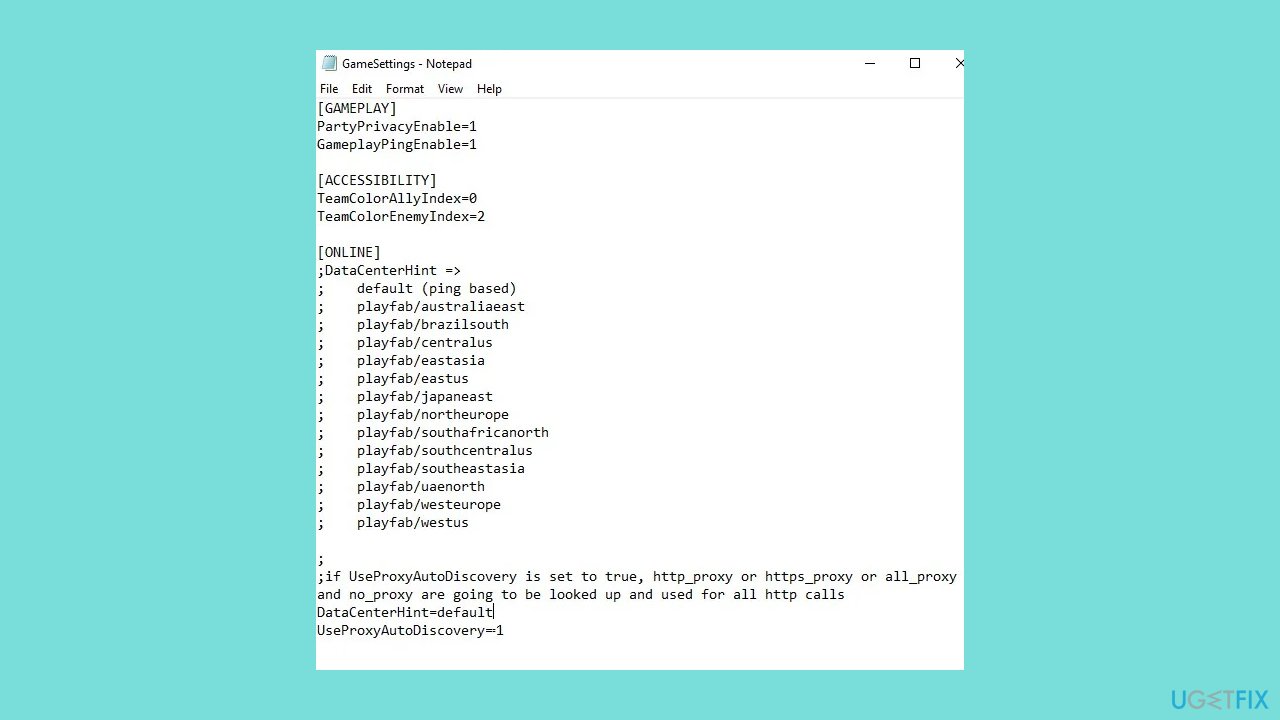
- Find and double-click the GameSettings file to open it in Notepad.
- Search for UseProxyAutoDiscovery and change its value from 0 to 1.
- Press Ctrl + S to save the changes.
Bottom line
To fix the Rainbow Six Siege error code 4-0xFFF0BE25, you can restart the game, close unwanted processes, and check your network settings. If these steps do not resolve the issue, consider running a maintenance tool to address system errors.
Frequently asked questions
This error typically indicates a connection issue or server-side problem affecting your gameplay experience on Windows 10.
To fix this error, try restarting your router, checking your internet connection, and ensuring that the game is updated to the latest version on Windows 11.
Yes, ensuring that your Windows 10 firewall and antivirus settings allow Rainbow Six Siege to communicate freely can help prevent this error from occurring.




Report an issue
What's wrong with this guide? We review every report and update or remove content.
Report received — thank you. We'll review and fix it.
You need a free account to submit a report.
Be the first to comment