How to fix
Rainbow Six Siege server connection Error Code 3-0x0001000B
on Windows
Resolve Rainbow Six Siege Error Code 3-0x0001000B on Windows 10 and 11 effortlessly. Get back to gaming with expert-tested solutions today!

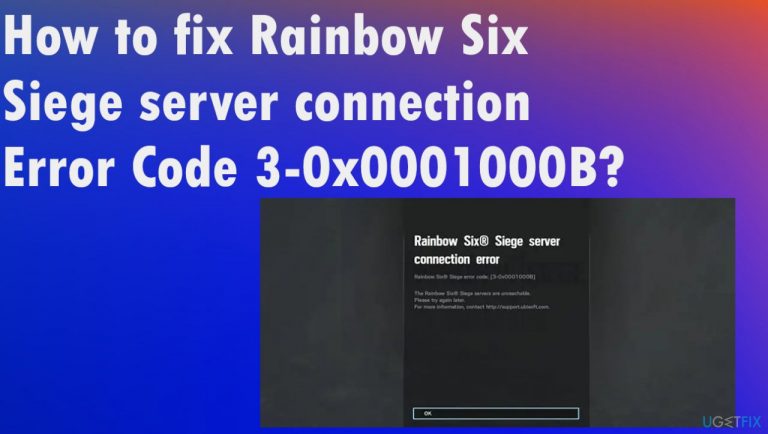
What causes How to fix Rainbow Six Siege server connection Error Code 3-0x0001000B?
- Missing or broken game files
- Faulty LAN connection settings
- Server not working properly
- Specific games blocked by the router
- Corrupted system files or damaged pieces
- Windows updates affecting performance
Repairs Windows system files, removes malware, and restores a clean OS state — without reinstalling.
Hey. I am having issues with these Rainbow Six: Siege errors. I think the connection to servers fails, and Error Code 3-0x0001000B appears to me. I get disconnected all the time, and I need to fix this. Why is the server unreachable? I guess this is not the server issue, so I need to be the one that fixes things. Help!
The shooter game Rainbow Six Siege is the game available on various platforms, and it creates issues on all of them.[ref en-1] The problem behind Rainbow Six Siege server connection Error Code 3-0x0001000B is the corruption of certain parts of the system. There might be some of the parts missing or corrupted, so the connection cannot happen.
The possible causes for this connection issue can include missing or broken game files, faulty LAN connection settings, or the server that is not working properly. Another cause could be specific games used because those can be blocked by the router that people are using.
Rainbow Six Siege server connection Error Code 3-0x0001000B can be triggered by the fact that the server is too far or when some of the pieces needed for the general system processes are affected. These issues can be related to a particular operating system or its state of it. Windows updates can be the reason for the performance issue.[ref en-2]
Those corrupted system files or damaged pieces on the computer can be indications of the previous or ongoing threat of infection.[ref en-3] The Rainbow Six Siege server connection Error Code 3-0x0001000B can occur on the already affected machine, so you should trigger the scan using [d1] since the program can help with malware leftovers or damaged system files. This might not fix the error fully but should help to deal with it.
As for quick fixes for Error Code 3-0x0001000B, you can check the internet connection, troubleshoot those issues, and make sure that the server status generally is proper. Network drivers should be updated if they require upgrades at this point and this possibly can help. Other tips listed might include more involvement.
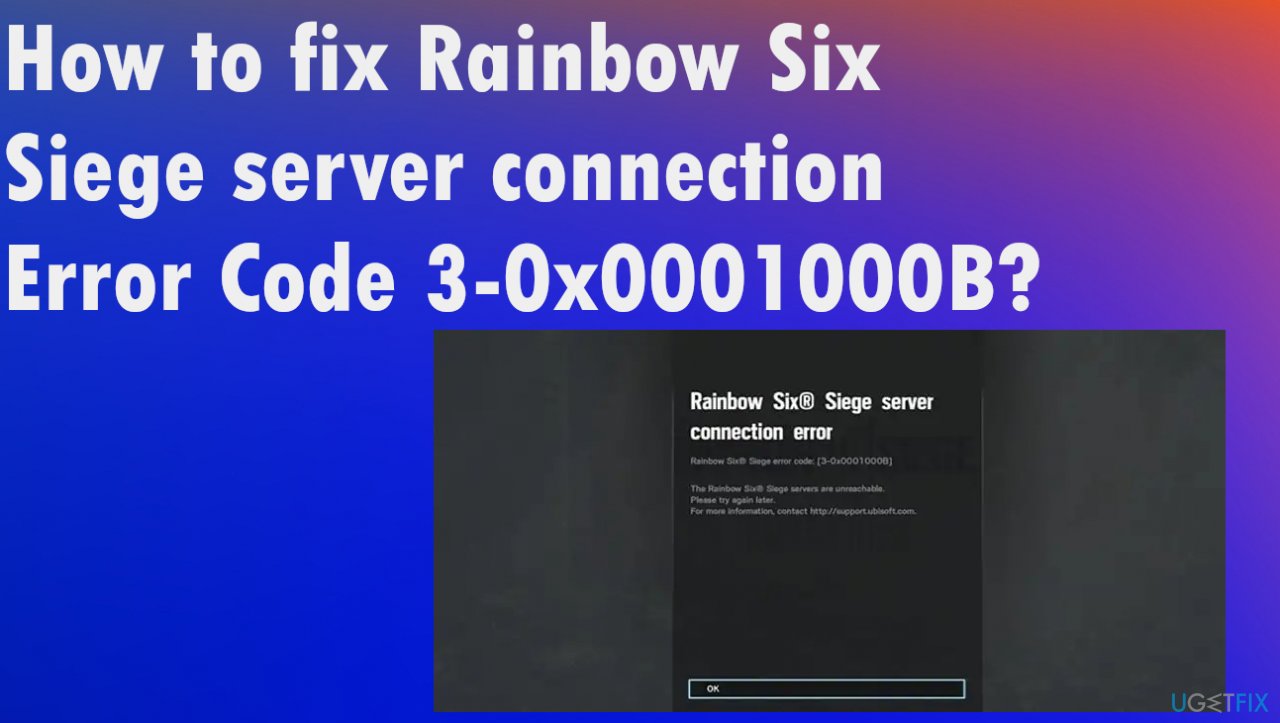
1. Run a Power cycle on the PC and router
- Turn off your PC and the router.
- Unplug the power cords of both your system and router.
- Next, wait for at least 30 seconds and then reconnect the power cords of both devices.
- Restart your PC and router and check if the error is resolved.
2. Change the default DNS server to Google DNS
- Firstly, press Win+R to open the Run dialog box and type & enter ncpa.cpl in it to bring up the Network Connections window.
- Next, right-click on the connection you are currently using and then tap on the Properties option.
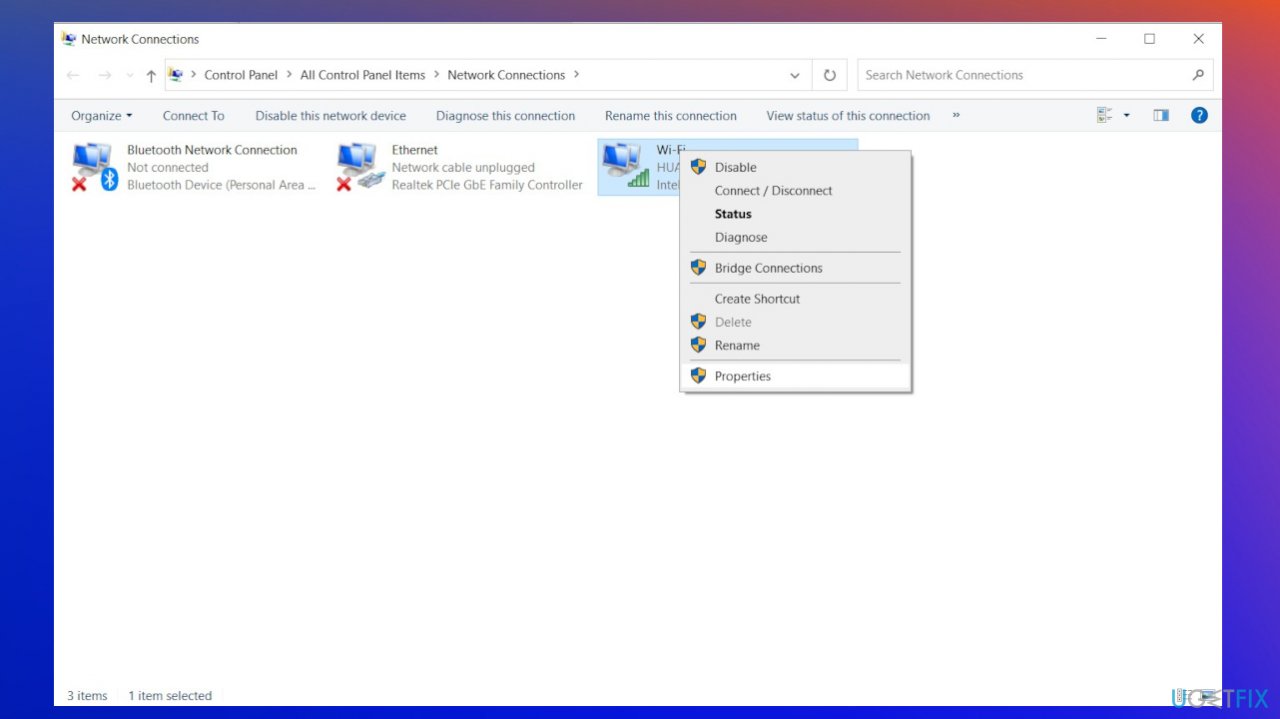
Raindow six error code 3 0x0001000b wi fi settings - Once inside the Properties window, click on the Internet Protocol Version 4 (TCP/IPv4) option and hit the Properties button.
- After that, choose the Use the following DNS server addresses option and then enter the following addresses in their respective fields:
Preferred DNS 8.8.8.8
Alternate DNS 8.8.4.4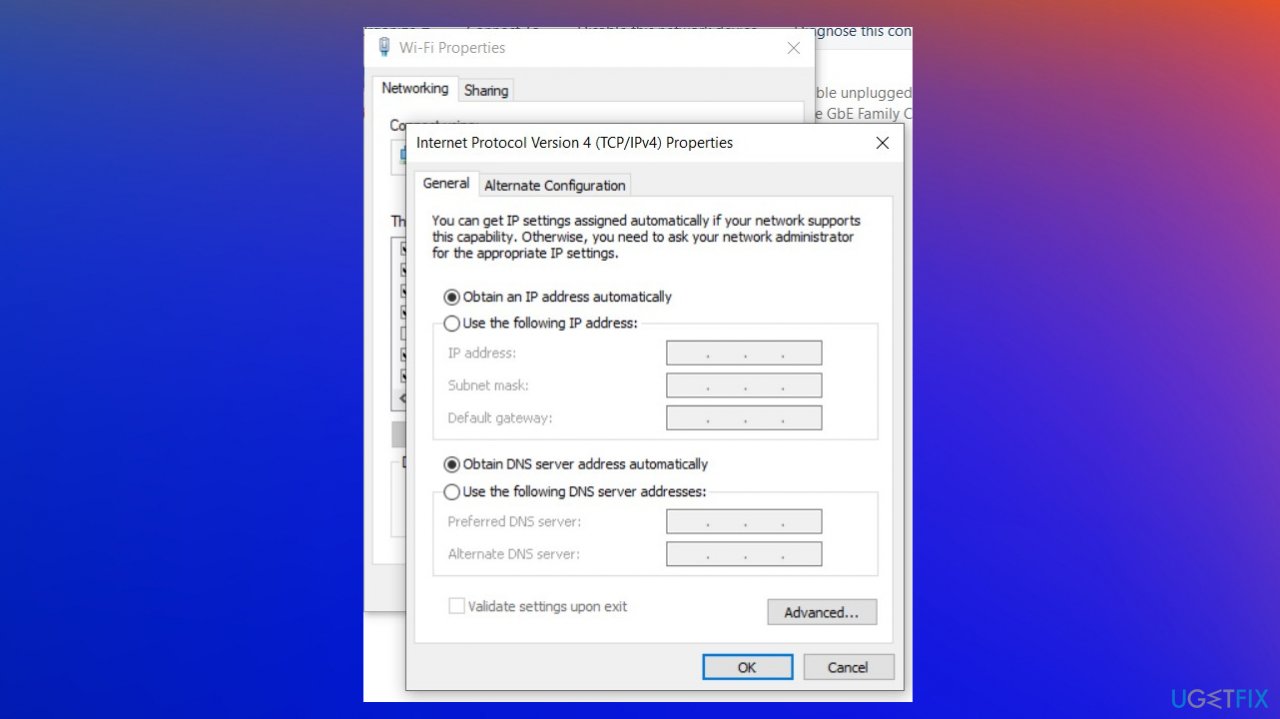
Raindow six error code 3 0x0001000b dns - Hit Apply and OK button to save changes.
3. Verify the integrity of game files
- Open the Ubisoft Connect app and navigate to the Games tab.
- Select the Rainbow Six Siege game.
- From the left-side panel, click on the Properties option.
- Click on the Verify files option, which is present under Local files.
- It will start verifying your game files and scan for the bad ones.
- Once done, you will be prompted with a Repair option, so press the Repair button and it will fix all the damaged game files.
- Check if the error is gone.
4. Allow the game via Windows Firewall
- Search and open the Windows Security app.
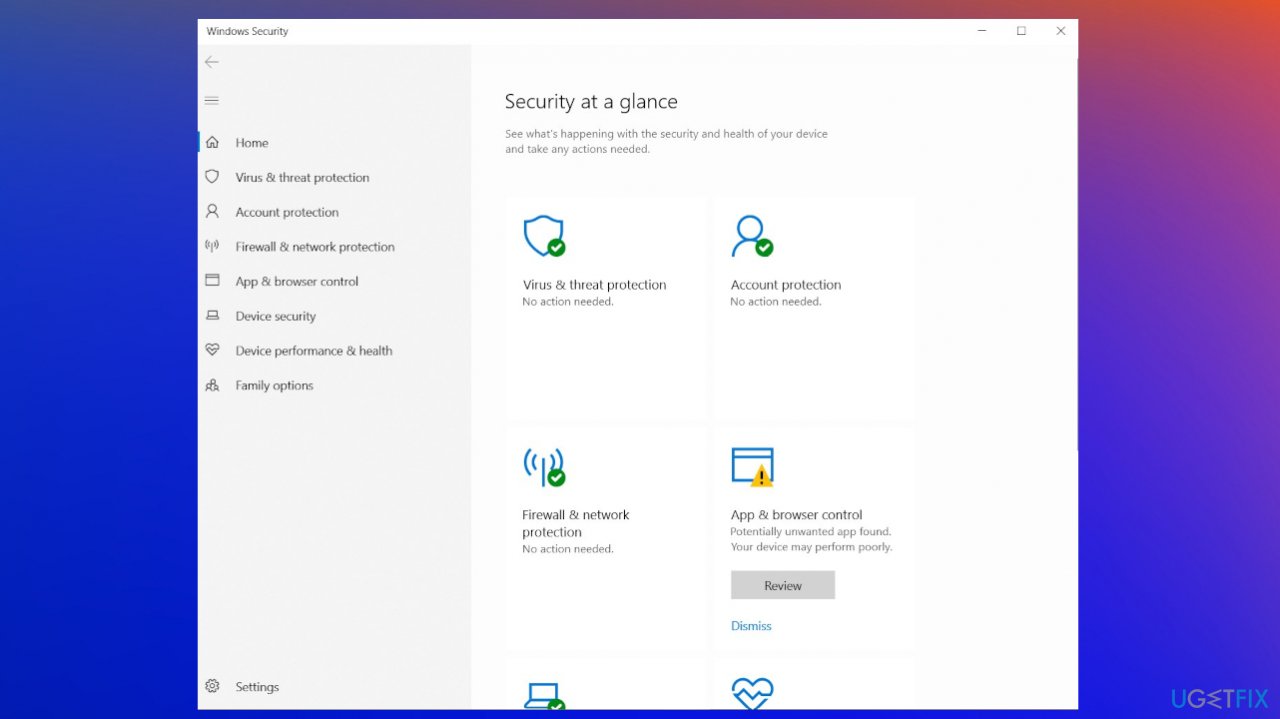
Raindow six error code 3 0x0001000b security - Navigate to Firewall & network protection and click on the Allow an app through firewall option.
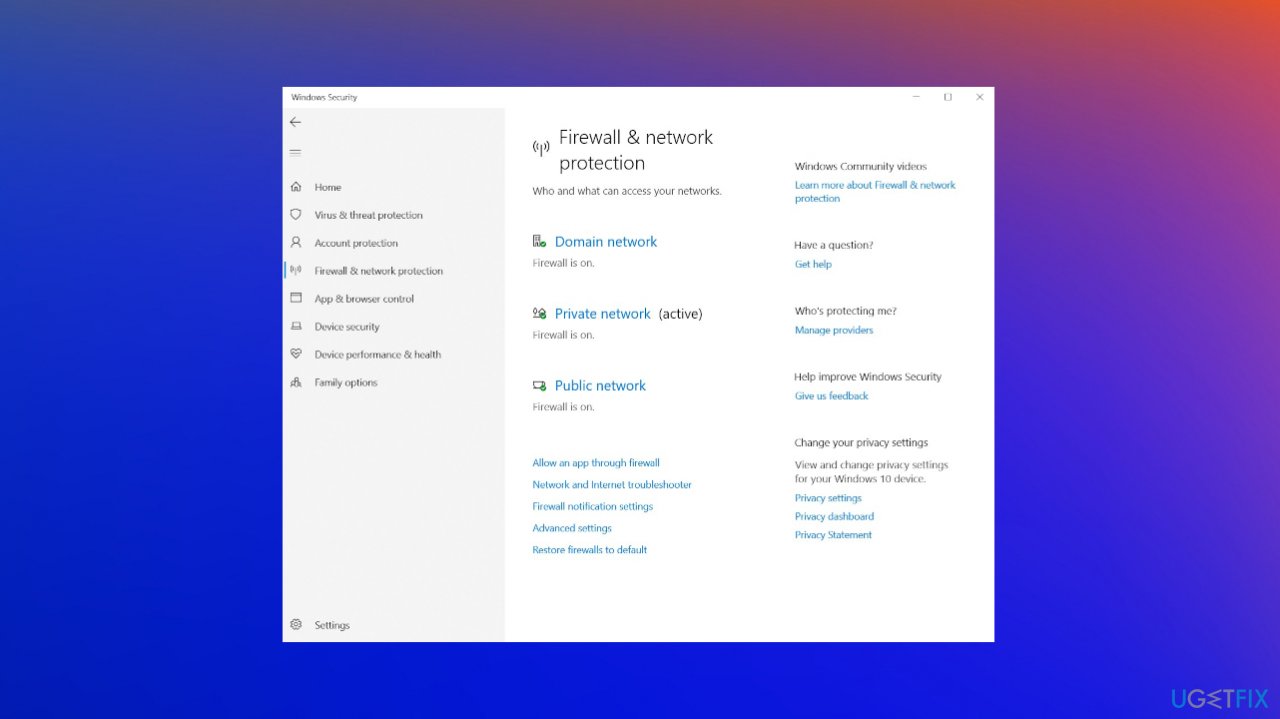
Raindow six error code 3 0x0001000b firewal protection - Tap on the Change settings button and check if the Rainbow Six Siege game is there in the apps’ list.
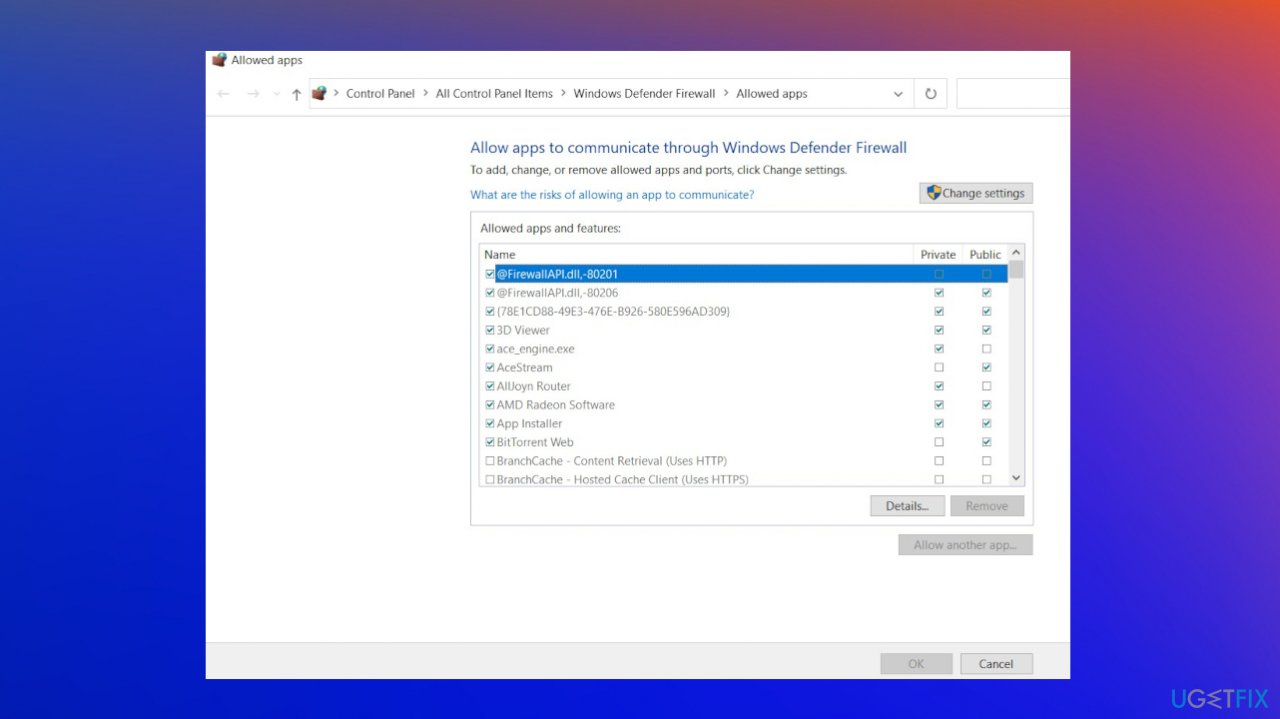
Raindow six error code 3 0x0001000b allow apps - Select the game and allow it on both Private and Public networks.
- When done, try launching the game and check if the error is fixed.
Bottom line
To address the Rainbow Six Siege server connection Error Code 3-0x0001000B, check your internet connection, troubleshoot issues, and verify server status. Additionally, ensure your network drivers are updated. If these steps do not resolve the issue, consider scanning for malware or damaged system files.
Frequently asked questions
This error typically indicates a connection issue between your game client and the Rainbow Six Siege servers, often due to network settings or server outages.
You can try restarting your router, checking for Windows updates, and ensuring that your firewall or antivirus isn't blocking the game.
Make sure that your network configuration is set to allow Rainbow Six Siege through the Windows Firewall and that your NAT type is set to Open for better connectivity.




Report an issue
What's wrong with this guide? We review every report and update or remove content.
Report received — thank you. We'll review and fix it.
You need a free account to submit a report.
Be the first to comment