How to fix
Random 100% disk usage spikes
on Windows
Discover effective solutions to tackle random 100% disk usage spikes in Windows 10 and 11. Get your PC running smoothly again, expert-tested!

What causes How to fix random 100% disk usage spikes in Windows?
- Background processes
- Windows services
- Antivirus software
- Faulty hardware
- Driver issues
Repairs Windows system files, removes malware, and restores a clean OS state — without reinstalling.
Sometimes, I notice that my PC gets slower for a few seconds. After checking the Task Manager, I saw that, during these times, my Disk usage often spikes to 100% temporarily and then goes back to normal. What is going on?
In the Windows ecosystem, resource usage is managed to ensure that applications and processes run smoothly. However, there are times when you might experience unusual spikes in disk usage, where the disk utilization reaches 100% randomly. This problem can significantly slow down your computer, making it difficult to perform even simple tasks. The symptoms include sluggish performance, delayed response times, and applications freezing or crashing unexpectedly.
Causes of 100% disk usage spikes
Several factors can cause random 100% disk usage spikes in Windows:
- Background processes. Certain system processes or applications running in the background can consume a large amount of disk resources.
- Windows services. Services like Superfetch or Telemetry might lead to high disk usage.
- Antivirus software. Scanning and security features can also contribute to increased disk activity.
- Faulty hardware. Issues with your hard drive or SSD can result in high disk usage.
- Driver issues. Outdated or corrupted drivers can affect disk performance.
Resolving 100% disk usage spikes
To address the issue of random 100% disk usage spikes, you need to identify and mitigate the root cause. Monitoring and managing background processes can help you pinpoint which applications or services are consuming excessive disk resources. Disabling or configuring certain Windows services, such as Superfetch and Windows Search, may reduce disk activity.
Ensuring that your antivirus software is not causing the spikes involves adjusting its settings or temporarily disabling it to observe changes. Running a malware scan is crucial to eliminate any potential threats that might be affecting disk usage. Additionally, checking for hardware problems and updating or reinstalling disk drivers can improve disk performance.
Using a maintenance and repair utility like [d1] is particularly useful when dealing with broken registries or DLLs, corrupted system files, BSODs, and more, especially when it's difficult to find the culprit.

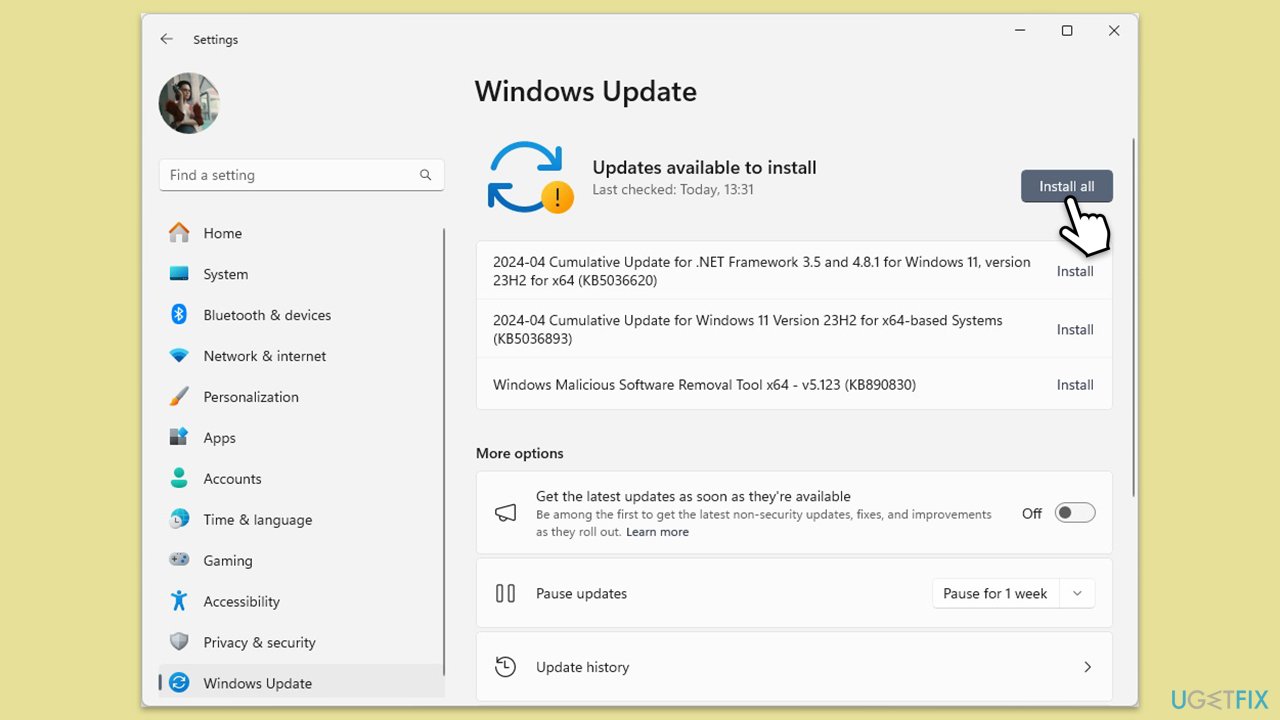
Fix 1. Install all Windows updates
Keeping Windows up to date ensures that you have the latest fixes and improvements, which can help resolve high disk usage issues.
- In Windows search, type Updates and press Enter.
- Click Check for updates and wait till Windows installs update.
- Make sure you also install all optional updates if such are available.
- To implement the changes, reboot your computer.
Fix 2. Perform Check Disk
Running Check Disk can identify and fix file system errors that may cause high disk usage.
- Type cmd in Windows search.
- Right-click on Command Prompt and pick Run as administrator.
- Click Yes when UAC asks for access.
- Type in the following command and press Enter after:
chkdsk c: /f
(Note: use chkdsk c: /f /r /x command if you use SSD as your primary partition). - If you receive an error, type in Y, close down Command Prompt and restart your computer.
- After a restart, Windows will begin to scan your disk. After your system boots back up, you can find the results in the Event Viewer.

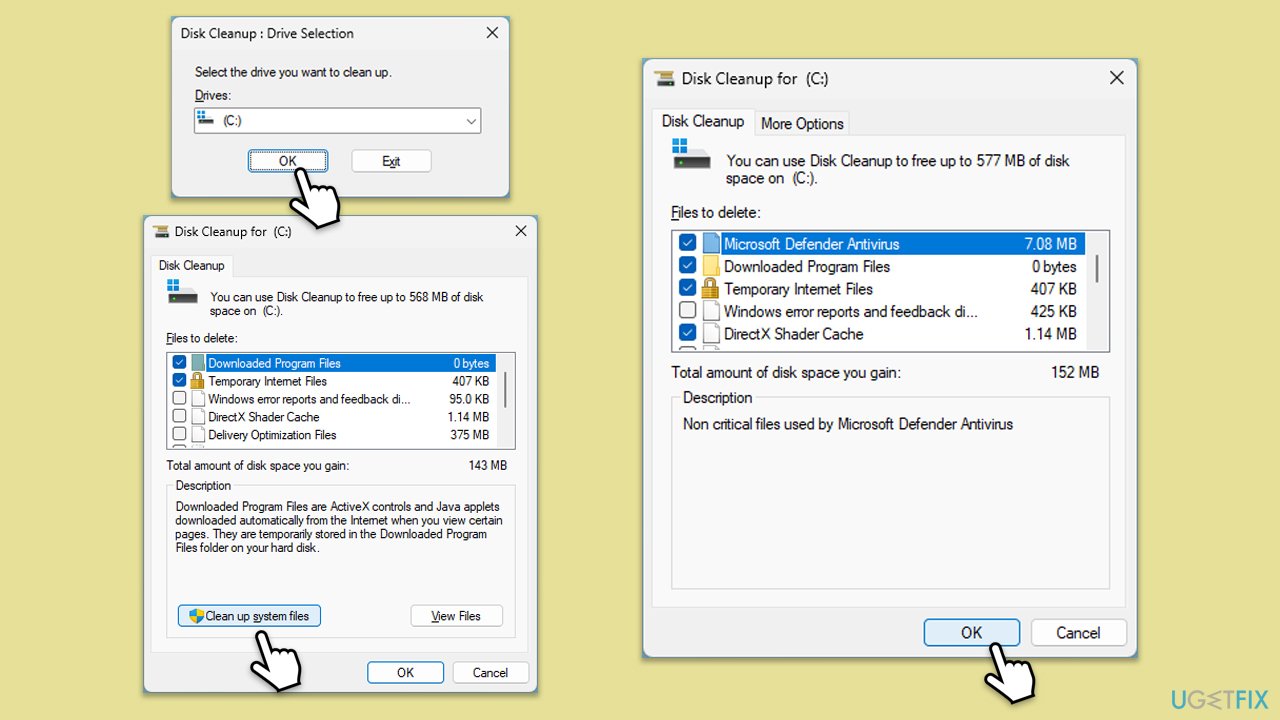
Fix 3. Use Disk Cleanup
Disk Cleanup helps free up space on your hard drive, which can improve disk performance and reduce usage spikes.
- Type Disk Cleanup in Windows search and hit Enter
- If your Windows is installed on drive C, pick it from the list (should be by default) and press OK
- Click Clean up system files
- Select your main disk again and click OK
- Here, select the largest portions of the data used - these typically include Temporary Internet Files, Windows Update, Temporary Files, Recycle Bin, Delivery Optimization Files, and others.
- Click OK and wait for the cleanup process to finish.
Fix 4. Adjust virtual memory
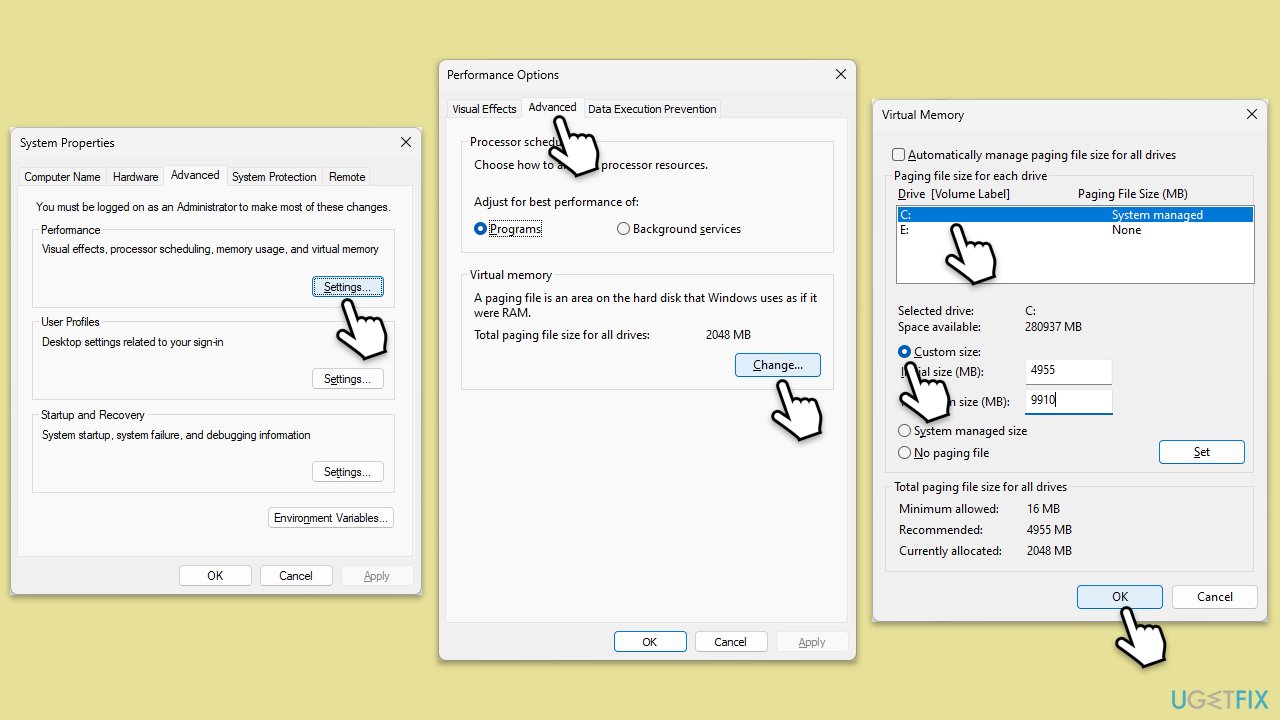
Adjusting virtual memory settings can help manage disk usage more effectively, especially if your system is low on RAM.
- In Windows search, type in Advanced system settings and press Enter.
- Under the Performance section, click Settings.
- Go to the Advanced tab.
- Under Virtual Memory, select Change.
- Untick the Automatically manage paging size for all drives option (make sure your main drive is selected - C: is the default).
- Select Custom size.
- At the bottom, check the Recommended memory size and type it into the Initial size (MB) field.
- In the Maximum size (MB) field, enter double size than that in the Initial size section.
- Click Set and OK.
Fix 5. Fix StorAHCI.sys driver
A known bug in the StorAHCI.sys driver can cause high disk usage; updating or fixing this driver can resolve the issue.
- Press Win + X and select Device Manager.
- Expand the IDE ATA/ATAPI Controllers section.
- Right-click on the AHCI controller and select Properties.
- Go to the Driver tab and click Driver details.
- If StorAHCI.sys is listed, click on the Details tab and select Device instance path from the drop-down menu.
- Note the value or simply keep the window open.

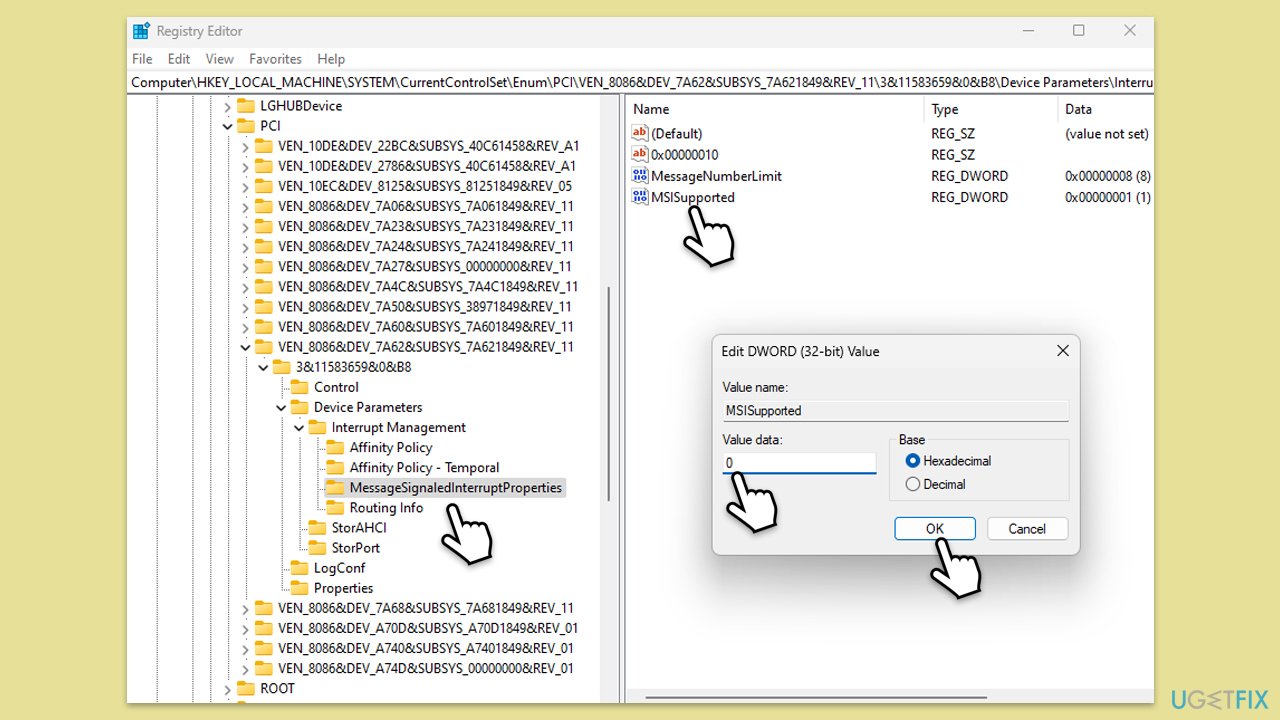
- Type regedit in Windows search and press Enter.
- Navigate to the following location:
HKEY_LOCAL_MACHINE\SYSTEM\CurrentControlSet\Enum\PCI\<AHCI controller>\<random number>\Device Parameters\Interrupt Management\MessageSignaledInterruptProperties - In the MessageSignaledInterruptProperties folder, locate the MSISupported value on the right.
- Double-click it and change the value of MSISupported to 0.
- Click OK and restart your system.
Fix 6. Disable Superfetch, Connected User Service & Telemetry services
Disabling these services can help reduce unnecessary disk activity and improve performance.
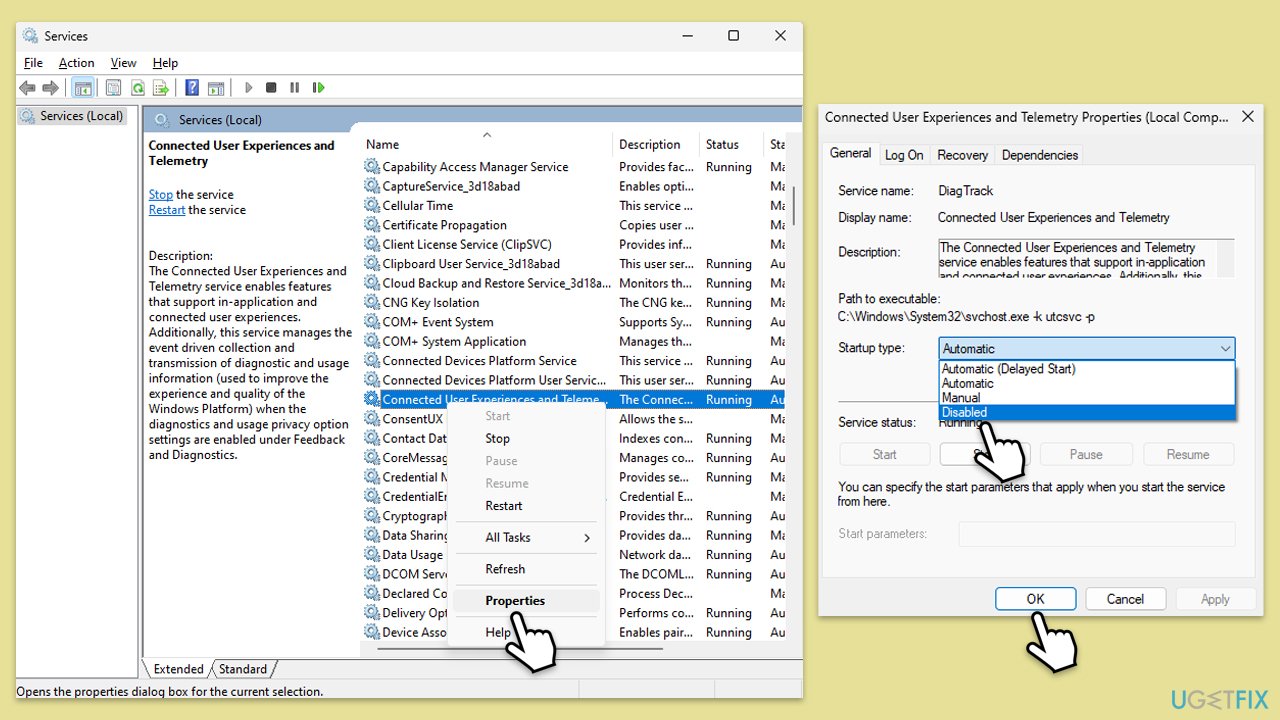
- Type Services in Windows search and press Enter.
- Scroll down and find Superfetch and Connected User Experiences and Telemetry.
- Right-click each service and select Properties.
- Under the Startup type, select Disabled from the drop-down menu.
- Click OK and restart your PC.
Fix 7. Enable High Performance power plan
Enabling the high-performance power plan can prevent Windows from throttling disk performance to save energy.
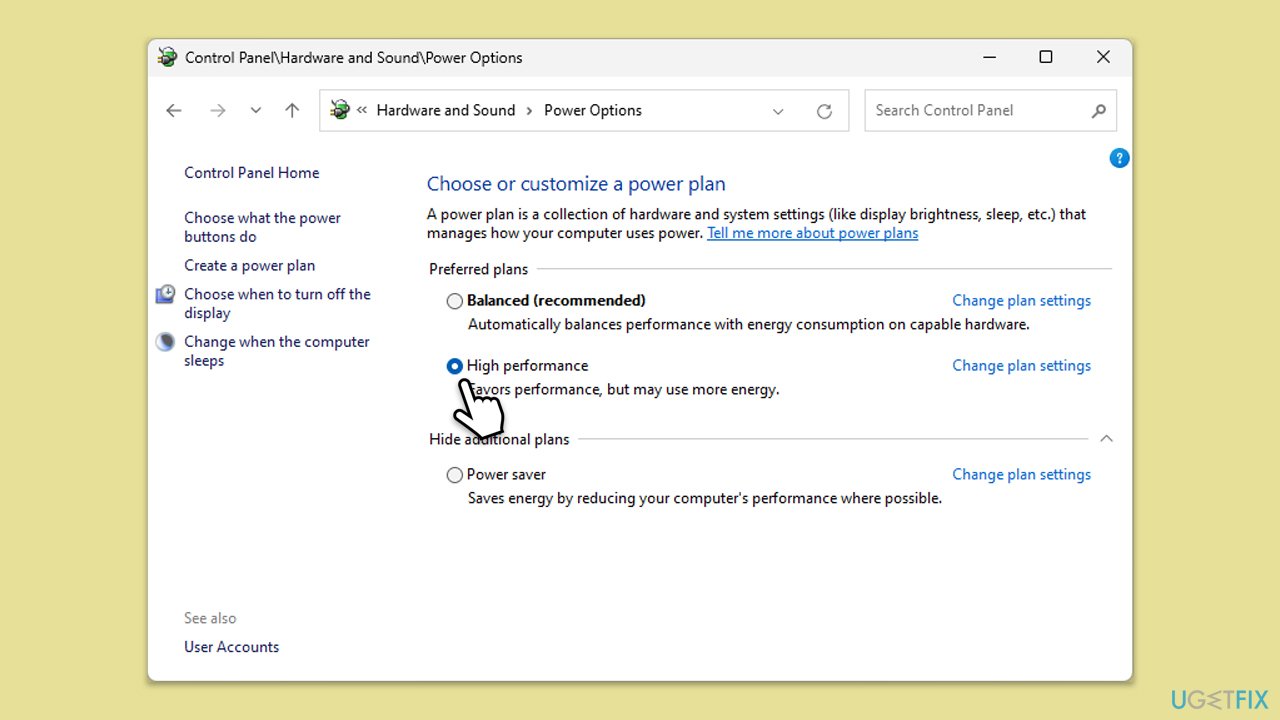
- In Windows search, type Control Panel and press Enter.
- Here, go to Hardware and Sound > Power options.
- Here, you will see the listed plans.
- Change the plan from Power saver to High performance.
Fix 8. Replace your SSD/HDD or upgrade to SSD
Upgrading to an SSD or replacing a failing hard drive can significantly improve disk performance and eliminate usage spikes.
- Back up your data.
- Purchase a compatible SSD or new hard drive.
- Install the new drive on your computer.
- Restore your data to the new drive.
Bottom line
To resolve random 100% disk usage spikes, monitor and manage background processes, disable or configure certain Windows services like Superfetch, and ensure your antivirus software is not causing the spikes. Additionally, check for hardware problems and update or reinstall disk drivers. If none of these solutions work, consider using a maintenance and repair utility to address deeper system issues.
Frequently asked questions
Common causes include background applications, Windows Search indexing, or system updates consuming disk resources.
You can disable unnecessary startup programs, adjust Windows Search services, or check for malware to reduce disk usage.
Yes, disabling Windows Search can help alleviate disk usage spikes, but it will affect the speed of file searches.




Report an issue
What's wrong with this guide? We review every report and update or remove content.
Report received — thank you. We'll review and fix it.
You need a free account to submit a report.
Be the first to comment