How to fix
Random system freezes
on Windows
Resolve random system freezes on Windows 10 quickly with proven solutions. Enjoy a smoother experience today—expert-tested and updated 2025.


What causes How to fix random system freezes on Windows 10?
- Customized hardware configurations
- Forced restarts after Windows updates
- Random restarts due to system errors
- High configurability of drivers and settings
- Specific activities like gaming or browsing
Repairs Windows system files, removes malware, and restores a clean OS state — without reinstalling.
My Windows 10 PC ran quite well until yesterday. I don’t know what issues have prompted the system to start malfunctioning, but I’m getting system freezes randomly and the only option is to click power button and to force the system shut down. That’s a bad issue that has already caused me a lot of time and nerves. Could you please tell me what could be the reason of random system freezes?
Windows operating system is a highly configurable set of drivers,[ref en-1] settings, processes, tasks, and other features. Additionally, Windows machines are usually run on customized hardware. Therefore, there are millions of different possibilities that could cause random system freezes on Windows 10.
Also, forced restarts after windows updates, random restarts, and similar Windows 10 errors that lead to unexpected system reboot are considered to be the worst group on Win 10 bugs.[ref en-2] That’s because unexpected system restart may lead to loss of important documents, revoke installation of important updates/software, and similar problems.
These days, many people on the official Microsoft website and other IT-related web pages are making a fuss about random Windows 10 freezes. While sometimes the system may start working normally after a couple of minutes, lots of people claim that it stays in a state of freeze for an hour or more.
In this case, the only way to use the PC again is to press the Power button. This function is known as a hard restart because it forces the system to shut down and boot again without saving any documents, files, and processes that have been currently in use.

The circumstances under which system freezes occur are diverse. For example, some people may encounter it while gaming, watching videos, browsing the Internet, trying to launch software, and similar. Therefore, to dig to the root of the problem and stop random system freezes on Windows 10, some troubleshooting is required.
Our team prepared a set of solutions below that hopefully will help you fix random system freezes on Windows 10.
Fix random system freezes on Windows 10 by using PC repair software
In case you have managed to log in to your system successfully, the first thing that we recommend doing is a system verification with a professional utility, such as [d1]. As soon as the scan is performed, allow the system to repair all the detected inconsistencies and check if the system still freezes. If it does, try the following steps:
Fix 1. Run netsh winsock reset command
- Type in cmd or Command Prompt into Cortana's search box
- From the results, right-click and select Run as administrator
- Type netsh winsock reset and press Enter.
- Close Command Prompt and reboot your PC.
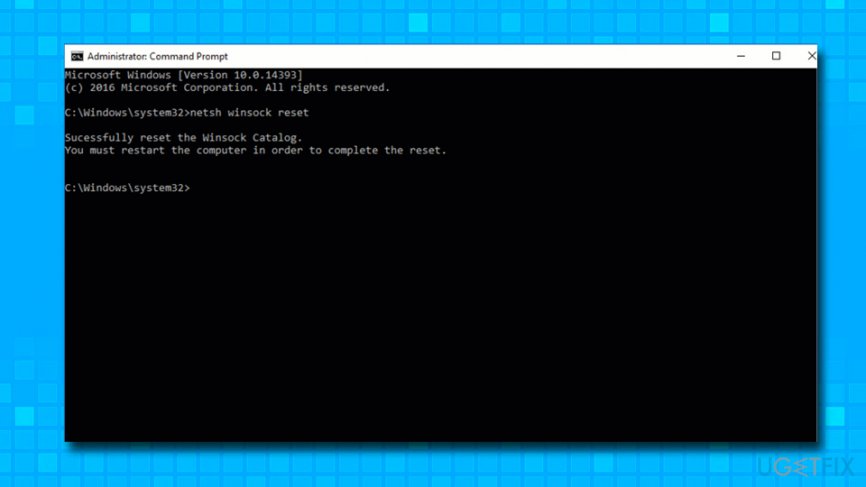
Fix random system freezes on windows 10 run netsh winsock reset command
Fix 2. Uninstall third-party software
If you tend to install free programs without paying much attention to their installation setup and attachments that they carry, your PC might be running a number of ad-supported applications on your device. Besides, some software may be irrelevant or take up a considerable amount of CPU. According to the users’ reports, programs, such as Privatefirewall, McAfee, Speccy, f.lux, and many others appeared to be influencing random Windows 10 freezes. To check what apps are running on your PC, open Control Panel, select Programs, and then open Programs and Features.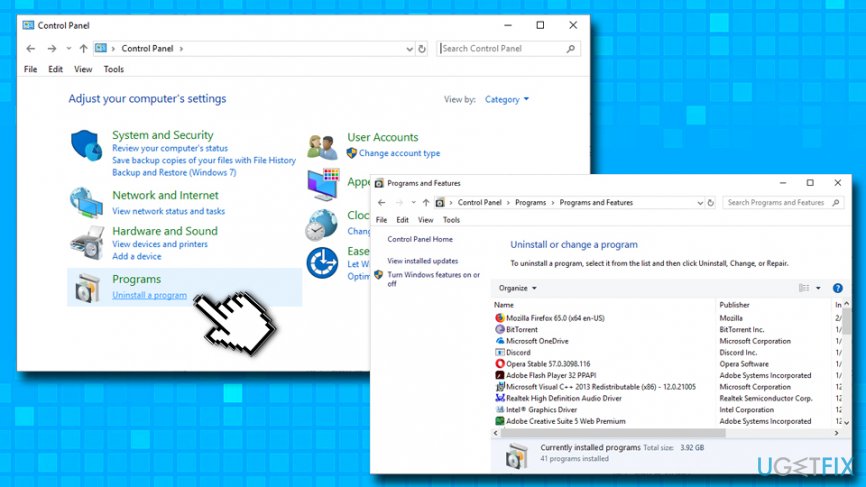
Fix 3. Update Device Drivers
Drivers are an important part of the harmony between your hardware and software and are one of the leading causes for random system freezes on Windows 10 or other problems. Additionally, users reported that tools like Driver Booster, software that is meant to update drivers automatically, managed to corrupt chipset drivers and caused various issues. Therefore, do not use automatic driver updater software, it can lead to numerous problems.[ref en-3] Instead, download and install drivers manually as explained below:
- Right-click on the Start button and select Device Manager.
- When Device Manager opens, click on Disk Drives.
- Right-click on it, select Update Driver, and then click Search automatically for updated driver software.
- Repeat the same process for Display adapters and Network adapters.
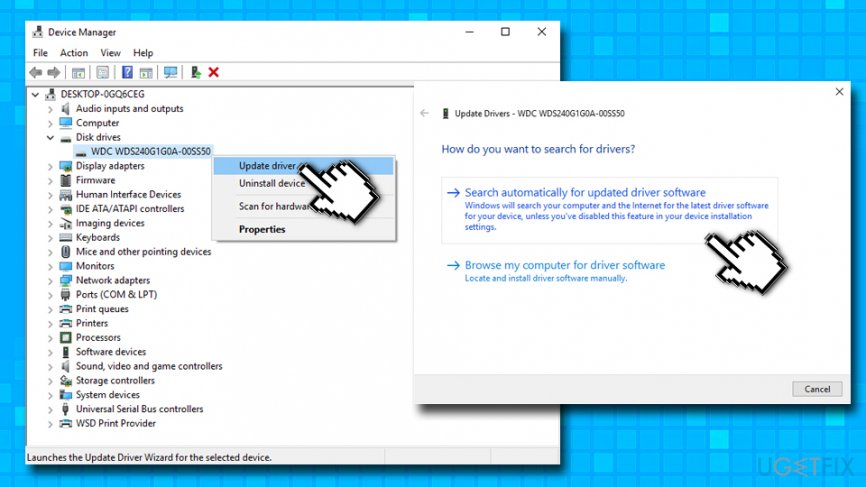
Fix random system freezes on windows 10 update drivers
You should also update your chipset drivers. These are essential for controlling communication between various components in your system. To do that, you have to visit your motherboard manufacturer's website and download them from there.
Fix 4. Clean your temp files
Some users are unaware that temporary files are being stored on the computer. For that reason, data might accumulate and take too much space. So try cleaning your system:
- Press Windows button + R
- Type in temp and click OK
- Select all files located in the Temp folder and delete them
Fix 5. Check System Files with SFC scan
The built in tool System File Checker can located any faulty system files and repair them automatically. To perform the scan, follow these steps:
- Type in Command Prompt or cmd into the search box
- Right-click on it an select Run as administrator
- Once the Command Prompt window opens, type sfc /scannow and hit Enter
- Let the scan run
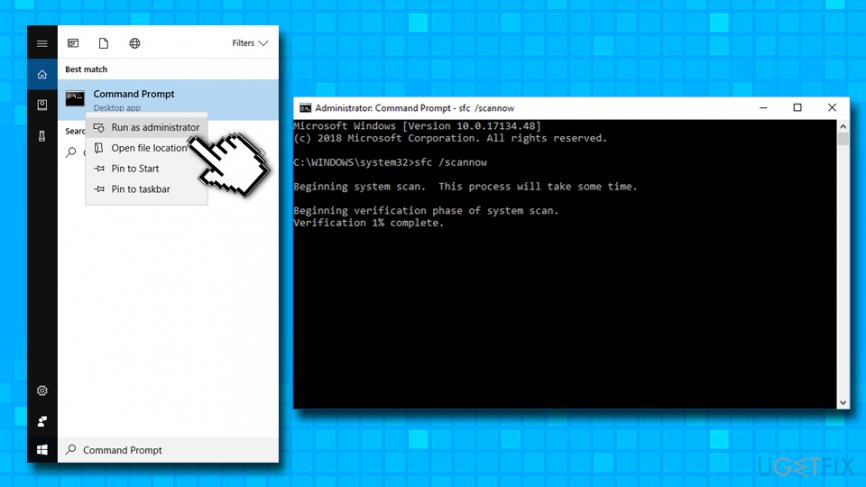
Fix random system freezes on windows 10 run sfc scan
Fix 6. Disable Link State Power Management
- Right-click on the Start button and pick System.
- Go to Power & Sleep.
- Click on Additional power settings.
- Select Change advanced power settings and find PCI section.
- Click it to expand and locate Link State Power Management option.
- Change it from On to Off, click Apply, and then OK.
- Reboot your PC.
Fix 7. Change your Power settings
Some users said that altering power options to hard disk managed to fix random system freezes on Windows 10 for them. Perform the following steps:
- Right-click on the Start button and pick System.
- Go to Power & Sleep.
- Click on Additional power settings.
- Under your plan, click Change plan settings.
- Click on Change advanced power settings.
- Set Hard disk setting to Never and click OK.
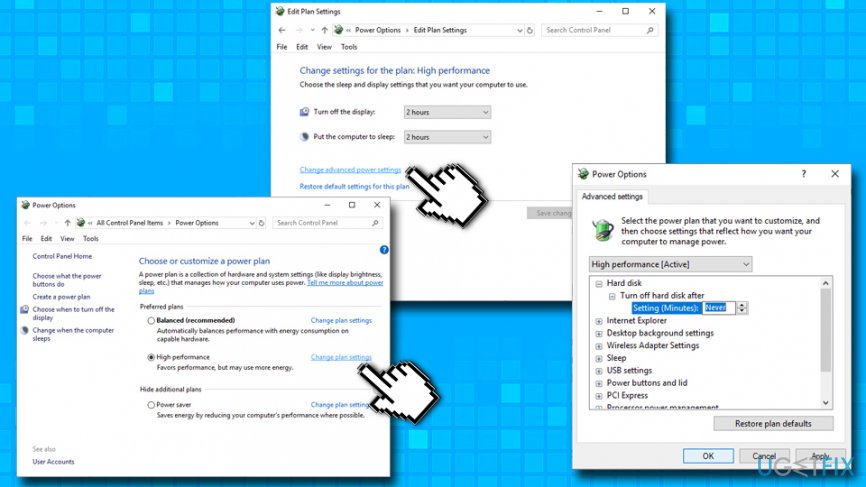
Fix random system freezes on windows 10 change power settings hard disk
Fix 8. Scan your PC for malware
System freezes and crashes might be caused by a malicious program that is running in the background. Some malware can use system resources to mine cryptocurrencies, such as Bitcoin or Monero, without your permission. Therefore, you should install security software and perform a full system scan.
Bottom line
To address random system freezes on Windows 10, you can try using PC repair software, checking for driver updates, and ensuring that your system is free from malware. If these solutions do not resolve the issue, further troubleshooting may be necessary.
Frequently asked questions
Start by checking for system updates in Settings > Update & Security, as Microsoft often releases fixes for common issues that may resolve the freezing problem.
Use the Task Manager to monitor resource usage; if a particular application shows high CPU or memory usage before the freeze, consider updating or reinstalling it.
Yes, run a memory diagnostic tool and check your hard drive for errors using the built-in CHKDSK utility to rule out hardware malfunctions.




Report an issue
What's wrong with this guide? We review every report and update or remove content.
Report received — thank you. We'll review and fix it.
You need a free account to submit a report.
Be the first to comment