How to fix
Razer Axon not starting
on Windows
Resolve Razer Axon startup issues on Windows 10 and 11 effortlessly. Expert-tested solutions ensure your gaming experience is restored in minutes.

What causes How to fix Razer Axon not starting on Windows?
- Compatibility issues with the Windows operating system
- Unfinished system updates
- Incompatibilities with other installed applications
- Corrupt or outdated files in Razer Axon
- Corrupted Windows files
- Permission-related obstacles
Repairs Windows system files, removes malware, and restores a clean OS state — without reinstalling.
Hi, I have an issue with Razer Axon - it just won't start and produces an error 0x800736B1. Any idea how to fix this? Thanks.
Razer Axon, also referred to as Axon Create, is a user-friendly toolkit that was introduced in early 2023 and is intended for making personalized wallpapers with extra Chroma effects. For those without technical experience, this free program makes it simple to design wallpapers in just three steps.
Some Windows users have reported problems with Razer Axon not starting, despite its accessibility and user-friendliness. There are two main ways that this issue shows up: either when you try to launch it, nothing happens or you get an Application Error message.
These startup problems may have several underlying causes. Compatibility issues with the Windows operating system could be one of the causes, especially if there are unfinished system updates or incompatibilities with other installed applications. Corrupt or outdated files in Razer Axon or its associated components may also be a factor in these problems.
To effectively address these issues, several strategies can be amalgamated. It may be helpful to reinstall the app as it replaces any corrupted or defective files with new ones. However, it's also crucial to make sure that all relevant parts, like Microsoft's WebView2 Runtime, are up to current and operating properly.
A thorough system scan can also be helpful in locating and fixing corrupted Windows files, as these files may have an indirect effect on Axon Create's functionality. Moreover, by getting over any permission-related obstacles, using Razer Axon with administrative rights can fix the problem.
If the issue persists after trying these fixes, employing a specialist PC repair tool like [d1] can be a useful fix. This utility is intended to automatically identify and resolve systemic problems with Windows that may be impairing the operation of Windows applications.
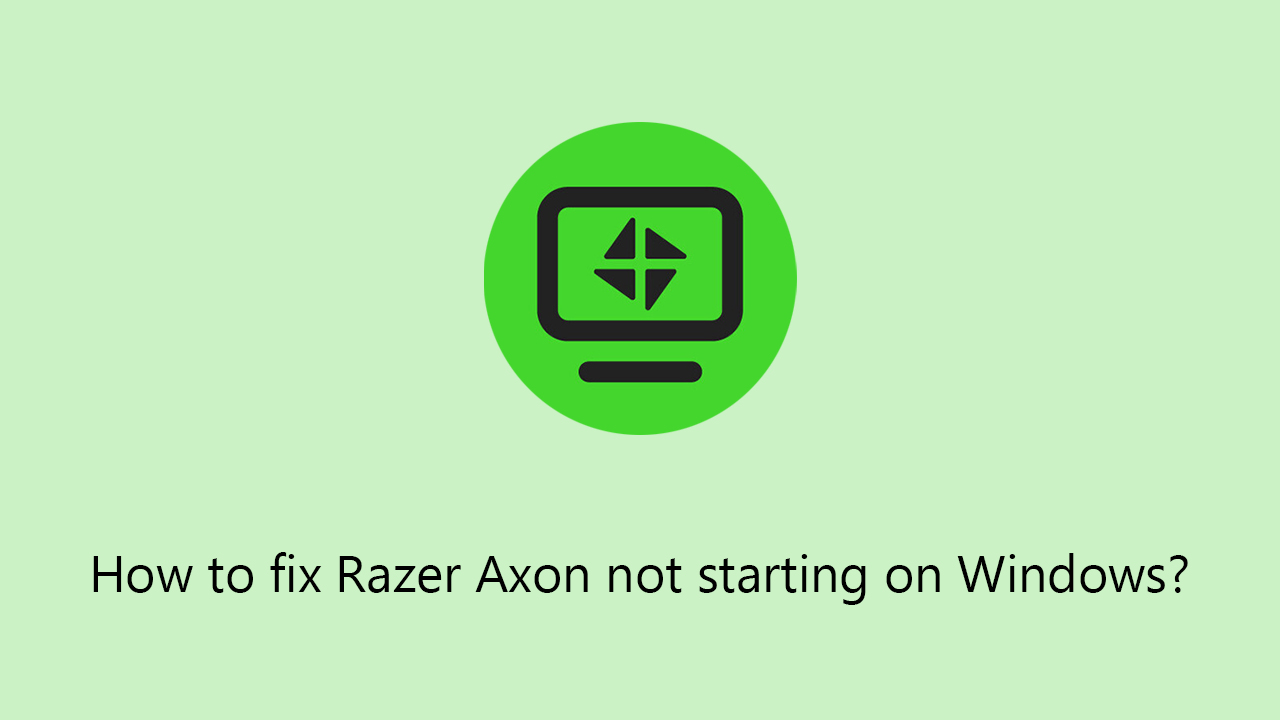
Fix 1. Run as administrator
Running the app as an administrator gives it the necessary permissions, potentially resolving startup issues.
- Right-click on the Razer Axon shortcut.
- Select Properties and go to the Compatibility tab.
- Check the box next to Run this program as an administrator.
- Click Apply, then OK.
- Try launching Razer Axon again.
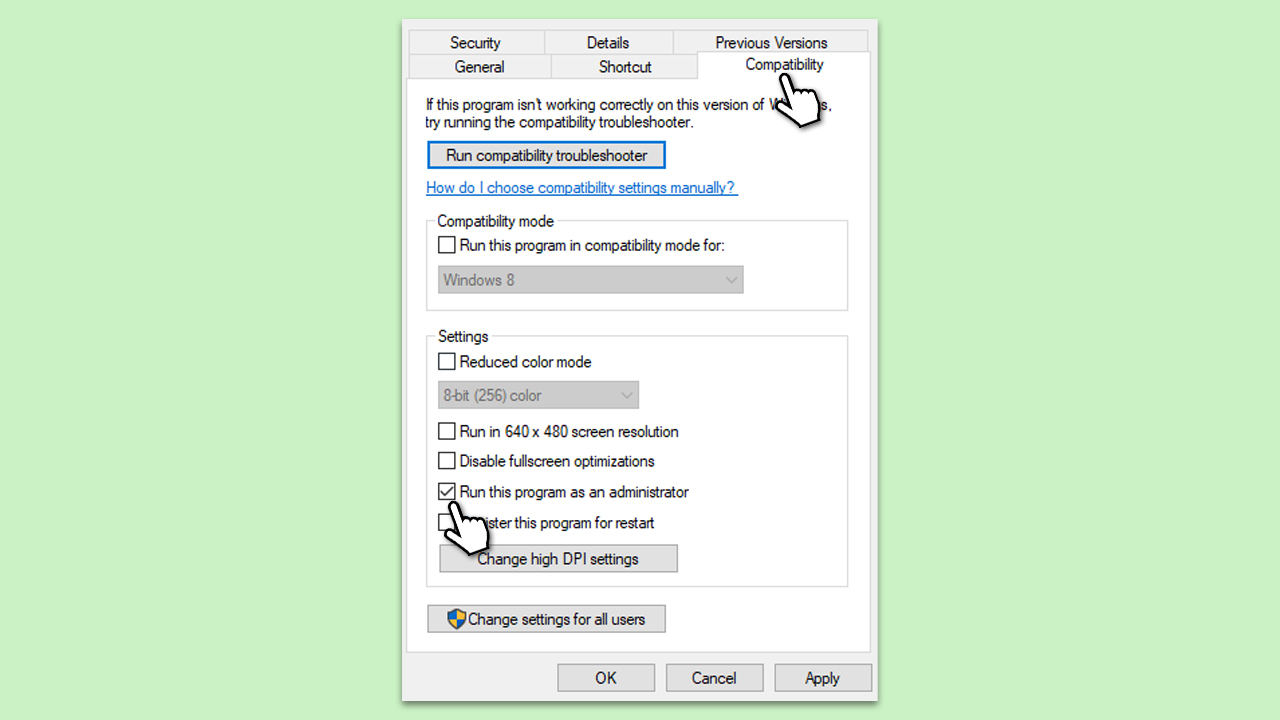
Fix 2. Update Windows
Outdated Windows may cause compatibility issues with applications. Ensuring your Windows is up-to-date can fix these problems.
- Type Updates in Windows search and press Enter.
- On the right side of the window, press Check for updates.
- If you see any optional updates available, install them as well.
- Wait till all the files are downloaded and installed, and then restart the system.
Fix 3. Repair WebView2 Runtime
WebView2 Runtime, essential for some applications, might cause issues if it is corrupt. Repairing it can resolve these conflicts.
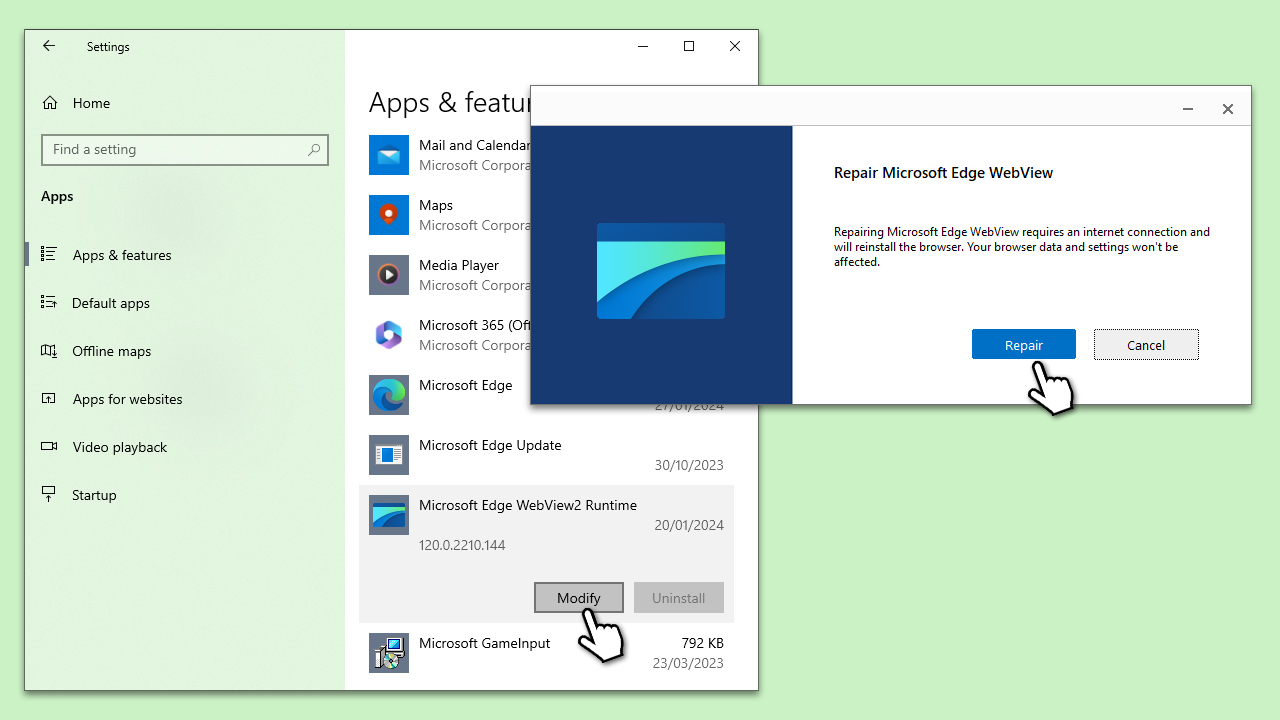
- Right-click on Start and pick Apps and Features.
- Scroll down to Microsoft Edge WebView2 Runtime.
- Click Modify and then select Repair.
- Follow the on-screen instructions to complete the process.
- Restart your computer and try launching Razer Axon.
Fix 4. Reinstall WebView2 Runtime
If repairing WebView2 Runtime does not work, reinstalling it ensures you have a clean, updated version. You can't uninstall it in a regular way, so we will need to use PowerShell.
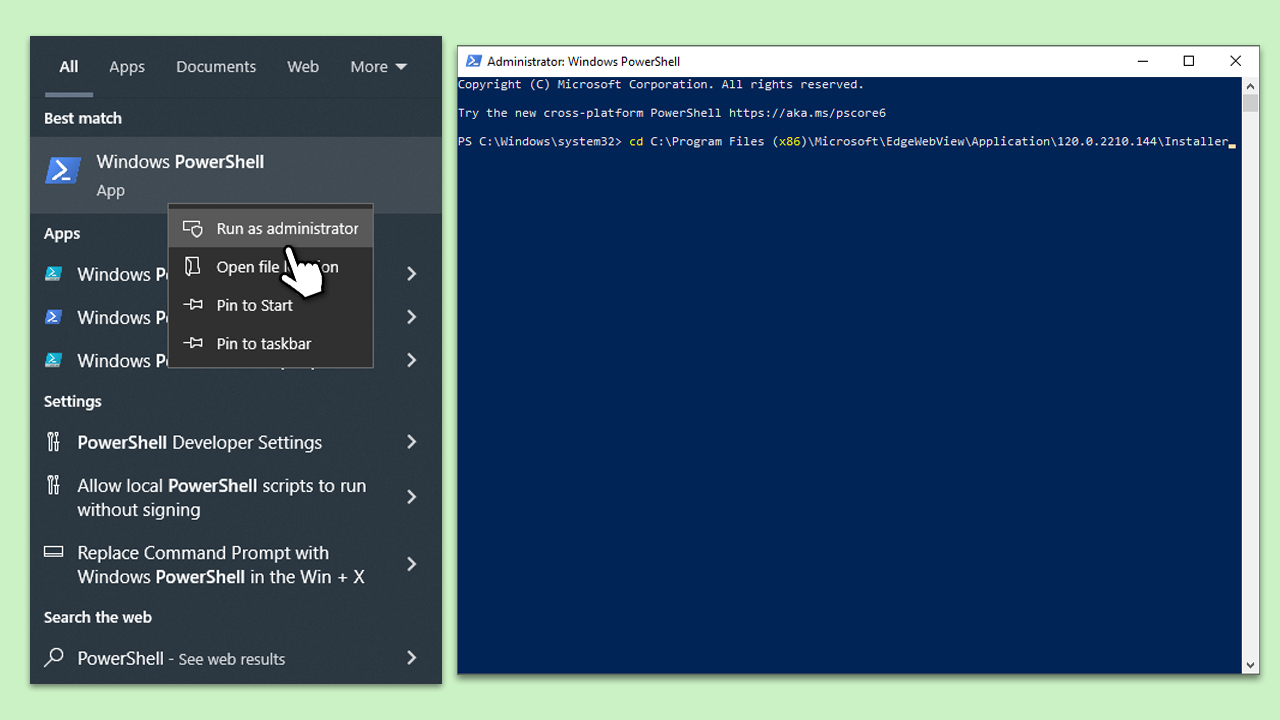
- Type PowerShell in Windows search.
- Right-click on PowerShell and select Run as administrator.
- When UAC shows up, click Yes.
- First, you need to enter the location of the WebView installer, which, by default should be at C:\Program Files (x86)\Microsoft\EdgeWebView\Application\[VERSION]\Installer. The highlighted section varies based on the version, so you will have to find the one you use. Below is an example of what the command should look like:
cd C:\Program Files (x86)\Microsoft\EdgeWebView\Application\120.0.2210.144\Installer - Then, copy and paste the next command and press Enter:
.\setup.exe --uninstall --msedgewebview --system-level --verbose-logging --force-uninstall - Reboot your PC.
- Go to the official Microsoft website, download and install the latest WebView2 version from there.
Fix 5. Run SFC and DISM
Repair corrupted system files to ensure they are not stopping
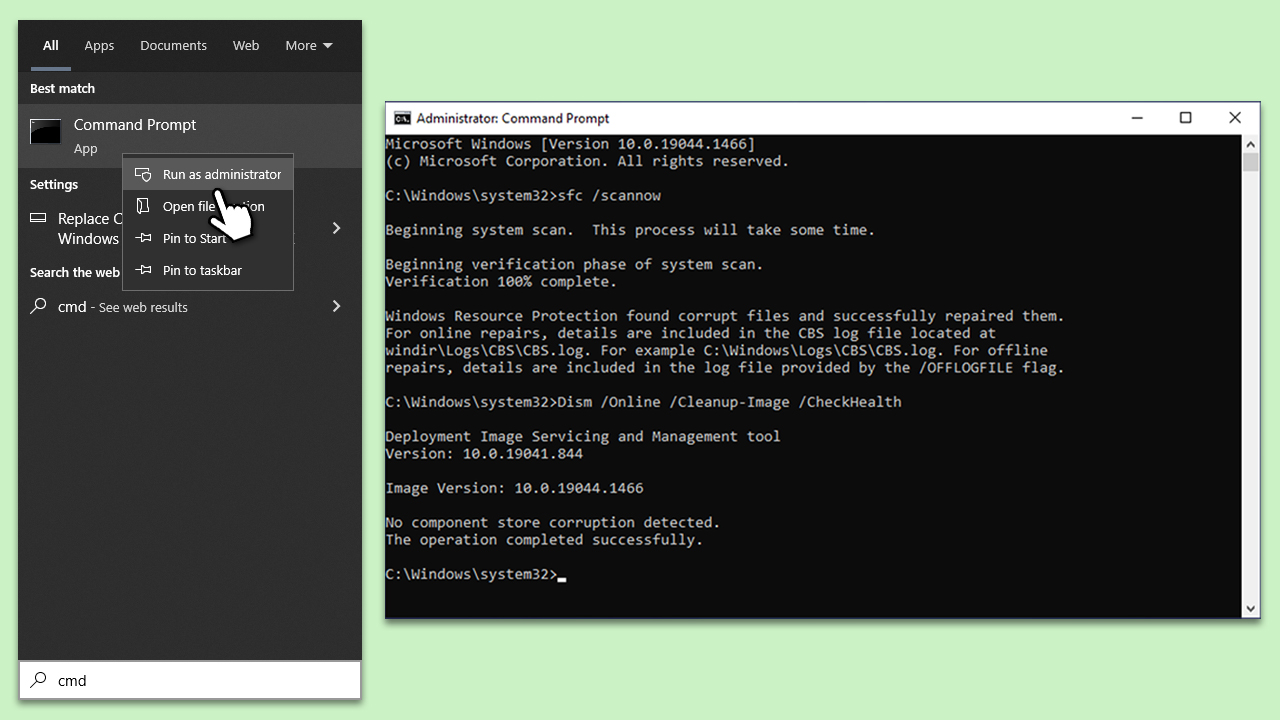
- Type in cmd in Windows search.
- Right-click on Command Prompt result and pick Run as administrator.
- User Account Control will ask you whether you want to allow making changes - click Yes.
- In the Command Prompt window, paste the following command and hit Enter:
sfc /scannow - Once the scan is complete, use the following commands and press Enter after each:
Dism /Online /Cleanup-Image /CheckHealth
Dism /Online /Cleanup-Image /ScanHealth
Dism /Online /Cleanup-Image /RestoreHealth - Restart your PC.
Fix 6. Reinstall Razer Axon
This process removes the existing installation and replaces it with a fresh copy, potentially fixing startup problems.
- Type Control Panel in Windows search and press Enter.
- Go to Programs > Uninstall a program.
- Locate Razer Axon and uninstall it following on-screen instructions.
- Restart your computer to ensure all files are completely removed.
- Download the latest version of Razer Axon from the official website.
- Install Razer Axon by following the on-screen instructions.
- Launch the application to check if the issue has been resolved.
Bottom line
To fix Razer Axon not starting, you can try running the app as an administrator, reinstalling the app, and ensuring that all relevant components like Microsoft's WebView2 Runtime are updated. If the issue persists after these fixes, consider using a specialist PC repair tool to identify and resolve systemic problems.
Frequently asked questions
First, ensure that your Windows 10 is updated to the latest version. If the issue persists, try reinstalling the Razer Axon application.
Check for compatibility issues by running Razer Axon in compatibility mode for Windows 10. Additionally, verify that all necessary drivers for your Razer device are up to date.
Yes, you can reset Razer Axon settings by navigating to its installation folder and deleting the configuration files, then restart the application on your Windows 11 system.




Report an issue
What's wrong with this guide? We review every report and update or remove content.
Report received — thank you. We'll review and fix it.
You need a free account to submit a report.
Be the first to comment