How to fix
Razer Synapse not opening: mouse, keyboard, and other device problems
on Windows
Resolve Razer Synapse issues on Windows 10 and 11 quickly. Enjoy seamless gaming with expert-tested solutions that get you back online in minutes.


What causes How to fix Razer Synapse not opening: mouse, keyboard, and other device problems?
- Malware infection could compromise various files on the system
- Another program might tamper with system settings
- Razer Synapse fails to recognize devices due to software issues
- Application fails to show normal user interface components
- Hardware compatibility issues
Repairs Windows system files, removes malware, and restores a clean OS state — without reinstalling.
Hello. My Razer Synapse is not detecting mouse and keyboard - both are Razer devices. Any help with this?
Since gaming mice, keyboards, headsets, and other devices are quite a bit different than your regular office peripherals, and Razer is among many manufacturers that specialize in this type of hardware. For example, mechanical keyboards, special macro buttons, or multi-button mice are particularly useful when it comes to gaming.
Razer is among the most prominent gaming hardware producers out there, making its debut in 2005. Since then, it accumulated a big following of players who prefer hardware developed by this company. According to its official website, more than 100 million gamers[ref en-3] trust Razer to deliver the based gaming performance.
Razer Synapse, cloud-based hardware configuration software is offered users the best usability experience. It allows gamers to access all their devices and changing various settings, catering to their needs. Unfortunately, many users have reported that the software fails to recognize their devices, such as keyboards or mice.
Other times, players also said that the application itself is not working properly. For example, a user on Reddit said[ref en-1] that the app completely fails to show normal user interface components, such as various buttons or even the settings menu. Due to this, the player is unable to change profiles or make new macros.[ref en-2]
When it comes to third-party software issues, there could be many reasons why it malfunctions. For example, malware infection could compromise various files on the system, or another program might tamper with system settings, resulting in Razer Synapse, not opening or hardware not being recognized.

Therefore, in order to fix Razer Synapse not detecting mouse and keyboard, along with other issues that you might be experiencing, there are several different solutions you should try. Below we list the instructions, so make sure you follow them step-by-step.
If you are frequently running into various computer issues and are struggling with BSODs, errors, crashes, lag, etc., we recommend you try running a scan with [d1] repair software, as it could fix the underlying problems on the operating system, increasing its overall performance, improving privacy, and removing malware at the same time.
Step 1. Check your hardware
By default, fully-working Razer mice should work for approximately 50 million clicks (or 10,288 hours of game time) before breaking. Unfortunately, but sometimes even new hardware might malfunction. Therefore, you should first check whether your mouse or/and keyboard is working well.
Use a different USB port
In some cases, simply unplugging your mouse or keyboard and pugging it back in might help. Your computer should have many USB ports - try changing up things a bit. Thus, disconnect your hardware, wait for around 30 seconds, and connect it back in - try different ports too.
Plug the device onto a different PC
If you have access to another computer that works fine, it can serve as a great troubleshooting tool. Simply disconnect your mouse or keyboard and plug it into a PC with Razer Synapse installed. If the device fails to work, it means that it is broken - contact the manufacturer for a refund if still eligible.
Step 2. Ensure your drivers are up to date
Drivers are extremely important to any computer. Without them, hardware and software would simply not be able to communicate. While regular computer users can get away with basic drivers to ensure that their devices work, gaming systems require much more attention. In particular, gaming-specific mice or keyboards might be heavily reliant on drivers, so updating them is essential.
You can try to update drivers via the device manager:
- Right-click on Start and pick Device Manager
- Expand Keyboards or Mice and other pointing devices sections
- Right-click on your device and select Update driver
- Pick Search automatically for drivers
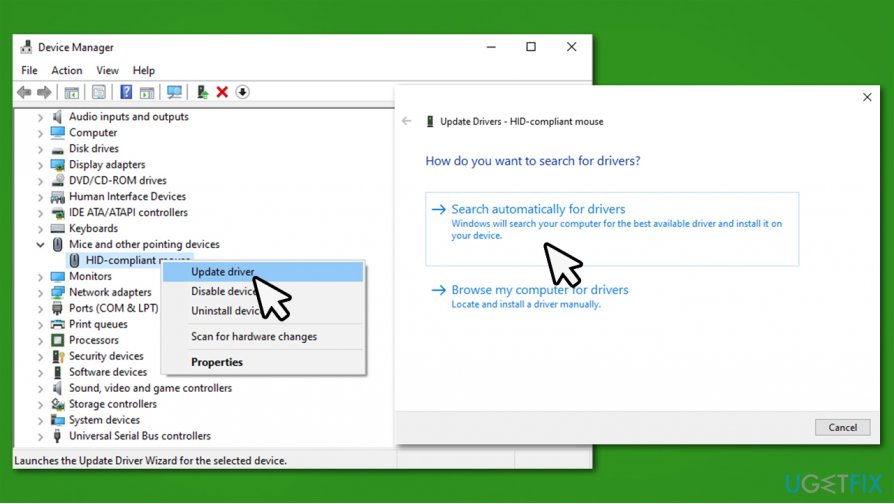
How to fix razer synapse mouse keyboard and other device problems update drivers - Wait till Windows installs the latest driver updates
- Reboot your PC.
However, Windows Device Manager is far from perfect when it comes to finding the most latest updates for your particular hardware component. It might often fail, and the process might be tedious, especially if you want to update all drivers on your system. Thus, to make things easier, we recommend using [rev id="DriverFix"] instead. It can create driver backups and update your drivers automatically without having to go through the hassle of looking for correct drivers to install manually.
Step 3. Reinstall drivers
If updating drivers did not help, you could try reinstalling them altogether.
- Open Device Manager once again
- Expand Keyboards or Mice and other pointing devices sections
- Right-click on your mouse/keyboard and pick Uninstall device
- When a warning shows up, tick the Delete the driver software for this device and press Uninstall
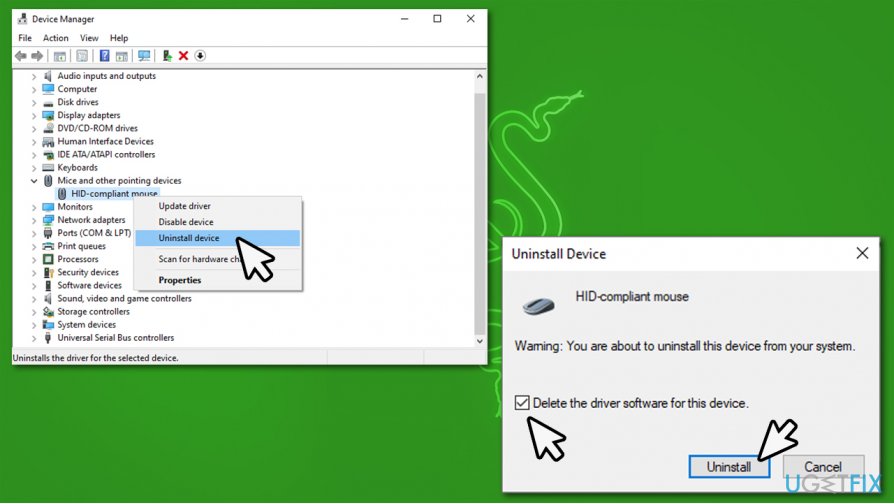
How to fix razer synapse mouse keyboard and other device problems reinstall drivers - Reboot your computer
- Windows will automatically install drivers so your devices work.
Step 4. Update Razer Synapse
It is common for software developers to ship new updates that fix various bugs, increase stability, or patch security vulnerabilities. Therefore, it is important to keep your software updated. Yet another reason to update Razer Synapse is that it could help you fix Razer Synapse not opening or working poorly.
- Click on the system tray arrow to see icons of all running programs
- Right-click on Razer Central and select Check for Updates
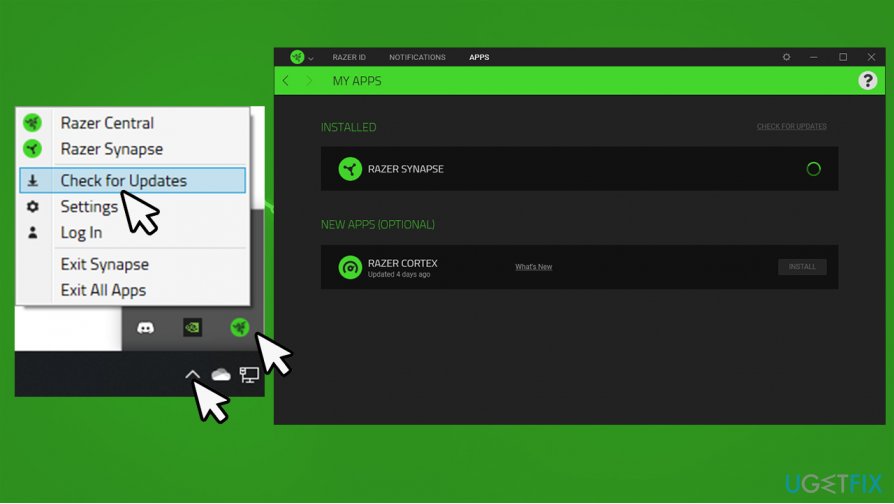
How to fix razer synapse mouse keyboard and other device problems update software - Wait till the app is updated, then restart it and check if it works well.
Step 5. Reinstall Razer Synapse
Reinstalling software could help you fix underlying issues that make it malfunction. However, this process should be performed correctly in order to ensure that all the residual files are eliminated before the newest version of the app is installed on top. Here's how:
- Type in Control Panel in Windows search and press Enter
- Go to Programs > Uninstall a program
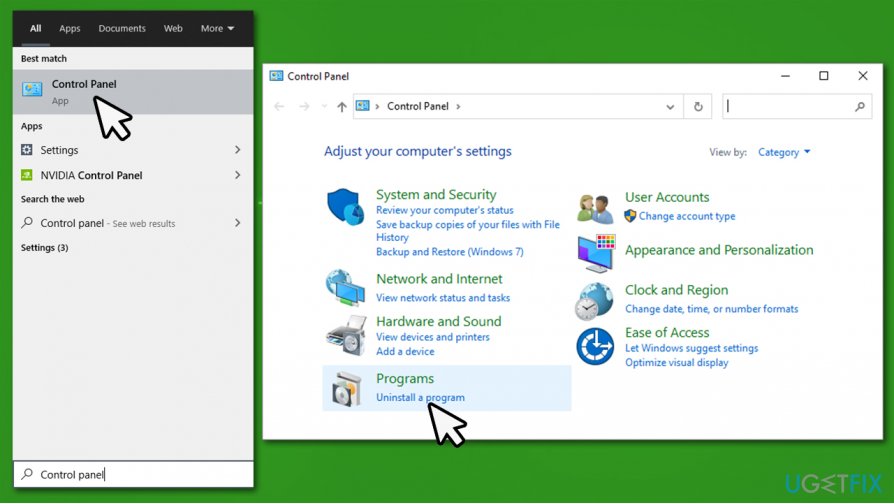
How to fix razer synapse mouse keyboard and other device problems uninstall via control panel - Find Razer Synapse on the list, right-click and pick Uninstall
- Select Uninstall (Note: you can first try to use Repair feature)
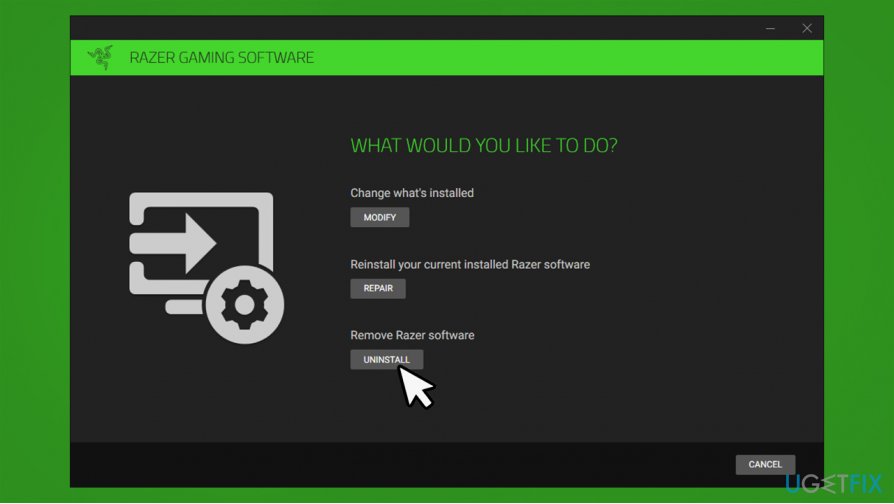
How to fix razer synapse mouse keyboard and other device problems pick uninstall - Select Razer Synapse and pick Uninstall
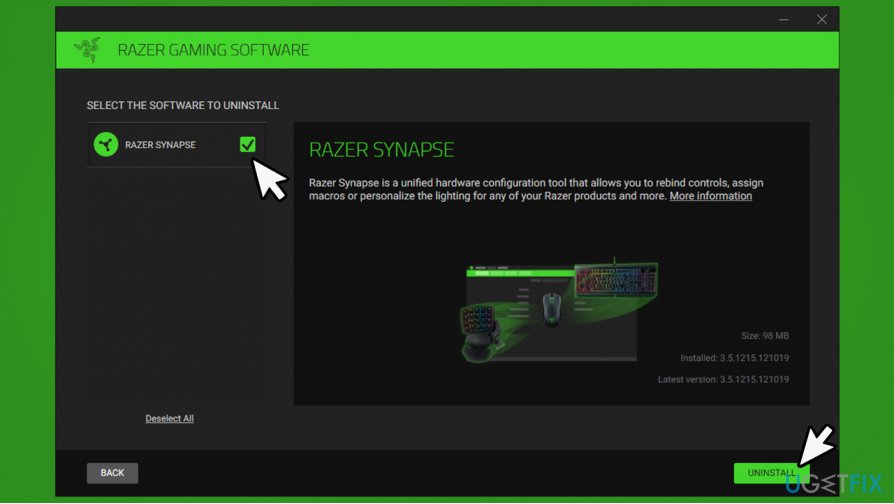
How to fix razer synapse mouse keyboard and other device problems pick uninstall2 - Finally, click Yes, Remove
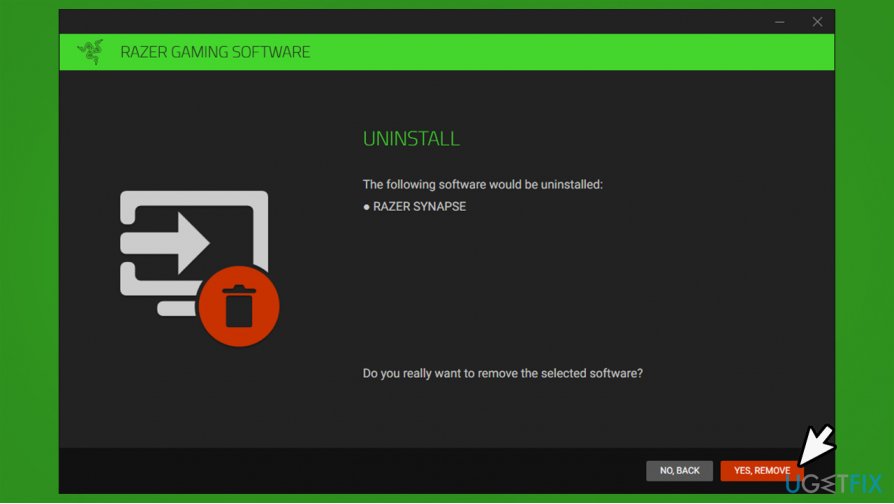
How to fix razer synapse mouse keyboard and other device problems pick uninstall3
Now you should ensure that remaining files are deleted properly:
- Press Win + E on your keyboard
- Go to View tab and tick the Hidden items checkbox
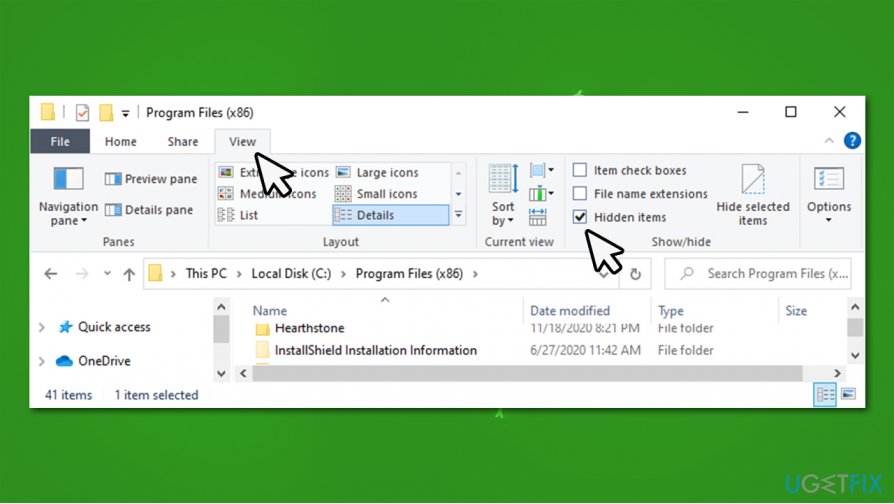
How to fix razer synapse mouse keyboard and other device problems check hidden items - Now go to the following locations and delete contents of these folders:
C:\\Program Files (x86)\\Razer
C:\\ProgramData\\Razer
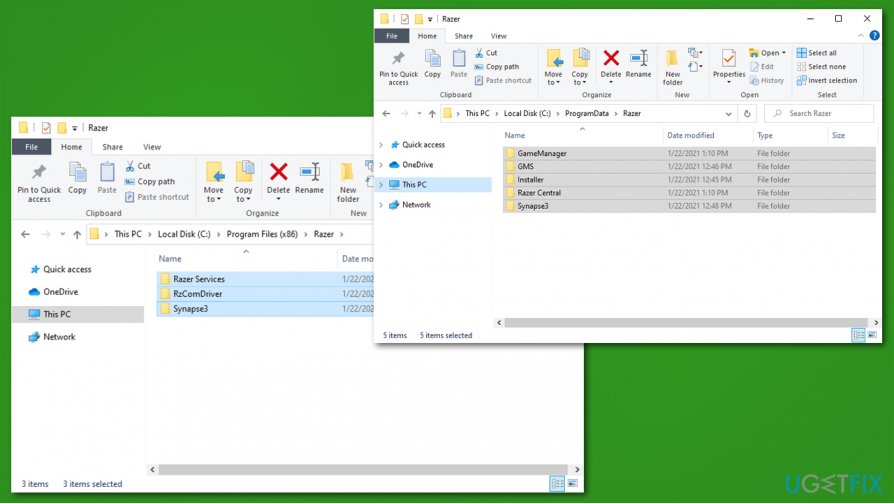
Now reinstall Razer Synapse by downloading the newest version from the official website.
Bottom line
To fix Razer Synapse not detecting your mouse and keyboard, try checking for malware, ensuring no other programs are interfering, and verifying hardware compatibility. If these solutions do not work, consider running a scan with repair software to address underlying operating system problems.
Frequently asked questions
Razer Synapse may not open on Windows 10 due to outdated drivers or software conflicts; ensure that your device drivers are updated and try reinstalling the application.
If Razer Synapse is not launching on Windows 11, try running the program as an administrator and check for any pending Windows updates that could affect performance.
If Razer Synapse crashes on startup in Windows, consider resetting the app settings or performing a clean reinstall of the software to resolve any corrupted files.




Report an issue
What's wrong with this guide? We review every report and update or remove content.
Report received — thank you. We'll review and fix it.
You need a free account to submit a report.
Be the first to comment