How to fix
RdrCEF.exe high CPU usage
on Windows
Resolve RdrCEF.exe high CPU usage issues on Windows 10 and Windows 11 effortlessly. Get expert-tested solutions and fix it in minutes!

What causes How to fix RdrCEF.exe high CPU usage in Windows?
- High CPU usage by RdrCEF.exe
- Errors when opening Acrobat Reader
- Application error pop-ups
- Possible overheating issues
- Corrupted files or registry issues
Repairs Windows system files, removes malware, and restores a clean OS state — without reinstalling.
Hello. I recently noticed that my Windows computer started being slower than usual. I found that a process named RdrCEF.exe is using a lot of CPU power. What is it?
Windows is a wonderful operating system but for some reason, some of the applications, and services can malfunction, and start using high amounts of CPU[ref en-1] power. This can result in bugs, glitches, and a significant decrease in performance. If a device is constantly using significant amounts of CPU power, it can even cause overheating issues.
Recently, some users have been having problems with RdrCEF.exe high CPU usage in Windows. RdrCEF.exe is a standard component of Adobe Acrobat Reader which is a free standard for viewing, printing, signing, sharing and annotating PDFs. It is the only PDF viewer that can open and interact with all types of PDF content, including forms and multimedia.
RdrCEF.exe is also associated with "stopped working" and “application error” pop-ups. Most of the time, errors appear when users try to open Acrobat Reader. It is unknown why exactly RdrCEF.exe starts randomly using a high amount of CPU or/and RAM but in this guide, you will find 3 steps that could help you fix it.
You can also use a maintenance tool like [d1] to fix various system errors, BSODs,[ref en-2] corrupted files, and registry[ref en-3] issues. This powerful software can also clear up cookies and cache, often the culprits behind many malfunctions. If you want to begin the guide that could fix RdrCEF.exe high CPU usage in Windows, make sure to follow the instructions below carefully.
Method 1. Rename RdrCEF.exe and RdlServicesUpdater.exe
- Navigate to the location of Acrobat Reader (by default, the folder is located in C:\ Program Files (x86) \ Adobe \ Acrobat Reader DC \ Reader \ AcroCEF)
- Here you should see RdrCEF.exe and RdlServicesUpdater.exe
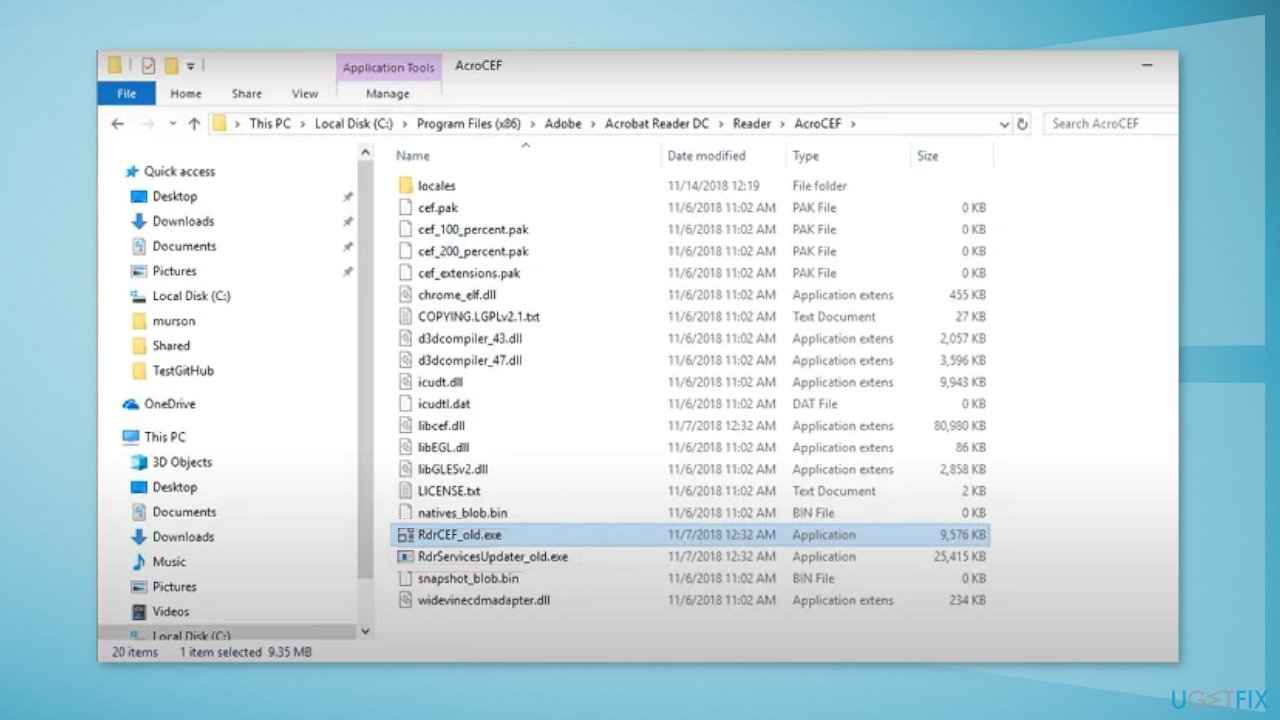
- Right-click on each of them and select Rename
- Rename both executables to end with _old and hit Enter to save the changes
- Restart Adobe Reader in order to force it to recreate the two files
Method 2. Update Acrobat Reader
- Open Acrobat Reader, go to Help, and click on Check for Updates
- The Adobe Acrobat Reader will check for updates
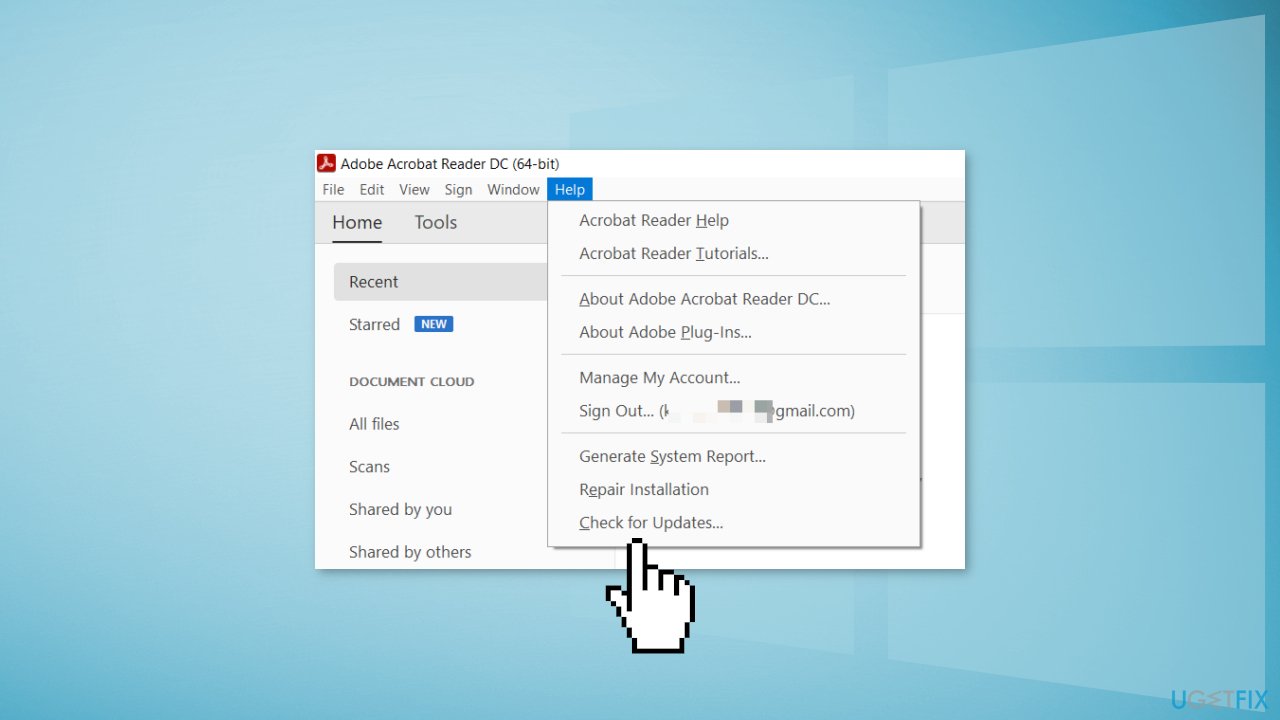
- If there are any updates, follow the prompts to install them
Method 3. Reinstall Acrobat Reader
If you receive an error and cannot open Acrobat Reader, uninstall it from your computer first.
- Press the Windows key + R to open the Run box
- Type appwiz.cpl and press Enter
- In Programs and Features, find Adobe Acrobat Reader, right-click on it and choose Uninstall
- Visit the official download center for Acrobat reader and download the latest version
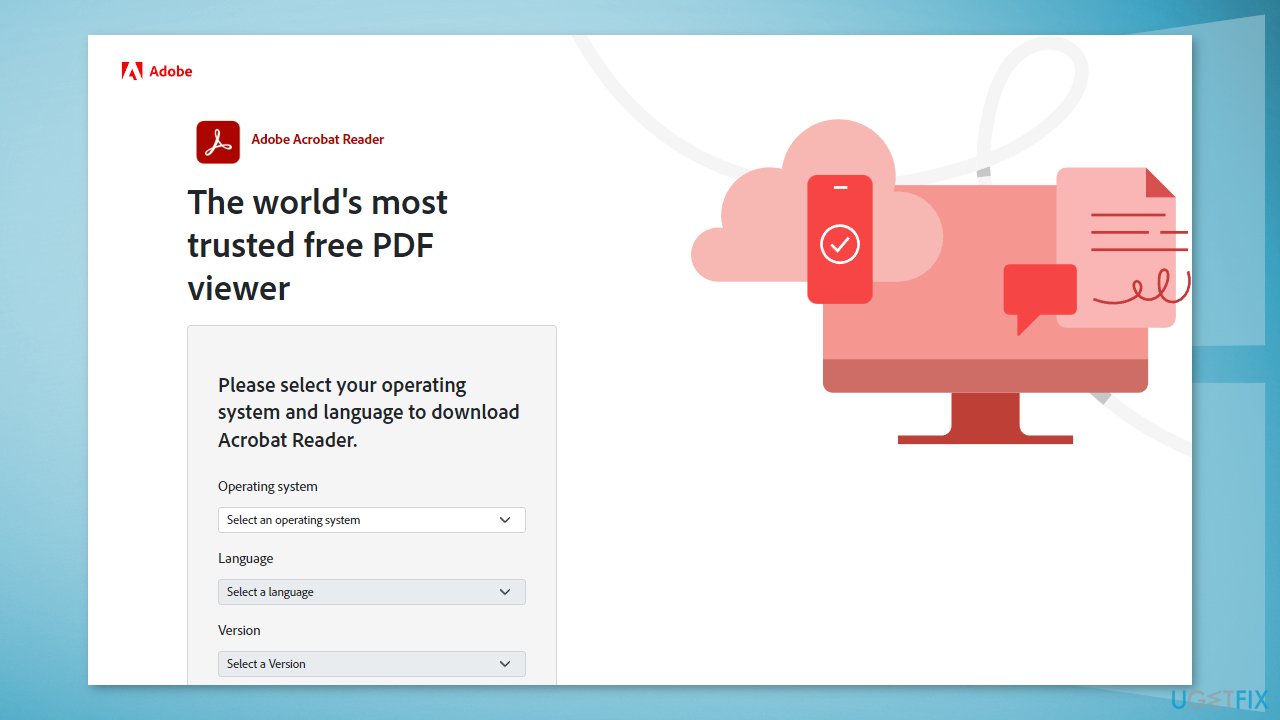
- Follow the on-screen instructions to install Adobe Acrobat Reader on your system
Bottom line
To fix RdrCEF.exe high CPU usage, you can rename RdrCEF.exe and RdlServicesUpdater.exe, or update Acrobat Reader. If these methods do not resolve the issue, consider using a maintenance tool to address system errors.
Frequently asked questions
RdrCEF.exe high CPU usage is often caused by issues with the Microsoft Edge browser or conflicts with extensions and background processes. Ensuring that your browser and Windows are up to date can help resolve this issue.
You can reduce RdrCEF.exe CPU usage by disabling unnecessary browser extensions, clearing your browser cache, or resetting Microsoft Edge settings. Additionally, checking for updates for both Windows 11 and Edge might also help.
Disabling RdrCEF.exe can lead to limited functionality in Microsoft Edge, but if the high CPU usage persists, it may be a temporary solution while troubleshooting. However, it's recommended to try resolving the issue without disabling it first.




Report an issue
What's wrong with this guide? We review every report and update or remove content.
Report received — thank you. We'll review and fix it.
You need a free account to submit a report.
Be the first to comment