How to fix
“Read Aloud” Word function not working
on Windows
Resolve the "Read Aloud" issue in Word on Windows 10 or 11 effortlessly. Get expert-tested solutions and restore functionality in minutes!

What causes How to fix “Read Aloud” Word function not working in Windows?
- Outdated software
- Corrupt files
- Errors during installation
- Incorrect volume settings
Repairs Windows system files, removes malware, and restores a clean OS state — without reinstalling.
Hi. There is something wrong with the Read-Aloud feature in Microsoft Word. First, it started to randomly change voices (which I eventually got used to), but this morning, I noticed that Read-Aloud doesn't work at all. I really need this feature since I use it daily for my work. Any idea on how to fix this?
Microsoft Word, a part of the Microsoft Office suite, is an extensively utilized tool in the global workspace and academia. It offers a multitude of features that serve to streamline the user experience, enhancing productivity and assisting individuals in completing their tasks more efficiently. One such function is the "Read Aloud" feature.
"Read Aloud" is a Text-to-Speech feature incorporated into Microsoft Word. This tool allows users to listen to the text in their documents, which can be invaluable for those who are visually impaired, multitasking, or simply prefer auditory learning. By converting the text into spoken words, it aids in comprehending dense material and can help users to catch mistakes or awkward phrasing that may be missed when reading text.
However, there have been instances where users report that the "Read Aloud" feature is not working as intended in their Windows systems. Several reasons could contribute to this issue. It could stem from problems within the Microsoft Office suite itself, such as outdated software, corrupt files, or errors during installation.
Updating Microsoft Office is often a straightforward solution, as this ensures that all features are up-to-date with the latest improvements and bug fixes. If the issue persists post-update, a repair of the Microsoft Office suite can be initiated. This process identifies and fixes any internal errors or corrupted files that may be causing the problem.
Reinstalling Microsoft Office is another alternative, as this can address any installation errors that may have occurred initially. Additionally, users should ensure that their system's volume settings are correctly configured, as this could also be a potential cause for the "Read Aloud" feature not working.

Moreover, leveraging a PC repair tool [d1] can be a convenient method of diagnosing and resolving common computer issues. Although there are no guarantees, such tools can potentially rectify underlying system issues that might be impacting the function of certain Microsoft Word features.
Fix 1. Restart Word
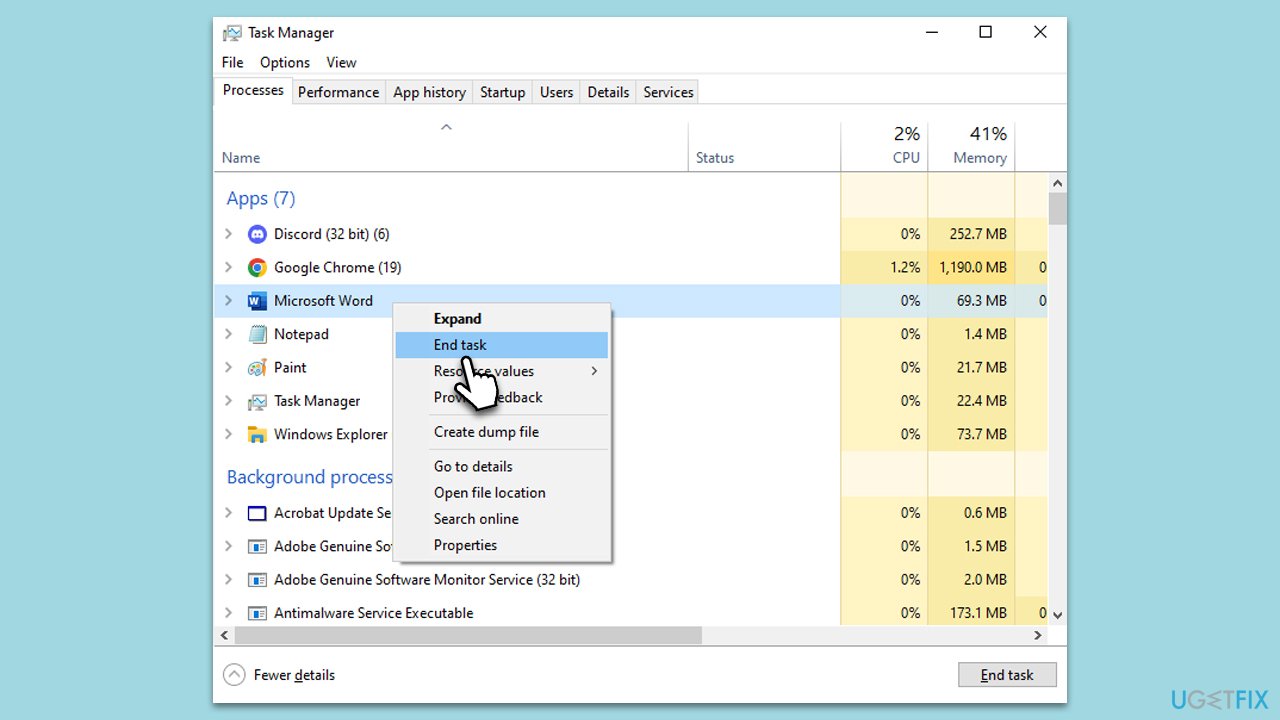
One of the simplest solutions for many software issues is to restart the program. This action resets the software's state and can resolve many minor glitches or malfunctions. If the "Read Aloud" feature is not working, it may have encountered a temporary error which restarting Word can rectify.
- Close your active Microsoft Word document.
- Make sure you exit Microsoft Word completely and it's not running in the background - press Ctrl + Shift + Esc to open the Task Manager and shut down any tasks related to the app.
- After a moment, reopen Microsoft Word, open your document, and attempt to use the "Read Aloud" function again.
Fix 2. Update Word
Microsoft regularly updates its software, including Word, to introduce new features, enhance performance, and fix bugs. If your Word is outdated, it may be causing the "Read Aloud" feature to malfunction.
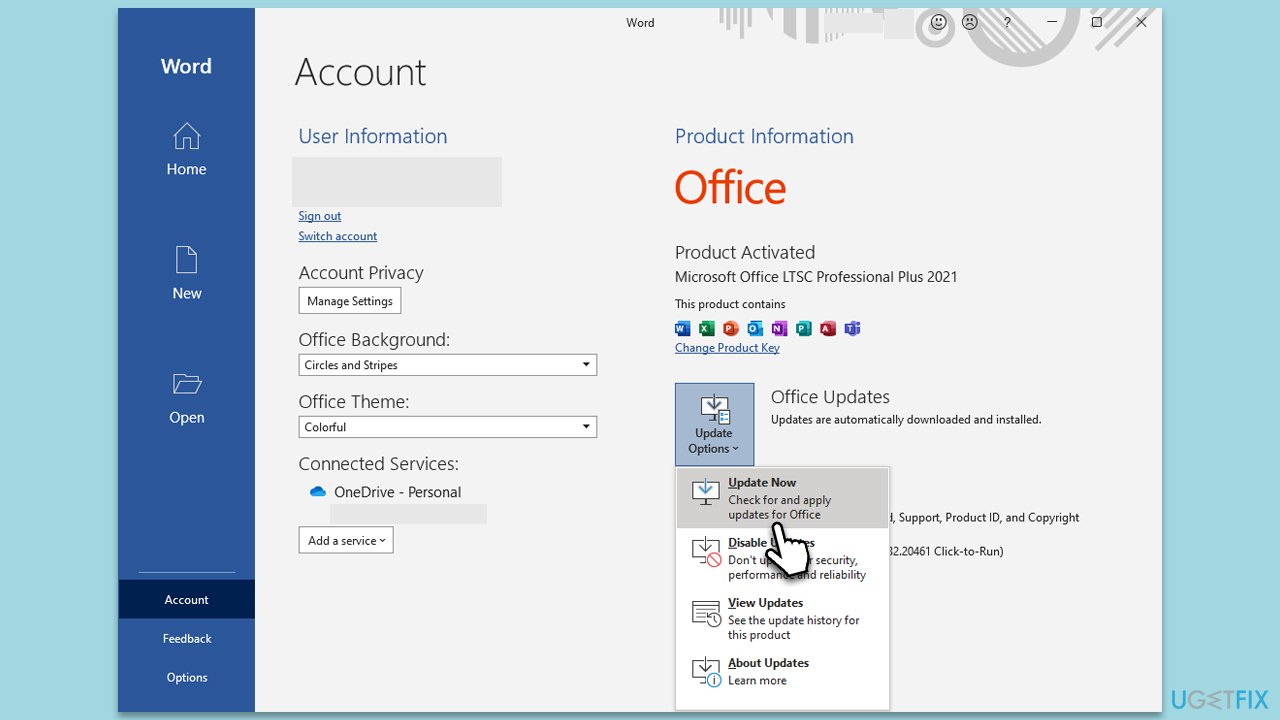
- Open Microsoft Word and navigate to File.
- From the file menu, select Account.
- Under Product Information, locate and click on Update Options.
- From the dropdown list, select Update Now. The program will then check for available updates and install them.
Fix 3. Check your volume settings on Windows
Although it might seem basic, the volume settings on your Windows system can influence the functionality of the "Read Aloud" feature. If the volume settings are not properly configured, it may appear that the function is not working.
- Locate the speaker icon on your taskbar and right-click on it.
- From the options, select Open Volume Mixer.
- Make sure that the volume control for Microsoft Word is neither muted nor set too low.
Fix 4. Open Word in Safe Mode and disable add-ins
Sometimes, certain add-ins that extend Word's functionality can interfere with its features, including "Read Aloud." Launching Word in Safe Mode disables these add-ins, potentially resolving the issue.
- Press Win + R to open the Run dialog.
- Type in winword /safe and press Enter.
- If the problem does not exist in this environment, the problem is related to the add-in.
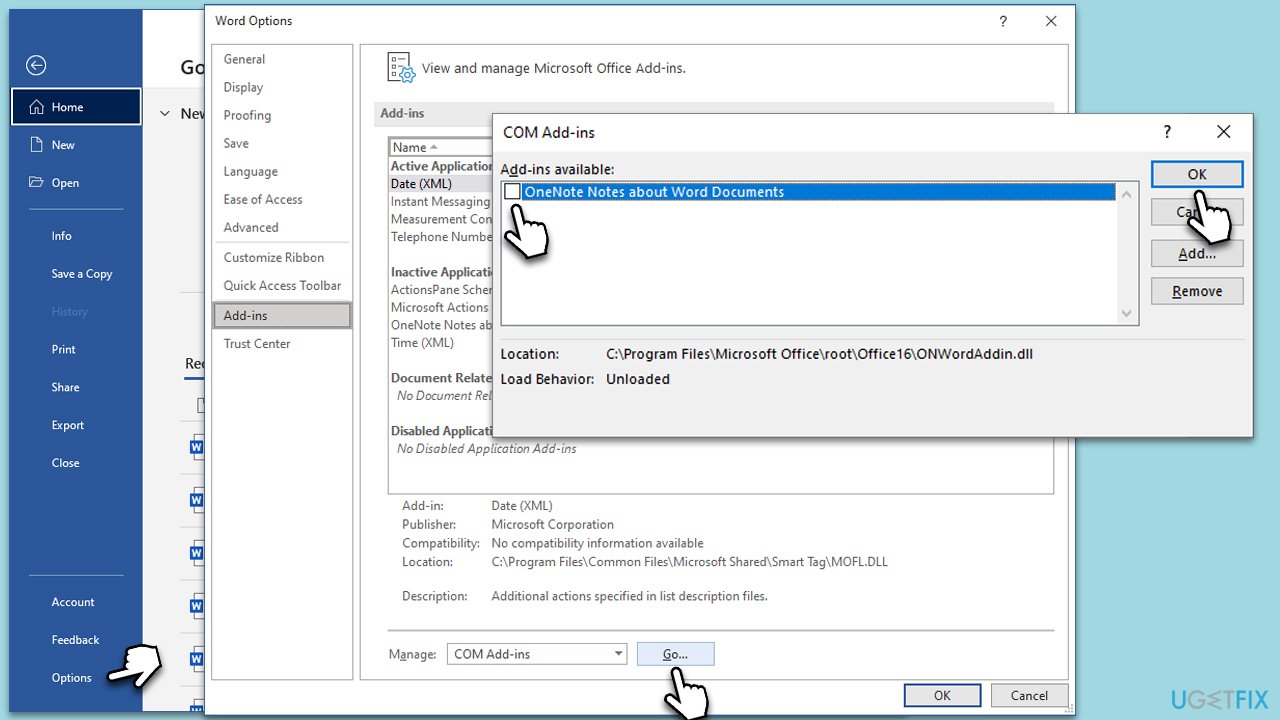
- Next, go to File > Options.
- Go to the Add-ins section.
- At the bottom, on the right side, select COM Add-ins from the drop-down menu and pick Go.
- Here, untick all the add-ins but one, and click OK.
Fix 5. Repair the Word document
In some cases, the issue may be with the document itself. If the Word document is corrupted, it could affect the "Read Aloud" feature. Fortunately, Word has an inbuilt repair tool that can fix corrupted documents.
- Open Microsoft Word and navigate to File, then select Open.
- Click on Browse and select the document you need to repair.
- Instead of clicking Open, click the down arrow next to it and select Open and Repair. Word will attempt to repair the document.

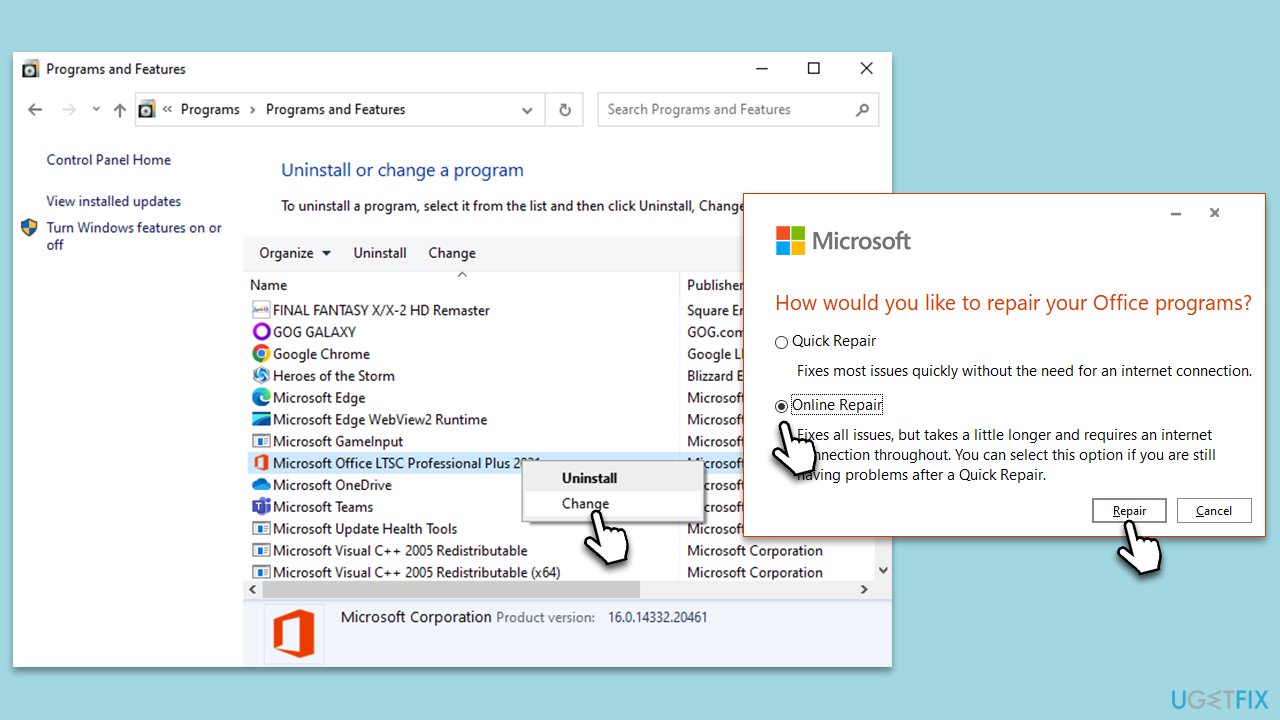
Fix 6. Repair MS Office
If the issue persists across various Word documents, the problem may lie within the Microsoft Office suite itself. Performing a repair can solve internal software issues or corrupt files that might be causing the malfunction.
- Type Control Panel in Windows search and press Enter.
- Select Programs > Programs and Features.
- Select Microsoft Office and click on Change.
- Choose the option for Online Repair and click Repair.
- Follow the prompts to finish the process.
Fix 7. Reinstall MS Office
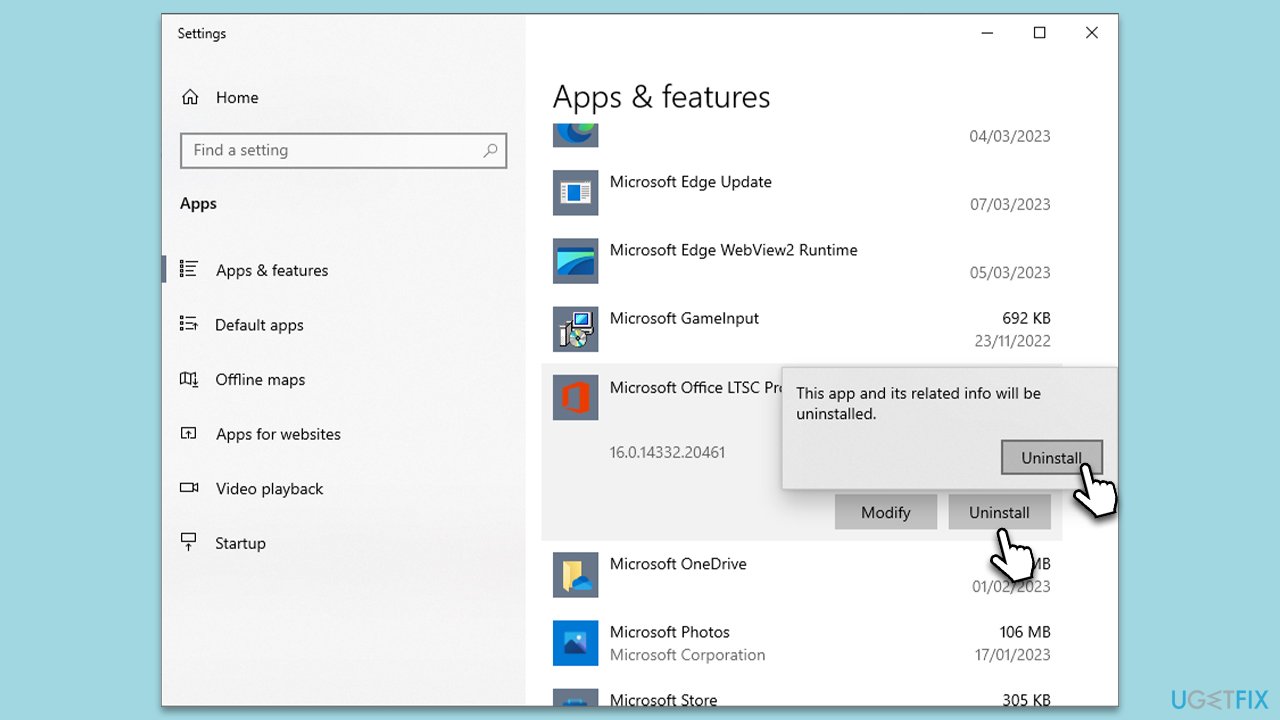
If the issue continues even after attempting the above solutions, it might require more drastic measures. Uninstalling and then reinstalling Microsoft Office can resolve any errors that occurred during the initial installation of the software.
- Right-click on Start and pick Apps and Features.
- Scroll down to find the MS Office installation.
- Click Uninstall and confirm with Uninstall.
- Follow on-screen instructions to remove the app completely.
- Press Win + E to open File Explorer.
- Navigate to the following location and delete its contents:
C:\Program Files\Microsoft Office - Next, type regedit in Windows search and press Enter.
- Go to the following locations in the Registry Editor and delete these items:
Computer\HKEY_LOCAL_MACHINE\SOFTWARE\Microsoft\AppVISV
Computer\HKEY_LOCAL_MACHINE\SOFTWARE\Microsoft\Office\ClickToRun
Computer\HKEY_CURRENT_USER\Software\Microsoft\Office - Reboot the PC and then reinstall Microsoft Office.
Fix 8. Use text-to-speech settings
If you still encounter problems with the "Read Aloud" feature, you can use the built-in text-to-speech settings in Windows. This feature uses a Narrator to read out your text, offering similar functionality to Word's "Read Aloud."
- Navigate to your system Settings, then select Ease of Access, followed by Speech.
- Under the Narrator section, toggle on Allow Narrator to work with this device.
- Now, open your Word document, and you can use the Narrator to read the text aloud for you.
Bottom line
To fix the 'Read Aloud' feature not working in Microsoft Word, users can update Microsoft Office, repair the Office suite, or reinstall the software. Additionally, checking the system's volume settings is crucial. If none of these solutions work, consider using a PC repair tool.
Frequently asked questions
First, ensure that your Microsoft Word is updated to the latest version. If the issue persists, try restarting your computer or repairing the Office installation through the Control Panel.
To enable 'Read Aloud', go to the 'Review' tab in Word and click on 'Read Aloud'. If it's still not working, check your audio settings to make sure the output device is properly configured.
Yes, check your system sound settings to ensure that the volume is up and that the correct playback device is selected. Additionally, running the Windows Audio Troubleshooter can help identify and fix any audio-related problems.




Report an issue
What's wrong with this guide? We review every report and update or remove content.
Report received — thank you. We'll review and fix it.
You need a free account to submit a report.
Be the first to comment