How to fix
RealTek driver installation error 0xE0000246
on Windows
Resolve the RealTek driver installation error 0xE0000246 on Windows 10 and 11 easily. Enjoy seamless updates with expert-tested solutions.


What causes How to fix RealTek driver installation error 0xE0000246 in Windows?
- Environmental factors interfering with installation
- Driver software corruption
- Issues with system environment
- Corrupted driver files
- Incompatibility with new audio devices
Repairs Windows system files, removes malware, and restores a clean OS state — without reinstalling.
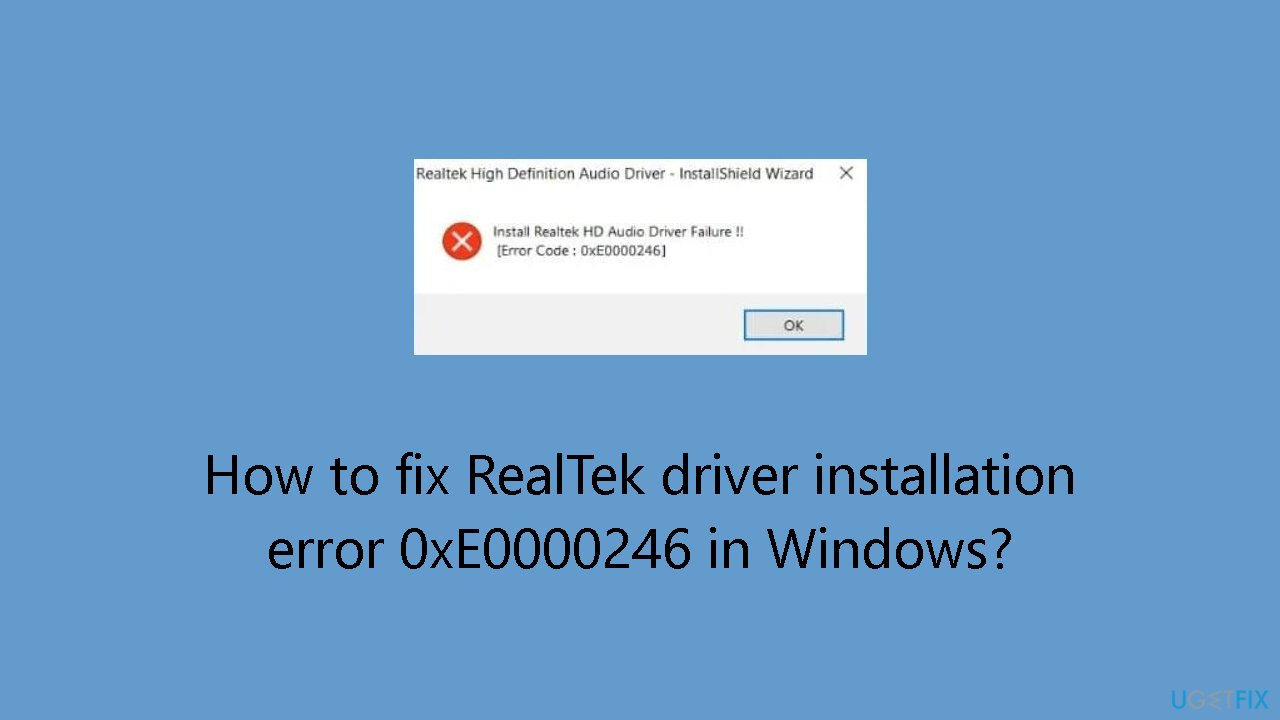
Hello. I was having some issues with audio on my Windows PC so I tried to reinstall the Realtek HD Audio Driver but I got the 0xE0000246 error code. Is there a way to fix this?
When trying to reinstall the Realtek driver,[ref en-1] customers may encounter difficulties due to the Realtek HD audio driver failure error code: 0x0000246, which occurs in Windows. This error can occur for a number of reasons, most commonly indicating that there are environmental factors interfering with the installation of new audio devices or that there is driver software corruption.
People who have experienced this problem in the past have stated that they had to reinstall their Realtek audio driver since they were having issues with it. However, this seemingly straightforward solution led to the emergence of the 0xE0000246 error. Users may be greatly impacted by this kind of event because it has a direct effect on how well their systems' audio components perform. The inability to install or reinstall the Realtek HD audio driver may result in the absence of sound, leading to a compromised multimedia experience.
The error code indicates that there might be issues with the system environment or that the driver files might be corrupted. The impact on users extends beyond the inconvenience of a silent system, as it can disrupt activities that heavily rely on audio functionality, such as video conferencing, media playback, and gaming.
Fixing this problem becomes essential for people who want to get their audio systems back to working properly. While there are a number of possible fixes, they frequently entail taking care of environmental factors, making sure that corrupted driver software is removed, and using troubleshooting methods.
In this guide, you will find 4 steps that should help you fix RealTek driver installation error 0xE0000246 in Windows. You can also run a maintenance tool like [d1] that can fix most system errors, BSODs,[ref en-2] corrupted files, and registry[ref en-3] issues. Otherwise, follow the step-by-step instructions below.
Method 1. Delete the Audio Driver in Device Manager
You can also use a dedicated tool like [rev id="DriverFix"] that can find the best drivers for your machine and install them automatically.
- Open Device Manager.
- Click on View and select Show hidden Devices.
- Look for Other devices and Unknown devices, if there are any.
- Then uninstall all drivers with the yellow exclamation mark under Other and Unknown devices.
- Make sure to check the box behind Delete the driver software for this device.
- Restart the computer to complete the process.
- Click on Actions in the menu bar and select Scan for hardware changes.
- Then check if this resolves the issue.
- If not, click on Action again and choose Add legacy hardware.
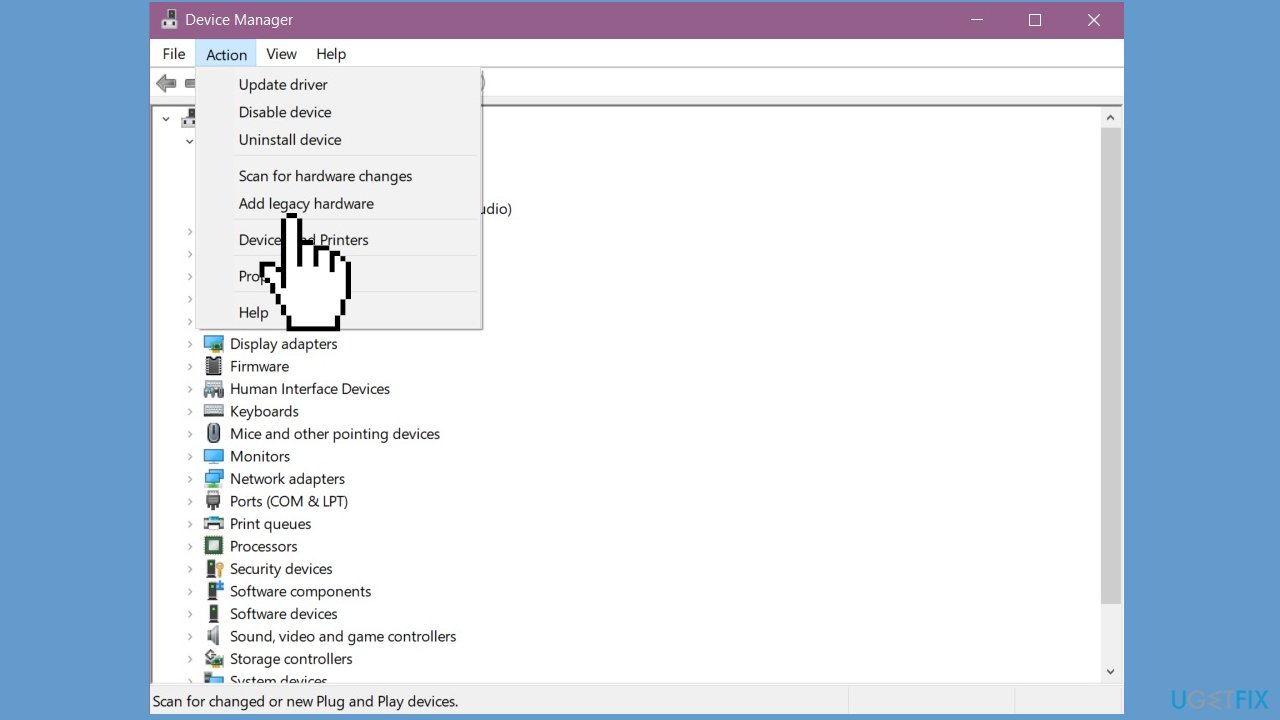
- Follow on screen instructions to add Sound, video and game controllers and Realtek High Definition Audio Device category.
- If the issue still persists, expand System Devices in Device Manager.
- Look for Microsoft UAA Bus Driver for High Definition Audio and right-click on the same and select Disable.
- Then try installing Realtek Drivers and check.
Method 2. Install the Audio Driver from Repository
- Open Device Manager.
- Expand Sound, video and game controllers.
- Right-click on the audio driver under the tree select Update driver.
- Choose Browse my computer for driver software.
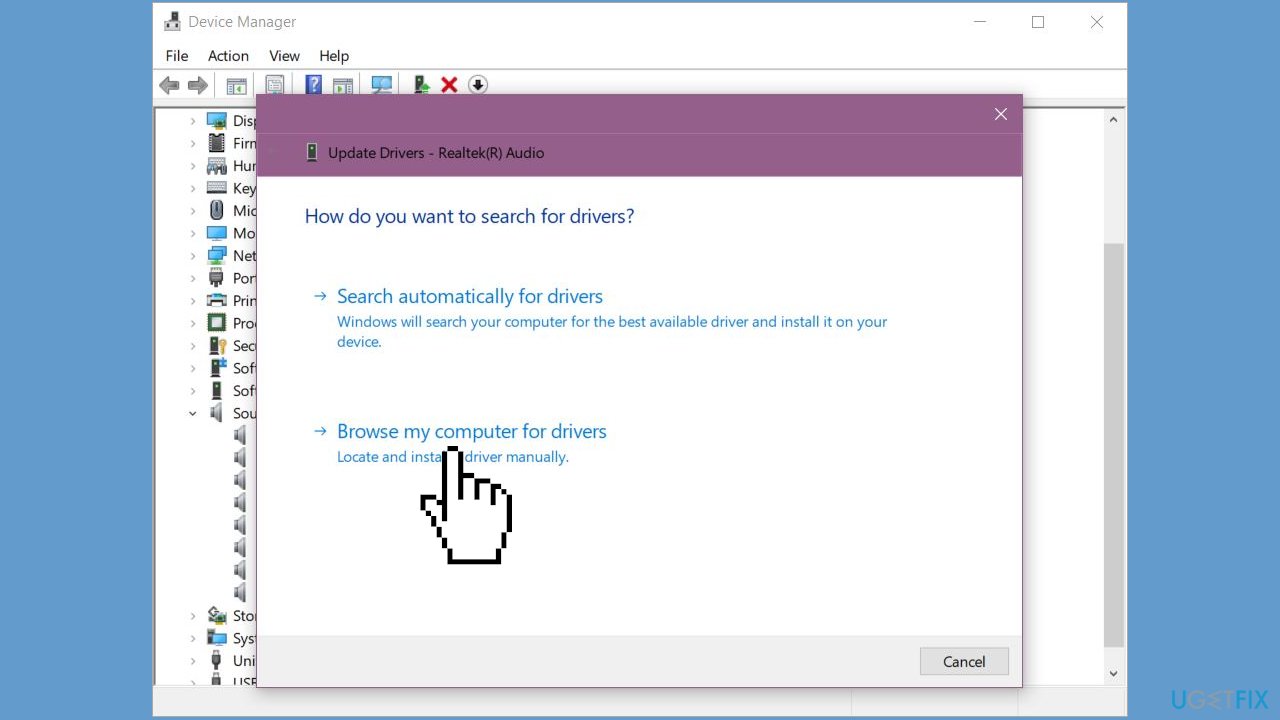
- Click on Let me pick from a list of device drivers on my computer.
- Select Realtek High Definition Audio.
- Then check if the issue persists.
Method 3. Modify the Windows Registry
- Press the Windows key + R to open the Run box.
- Type regedit and press Enter to launch the Registry Editor.
- In the Registry Editor, locate the Device Install Policy Key.
- If the Key is not found, create it by navigating to the Windows folder.
- Right-click on the folder and choose New > Key.
- Name the new Key DeviceInstall.
- Within the DeviceInstall Key, add another Key named Settings.
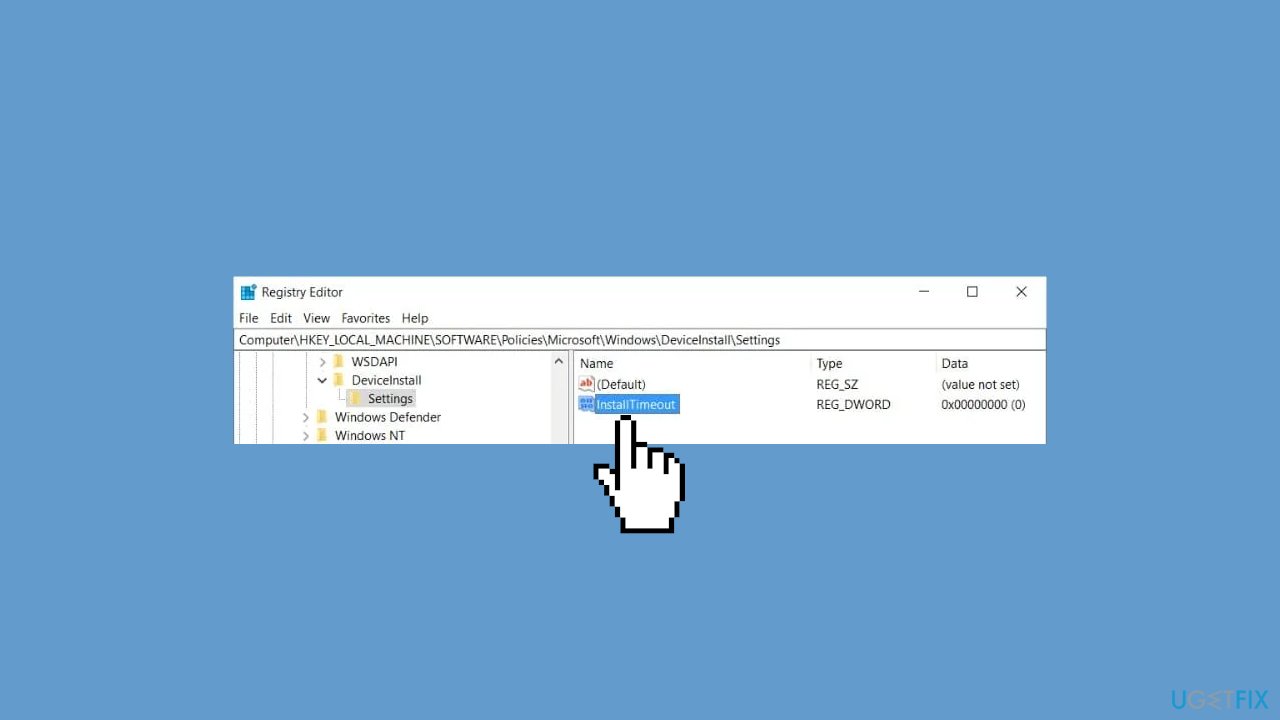
- In the Settings Key, create a new DWORD (32-Bit) entry and name it InstallTimeout.
- Use the right-click to modify the value.
- Set the value to 708 and click OK.
- Restart your PC to apply the changes.
Method 4. Reinstall the Latest Realtek Driver Application
- Press the Windows key to open the Start menu.
- Type Control Panel and select the top result.
- In the Control Panel, click on the Programs and Features icon.
- Scroll down to find the Realtek program in the list.
- Use the right mouse button to open the Context Menu.
- Select Uninstall.
- On the prompt, choose Yes to uninstall all Realtek software.
- Monitor the progress of the uninstallation process.
- After the uninstallation is complete, you’ll be prompted to restart your PC.
- Download the latest Realtek application from the Realtek Website.
- Provide an email address and verify your humanity using a Captcha code on the download page.
- Once the download is complete, locate the file on your PC and double-click to start the installer.
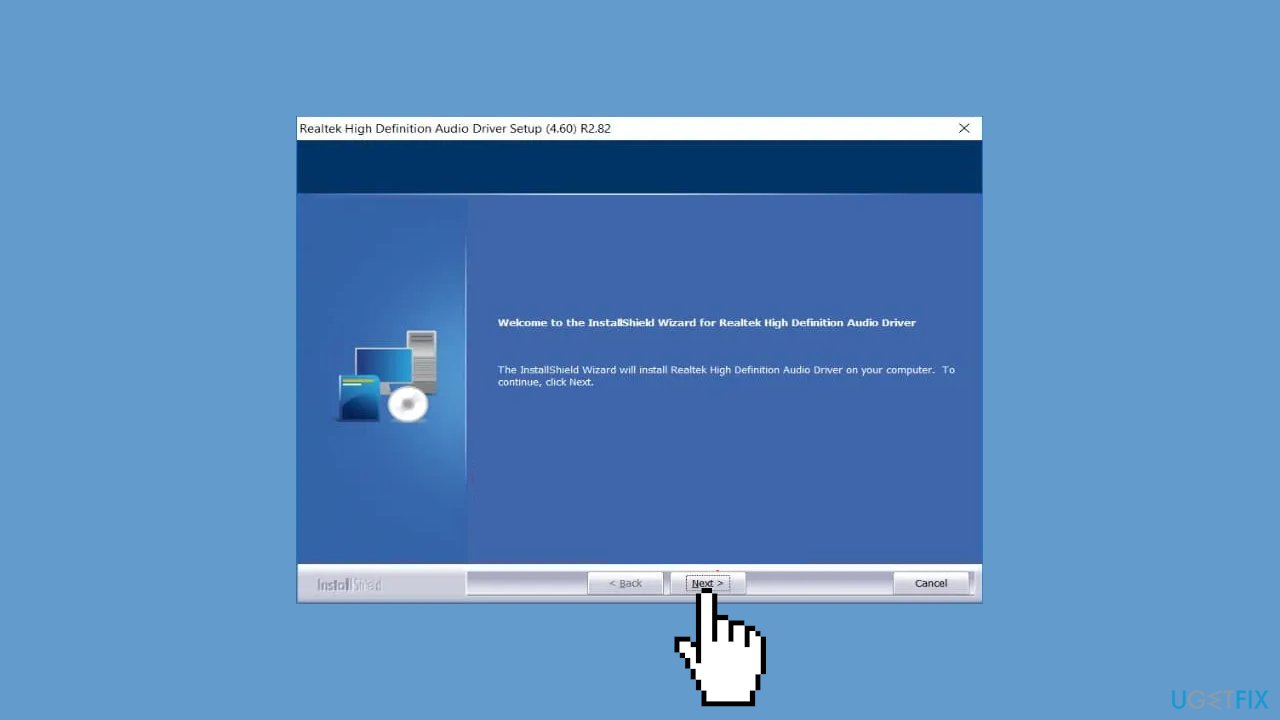
- In the Realtek installer, click Next to begin the software installation.
- Follow any prompts that appear, and if prompted, restart your PC.
- By following these steps, you should have resolved the Realtek HD Audio driver failure error code 0x0000246.
Bottom line
To fix the RealTek driver installation error 0xE0000246 in Windows, you can delete the audio driver in Device Manager, ensure corrupted driver software is removed, and use troubleshooting methods. If these steps do not resolve the issue, consider running a maintenance tool to fix system errors.
Frequently asked questions
This error is typically caused by corrupted driver files, conflicts with existing drivers, or issues with the Windows operating system itself.
To fix this error, you can try uninstalling the existing RealTek drivers, running the Windows Update troubleshooter, or manually downloading the latest driver from the RealTek website.
To prevent future occurrences, ensure that your Windows is up to date and regularly check for driver updates through the Device Manager.




Report an issue
What's wrong with this guide? We review every report and update or remove content.
Report received — thank you. We'll review and fix it.
You need a free account to submit a report.
Be the first to comment