How to fix
Recording and clipping grayed out in Game Bar
on Windows
Resolve the grayed-out recording and clipping issue in Game Bar on Windows 10 and 11. Expert-tested solutions for instant fixes, with screenshots!

What causes How to fix recording and clipping grayed out in Game Bar?
- Outdated drivers
- Incompatible hardware
- Bug in the Windows operating system
- Conflicting applications
- Game Bar settings misconfiguration
Repairs Windows system files, removes malware, and restores a clean OS state — without reinstalling.
Hello. The recording and clipping functions are greyed out even though the Xbox Game Bar and Game Mode are on. How can I solve this?
The Game Bar is a Windows feature that allows users to capture screenshots and record video gameplay. It's accessible by pressing the Windows key + G on your keyboard or by launching it from the Xbox app. Game Bar has several advantages, including the ability to easily record and share gameplay footage, as well as the ability to customize settings to improve recording quality.
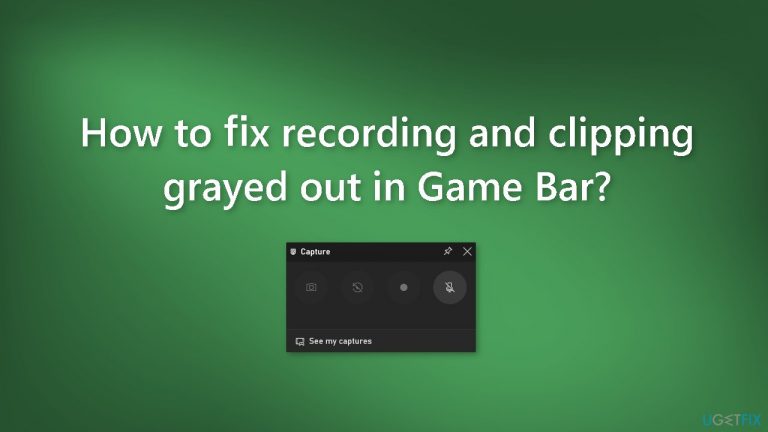
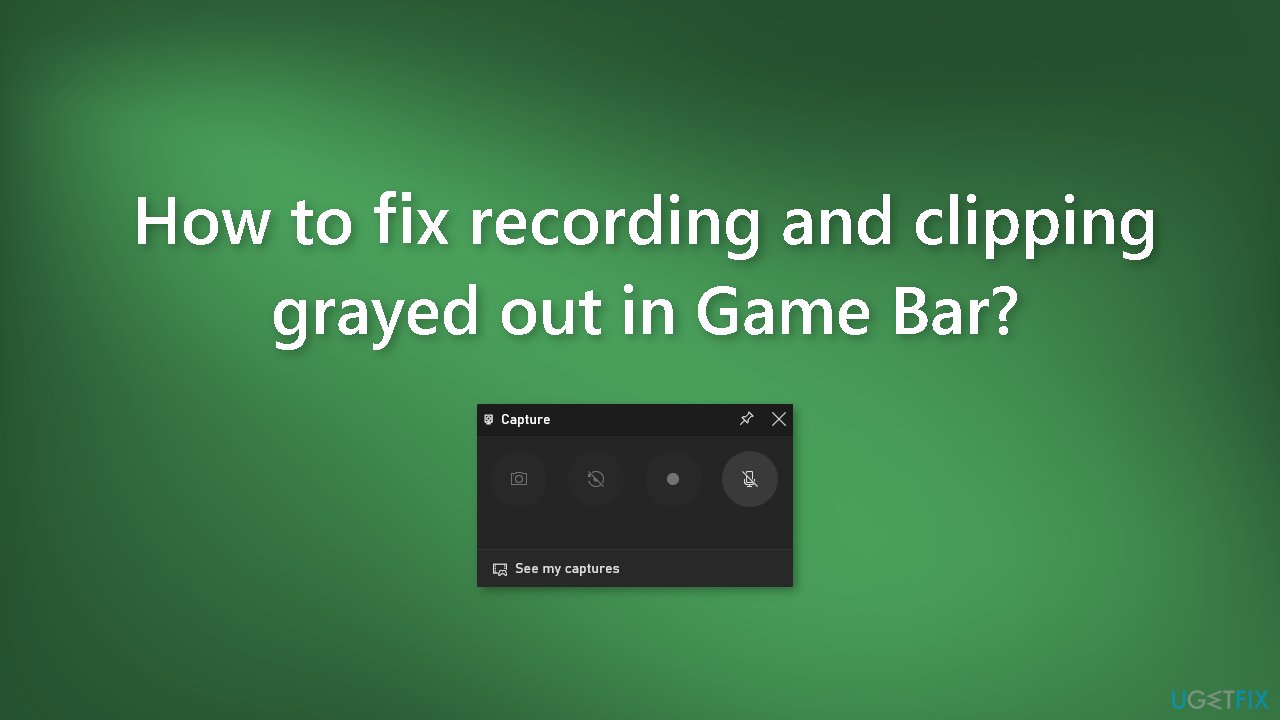
However, some users may notice that the recording and clipping buttons in Game Bar on Windows are grayed out. This can occur for a variety of reasons, including outdated drivers,[ref en-1] incompatible hardware, or a bug in the Windows operating system.
This can be especially aggravating for gamers who rely on Game Bar to capture gameplay footage to share with friends or upload to YouTube or other social media platforms. The inability to use the recording and clipping functions can lead to missed opportunities to showcase their gaming abilities or build an audience.
Users can try updating their graphics drivers, ensuring that their hardware is compatible with Game Bar, disabling conflicting applications, or resetting the Game Bar to resolve this issue. This guide will walk you through four steps that should help you fix recording and clipping grayed out in Game Bar.
Keep in mind, that the manual troubleshooting process may be lengthy. You can also use a maintenance tool like [d1] that can fix most system errors, BSODs,[ref en-2] corrupted files, and registry[ref en-3] issues. Otherwise, follow the step-by-step instructions below.
Solution 1. Modify the Game DVR Value
- Open the Windows Search function by clicking on the Start menu
- Type regedit and hit Enter
- Click on the top result to open the Registry Editor
- Go to the following location by copy-pasting it in the search bar at the top: Computer\HKEY_CURRENT_USER\Software\Microsoft\Windows\CurrentVersion\GameDVR
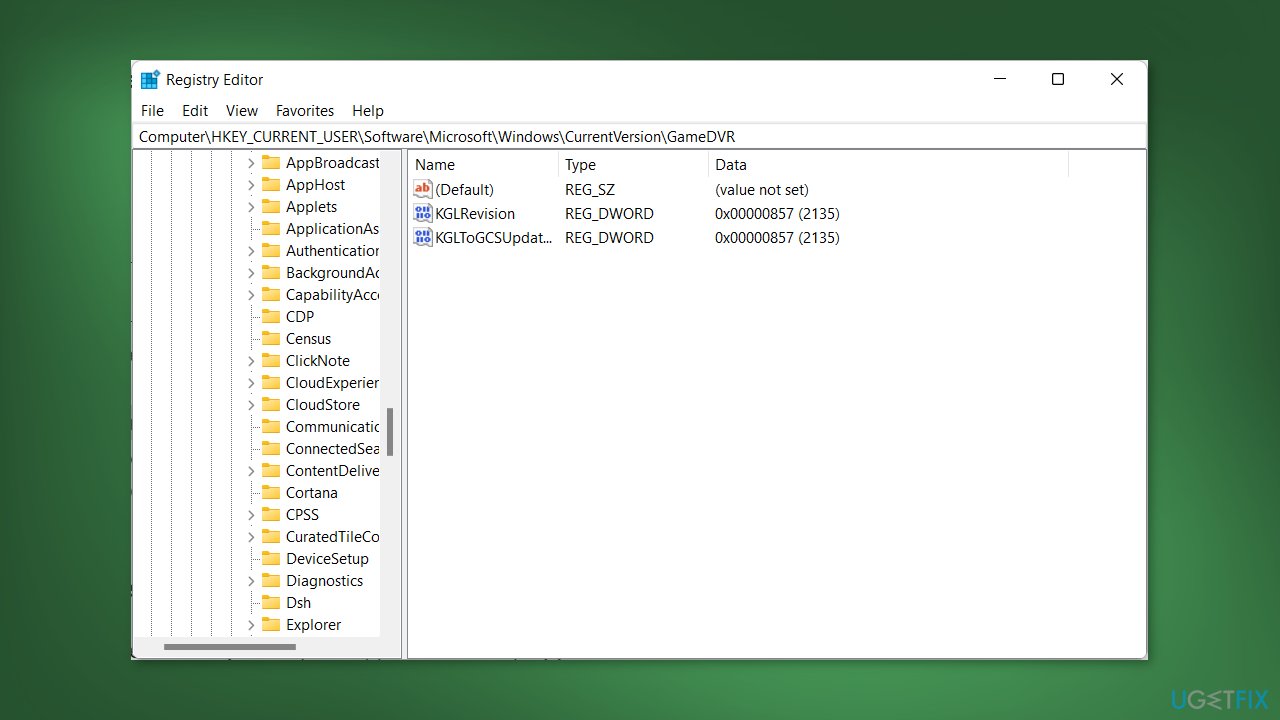
- Check if you have the AppCaptureEnabled key in the GameDVR folder. If it's not there, continue to the next step.
- Right-click anywhere in the GameDVR window and choose New
- Select the 32/64 bit value option from the drop-down menu
- Enter AppCaptureEnabled in the Value name field
- Double-click on the AppCaptureEnabled key to set its value to 1
- Close the Registry Editor and restart your computer
Solution 2. Reset the Xbox Game Bar
- Open the Settings app by clicking on the Start menu
- Click on Apps, then go to Apps & features in the left-hand menu
- Type Xbox inside the search bar at the top of the page
- Choose Advanced options from the three-dotted menu next to Xbox Game Bar
- Scroll down until you find the Reset button and click on it
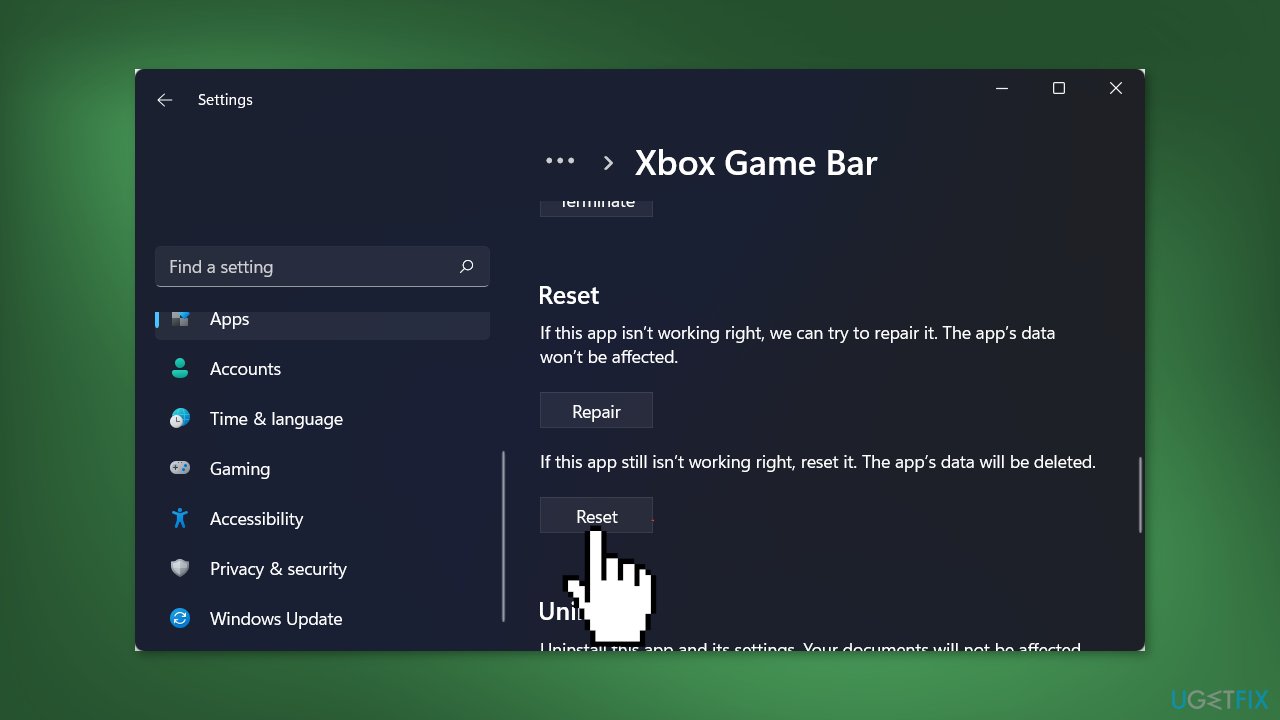
- Confirm that you want to reset the Xbox Game Bar by clicking on the Reset button again
- Close the Settings app and restart your computer
Solution 3. Repair ieframe.dll
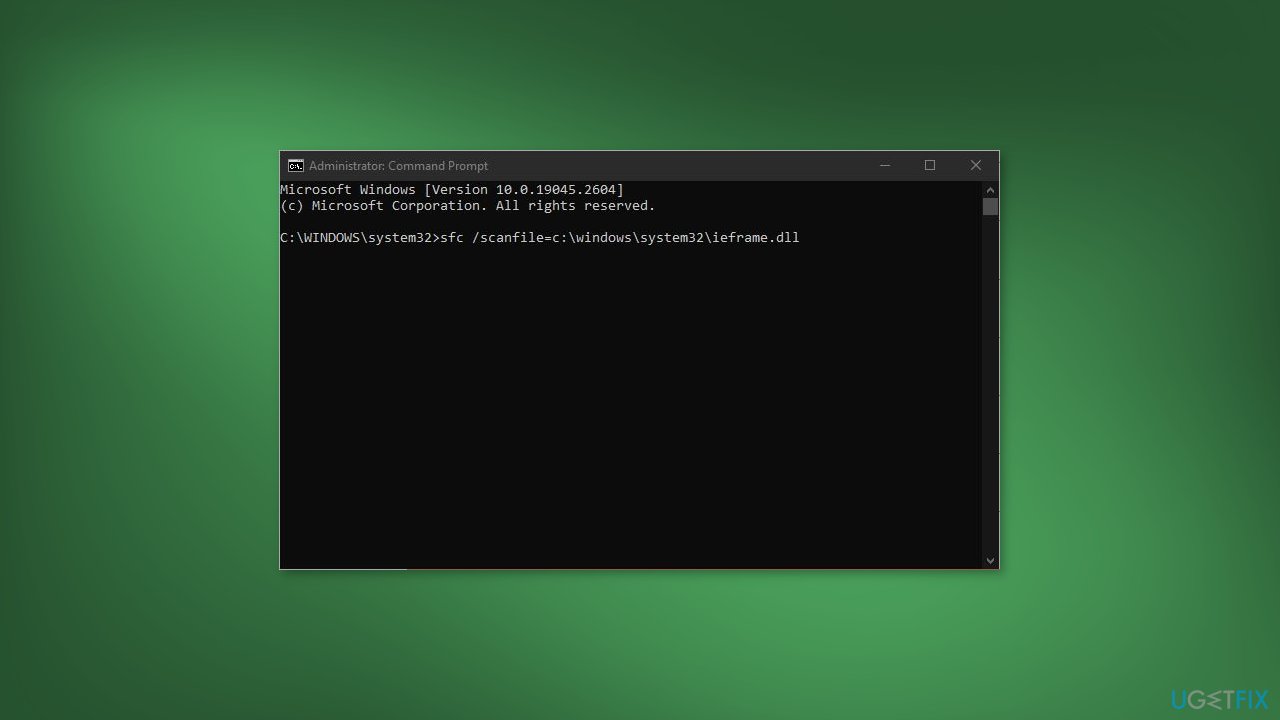
- Right-click on the Start menu and choose Command Prompt (Admin)
- Type or paste the following command and press Enter: sfc /scanfile=c:\windows\system32\ieframe.dll
- Wait for the System File Checker to scan and repair the ieframe.dll file
- Type or paste the following command and press Enter: sfc /verifyfile=c:\windows\system32\ieframe.dll
- Wait for the System File Checker to verify the ieframe.dll file
- Type or paste the following command and press Enter: assoc
- Type or paste the following command and press Enter: sfc /scannow
- Wait for the System File Checker to scan and repair any corrupted system files
- Reboot your computer to apply the changes
Solution 4. Edit Windows Registry
- Press the Windows key + S on your keyboard to open the Windows Search function
- Type Registry Editor in the search bar and choose Run as administrator from the options
- Navigate to the following registry key: HKEY_CURRENT_USER\System\GameConfigStore
- Set the value of the DWORD GameDVR_Enabled to 1
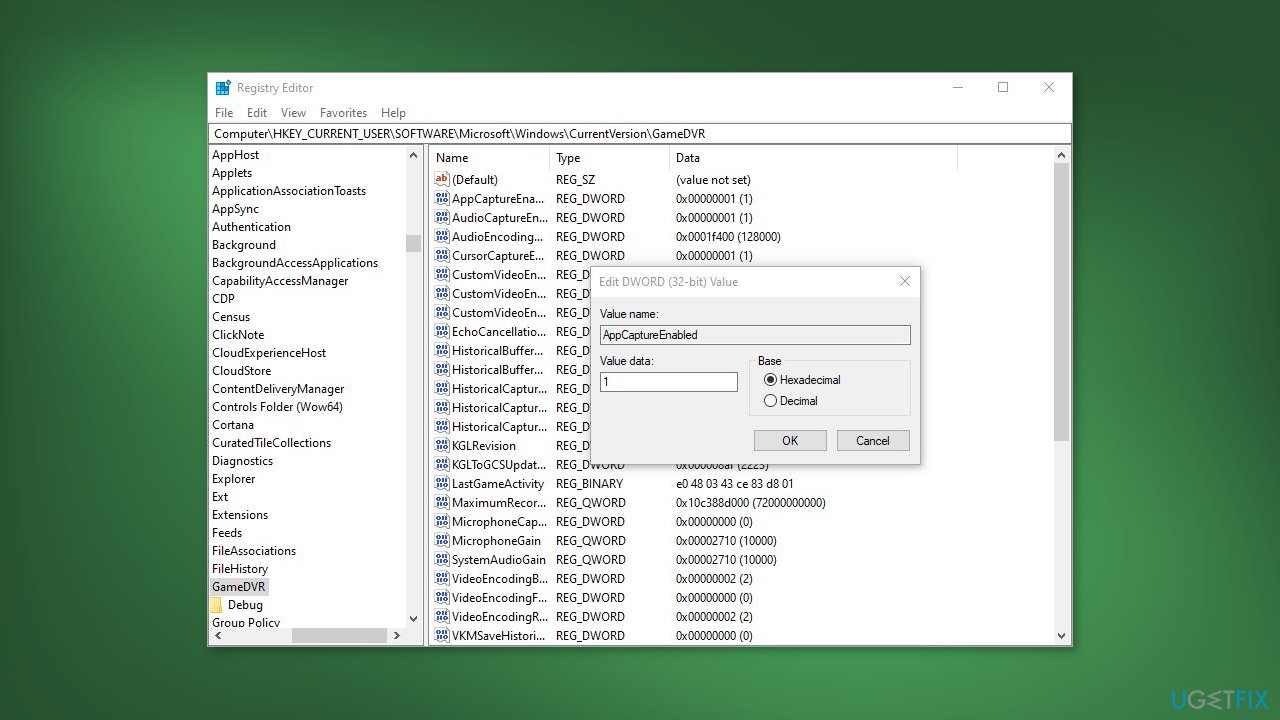
- Next, navigate to the registry key: HKEY_CURRENT_USER\Software\Microsoft\Windows\CurrentVersion\GameDVR
- Set the value of the DWORD AppCaptureEnabled to 1
- Then, go to the registry key: HKEY_LOCAL_MACHINE\SOFTWARE\Policies\Microsoft\Windows\GameDVR
- Set the value of the DWORD AllowGameDVR to 1
- Save your changes and close the Registry Editor
- Restart your PC to ensure that the changes take effect
Bottom line
To resolve the issue of grayed out recording and clipping functions in Game Bar, users can try updating their graphics drivers, ensuring hardware compatibility, disabling conflicting applications, or resetting the Game Bar. If these solutions do not work, consider using a maintenance tool to fix system errors.
Frequently asked questions
The recording option may be grayed out due to incorrect Game Bar settings or if the game is not recognized as a playable title. Ensure that Game Bar is enabled in your settings and that you are running the game in full-screen mode.
If clipping features are grayed out, check your Game Bar settings and make sure that background recording is turned on. Additionally, ensure that your graphics drivers are up to date, as outdated drivers can cause functionality issues.
If the recording feature remains unresponsive, try resetting the Game Bar app via Windows settings or reinstalling it through PowerShell. Also, verify that your Windows 10 or Windows 11 system is fully updated.




Report an issue
What's wrong with this guide? We review every report and update or remove content.
Report received — thank you. We'll review and fix it.
You need a free account to submit a report.
Be the first to comment