How to fix
Recording Preferences grayed out in Xbox Game Bar
on Windows
Resolve the grayed-out Recording Preferences in Xbox Game Bar on Windows 10 and 11 effortlessly. Expert-tested solutions await you!

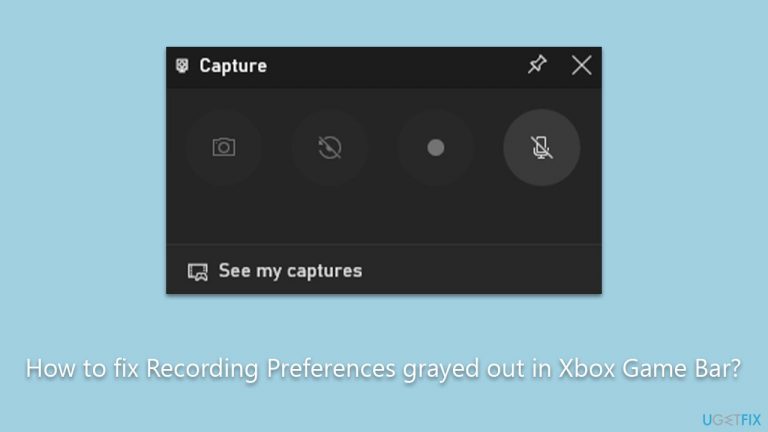
What causes How to fix Recording Preferences grayed out in Xbox Game Bar?
- Game DVR value turned off in the Windows Registry
- General bugs within the Xbox Game Bar software
- Corrupted app files
- Problems with the graphics driver
- Conflicting software
Repairs Windows system files, removes malware, and restores a clean OS state — without reinstalling.
Hi. I am not sure what is going on with the Xbox Game Bar because I am unable to record anything due to recording preferences being grayed out. How do I fix the app so it would work normally again?
Xbox Game Bar is a built-in feature in Windows 10 and 11 that allows users to capture screenshots, record gameplay, and even stream directly to various platforms. It is designed to be a convenient tool for gamers who want to share their experiences or analyze their gameplay. However, some users encounter a specific issue where the recording preferences are grayed out, making it impossible to capture their gameplay.
The inability to record gameplay can be particularly problematic for those who rely on this feature for content creation or analysis. There are several reasons why this issue might occur, but one of the primary culprits is often the Game DVR value being turned off in the Windows Registry. When this value is deactivated, the system essentially 'disables' the capability to record games, which in turn grays out the recording preferences in the Xbox Game Bar.
In addition to the Game DVR value being off, there are other factors that can contribute to this issue. General bugs within the Xbox Game Bar software can cause erratic behavior, including grayed-out options. Corrupted app files are another potential cause; these can destabilize the functionality of the software and prevent users from accessing certain features. In some instances, problems with the graphics driver or conflicting software can also disable recording options.
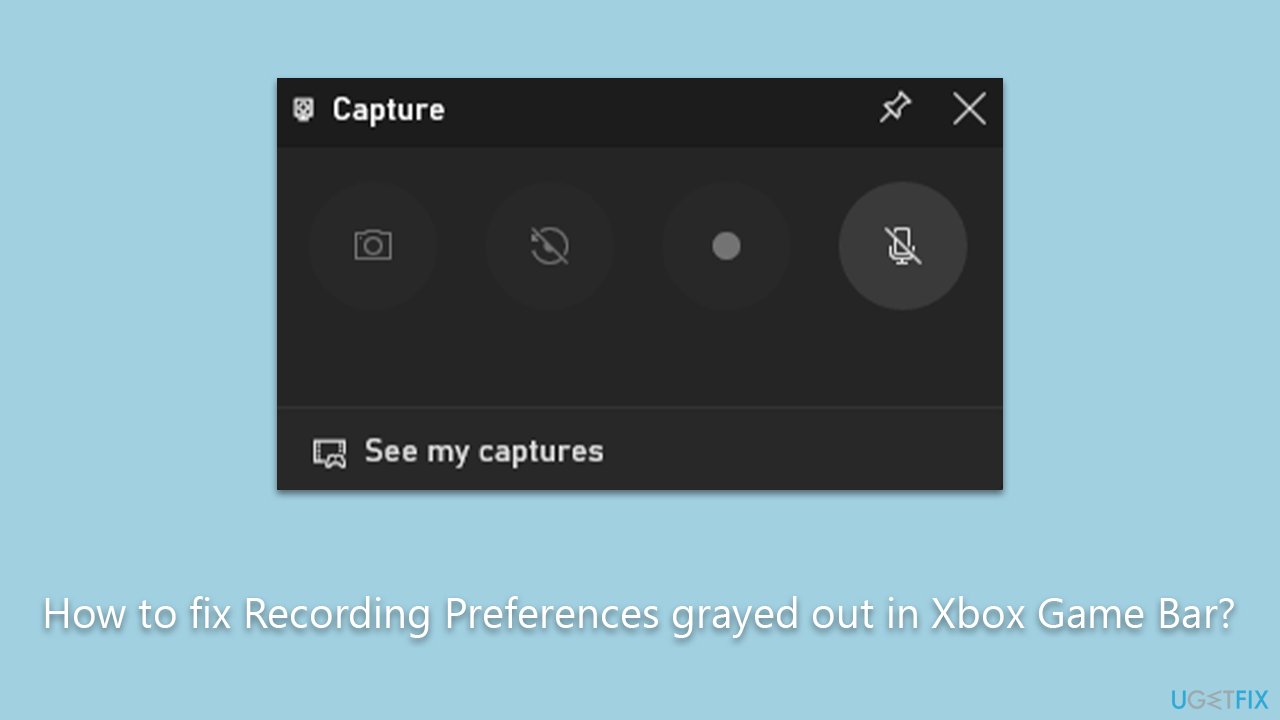
If you're facing this issue, it's essential to pinpoint the cause to find the appropriate solution. Detailed instructions for resolving this problem can be found below this article. Methods range from simple settings adjustments to more advanced troubleshooting steps that involve editing the Windows Registry or reinstalling corrupted files.
For users who are not comfortable diving into these technical solutions, using a PC repair tool like [d1] is highly recommended. This tool can automatically address various underlying issues in Windows, making it an effective way to resolve not just this problem but many others that you may encounter.
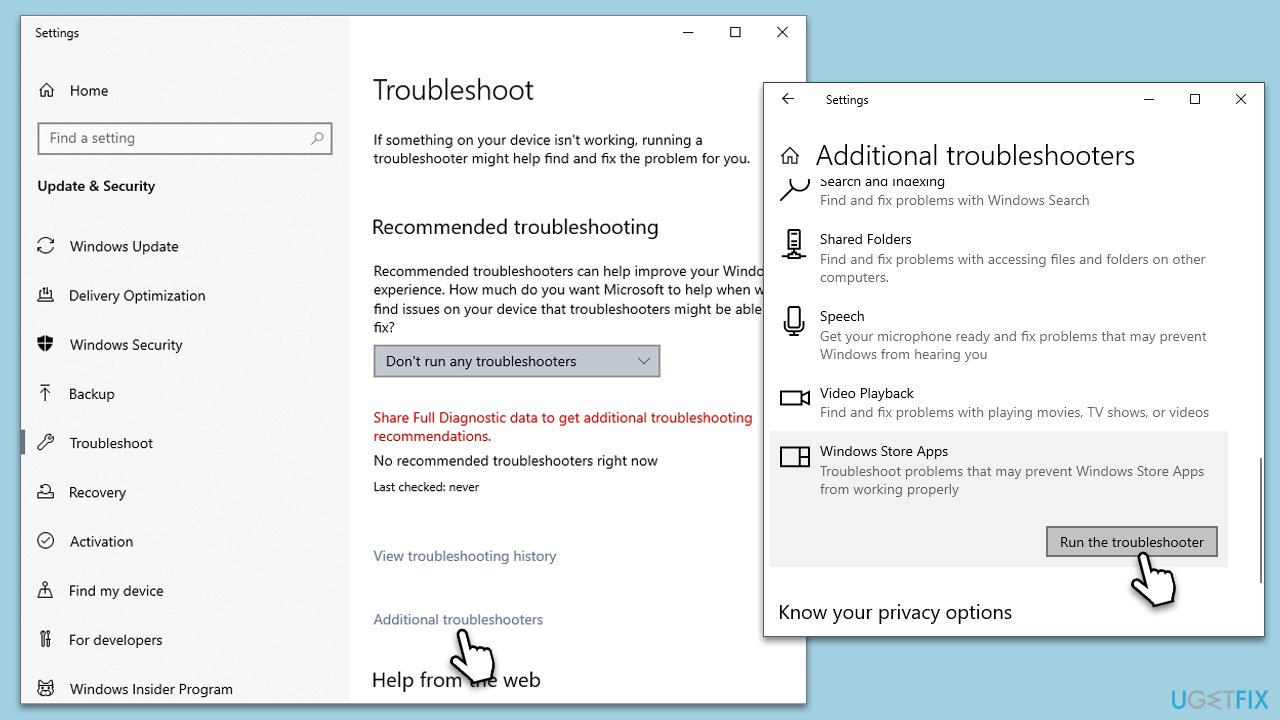
Fix 1. Run Windows Store Apps troubleshooter
The Windows Store Apps troubleshooter is a built-in tool that can automatically identify and fix problems with apps downloaded from the Microsoft Store, including Xbox Game Bar. This troubleshooter can reset the app's cache or correct settings that may have become corrupted.
- Type Troubleshoot in Windows search and hit Enter.
- Click Additional troubleshooters/Other troubleshooters.
- Scroll down to find Windows store apps and select it.
- Click Run the troubleshooter/Run.
- Wait till the process is finished and apply the fixes, then try updating again.
Fix 2. Perform SFC and DISM scans
System File Checker and Deployment Imaging Service and Management Tool scans can find and repair corrupted system files that may be causing issues with the Xbox Game Bar.
- Type cmd in Windows search
- Right-click on Command Prompt and pick Run as administrator
- When User Account Control (UAC) shows up, click Yes
- Use the following command and press Enter:
sfc /scannow - When the scan is complete, you should also run the following commands to repair Windows image files if needed:
DISM /Online /Cleanup-Image /CheckHealth
DISM /Online /Cleanup-Image /ScanHealth
DISM /Online /Cleanup-Image /RestoreHealth - Restart your system.

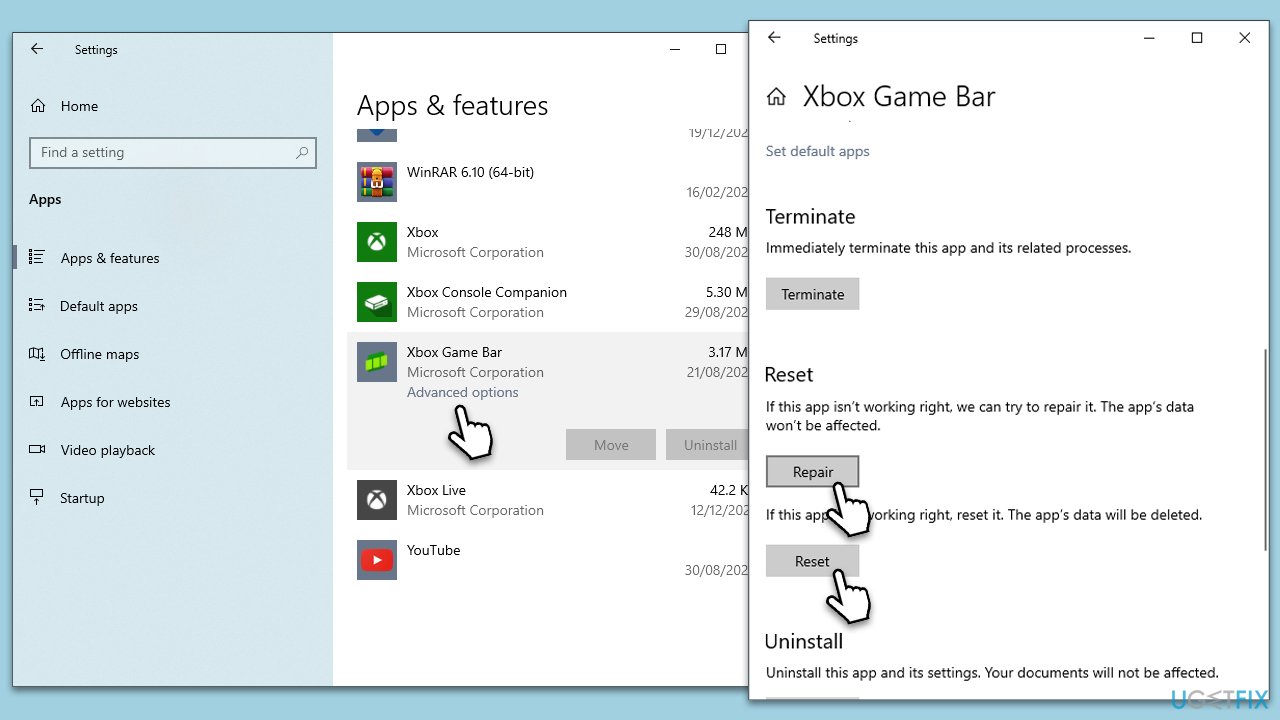
Fix 3. Repair or reset the Game Bar
Repairing or resetting the Game Bar app can resolve any issues stemming from corrupted or incomplete files.
- Go to Settings by pressing the Win + I.
- Click on Apps.
- Search for the Xbox Game Bar in the list and click on it.
- Click on Advanced options.
- Choose Repair and see if that resolves the situation.
- If that does not help, click Reset.
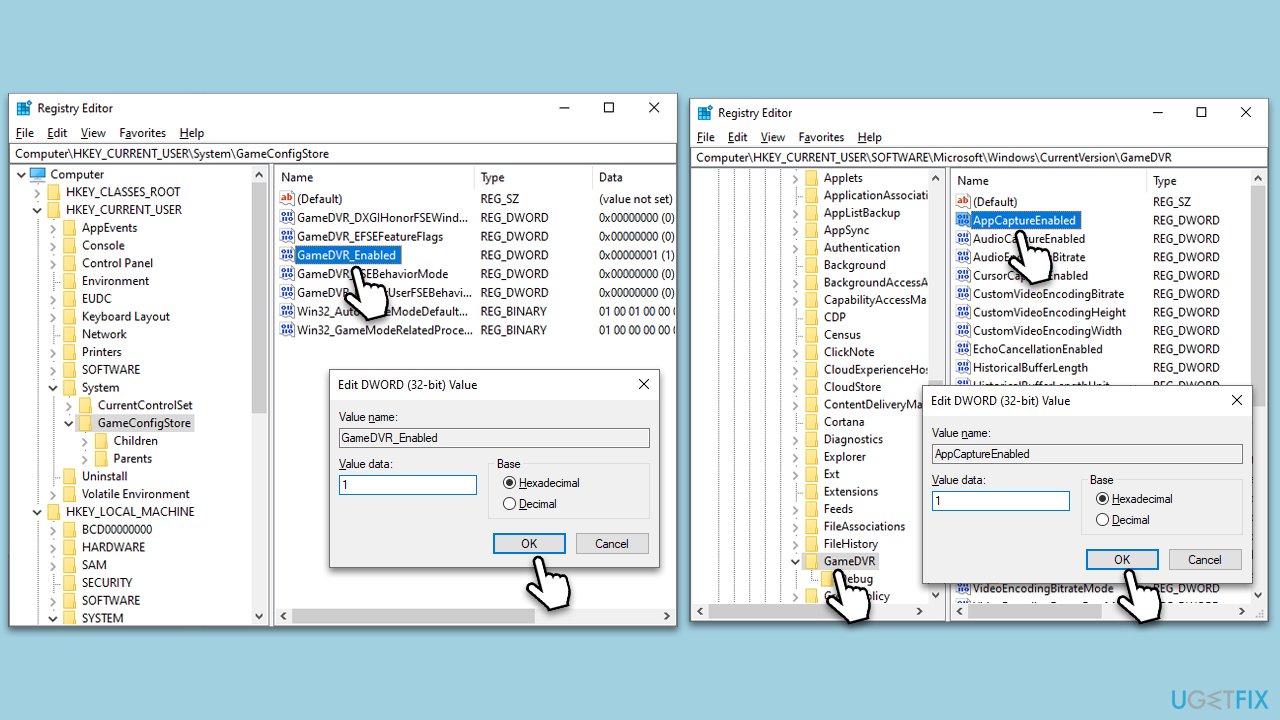
Fix 4. Edit Game DVR value in Windows Registry
The Game DVR value in the Windows Registry controls the recording functionality. If it's off, the recording will be disabled.
- Type regedit in Windows search.
- Right-click on Registry Editor and click Run as administrator.
- Type regedit and press Enter.
- Navigate to HKEY_CURRENT_USER\System\GameConfigStore.
- Double-click the "GameDVR_Enabled" value and set it to 1, then click OK.
- Navigate to HKEY_CURRENT_USER\Software\Microsoft\Windows\CurrentVersion\GameDVR.
- Double-click the "AppCaptureEnabled" value and set it to 1, then click OK.
- Navigate to HKEY_LOCAL_MACHINE\SOFTWARE\Policies\Microsoft\Windows\GameDVR.
- Double-click the "AllowGameDVR" value and set it to 1, then click OK.
- Close down Registry Editor and check if recording preferences in Game Bar are back.
Fix 5. Reinstall the Xbox Game Bar
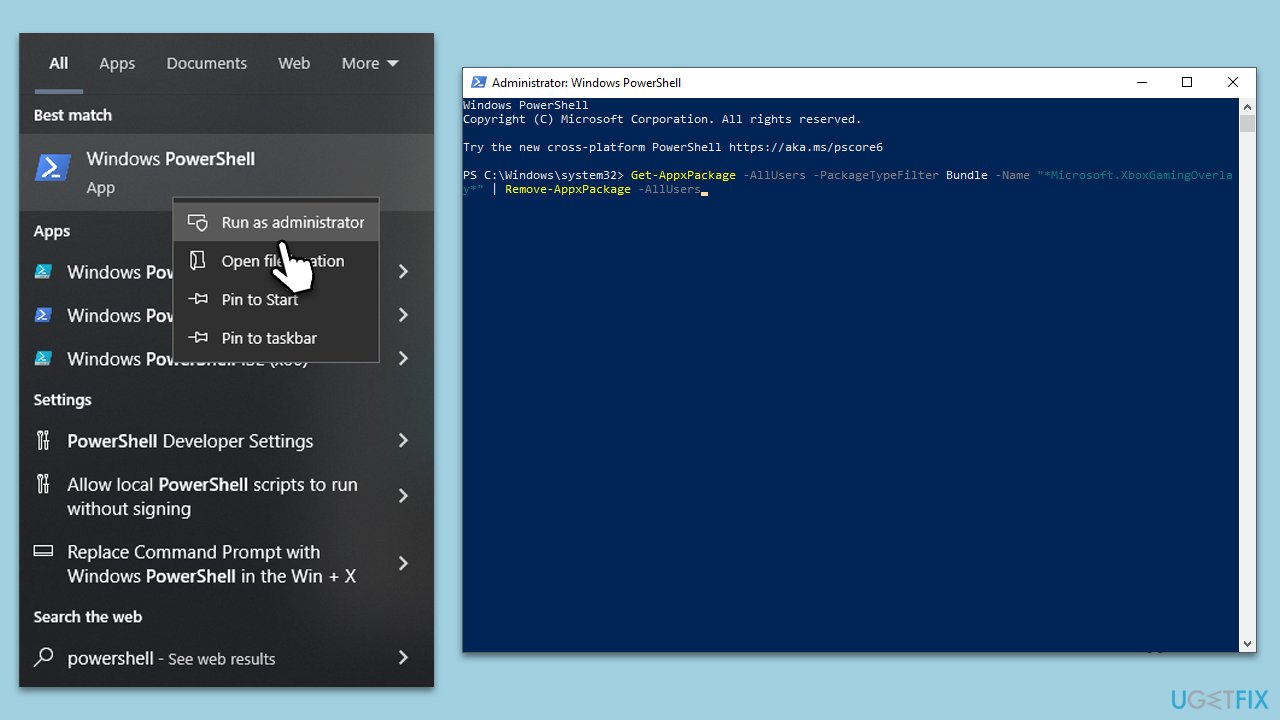
Reinstalling the Xbox Game Bar can resolve issues related to outdated or corrupted files. This action will remove the current version and replace it with the latest version available from the Microsoft Store.
- Type PowerShell in Windows search.
- Right-click and select Run as administrator.
- When the User Account Control window shows up, click Yes.
- In the PowerShell window, copy and paste the following command:
Get-AppxPackage -AllUsers -PackageTypeFilter Bundle -Name "*Microsoft.XboxGamingOverlay*" | Remove-AppxPackage -AllUsers - Navigate to the Microsoft Store and reinstall the app.
Bottom line
To fix the grayed-out recording preferences in Xbox Game Bar, you can adjust settings, edit the Windows Registry, or reinstall corrupted files. If you're not comfortable with these technical solutions, consider using a PC repair tool to automatically address underlying issues. If none of these methods work, further investigation may be necessary.
Frequently asked questions
The Recording Preferences may be grayed out due to conflicts with system settings or permissions. Ensure that your Xbox Game Bar is enabled in the Windows settings and that your account has the necessary permissions.
To enable Recording Preferences, go to Settings > Gaming > Xbox Game Bar and ensure the feature is turned on. Additionally, check if your graphics drivers are up to date as outdated drivers can cause issues.
If Xbox Game Bar is not recording, try resetting the app by going to Settings > Apps > Apps & features, selecting Xbox Game Bar, and clicking on Advanced options to reset it. Also, check for any Windows updates that may fix bugs related to the Game Bar.




Report an issue
What's wrong with this guide? We review every report and update or remove content.
Report received — thank you. We'll review and fix it.
You need a free account to submit a report.
Be the first to comment