How to fix
Refresh option not working properly
on Windows
Resolve the Refresh option issue in Windows 10 or 11 effortlessly. Troubleshoot with expert-tested solutions and enjoy smooth functionality again!

What causes How to fix Refresh option not working properly in Windows?
- File Explorer bugs
- Out-of-date Windows versions
- Corrupted system files
- Temporary glitches
- Other unspecified reasons
Repairs Windows system files, removes malware, and restores a clean OS state — without reinstalling.
Something happened to the refresh function in Windows. Before, when I used to right-click on my desktop and pick Refresh, the icons would flash and the desktop would refresh. It no longer works - the icons don't shake. How do I fix this?
The Windows Desktop Refresh feature is essential for maintaining an updated and well-organized user interface, which includes both the desktop and folders. When a file is added or removed, for example, this functionality instantly refreshes the contents presented to reflect the latest changes. Normally, when the refresh option is selected, the screen's icons briefly flash to show that updates are being made.
However, there has been a noticeable problem with this refresh feature's functionality that some Windows 10 and Windows 11 users have reported. These users have specifically mentioned that the desktop or folder contents are not refreshing as they should. In some situations, the customary symbol flashing that indicates the refresh process doesn't occur. An interface that is inaccurately representing the current status of files and folders results from this problem.
There could be a number of underlying factors as to why Refresh is not working in Windows correctly. It could be caused by File Explorer bugs, out-of-date Windows versions, corrupted system files, and a myriad of other reasons.
There are a few things you may try to address this issue: you could try restarting File Explorer, updating your Windows operating system, or remediating corrupted system files. These and other fixes for the refresh option not working in Windows can be found below.
Using a PC repair application, like [d1], might be helpful for a thorough and automated fix to underlying Windows problems, including the refresh feature malfunction. This program is made to effectively identify and fix a wide range of Windows-related issues.

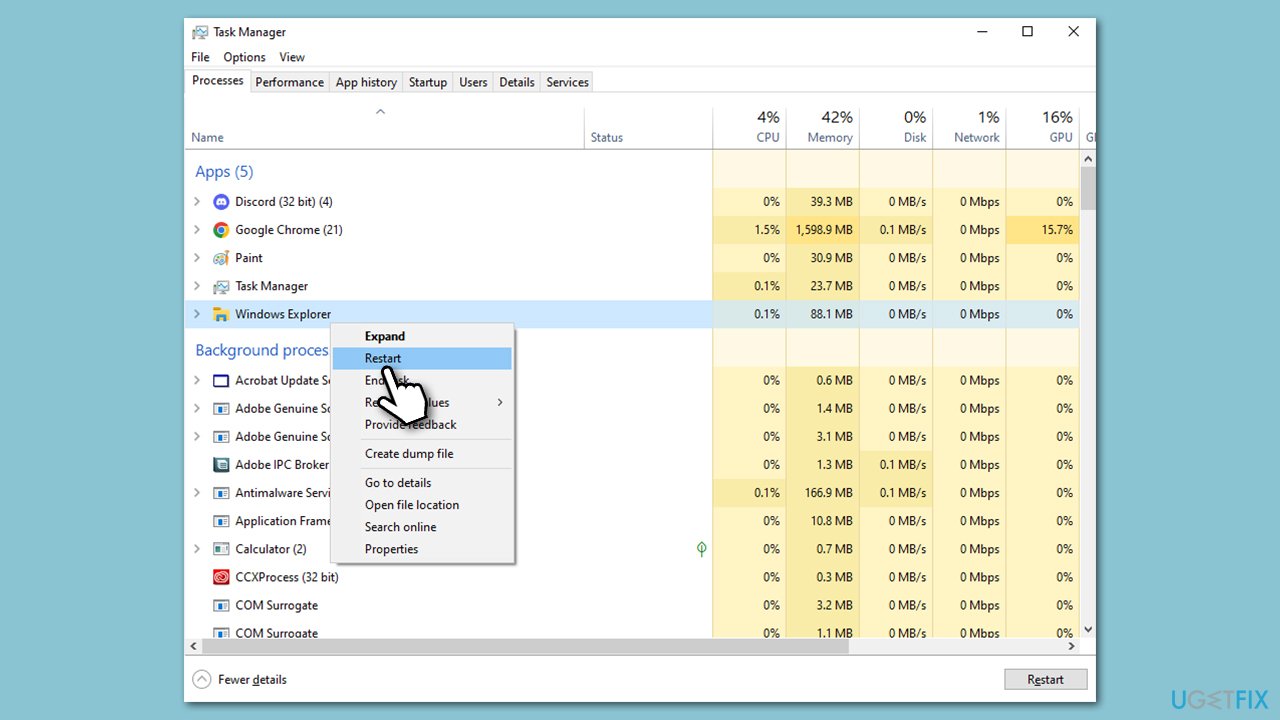
Fix 1. Restart file explorer
Restarting File Explorer is a straightforward solution that can resolve issues with the refresh feature. This process effectively resets the File Explorer, which is integral to managing files and folders in Windows. A restart can clear temporary glitches that might be causing the refresh function to malfunction.
- Press Ctrl + Shift + Esc to open Task Manager.
- In the Processes tab, find Windows Explorer.
- Right-click on Windows Explorer and select Restart.
- Wait for a few seconds as the taskbar and desktop icons disappear and reappear.
Fix 2. Restore file explorer options to their defaults
Restoring File Explorer options to their default settings can help resolve issues caused by misconfigured settings. This method resets all customization and preferences in File Explorer, potentially fixing problems with the refresh feature.
- Press Win + E to open File Explorer.
- Access Folder options:
- In Windows 10, go to the View tab, click Options > Change folder and search options.
- In Windows 11, click on three horizontal dots and pick Options.
- At the bottom, click Restore defaults.
- Click Apply and OK.

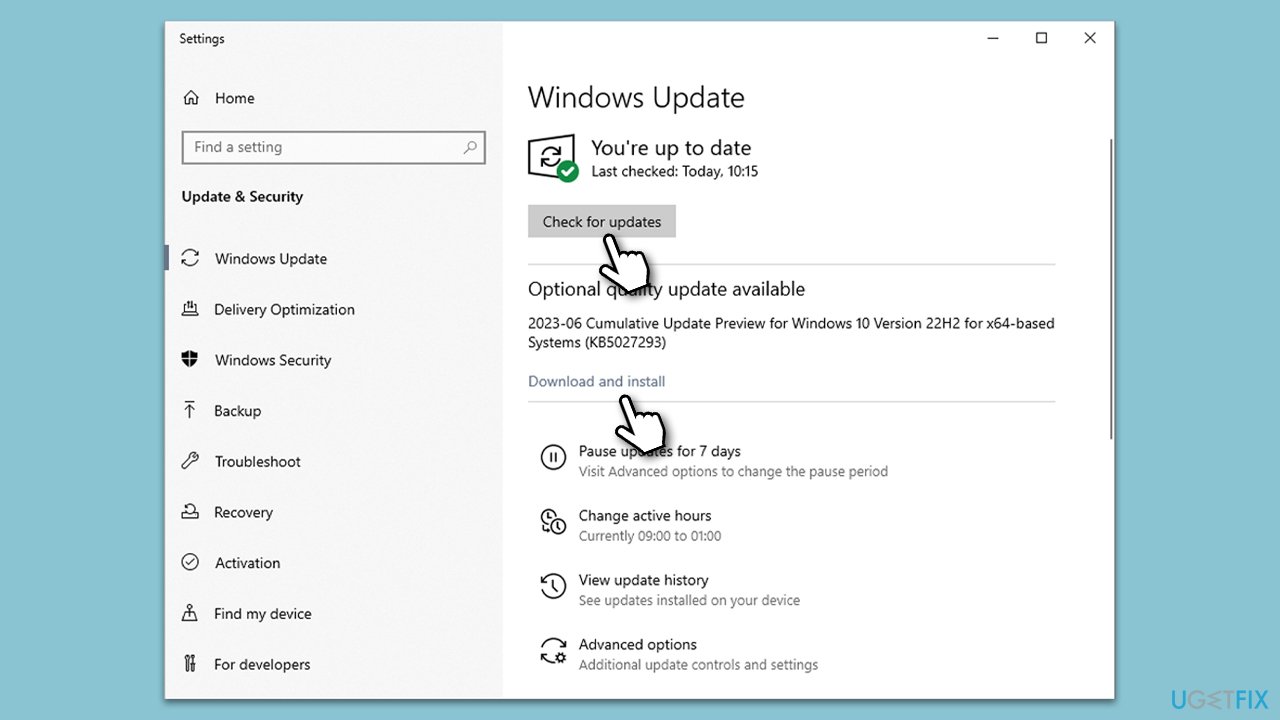
Fix 3. Install all Windows updates
Installing the latest Windows updates can resolve a variety of issues, including the refresh feature not working. Updates often include patches for known bugs and improvements to the system's stability and performance.
- Type Updates in Windows search and hit Enter.
- Click Check for updates and wait for the process to finish.
- If optional updates are available, install them too.
- Restart your system to implement all the updates.
Fix 4. Repair corrupted files
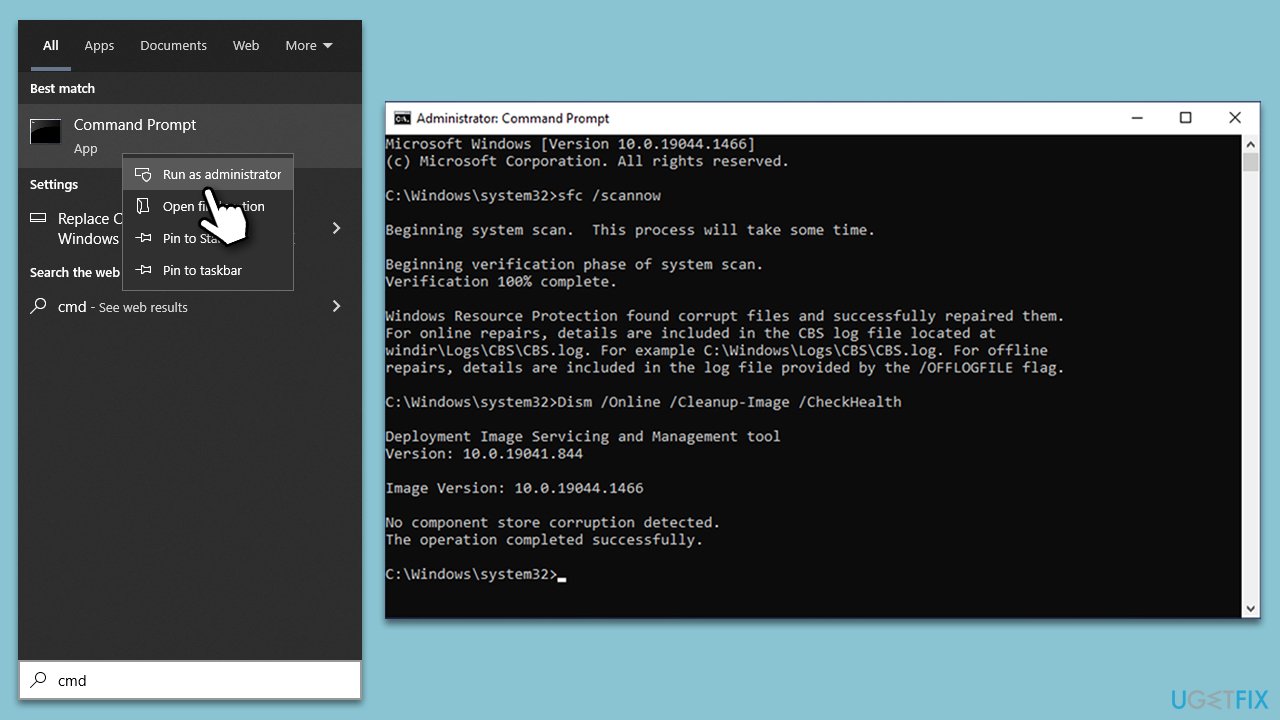
The System File Checker and Deployment Image Servicing and Management tools can repair corrupted system files. Running these tools can fix issues related to system corruption that might be affecting the refresh feature.
- Type cmd in Windows search, right-click on Command Prompt, and select Run as administrator.
- When User Account Control shows up, click Yes.
- Use the following command and press Enter:
sfc /scannow - Once the scan is complete, you should also run the following commands to repair Windows image files (don't forget to press Enter after each):
DISM /Online /Cleanup-Image /CheckHealth
DISM /Online /Cleanup-Image /ScanHealth
DISM /Online /Cleanup-Image /RestoreHealth - Restart your device.
Fix 5. Use the Registry Editor to fix the Refresh feature
Modifying specific registry entries can sometimes resolve issues with the refresh feature. This method involves changing values in the Windows Registry, which should be done with caution as incorrect changes can affect system stability.
- Type regedit in Windows search.
- Right-click on Registry Editor and select Run as administrator.
- When UAC shows up, click Yes.
- Go to the following location:
Computer\HKEY_LOCAL_MACHINE\SYSTEM\CurrentControlSet\Control - Right-click on Control Folder and select New > Key, then name it Update.
- On the right side, right-click on an empty space and pick New > DWORD (32-bit) Value.
- Name or UpdateMode.
- Double-click UpdateMode and set the value to 0, then click OK.
- Restart your PC.

Fix 6. Remove mapped network drive(s)
Mapped network drives, while useful for accessing remote resources, can sometimes interfere with the normal functioning of Windows features. Removing these drives temporarily can help determine if they are contributing to the issue. This process involves disconnecting the drives from your system, which is easily reversible.
- In File Explorer, look for the section named This PC or Computer where you can see all your local drives and network locations.
- Locate the mapped network drives. These are usually represented with a different icon compared to local drives and have a network path listed beneath them.
- Right-click on each mapped network drive that you want to remove.
- From the context menu that appears, select Disconnect. This action will unmap the drive from your computer.
- After disconnecting all the mapped network drives, close File Explorer.
- Restart your computer to ensure that the changes take effect.
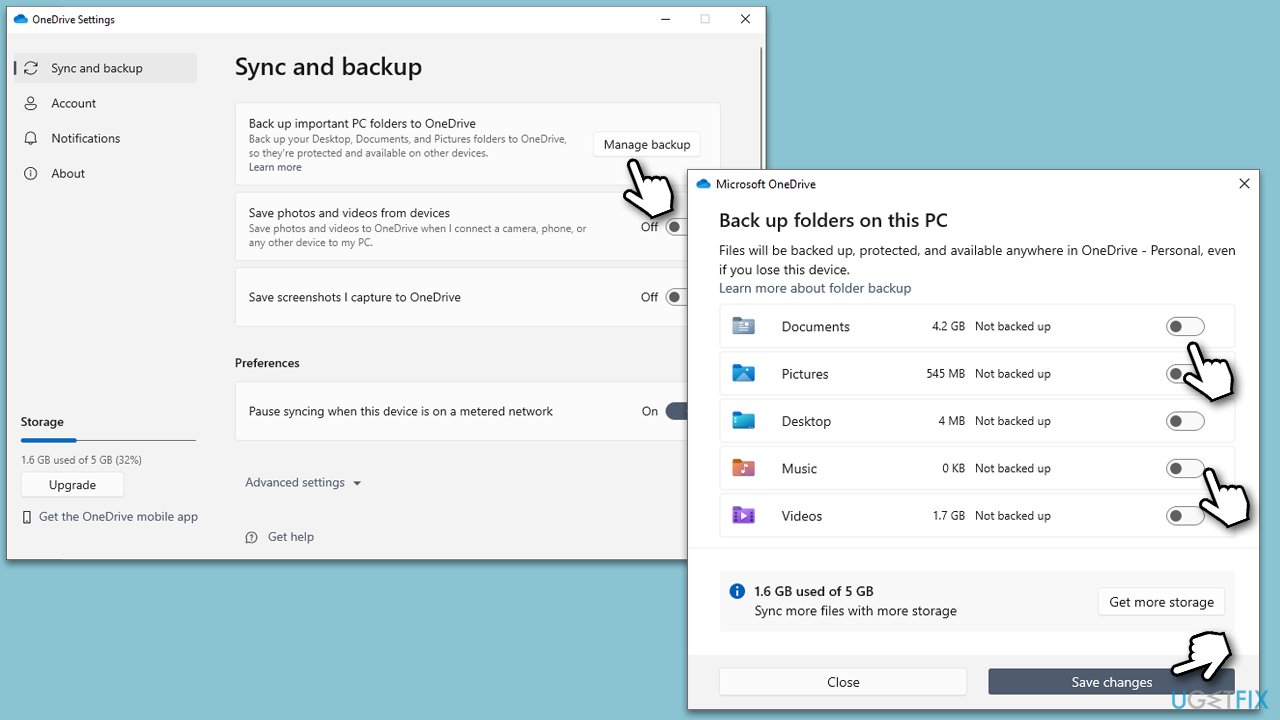
Fix 7. Disconnect OneDrive from your PC
If you are using OneDrive, it can sometimes interfere with the refresh functionality of File Explorer. Disconnecting OneDrive temporarily can help identify if it is the cause.
- Click on the OneDrive icon in the taskbar.
- Go to Help & Settings and select Settings.
- In the Sync and Backup tab, click on Manage backup.
- Here, toggle everything to the Off setting and click Save changes.
- Restart your PC.
Bottom line
To fix the refresh option not working properly in Windows, you can try restarting File Explorer, updating your Windows operating system, or remediating corrupted system files. If these solutions do not resolve the issue, consider using a PC repair application for a thorough fix.
Frequently asked questions
Try restarting your computer first, as this can resolve temporary glitches. If the issue persists, consider running the System File Checker tool to repair any corrupted system files.
You can check for Windows updates and install any pending updates, as they may include fixes for known issues. Additionally, resetting Windows Explorer from the Task Manager can also help restore the Refresh functionality.
Ensure that your display settings are configured correctly, as incorrect resolutions can cause display issues. Also, check if any third-party applications are interfering with system functions.




Report an issue
What's wrong with this guide? We review every report and update or remove content.
Report received — thank you. We'll review and fix it.
You need a free account to submit a report.
Be the first to comment