How to fix
“Reinstall from the Store” Error While Upgrading Solitaire Collection to the Premium Version
on Windows
Resolve the “Reinstall from the Store” error in Windows 10 or 11 while upgrading the Solitaire Collection. Quick fixes included—expert-tested!

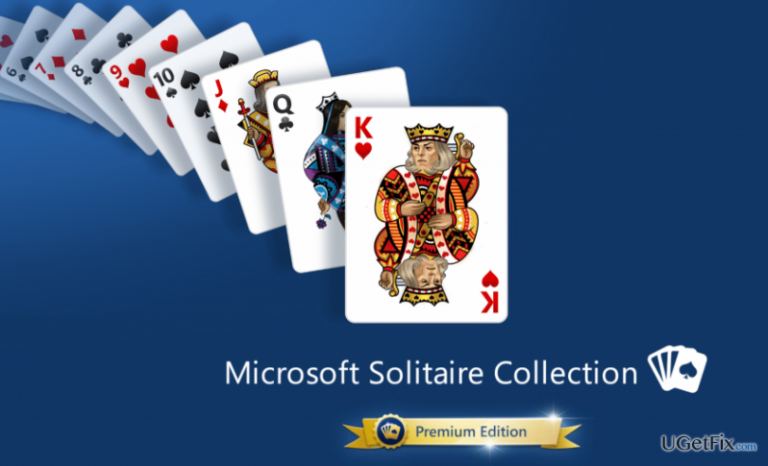
What causes How to Fix “Reinstall from the Store” Error While Upgrading Solitaire Collection to the Premium Version?
- App not properly installed
- License needs to be refreshed
- In-app purchase issues
- Corrupted app data
- Windows Store cache problems
Repairs Windows system files, removes malware, and restores a clean OS state — without reinstalling.
I got tired of ads on Solitaire, so I’ve decided to pay $10 for the premium version of the collection. The problem is that I’m not allowed to do so as I receive an error code “Reinstall from the Store.” When I try to launch the Solitaire games, I receive the following error notification: “Uninstall this app (go to Settings > System > Apps & features) and then install it again from the product page in Windows Store. Your license needs to be refreshed to make in-app purchases.” Please help!
Solitaire has been the most played computer game of all times. Probably each of us has spent long hours playing Spider, FreeCell, Minesweeper, and others. While earlier Windows versions offered Solitaire games for free, Windows 10 allows its users to play only a trail version for no cost. Premium version costs $10 and grants that the buyer will be able to play games with no pop-up ads. Besides, the Premium version will provide full access to five different card games, i.e. Klondike, Spider, FreeCell, TriPeaks, and Pyramid. Besides, players can receive daily challenges, participate in start club, and change your game theme.
Unfortunately, but sometimes installation of Windows Solitaire Collection may get stuck even after paying the money. People have reported about an error “Reinstall from the Store” or error “Uninstall this app (go to Settings > System > Apps & features) and then install it again from the product page in Windows Store. Your license needs to be refreshed to make in-app purchases.” Although this bug is not very common, there is a considerable amount of Windows 10 users who have already encountered it. Therefore, we’ve initiated research on the issue and come up with a solution. Thus, to fix “Reinstall from the Store” error when upgrading to the premium version of Solitaire, try to perform the following steps:
How to Upgrade Solitaire Collection to Premium Version on Windows 10?
- Uninstall the solitaire app via Windows App Store and then close the store.
- Once the app is uninstalled, reboot the system and run a scan with [d1] to make sure that there are no file remnants.
- After that, type WSReset in the search box.
- Right-click on the first option and select Run as Administrator.
- This way, Windows Store Cache will be reset. After that, reopen Windows Store and find Microsoft Solitaire Collection. (DO NOT open it or install)
- Click Win key + I to open Settings app and select System.
- Select Apps and Features and locate for Microsoft Solitaire Collection.
- Click Advanced Options under Microsoft Solitaire Collection.
- Click Reset.
- After that, run Solitaire and try to upgrade it to the premium version.
Bottom line
To fix the 'Reinstall from the Store' error, uninstall the Solitaire app via the Windows App Store, reboot your system, and run a scan. If the issue persists after these steps, consider checking for Windows updates or reinstalling the Windows Store.
Frequently asked questions
First, ensure that your Windows 10 is updated and then try resetting the Microsoft Store cache by running 'wsreset.exe' in the Run dialog. If that doesn't work, reinstall the Solitaire Collection from the Microsoft Store.
On Windows 11, check for any pending updates and install them, then clear the Microsoft Store cache by executing 'wsreset.exe' in the Run dialog. If the issue persists, consider uninstalling and reinstalling the game from the Store.
Yes, your progress is usually saved to your Microsoft account, so after reinstalling the app, simply log back in to restore your progress. Make sure to back up any local game data if applicable before the reinstallation.




Report an issue
What's wrong with this guide? We review every report and update or remove content.
Report received — thank you. We'll review and fix it.
You need a free account to submit a report.
Be the first to comment