How to fix
“Remote Desktop Connection has stopped working” error
on Windows
Resolve the "Remote Desktop Connection has stopped working" error on Windows 10 or 11 effortlessly. Expert-tested solutions for quick fixes!

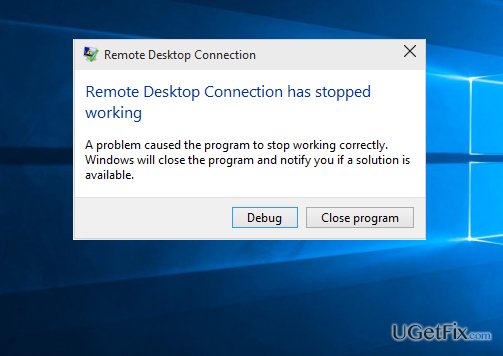
What causes How to fix “Remote Desktop Connection has stopped working” error?
- Network connectivity errors
- Mismatched issues between Windows Firewall
- Crashes caused by mstsc.exe
- Interference from unwanted programs
- Issues with vorbis.acm file
Repairs Windows system files, removes malware, and restores a clean OS state — without reinstalling.
I was connected to another computer when the message flashed that “Remote Desktop Connection has stopped working.” Relaunching the program does not work. After a couple of minutes, the problem reoccurs. I’m getting really frustrated. Any help would be appreciated.
There are multiple cases of Remote Desktop Connection problems. Some users might encounter the message stating that "Remote Desktop Connection has stopped working" or that “Your computer could not connect to another console session on the remote computer because you already have a console session in progress“. Mostly, they might be triggered by the network connectivity errors or the mismatch issues between the Windows Firewall. Every problem requires special treatment. In this article, we will present several solutions to the particular issue – “Remote Desktop Connection has stopped working.”
Option 1. Changing Remote Desktop Connection settings
It might be the case that mstsc.exe and vorbis.acm associated with FL studio app might cause constant crashes of the application. The latter file belongs to the group of remote audio codec files so you may change certain settings related to audio.
- Click Windows button and type Remote Desktop. Enter Remote Desktop Connection application.
- Expand Show options and navigate to Local Resources tab.
- Click Settings.
- Below the Remote audio playback, tick the box Do not play and click Ok.
Additional note. If you are running Windows 32-bit version, you might need to change the vorbis.acm file's name. Find it by entering C folder, then navigate to Windows. Enter System32 folder. After you locate vorbis.acm file, change its file name into vorbis.acm.new or something similar.
Option 2. Removing possible infections on the system
There is a possibility that some unwanted elements or programs interfere with this Windows App. In order to check whether there are no fraudulent apps, install [d1]. This utility locates any kind of cyber infection and successfully terminates it. It is especially handy in warding off more complex threats.
Bottom line
To fix the 'Remote Desktop Connection has stopped working' error, you can change Remote Desktop Connection settings, specifically related to audio playback, and rename the vorbis.acm file if you're using a 32-bit version of Windows. Additionally, removing possible infections on the system can help resolve the issue. If none of these solutions work, further troubleshooting may be needed.




Report an issue
What's wrong with this guide? We review every report and update or remove content.
Report received — thank you. We'll review and fix it.
You need a free account to submit a report.
Be the first to comment