How to fix
Remove PIN option is grayed out
on Windows
Resolve the grayed-out Remove PIN option in Windows 10 and Windows 11 effortlessly. Expert-tested solutions ensure your settings are fixed in minutes!

What causes How to fix Remove PIN option is grayed out in Windows?
- Passwordless option enabled
- Windows Hello sign-in
- Account settings restricting PIN removal
- Group policy settings preventing changes
- Device-specific security requirements
Repairs Windows system files, removes malware, and restores a clean OS state — without reinstalling.
When I navigate to the Sign-in options in Settings to set up a PIN (Windows Hello), I find that the option to remove the PIN is greyed out. I'm not using any other Windows Hello features, nor have I configured any. I would like to switch back to using a password instead.
What is Windows PIN?
In Windows, a Personal Identification Number (PIN) is a security feature that allows users to access their device using a numeric or alphanumeric code. This method is considered more secure than a traditional password because it is device-specific and can include a combination of numbers and letters. Many users prefer this quick and secure method to log into their Windows account.
Users can't remove remove Windows PIN
Some Windows users encounter a problem when they try to remove their PIN via the Windows Settings. They find that the "Remove PIN" option is grayed out, making it impossible to delete the PIN, which prevents them from switching back to using their password or setting up a new authentication method.
Why is the PIN button grayed out in Windows?
There are a couple of primary reasons why the "Remove PIN" option may be unavailable:
- Passwordless option enabled: In some cases, if the passwordless sign-in is activated on your Windows 11 or Microsoft account, the system requires a form of non-password credentials (like a PIN), thereby disabling the "Remove" button.
- Windows Hello sign-in: If your account uses Windows Hello for sign-in purposes, which includes facial recognition, fingerprint scanning, or a PIN, the option to remove the PIN may be grayed out as the system relies on these methods for authentication.
How do I fix the "Remove PIN" button?
To address the issue where the "Remove PIN" button is grayed out, you will need to explore several solutions. These might involve adjusting your sign-in settings, disabling the passwordless option, or reconfiguring Windows Hello settings. Detailed instructions for these solutions can be found below.
For extensive problems on Windows or if you seek a quick fix for errors like crashes, Blue Screens of Death (BSOD), system clutter, and other issues consider using [d1] PC repair software. This tool can help resolve various Windows problems efficiently.
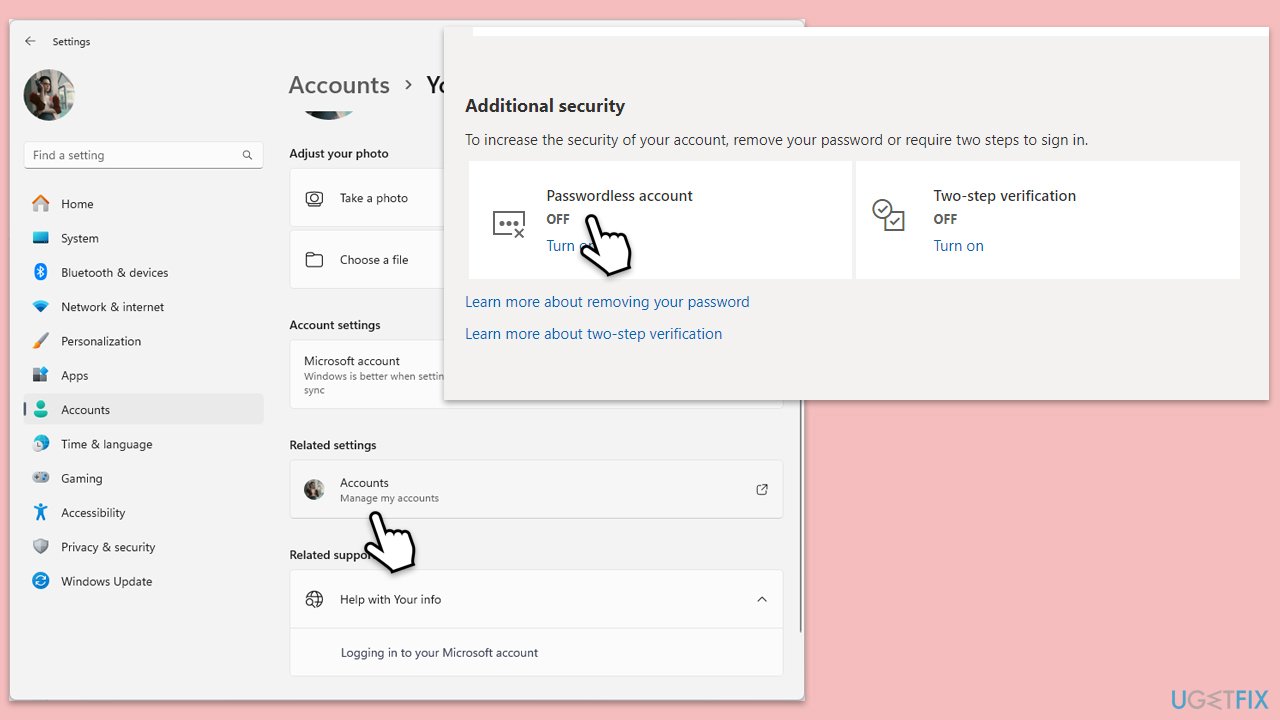
Fix 1. Disable passwordless sign-in
Disabling the passwordless sign-in option in your Windows settings can restore the ability to remove your PIN, as this feature often requires some form of Windows Hello verification to be active.
- Click on the Start button and choose Settings from the menu.
- Select the Accounts tab and then pick Your Info.
- Scroll down to the Related settings section and select Accounts (Manage my accounts), which will direct you to the Microsoft account security page online.
- Log in to your Microsoft account.
- Navigate to the Security tab.
- Select Advanced security options.
- Scroll down to the Additional security section.
- Click on Turn Off next to Passwordless account.
- Follow the on-screen instructions to disable the features.
- Once completed, the Remove PIN option in Settings should be usable.
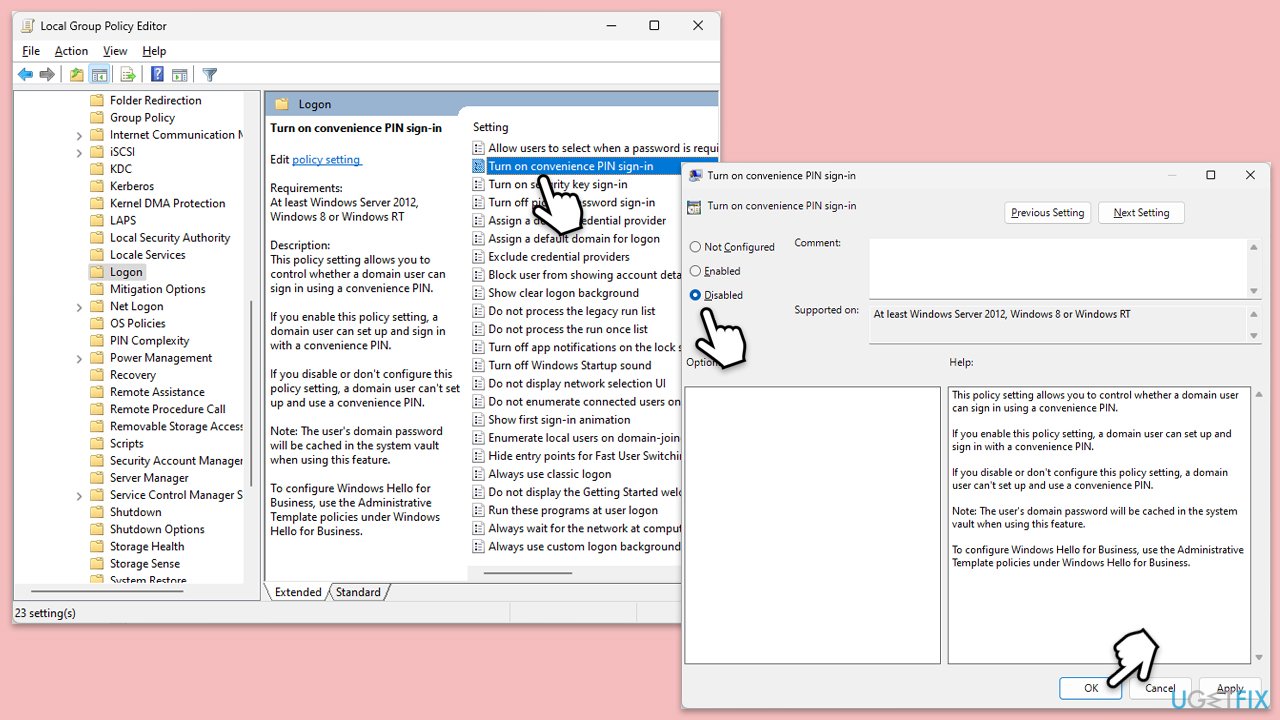
Fix 2. Check Group Policy settings
Sometimes, Group Policy settings might restrict the ability to change sign-in options, including removing a PIN.
- Press Win + R.
- Type gpedit.msc and press Enter to open the Group Policy Editor.
- Navigate to Computer Configuration > Administrative Templates > System > Logon.
- Locate Turn on PIN sign-in and set it to Disabled.
- Click OK.
- Restart your computer to apply changes.
Fix 3. Update Windows
Keeping Windows up-to-date ensures that any bugs affecting system features like PIN management are fixed.
- Type Updates in Windows search and hit Enter.
- If updates are available, click Install updates.
- Otherwise, click Check for updates.
- If optional updates are available, install them as well.
- When all the update processes are complete, restart your computer.
Fix 4. Reset Windows Hello PIN
Resetting your Windows Hello PIN can sometimes unblock the Remove PIN option if it's stuck due to a glitch.
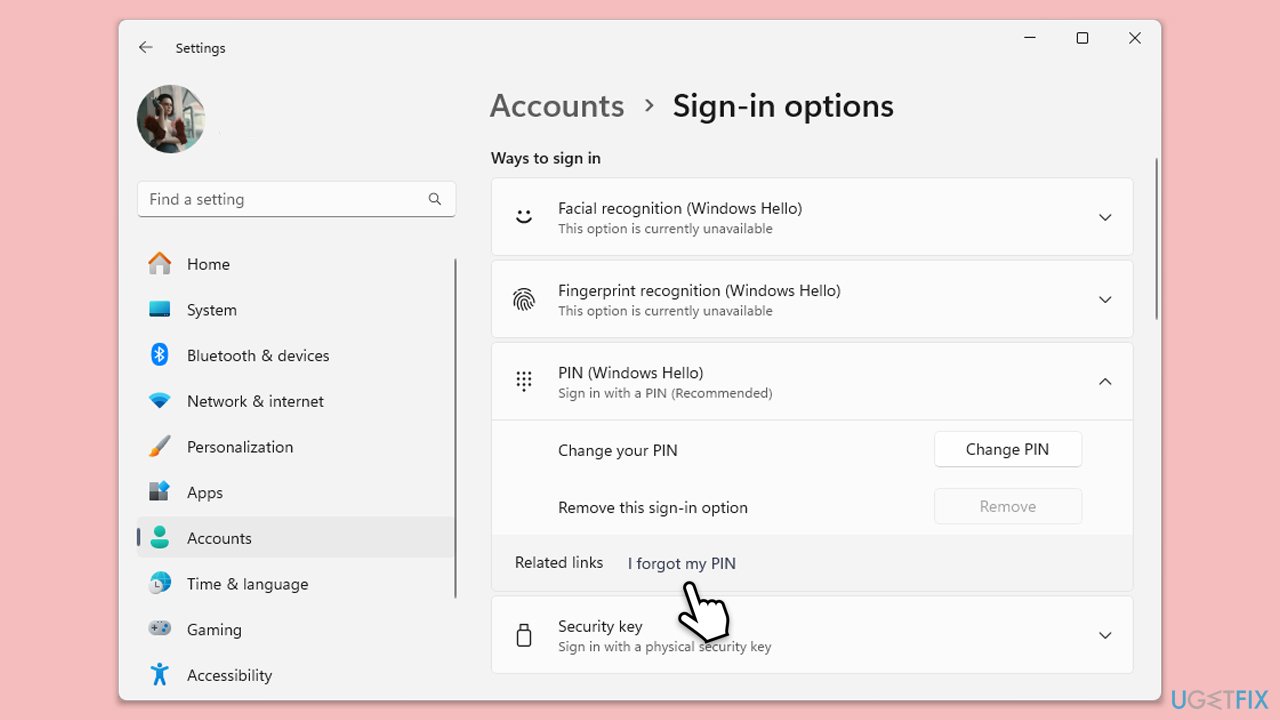
- Go to Settings and select Accounts.
- Choose Sign-in options.
- Under PIN (Windows Hello), click on I forgot my PIN.
- When the confirmation dialog appears, click Continue.
- Enter your Microsoft account details to sign in.
- When the Set up a PIN dialog appears, click on Cancel.
- Next, click the Close button to exit the Your account requires a Windows Hello PIN dialog.
Fix 5. Create a new user account
If the issue is specific to one user account, creating a new account might solve the problem.
- Open Windows Settings.
- Go to Accounts then Family/Family & other users.
- Under Other users, click Add account/Add someone else to this PC.
- Follow the prompts to create a new user account. If you don't have Microsoft account details, you can choose I don't have this person's sign-in information followed by Add a user without a Microsoft account.
- Assign a username and password for the new account and complete the setup.
- Then go back to the Accounts section. Under Family/Family & other users, select the newly created account and click Change account type.
- Under Account type, pick Administrator and click OK.
Fix 6. Remove and re-add your Microsoft account
Sometimes, removing and then re-adding your Microsoft account can reset the sign-in options.
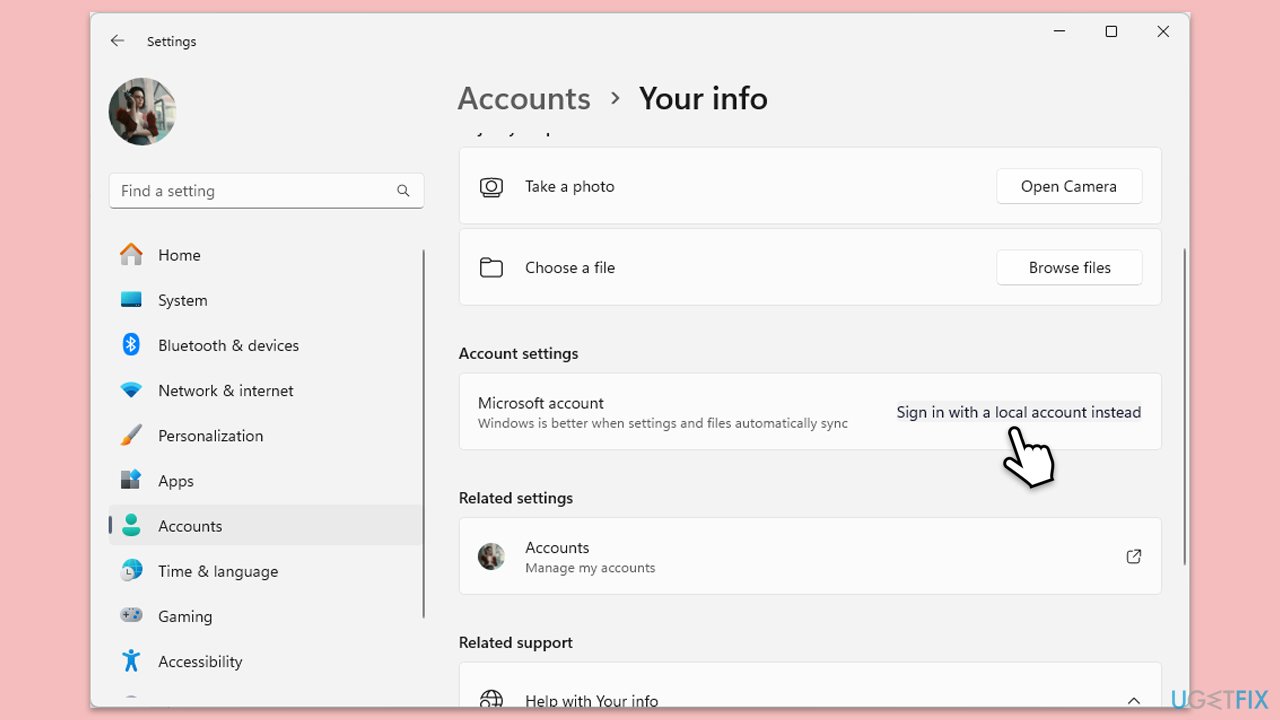
- Open Settings and go to Accounts.
- Select Your info.
- Under Account Settings, click on Sign in with a local account instead and follow the steps.
- After converting to a local account, restart your PC.
- After a reboot, switch back by clicking on Sign in with a Microsoft account instead and follow the steps.
Fix 7. Use the Command Prompt to reset policies
Sometimes, resetting all local group policy settings can remove restrictions affecting your sign-in options.
- Type cmd in Windows search.
- Right-click on Command Prompt and pick Run as administrator.
- When User Account Control (UAC) asks you whether you want to allow changes, click Yes.
- Type the following command and press Enter:
gpupdate /force - Wait for the process to complete and restart your computer.
Fix 8. Perform a System Restore
If all else fails, performing a system restore to a point before the issue appeared might resolve it.
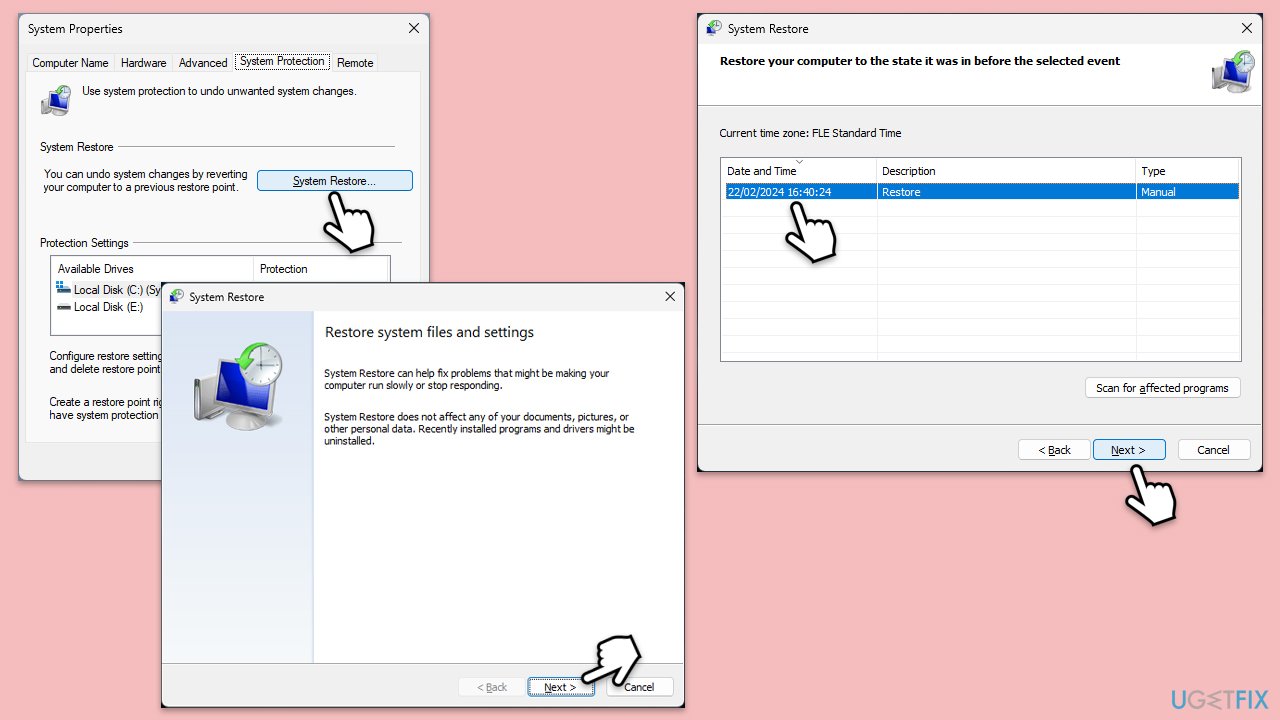
- Type Create a restore point in the Windows search bar and press Enter.
- In the System Properties window, click System Restore.
- Choose a restore point before the issues have begun.
- Click Next and follow the on-screen instructions to complete the system restore.
- Restart your computer after the process is finished.
Bottom line
To fix the grayed out 'Remove PIN' button, you may need to disable the passwordless option, adjust your sign-in settings, or reconfigure Windows Hello settings. If these solutions do not resolve the issue, consider seeking further assistance or exploring additional troubleshooting methods.
Frequently asked questions
The Remove PIN option may be grayed out due to local group policy settings or if your Windows account is linked to a Microsoft account. Check your account settings and group policy to ensure that PIN removal is permitted.
To enable the Remove PIN option in Windows 11, navigate to Settings > Accounts > Sign-in options, and ensure that you are not using a Microsoft account that requires a PIN for sign-in.
If the Remove PIN option is still disabled, try resetting your local security policy or creating a new local user account to see if the issue persists.




Report an issue
What's wrong with this guide? We review every report and update or remove content.
Report received — thank you. We'll review and fix it.
You need a free account to submit a report.
Be the first to comment