How to fix
“Retrieving information from the Microsoft Store” error when downloading apps
on Windows
Fix the "Retrieving information from the Microsoft Store" error on Windows 10 or 11 effortlessly and get back to downloading apps—expert-tested solution…

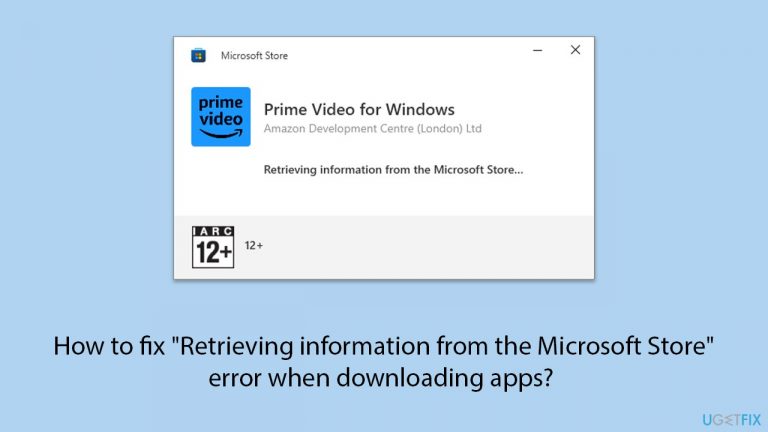
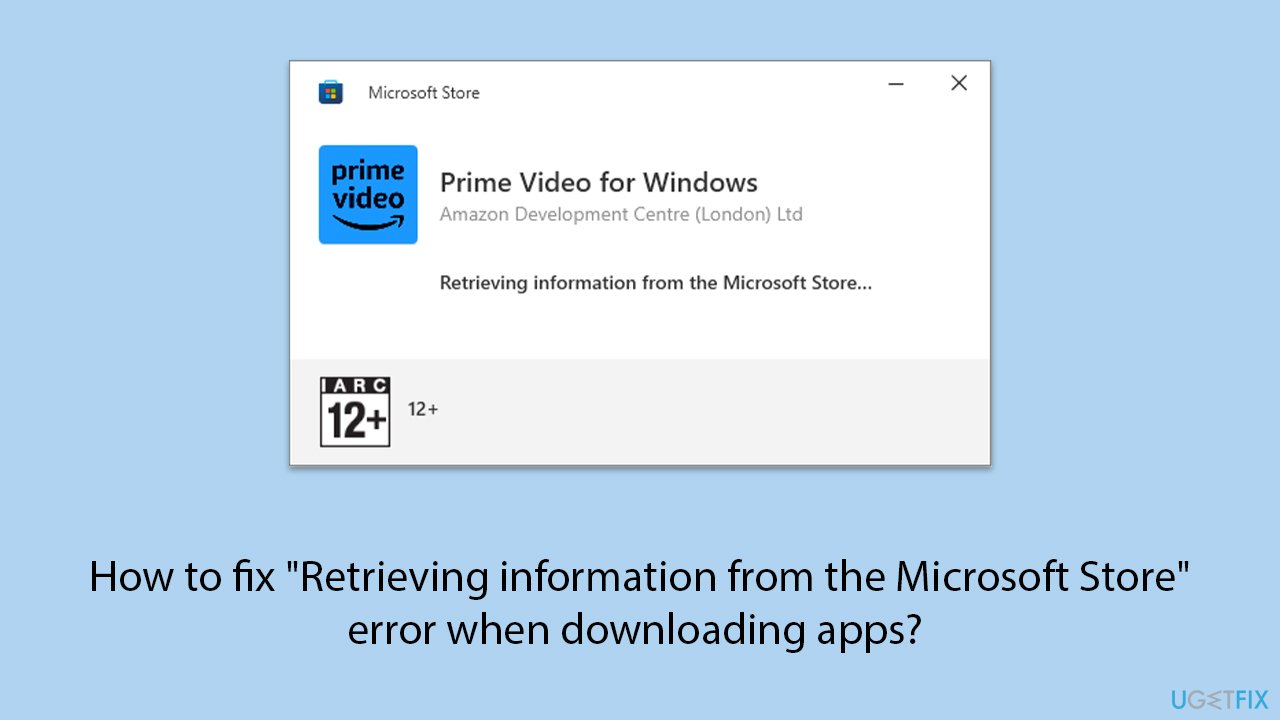
What causes How to fix “Retrieving information from the Microsoft Store” error when downloading apps?
- Connectivity issues between the Microsoft Store's servers and your computer
- Network configurations inhibiting proper communication
- Server-side issues preventing app data retrieval
- Outdated app versions
- Outdated Windows system files
Repairs Windows system files, removes malware, and restores a clean OS state — without reinstalling.
I tried downloading and installing Windows File Recovery from the Microsoft Store, but the installation got stuck at the "Retrieving information from the Microsoft Store" message. I've been waiting for an hour now, and nothing has happened. Any ideas on what I can do?
Microsoft Store allows you to easily download and install apps directly to your Windows device. Whether you're using the Microsoft Store app on your computer or accessing it via the internet, the process normally involves selecting an app and tapping the Install button.
However, some users encounter a persistent issue where the download process stalls with the message "Retrieving information from the Microsoft Store." This problem can linger for hours without progress and is more frequently reported when using the Microsoft Store's web version. The error can occur when installing various apps, including Spotify, Windows File Recovery, Xbox app, Prime Video, HP Smart, and more.
Why are Store apps stuck on the "Retrieving information from the Microsoft Store" message?
This downloading error often stems from connectivity issues between the Microsoft Store’s servers and your computer. Problems can arise from network configurations that inhibit proper communication or server-side issues that temporarily prevent the app data from being retrieved.
Additionally, outdated app versions or Windows system files might contribute to this issue, disrupting the smooth interaction needed for successful app downloads.
Possible resolutions for the issue
To fix the "Retrieving information from the Microsoft Store" message while trying to install an app, you can try the following:
- Ensure your app installation settings are correct.
- Use the Microsoft Store app instead of the web version.
- Search for and use offline installers for the apps.
We provide detailed instructions on how to perform these steps below. Alternatively, to address persistent or complex issues, consider using an automatic PC repair tool [d1].
Fix 1. Check Windows App settings
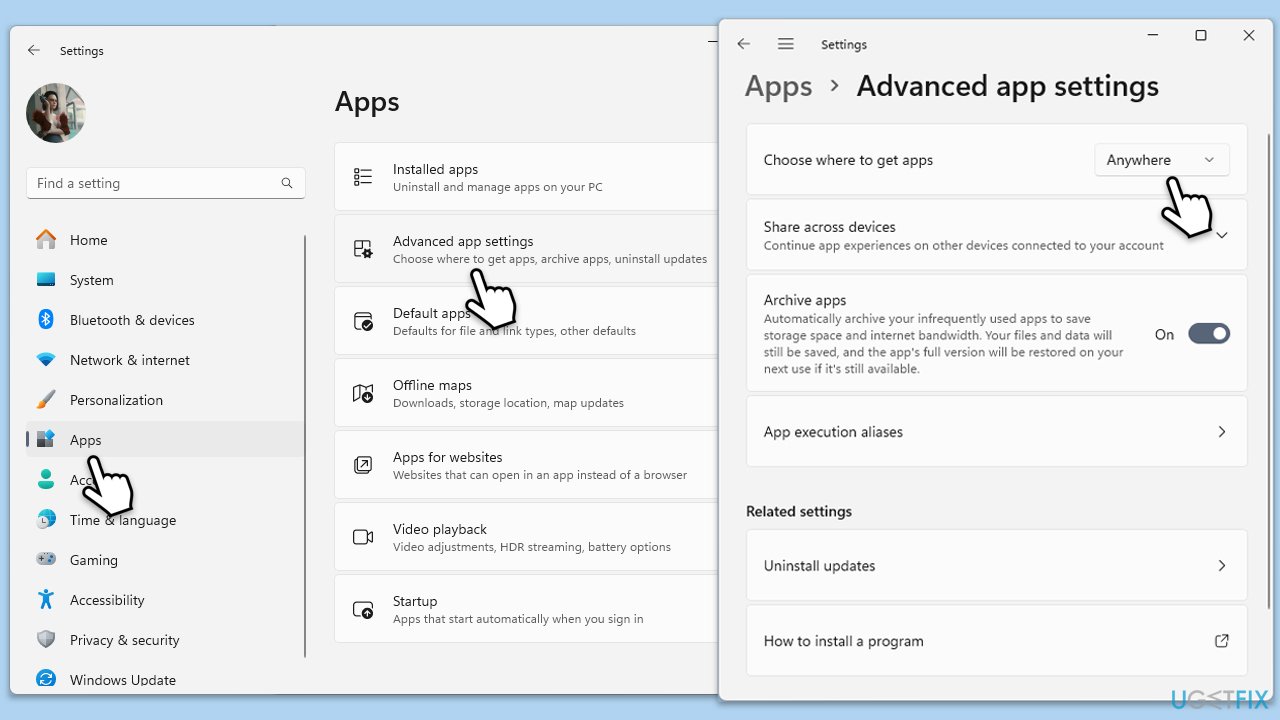
Start with ensuring that your downloads can be performed from everywhere.
- Right-click on Start and pick Settings.
- Go to the Apps section.
- Here, pick Advanced app settings.
- Under Choose where to get apps, select Anywhere from the drop-down menu.
Fix 2. Use Microsoft Store instead of the web version
Apps get stuck on the "Retrieving information from the Microsoft Store" message when downloading them from the web version. Try using the Microsoft Store app instead.
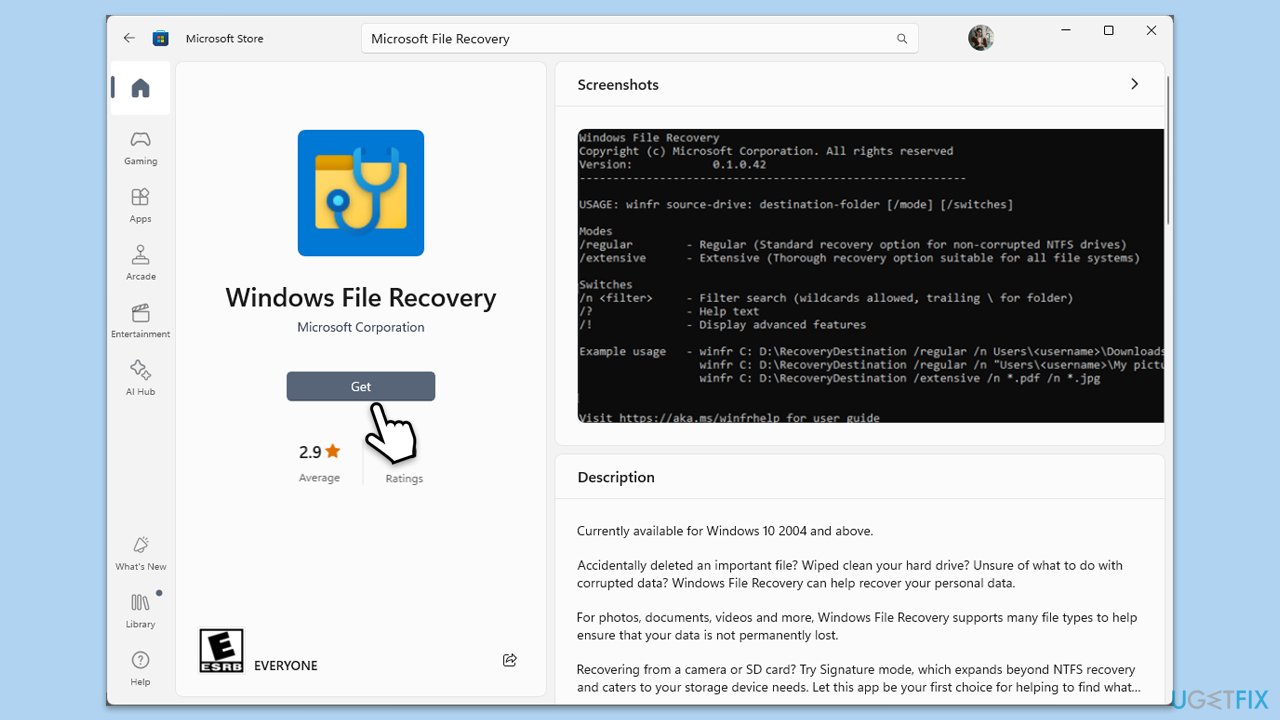
- Type Microsoft Store in Windows search and hit Enter.
- At the top, type in the name of the app you want to install and click Enter.
- Select the correct app from the list and click Get.
- The app should now install correctly.
Fix 3. Use Offline Installer
As an alternative way to install Store apps, you can use an offline installer.
- Go to Microsoft Store on the web.
- Search for the app you want to install.
- Enter its page and copy the URL in the address bar.
- Open a new tab and go to the Microsoft Store – Generation Project [by @rgadguard & mkuba50] (link).
- From the drop-down menu, select URL (link).
- Paste in the URL you previously copied, select Retail, and click the Tick mark button.
- You will now be presented with all available versions of the app.
- Now you need to locate the latest version (based on the date) and the correct version of your OS type (x64 or x86) of the app.
- Right-click on the link and pick Save link as.
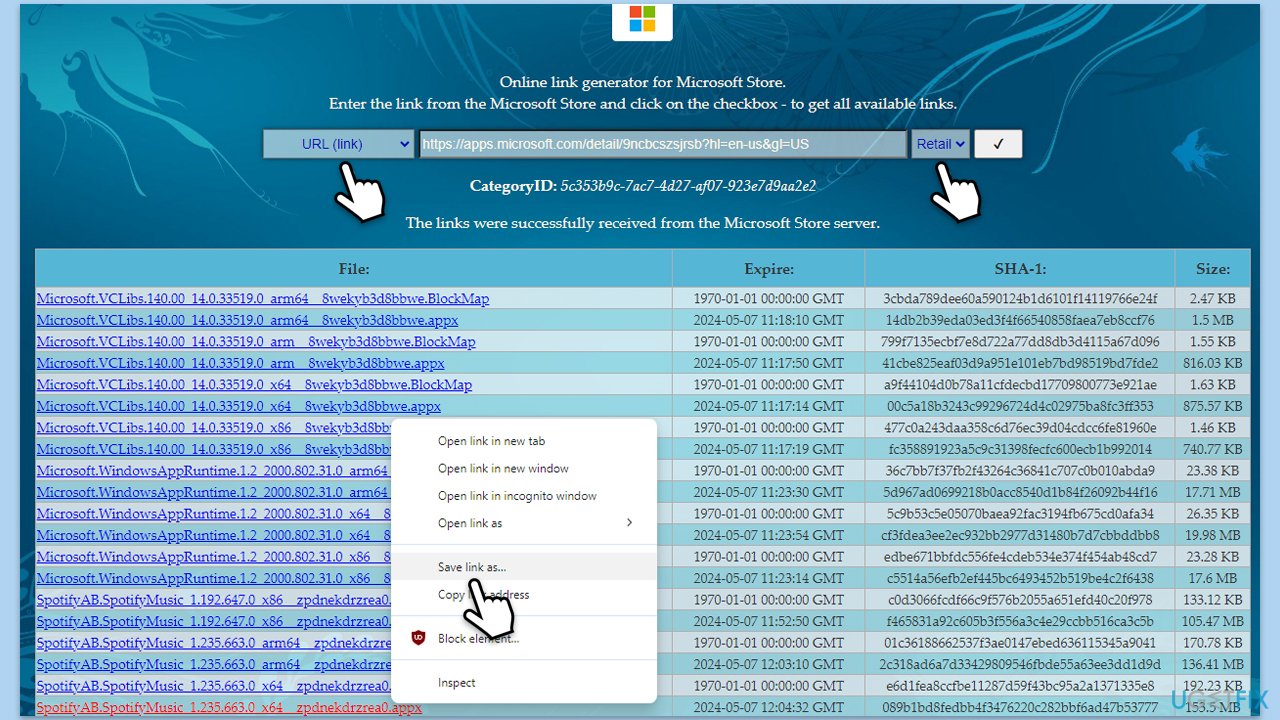
- If a security warning pops up, allow the download.
- Once downloaded, double-click the file and install the app.*
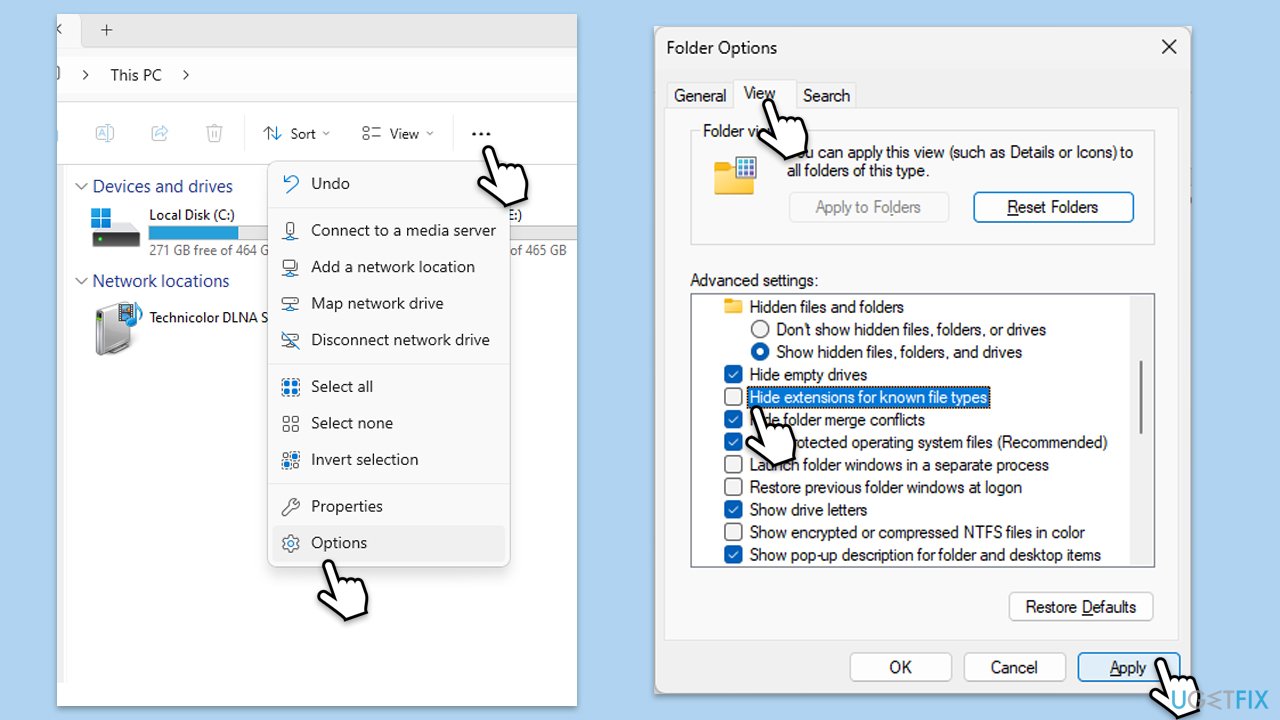
* If the downloaded file is missing the extension, simply right-click on the downloaded file, select Rename, and add the missing extension shown in the download link, e.g., .appx. Make sure extensions are enabled in Folder Options.
Additional things to try
- Check and install any available updates for the Microsoft Store app and your Windows operating system.
- Clear the Microsoft Store app's cache.
- Reset the Microsoft Store app through the app settings.
- Use a different network or troubleshoot your current connection for any potential issues.
- Temporarily disable any firewall or security software that might be blocking the Store's operations.
Bottom line
To fix the "Retrieving information from the Microsoft Store" error, ensure your app installation settings are correct, use the Microsoft Store app instead of the web version, and consider searching for offline installers. If these steps do not resolve the issue, consider using an automatic PC repair tool.
Frequently asked questions
First, try resetting the Microsoft Store cache by running 'wsreset.exe' in the Run dialog. If the issue persists, check your internet connection and ensure that your Windows 10 is updated to the latest version.
You can resolve this error by ensuring that the Microsoft Store app is updated and by running the 'Windows Store Apps Troubleshooter' found in Settings under 'Troubleshoot'. Additionally, consider resetting the Microsoft Store app through the Settings menu.
Yes, you can try repairing the Microsoft Store app through the Settings app by navigating to 'Apps' and selecting 'Microsoft Store', then clicking on 'Advanced options' and choosing 'Repair'. This method doesn't require a full reinstallation of Windows.




Report an issue
What's wrong with this guide? We review every report and update or remove content.
Report received — thank you. We'll review and fix it.
You need a free account to submit a report.
Be the first to comment