How to fix
Roblox audio not working
on Windows
Resolve Roblox audio issues on Windows 10 or 11 effortlessly. Get your game sound back with expert-tested solutions and easy-to-follow steps.

What causes How to fix Roblox audio not working in Windows?
- Audio settings are misconfigured
- Roblox program needs to be reinstalled
- Updates for Roblox are pending
- System audio settings are incorrect
- Audio drivers may be outdated
Repairs Windows system files, removes malware, and restores a clean OS state — without reinstalling.
Hello. I tried playing Roblox on my Windows PC but the sound is not working. Any way to fix this?
Users can create, play, and share games made by other players on Roblox, a well-known online gaming platform and game development tool. With a large variety of user-generated minigames across several genres, it draws in a sizable player base. But like any digital platform, Roblox occasionally has technical issues. One common complaint from users is that they cannot hear sound while playing Roblox.
For many players, the lack of sound in Roblox games has been an ongoing issue, which irritates them when they're playing. The problem can show up as total silence or occasional audio output problems which takes away from the games' overall immersion and fun factor.
There are various ways in which this audio issue may impact users. For example, players might not hear important in-game signals, conversations, or sound effects, which then limits their ability to interact with the game fully.
This issue is particularly serious in games where sound effects are employed to set the mood or to give important cues and cautions. In addition, if there is no sound, gamers who depend on auditory cues may find their gaming experience less satisfying overall.
Numerous users have brought up the Roblox no-sound issue in various forums and community chats, suggesting that it is a common problem that affects a sizable portion of the player base. Although the precise source of the issue may differ, reinstalling the Roblox program, checking for updates, and analyzing audio settings are frequently suggested fixes.
In this guide, you will find 7 steps that should help you fix Roblox audio not working in Windows. You can also try running a maintenance tool like [d1] that can fix most system errors, BSODs,[ref en-1] corrupted files, registry[ref en-2] issues, or clear cookies and cache[ref en-3] automatically. Otherwise, follow the step-by-step instructions below.
Solution 1. Turn up the Volume for Roblox
- Right-click the small speaker icon located on the far right side of your taskbar.
- Select Open Volume mixer from the context menu.
- Scroll through the list to locate the entry for Roblox.
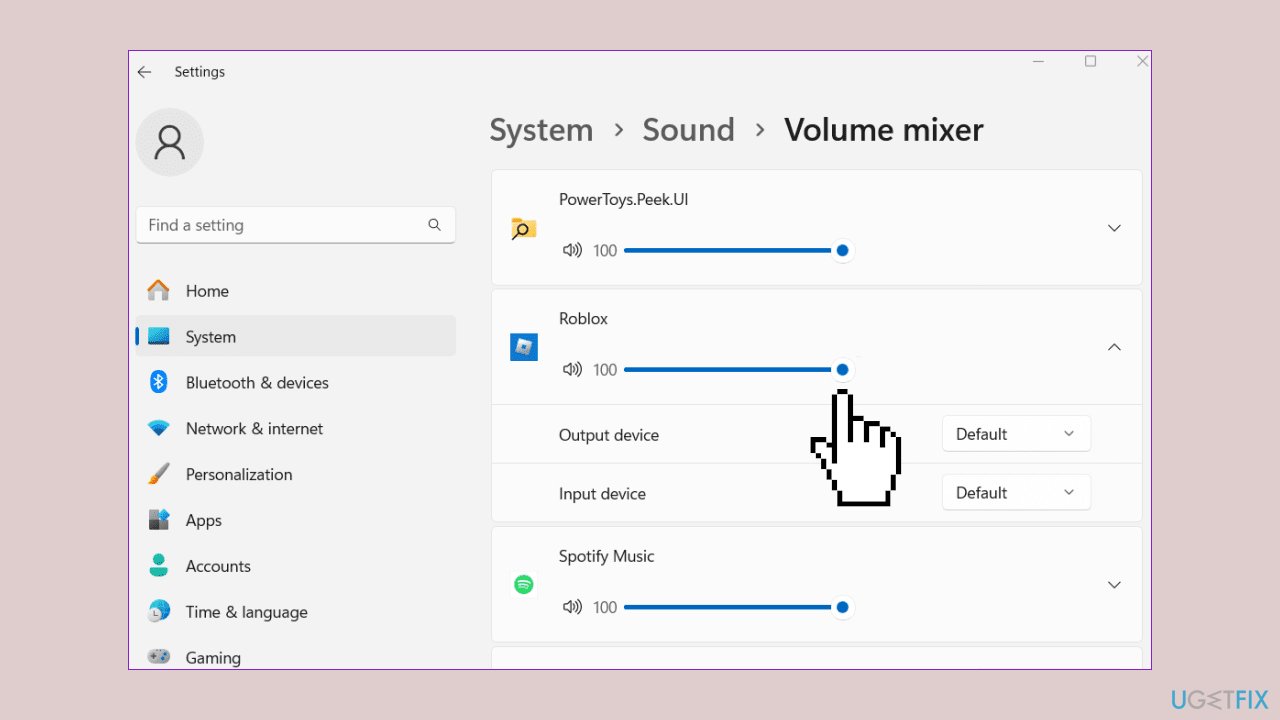
- Ensure that the audio for Roblox is unmuted.
- Adjust the volume to 100, if necessary, as this is the default setting.
Solution 2. Check Roblox Settings
- Launch Roblox and open the game where you are experiencing missing audio.
- Click on the Roblox logo icon situated at the top-left corner of the Roblox window.
- Navigate to the Settings tab.
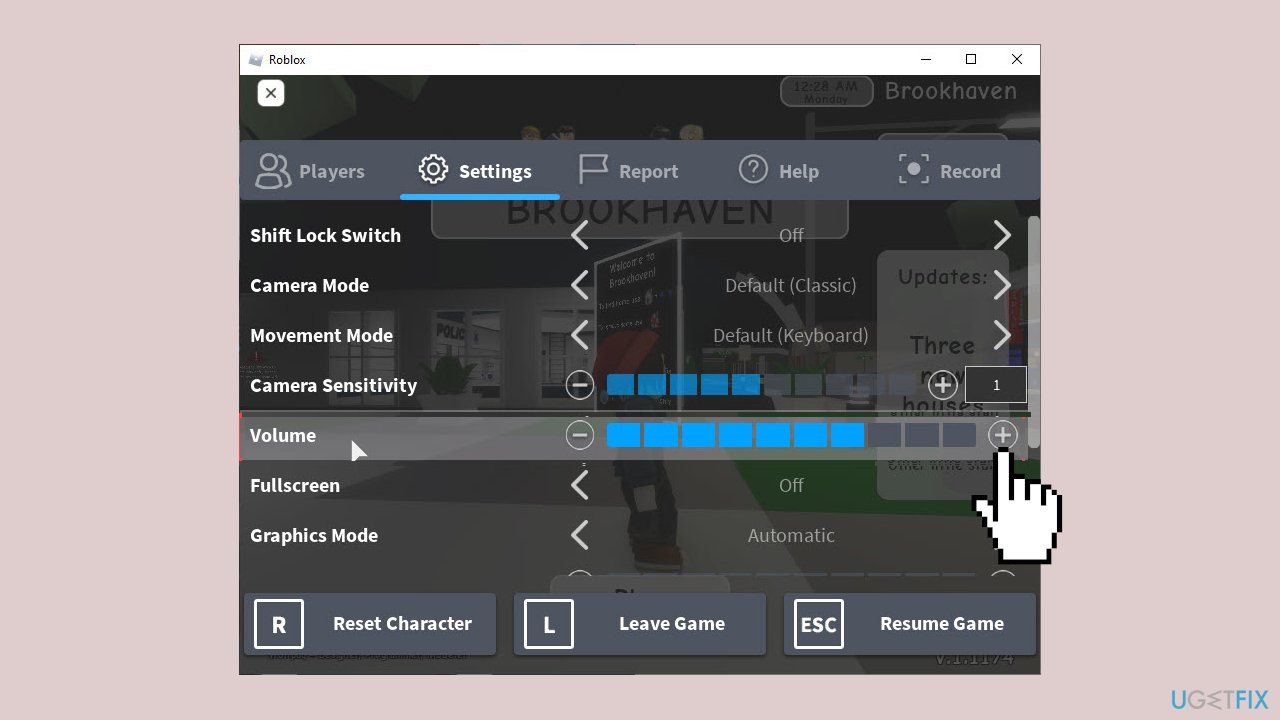
- Confirm that your audio is not muted.
- Ensure that the Volume is set to an audible level and not too low.
Solution 3. Set your Output Device
- Right-click the small speaker icon located on the far right side of your taskbar.
- Select Open Sound Settings from the context menu.
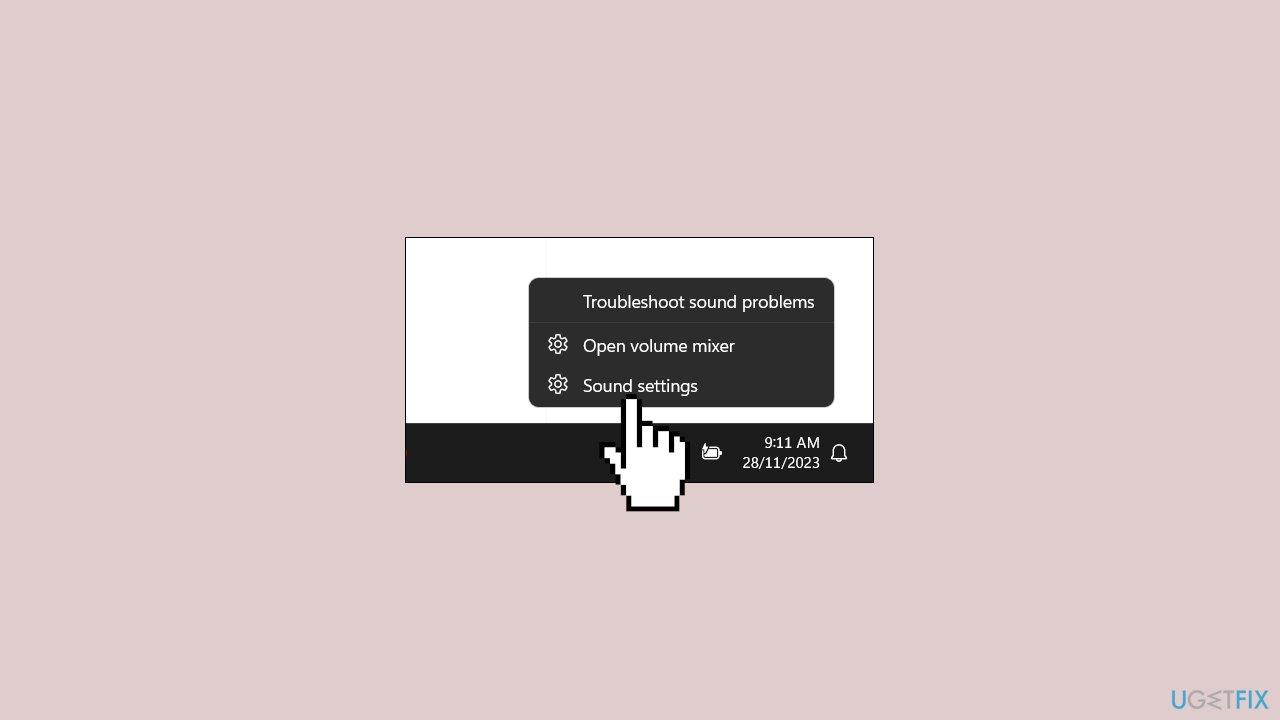
- In the Output section, ensure you have selected your preferred speaker or device.
- Double-check by clicking on App volume and device preferences to set the output device and volume specifically for Roblox.
Solution 4. Run the Windows Audio Troubleshooter
- Press the Windows key + R on your keyboard to open the Run box.
- Type control panel and click OK.
- Change the view to Small icons.
- Click on Troubleshooting.
- Select Troubleshoot audio playback.
- Click Next to initiate the troubleshooting process.
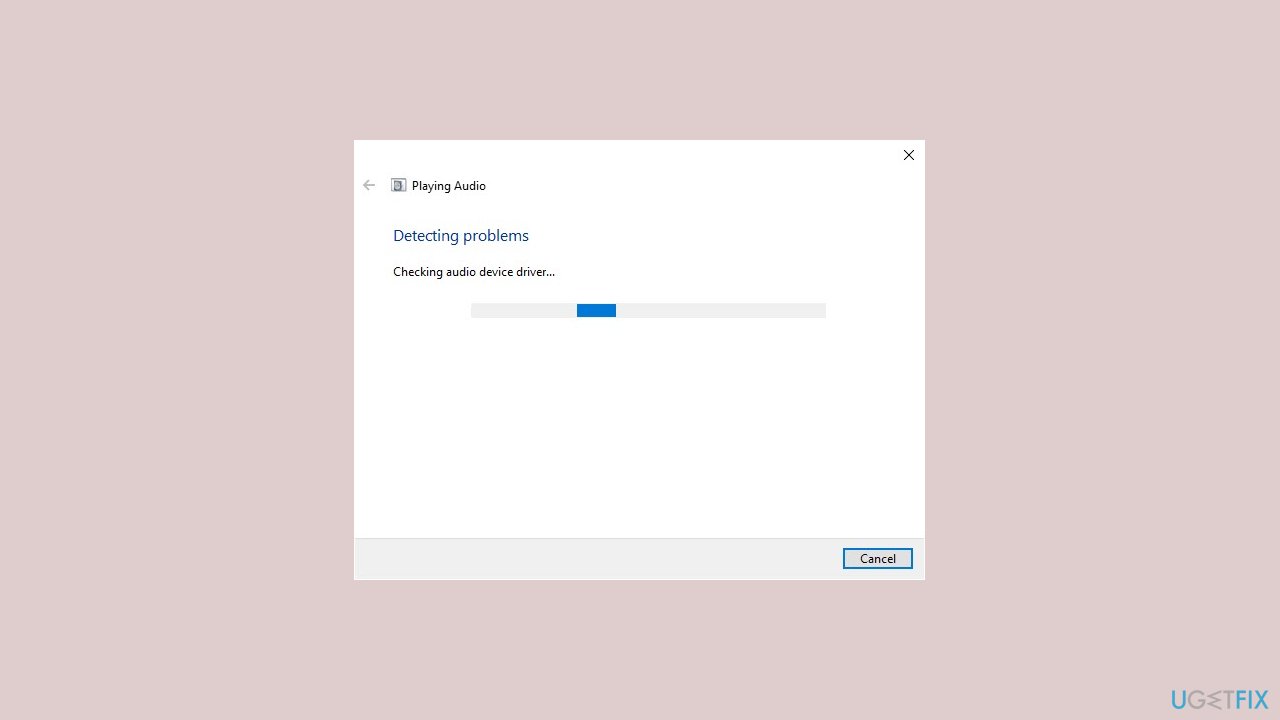
- Wait for the troubleshooter to detect problems, usually taking only a few seconds.
- Choose your speaker and click Next.
- If suggested, consider turning off audio enhancements for better sound quality by clicking Yes, Open Audio Enhancements. If not, it will proceed to scan results.
- Under the Advanced tab, ensure the Enable audio enhancements option is unchecked.
- Click Apply and then OK.
- Review the troubleshooter results; it will attempt to fix detected problems.
- Close the troubleshooter once completed.
Solution 5. Update Audio Driver
Outdated drivers could be the cause of this issue. In this case, you can fix it automatically by using [rev id="DriverFix"], which will scan your PC for missing and out-of-date device drivers. Or you can update them manually:
- Open Settings.
- Click on Update & Security.
- Click on Windows Update.
- Click the Check for updates button.
- Click the View optional updates option.
- Click the Driver updates tab.
- Select the driver you want to update.
- Click the Download and install button.
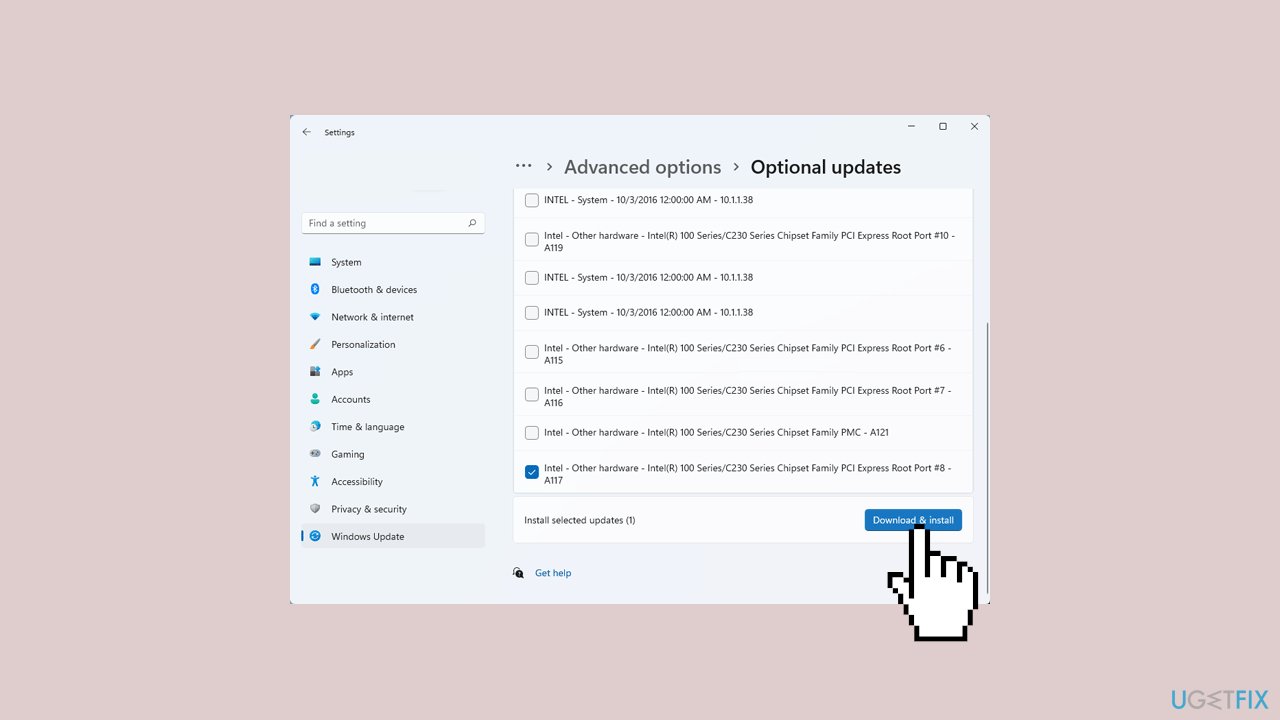
If the View optional updates link is not available after checking for updates, then Windows Update does not have any new drivers or any updates for other products at that particular time.
Solution 6. Configure the Audio Channel of your Speaker
- Press the Windows key + R on your keyboard to open the Run box.
- Type control panel and click OK.
- Change the view to Small icons.
- Click on Sound.
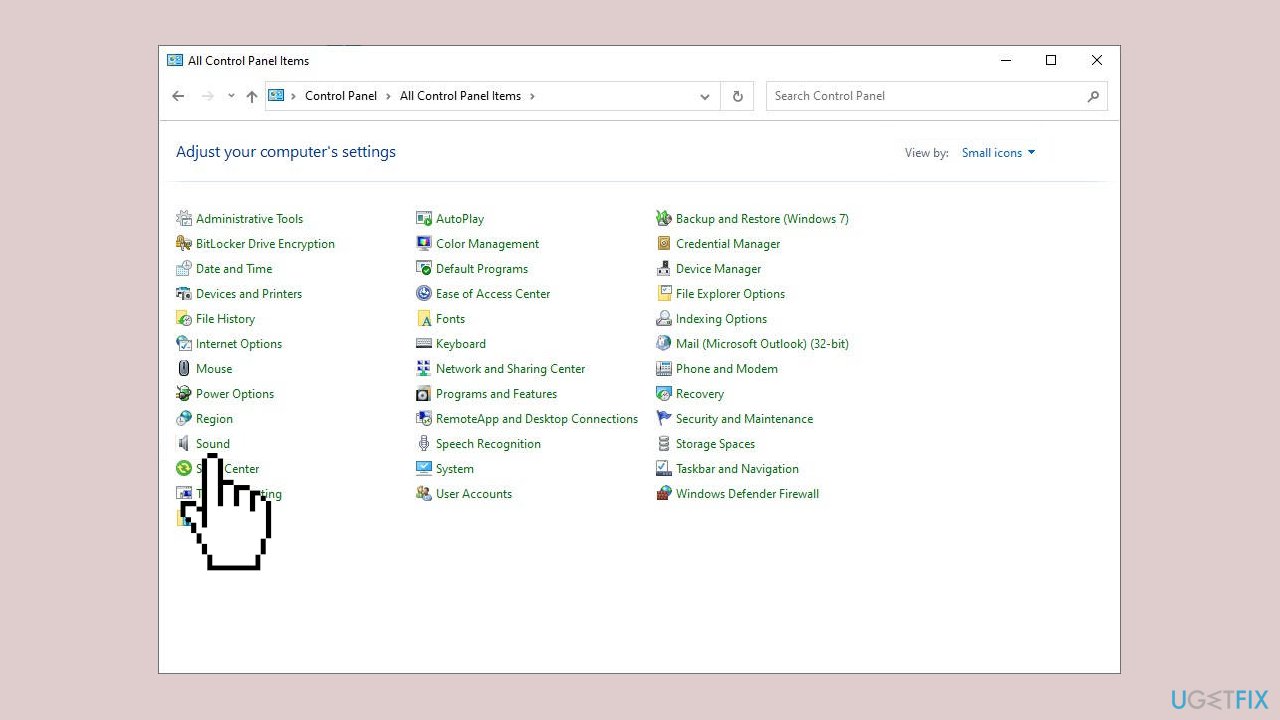
- In the Playback tab, choose Speakers and click Configure.
- Set the audio channel to Stereo.
- Test the audio functionality by clicking Test.
- Click Next and follow the on-screen instructions to complete the configuration.
Solution 7. Reinstall Roblox
- Press the Windows key + R on your keyboard to open the Run box.
- Type control panel and click OK.
- Change the view to Category.
- Click on Uninstall a program.
- Locate Roblox Player, right-click, and choose Uninstall.
- Restart your PC.
- After the restart, ensure other programs are closed.
- Download Roblox.
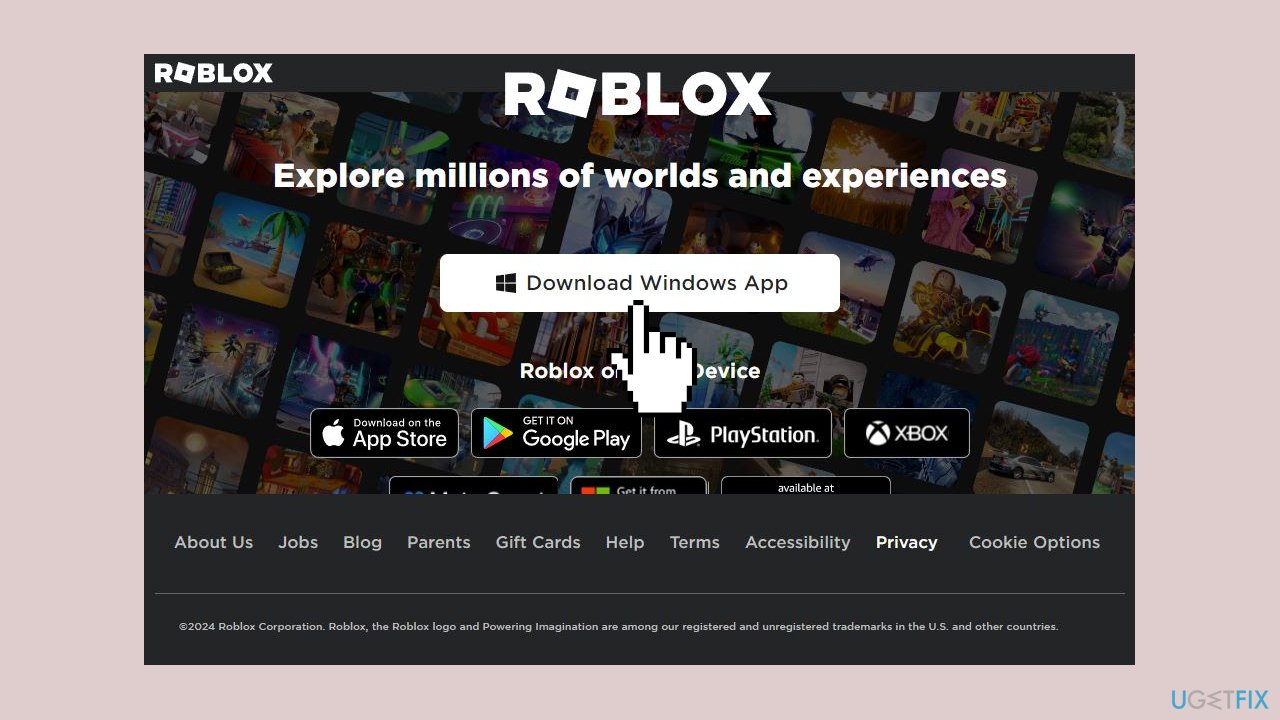
- Locate RobloxPlayerLauncher.exe in your Downloads folder.
- Double-click to initiate the installation process.
Bottom line
To fix the Roblox audio not working issue, you can try turning up the volume for Roblox, reinstalling the program, checking for updates, and analyzing your audio settings. If these solutions do not resolve the problem, consider using a maintenance tool to fix system errors.
Frequently asked questions
First, check your audio settings in Windows 10 to ensure the output device is set correctly. If that doesn't work, try reinstalling Roblox to refresh its audio settings.
On Windows 11, go to Settings > System > Sound and make sure the correct audio output is selected. Additionally, updating your audio drivers can help resolve any conflicts.
Yes, open Roblox and navigate to the settings menu to ensure the audio volume is turned up and not muted.




Report an issue
What's wrong with this guide? We review every report and update or remove content.
Report received — thank you. We'll review and fix it.
You need a free account to submit a report.
Be the first to comment