How to fix
Roblox error 268
on Windows
Resolve Roblox error 268 on Windows 10 and 11 effortlessly with our expert-tested solutions. Get back to gaming in minutes, with clear screenshots!


What causes How to fix Roblox error 268?
- Server downtime due to maintenance
- System file corruption
- Third-party software interference
- Usage of in-game cheats
- Bots affecting client behavior
Repairs Windows system files, removes malware, and restores a clean OS state — without reinstalling.
Hello, I can't play the game due to the Roblox error 268. This happens every time right before I am bout to join the game - I am instantly kicked out. Please help.
Users have been reporting the Roblox error code 268 "You have been kicked due to unexpected client behavior," due to which they are unable to join any games. The issue can be particularly frustrating, as it affects players on all available platforms, including Windows, Xbox, and Android. As a result, users are unable to play the game anywhere. You should not worry too much, however, as we will try to help you fix Roblox error code 268.
Roblox is one of the most popular sandbox games that allow players to create their own worlds and let others enjoy them. It goes without saying that the game took inspiration from another very popular creative game, Minecraft, and has been extremely successful all around - it is enjoyed by more than 164 million users monthly.[ref en-3]
Despite its popularity, the game does not avoid issues. We have previously discussed very similar error codes - 267 and 277 that were disrupting users' gameplay and preventing them from joining servers. Roblox error code 268 is one of those errors that makes players disconnect as soon as they try to connect to any of the servers.
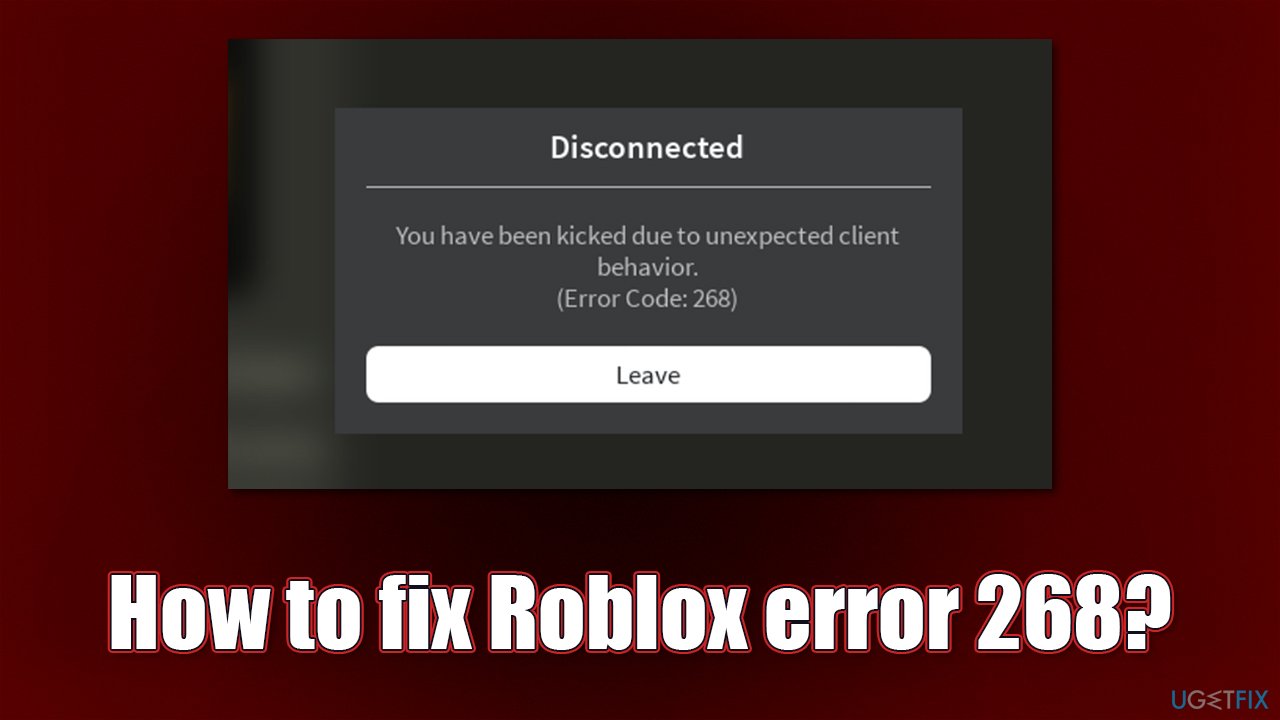
The full message of the error code reads:
Disconnected
You have been kicked due to unexpected client behavior.
(Error Code: 268)
As evident, this is something that happens automatically and something that is out of user control. Reasons for this behavior can be vast, although there is almost always a way to fix the problem. This might not be as easy, however, and even not always possible. For example, if Roblox's servers are down due to maintenance or other reasons, you might receive this error.
Nonetheless, system file corruption, third-party software, usage of in-game cheats/bots might also cause your client to disconnect. Thus, we recommend you first try using [d1] repair software, as it might be able to resolve the annoying error for you automatically. Otherwise, proceed with the solutions we provide below.
1. Uninstall third-party security software
Security software is a very useful tool that helps users to protect themselves from malware attacks. However, third-party tools are known to cause some connection problems when mistakenly marking some server connections as insecure. Even Windows update errors might also be caused by this behavior.
If you are using a third-party security app, you should try uninstalling it and checking it hat stopped your Roblox disconnects.
- Type Control Panel in Windows search and press Enter
- Go to Programs > Uninstall a program
- From the list, find your security app
- Right-click and select Uninstall
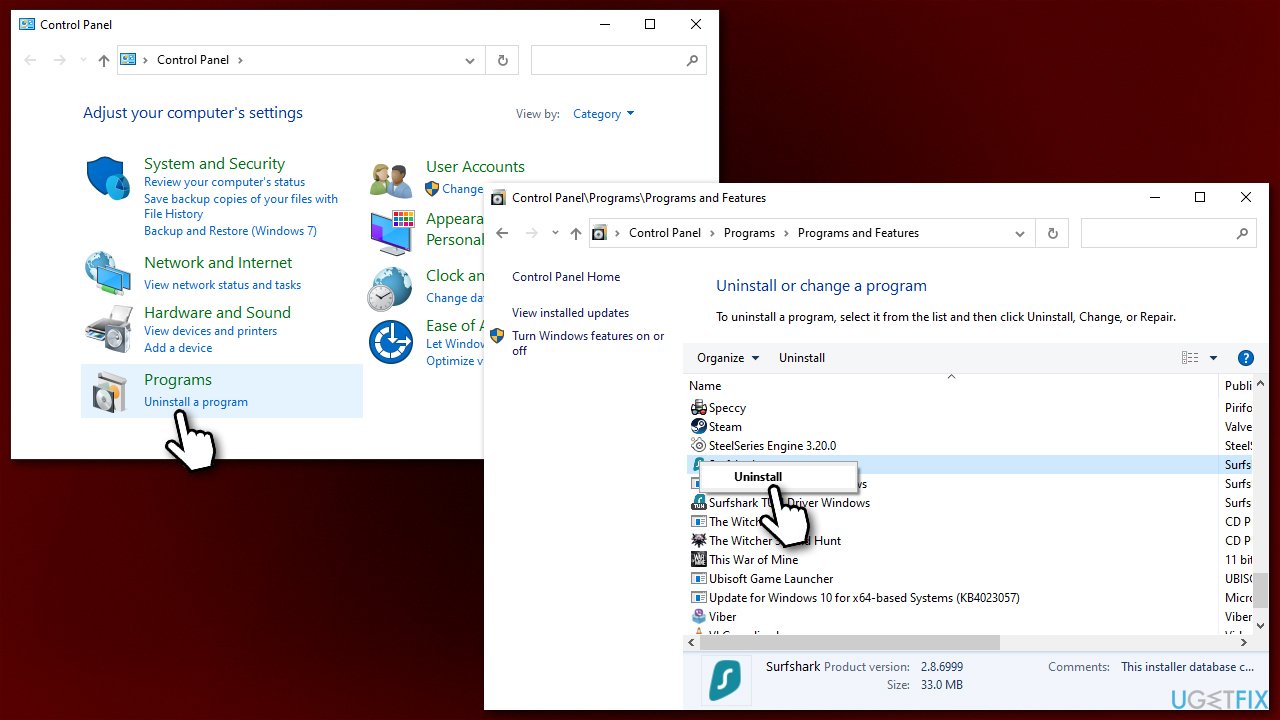
How to fix roblox error 268 uninstall antivirus software - Proceed with on-screen instructions and reboot your PC.
2. Use a different DNS
- Right-click on Start and select Settings
- Go to Network and Internet section
- Click on Change adapter options
- Right-click on your internet connection and pick Properties
- Click Internet Protocol Version 4 (TCP/IPv4) once and go to Properties
- Select Use the following DNS server addresses option and set your DNS to Google's:
Preferred DNS server: 8.8.8.8
Alternate DNS server: 8.8.4.4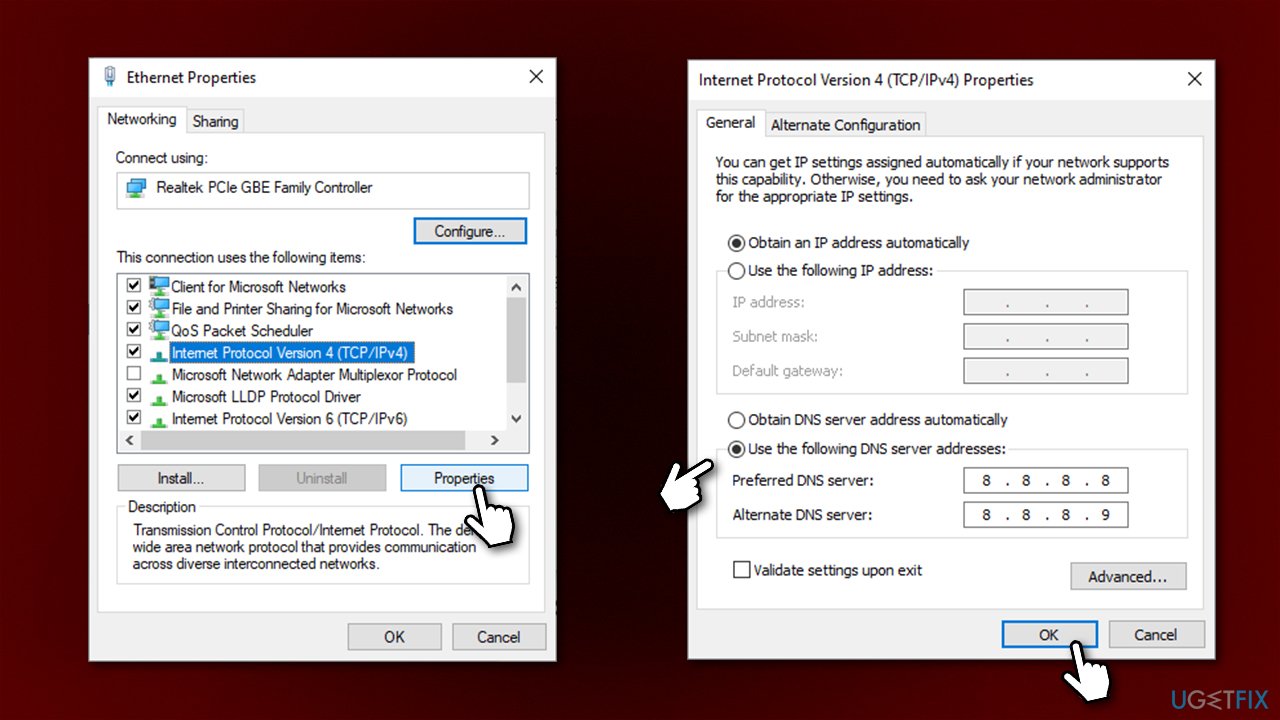
How to fix roblox error 268 use different dns - Click OK.
3. Check Roblox server status
Maintenance is a normal and common process that is done (usually) on a weekly basis. Alternatively, any company might face some problems with servers from time to time. For example, DDoS[ref en-1] attacks against the servers might prevent users from logging into Roblox and produce an error instead. Technical difficulties, while rare, can happen to any popular game developer.
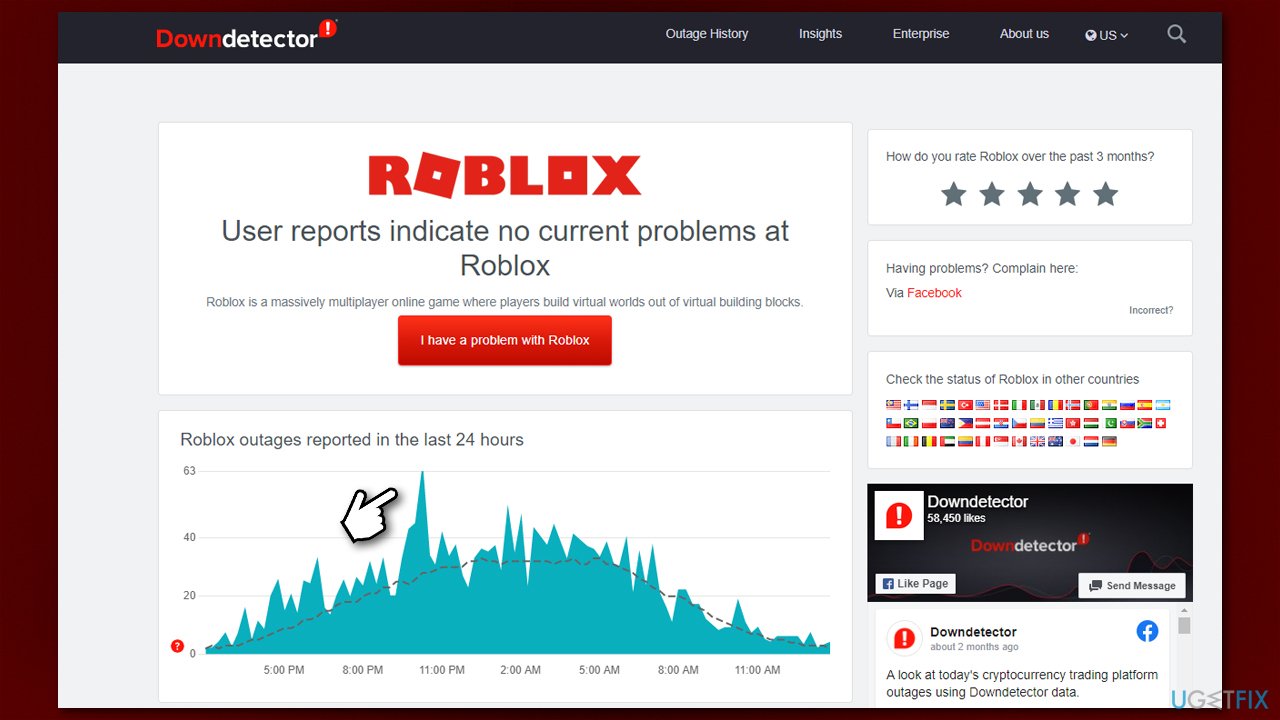
Therefore, you can check the status of the game server on websites such as Downdetector. It reports how many users have trouble connecting to the game during certain time intervals. So, if you see a spike of reports, it is likely that servers are experiencing issues, and you should simply wait.
4. Reset your internet connection
- Type cmd in Windows search
- Right-click on Command Prompt and pick Run as administrator
- Copy and paste the following commands, pressing Enter each time:
ipconfig /flushdns
ipconfig /registerdns
ipconfig /release
ipconfig /renew
netsh winsock reset - Restart your device.
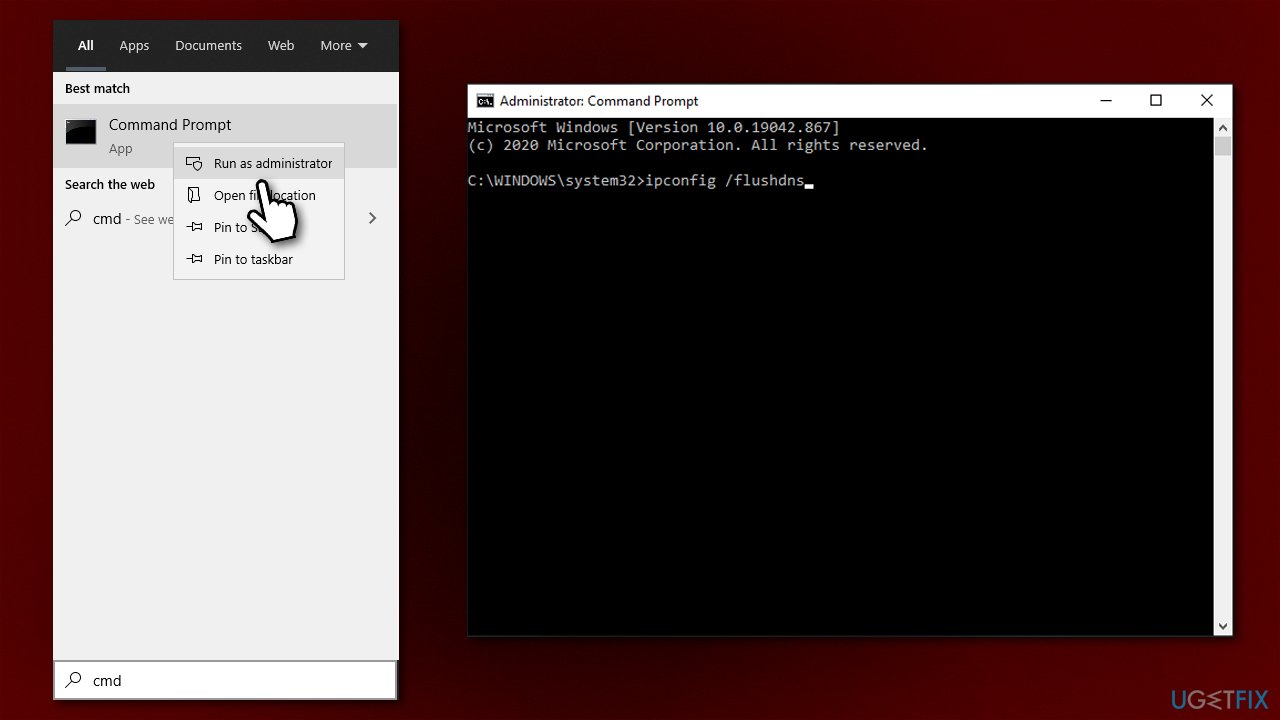
How to fix roblox error 268 reset internet connection
5. Delete bots/cheats
By using cheating tools, not only do you risk infecting your system with dangerous malware,[ref en-2] but you are also spoiling the fun for many players. Game developers often ship patches that would check the system for bots/cheats that are being used illegally. Keep gaming fair, and you should avoid issues related to disconnects in the future.
To uninstall a cheat, you should find it in your Control Panel/Programs and Features section, as we explained in our first solution, and uninstall it just like any other application. It is also advisable you perform a full system scan with anti-malware software.
6. Reinstall the game (Xbox One)
- Launch your console and press the Xbox One button in the middle of the controller
- In the menu, select Games & Apps
- Scroll down until you find Roblox, select it, and press Start
- In the Manage game menu, select Uninstall all
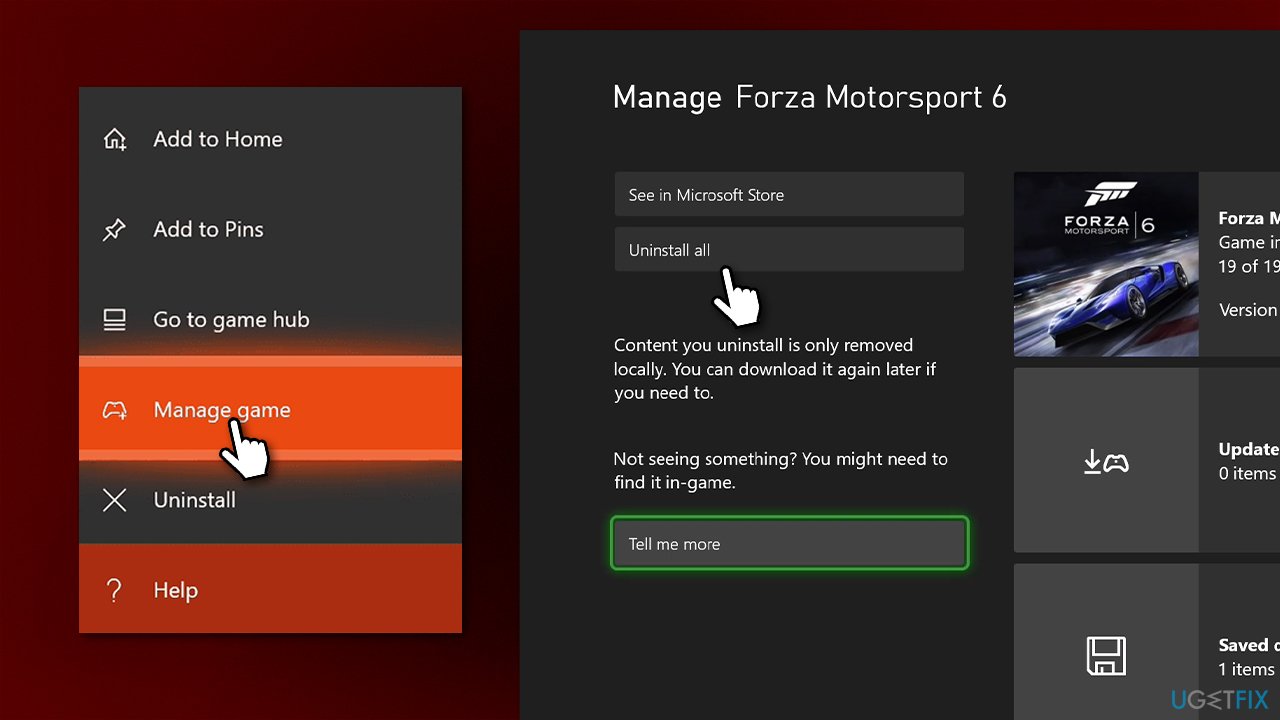
How to fix roblox error 268 reinstall game on xbox - Restart Xbox and install the game anew.
8. Use MS Store version of the app
You can download a different version of the game via the MS Store and play it.
- Open Microsoft Store
- Type in Roblox in the search window and hit Enter
- Select Roblox and click Install or Get
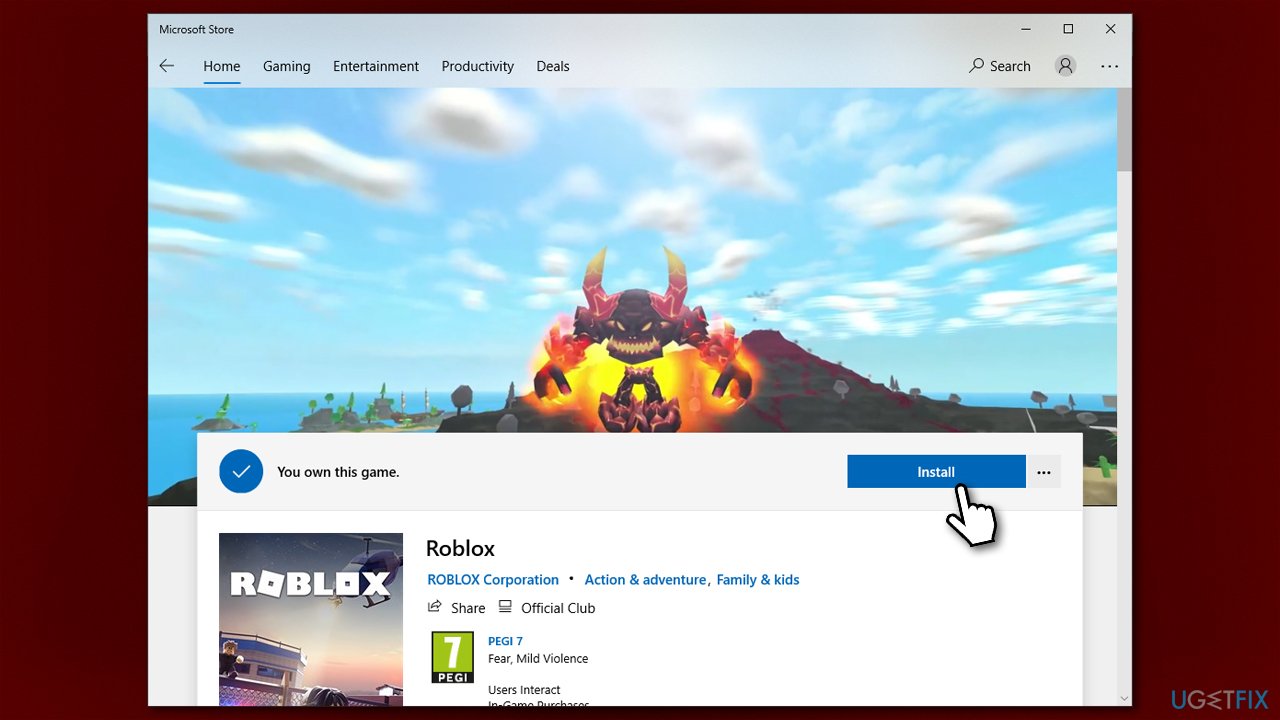
How to fix roblox error 268 use microsoft store - Once installed, you can click Play to launch the game
- You will be asked to enter your credentials first.
Bottom line
To fix Roblox error code 268, you can try using repair software to resolve the issue automatically. If that doesn't work, consider checking for server status or removing any third-party software. If none of these solutions work, further investigation may be needed.
Frequently asked questions
Roblox error 268 typically occurs due to network issues, corrupted game files, or account-related problems that prevent you from connecting to the game servers.
To fix error 268 on Windows 11, try resetting your network settings, clearing your browser cache, or reinstalling Roblox to ensure all files are intact.
Yes, you can check your account status by logging into Roblox from a different device or browser to see if the issue persists, which may indicate an account-related problem.




Report an issue
What's wrong with this guide? We review every report and update or remove content.
Report received — thank you. We'll review and fix it.
You need a free account to submit a report.
Be the first to comment