How to fix
Roblox error “Failed to create directory”
on Windows
Fix the "Failed to create directory" error in Roblox on Windows 10 or 11 with our expert-tested solutions. Get back to gaming in minutes!

What causes How to fix Roblox error “Failed to create directory” in Windows?
- Insufficient permissions on Windows
- Third-party security software blocking the game
- Temporary error occurrence
- Issues with the game-related folder location
- Problems with the startup process
Repairs Windows system files, removes malware, and restores a clean OS state — without reinstalling.
I am unable to start Roblox because of "Failed to create directory, error = 3." I have been trying for several days but it keeps failing. Please advise on what to do.
Roblox stands as one of the most prevalent online games, renowned for its unique blend of player engagement and creative expression. Instead of being just a simple game, Roblox is more of a platform that offers a lot of interactivity and user-generated content, which more younger players tend to appreciate a lot, although there are plenty of adults who engage in this world.
As a result, Roblox has amassed more than 70 million daily active users, as well as over 214 million monthly users - numbers that are nothing but staggering. Particularly important is the compatibility with various platforms, including Windows, macOS, Android, iOS, and more.
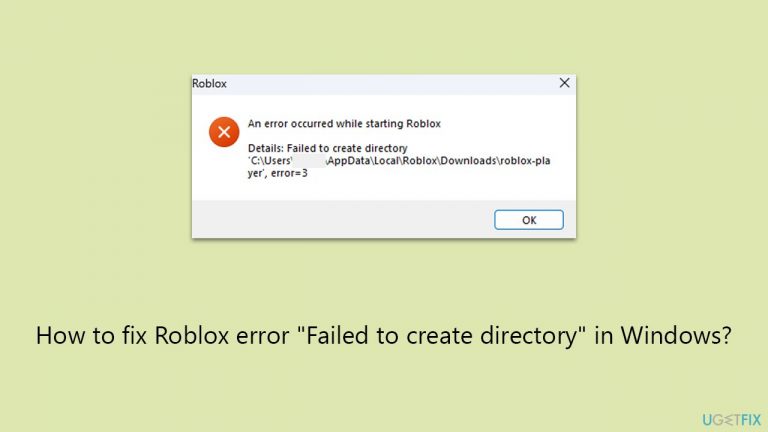
Despite its popularity, Roblox players do not always avoid technical issues, and "Failed to create directory" is one of them. Whenever players attempt to launch the game, they receive an error which reads as follows:
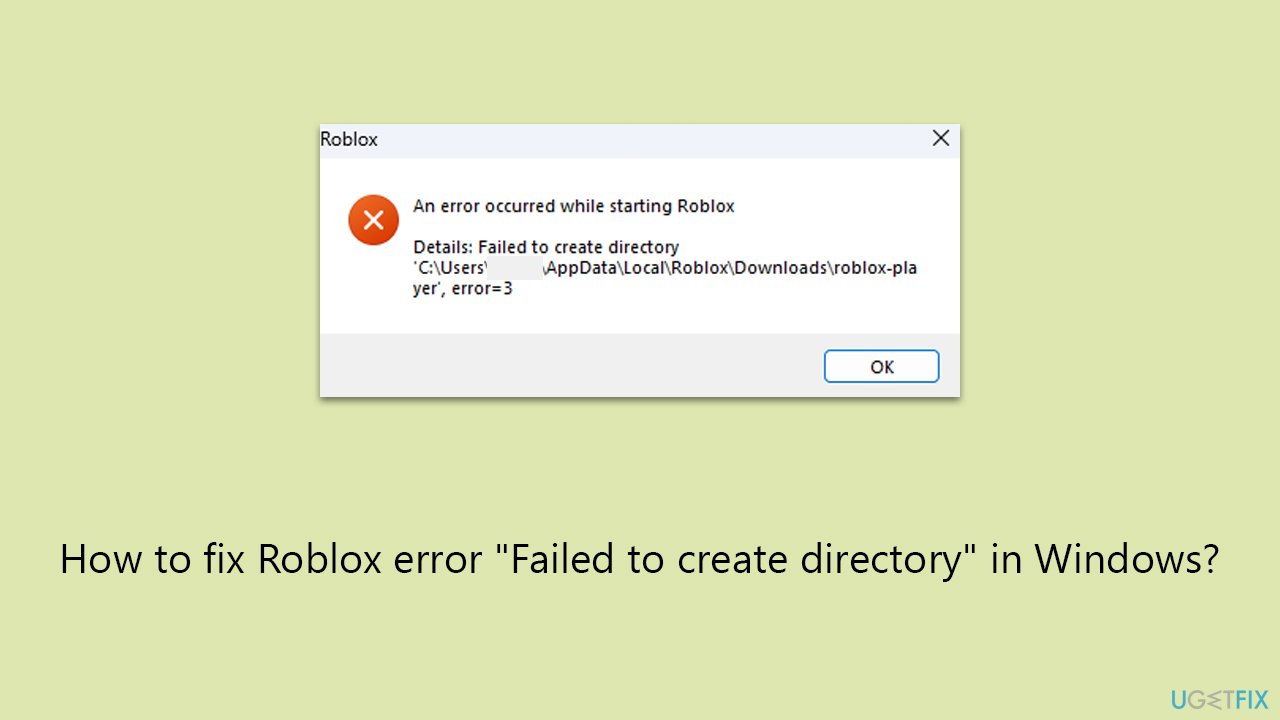
An error occurred while starting Roblox. Details: Failed to create directory ‘C:\Users\USERNAME\AppData\Local\Roblox\Downloads\roblox-player’, error=3"
"Failed to create directory" error can be present temporarily, which other players can't seem to get rid of, no matter how many times they try. There are several reasons why you might be facing this issue as well - it mainly means that something is preventing the game's startup process.
One of the more common reasons for the "Failed to create directory" error is related to insufficient permissions on Windows. Third-party security software might also block the startup of the game, so disabling it might help.
However, the solution that helped most people to fix "Failed to create directory" error in Roblox was rather unconventional. According to many users' accounts, they managed to bypass the error after adding a particular folder to the game-related folder location. We explain in more detail below.
Before proceeding, we recommend trying a powerful PC repair tool [d1] - it is designed to fix various Windows issues automatically, potentially remediating most of the common errors, crashes, and other problems on a PC.
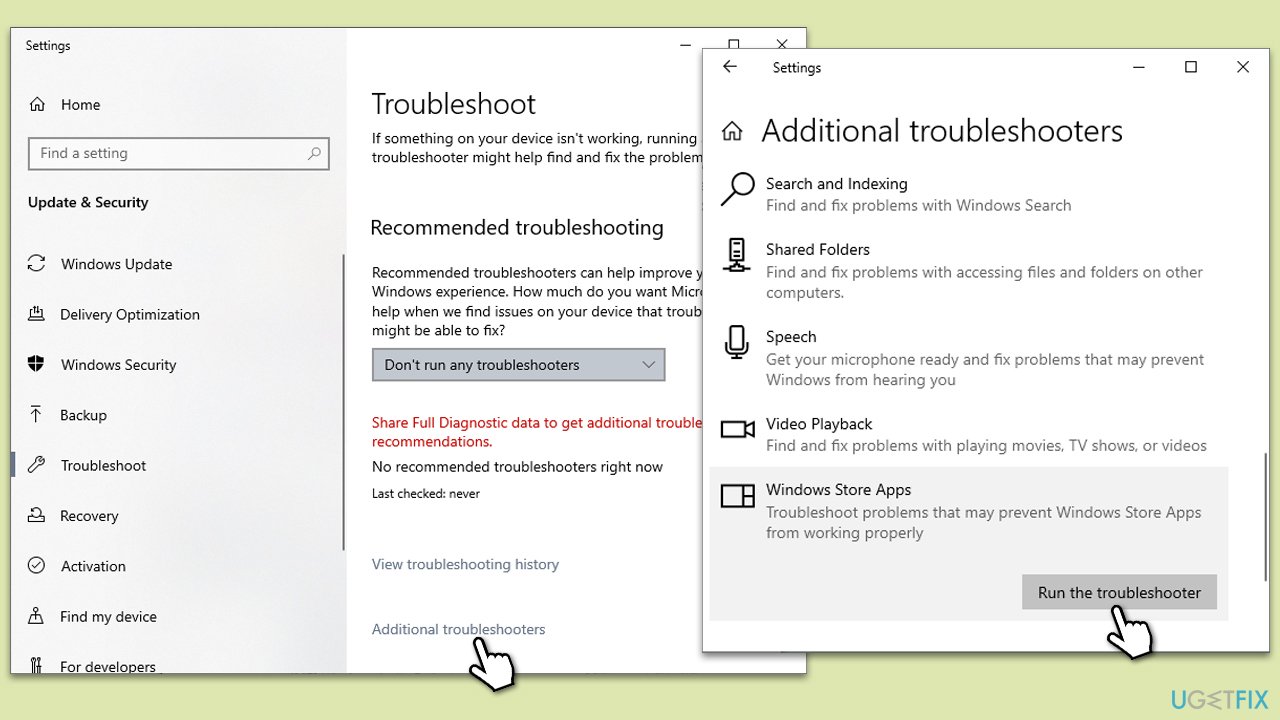
Fix 1. Run Windows Store Apps troubleshooter
This solution involves utilizing a built-in Windows tool designed to identify and resolve issues with Windows Store apps, including Roblox. To use it, follow these steps:
- Type in Troubleshoot in Windows search and press Enter.
- Select Additional Troubleshooters/Other troubleshooters.
- Pick Windows Store Apps from the list and click Run the troubleshooter/Run.
- Wait till the scan is finished, and then apply the recommended fixes.
- Restart your system.
Fix 2. Run Roblox as administrator
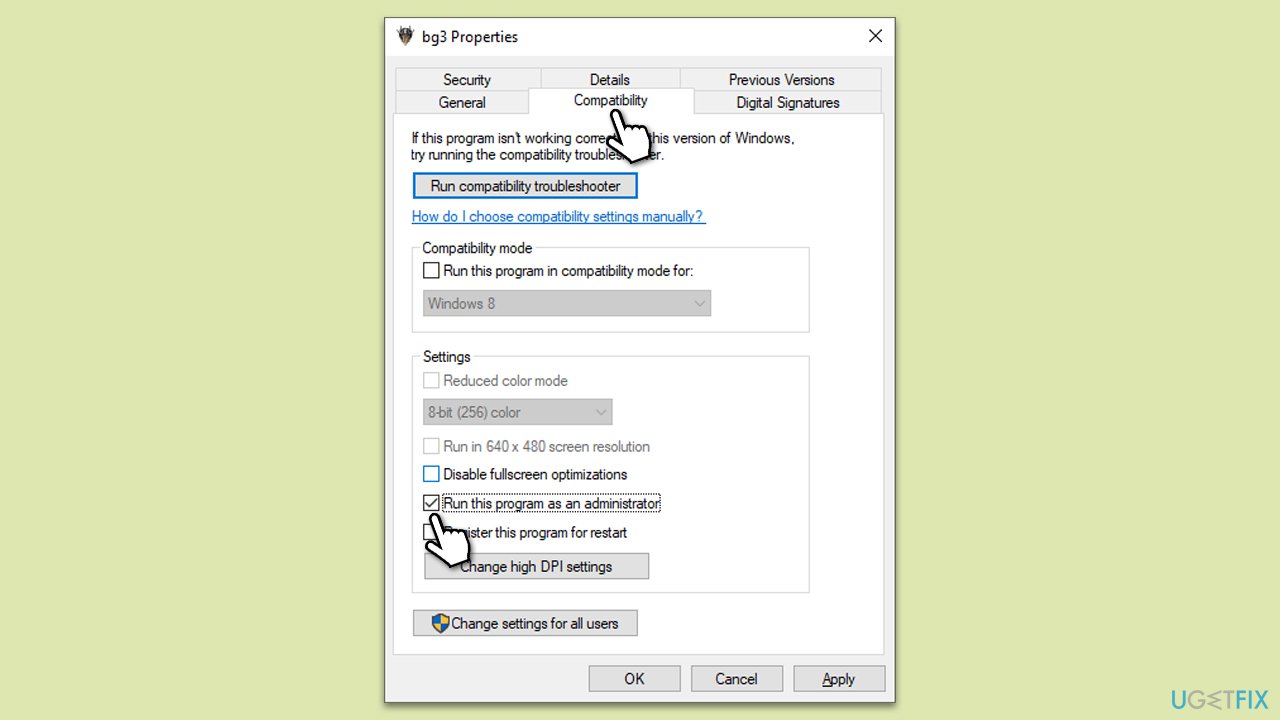
Running Roblox with administrator privileges can resolve issues related to insufficient user permissions, which might be causing the "Failed to create directory" error.
- Right-click on the Roblox shortcut or executable file.
- Choose Properties from the context menu.
- Go to the Compatibility tab.
- Check the box next to Run this program as an administrator.
- Click Apply, then OK.
- Launch Roblox again to see if the issue is resolved.
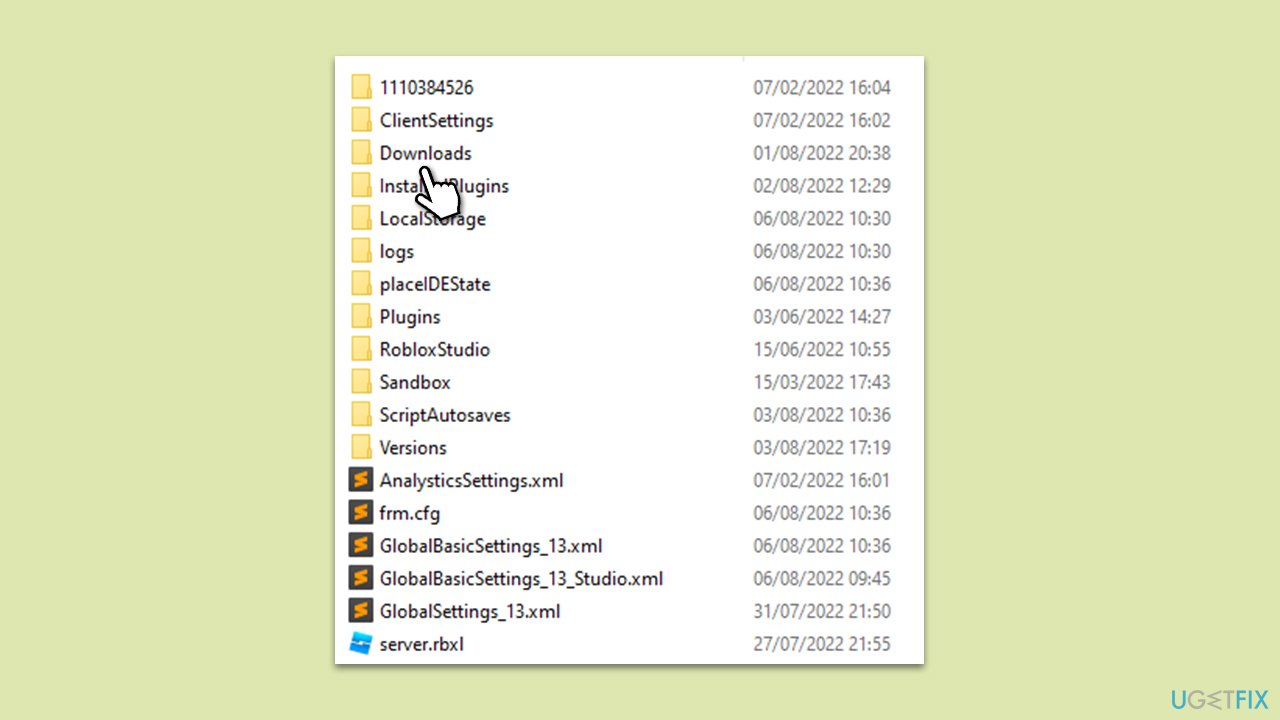
Fix 3. Create a Downloads folder in AppData directory
This fix involves manually creating a folder in the AppData directory, which Roblox may be unable to generate automatically due to various reasons, such as permissions issues.
- In Windows search, type %localappdata% and press Enter.
- Double-click the Roblox folder to access it.
- Right-click in the folder and select New > Folder.
- Name the new folder Downloads.
- Close down File Explorer and try launching the game again.
Fix 4. Reinstall Roblox
If none of the above solutions helped, reinstalling the game should be able to solve the issue. Make sure you delete AppData files, as explained below:
- Right-click on Start and pick Apps and Features.
- Scroll down to find Roblox from the list.
- Click Uninstall and then confirm with Uninstall.
- Follow the prompts to remove the app.
- Next, press Win + E on your keyboard to open File Explorer.
- Navigate to the following location (make sure Hidden files are visible):
C:\Users\USERNAME\AppData\Local - Access the Roblox folder, press Ctrl + A to mark everything, and then Shift + Del to delete it all.
- Restart your computer.
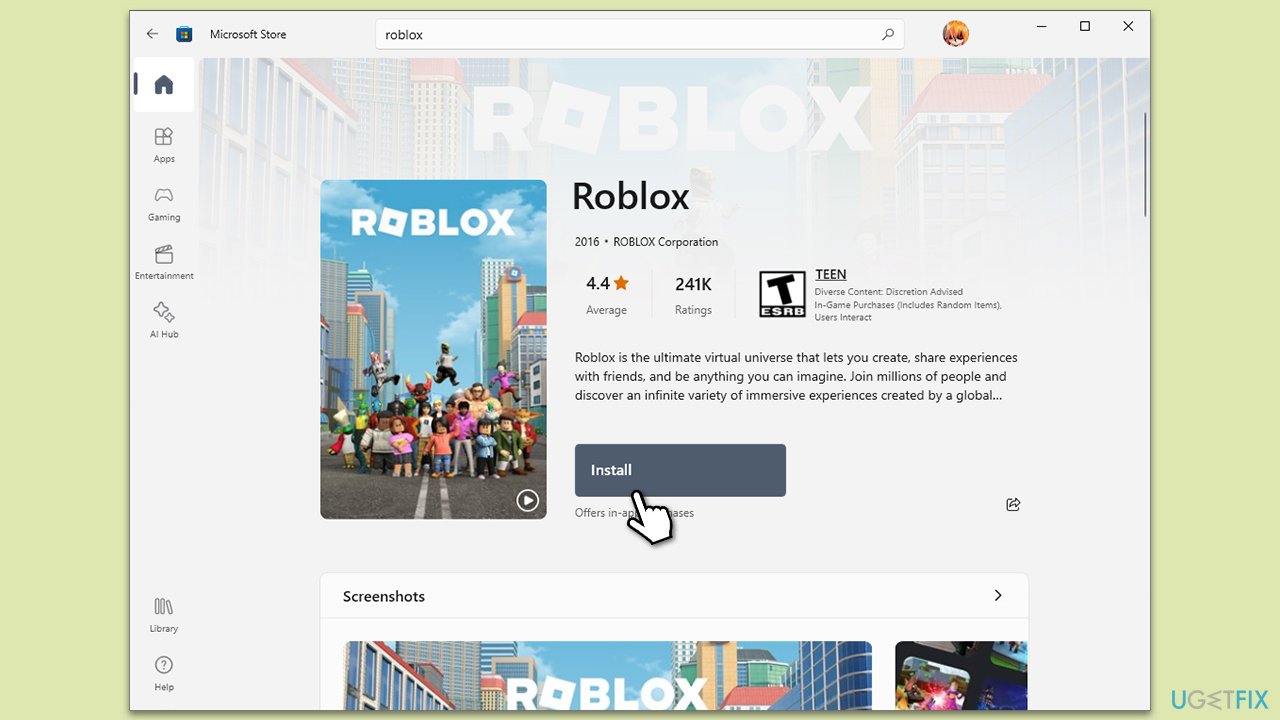
- Launch the Microsoft Store and install the game again.
Bottom line
To fix the 'Failed to create directory' error in Roblox, you can try adjusting permissions, disabling third-party security software, or adding a specific folder to the game-related folder location. If these solutions do not resolve the issue, consider using a powerful PC repair tool designed to fix various Windows problems.
Frequently asked questions
First, ensure that you have the necessary permissions for the Roblox installation folder and try running the application as an administrator. If that doesn't work, consider reinstalling Roblox to reset any corrupted files.
You can fix this error by checking your antivirus settings, as they may be blocking Roblox from creating necessary directories. Additionally, make sure your Windows 11 system has the latest updates installed.
Yes, you can try clearing the Roblox cache by deleting the contents of the 'Roblox' folder in the AppData directory, which may resolve the 'Failed to create directory' issue without a full reinstall.




Report an issue
What's wrong with this guide? We review every report and update or remove content.
Report received — thank you. We'll review and fix it.
You need a free account to submit a report.
Be the first to comment