How to fix
Roblox voice chat not working
on Windows
Resolve Roblox voice chat issues on Windows 10 and 11 quickly with expert-tested solutions. Fix it in minutes and enjoy seamless gaming!

What causes How to fix Roblox voice chat not working in Windows?
- Audio settings misconfiguration
- Incorrect audio devices selected
- Microphone permissions not granted
- Roblox client needs reinstallation
- System errors or corrupted files
Repairs Windows system files, removes malware, and restores a clean OS state — without reinstalling.
Hello. I tried to play Roblox today but the voice chat is not working. What could be the issue? Any tips would be appreciated.
Roblox is a popular online gaming platform where users can create, play, and share games. Its unique features, which include a large library of user-generated games, a robust creation system, and a strong community aspect, have led to its enormous popularity. Roblox, which has millions of active users, provides a diverse range of gaming experiences for players of all ages.
One notable feature of Roblox is its voice chat functionality, which allows players to communicate in real-time while playing. Voice chat improves the social experience, teamwork, and coordination among players, and is, therefore, an essential component of many Roblox games. Voice chat adds an immersive element to the gaming experience, whether it's strategizing in a cooperative mission or simply having fun conversations.
However, there are times when Roblox voice chat does not function properly on Windows systems. This problem can be particularly aggravating for users who rely on voice communication to interact with their friends or fellow players. The inability to use voice chat can interfere with gameplay, impede effective teamwork, and reduce overall enjoyment of the Roblox experience.
There are potential solutions to the voice chat problem in Roblox on Windows that users can investigate. Checking audio settings, ensuring the correct devices are selected, verifying microphone permissions, or reinstalling the Roblox client are examples of troubleshooting steps. It is important to note that specific troubleshooting instructions may differ depending on the individual's system configuration and the nature of the problem.
In this guide, you will find 5 steps that should help you fix Roblox voice chat not working in Windows. You can also try a system repair tool like [d1] that can fix most system errors, BSODs,[ref en-1] corrupted files, registry[ref en-2] issues, or clear cookies and cache.[ref en-3] Otherwise, follow the step-by-step instructions below.
Method 1. Restart your PC
- Restart Roblox and your computer.
- Unplug and reconnect your audio input and output devices.
- Close other apps running in parallel with Roblox that might be using your microphone or speaker.
- If you have multiple audio input and output devices, unplug all except the ones you plan to use for Roblox.
Method 2. Test the Microphone
- Go to Settings > System > Sound.
- Select the correct audio output device (if multiple are connected).
- Click on the device to reveal its settings.
- Click Test under Output settings to check if the primary output device produces sound.
- If the primary output device makes a sound, it is connected.
- Go back to the Sound settings page.
- Select the correct microphone.
- Click on the primary microphone device to access its settings.
- Click Start test under Input settings.
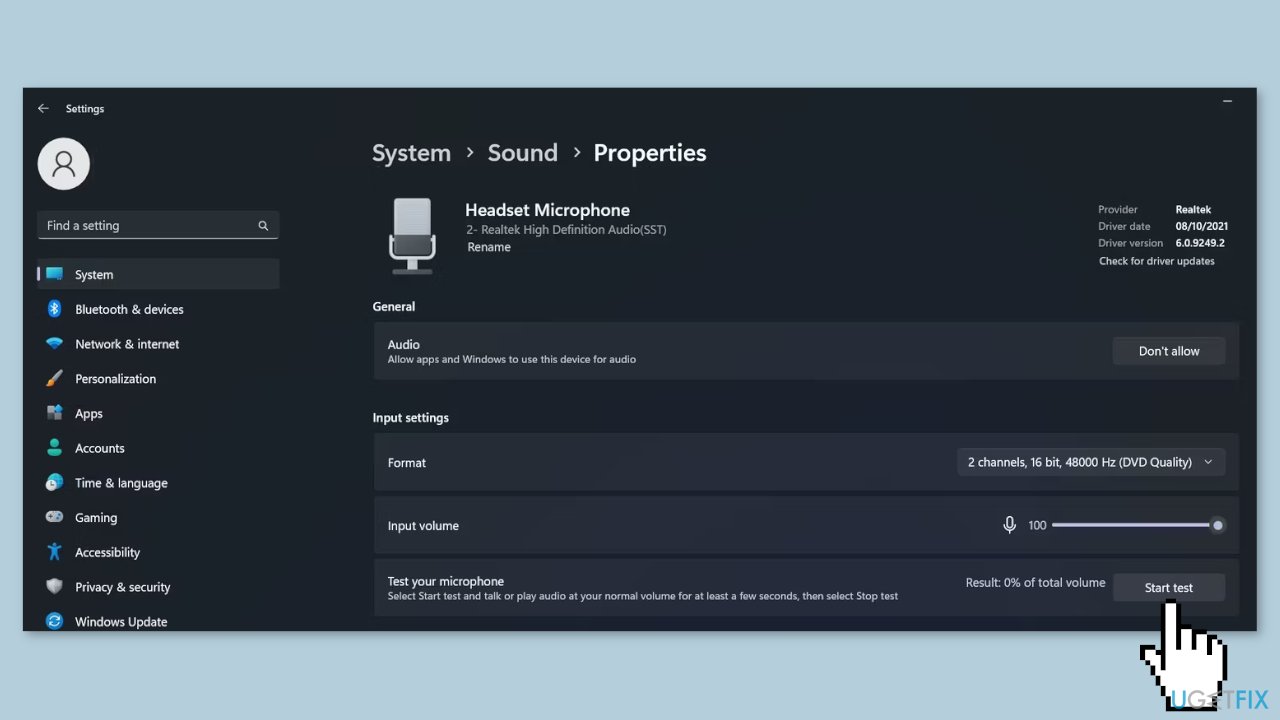
- Speak for a few seconds and then click the Stop test button.
- Check if there is any percentage of recorded volume next to Result.
- If there is a recorded volume percentage, your microphone is connected.
- Confirm that both audio devices are set as default.
- Click on More sound settings on the sound settings page.
- Go to the Playback tab.
- Right-click on your primary audio output device.
- Select Set as Default Device.
- Go to the Recording tab.
- Right-click on your primary audio input device.
- Select Set as Default Device.
Method 3. Enable Voice Chat
- Log in to your Roblox account.
- Click on the gear icon in the top-right corner.
- Select Settings.
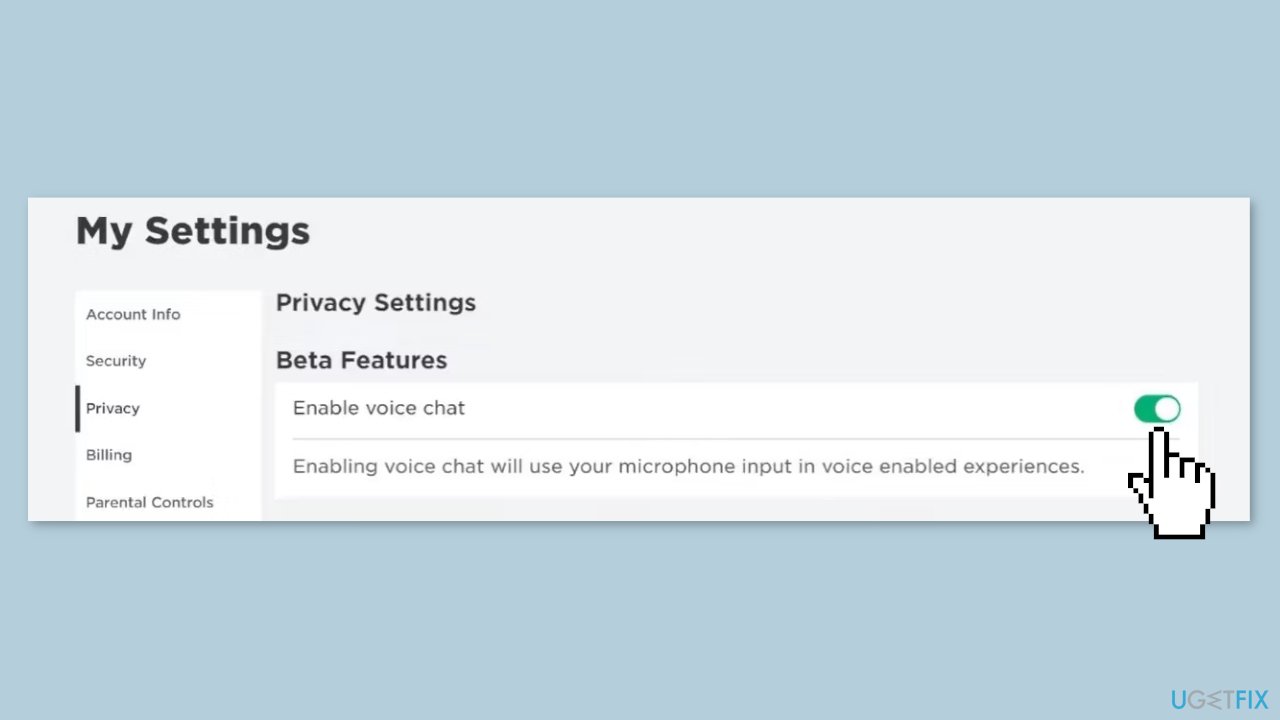
- Navigate to the Privacy tab.
- Check that the Enable voice chat toggle is turned on.
Method 4. Check Game Settings
- Launch the experience where you are unable to use voice chat.
- Click the Discover button in the top-left corner.
- Navigate to the Settings tab.
- Ensure the correct audio devices are selected next to the Input Device and Output Device fields.
- Check the Volume level and increase it if it is too low by clicking the plus icon.
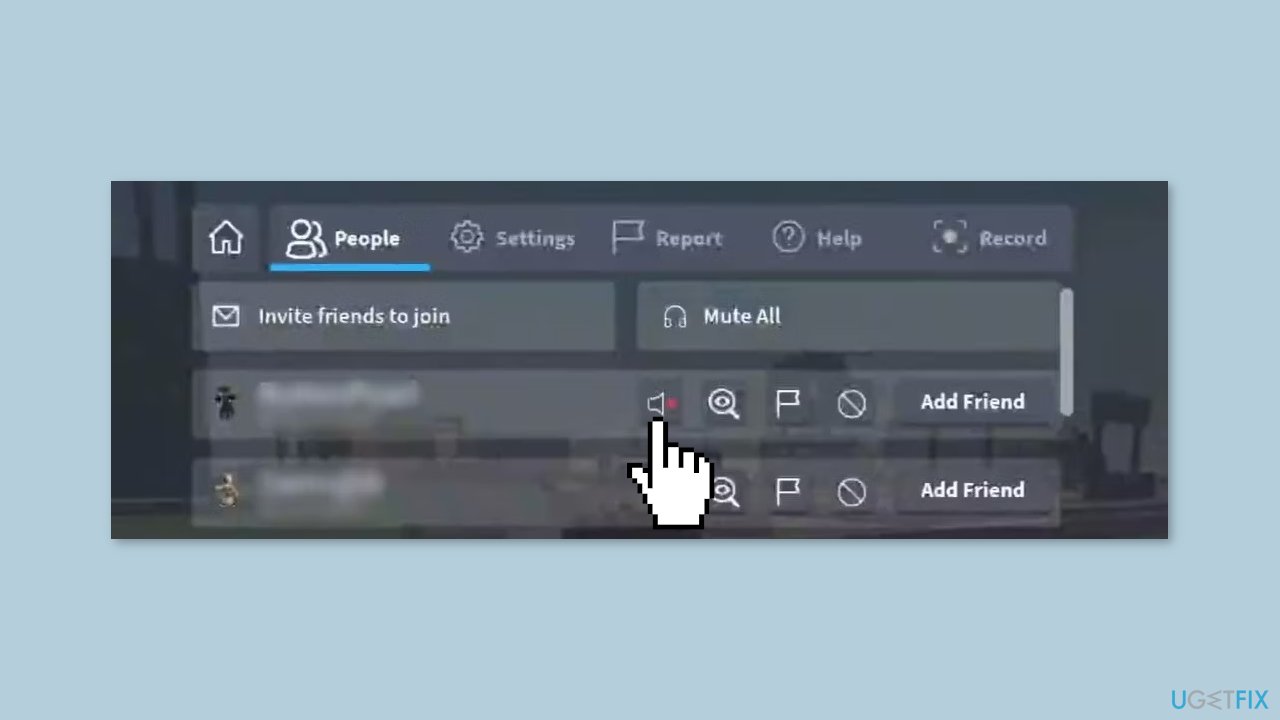
- Verify if you have mistakenly muted other players by going to the People tab.
- Locate the person whose voice you don't hear and check if they are muted.
- If they are muted, click the muted speaker icon once to unmute them.
- Return to your Roblox experience and look over your character's head.
- If you see a microphone with a slanted line over it, it means the microphone is muted.
- Click on the microphone icon once to unmute it.
Method 5. Switch Roblox Client
To play Roblox on Windows, you have two options: the Microsoft Store app or the Roblox launcher. If you are experiencing the issue on one client, try using the other client that you haven't tried yet. Switching clients can help determine if the problem lies with the specific client where the feature isn't working. If switching clients resolves the issue, it means the problem is with the other client. In such cases, uninstall the problematic client and then reinstall it to ensure a fresh installation.
Bottom line
To fix the Roblox voice chat issue on Windows, you can restart your PC, check audio settings, ensure the correct devices are selected, verify microphone permissions, or reinstall the Roblox client. If these steps do not resolve the problem, consider using a system repair tool to address potential system errors.
Frequently asked questions
Roblox voice chat may not work on Windows 10 due to incorrect audio settings or outdated drivers. Ensure your microphone is enabled and properly configured in both Windows settings and Roblox settings.
To enable voice chat for Roblox on Windows 11, go to the Roblox settings, ensure voice chat is turned on, and check that your microphone permissions are granted in Windows settings.
If your microphone is not recognized by Roblox on Windows, try updating your audio drivers and ensuring that Roblox has permission to access your microphone in the privacy settings.




Report an issue
What's wrong with this guide? We review every report and update or remove content.
Report received — thank you. We'll review and fix it.
You need a free account to submit a report.
Be the first to comment