How to fix
Rockstar Games Launcher not working
on Windows
Resolve Rockstar Games Launcher issues effortlessly on Windows 10 or 11 with our expert insights. Get it fixed in minutes, guaranteed!

What causes How to fix Rockstar Games Launcher not working in Windows?
- Software conflicts
- Outdated system components
- Network connectivity issues
- Antivirus or firewall interference
- Corrupted files
Repairs Windows system files, removes malware, and restores a clean OS state — without reinstalling.
Hello. Is there a way to fix the Rockstar Games Launcher in Windows when it is not working? Any suggestions would be appreciated.
The Rockstar Games Launcher is a piece of software created by Rockstar Games, a well-known video game publisher and developer. It acts as a command center for managing and launching Rockstar Games titles on Windows systems. The launcher gives users easy access to their game library, automatic updates, a digital storefront for purchasing games, and extras like cloud saves and social integration.
When the Rockstar Games Launcher fails on Windows, it can have a significant impact on users' gaming experience. The launcher may unexpectedly fail to launch or crash, preventing players from accessing their games or using the launcher's features. This issue can lead to frustration, wasted time, and a diminished ability to enjoy Rockstar Games titles. Users may be unable to access game updates, online features, or even play games they have purchased.
There are several possible solutions to the Rockstar Games Launcher not working in Windows problem. These steps may include verifying game files, running the launcher as an administrator, updating the launcher and game files, checking for compatibility settings, temporarily disabling antivirus or firewall software, and reinstalling the launcher. It's also a good idea to keep the Windows operating system and drivers[ref en-1] up to date. Seeking help from official support channels or the Rockstar Games community can provide additional assistance in resolving specific problems.
Users should keep in mind that technical difficulties can occur due to a variety of factors such as software conflicts, outdated system components, or network connectivity issues. This guide will walk you through 8 steps that should help you fix Rockstar Games Launcher not working.
You can also use a maintenance tool, such as [d1], to repair most system errors, BSODs,[ref en-2] corrupted files, and registry[ref en-3] problems. Otherwise, proceed with the instructions below.
Method 1. Run the Launcher in Compatibility Mode
- Right-click on the Rockstar Games Launcher shortcut icon on your desktop.
- Select Properties from the context menu.
- In the Properties window, navigate to the Compatibility tab.
- Check the option Run this program in compatibility mode for.
- Check the option Run this program as an administrator.
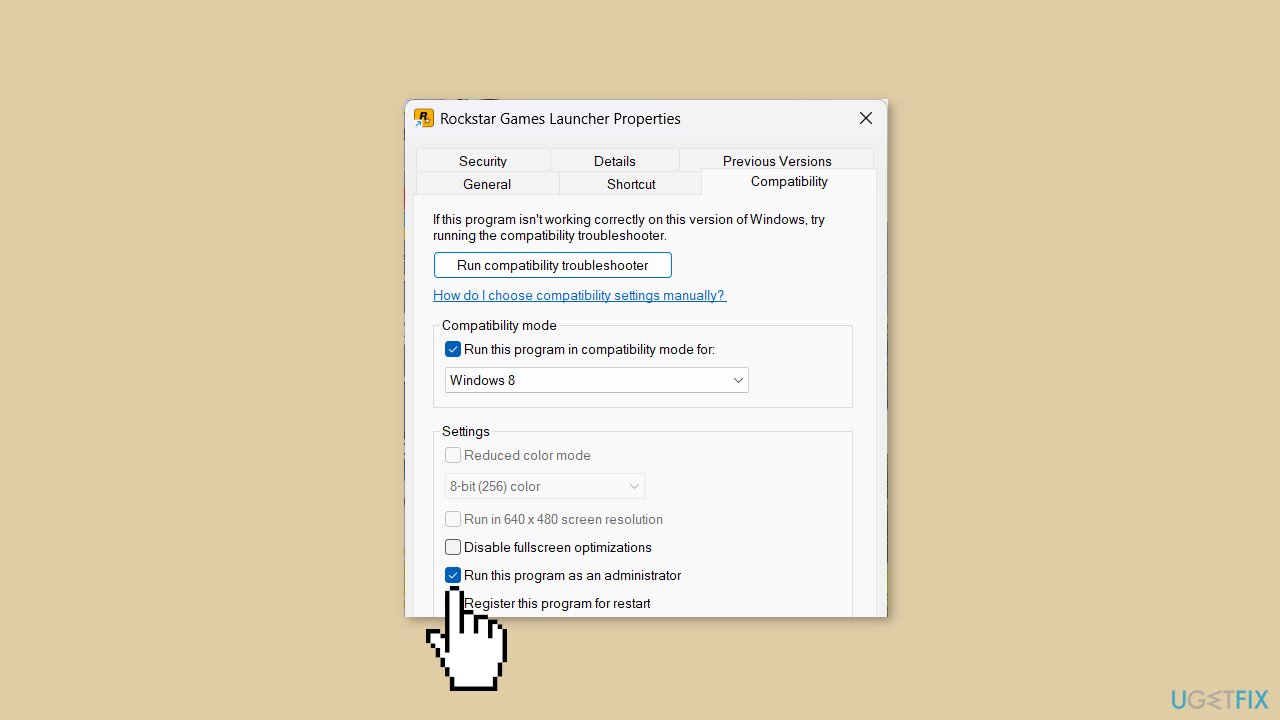
- Click Apply.
- Click OK.
- Open the Rockstar Games Launcher.
- The launcher should now load without any issues.
Method 2. Install Windows Updates
- Press the Windows key + I to open Windows Settings.
- Go to Windows Update.
- Click the Check for updates button.
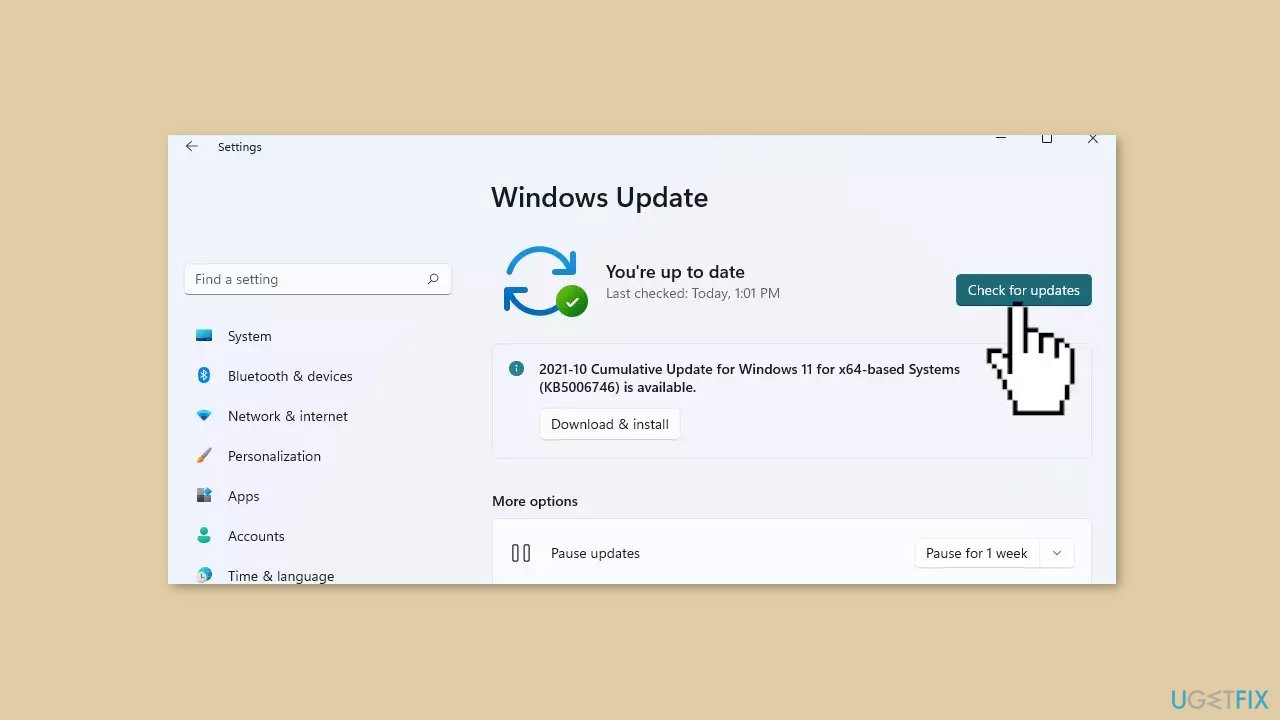
- Download and install any pending updates.
- Restart your computer.
- Check if the Rockstar Launcher is still not working.
Method 3. Update Display Driver
- Press the Windows key + X.
- Select Device Manager from the menu to open it.
- Expand the Display adapters section.
- Locate your graphics card.
- Right-click on the video card.
- Select Update driver.
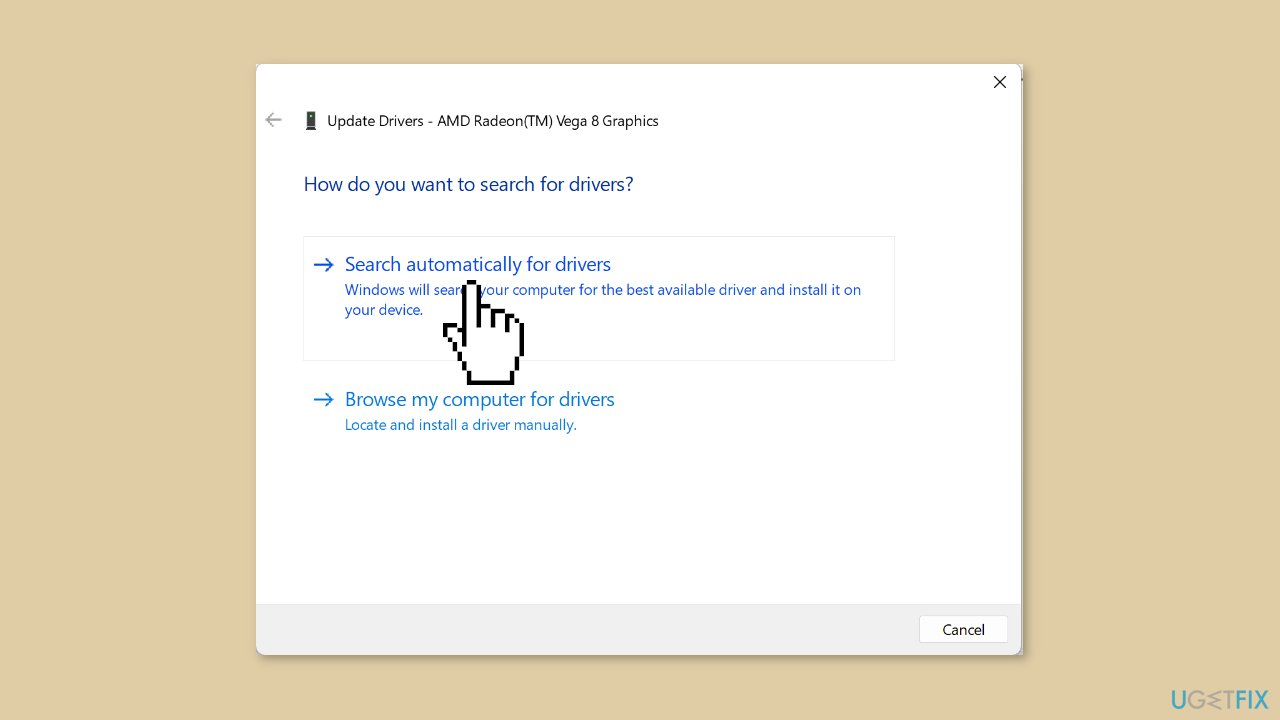
- Choose the option Search automatically for drivers.
- Follow the instructions provided to complete the update process.
You can also use a dedicated tool like [rev id="DriverFix"] that can find the best drivers for your device and install them automatically.
Method 4. Flush DNS Cache
- Press the Windows key.
- Type cmd in the search bar.
- Select Run as an administrator from the options.
- The Command Prompt window will open.
- Enter the following command: ipconfig /flushdns.
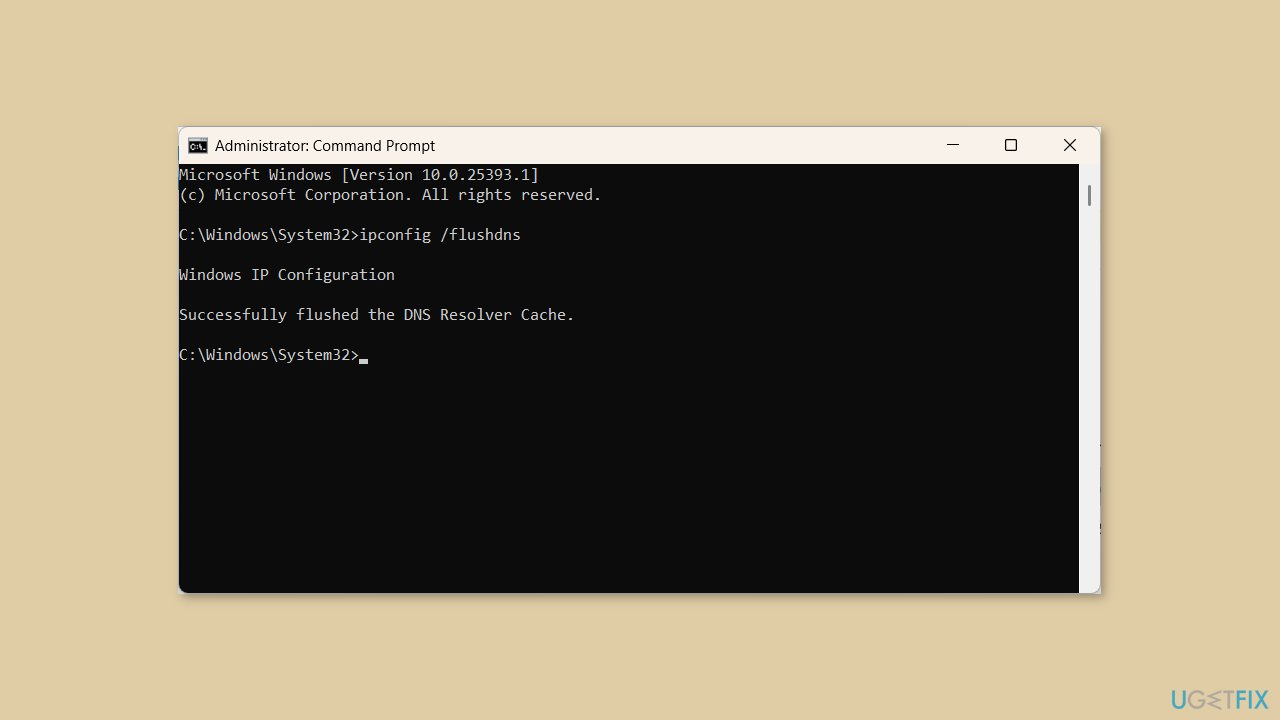
- Press Enter to execute the command and flush the DNS cache.
- Once the Command Prompt successfully flushes the DNS Resolver Cache, restart your PC.
Method 5. Disable Firewall and Antivirus Software
- Press the Windows key + R keys to open the Run dialog box.
- Type firewall.cpl in the box.
- Press Enter or click OK.
- The Windows Defender Firewall window will open.
- In the left sidebar, click on the Turn Windows Defender Firewall on or off hyperlink.
- Under the Public network settings and Private network settings sections, choose the option Turn off Windows Defender Firewall (not recommended).
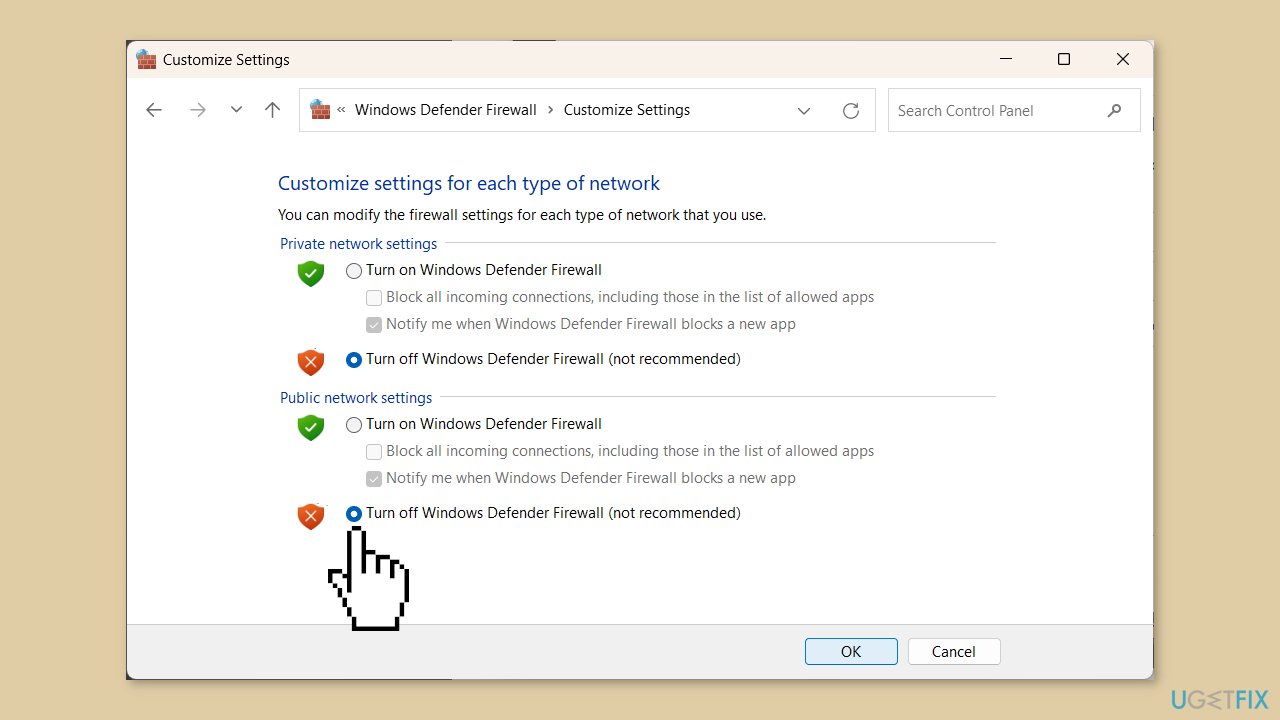
- Click OK to save the changes.
- Additionally, if you have antivirus software on your computer, make sure to disable or close the application.
Method 6. Clear Launcher and Social Club Cache
- Open File Explorer.
- Go to the Documents folder.
- Find the folder named Rockstar Games and open it.
- Select the Launcher and Social Club folders.
- Delete the selected folders.
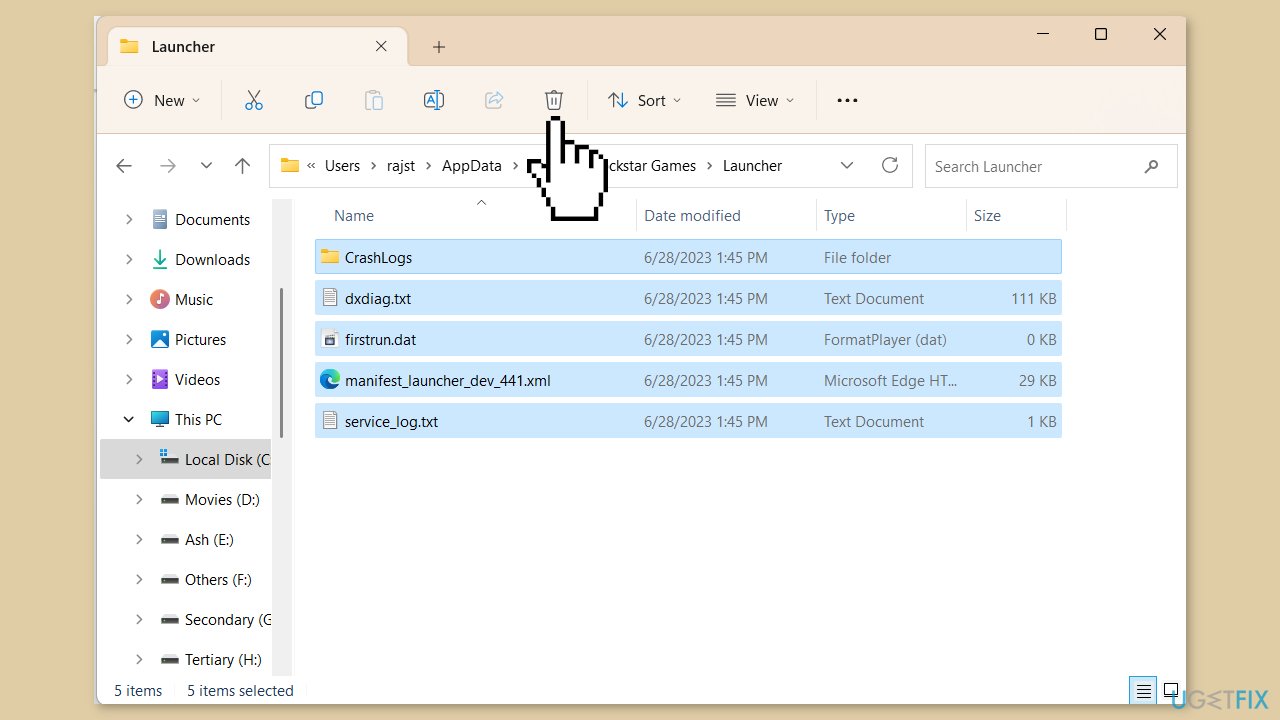
- Navigate to the following folder: C:\Users\Username\AppData\Local\Rockstar Games\Launcher (Replace Username with your actual username)
- Select all the content within the Launcher folder.
- Delete the selected content.
Method 7. Reinstall the Rockstar Games Launcher and Social Club Apps
- Press the Windows key + I to open the Settings app.
- Go to Apps.
- Select Installed apps on the right pane.
- From the list of programs, find the Rockstar Games Launcher app.
- Click the three dots next to it.
- Select Uninstall.
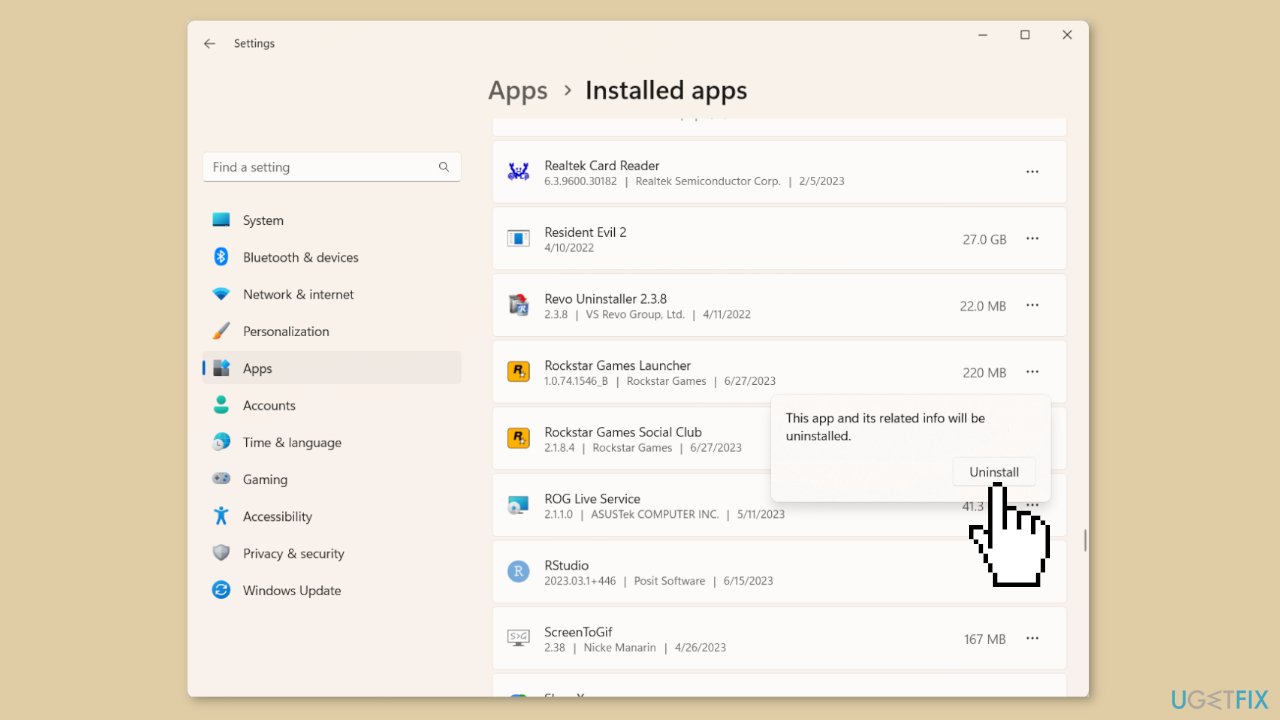
- Click Uninstall again to remove the app.
- Similarly, uninstall the Rockstar Games Social Club.
- After uninstalling both apps, restart your computer.
- Download the Rockstar Games Launcher app again from the official website.
- Reinstall the Rockstar Games Launcher app by following the installation instructions.
Method 8. Try Clean Boot
- Open the Search menu, type in system configuration, and press Enter.
- Under the Services tab, tick the Hide all Microsoft services box.
- Click on Disable all button.
- Head over to the Startup tab and click on Open Task Manager.
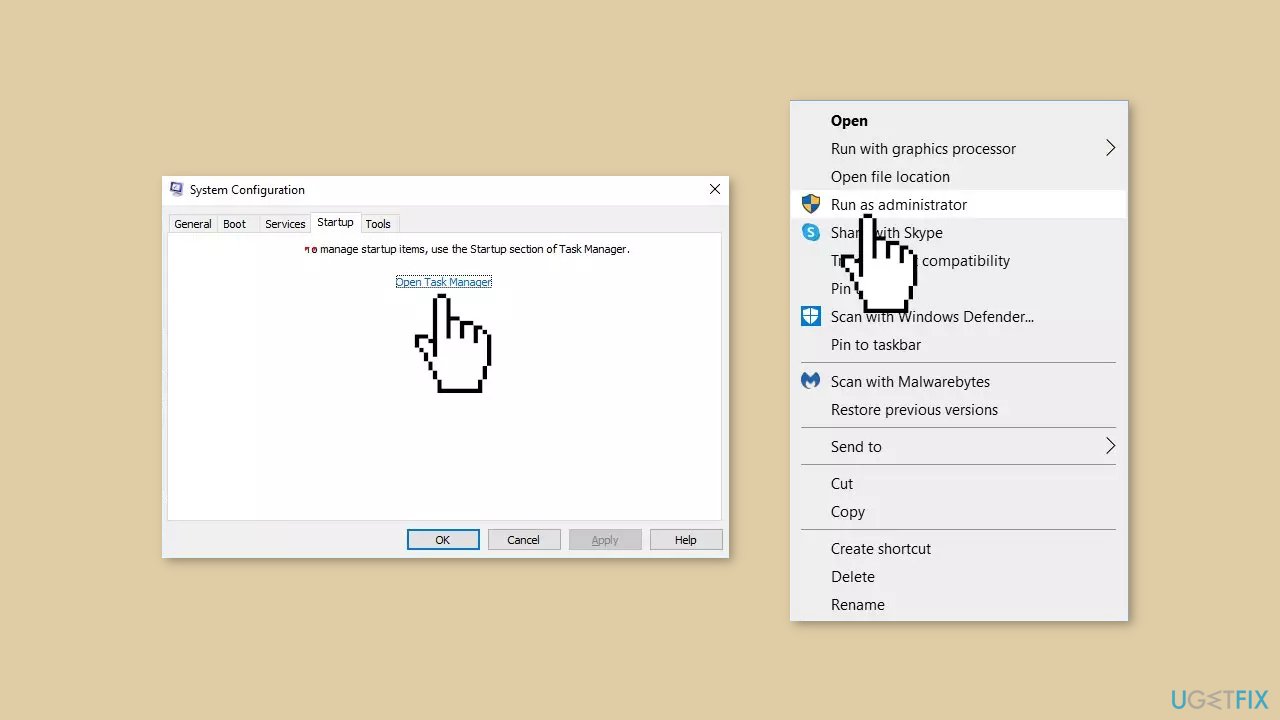
- Select a third-party program and click on Disable at the top.
- Repeat this step to disable all third-party apps and programs.
- Restart your PC to enter the clean boot state and see if the issue persists.
- If the issue disappeared in the clean boot state, then you can be certain that a third-party app is causing it.
- Go through all recently installed apps or programs and remove them one by one.
Bottom line
To fix the Rockstar Games Launcher not working in Windows, you can try running the launcher in compatibility mode, verifying game files, updating the launcher and game files, and temporarily disabling antivirus or firewall software. If these steps do not resolve the issue, consider seeking help from official support channels or the Rockstar Games community.
Frequently asked questions
Try running the launcher as an administrator by right-clicking the shortcut and selecting 'Run as administrator.' If that doesn't work, ensure that your Windows 10 is fully updated.
Make sure your graphics drivers are updated and check for any pending Windows 11 updates. Additionally, consider reinstalling the launcher to fix any corrupted files.
This issue can often be resolved by checking your internet connection and ensuring that your firewall or antivirus is not blocking the launcher. You may also try resetting your network settings in Windows.




Report an issue
What's wrong with this guide? We review every report and update or remove content.
Report received — thank you. We'll review and fix it.
You need a free account to submit a report.
Be the first to comment