How to fix
Rtf64x64.sys Blue Screen
on Windows
Resolve the rtf64x64.sys Blue Screen error on Windows 10 and 11 easily and effectively. Get back to smooth performance with expert-tested solutions.


What causes How to fix rtf64x64.sys Blue Screen in Windows?
- Issues with the computer's hardware
- Problems with the driver software
- Corrupted system files
- Viruses on the PC
Repairs Windows system files, removes malware, and restores a clean OS state — without reinstalling.
Hello. The other day I witnessed an rtf64x64.sys Blue Screen of Death error on my Windows computer. I was wondering if there is a way to fix the cause of it.
Encountering a BSOD (Blue Screen of Death) error[ref en-1] can be very daunting. It usually appears seemingly out of nowhere. All the work is gone if you have not previously saved it and a blue screen appears on your monitor with a message that does not seem to explain anything.
Another reason why Blue Screen errors should be feared is that they can be caused by issues with the computer's hardware. There is quite a big chance that you may have to bring your device to a repair shop to replace some parts. The error may also be caused by problems with the driver[ref en-2] software.
Recently, some users reported seeing the rtf64x64.sys Blue Screen in Windows. Rtf64x64.sys is a system file for the Realtek network driver that mainly handles ethernet port connection. Most people were able to fix the error by updating or reinstalling their network drivers. However, others sent their Windows laptops or PCs for hardware repairs and the issue still persists.
In this guide, you will find 7 steps that should help you fix the rtf64x64.sys Blue Screen in Windows. However, the troubleshooting process could take a while, so you can use a repair tool like [d1] that can fix various system errors (including BSODs), corrupted files, and registry[ref en-3] issues. Otherwise, you can start with the step-by-step instructions below.
Method 1. Check your PC for Viruses
- Launch Settings from the Start menu
- Navigate to Update & Security and choose Windows Security
- Tap on Virus & threat protection
- Click on the Scan options menu below Quick scan
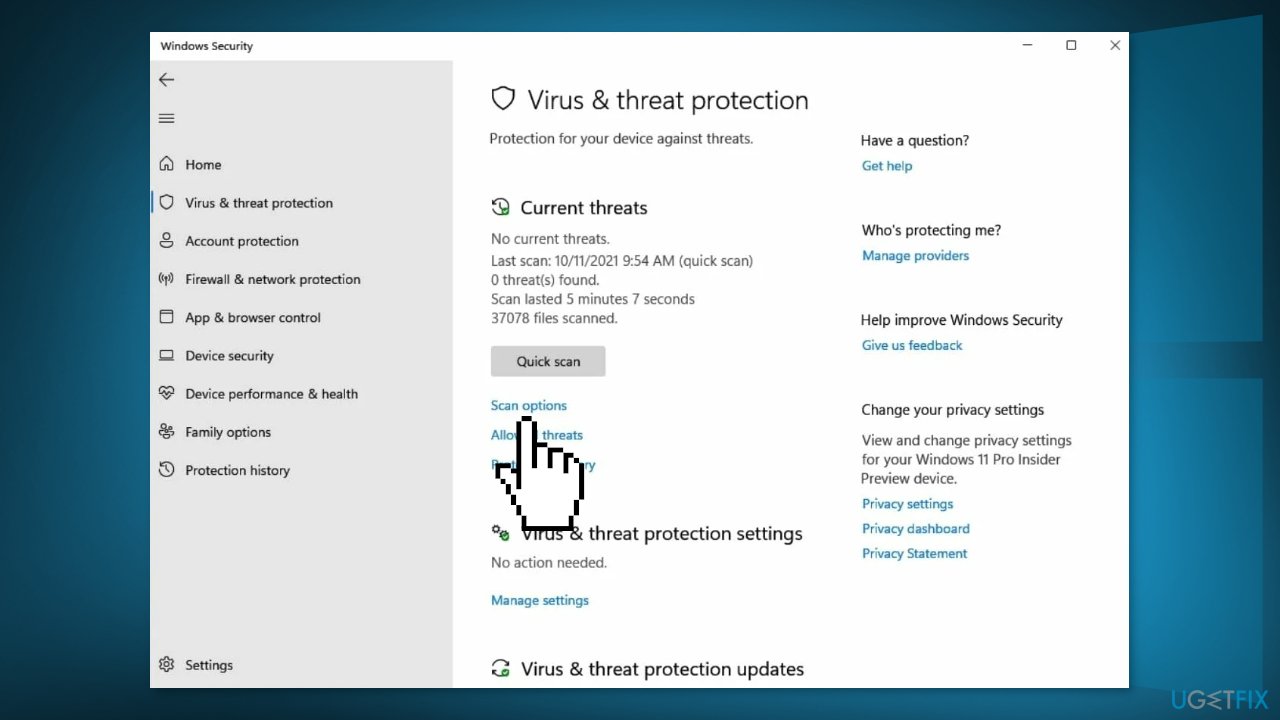
- Select Full scan and click on Scan now
Method 2. Fix Corrupted System Files
Use Command Prompt commands to repair system file corruption:
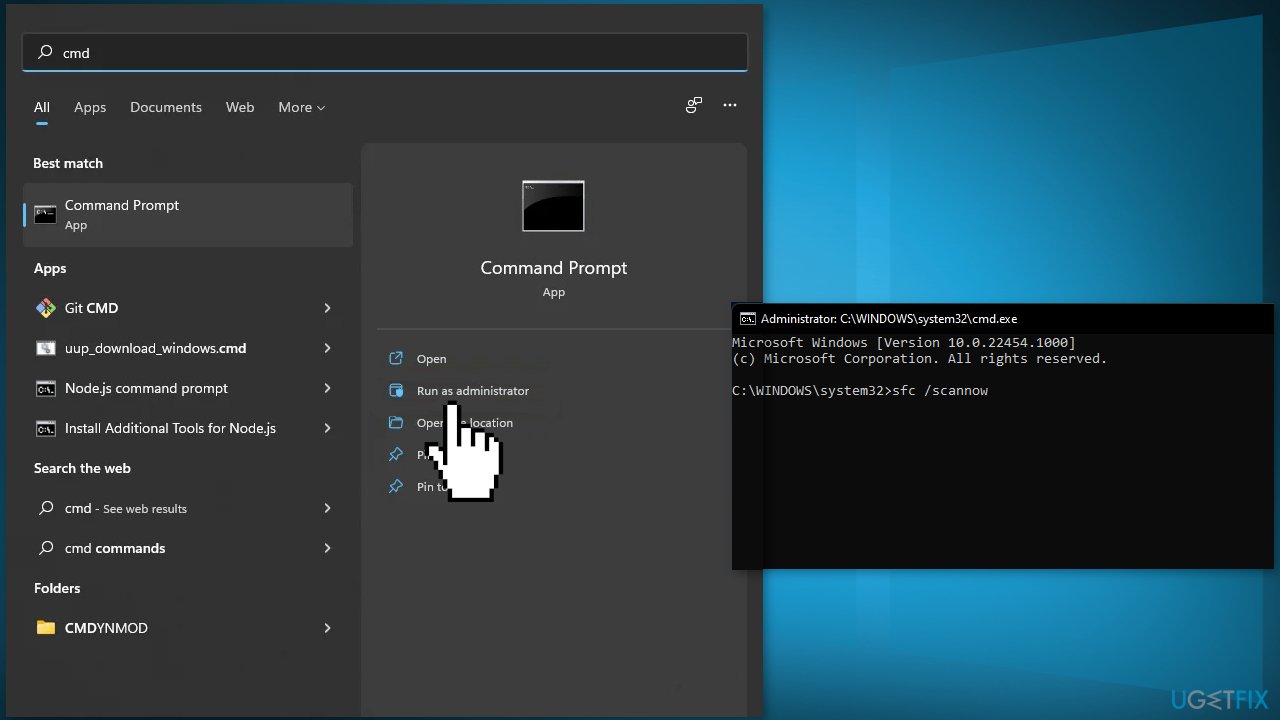
- Open Command Prompt as administrator
- Use the following command and press Enter:
sfc /scannow
- Reboot your system
- If SFC returned an error, then use the following command lines, pressing Enter after each:
DISM /Online /Cleanup-Image /CheckHealth
DISM /Online /Cleanup-Image /ScanHealth
DISM /Online /Cleanup-Image /RestoreHealth
Method 3. Update Network Drivers
- Access the Run box by pressing the Windows key + R
- Type devmgmt.msc and hit Enter
- Double-click on Network adapters
- Right-click your network driver and tap on the Update driver in the options
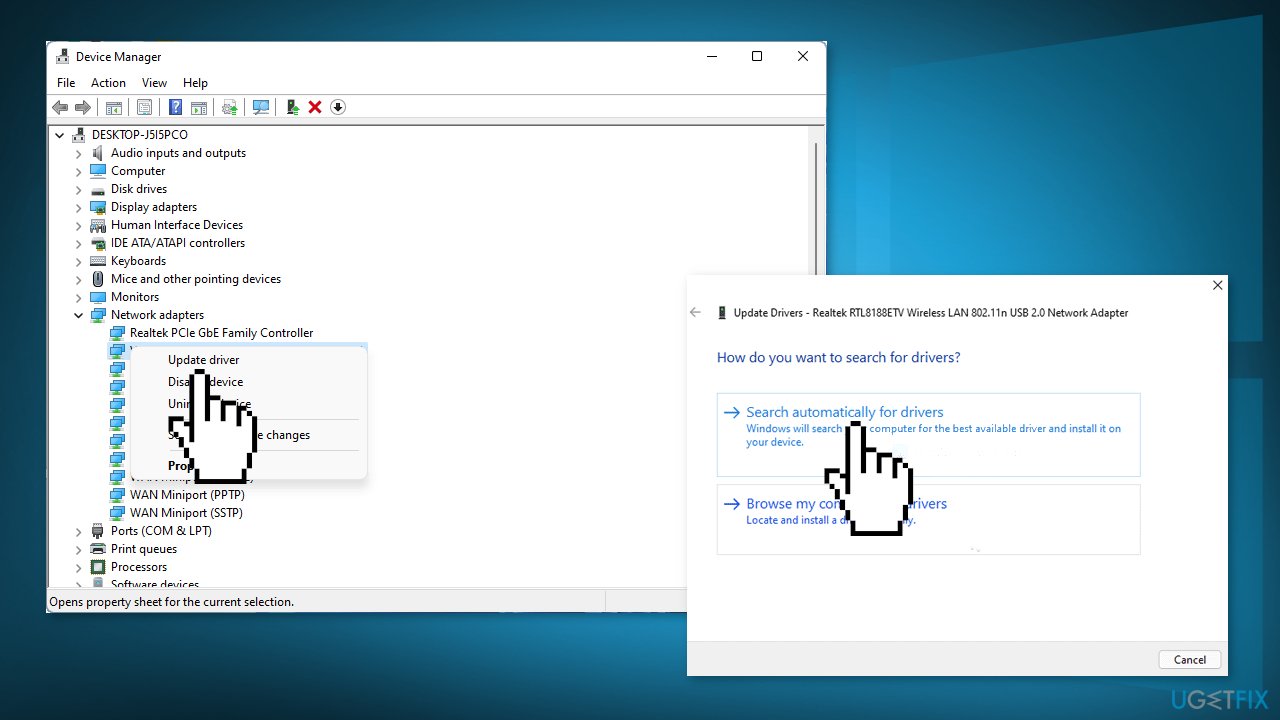
- Pick the Search automatically for drivers option
- You can also use a dedicated utility, like [rev id="DriverFix"], that can find the best drivers for your machine and install them automatically
Method 4. Reinstall Network Drivers
- Open the Device Manager as shown in the last method
- Right-click on the network driver
- Tap on Uninstall driver option
- Confirm Uninstall
- Restart your PC
Method 5. Run Windows Memory Diagnostic Tool
- Open the Run box using the Windows key + R
- Type mdsched.exe and press Enter
- Choose Restart now and check for problems in the new window
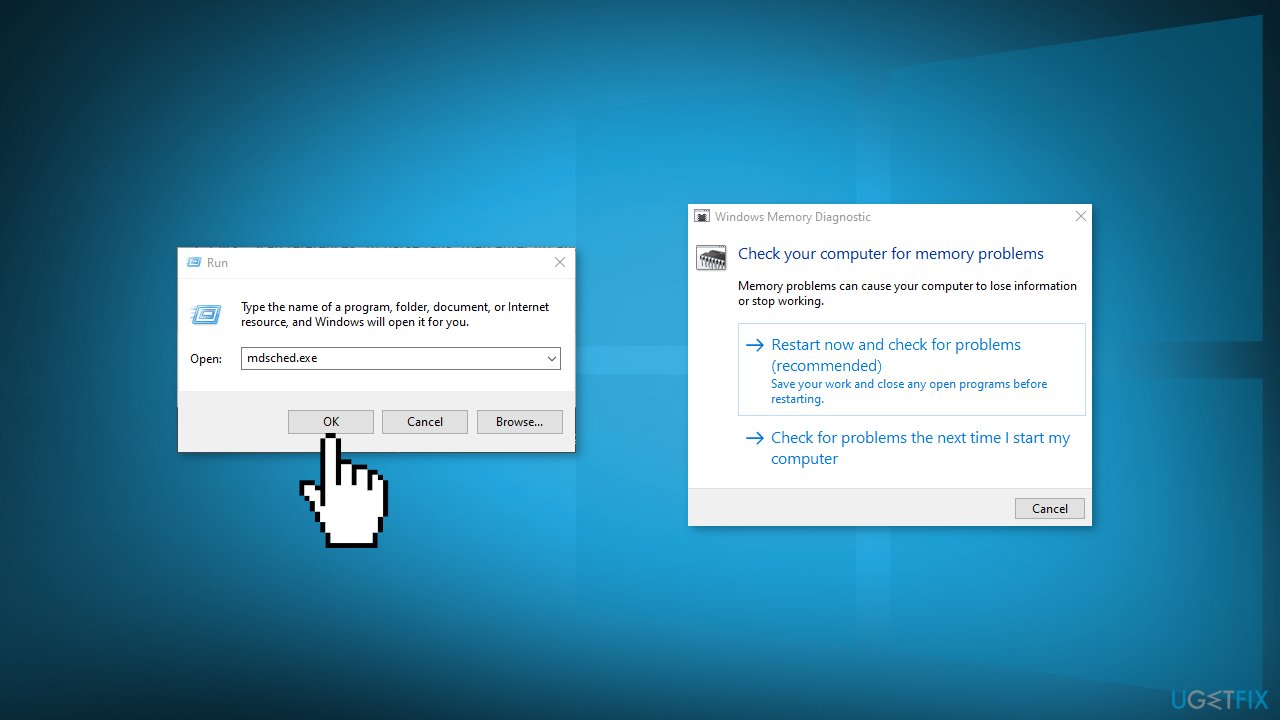
- It will ask you to restart your computer
- Follow the on-screen instructions
Method 6. Perform a System Restore
- Open Control panel from the Start menu
- Switch to larger icons from the view by menu in the top right
- Locate and choose Recovery from the list
- Tap on Open System Restore
- In the new window, click on Next and select a restore point before the BSOD started occurring
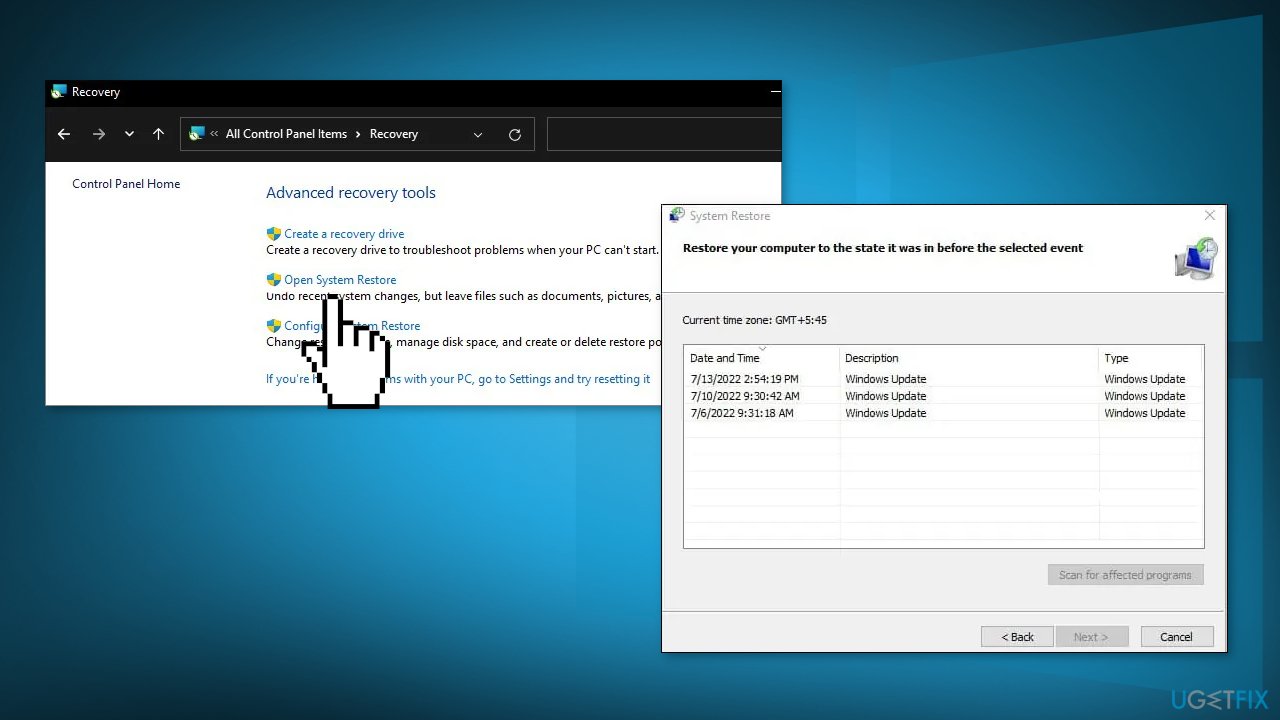
- Follow the on-screen instructions to finish the process
Method 7. Repair Install Windows
- Visit the official Microsoft website to download Windows 11 Installation Media
- Run the Media Creation Tool and select Create Installation Media for another PC
- Select your USB drive
- Let the Process complete of writing the Installation files to the USB drive
- Click Finish
- On the PC you wish to upgrade, Press Windows + E to open the File Explorer
- Open the Removable drive and click Setup.exe
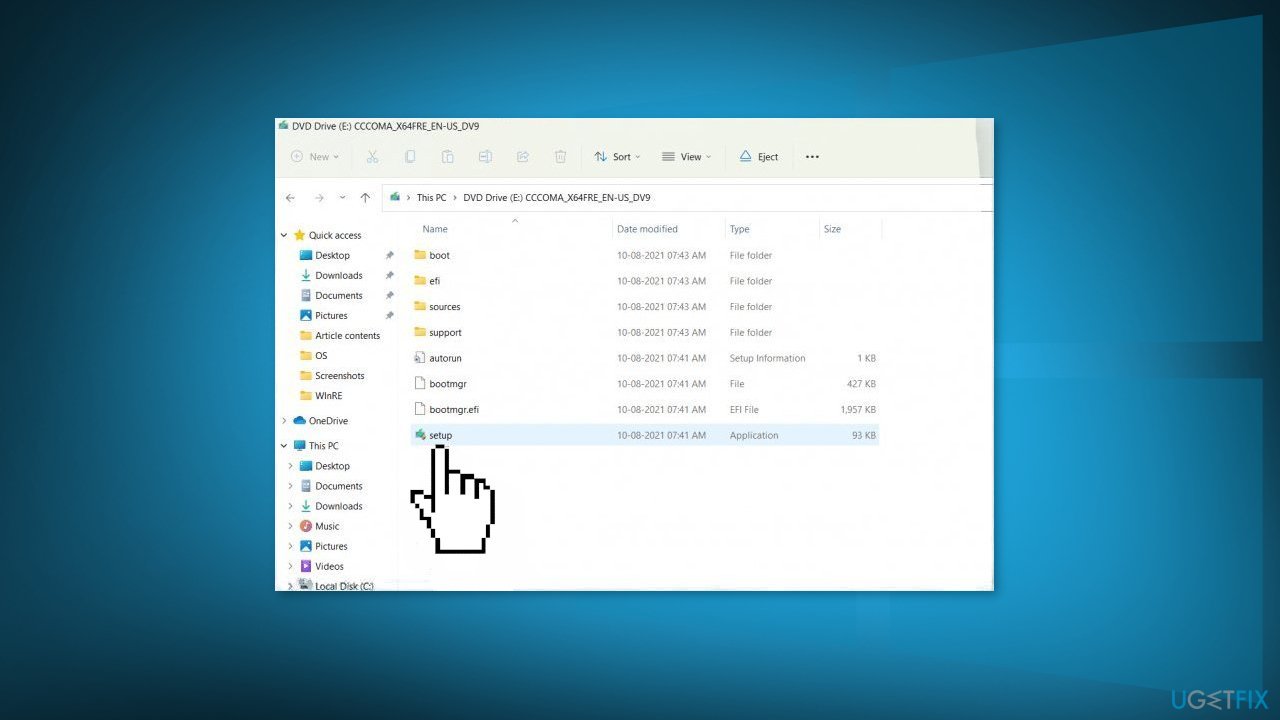
- Accept the license terms on the next screen
- Confirm the Upgrade options – Files, apps and Settings are kept
- Click Install, and the upgrade should start
Bottom line
To fix the rtf64x64.sys Blue Screen error, you can check your PC for viruses, repair corrupted system files using Command Prompt, and update or reinstall your network drivers. If these steps do not resolve the issue, consider using a repair tool or seeking professional hardware repairs.
Frequently asked questions
The rtf64x64.sys Blue Screen error in Windows 10 is typically caused by corrupted or outdated drivers, particularly those related to the hardware or software that involves the RTF (Rich Text Format) functionality.
To resolve the rtf64x64.sys Blue Screen error on Windows 11, you can try updating your drivers through Device Manager or performing a system restore to revert to a previous state.
To prevent the rtf64x64.sys Blue Screen error from recurring on Windows, ensure that all your system drivers are up to date and regularly run maintenance checks like Disk Cleanup and System File Checker.




Report an issue
What's wrong with this guide? We review every report and update or remove content.
Report received — thank you. We'll review and fix it.
You need a free account to submit a report.
Be the first to comment