
How to fix the rtwlane.sys blue screen error in Windows 11 and 10

Prefer to fix it yourself? The manual steps follow.
- 7methods
- 10 to 60 minutes
- Easy to intermediate
Applies to Windows 11 and Windows 10 PCs and laptops with a built-in Realtek PCIe Wi-Fi card, such as the Realtek RTL8723AE or the Realtek 8852CE
7 methods in this guide
Hello. My Windows operating system keeps crashing and displays the rtwlane.sys Blue Screen error at least once a day. I cannot seem to find the solution, so I would appreciate any tips on how to fix it.
rtwlane.sys is the driver of a Realtek PCI Express Wi-Fi card. When the stop screen says What failed: rtwlane.sys (or rtwlane01, rtwlane602, rtwlane613 and so on), that Wi-Fi driver crashed Windows. Install the Wi-Fi driver from your PC maker first; if the crashes began after a driver update, roll it back.
rtwlane.sys is your Realtek Wi-Fi card's driver, and the stop screen means that driver crashed. Download the Wi-Fi (WLAN) driver for your exact model from your PC maker's support page and install it (Fix 1). If the crashes started right after a driver update, roll that driver back instead (Fix 2). If every driver version crashes, the Wi-Fi card itself may be faulty.
| Error | A stop screen (blue, or black on Windows 11 24H2 and later) with What failed: rtwlane.sys, most often with DRIVER_IRQL_NOT_LESS_OR_EQUAL, PAGE_FAULT_IN_NONPAGED_AREA or SYSTEM_THREAD_EXCEPTION_NOT_HANDLED. |
|---|---|
| Where it appears | At start, while Windows connects to Wi-Fi, or at random once or twice a day while the PC runs. |
| Main cause | A faulty or mismatched Realtek Wi-Fi driver: too old, a generic one from another source, or a new release with a bug. |
| Fastest fix | The WLAN driver for your model from your PC maker (Fix 1), or a roll back when the crashes began after an update (Fix 2). |
| Also written as | rtwlane, rtwlane sys, rtwlane01.sys, rtwlane02.sys, rtwlane6.sys, rtwlane601.sys, rtwlane602.sys, rtwlane613.sys, rtwlane711.sys, rtwlane.sys failed. |
| Who makes it | Realtek. Windows calls the package Realtek PCI-E Wireless LAN NIC NDIS Driver. PC makers such as Dell, HP and MSI ship it in their own packages. It is not a Windows file. |
| Affects | Windows 11 and Windows 10 (earlier also Windows 8.1). Windows 10 left support on 14 October 2025. |
| Vendor status | No public Realtek or Microsoft notice. On Microsoft Q&A, a Dell Inspiron 14 7445 with a Realtek 8852CE card crashed on both Dell driver 6001.16.162.1 (A07) and 6001.16.160.200 (A06). |
| Where the cause is logged | C:\Windows\Minidump, one .dmp file per crash, and Event Viewer > Windows Logs > System around the crash time. |
| Time to fix | 10 to 20 minutes for a driver fix, up to an hour if Windows no longer starts. |
Facts checked on 16 October 2026. Steps written for Windows 11 (25H2 and 26H2) and Windows 10 22H2.
What rtwlane.sys is and why it stops Windows
rtwlane.sys is the kernel driver of Realtek PCI Express Wi-Fi cards, the small wireless card inside many laptops and some desktop boards. It lives in C:\Windows\System32\drivers. In a crash dump discussed on Microsoft Q&A, the debugger named it as the cause and the answer identified it as the Realtek PCI-E Wireless LAN NIC NDIS Driver of an RTL8723AE card.
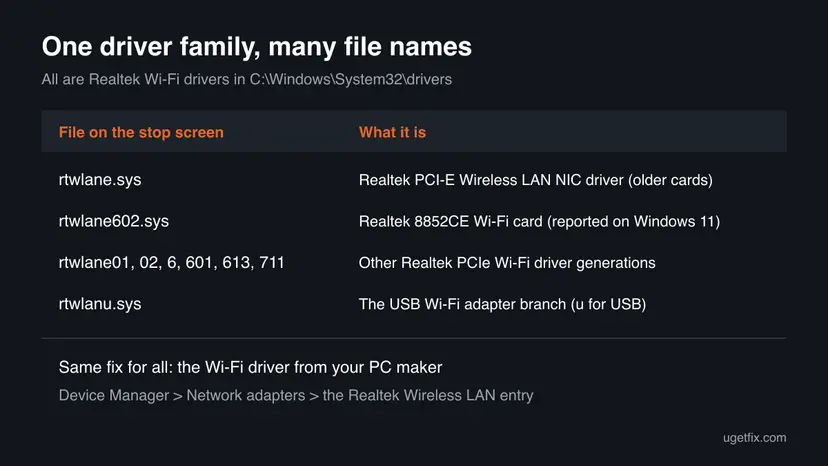
Newer Realtek cards use the same name with a number: rtwlane602.sys, for example, was the driver of a Realtek 8852CE card in a Windows 11 crash report. Because the driver runs inside the Windows kernel, Windows cannot recover from its mistakes. It stops the PC and prints the driver's name under What failed.
| What you see | What it means |
|---|---|
| What failed: rtwlane.sys (or rtwlane602.sys, rtwlane613.sys and so on) | The Realtek Wi-Fi driver was running when Windows stopped. The number only marks the driver generation. |
| Stop code: DRIVER_IRQL_NOT_LESS_OR_EQUAL (0xD1) | Microsoft: a kernel-mode driver tried to reach pageable or invalid memory at too high a priority level. It is usually caused by drivers using improper memory addresses. |
| PAGE_FAULT_IN_NONPAGED_AREA (0x50) | The driver read memory that does not exist. The 2015 rtwlane.sys dump on Microsoft Q&A showed this code. |
| SYSTEM_THREAD_EXCEPTION_NOT_HANDLED (0x7E) | A system thread hit an error nobody caught. In the rtwlane602.sys dumps it was an attempt to read address zero inside the driver. |
| rtwlane.sys failed to load, The file rtwlane.sys is missing or corrupt | Older boot messages: Windows could not load the driver file at start. Fix 5 gets the PC started, then Fix 1 replaces the file. |
The genuine rtwlane.sys is a signed Realtek driver in C:\Windows\System32\drivers. Deleting it only takes your Wi-Fi away. Never download the .sys file alone from a DLL or driver site: get the full driver package for your model.
Why rtwlane.sys crashes: the causes, most common first
Microsoft's advice for a stop screen that names a driver is short: disable that driver or check with its maker for an update. The crash reports on Microsoft Q&A fit that. In one, an outdated 2013 Realtek driver crashed a laptop and a current one ended it; in another, a brand new laptop crashed on both of its maker's newest drivers.
| How often | Cause | Sign | Fix |
|---|---|---|---|
| Most often | An old Wi-Fi driver, or a generic one that does not match your PC | Driver Date on the Driver tab is years old, or the driver came from a download site | Fix 1 |
| Often | A new Wi-Fi driver release with a bug | The crashes began right after Windows Update or the maker's tool installed a driver | Fix 2 |
| Less often | Old BIOS or chipset drivers the Wi-Fi card depends on | Your PC maker lists a newer BIOS or chipset package | Fix 3 |
| Less often | A faulty Wi-Fi card | Every driver version crashes, even after a reset of Windows | Fix 4 |
| Rarely | Defective memory (RAM) | Many different stop codes and files, not only rtwlane.sys | Fix 6 |
| Rarely | Damaged Windows files or file system | SFC or chkdsk reports errors it cannot repair | Fix 7 |
The crash can come at any moment while the Wi-Fi driver is loaded. Save open documents often while you work through the fixes, and keep an Ethernet cable or a phone hotspot ready in case Wi-Fi is off for a while.
Find your Realtek Wi-Fi card and its driver version
The card's exact name and the driver version decide which fix to use. These steps show both, and the crash dumps confirm that rtwlane.sys is really the culprit.
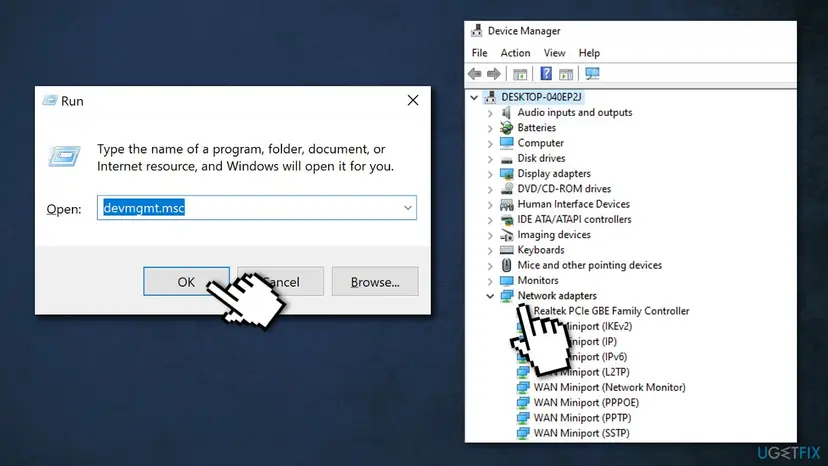
- Right-click Start and select Device Manager.
- Expand Network adapters and find the Realtek entry with Wireless LAN or Wi-Fi in its name, for example Realtek RTL8852CE WiFi 6E PCI-E NIC. The Realtek PCIe GBE Family Controller is the cable network card, not the Wi-Fi card.
- Right-click the Wi-Fi entry, select Properties and open the Driver tab. Note Driver Date and Driver Version.
- To see which rtwlane file your card uses, right-click Start, select Terminal (Admin) (on Windows 10: Windows PowerShell (Admin)) and run:
driverquery /v | findstr /i rtwlan - Open
C:\Windows\Minidump. Windows writes one small dump per crash there, named by date. - Install Microsoft's debugger with
winget install Microsoft.WinDbg, open the newest.dmpfile as administrator, run!analyze -vand read IMAGE_NAME. A name that starts withrtwlaneconfirms the Wi-Fi driver.
How to fix the rtwlane.sys blue screen
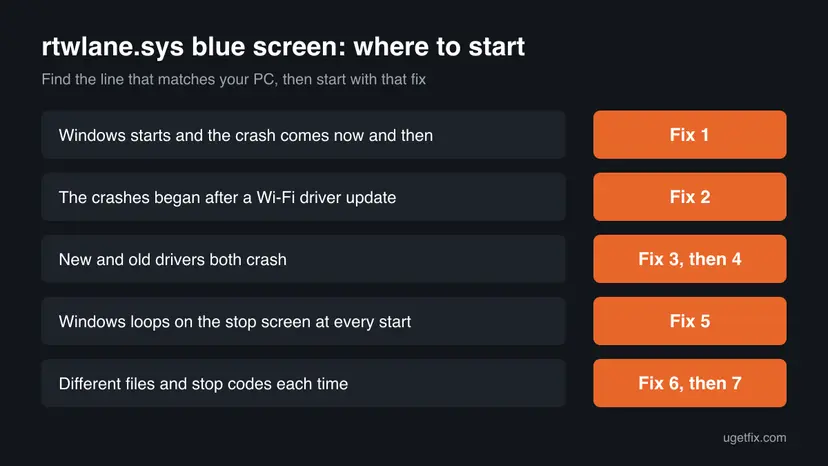
Most readers fix it with Fix 1 or Fix 2, depending on whether the crashes began after a driver update. Fix 3 brings the rest of the laptop's firmware up to date. Fix 4 is for a Wi-Fi card that crashes with every driver, Fix 5 is for PCs that no longer start, and Fixes 6 and 7 rule out memory and Windows itself.
| What you see or what your PC has | Start with | Then |
|---|---|---|
| Windows starts and the crash comes now and then | Fix 1 | Fix 2 |
| The crashes began right after a Wi-Fi driver update | Fix 2 | Fix 3 |
| The driver came from a download site or a driver updater tool | Fix 1 | Fix 3 |
| New and old drivers both crash | Fix 3 | Fix 4 |
| Windows loops on the stop screen at every start | Fix 5 | Fix 4 |
| Different files and stop codes each time, not only rtwlane.sys | Fix 6 | Fix 7 |
Fix 1. Install the Wi-Fi driver for your model from your PC maker
10 to 15 minutesLow riskWindows starts, and the Driver Date is old or you do not know where the driver came from.
The crash lives in the driver, so a different driver build is the direct repair. In the 2015 Microsoft Q&A case, the dump showed a 2013 rtwlane.sys and the answer was to update the Realtek driver from the laptop maker's support page; the owner reported that a current driver for the RTL8723AE card ended the crashes.
- Find your exact model: open Settings > System > About, or read the label under the laptop.
- Open your PC maker's support page (Dell, HP, Lenovo, Acer, ASUS, MSI and so on), enter the model or service tag and open Drivers.
- Look under Network, Wireless or WLAN for the Realtek Wi-Fi driver. Compare its version with the one on your Driver tab.
- Download it, run the setup and restart the PC.
- If your maker has nothing newer, open Settings > Windows Update > Advanced options > Optional updates (on Windows 10: Settings > Update & Security > Windows Update > View optional updates).
- Open Driver updates and install a Realtek network entry if one is listed.
- Check the Driver tab again and use the PC normally for a day or two.
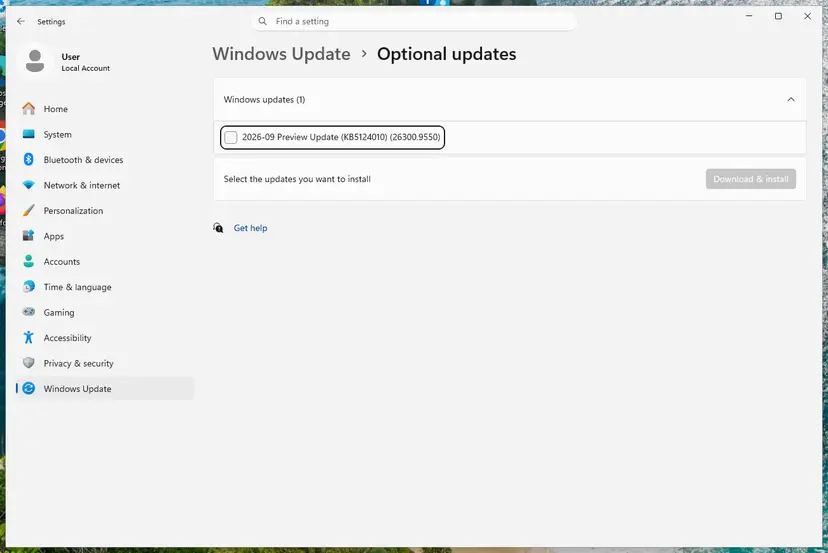
Every way to update, roll back or reinstall a driver, with screenshots: Update, roll back or reinstall a driver
Realtek builds one Wi-Fi chip into many PCs, and a package made for another model can bring back the crash. Use your PC maker's page or Windows Update only. A Volunteer Moderator on Microsoft Q&A gave the same advice: update from the maker's support page, not from other sources.
It worked if: Driver Version shows the new number, Wi-Fi connects, and no new file appears in C:\Windows\Minidump over the next days.
If not: If the crashes started after this or another driver update, go back to the previous version with Fix 2.
Fix 2. Roll back the Realtek Wi-Fi driver to the version that worked
10 minutesLow riskThe crashes began right after Windows Update or your PC maker's tool installed a new Wi-Fi driver.
Windows keeps the previous driver after an update. In the Windows 11 report on Microsoft Q&A, the Dell owner rolled the Realtek 8852CE driver back one version and wrote that the crashes became less frequent. A roll back is the quickest way to test whether the new release is the problem.
- Right-click Start and select Device Manager.
- Expand Network adapters, right-click the Realtek Wi-Fi entry and select Properties.
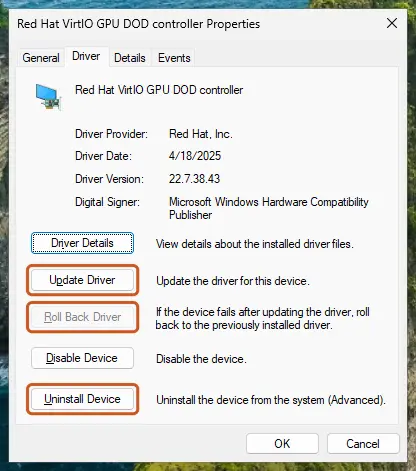
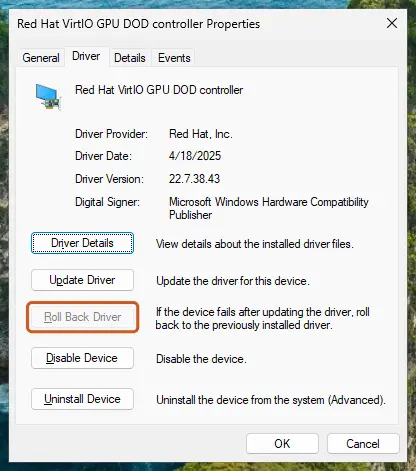
- Open the Driver tab and select Roll Back Driver.
- Choose a reason, select Yes and restart the PC.
- If Roll Back Driver is greyed out, select Uninstall Device and tick Attempt to remove the driver for this device (on Windows 10: Delete the driver software for this device).
- Restart and install the older package from your PC maker's driver page.
Press Win + R, type sysdm.cpl, open Hardware > Device Installation Settings and choose No (your device might not work as expected). This stops all automatic driver downloads, so set it back to Yes once your PC maker offers a fixed driver.
It worked if: Driver Version shows the older number and the stop screen does not return.
If not: If the older driver also crashes, the driver alone is not the answer: update the rest of the PC with Fix 3.
Fix 3. Update the BIOS and chipset drivers from your PC maker
20 to 30 minutesRead the warningBoth the newest and the older Wi-Fi drivers crash, or your maker lists a newer BIOS or chipset package.
The Wi-Fi card talks to Windows through the PCI Express bus, which the BIOS and the chipset drivers set up. The volunteer advice in the Dell 8852CE thread was to update the BIOS and all drivers from the maker's support page, then load the BIOS defaults.
Plug the laptop into power and close all apps. A power cut during a BIOS update can leave the PC unable to start. If BitLocker is on, have your recovery key at hand, since some PCs ask for it after a BIOS update.
- On your maker's driver page, open the BIOS or BIOS/Firmware section and compare its version with yours. Yours is in System Information: press Win + R, type
msinfo32and read BIOS Version/Date. - If a newer BIOS exists, download it and run it as the maker describes, on mains power.
- Install the newer Chipset package from the same page, then restart.
- Open the BIOS setup (on most laptops F2 at power on), choose Load Defaults or Load Optimized Defaults, save and exit.
- In Windows, set Settings > System > Power & battery > Power mode to Balanced and use the PC for a day.
It worked if: BIOS Version/Date shows the new version, Wi-Fi works and the stop screen does not return.
If not: If the crash continues with current firmware and drivers, the card itself is suspect: go to Fix 4.
Fix 4. Turn the Wi-Fi card off to prove it, then repair or replace it
5 minutes, plus repair timeLow riskEvery driver version crashes, or you need a stable PC today while you wait for a fix.
Microsoft's advice for a driver named on the stop screen includes disabling that driver. If the card is off, rtwlane.sys never loads, so it cannot crash. If the crashes stop, the card or its driver is proven to be the cause; the Q&A answer for the new Dell laptop was to ask the maker for a repair, because replacing a driver cannot fix a hardware fault.
- Connect an Ethernet cable, a USB Wi-Fi adapter or your phone by USB tethering so you stay online.
- Open Device Manager, expand Network adapters, right-click the Realtek Wi-Fi entry and select Disable device, then Yes.
- Use the PC for a few days and watch for new files in
C:\Windows\Minidump. - If the crashes stopped, contact your PC maker's support with the dumps and ask about a repair or a replacement card under warranty.
- Once a fixed driver or a new card is in place, right-click the entry and select Enable device.
Built-in Wi-Fi does not work while the card is disabled. On a desktop or a laptop with a replaceable M.2 card, a repair shop can swap in another Wi-Fi card.
It worked if: Windows runs without the stop screen, and the Realtek Wi-Fi entry shows a down arrow in Device Manager.
If not: If the crashes continue with the card off, rtwlane.sys was not the real cause: check the dumps again and go to Fix 6.
Fix 5. Get Windows started again with Safe Mode or System Restore
20 to 40 minutesRead the warningWindows no longer starts and shows the rtwlane.sys stop screen, or rtwlane.sys failed to load, every time.
Safe Mode starts Windows with a minimal set of drivers and without networking, so the Wi-Fi driver does not load and you can roll it back from inside. System Restore returns drivers and system settings to a day before the crashes began.
System Restore removes apps, drivers and updates installed after the restore point. Your documents and photos stay, but programs installed since then must be installed again.
- Switch the PC on. If the stop screen returns, let it fail twice; Windows opens the blue Choose an option screen on the third start.
- Select Troubleshoot > Advanced options > Startup Settings > Restart, then press 4 for Safe Mode (not 5, which loads network drivers). Full steps: Start Windows or a Mac in Safe Mode
- In Safe Mode, roll back the Wi-Fi driver (Fix 2) or disable the card (Fix 4), then restart normally.
- If Safe Mode does not start either, go back to Advanced options and select System Restore.
- Pick a restore point dated before the first crash, select Next and Finish. Full steps: Undo recent changes with System Restore
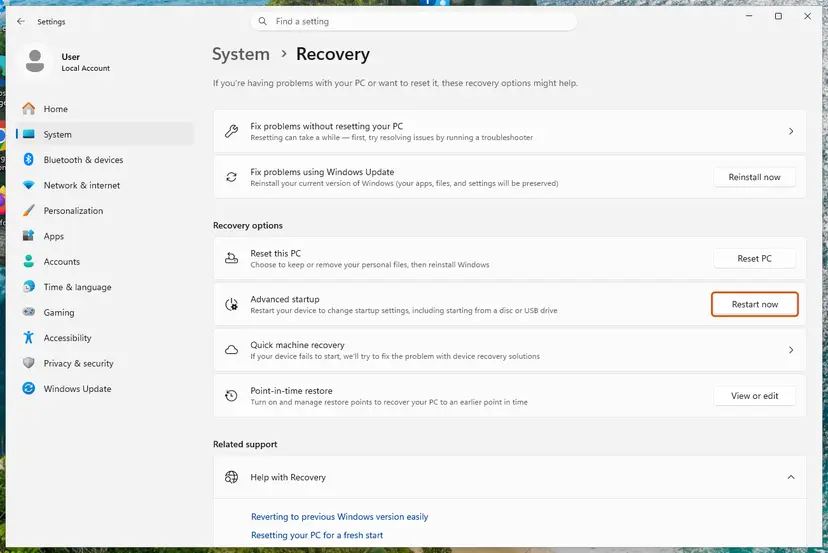
It worked if: Windows starts normally. After a restore, the Driver tab shows the older Wi-Fi driver.
If not: If neither works, try Startup Repair from the same screen: Run Startup Repair
Fix 6. Rule out defective memory
30 to 60 minutesLow riskYou see many different stop codes, or the dumps name a different driver each time.
Bad memory can corrupt the data any driver reads, and a driver that handles network traffic all the time can be the one that trips. The Dell report on Microsoft Q&A also named other drivers in the crash, so a memory test is worth one run.
- Undo any memory overclock. In the BIOS, set the memory profile (XMP, DOCP or EXPO) to Disabled as a test.
- Press Win + R, type
mdsched.exe, press Enter and select Restart now and check for problems (recommended). Full steps: How to test your RAM with Windows Memory Diagnostic - After the restart, read the result in Event Viewer > Windows Logs > System, source MemoryDiagnostics-Results.
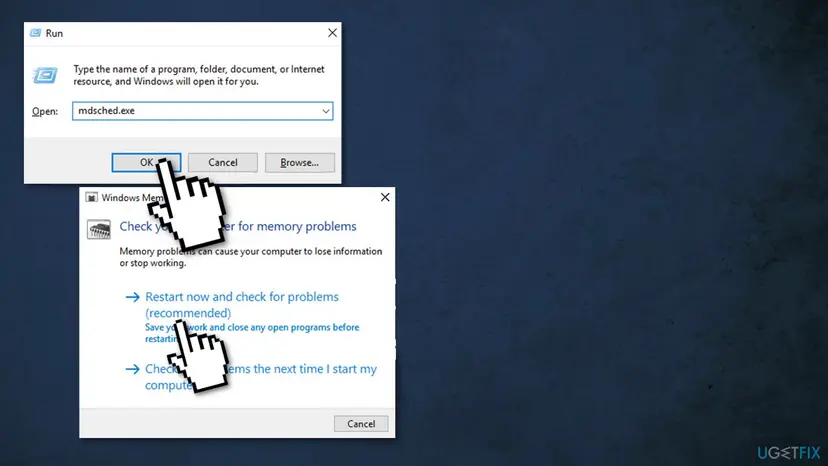
It worked if: The memory test reports no errors, and the PC runs without a stop screen.
If not: If the test finds errors, replace the RAM. If not, run Fix 7.
Fix 7. Repair Windows system files and check the drive
20 to 40 minutesNo riskThe fixes above did not help, or SFC has never run on this PC.
rtwlane.sys is not a Windows file, so this cannot repair the Wi-Fi driver. It rules out damaged Windows network components the driver works with, and a damaged file system that can corrupt a driver file on disk.
DISM fetches clean copies of Windows components and SFC replaces damaged system files. Step by step with screenshots: Run DISM and SFC to repair Windows system files
In Terminal (Admin), one after the other:
DISM.exe /Online /Cleanup-Image /RestoreHealth
sfc /scannow
To check drive C for file system errors at the next restart, run chkdsk C: /f and answer Y. Full steps: Check a disk for errors (chkdsk)
It worked if: SFC reports that it found no integrity violations or repaired them, chkdsk finds no errors, and the PC runs without a stop screen.
If not: Collect the dumps and read the next section on what to send to support.
Still crashing: what to check and whom to ask
Microsoft's advice for this kind of stop is to check the System log in Event Viewer for other errors that name the device or driver. Open Event Viewer > Windows Logs > System and look at the minutes before each crash. An entry from volmgr with Event ID 161 or 162 about the dump file only confirms that a dump was written.
- Zip the three newest
.dmpfiles fromC:\Windows\Minidump. - Note your Windows edition and version from Settings > System > About.
- Note the Realtek Wi-Fi entry's name, Driver Date and Driver Version from Device Manager.
- Note the PC model, the BIOS version and which driver versions you already tried.
| Where to ask | When |
|---|---|
| The PC or laptop maker's support | The Wi-Fi card is built in, which is almost always the case, and the PC is under warranty |
| Your company's IT team | It is a work laptop that gets drivers from a patch tool |
| A repair shop | The crashes stop only with the card disabled, or memory tests report errors |
If every driver version crashes after a clean Windows install, but the PC is stable with the card disabled, the card itself is the likely fault. Keep it disabled, use a USB adapter or a cable, and ask for a repair. A reset of Windows does not help in this case: in the Dell report, the crashes continued after a full factory reset.
How to keep the rtwlane.sys blue screen from coming back
- Note the Wi-Fi Driver Version before you accept a new driver.
- Get Wi-Fi drivers from your PC maker or Windows Update.
- Keep a copy of the driver package that works for you.
- Keep the BIOS and chipset drivers current from the same maker page.
- Keep restore points turned on for drive C.
- Delete or rename rtwlane.sys to stop the crash.
- Download rtwlane.sys alone from DLL or driver sites.
- Use driver updater programs for the Wi-Fi card.
- Turn off Memory integrity or other Windows Security protection to stop a driver crash.
Windows 10 left support on 14 October 2025. A PC that can run Windows 11 keeps getting driver fixes through Windows Update for longer.
Frequently asked questions
What is rtwlane.sys?
rtwlane.sys is the Windows driver for Realtek PCI Express Wi-Fi cards, known in Windows as the Realtek PCI-E Wireless LAN NIC NDIS Driver. It runs in the Windows kernel and handles everything your built-in Wi-Fi sends and receives. It sits in C:\Windows\System32\drivers and comes from your PC maker or Windows Update, not from Windows itself. You only have it if your PC has a Realtek Wi-Fi card.
Why do I get the rtwlane.sys error on Windows 11?
Because the Realtek Wi-Fi driver on your PC crashed, most often an old, mismatched or freshly updated version. Windows 11 shows it as What failed: rtwlane.sys on the stop screen, which is black instead of blue on 24H2 and later. Newer cards use numbered files, such as rtwlane602.sys on the Realtek 8852CE. Install the WLAN driver for your model from your PC maker (Fix 1), or roll back a new one (Fix 2).
Is the rtwlane.sys error on Windows 10 different?
No. The driver, the stop codes and the fixes are the same on Windows 10 22H2, and the menu paths that differ are given in each fix. The one difference is support: Windows 10 left support on 14 October 2025, so PC makers and Windows Update may stop shipping new Wi-Fi drivers for it. If your PC can run Windows 11, upgrading gives you longer access to driver fixes.
What are rtwlane01.sys, rtwlane02.sys, rtwlane601.sys and rtwlane613.sys?
They are the same Realtek Wi-Fi driver for different card generations. Realtek adds a number to the file name for each driver line, and only the card in your PC decides which one you have. For example, rtwlane602.sys belongs to the Realtek 8852CE card. We could not confirm which card each number belongs to, but the fix does not depend on it: install the WLAN driver for your PC model from its maker.
What does rtwlane.sys failed mean?
It means the Realtek Wi-Fi driver either crashed Windows, shown as What failed: rtwlane.sys on the stop screen, or could not load at start, shown as rtwlane.sys failed to load on older systems. In both cases the driver file or its version is the problem. If Windows still starts, use Fix 1 or Fix 2. If it loops at start, use Fix 5 to get in through Safe Mode first.
Is rtwlane.sys a virus?
No. The genuine file is a signed Realtek driver in C:\Windows\System32\drivers. To check your copy, right-click it, select Properties and open the Digital Signatures tab. If the tab is missing, or the file sits in another folder such as your user folder or Temp, scan the PC with Microsoft Defender before anything else. A blue screen alone is not a sign of malware.
Can I just delete rtwlane.sys?
You can, but you lose Wi-Fi and can cause new errors at start. Windows may reinstall the same driver from its driver store at the next start, which brings the crash back. The clean way is to roll back or uninstall the driver in Device Manager (Fix 2), or disable the Wi-Fi card (Fix 4) until a working driver is in place.
Will resetting Windows fix the rtwlane.sys blue screen?
Usually not, and it costs hours. A reset installs Windows again, but then the same Realtek driver comes back from Windows Update or your maker's tool. In the Dell report on Microsoft Q&A, the crashes continued after a full factory reset. Try the driver fixes first, and if every driver crashes, test with the card disabled (Fix 4) to check for a hardware fault.
What is rtwlanu.sys?
rtwlanu.sys is the matching Realtek driver name for USB Wi-Fi adapters, the u standing for USB in the same way the e in rtwlane stands for PCI Express. We could not confirm this naming from Realtek itself. The fixes on this page work the same way: unplug the adapter as a test, then install the driver from the adapter's maker for your exact model.
This page is in English. Is there help in my language?
This page is about one Windows error: the rtwlane.sys stop screen caused by the Realtek Wi-Fi driver. Readers searching in other languages ask the same thing: what the error is and how to fix it. The short answer is to install the Wi-Fi driver for your PC model from its maker, or roll back a new one. Your browser's translate feature can translate the steps on this page.
Sources
- Microsoft Learn: Bug Check 0xD1 DRIVER_IRQL_NOT_LESS_OR_EQUAL (learn.microsoft.com)
- Microsoft Q&A: Page fault in nonpaged area, rtwlane.sys (learn.microsoft.com)
- Microsoft Q&A: Windows 11 BSOD caused by rtwlane602.sys error (Realtek 8852CE Wifi driver) (learn.microsoft.com)
Did this fix work?
One click, no account. It tells the next reader which guides are worth their time.
Questions and experiences: fix the rtwlane.sys blue screen error in Windows 11 and 10
Still broken, or found a fix we did not cover? Ask here: members and our editors answer. Reading is open; writing needs a free account.
…