How to fix
Rtwlane6.sys Blue Screen error
on Windows
Resolve the rtwlane6.sys Blue Screen error in Windows 10/11 effortlessly. Follow our expert-tested guide to fix it in minutes, ensuring zero traces left.

What causes How to fix rtwlane6.sys Blue Screen error in Windows?
- Driver issues related to rtwlane6.sys
- Corrupted system files
- Broken hardware
- Incompatibility with Windows versions
- Outdated Realtek Wireless driver
Repairs Windows system files, removes malware, and restores a clean OS state — without reinstalling.
I have recently purchased a new laptop with pre-installed Windows on it. But recently I have been getting blue screens a few times a day all the time. The stop code is marked with SYSTEM_THREAD_EXCEPTION_NOT_HANDLED with "what failed" being rtwlane6.sys. My computer shouldn't be experiencing these problems, considering it's brand new.
Windows machines are known for their powerful performance and are often preferred by users. The latest versions of Windows, such as 10 and 11, come with polished user interfaces, improved features, and functionality. However, even with all these benefits, users may still experience Blue Screen of Death errors caused by files such as rtwlane6.sys, irrespective of their computer and Windows version.
BSOD errors, also known as stop errors, can be very frustrating and inconvenient. They can occur suddenly, causing an immediate system restart, disrupting important tasks, or causing loss of unsaved work. Despite this, the forced restarts serve a vital purpose in the Windows environment.
If the system would not reboot in the case of a stop error, it could be subjected to irreparable damage. When a BSOD occurs, Windows typically performs troubleshooting steps automatically and restarts the system. However, persistent blue screens could indicate more serious underlying issues that require immediate attention. It is essential to address such errors to prevent further damage and ensure the smooth functioning of the system.
Rtwlane6.sys uses the SYS file extension, which is considered Win64 EXE file, referring to the driver associated with it. In this case, the file is related to the Realtek Wireless LAN driver, which is likely to cause these crashes. In fact, most Blue Screen of Death errors is caused by drivers, although it is not a rule.
In other cases, rtwlane6.sys BSOD could be related to corrupted system files or broken hardware, so we provide several troubleshooting steps to address these situations as well. Before proceeding, we recommend employing an excellent tool to automatically deal with Windows issues [d1], which might help you avoid lengthy manual troubleshooting steps.
Fix 1. Update Realtek Wireless driver
As mentioned, Realtek driver issues are the main reason for the rtwlane6.sys Blue Screen to occur. So, the first thing you should try is updating the driver, and you can do this in several ways.
First off, you can try using the Windows update feature:
- In Windows search, type Updates and hit Enter.
- In the new window, click Check for updates.
- If optional updates are available, download and install them.
- Once done, reboot your system.
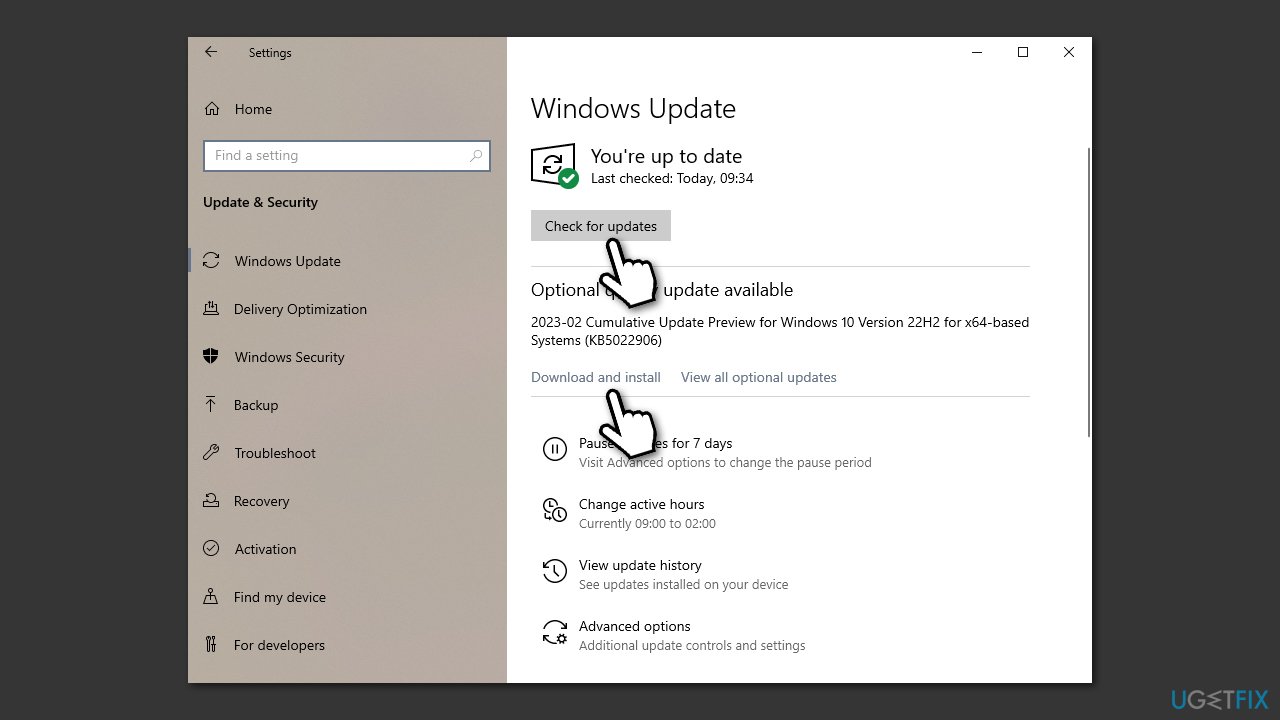
Keep in mind that the Windows update feature is not the best when it comes to installing the latest drivers, as it might miss them. Instead, you can employ an automatic driver updater such as [rev id="DriverFix"] or install the latest driver from the official Realtek website.
Fix 2. Reinstall Realtek driver
If your drivers are already updated or updating them did not help the situation, you can reinstall them instead. Follow these steps:
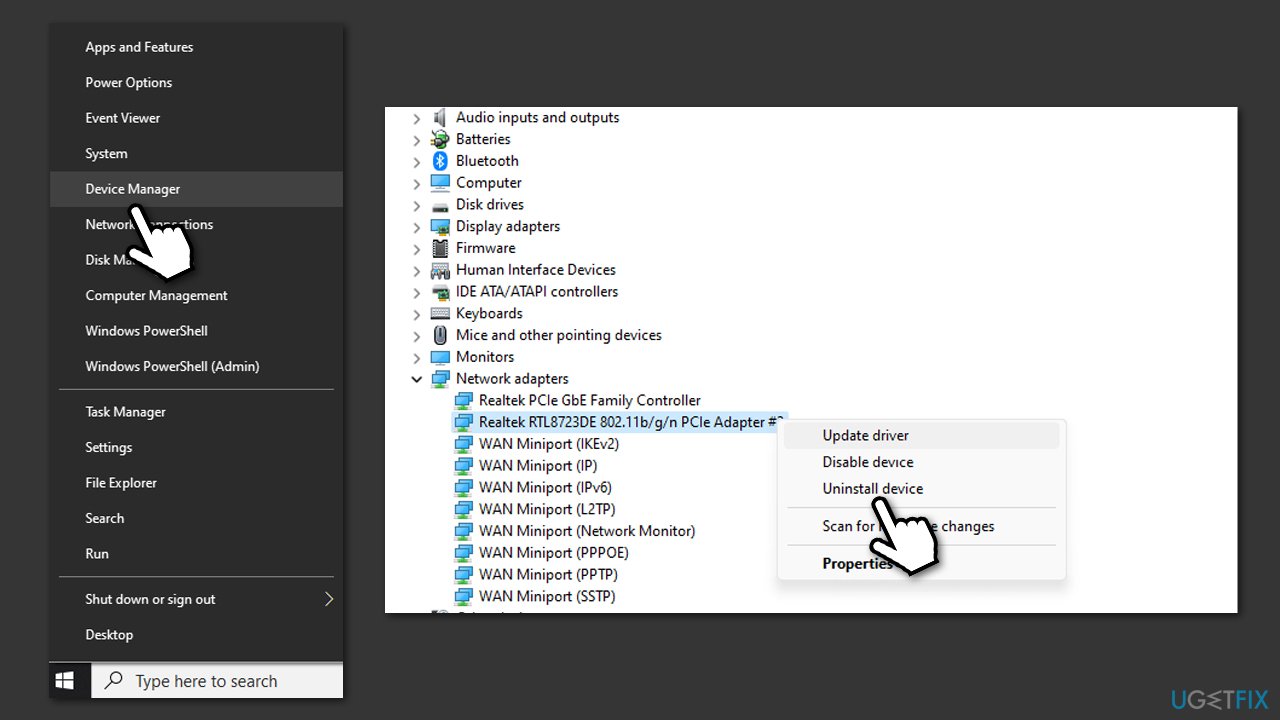
- Right-click on Start and pick Device Manager.
- Expand Network adapters.
- Here, locate the Realtek Wireless driver.
- Right-click on it and select Uninstall.
- When prompted, mark the Delete driver software for this device checkbox.
- Click Uninstall and restart your system.
Once the PC reboots, use one of the methods described above to update your drivers.
Fix 3. Run SFC and DISM
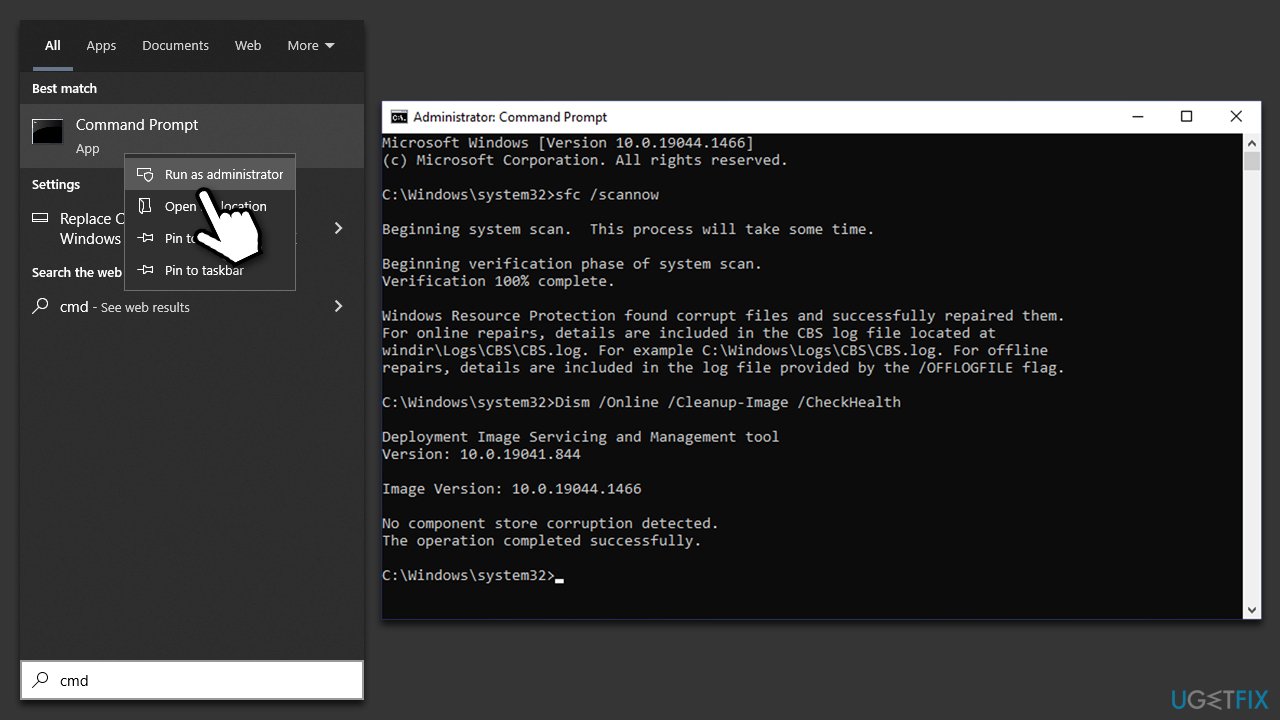
- Type cmd in Windows search
- Right-click on Command Prompt search result and select Run as administrator.
- User Account Control will show up and ask whether you want to allow changes - click Yes.
- Next, copy and paste the following command and press Enter:
sfc /scannow - When done, run the following commands as well:
dism /online /cleanup-image /scanhealth
dism /online /cleanup-image /checkhealth
dism /online /cleanup-image /restorehealth - Restart your computer.
Fix 4. Check your disk
Your next task is to check for hardware issues. Let's start with disk errors:
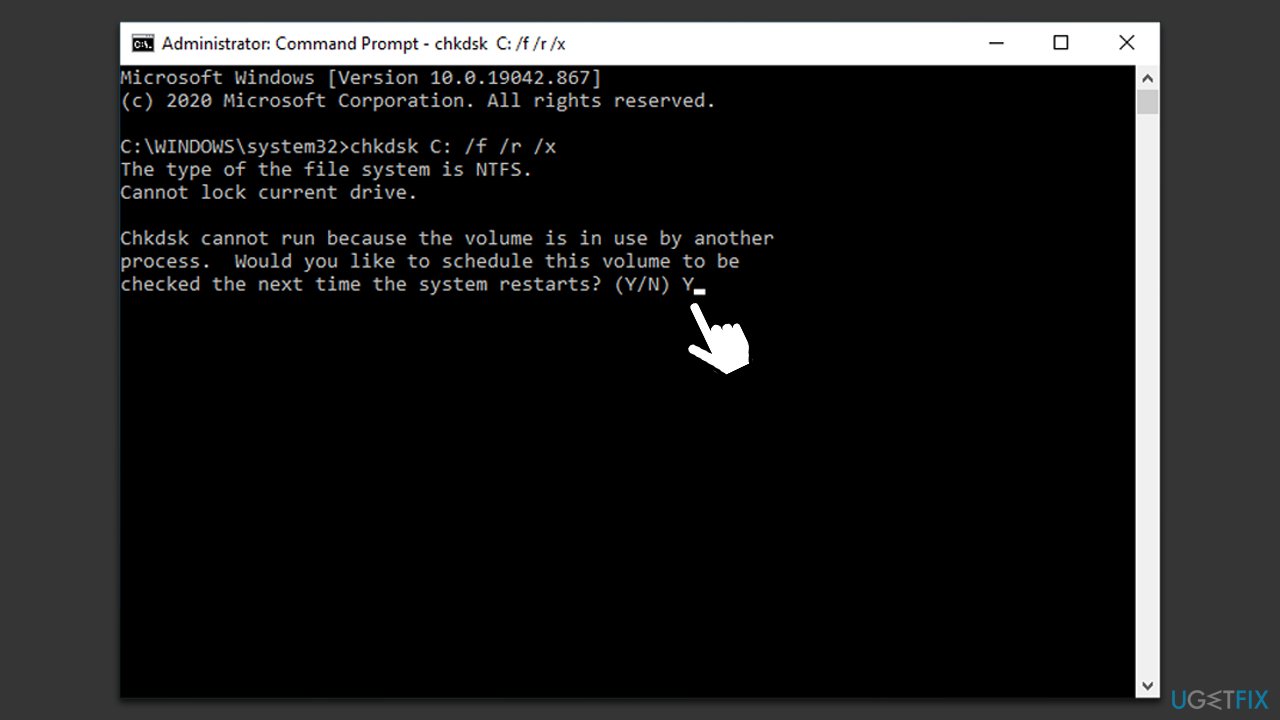
- Open Command Prompt as administrator, as explained above.
- In the new window, type in the following command and press Enter:
chkdsk c: /f
(Note: use chkdsk c: /f /r /x command if you use SSD as your primary partition). - If you receive an error, type in Y, close down Command Prompt, and restart your system.
- After a restart, Windows will begin to scan your disk (it might take a while, so be patient). You can find the results in the Event Viewer after your system boots back up.
Fix 5. Run memory checks
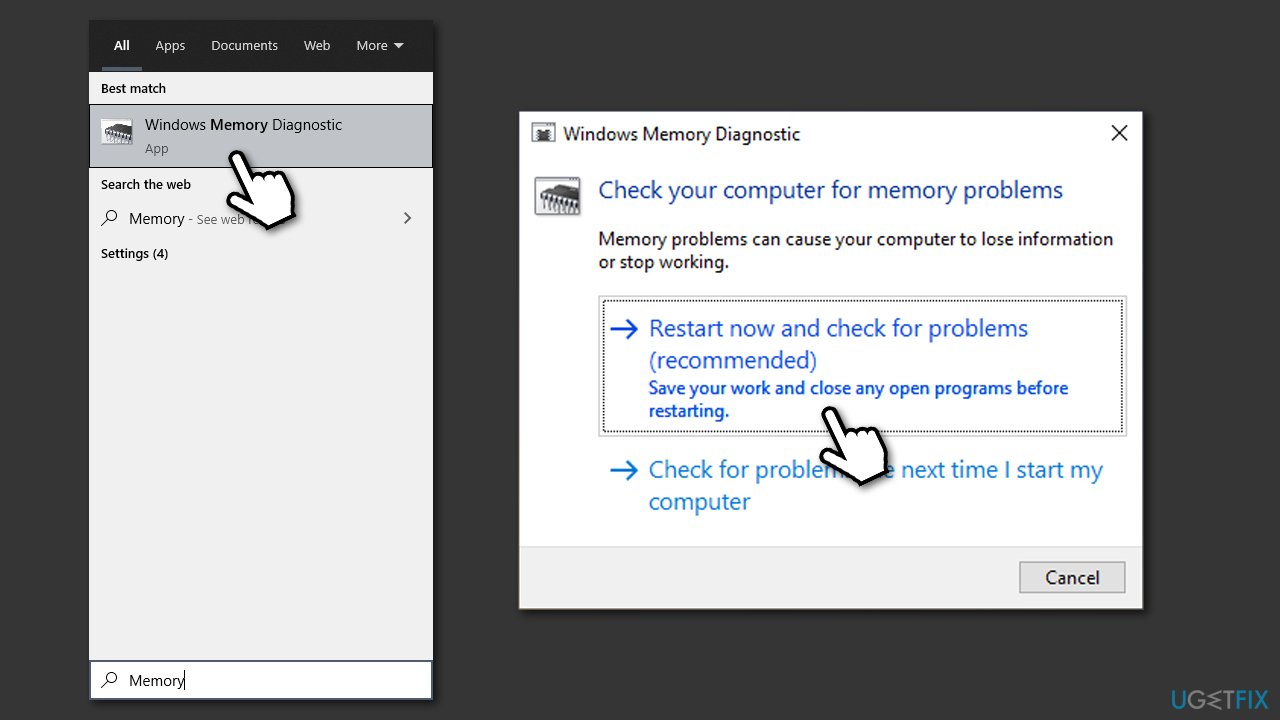
- Type Memory in Windows search and press Enter.
- Select Windows Memory Diagnostics result.
- Click Restart now and check for problems (recommended) (note that your PC will restart immediately).
- The check will begin.
- When you boot back up, check Event Viewer for results.
Fix 6. Reset Windows
Before proceeding, you should uninstall third-party security software and disconnect any unnecessary devices, leaving just a keyboard and mouse connected.
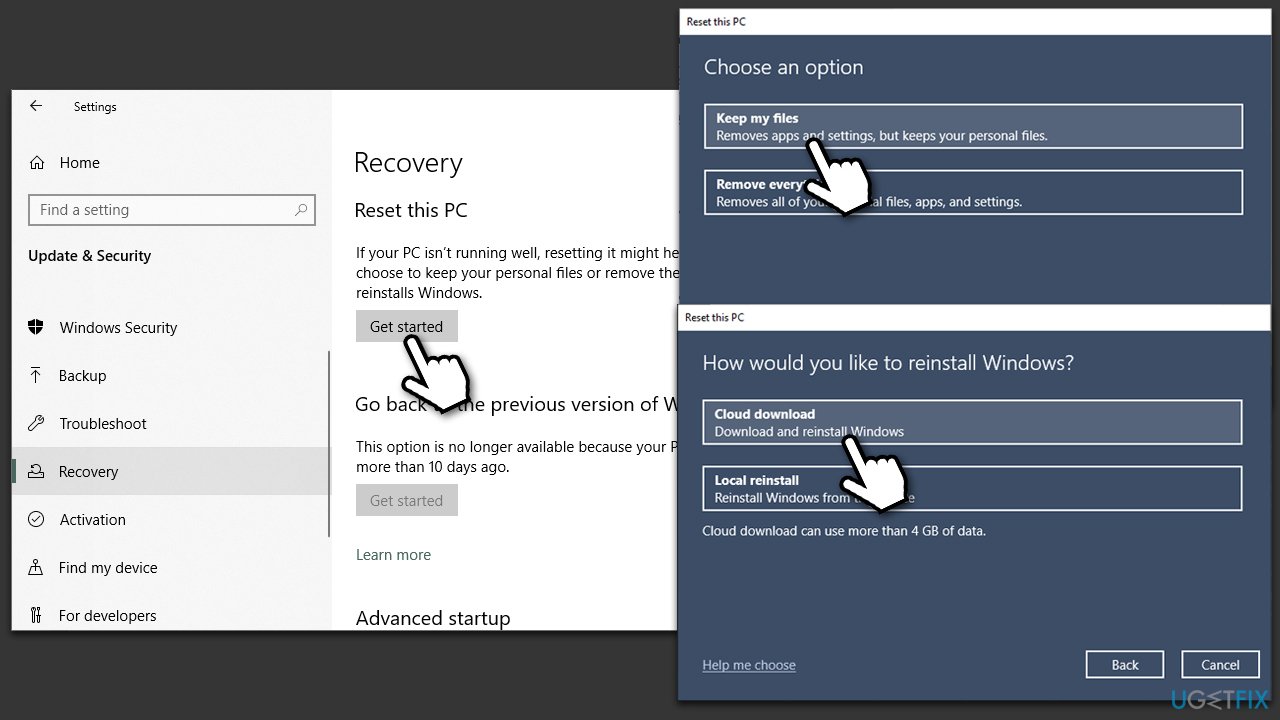
- Right-click on Start and pick Settings.
- Go to Update & Security and pick Recovery.
- Find Reset this PC section and click Get Started.
- Select Keep my files > Cloud download.
- Proceed with the on-screen instructions, and your PC will restart several times.
Bottom line
To fix the rtwlane6.sys Blue Screen error, you can update the Realtek Wireless driver, check for corrupted system files, or inspect hardware for issues. If these solutions do not resolve the problem, consider using a dedicated tool to automatically address Windows issues.
Frequently asked questions
The rtwlane6.sys Blue Screen error is typically caused by outdated or corrupted network drivers related to Realtek wireless adapters in Windows 10.
To update the rtwlane6.sys driver in Windows 11, go to Device Manager, find your network adapter, right-click it, and select 'Update driver' to search for the latest updates.
Yes, you can roll back the rtwlane6.sys driver by going to Device Manager, right-clicking on the network adapter, selecting 'Properties,' then the 'Driver' tab, and clicking 'Roll Back Driver' if the option is available.




Report an issue
What's wrong with this guide? We review every report and update or remove content.
Report received — thank you. We'll review and fix it.
You need a free account to submit a report.
Be the first to comment