How to fix
Runtime Error 339
on Windows
Resolve Runtime Error 339 on Windows 10 or 11 quickly and effectively with our expert-tested solutions. Get your system running smoothly again!


What causes How to Fix Runtime Error 339?
- Missing COMDLg32.ocx file
- Corrupted COMDLg32.ocx file
- Missing or corrupted DLL files
- Issues with Windows Registry
- Incorrectly installed program
Repairs Windows system files, removes malware, and restores a clean OS state — without reinstalling.
Hello. I need help. I’ve received a runtime error message on multiple occasions. The warning says: “Runtime error 339: Component COMDLg32.ocx is not correctly registered or file is missing”. I’ve tried troubleshooting this issue, but nothing has worked. Could you help me to solve the issue?
Runtime Error 339 is a common Windows OS error that can be also identified as a missing file error when OCX or DLL file needed to launch the application is missing or not registered on the PC. Such files went missing during the application installation, but the pop-up itself occurs when the system is not found during the launch of a program, so you need to repair the damaged file and fix the root of the issue.
This runtime error might occur for numerous reasons depending on each particular user and system.[ref en-1] However, it is often related to the corrupted or missing .ocx files. They are legitimate files that could be found on the Windows operating system.
On average the system includes around 10,000 OCX files.[ref en-2] These files are crucial program parts that are necessary for performing various functions or maintaining the program’s stability. Seeing runtime error 339 means that some of these files are corrupted, deleted or missing. 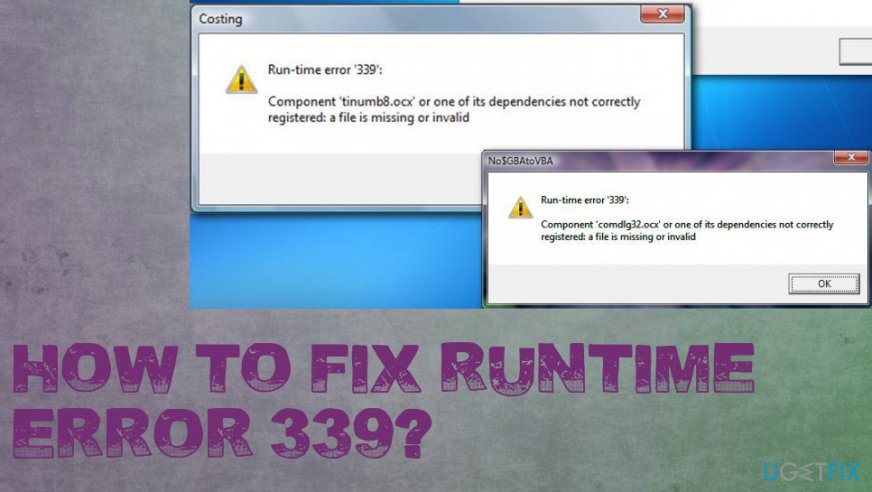
The error message always includes the name of the file that needs to be fixed, for instance:
Runtime error 339: Component COMDLg32.ocx is not correctly registered or file is missing.
Thus, in this case, there’s a problem with the COMDLg32.ocx file. Sometimes this error is caused because of an incorrectly installed program. As we already mentioned, this warning message might show up when running programs. Hence, even if the installation of the application was smooth, this error might still occur. If the program has been installed not correctly, usually it’s enough to uninstall and reinstall it in order to fix runtime error 339.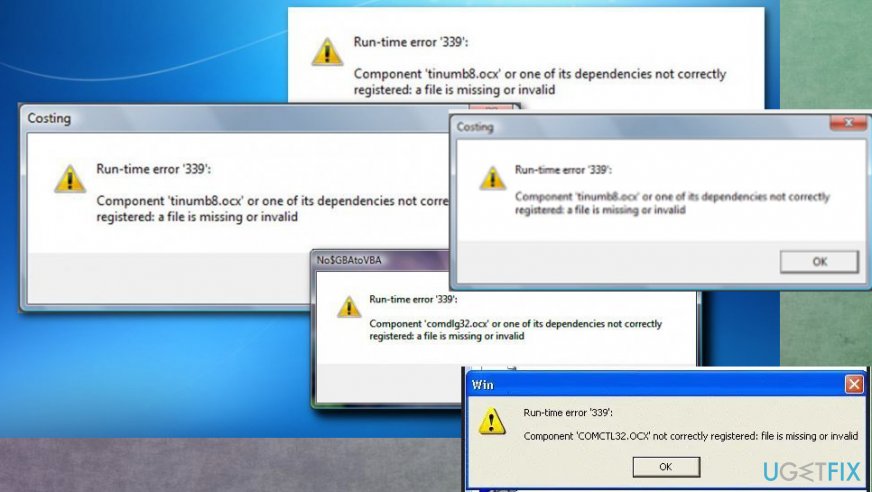
How to fix Runtime Error 339
In order to get rid of Runtime Error 339, you need to fix the particular file that causes this problem. As we already mentioned, this filename is written in the pop-up error window. For solving this issue, you have three options. The first and simplest method requires uninstalling and installing again the program which uses you receive this error. Thus, you should try this method at first. If it doesn't work, then try the second and third methods listed below.
However, if none of these methods have worked or you have noticed that your computer operates oddly, check the system for the virus infection. Scan the computer with a reputable PC repair tool, such as [rev id=“Reimage”]. Sometimes malware[ref en-3] uses names of the legitimate files or system processes to bypass computer security, so you should ensure that this is not the case before altering any settings.
Reinstall the program
If this error occurs when using a particular program, uninstall and then reinstall it again. One of the reasons why Runtime Error 339 occurs is an incorrect installation of the software.
Reregister the corrupted file
The error message you received includes the name of the corrupted file. If you received a message saying “Runtime error 339: Component COMDLg32.ocx is not correctly registered or file is missing”, you need reregister COMDLg32.ocx files. If you have issues with another .ocx file, instead of “COMDLg32.ocx" use your file name.
- Go to the Command Prompt.
- Select Run as administrator and type this command:
regsvr32 comdlg32.ocx
- Then, you are supposed to receive a message saying that you managed to reregister the corrupted .ocx file successfully. The message should look like "DllRegisterServer in comdlg32.ocx succeeded” or similarly.
Replace the missing or corrupted file
- Go to Start and launch the Run window.
- Type regsvr32 -ucomdlg32.ocx and click OK. The file is referenced from the error message, so it should change in a particular incident.
- Search for that file in the general search on the system.
- Click on the file and select Delete after right-click.
- Now you need to download the new one from a credible source.
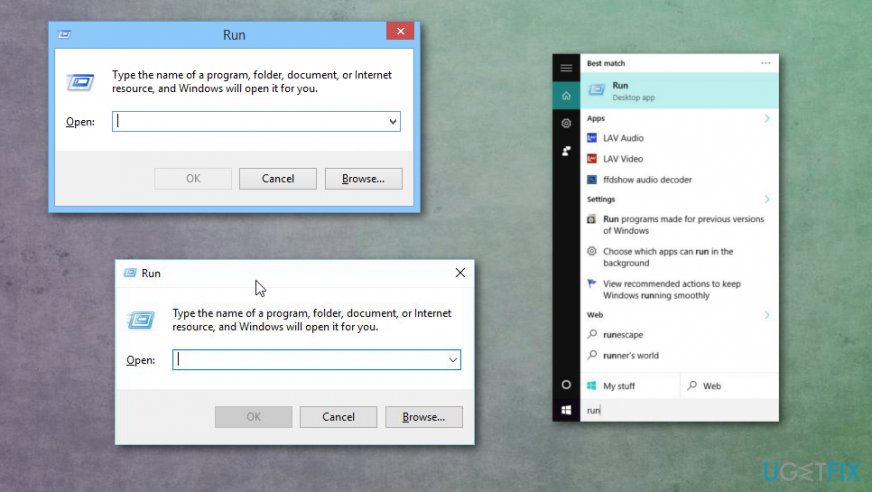
Runtime error 339 run
Execute commands in Command Prompt
If none of the above methods haven’t worked for you, try this method to fix Runtime Error 339:
- Run the Command Prompt.
- Choose Run as administrator.
- Execute all of the following commands in the Command Prompt. Press enter after each typed command:
regsvr32 \\Windows\\System32\\ comdlg32.ocx /uregsvr32 \\Windows\\System32\\ comdlg32.ocx
NOTE. If you receive an error about another .ocx file, please replace “comdlg32.ocx” with your file name. - Exit Command Prompt. Now you should not receive error 339.
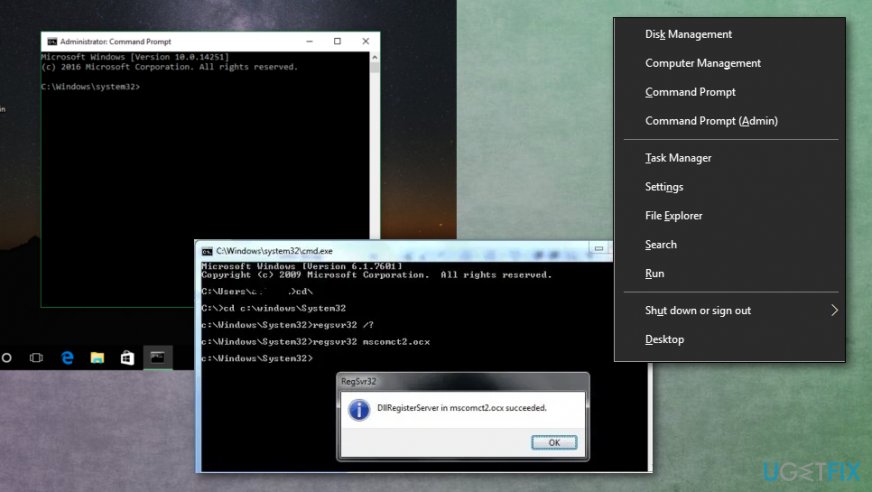
Runtime error 339 command prompt
Bottom line
To fix Runtime Error 339, you need to repair or register the COMDLg32.ocx file, check for corrupted DLL files, and ensure the program is installed correctly. If these solutions do not resolve the issue, further investigation into the Windows Registry may be necessary.
Frequently asked questions
Runtime Error 339 typically occurs when a required ActiveX control or DLL file is missing or not registered properly on your Windows system.
To fix Runtime Error 339 on Windows 11, you can try reinstalling the application that caused the error or manually registering the missing DLL files.
To prevent Runtime Error 339 in Windows 10, ensure that your software is updated regularly and that all necessary components and libraries are installed correctly.




Report an issue
What's wrong with this guide? We review every report and update or remove content.
Report received — thank you. We'll review and fix it.
You need a free account to submit a report.
Be the first to comment