
How to fix Runtime error 76 "Path not found" in Windows?

Prefer to fix it yourself? The manual steps follow.
- 7methods
- 5 to 20 minutes
- Intermediate
Applies to Windows 11, Windows 10; Excel, Word, Access and Outlook macros (VBA), programs written in Visual Basic 6
7 methods in this guide
When I attempt to access a protected folder on a drive, I get Runtime error 76 "Path not found." How do I resolve this?
Run-time error '76' with the text Path not found comes from Visual Basic: a macro in Excel, Word or Access, or an older program, asked Windows for a folder or drive that does not exist. The file name is not the problem; a folder in front of it is. Press Debug, read the full path, and check whether that folder opens in File Explorer.
Error 76 means the drive or one of the folders in the path is missing or out of reach. Select Debug, find the path in the highlighted line and paste it into the File Explorer address bar (Fix 1). Most often Documents or Desktop moved into OneDrive (Fix 2), a network or USB drive letter is not connected (Fix 3), or the macro runs as administrator and cannot see mapped drives (Fix 4).
| Error | Run-time error '76': Path not found, in a window titled Microsoft Visual Basic with the buttons Continue, End, Debug and Help. |
|---|---|
| Where it appears | While a macro runs in Excel, Word, Access or Outlook, or while an older program written in Visual Basic opens or saves a file. |
| Main cause | The path in the code points to a folder or drive that is not there: Documents or Desktop moved into OneDrive, a disconnected drive letter, or a folder nobody created. |
| Fastest fix | Select Debug, read the path, open it in File Explorer and correct the part that does not exist (Fix 1). |
| Also written as | runtime error 76, run time error 76, run-time error 76, error 76 path not found, 76 path not found, Microsoft Visual Basic run time error 76. |
| What Microsoft says | During a file or disk operation such as Open, MkDir, ChDir or RmDir, the operating system was unable to find the specified path. Microsoft's only advice: respecify the path. |
| Not the same as | Error 53 "File not found" (the folder exists, the file does not) and error 75 "Path/File access error". |
| Affects | Any Windows version and any Office version that runs VBA. It is not a Windows bug and no update fixes it. |
| Time to fix | About 5 minutes once you know the path. Up to 20 minutes for the administrator and network drive cases. |
Facts checked on 15 October 2026. Steps written for Windows 11 (25H2 and 26H2) and Windows 10 22H2.
What run-time error 76 "Path not found" means
The message box is titled Microsoft Visual Basic and says Run-time error '76': with Path not found on the next line. Microsoft's VBA reference explains it in one sentence: during a file-access or disk-access operation, for example Open, MkDir, ChDir or RmDir, the operating system was unable to find the specified path.
A path is the drive plus every folder that leads to a file. Error 76 means one of those parts is missing, so Windows never even looks for the file. That is why reinstalling Windows components, as many pages suggest, does not touch it: the fix is always in the path.
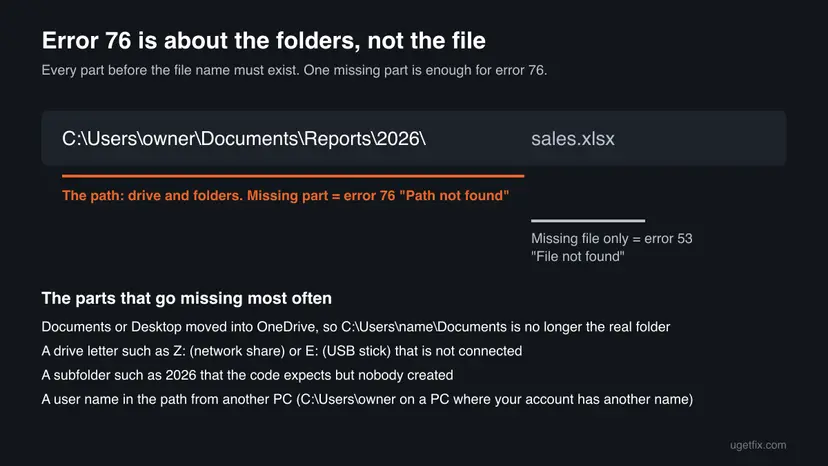
- 76 path not found and runtime error 76 are the same error. People also type it as run time error 76, run-time error 76 and Microsoft Visual Basic run time error 76.
- The code is the same in Excel, Word, Access, Outlook and old programs built with Visual Basic 6, because they share the same language.
- A message that says only Path not found, without the number 76, can come from other programs too. This page is about the Visual Basic one.
Why error 76 path not found appears
Most often the macro was written on another PC or before a change, and a folder in its path no longer exists on this PC. Less often the folder exists but is out of reach: a drive is not connected, or the macro runs with other rights. Rarely the program itself was installed badly.
| Cause | How often | How to tell | Fix |
|---|---|---|---|
| A typo or a missing folder in the path, often a user name from another PC. | Most often | The path from the highlighted line does not open in File Explorer. | Fix 1 |
| Desktop, Documents or Pictures were moved into OneDrive by folder backup. | Often | The path starts with C:\Users\<name>\Documents or \Desktop, but File Explorer shows the folder inside OneDrive. | Fix 2 |
| A mapped network drive or a USB drive letter is not connected. | Often | The path starts with a letter such as Z: or E: and This PC shows that drive as missing or disconnected. | Fix 3 |
| The program or Office runs as administrator and cannot see your mapped drives. | Sometimes | The same macro works when started normally. | Fix 4 |
| The code creates or saves into folders that do not exist yet. | Sometimes | The highlighted line has MkDir, ChDir, SaveAs or Open with a new folder in it. | Fix 5 |
| The folder is protected and your account cannot open it. | Rarely | File Explorer says you do not have permission for the folder. | Fix 6 |
| A ready-made program has a broken install or a wrong data folder in its settings. | Rarely | There is no Debug button, or you cannot see the code. | Fix 7 |
The old advice to run the program as administrator can cause this error. Microsoft explains that drive letters for mapped network drives belong to one sign-in session, and an elevated program runs in another one. Unless Windows is set to share them, the drive letter does not exist for that program.
How to fix run-time error 76 path not found
Fix 1 finds the exact path and solves most cases on its own. Fixes 2 to 5 cover the four ways a path breaks. Fixes 6 and 7 are for a protected folder and for programs whose code you cannot see.
| What you see or have | Start with |
|---|---|
| You do not know which path fails yet. | Fix 1 |
| The path goes to Documents, Desktop or Pictures, and you use OneDrive. | Fix 2 |
The path starts with a network drive letter (Z:, S:) or a USB stick letter. | Fix 3 |
| The macro works normally but fails when Excel or the program runs as administrator. | Fix 4 |
| The highlighted line creates a folder or saves a file into a new folder. | Fix 5 |
| The folder is on a drive or share that asks for permission. | Fix 6 |
| A finished program shows the error and you cannot open its code. | Fix 7 |
Fix 1. Find the exact path with Debug and check it in File Explorer
5 minutesNo riskEveryone with the Debug button, which is anyone running a macro in Excel, Word, Access or Outlook.
Microsoft's reference gives one solution for error 76: respecify the path. You can only do that once you see the exact path the code used, and the debugger shows it.
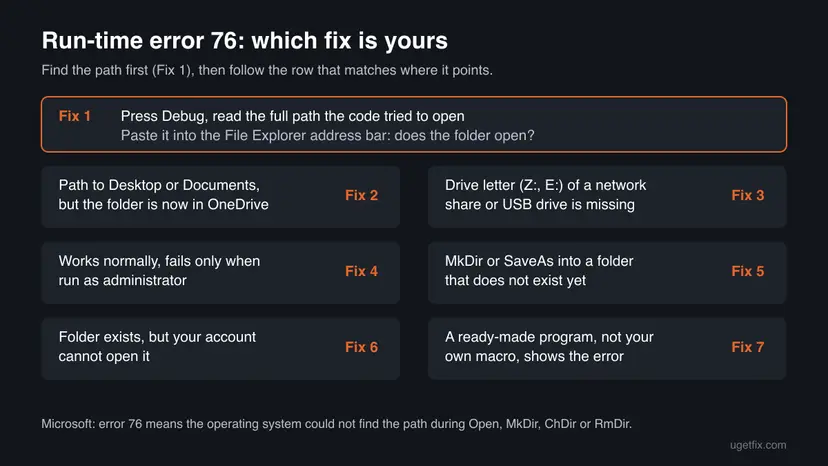
- In the error box, select Debug. The Visual Basic editor opens with the failing line marked in yellow.
- Hover the mouse over the variable that holds the path, for example
strPath, to see its value in a small tooltip. - If the path is built from several parts, press Ctrl + G to open the Immediate window, type the line below with your own variable name and press Enter.
? strPath - Copy the path without the file name at the end.
- Press Win + E, click the address bar, paste the path and press Enter.
- If Windows says it cannot find it, delete the last folder from the address and press Enter again. Repeat until a folder opens: the part you just removed is the missing one.
- Correct that part in the code, or create the folder, then select Run > Reset and run the macro again.
A path that contains another person's user name, such as C:\Users\owner\Documents, was written on another PC. Replace the fixed part with the real folder on this PC, or ask the macro's author to build the path from the user's profile instead of typing it.
It worked if: The folder opens in File Explorer, and after the correction the macro runs past the yellow line.
If not: If the path points to Documents or Desktop, go to Fix 2. If it starts with a drive letter that does not open, go to Fix 3.
Fix 2. Point the macro to the real Documents or Desktop folder after OneDrive backup
5 minutesLow riskThe path goes to Desktop, Documents or Pictures under C:\Users\<name>, and OneDrive is signed in.
OneDrive folder backup moves Desktop, Documents, Pictures, Music and Videos into your OneDrive folder. A macro with the old fixed path then asks for a folder that is empty or gone.
- Open File Explorer, right-click Documents (or Desktop) in the left pane and select Properties.
- Select the Location tab and read the path in the box. If it contains OneDrive, the folder was moved.
- Copy that path and use it in the macro instead of the old one, or open the file's folder from there.
- To see which folders OneDrive backs up, select the OneDrive cloud icon in the taskbar, then the gear, Settings.
- Select Sync and backup and then Manage backup to see each folder's switch.
When you stop backing up a folder, Microsoft says you choose where the files stay: only in OneDrive or only on your PC. Files can seem to disappear from one place. Correct the path in the macro instead, and stop the backup only if you no longer want it.
It worked if: The path in the macro matches the Location tab, and the file opens or saves without the error.
If not: If the Location tab shows the old path and the error stays, the missing part is elsewhere. Go back to step 6 of Fix 1.
Fix 3. Reconnect the network or USB drive, or use the full network path
5 minutesNo riskThe path starts with a drive letter such as Z:, S: or E: that belongs to a server share or a removable drive.
A drive letter is only a shortcut. When the share is not connected after sign-in, or the USB stick got another letter, every path that starts with that letter fails with error 76.
- Press Win + E and select This PC. Look for the drive letter from the path under Network locations or Devices and drives.
- If a network drive is shown as disconnected, double-click it and sign in when asked.
- For a USB drive, plug it in and read the letter Windows gives it. If it is a different letter, change the path in the macro.
- To see every mapped drive and the full network path behind it, press Win + R, type
cmd, press Enter and run:net use - Write down the Remote column for your drive letter, for example
\\server\share. - In the macro, replace the drive letter with that full network path, so the code no longer depends on the letter being connected.
It worked if: net use lists the drive as OK, the folder opens from File Explorer, and the macro reaches it.
If not: If the drive opens for you but not for the macro, the program probably runs as administrator. Go to Fix 4.
Fix 4. Start the program without administrator rights, or let elevated programs see mapped drives
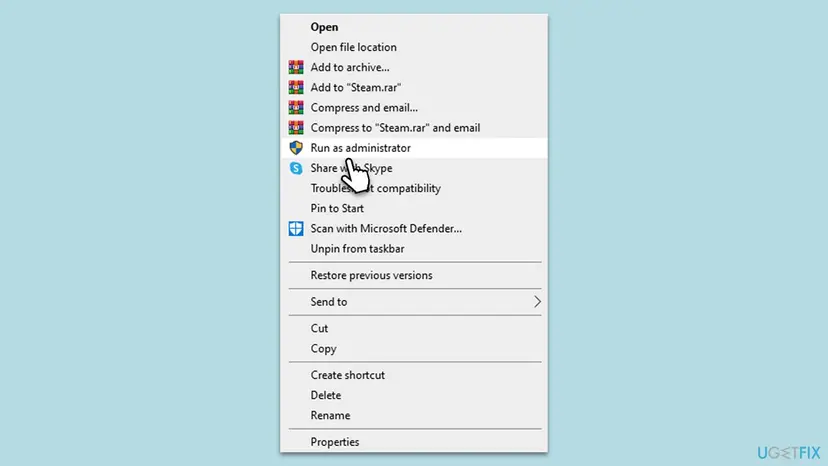
10 minutesRead the warningThe macro works when Excel or the program is started normally, and fails when it is started with Run as administrator or always runs elevated.
Microsoft explains that with User Account Control on, Windows creates two linked sign-in sessions, and drive letters made in one are not shared with the other. The EnableLinkedConnections registry value makes Windows write them to both.
First try the simple way: start the program normally. Right-click its shortcut, select Properties, then the Compatibility tab, and clear Run this program as an administrator if it is selected. Select OK and run the macro again.
The next steps change a Windows policy value. A wrong edit in this key can change how User Account Control behaves. Export the key before you change anything, so you can restore it by double-clicking the saved file. Step by step: Back up the registry before editing it.
- Open Registry Editor. Press Windows key + R, type the command below and select OK. Select Yes when Windows asks for permission.
regedit - Select the key. In the left pane, go to the key your guide will change, or paste its path into the address bar under the menu and press Enter.
- Export it. Select File > Export.
- Save the backup. Under Export range, keep Selected branch to save only that key, or choose All for the whole registry. Pick a folder, type a file name and select Save.

Export range decides whether one key or the whole registry is saved. Screenshot: Windows 11 26H2.
These steps were written for Windows 11 and Windows 10 (the steps are the same). The full page with the other versions and what each result means: Back up the registry before editing it
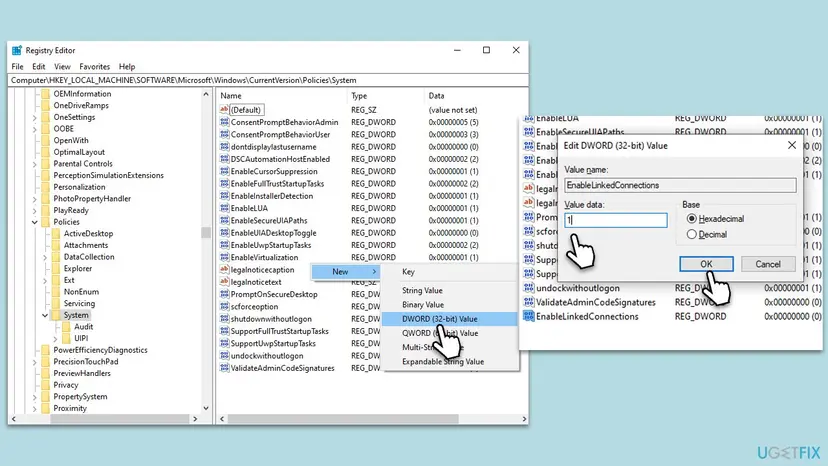
- In Registry Editor, paste
HKEY_LOCAL_MACHINE\SOFTWARE\Microsoft\Windows\CurrentVersion\Policies\Systeminto the address bar and press Enter. - Right-click an empty area in the right pane and select New > DWORD (32-bit) Value.
- Name it
EnableLinkedConnectionsand press Enter. - Double-click EnableLinkedConnections, type
1in Value data and select OK. - Close Registry Editor and restart the PC.
Microsoft notes one exception: on PCs where an administrator set User Account Control to Prompt for credentials, mapped drives stay hidden from elevated programs even with this value. Work and school PCs often have that setting. Ask IT, or map the drive again inside the elevated program.
It worked if: After the restart the drive letter is available to the elevated program and the macro runs.
If not: Delete the EnableLinkedConnections value if it did not help, restart, and use the full network path from Fix 3 instead of a drive letter.
Fix 5. Create the missing folders before the code saves into them
5 minutesNo riskThe highlighted line uses MkDir, ChDir, SaveAs or Open with a folder that does not exist yet.
MkDir creates one folder at a time. When it is asked for C:\Reports\2026 and C:\Reports does not exist, Windows cannot find the path and VBA stops with error 76.
- Look at the highlighted line and the path in it. Note every folder that does not exist yet.
- For a one-off fix, create the folders by hand in File Explorer with New > Folder, in the right order.
- For a macro that runs every month or year, make it create each folder level before it saves. The code below checks each level and creates only the missing ones.
- Run the macro again.
Create every missing folder in a path (VBA)
Sub MakeFolders(ByVal fullPath As String)
    Dim parts() As String, p As String, i As Long
    parts = Split(fullPath, "\")
    p = parts(0)
    For i = 1 To UBound(parts)
        If parts(i) <> "" Then
            p = p & "\" & parts(i)
            If Dir(p, vbDirectory) = "" Then MkDir p
        End If
    Next i
End Sub
Call it before the save, for example MakeFolders "C:\Reports\2026". It works for local paths that start with a drive letter. For a \\server\share path, the share itself must already exist.
It worked if: The folders appear in File Explorer and the file is saved inside them.
If not: If MkDir fails on the first level, the drive itself is missing: go to Fix 3. If it fails with another error, the folder is protected: go to Fix 6.
Fix 6. Check that your account can open the protected folder
5 minutesNo riskThe folder is on a server, another user's profile or a drive with restricted permissions.
A program can only use folders that your account can open. When the account has no access, the program may report the path as not found instead of a permission error.
- Paste the path into the File Explorer address bar, as in Fix 1.
- If Windows says you do not have permission, note the exact message.
- For a folder on your own PC, right-click it, select Properties and open the Security tab to see which accounts have access.
- For a folder on a server or a work share, send the full path and the message to the person who manages that share and ask for access.
- After access is granted, sign out and sign in again, then run the macro.
Do not take ownership of Windows or Program Files folders to make a macro work. Save the macro's files in a folder of your own, such as one inside Documents.
It worked if: The folder opens in File Explorer with your account and the macro no longer stops.
If not: If you can open the folder and the error stays, the path in the code differs from the one you tested. Repeat Fix 1.
Fix 7. Check the program's data folder setting, then reinstall the program
15 minutesLow riskA finished program, not your own macro, shows the error, and there is no code to read.
Older programs built with Visual Basic keep a data or export folder in their settings. If that folder was moved, deleted or was on a drive that is gone, the program stops with error 76. A clean install recreates its own folders.
- Open the program's Options, Settings or Preferences and look for a data, database, export or backup folder.
- Check that folder in File Explorer. If it is missing, choose an existing folder or create it.
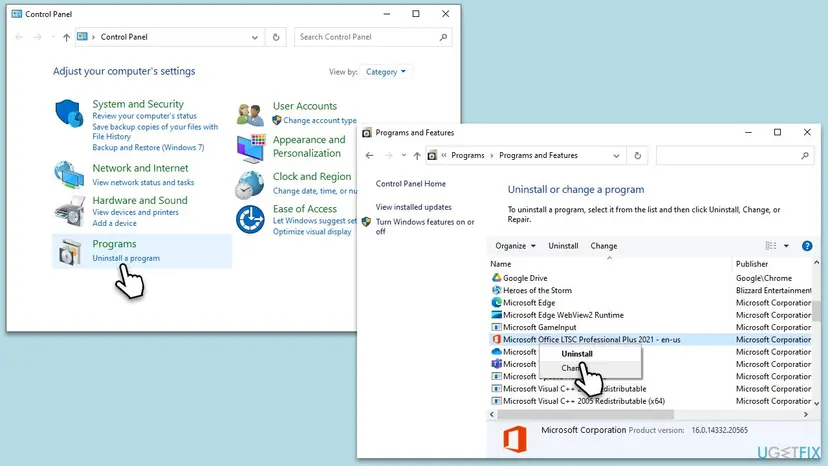
- If there is no such setting, or it did not help, uninstall the program. Step by step: Uninstall a program or app in Windows.
- Restart the PC.
- Install the program again from its maker's site or the original installer, into the folder it suggests.
It worked if: The program starts and saves without the error, and its data folder exists.
If not: Send the program's maker the exact action that causes the error and the folder in its settings. Old Visual Basic programs may expect a drive or folder layout from the time they were made.
If error 76 is still there
Error 76 has no log file. The debugger line and the path are the whole record, so collect them before you ask for help.
- The exact text of the yellow line in the editor and the value of the path from the Immediate window.
- What File Explorer says when you paste that path into the address bar.
- Whether the file lives in OneDrive, on a network share or on a USB drive.
- Whether the program runs as administrator.
- Your Office version, from File > Account in Excel.
With these five facts the macro's author, or anyone on the Microsoft Q&A forum, can usually spot the broken part at once. Windows 10 left support on 14 October 2025, but error 76 is not tied to the Windows version: it behaves the same on Windows 10 and Windows 11.
Error 76 is never a sign of failing hardware on its own. If the folder sits on a USB or external disk that keeps disconnecting, check the disk with Check a disk for errors (chkdsk).
How to stop error 76 from coming back
- Build paths from the workbook's own folder or the user's profile instead of typing a fixed path.
- Use full network paths such as
\\server\sharein shared macros. - Create every folder level before saving, as in Fix 5.
- Test a macro on a second PC before you share it.
- Type another person's user name into a path.
- Depend on a drive letter that only some PCs have.
- Run Office as administrator just to open a file.
- Move Documents or Desktop without checking the macros that use them.
Frequently asked questions
What does run-time error 76 path not found mean?
It means a Visual Basic macro or program asked Windows for a path that does not exist. Microsoft's VBA reference says the operating system was unable to find the specified path during a file or disk operation such as Open, MkDir, ChDir or RmDir. The problem is the drive or a folder in the path, not the file itself. Select Debug, read the path in the highlighted line and paste it into File Explorer to find the missing part.
Why do I get Microsoft Visual Basic run time error 76 in Excel?
Excel shows it when a macro in the workbook tries to open, save or create something in a folder that is not there on your PC. The window is titled Microsoft Visual Basic because Excel macros run in VBA. The most common reasons are a path written on another PC, Documents or Desktop moved into OneDrive, and a network drive letter that is not connected. Fixes 1 to 3 cover these cases.
How do I fix run time error 76 path not found in an Excel macro?
Select Debug, read the path in the yellow line and check it in File Explorer, as Fix 1 explains. Then correct the part that does not exist. If the macro saves into a new folder each month, add the small MakeFolders routine from Fix 5 so that every folder level is created before saving. If you did not write the macro, send its author the path and the line.
Is error 76 the same as error 53 File not found?
No. Error 76 means the drive or a folder in the path is missing. Error 53 File not found means the folder exists but the file in it does not. If you get error 53, check the file name and its extension. If you get error 76, check the folders first, from the drive letter forward, until one does not open.
Can running the program as administrator fix error 76?
Usually not, and it can cause it. Microsoft explains that mapped network drive letters belong to one sign-in session, while an elevated program runs in another. So a macro in Excel started with Run as administrator may not see drive Z: at all. Start the program normally first. If it must run elevated, use the EnableLinkedConnections value from Fix 4 or the full network path from Fix 3.
Does Windows Update, SFC or a Visual C++ reinstall fix error 76?
We found nothing that links them. Error 76 is raised by Visual Basic when a path cannot be found, and Microsoft's only advice for it is to respecify the path. System file repair, Visual C++ packages and Windows updates do not change the folders a macro points to. Spend the time on Fix 1 instead.
What does path not found mean when there is no error number?
Other programs and Windows dialogs also say path not found when a folder or drive is missing, for example a shortcut that points to a moved folder. The cause is the same idea: something in the path is gone. This page covers the Visual Basic message with the number 76, but checking the path in File Explorer, as in Fix 1, helps in those cases too.
Is error 76 always about a path?
In Visual Basic, yes: error 76 is always Path not found. Other software uses the number 76 for unrelated problems, such as a key sync error 76 in some apps or a device error code 76. Those are not covered here. If your message does not say Path not found and does not come from Microsoft Visual Basic, search for the exact text of that message.
What is the difference between error 75 and error 76?
Error 75 is Path/File access error: the path exists, but the operation is not allowed, for example writing to a read-only file or a folder you may not change. Error 76 means the path itself is missing. If you fix error 76 and then get error 75, the folder is now found but your account cannot write to it. Check the permissions as in Fix 6.
Sources
- Microsoft Learn: Path not found (Error 76), VBA language reference (learn.microsoft.com)
- Microsoft Learn: Mapped drives are not available from an elevated prompt when UAC is configured to Prompt for credentials (learn.microsoft.com)
- Microsoft Support: Back up your folders with OneDrive (support.microsoft.com)
Did this fix work?
One click, no account. It tells the next reader which guides are worth their time.
Questions and experiences: fix Runtime error 76 "Path not found" in Windows
Still broken, or found a fix we did not cover? Ask here: members and our editors answer. Reading is open; writing needs a free account.
…