How to fix
Runtime Error 91
on Windows
Resolve Runtime Error 91 on Windows 10 and 11 effortlessly with our expert-tested solutions. Get back to smooth operation—fixed in minutes!


What causes How to fix Runtime Error 91 on Windows?
- Corrupted DCOMCnfg.exe file
- Missing or interrupted link to downloaded software
- Insufficient permissions on the FRxXMLTag.XML file
- Issues during program installation
- Problems during Windows upgrade
Repairs Windows system files, removes malware, and restores a clean OS state — without reinstalling.
I would like to get some help with an error message: ”Runtime Error 91: Object variable or with block variable not set”. I see this message every time I am opening Word. It is newly installed on my computer, but everything went fine during the installation and I cannot understand why it is showing the error. Could you help to find the reason and fix this error, please?
"Runtime Error 91: Object variable or with block variable not set" is a runtime error that can occur on all versions of Windows-based operating systems. It is a relatively common error, and the main culprit is usually the DCOMCnfg.exe file, which is often used to configure permissions and set system-wide security settings.
When this file is corrupted, or some other issues arise, the program cannot work properly, and Runtime Error 91 pops up on the screen. However, there might be other reasons for the issue to arise, and we will explore all the methods that could help you fix Runtime Error 91.
There are several different scenarios when the Runtime Error 91 can show up, such as during program installation, startup operation, or a shutdown, although some users may also see the error when they upgrade their Windows to a newer version. The time when the issue is first spotted also determines the measures that need to be taken to fix Error 91 on the machine.
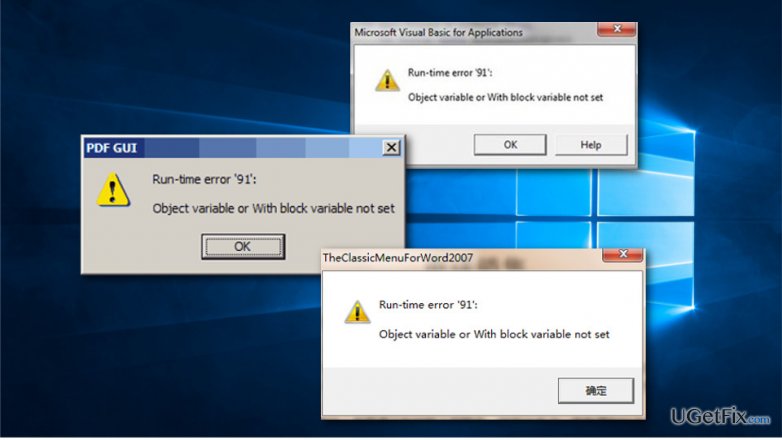
When the Runtime Error 91 occurs after the installation of the program, the reason why it happens is related to the problems with a link to the downloaded software. Often Runtime Error 91 appears when this link is missing or interrupted. What is more, this error is often followed by the "Error 59999 - Application-defined or object-defined error."
The latter error might occur when generating a report to XML/Enhanced XML and is is caused by insufficient permissions on the FRxXMLTag.XML file in the FRx directory. Thus, in order to get rid of this problem, you need to fix this file.
Note: if you want to repair various Windows errors and BSODs[ref en-2] automatically, do not hesitate to use [d1].
Method 1. Reinstall the problematic application
Issues with variables might be caused by file corruption. In order to fix that corrupted data within the system files, users could run a built-in SFC scan. However, this method will not work if the corrupted files are not those of Windows but the external application, even if it is one of the core programs that run on the PC. Thus, you should try to reinstall the problematic app that causes the Runtime Error 91.
- Type in Control Panel into Windows search and hit Enter
- Go to Programs > Uninstall a program
- From the list, select the app, right-click and pick Uninstall
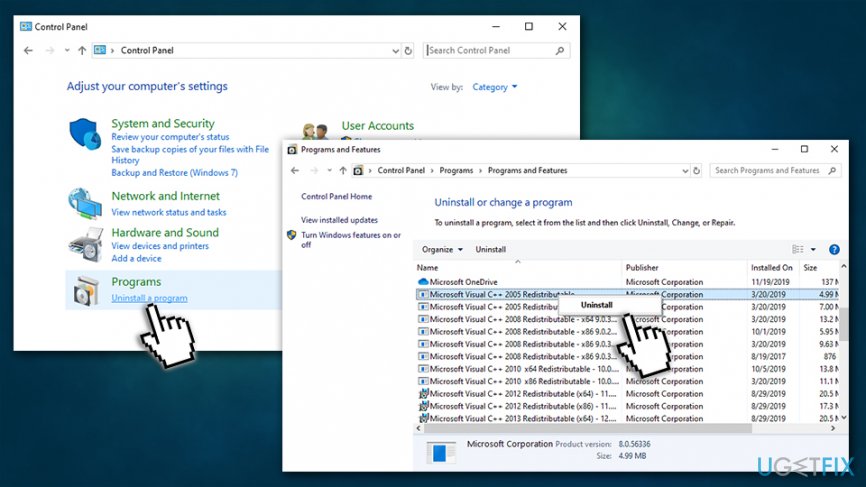
Fix runtime error 91 reinstall the problematic application - Once done, re-install the app and see if that helps to fix Runtime Error 91
Method 2. Update Windows
The Runtime Error 91 might be related to .NET Framework[ref en-1] and Visual Basic, updates for which are applied via Windows updates. Therefore, make sure you Windows is up to date:
- Right-click on Start button and pick Settings
- Select Update & Security
- Lick Check for updates
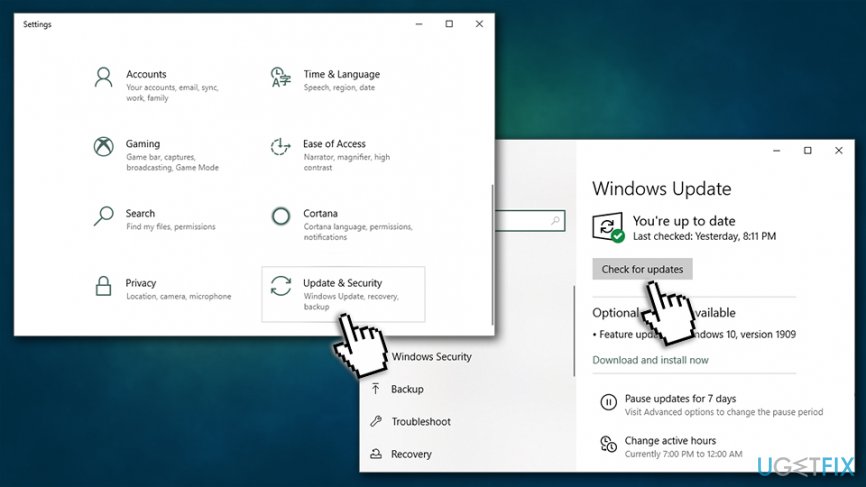
Fix runtime error 91 update windows - Wait till Windows downloads and installs all the required updates
- Reboot your PC
Method 3. Scan your machine for malware
Malware[ref en-3] can cause all sorts of problems on your computer, and also corrupt multiple files that are related to either system or program files. Therefore, malware can be one of the factors why you are facing Runtime Error 91. To make sure that this is not the case, you should scan you computer with reputable anti-malware software.
There are plenty of paid and free third-party anti-malware solutions available online, so you can choose based on your needs. However, you can also use Windows Defender (now known as Microsoft Defender) to perform a full system scan in order to make sure no malicious files are present.
- Click on system tray arrow and double-click the Windows Security icon
- Select Virus and threat protection
- Pick Scan options below Quick Scan button
- Select Full scan option and click Scan now
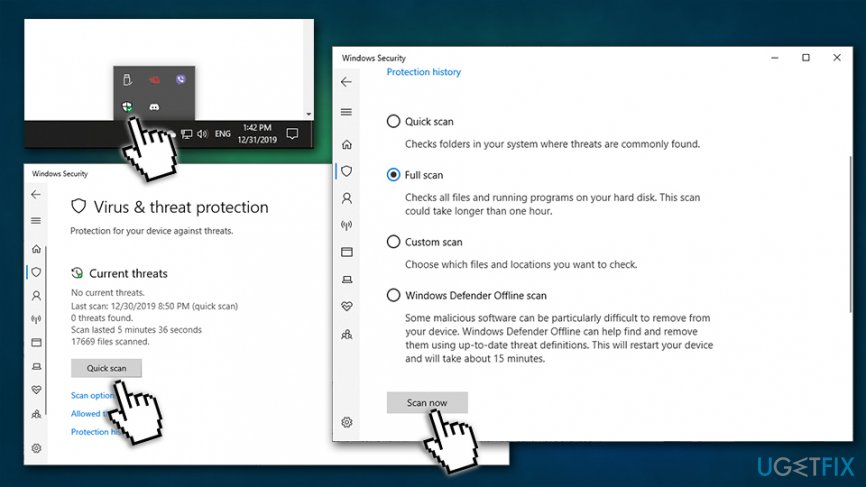
Fix runtime error 91 scan the computer for malware
Method 4. Set DCOMCnfg.exe to be allowed to run by "Everyone"
- Type in DCOMCnfg.exe into Windows search box and hit Enter
- In the Component Services window, expand the following: Component Services > Computers > My Computer
- Right-click on My Computer and select Properties
- Select COM Security tab and under Access Permissions pick Edit Limits
- Pick Everyone from the groups and make sure that Local and Remote Access are set to Allow
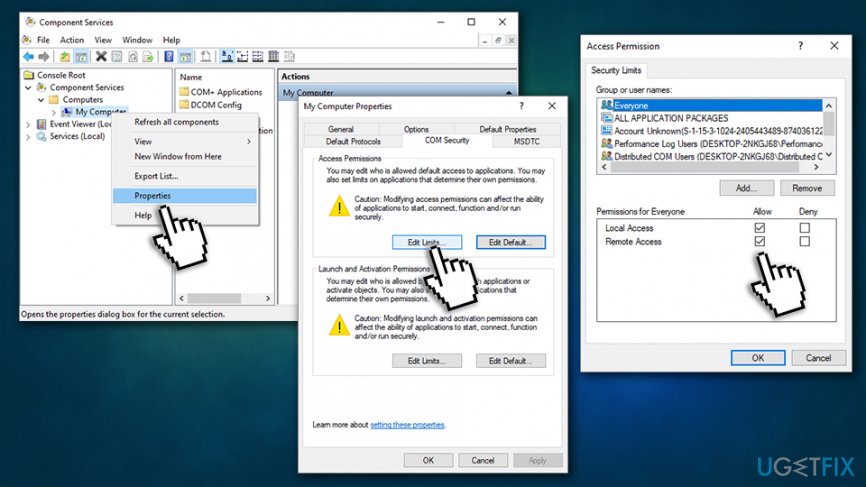
Fix runtime error 91 configure dcomcnfg file
Method 5. Give full control to FRxXMLTag.XML file
In case the Runtime Error 91 is followed by the Error 5999, you should perform the following steps:
- Run Windows as administrator
- In Windows Explorer browse to FRx directory.
- Right-click on the FRxXMLTag.XML file and select Properties.
- When in Properties, click the Security Tab.
- In Security Tab, add the group Everyone and select Full Control.
- Click OK.
Bottom line
To fix Runtime Error 91, you can repair the corrupted DCOMCnfg.exe file, ensure the link to the downloaded software is intact, and adjust permissions on the FRxXMLTag.XML file. If these methods do not resolve the issue, consider using automated repair tools for Windows errors.
Frequently asked questions
Runtime Error 91 occurs when a program tries to use an object that hasn't been set or initialized properly, leading to crashes or freezes in applications.
You can fix Runtime Error 91 by repairing or reinstalling the affected application, or by running a System File Checker scan to repair corrupted system files.
Yes, keeping Windows 11 updated can help resolve Runtime Error 91 by ensuring you have the latest patches and fixes for any underlying issues.




Report an issue
What's wrong with this guide? We review every report and update or remove content.
Report received — thank you. We'll review and fix it.
You need a free account to submit a report.
Be the first to comment