How to fix
“Safari Can’t Verify the Identity of the Website” error
on Windows
Resolve the "Safari Can’t Verify the Identity of the Website" error on Windows 10 or 11 effortlessly with expert-tested solutions. Fixed in minutes!

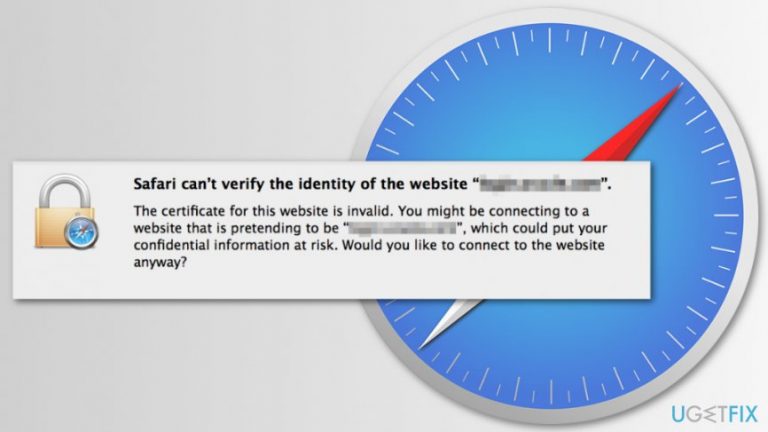
What causes How to fix “Safari Can’t Verify the Identity of the Website” error?
- Adware programs forcing browser activity
- Potentially unwanted programs (PUPs)
- Cache or browsing history issues
- Corrupted certificates
Repairs Windows system files, removes malware, and restores a clean OS state — without reinstalling.
When I try to shop on eBay, Safari delivers a pop-up that tells “Safari can't verify the identity of the website “s7.addthis.com”. However, I found this activity suspicious because I do not try to visit this site. How can I get rid of this problem? It bothers me for weeks.
“Safari can't verify the identity of the website” is one of the common Safari errors that any Mac OS X users can encounter. The error might show up when visiting any domain. However, seeing a problem with s7.addthis.com and stags.bluekai.com might warn about a bigger issue.
These domains are often associated with adware programs that are designed to force user’s browsers to display ads or redirect to questionable websites. Thus, the error might show up because ad-supported[ref en-1] application tries to control Safari’s activity.
Therefore, before trying other methods to fix “Safari can’t verify the identity of the website” error, you should check the system for the viruses and PUPs.[ref en-2] You can use [rev id=”MacKeeper”] or [rev id=”MacCleanse”] to check and clean the device.
However, Safari Can’t Verify the Identity of the Website error might also be caused by cache or browsing history issues, as well as corrupted certificates. Hence, if you are not dealing with a potentially unwanted program, you might need to fix this problem in Safari.
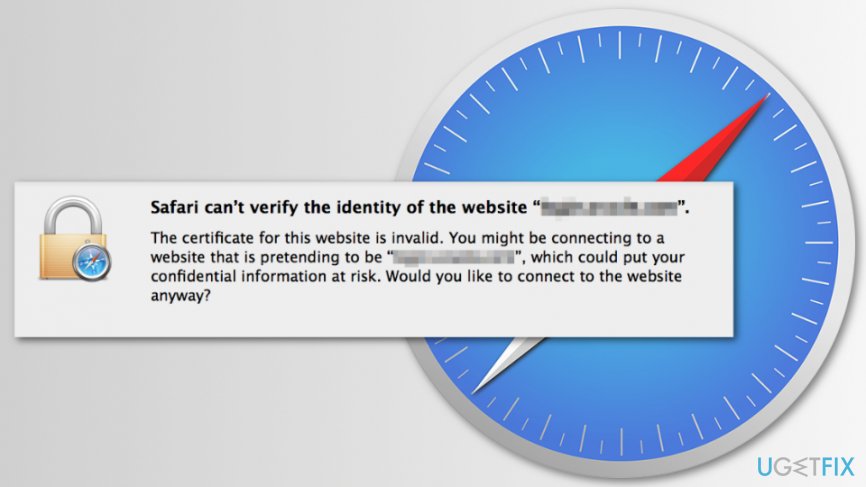
Methods to fix “Safari can't verify the identity of the website” error
There are a couple of ways how you can get rid of the Safari error that prevents from accessing specific websites. However, first of all, you have to make sure that your Mac or MacBook is not infected.
Method 1. Check the system for adware
If the error tells that it has problems with s7.addthis.com and stags.Bluekai.com sites, you should run a full system scan with an updated anti-malware software, such as [rev id=”MacKeeper”], to see if your Mac was not infected with adware.
As we have mentioned in the beginning, these two domains are related to potentially unwanted programs (PUPs), so you have to make sure that one of them haven’t sneaked to your device too.
Method 2. Clean Safari cache
Cleaning cache[ref en-3] can help to get rid of the error. However, clearing cache leaves cookies and browsing history. Thus, if this method did not help, you should delete these entries too.
Step 1. Activate hidden Safari Developer menu:
- Open Safari.
- Click Safari option in the top menu box.
- Open Preferences.
- Go to Advanced tab.
- Mark the tick on Show Develop Menu in Menu Bar option.
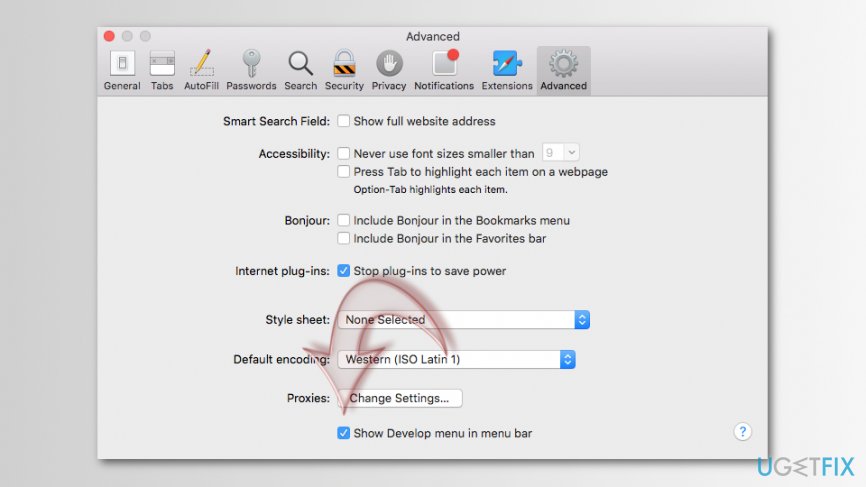
Show develop menu in menu bar
Step 2. Clean cache
When you finish the first step, you will see the new Develop option in the menu bar.
- Click Develop option.
- Click Empty Caches option.
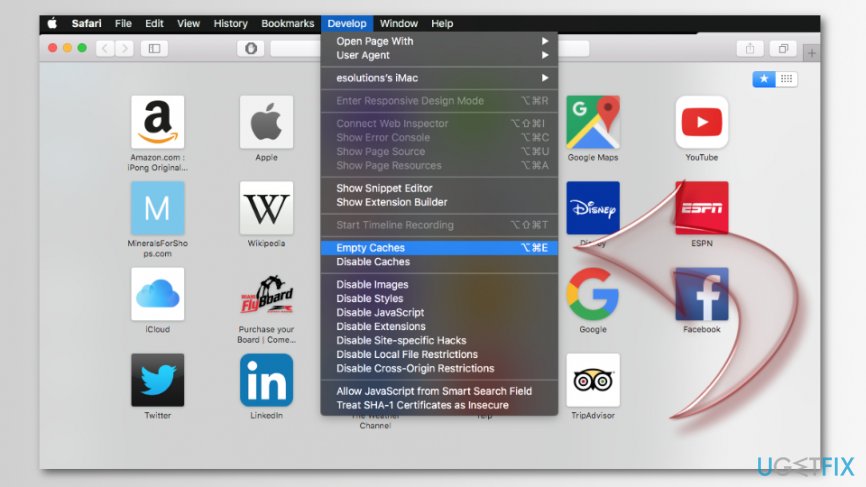
Empty caches on safari - Relaunch Safari to see if the error shows up.
Method 3. Clear Safari history and website data
If the previous method did not help to fix “Safari can’t verify the identity of the website” error, please follow the steps to clean Safari history, website data, and cookies:
- Open Safari.
- Click Safari on the top menu bar.
- Choose Clear history… option.
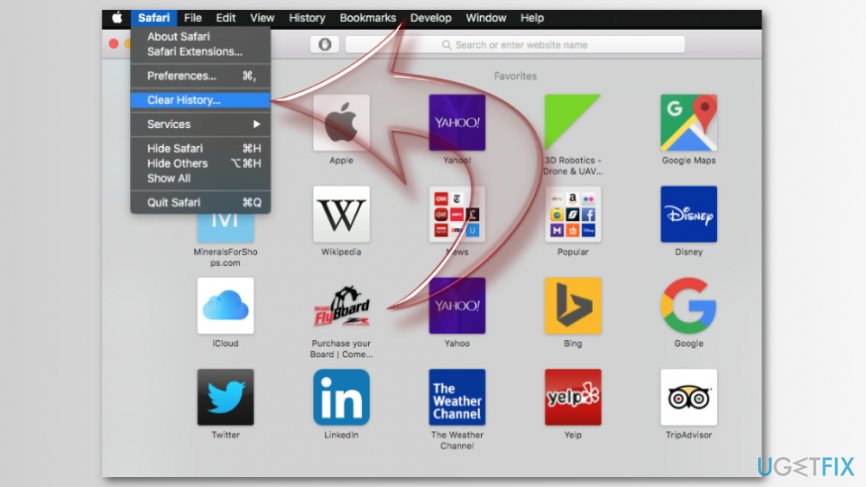
Clear safari history - In the appeared pop-up window set Clear to all history.
- Click Clear History button.
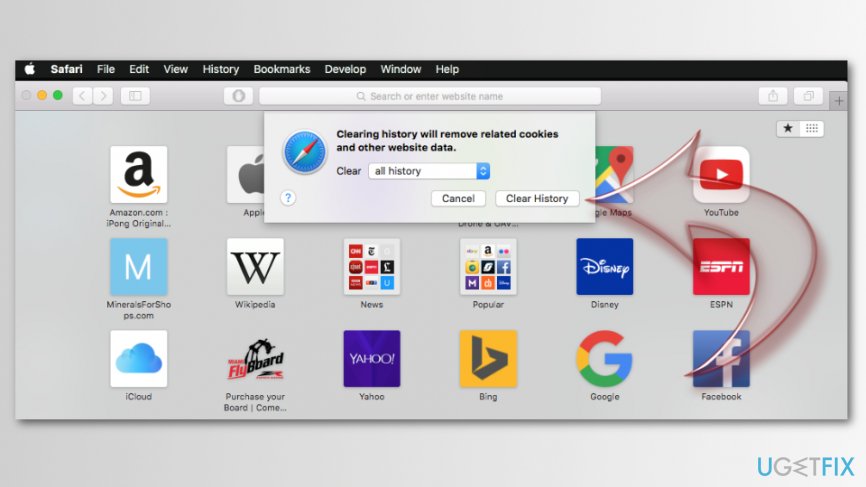
Clear safari history button
Method 4. Repair Keychain Access and issues with certificates
“Safari can’t verify the identity of the website” error might also be caused by corrupted or invalid certificates. Hence, you can try fixing them by following these steps:
- Close Safari.
- In the Mac search box enter Keychain Access[ref en-4] to find and launch the app.
- Navigate to Keychain Access menu and choose Keychain First Aid from the list.
- Enter your username and password.
- Choose Repair option on the left.
- Click Start button.
- Relaunch Safari. The error should be gone.
Bottom line
To fix the 'Safari can’t verify the identity of the website' error, check your system for adware using anti-malware software like MacKeeper. If the issue persists, consider clearing your cache and browsing history or addressing any corrupted certificates. If none of these solutions work, further investigation into your system may be necessary.
Frequently asked questions
To fix this error on Windows 10, ensure that your system date and time are correct, as discrepancies can cause certificate issues. Additionally, check your network settings and consider disabling any VPN or proxy that may interfere with the connection.
On Windows 11, you can resolve this error by updating your browser or checking the TLS settings in Safari to ensure they are enabled. If the issue persists, try clearing your browser cache and cookies.
If the error continues to appear, try resetting Safari settings to default and ensuring that your antivirus or firewall is not blocking the website. You may also need to reinstall Safari if the problem is not resolved.




Report an issue
What's wrong with this guide? We review every report and update or remove content.
Report received — thank you. We'll review and fix it.
You need a free account to submit a report.
Be the first to comment