How to fix
Samsung DeX not working
on Windows
Troubleshoot Samsung DeX issues on Windows 10 and 11 effortlessly. Get your setup running smoothly again with expert-tested solutions. Fixed in minutes!

What causes How to fix Samsung DeX not working in Windows?
- Compatibility issues between Samsung DeX and certain Windows configurations
- Driver conflicts on the Windows PC
- Outdated software on the Windows PC
- Faulty USB-C cable
- USB-C cable not capable of data transfer
Repairs Windows system files, removes malware, and restores a clean OS state — without reinstalling.
I have tried to connect my Samsung phone to my laptop via Samsung Dex - I used the C-type connection that was original and came with the phone. Unfortunately, that did not work at all. Any ideas on what to do?
Samsung DeX, a feature offered by Samsung, transforms compatible smartphones and tablets into a desktop-like experience. By connecting the device to a monitor, keyboard, and mouse, users can access a PC-like interface, complete with resizable windows, drag-and-drop functionality, and a taskbar.
This technology is designed to enhance productivity by leveraging the power and portability of Samsung's mobile devices. Typically, a USB-C connection facilitates this transition, linking the phone or tablet to a Windows-based system.
However, users often encounter issues where Samsung DeX fails to operate correctly on Windows systems, despite using the original USB-C connector. This malfunction presents a significant inconvenience, particularly for those relying on this feature for seamless workflow integration between their mobile and desktop environments.
The underlying causes of this problem can be multifaceted. Compatibility issues between Samsung DeX and certain Windows configurations are common, as Windows systems vary widely in terms of hardware and software environments. Additionally, driver conflicts or outdated software on the Windows PC could hinder the proper functioning of DeX.
To address these challenges, you should first ensure that both your Samsung device and Windows system are updated to their latest software versions. This step can resolve many compatibility issues.
Additionally, checking for any driver updates specifically related to USB-C ports or mobile connectivity on your Windows device can be crucial. It's also advisable to verify that the USB-C cable being used is in good working condition and is capable of handling data transfer, as not all USB-C cables are created equal.
Finally, if these preliminary checks don't resolve the issue, consider using a specialized PC repair tool [d1]. Such a tool can automatically diagnose and fix underlying Windows issues that might be affecting the functionality of Samsung DeX.

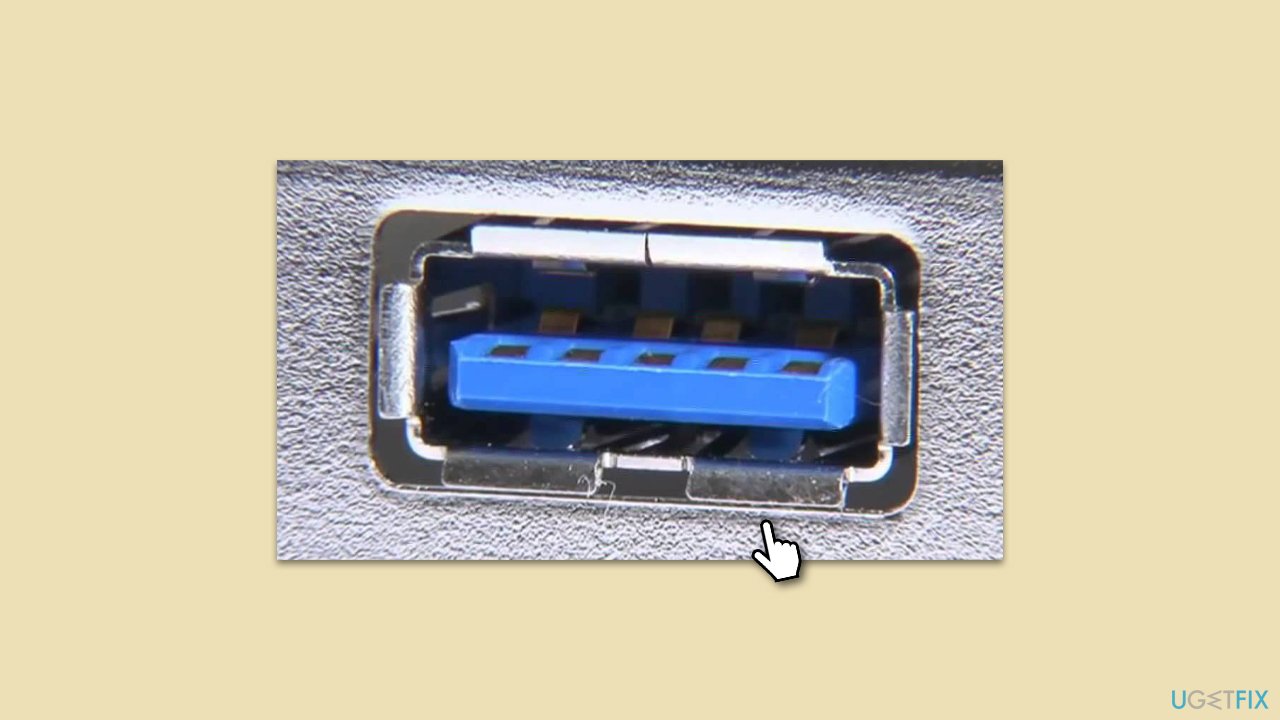
Fix 1. Use USB3 instead of USB2 port
Using a USB3 port instead of a USB2 can significantly improve the connection between your Samsung device and the Windows PC. USB3 ports offer higher data transfer speeds and better performance, which are essential for the smooth operation of Samsung DeX.
- Identify a USB 3.0 port on your computer (usually marked with a blue color or labeled as SS, which stands for SuperSpeed).
- Connect your Samsung device to this USB3 port using a compatible USB-C cable.
- Try launching Samsung DeX again to see if the connection is now successful.
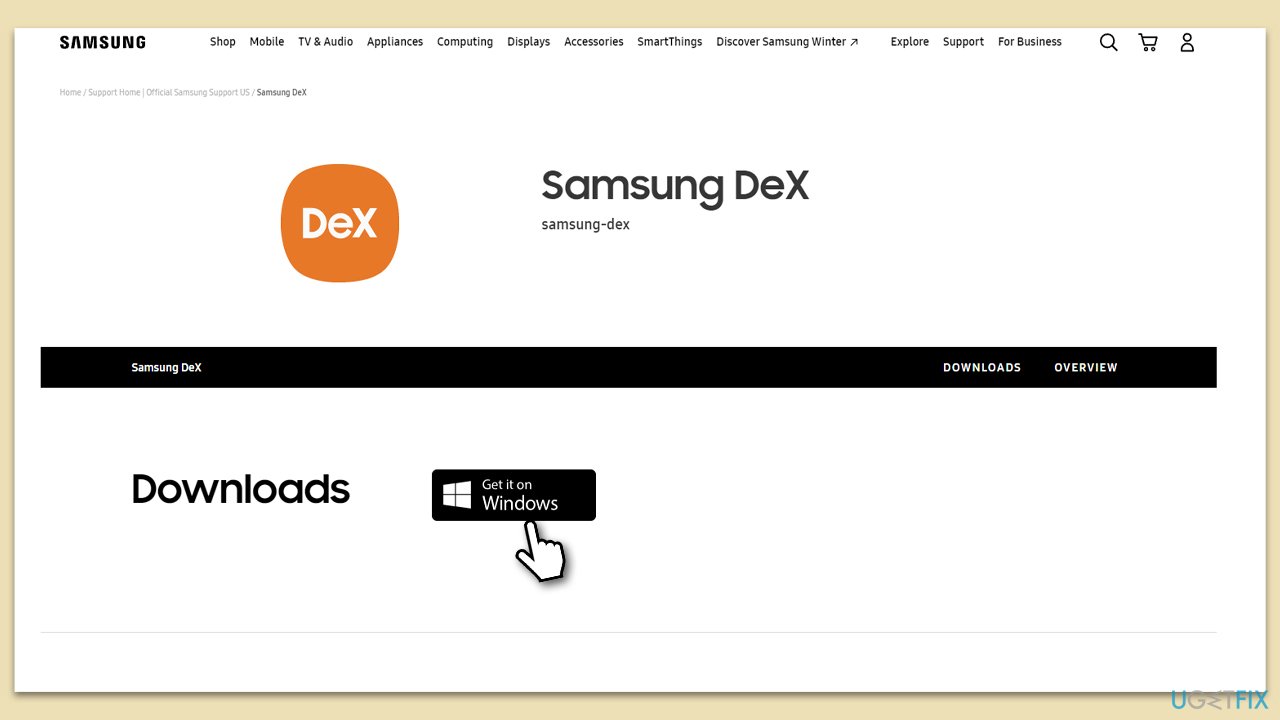
Fix 2. Install DeX separately instead of relying on the phone to prompt you
Manually installing the application on your Windows PC can sometimes be more effective than waiting for the phone to prompt the installation when connected.
- Visit the official Samsung DeX website.
- Download the DeX application for Windows.
- Follow the installation instructions provided by the setup wizard.
- Once installed, connect your Samsung device and open the DeX application manually.
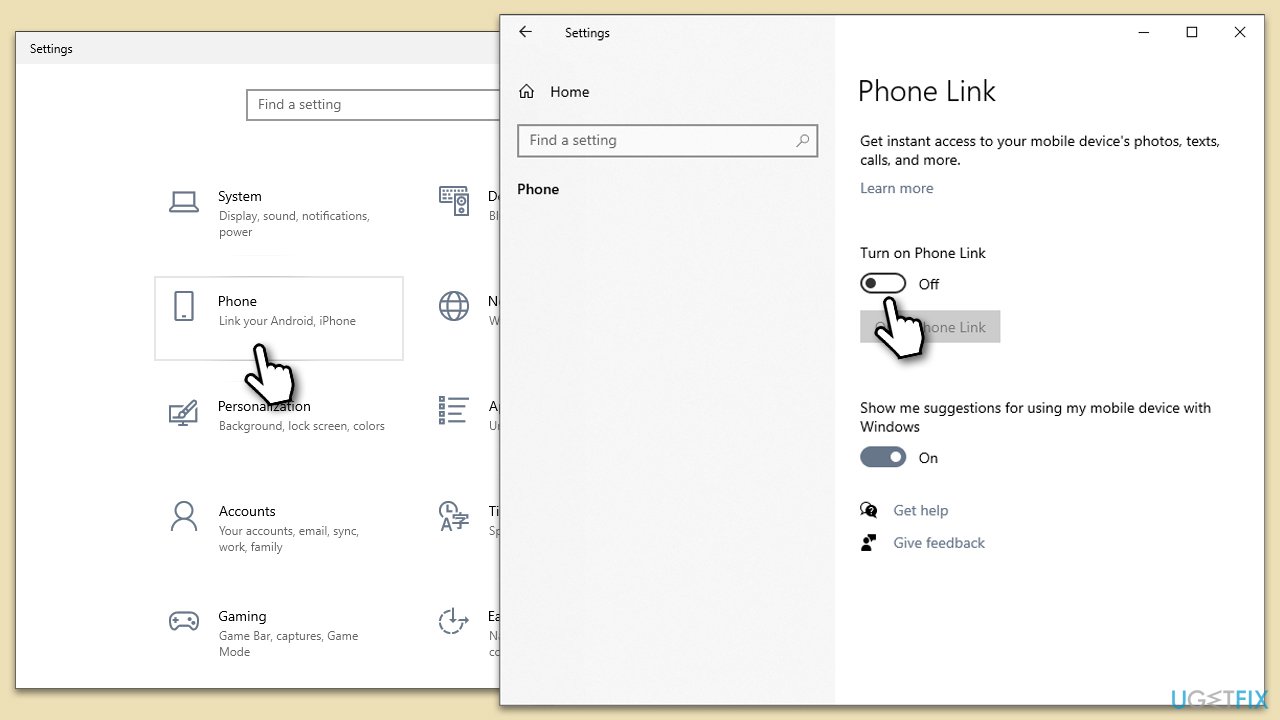
Fix 3. Disable Link for Windows
Disabling the Link for Windows feature might resolve software conflicts.
- On Windows, open Settings.
- Go to the Phone or Bluetooth & devices section.
- Find the Phone Link section.
- Disable Phone Link by toggling the switch to the Off position.
Fix 4. Enable DeX mode on your phone before connecting it to the PC
Activating DeX mode on your phone before connecting it to your PC can sometimes initiate a smoother connection.
- Open the quick panel on your Samsung device by swiping down from the top of the screen.
- Find and tap on the DeX icon.
- Connect your device to the PC after enabling DeX mode.
Fix 5. Make sure the phone and the device are connected to the same network
For optimal performance, especially in wireless DeX mode, ensure that both your Samsung device and Windows PC are connected to the same network.
- Check the Wi-Fi network on your Samsung device.
- Verify that your PC is connected to the same Wi-Fi network.
- Attempt to use Samsung DeX after confirming the network match.
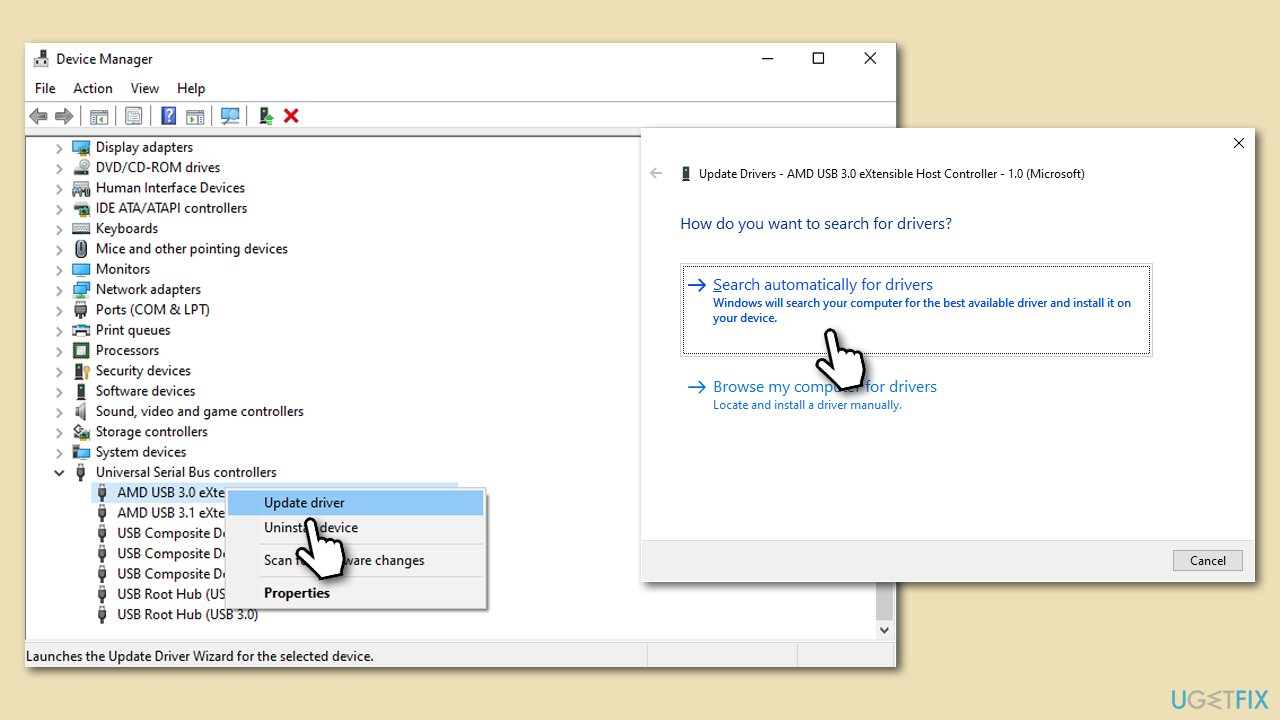
Fix 6. Update USB drivers
Outdated or corrupt USB drivers on your Windows PC can cause connectivity issues with Samsung DeX.
- Open Device Manager as explained above.
- Expand the Universal Serial Bus controllers section once again.
- Right-click on each of the drivers available there and select Update driver.
- Select Search automatically for drivers and wait.
- When done, reboot your system.
- If Windows does not find any updates, we recommend either finding them on the official website of your device manufacturer or using tools like [rev id="DriverFix"]
Fix 7. Restart both devices
Sometimes, a simple restart of both your Samsung device and Windows PC can resolve temporary glitches affecting the DeX connection.
- Power off your Samsung device and then turn it back on.
- Similarly, restart your Windows PC.
- After both devices have restarted, attempt to connect and use Samsung DeX again.
Bottom line
To resolve the Samsung DeX not working issue, ensure both your Samsung device and Windows system are updated to their latest software versions. Additionally, check for driver updates related to USB-C ports and verify the condition of the USB-C cable. If these steps do not resolve the issue, consider using a specialized PC repair tool to diagnose and fix underlying Windows problems.
Frequently asked questions
Ensure that your Samsung device is updated to the latest software version and try reconnecting it to your Windows 10 PC using a different USB port or cable.
Try reinstalling the Samsung DeX application on your Windows 11 device and ensure that your graphics drivers are up to date.
Check your display settings on Windows 10 or Windows 11 and ensure that the correct display output is selected for Samsung DeX.




Report an issue
What's wrong with this guide? We review every report and update or remove content.
Report received — thank you. We'll review and fix it.
You need a free account to submit a report.
Be the first to comment