How to fix
Scanner error 0x00000015
on Windows
Resolve scanner error 0x00000015 on Windows 10 and 11 effortlessly. Get expert-tested solutions and regain your printing capabilities in minutes!

What causes How to fix scanner error 0x00000015 in Windows?
- Malfunctioning Windows services essential for scanner operation
- Outdated or corrupted scanner drivers
- Conflicts from installed software or recent updates
- System file corruption due to malware or incomplete updates
- Improper physical connections such as USB ports and cables
Repairs Windows system files, removes malware, and restores a clean OS state — without reinstalling.
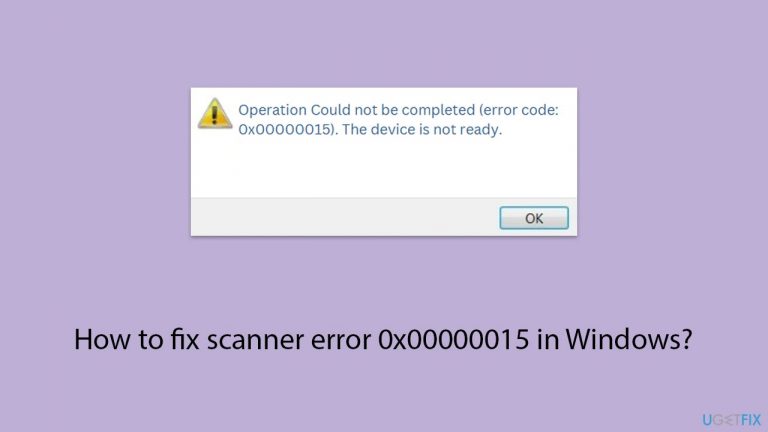
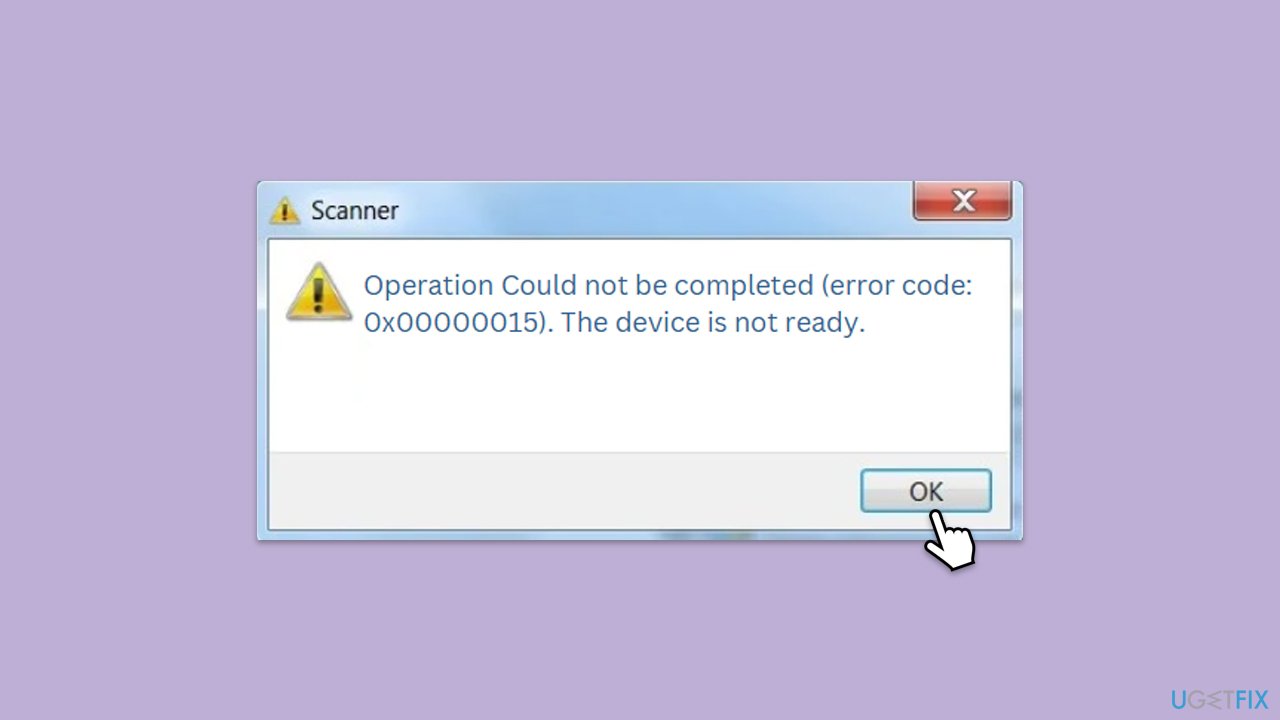
When I try to scan something on my scanner, I receive an error saying "Operation could not be completed (error 0x00000015). The device is not ready." What does this mean and how can I get rid of it?
Scanning error 0x00000015 (Operation could not be completed) can be frustrating to deal with, as it can interrupt your daily tasks. It typically occurs when attempting to initiate a scan, resulting in the scanner being unresponsive or the scanning software failing to recognize the device.
The 0x00000015 error can occur due to several reasons, primarily involving Windows services, drivers, and system configurations. Often, malfunctioning Windows services essential for scanner operation can cause this error. Outdated or corrupted scanner drivers can also cause the device not to be recognized or to be unable to perform scans.
Additionally, conflicts from installed software or recent updates may interfere with the scanner’s functionality. System file corruption, resulting from malware, incomplete updates, or accidental deletions, can trigger this error. In some cases, users could simply ignore the error (aka pressing "OK") and resume scanning operations as usual.
In order to fix scanner error 0x00000015, make sure that the scanner's required Windows services are operating correctly, as scanning problems can arise from service disruptions. Out-of-date or corrupted drivers can also result in these issues, so updating or reinstalling them could be the correct solution for you. Additionally, review recent software changes or updates that might conflict with the scanner’s operation and address these conflicts.
Repairing system files using Windows built-in tools can help resolve errors caused by file corruption. Also, check the physical connections, such as USB ports and cables, to ensure the scanner is properly connected to the computer.
A repair and maintenance tool like [d1] can efficiently handle system file corruption and DLL errors, helping to resolve scanner issues effectively.

Fix 1. Simply ignore the error and attempt scanning
Sometimes, the error is temporary and can be bypassed by simply acknowledging it and attempting the scan again.
- When the error message appears, click OK.
- Try initiating the scan once more.
Fix 2. Update drivers
Outdated drivers can cause the scanner to malfunction. Updating them can resolve these issues by ensuring compatibility with the operating system.
- Right-click on the Start menu and select Device Manager.
- Expand the section where the scanner is located (usually under Other devices, Imaging devices, etc.)
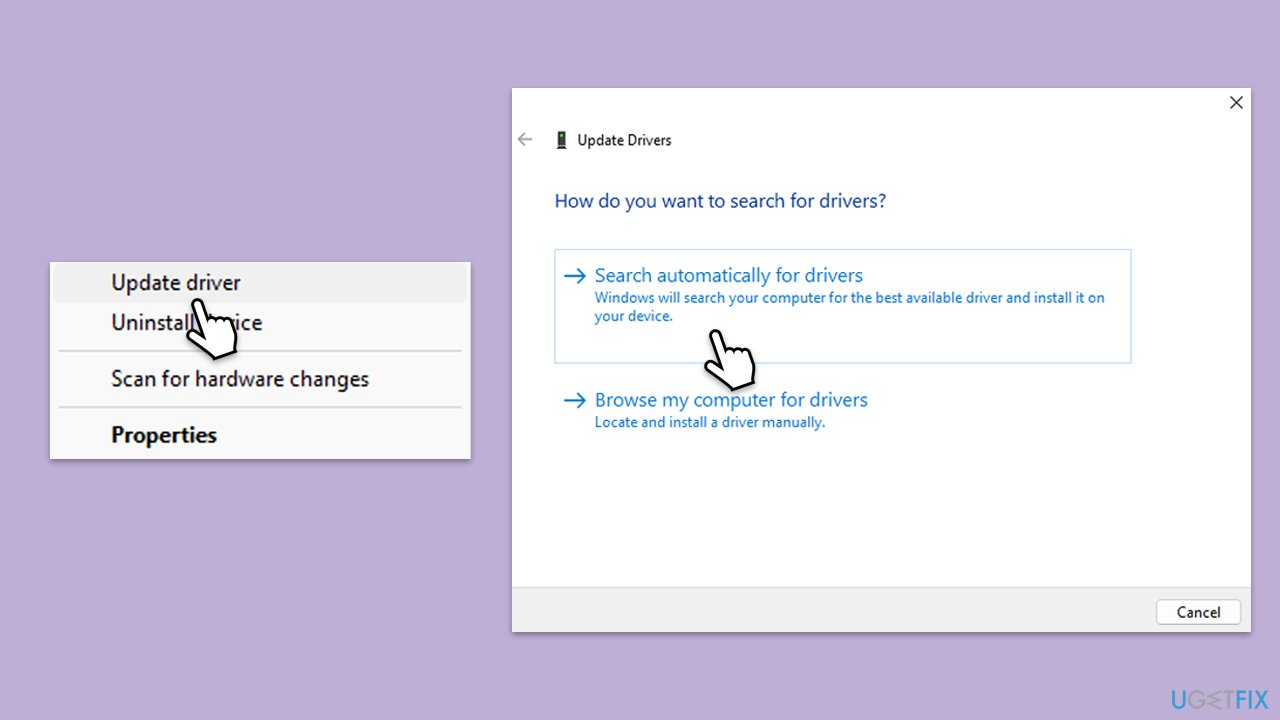
- Find your scanner in the list, right-click on it, and select Update driver.
- Choose Search automatically for drivers.
- Follow the on-screen instructions to complete the update process.
- Restart your computer after the driver update is completed.
- Alternatively, you can always employ an automatic driver updater such as [rev id="DriverFix"] for all your driver updates.
Fix 3. Reinstall drivers
Corrupted drivers can be a source of problems. Reinstalling them can help restore the proper functioning of the scanner.
- Open Device Manager.
- Find your scanner in the list of devices.
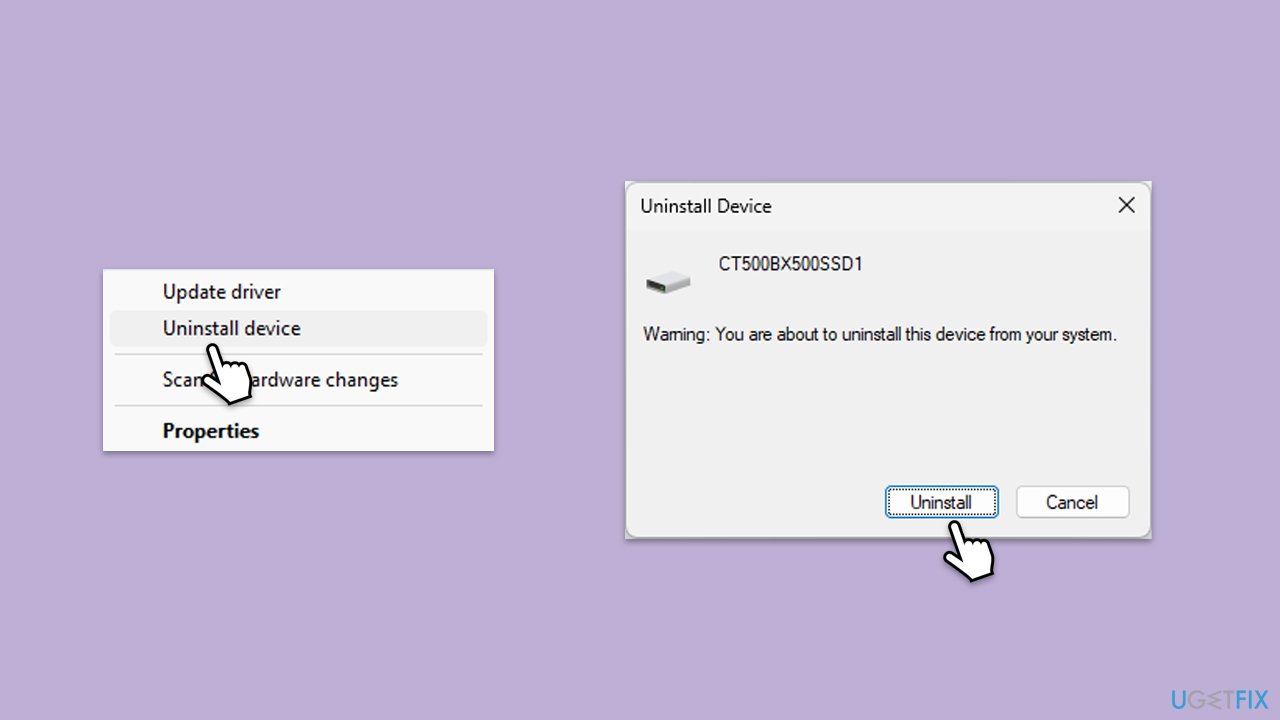
- Right-click on your scanner and select Uninstall device.
- Mark the Delete the driver software for this device tickbox and click Uninstall.
- Follow the on-screen instructions and restart your computer.
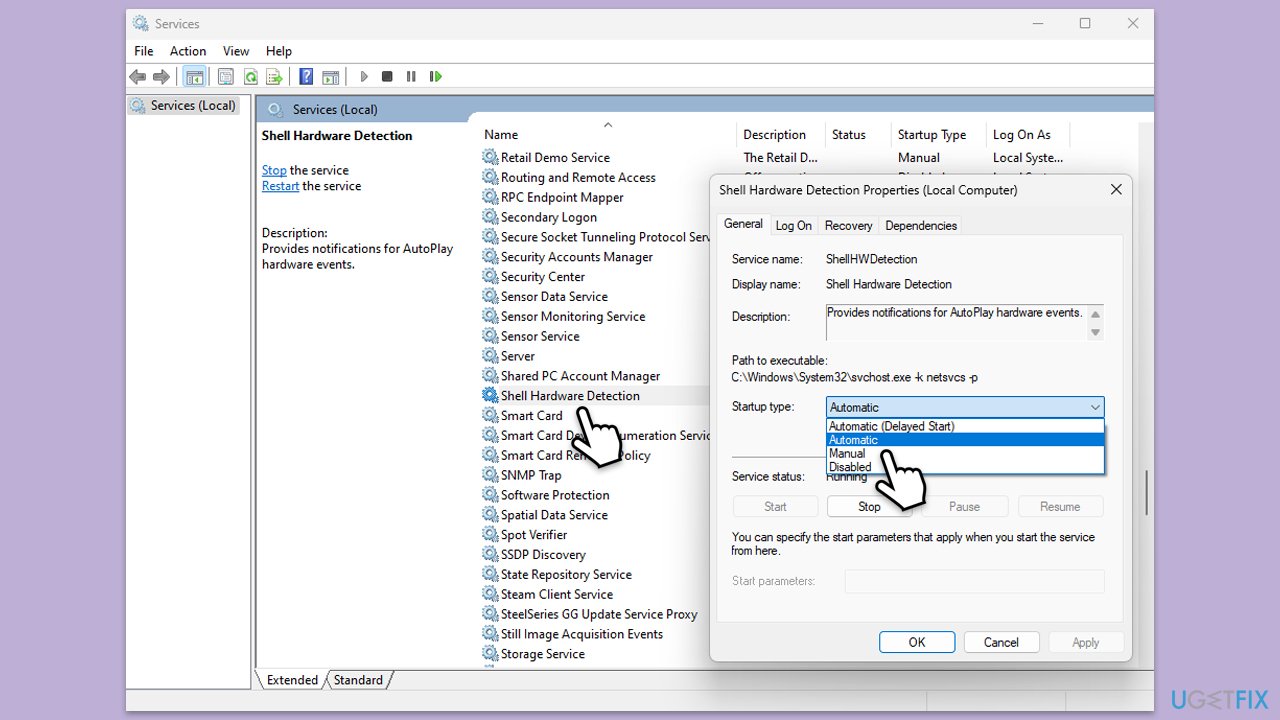
Fix 4. Ensure relevant services are set to automatic and are running
Certain services are crucial for scanner operation. Ensuring they are running can resolve issues.
- Type Services in Windows search and hit Enter.
- Locate the Remote Procedure Call (RPC), DCOM Server Process Launcher, RPC Endpoint Mapper, and Shell Hardware Detection on the list.
- Right-click on each and select Properties.
- Set the Startup type to Automatic - select it from the drop-down menu.
- Click Start if the service is not running.
- Click Apply and OK.
Fix 5. Check USB connections
Faulty or loose connections can prevent the scanner from being detected. Checking these can resolve the issue.
- Ensure the scanner is properly connected to the computer via USB.
- Try using a different USB port.
- Inspect the USB cable for any damage and replace it if necessary.
Fix 6. Restart the scanner and computer
A simple restart can often resolve temporary issues with the scanner or the computer.
- Turn off the scanner and unplug it from the power source.
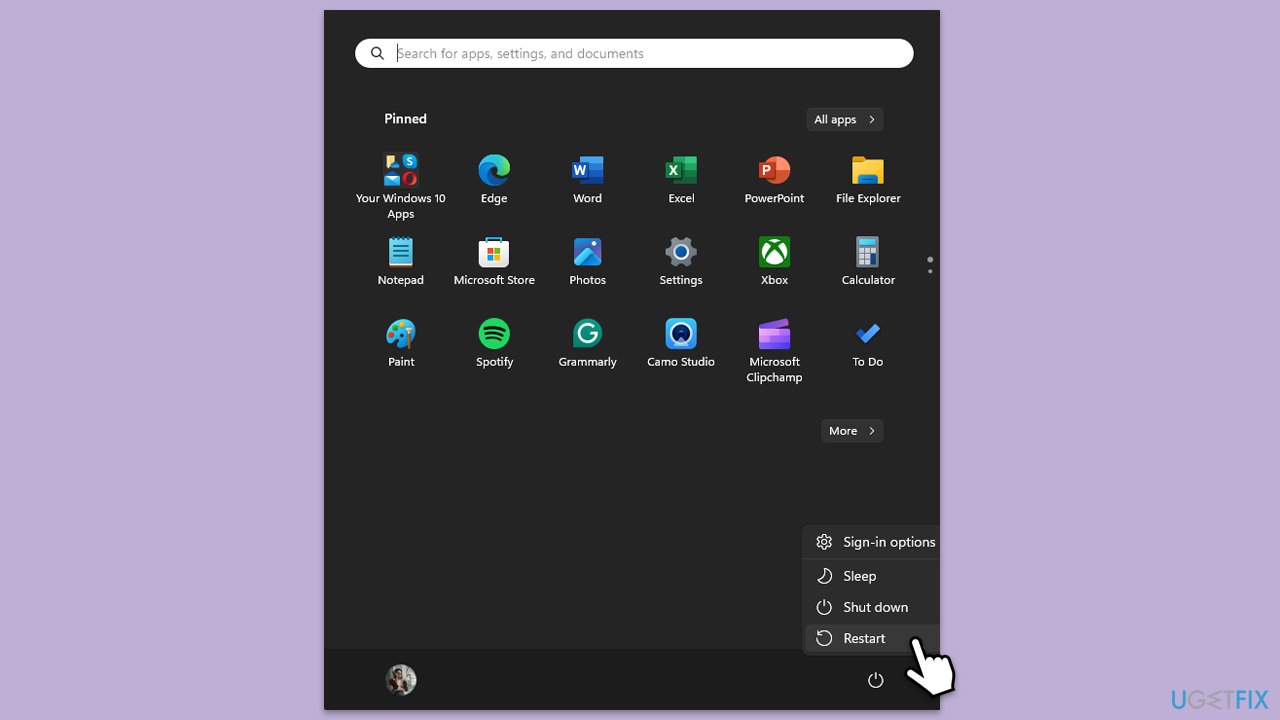
- Restart your computer.
- After the computer restarts, plug in and turn on the scanner.
Bottom line
To fix scanner error 0x00000015, ensure that the required Windows services are operating correctly, update or reinstall the scanner drivers, and check for software conflicts. Additionally, repairing system files and verifying physical connections can help resolve the issue. If none of these solutions work, consider using a repair and maintenance tool to address system file corruption.
Frequently asked questions
This error typically occurs due to issues with the scanner driver, incorrect connection settings, or conflicts with other software. Ensuring that your drivers are up-to-date and the scanner is properly connected can help resolve the issue.
You can update your scanner drivers by going to Device Manager, locating your scanner under 'Imaging devices', right-clicking it, and selecting 'Update driver'. Alternatively, you can visit the manufacturer's website for the latest drivers compatible with Windows 10 or Windows 11.
If the error persists, try restarting both your scanner and computer, checking all physical connections, and running the Windows Troubleshooter for printers and scanners. Additionally, consider uninstalling and reinstalling the scanner software.




Report an issue
What's wrong with this guide? We review every report and update or remove content.
Report received — thank you. We'll review and fix it.
You need a free account to submit a report.
Be the first to comment