How to fix
Screen flickering
on Windows
Resolve screen flickering issues on Windows 10 and 11 with effective solutions. Get back to smooth visuals in no time—expert-tested for your convenience!

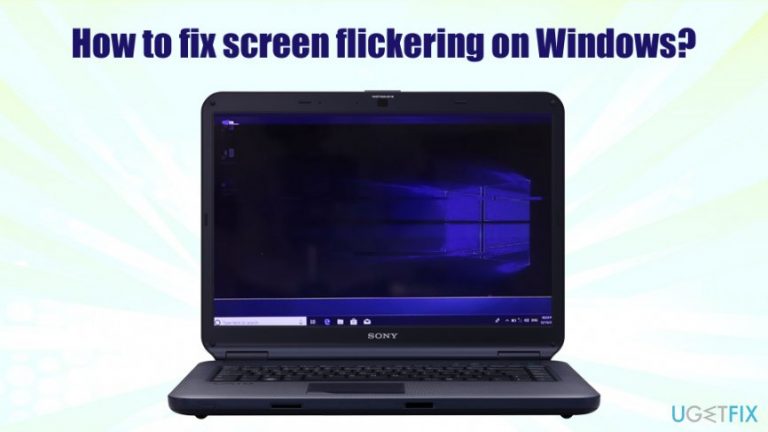
What causes How to fix screen flickering on Windows?
- Incompatible video card drivers
- Inappropriate refresh rate set on the monitor
- Corrupted hardware (graphics card)
- Incompatible or poorly adapted applications
- Specific applications like iCloud, Norton anti-virus, and IDT audio
Repairs Windows system files, removes malware, and restores a clean OS state — without reinstalling.
Hi. I encountered a weird problem recently - once I load my Windows 10 PC, the screen starts to flicker briefly, then it stops. Later I see the same thing happening again - it seems like some type of glitch? Is this related to broken computer parts that I need to replace, or is there anything I can do to fix flickering screen?
Windows 10 is one of the most advanced operating systems from Microsoft with many different features that support different configurations based on user requirements. It incorporates the combination of hardware from different manufacturers as well software drivers, as well as various settings to work correctly - due to this, there are multiple issues that might arise, and screen flickering or flashing is one of them.
Screen flickering on Windows 10 can be a sign of many different issues; some might be easily repairable, while others might be more serious. The most plausible cause of the problem is incompatible video card drivers[ref en-1] installed on the device - these items are software components which enable the proper operation between hardware and software.
In some cases, however, the issue might be related to inappropriate refresh rate set on the monitor or corrupted hardware, namely graphics card (GPU). In the case of the latter, the only way to fix screen flickering and flashing would be to either switch to an integrated graphics card[ref en-2] or by replacing the graphics processing unit altogether.
Another prominent reason for Windows screen flickering is due to incompatible or poorly adapted applications installed on the Windows machine. While there are a variety of apps that could cause this, it is known that iCloud, Norton anti-virus, and IDT audio.
Before you do anything, we recommend trying to fix flickering screen automatically by scanning Windows machine with PC repair software [d1] - it can pinpoint the cause of various issues and repair them automatically in most of the cases. If you wish so to fix screen flickering manually, you should proceed with the solutions below.
Step 1. Troubleshoot the screen flickering issue
The best way to find out why your Windows screen is flickering is by performing a simple test that involves the Task Manager. Simply press Ctrl + Shift + Esc (or you can also right-click on the Start button and pick Task Manager) to open Task Manager, and look at it for a while. There are two possibilities:
- If the Task Manager is flickering along with everything else on the screen, it means that the display driver installed on your machine is faulty;
- If the Task Manager does not flicker and only the background does, it is highly likely to be caused by incompatible application.
Based on the results of the troubleshooting, you should proceed with the below solutions. For your convenience, and if there is a possibility, you could connect your computer to a different display in order to see if the display still flickers.
Step 2. Uninstall your graphics drivers
Note: make sure you have an internet connection enabled before you apply this fix, otherwise your computer will not be able to display the correct aspect ratio, and your display simply won't function properly.
- Right-click on the Start button and click Device Manager
- Click on Display adapters to see the drivers currently installed
- Right-click on the installer driver and select Uninstall device
- In the next prompt, select the Delete the driver software for this device box
- Select Uninstall and wait for the process to complete

How to fix screen flickering on windows uninstall drivers - Reboot your machine
Step 3. Install the latest drivers
After you uninstall the drivers and reboot your machine, Windows will automatically install the default driver. However, many functions might not work correctly until one of the latest video drivers is applied. Therefore, perform the following steps to fix screen flickering:
- Open Device Manager once again and expand the Display adapters section
- Right-click on the driver and select Update driver
- Pick Search automatically for updated driver software
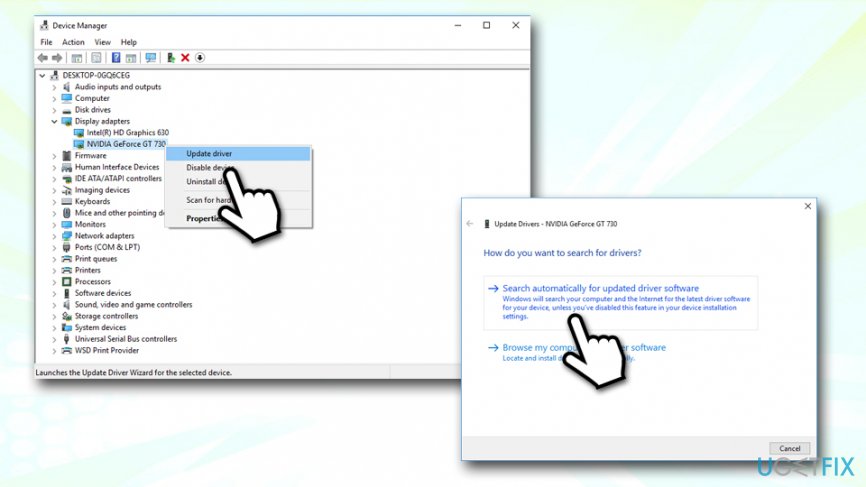
How to fix screen flickering on windows update drivers - Wait till update is applied and reboot your device
If the above method fails for some reason, you can visit the manufacturer's website to download the drivers manually. Here are the website links for the most used GPU driver software:
- https://www.nvidia.com/Download/index.aspx – Nvidia
- https://www.amd.com/en/support – AMD
- https://downloadcenter.intel.com/product/80939/Graphics-Drivers – Intel
Step 4. Disable Windows Error Reporting services
There have been plenty of cases where users managed to fix screen flickering on Windows after disabling Windows Error Reporting services. Here's how to to do it:
- Press Win + R to open the Run dialog
- Type in services.msc and hit Enter
- Scroll down and locate Windows Error Reporting Service
- Right-click and select Properties
- Select the Disabled option from the Startup type drop-down menu
- Click Apply and OK
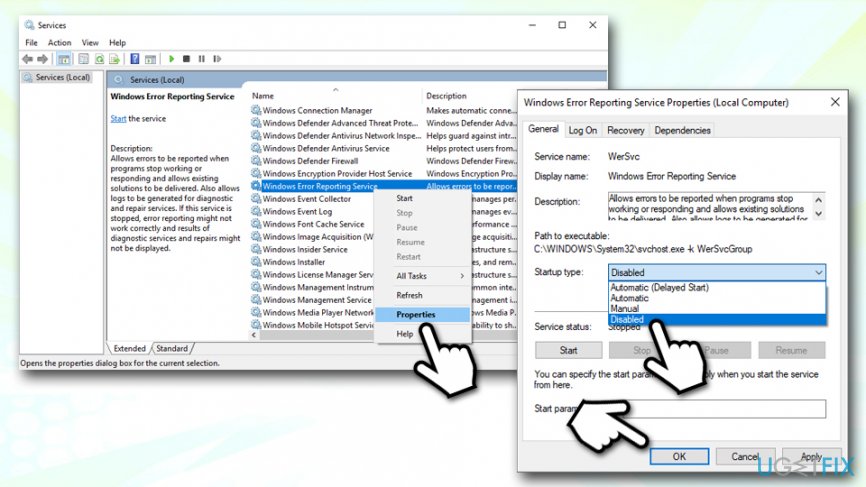
How to fix screen flickering on windows disable windows error reporting service - Repeat same steps for Problem Reports and Solutions service
- Restart your machine
Step 5. Uninstall some applications
The cause for the flickering screen can be incompatible applications. If you have iCloud, Norton anti-virus, or IDT audio installed, remove these apps and check if the issue persists. Alternatively, you can uninstall every app one-by-one to find the culprit of the problem. Here's how to do it:
- Type in Control Panel in Windows search and hit Enter
- Go for Programs > Uninstall a program
- Soft apps by the installation date by clicking on the Installed on column
- Right-click on the program and select Uninstall
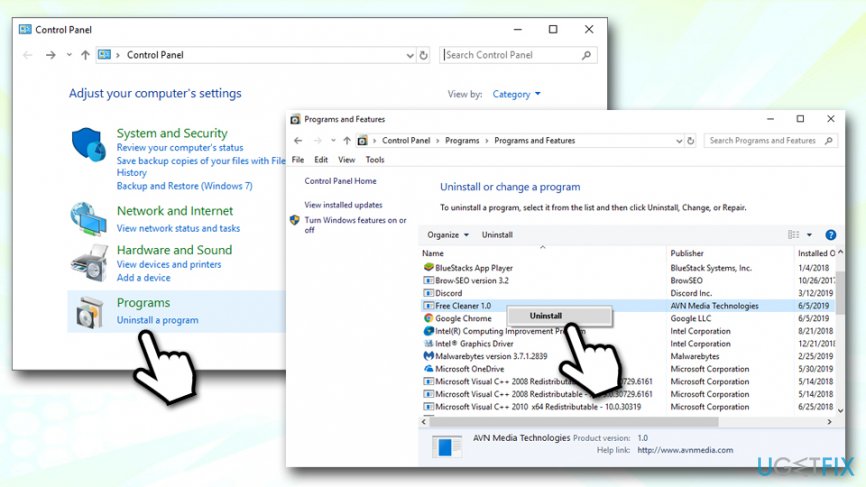
How to fix screen flickering on windows uninstall incompatible apps
Step 6. Set an appropriate refresh rate for your monitor
In some cases, the issue might be caused by inappropriate refresh rate settings. The refresh rate simply indicates how many times your monitor updates per second - most users have monitors that support a 60 Hz refresh rate.[ref en-3] However, in some cases, the refresh rate might be set so low that it would cause the screen to flicker. Here's how to fix this:
- Type Display settings in Windows search and hit Enter
- Scroll down and click on Advanced display settings
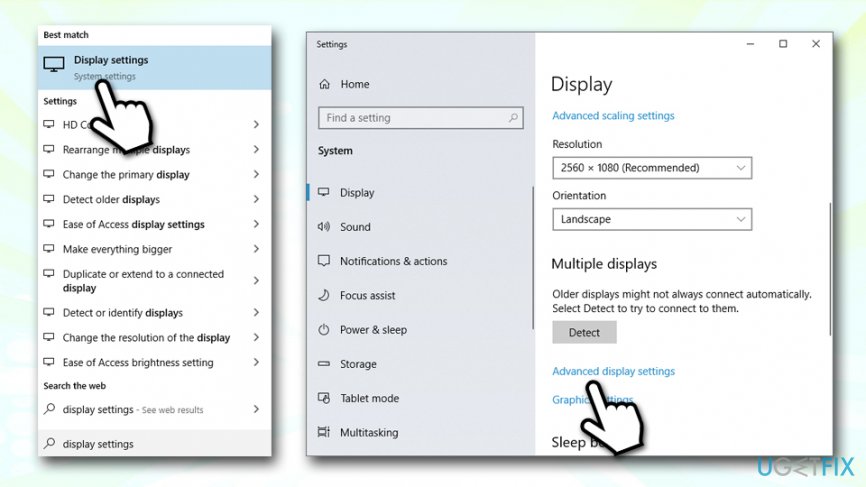
How to fix screen flickering on windows go to advanced display settings - In case your refresh rate is set to 59 Hz or lower, you should change the rate to 60 Hz
- Click on Display adapter properties for Display 1
- Go to the Monitor tab
- Under Screen refresh rate, set the value to 60 Hz
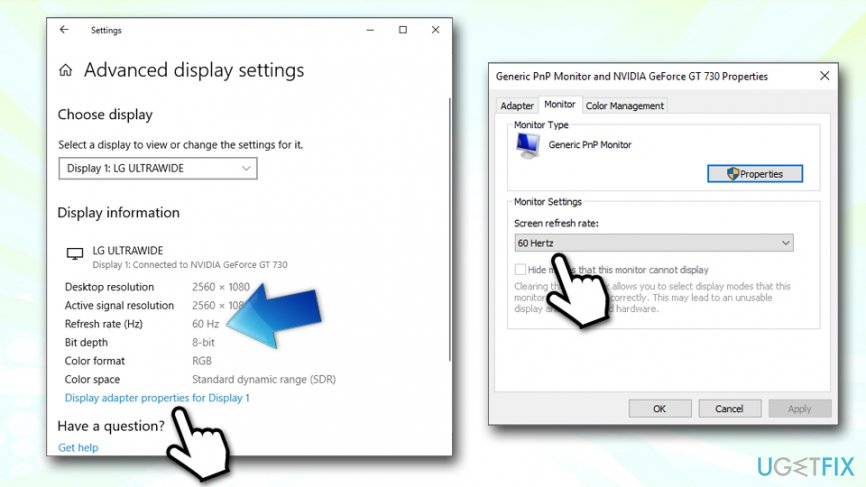
How to fix screen flickering on windows go set monitor refresh rate - Reboot your PC
Bottom line
To fix screen flickering, you can troubleshoot the issue, update video card drivers, adjust the monitor's refresh rate, or uninstall problematic applications. If these solutions do not resolve the issue, consider using PC repair software or replacing the graphics processing unit.
Frequently asked questions
Screen flickering can be caused by incompatible graphics drivers, display refresh rate settings, or hardware issues such as a failing monitor.
You can update your graphics drivers by going to Device Manager, expanding the Display adapters section, right-clicking your graphics card, and selecting 'Update driver'.
If adjusting the refresh rate doesn't help, try booting in Safe Mode to see if the flickering persists, which can indicate a software conflict.




Report an issue
What's wrong with this guide? We review every report and update or remove content.
Report received — thank you. We'll review and fix it.
You need a free account to submit a report.
Be the first to comment