How to fix
Screen won’t turn off after specified time
on Windows
Resolve the screen not turning off issue in Windows 10 effortlessly. Get expert-tested solutions to restore your power settings, fixed in minutes!

What causes How to fix Screen won’t turn off after specified time on Windows 10?
- Issues with Sleep Mode
- Buggy Windows operating system update
- Rushed OS updates released with issues
- Alterations in system folders and files
Repairs Windows system files, removes malware, and restores a clean OS state — without reinstalling.
Hello. My display won't turn off after a certain time. Troubleshooting gives no results, and I don't know how to solve this. It started a few days ago when I think updates got installed overnight. I turned the computer on, and this happened. My computer runs pretty much all the time, but I want my display turned off and cannot achieve that now. Can you help?
The screen won't turn off after a specified time on Windows when the issues with Sleep Mode occur. This sleep time is essential for the life of the device because it gives the computer time to rest and save power while in idle mode. This is merely the feature that is created to preserve the life of a battery so energy is not wasted.
When the screen is not turning off, the computer works fully, and the battery gets easily drained. It happens a lot faster than in the sleep mode. You can do that manually, but the automatic sleep mode entering should always work, so when it doesn't, you need to be concerned, as many users are.[ref en-1]
Some of the common features and function issues often occur due to a buggy Windows operating system update.[ref en-2] Tha is possible because Windows OS updates can be rushed and released with some issues. Fortunately, minor ones get fixed with a later update or a patch.[ref en-3] Screen won't turn off after a specified time on Windows can be a problem related to OS upgrades.
Users complain that the function when the system goes to sleep after a period of time is no longer working. There is nothing to worry about but some tweaking in the settings of the computer is needed here. Since some folders and files on the system can lead to issues with common functions, you can fix Screen won't turn off after a specified time on Windows 10 by running a tool like [d1]. This piece indicates alterations and can fix issues quickly for you. Then you can move on to the manual guide and steps listed below.
#1. Update drivers to the latest versions
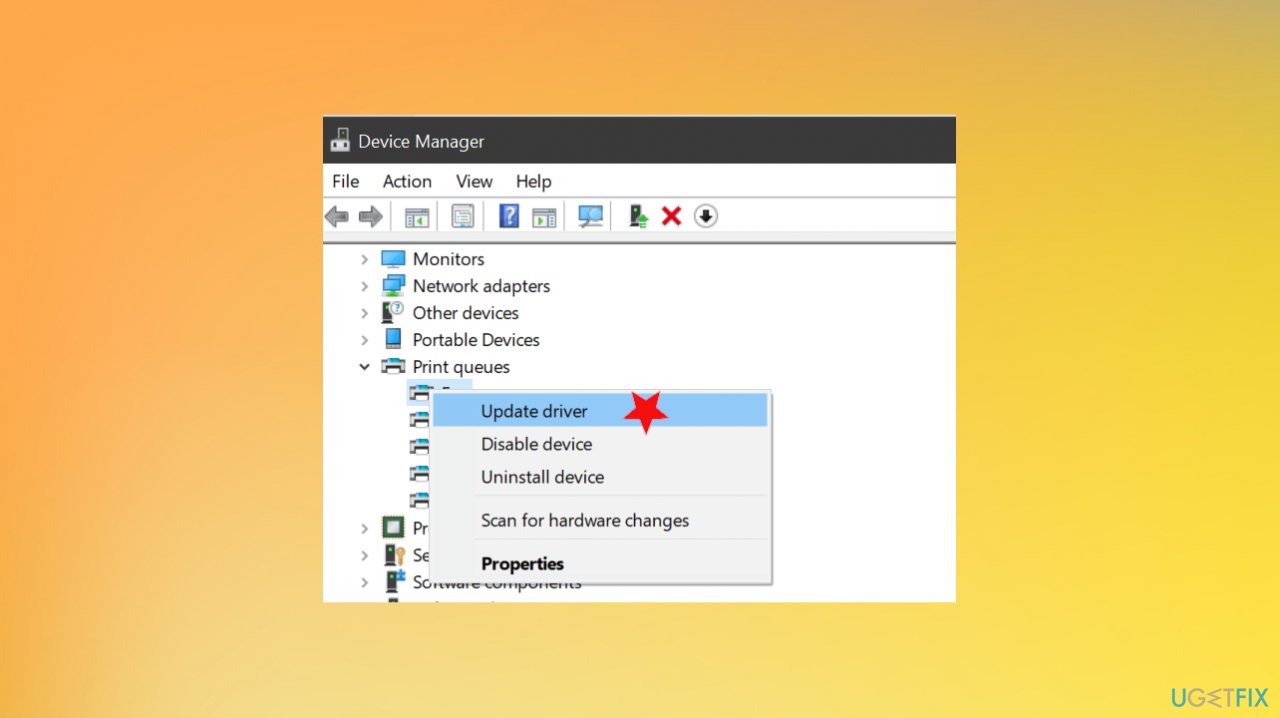
- Right-click on Start and select Device Manager from the menu.
- Expand Display adapters section or any other section with drivers that have exclamation points to them.
- Right-click on the specific driver and select Update Driver.
Screen wont turn off after a specific time fix update drivers - Pick Search automatically for updated driver software.
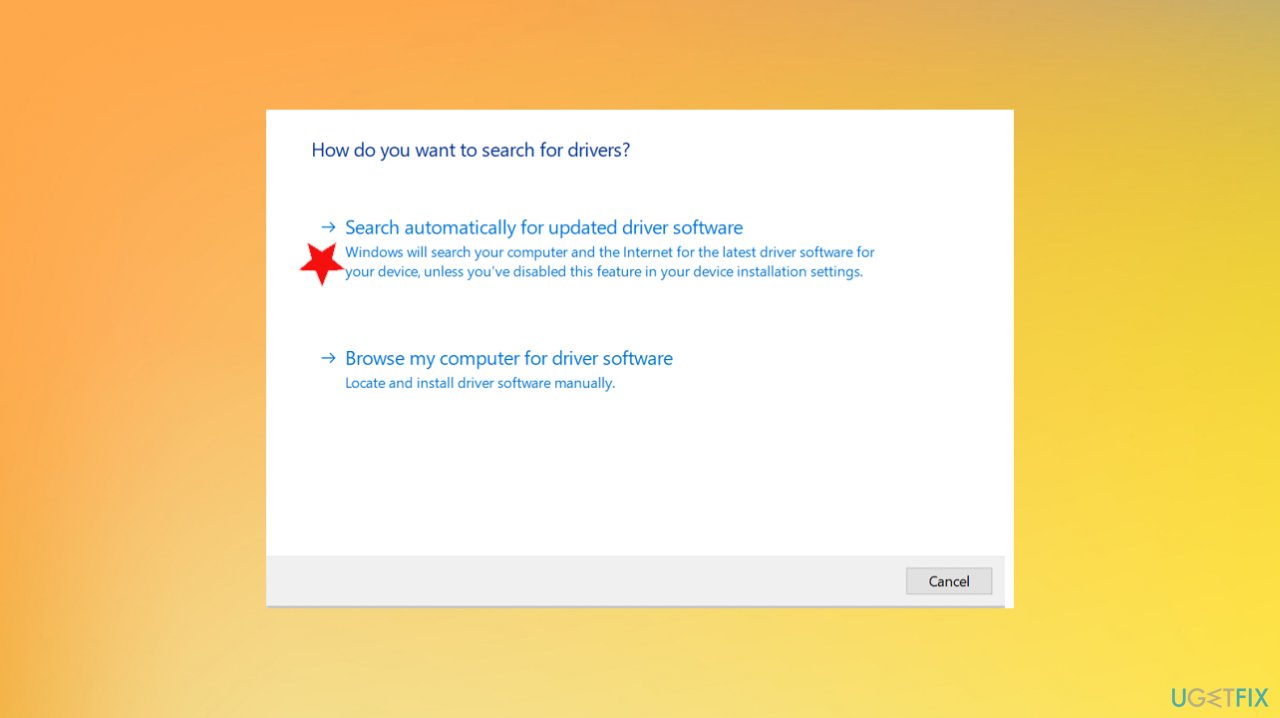
Screen wont turn off after a specific time fix search - Wait for the install.
- Reboot the PC.
You can always achieve this by running the automatic driver update tool like [rev id="DriverFix"]. It can find the needed versions in the database that contains over 18 million different pieces and update adapters with compatible versions. It saves some time and hassle for you.
#2. Change Sleep settings
- Press Windows key+R together to launch a Run window.
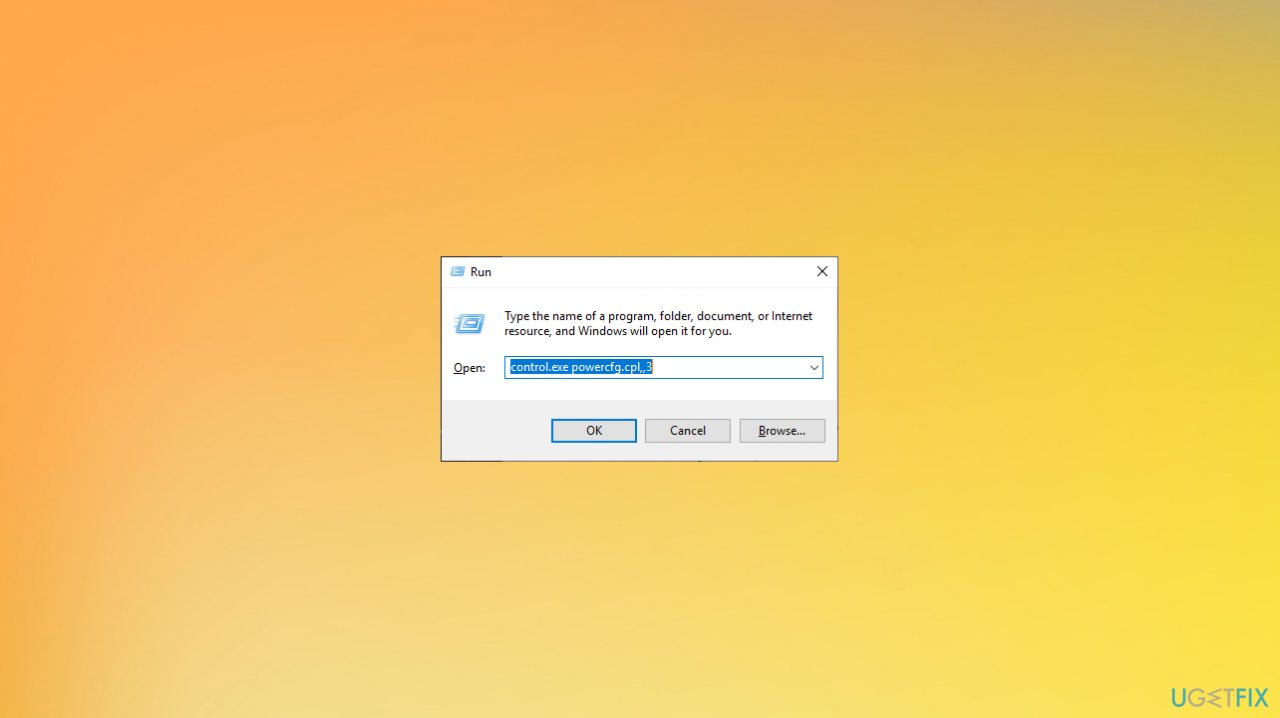
Screen wont turn off after a specific time fix control panel - Once the window appears, run: control.exe powercfg.cpl,,3
- Click OK.
- Once the Power Options window opens, look for the USB settings.
- Expand the USB selective suspend setting.
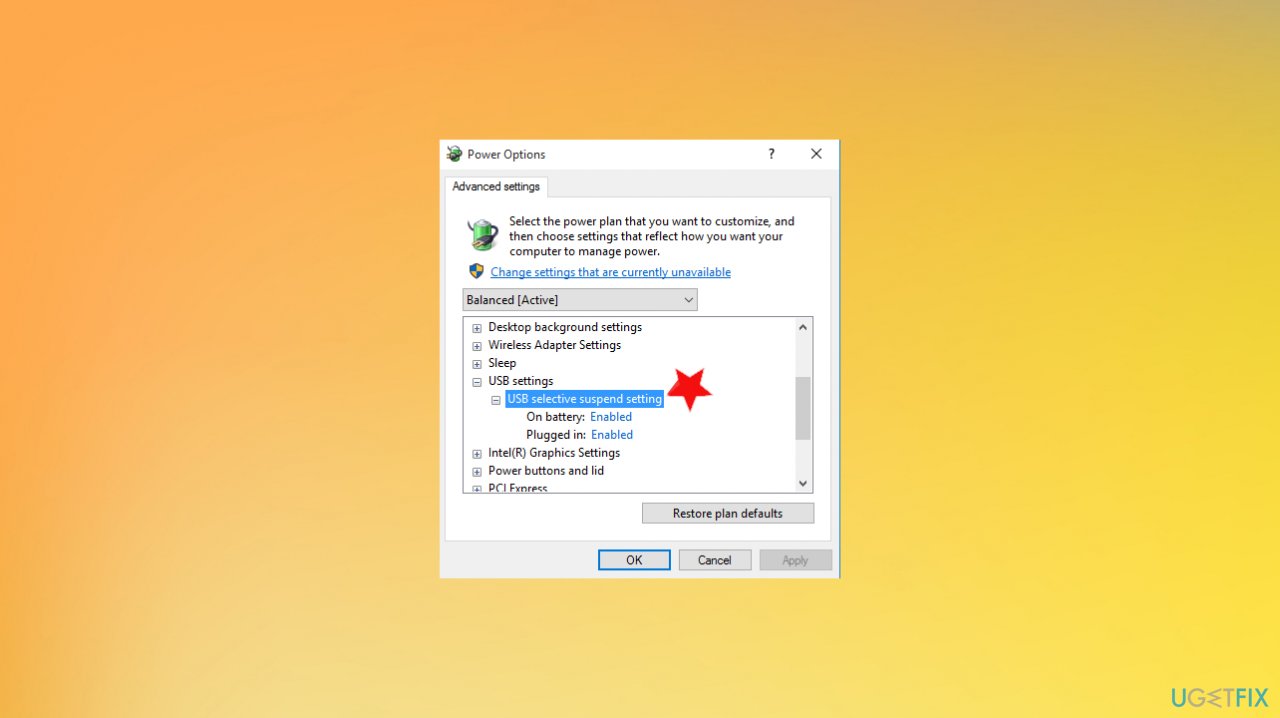
Screen wont turn off after a specific time fix power options - Click on the drop-down beside Setting.
- Select the Disabled settings from the drop-down.
- If you are enacting this on a laptop device, you will notice On battery and Plugged in settings.
- You can easily disable both these options.
- Once you have done all these, click on Apply and OK.
#3. Change Power plan settings
- Click Start and select Settings.
- Select System.
- Then Power and Sleep.
- Ensure the Sleep setting is set to the desired value.
- Go to Additional power settings.
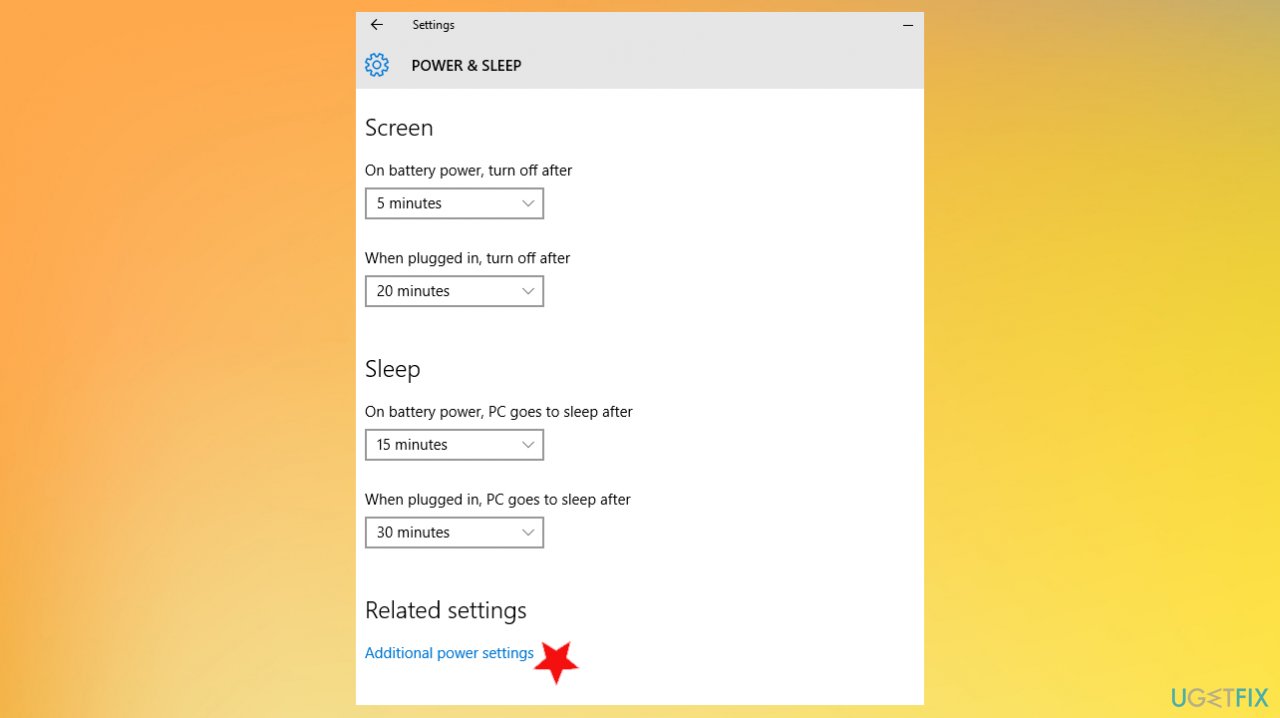
Screen wont turn off after a specific time fix additional power settings - Select Change Plan Settings next to your option.
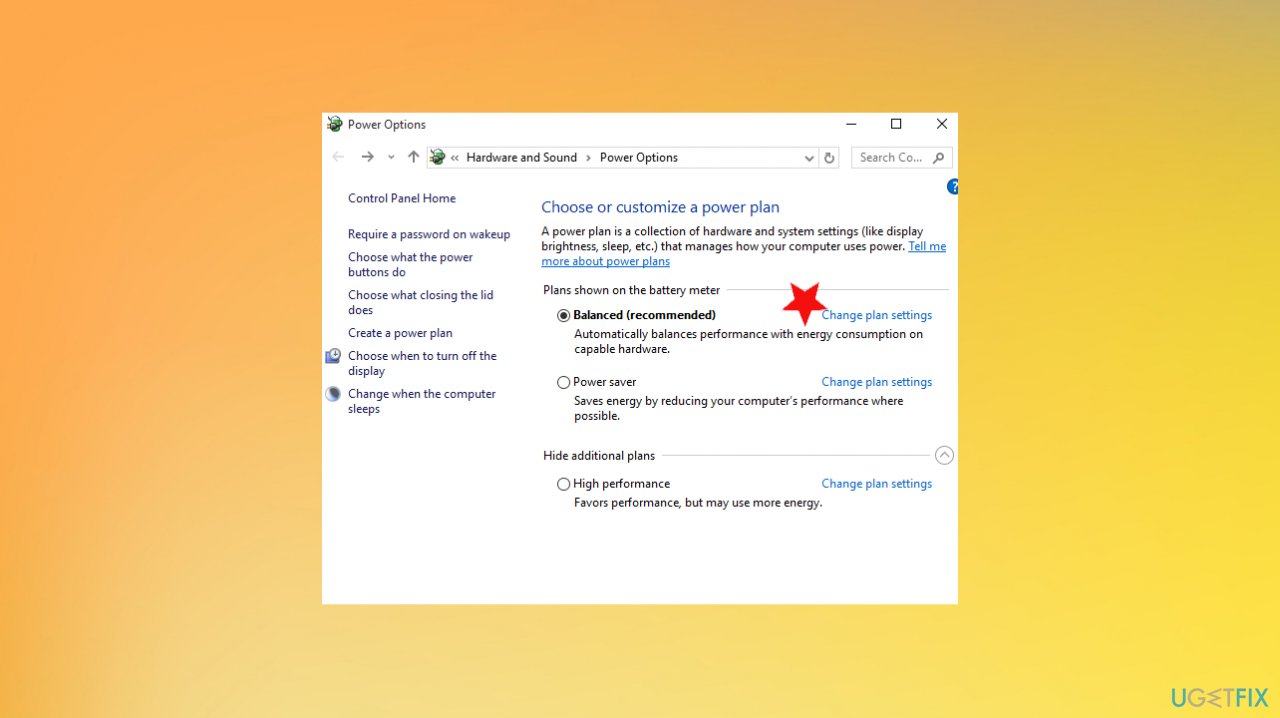
Screen wont turn off after a specific time fix change plan settings - Choose Change advanced power settings.
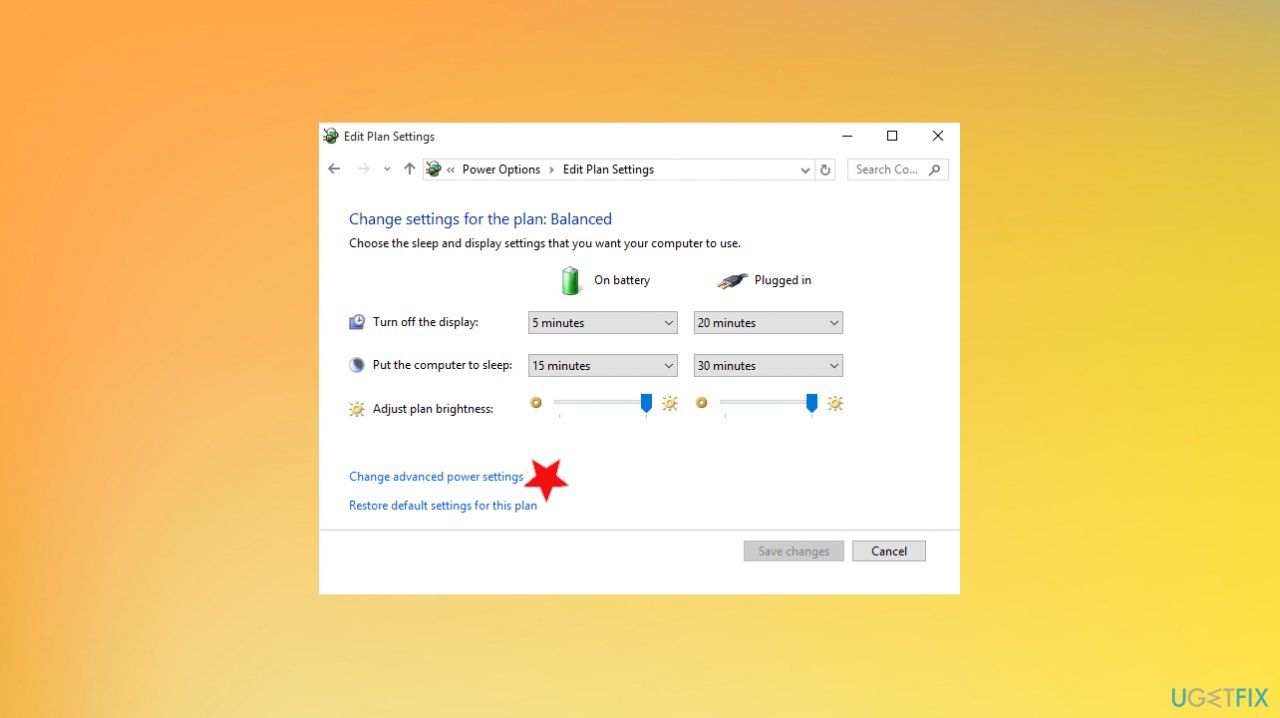
Screen wont turn off after a specific time fix advace change plan - On the Power Options screen, expand each setting and ensure that they allow the computer to go to sleep mode.
- Set it to Allow the computer to sleep.
#4. Unplug devices connected to the PC
- Unplug other USB devices.
- Unplug the display cable from the back.
- Wait for a while.
- Then attach the display cable back to your computer, again.
- Wait and check if this works for you.
- You can also go to Device Manager and disable your HID-Compliant Game controller it different game controllers since those often appear to trigger the issue.
Bottom line
To fix the issue of the screen not turning off after a specified time on Windows 10, you can start by updating your drivers. If the problem persists, consider running a tool to identify and fix system issues, and follow the manual guide for further steps. If none of these solutions work, further troubleshooting may be necessary.
Frequently asked questions
Ensure that your power settings are correctly configured by going to Settings > System > Power & sleep, and verify the screen timeout settings. Additionally, check for any active applications that might prevent the screen from turning off.
Yes, certain third-party applications or background processes can interfere with the screen timeout settings. Try closing unnecessary applications or performing a clean boot to identify the culprit.
You can reset your power settings by opening Command Prompt as an administrator and entering the command 'powercfg -restoredefaultschemes'. This will restore the default power plans, potentially fixing the screen timeout issue.




Report an issue
What's wrong with this guide? We review every report and update or remove content.
Report received — thank you. We'll review and fix it.
You need a free account to submit a report.
Be the first to comment