How to fix
Scroll bar missing in Microsoft Excel
on Windows
Resolve the missing scroll bar issue in Microsoft Excel on Windows 10 and 11. Quick, easy fixes ensure seamless navigation—expert-tested solutions await!


What causes How to fix scroll bar missing in Microsoft Excel?
- Changes in the program's settings
- Accidental disabling of scroll bars
- Adjustments in window size or view settings
- Corrupted files or incomplete updates
- Updates or system changes affecting display settings
Repairs Windows system files, removes malware, and restores a clean OS state — without reinstalling.
I'm using Microsoft Office 2021 on Windows 11. For some reason, both vertical and horizontal scroll bars have disappeared and I have no clue why. I really need them, please advise.
Software applications, such as Microsoft Office tools like Excel, heavily rely on scroll bars as essential components. These bars enable users to smoothly navigate through extensive data or content by scrolling either horizontally or vertically within a window.
In Excel, scroll bars are particularly crucial as they provide the convenience of swiftly moving across rows and columns, ultimately enhancing the efficiency of viewing and managing large spreadsheets.
Why do scroll bars in Excel go missing?
If you've noticed that scroll bars have mysteriously disappeared in Microsoft Excel, don't panic. This common issue can often be attributed to changes in the program's settings, leading to the accidental disabling of scroll bars. Furthermore, adjustments in window size or view settings may have caused the scroll bar to be minimized or hidden.
Issues with the Office installation itself, such as corrupted files or incomplete updates, can also lead to missing scroll bars. Additionally, certain updates or system changes may inadvertently affect Excel's display settings, causing the scroll bars to disappear.
Potential solutions for missing scroll bars
Fixing missing scroll bars in Excel is a simple task that can be resolved by following a few steps. By adjusting the settings within Excel, you can easily enable the scroll bars if they have been disabled. Making sure that the scroll bar is not minimized and is visible in the window can also make a difference.
Additionally, reinstalling or repairing the Office installation can address any underlying issues with the program. It is important to keep both Excel and your system updated to ensure compatibility and resolve any bugs that may impact display settings.
Maximize your system's efficiency with the help of the [d1] PC repair tool, a convenient way to address Windows problems automatically and boost overall performance.

Fix 1. Check Excel settings
Scroll bars may be disabled in Excel settings. Enabling them can make the scroll bars reappear.
- Open Excel.
- Click on File and then select Options on the left.
- In the Excel Options window, go to the Advanced tab.
- Scroll down to the Display options for this workbook section.
- Ensure that Show horizontal scroll bar and Show vertical scroll bar are checked.
- Click OK to save the changes - your scroll bar should be visible now.

Fix 2. Resolve minimized scroll bar
The scroll bars might be minimized or hidden if the Excel window is resized. Restoring the window to its normal size can reveal the scroll bars. Note that this only applies to the horizontal bar.
- Open any Excel document.
- Look at the bottom-right corner of the app window.
- There, you should see three vertical dots.
- Click on them and drag them to the left.
- The horizontal scroll bar should be visible now.

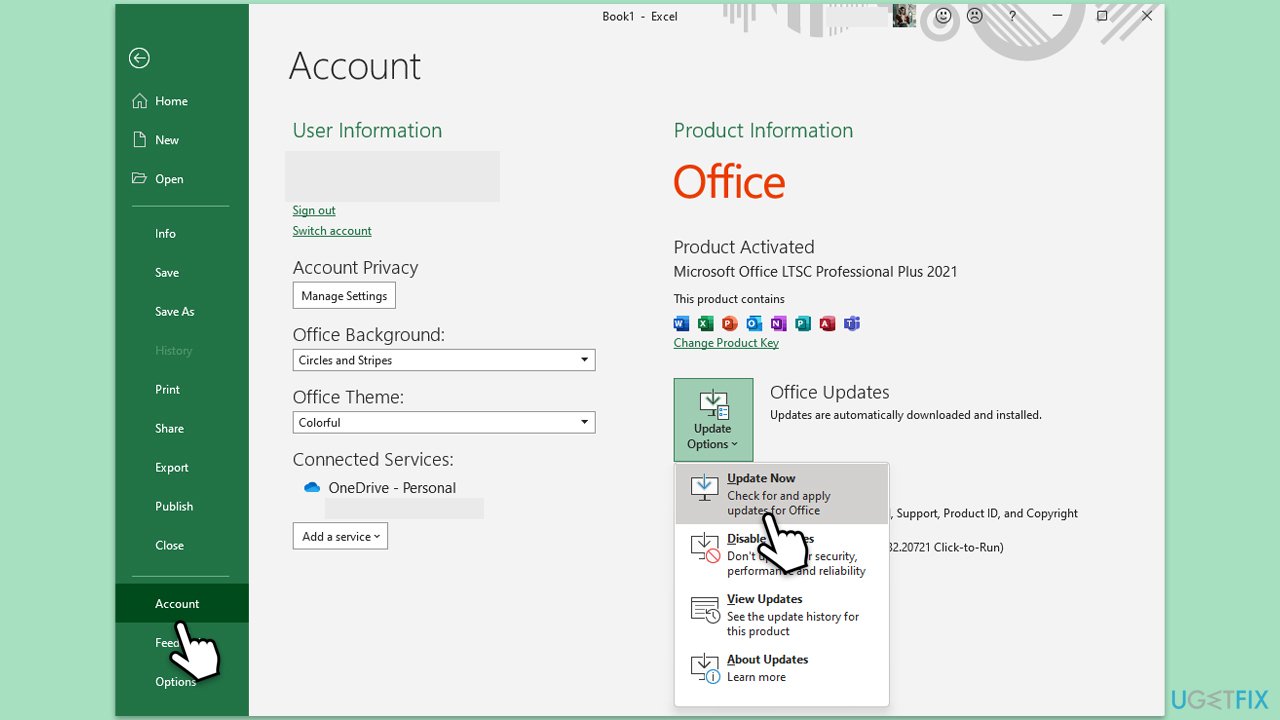
Fix 3. Update Microsoft Office
Updating Microsoft Office can resolve issues related to missing scroll bars caused by bugs or compatibility problems.
- Open Microsoft Excel and navigate to File.
- From the file menu, select Account.
- Under Product Information, locate and click on Update Options.
- From the dropdown list, select Update Now. The program will then check for available updates and install them.
Fix 4. Repair Microsoft Office
Repairing Microsoft Office can fix any corrupted files or issues that might be causing the scroll bars to disappear.
- Type Control Panel in Windows search and press Enter.
- Select Programs > Programs and Features.
- Select Microsoft Office and click on Change.
- Choose the option for Online Repair and click Repair.
- Follow the prompts to finish the process.

Fix 5. Check for system updates
Ensuring your system is up to date can resolve compatibility issues that affect Excel's display settings.
- Type Updates in Windows search and hit Enter.
- If updates are available, click Install updates.
- Otherwise, click Check for updates.
- If optional updates are available, install them as well.
- When all the update processes are complete, restart your computer.

Fix 6. Try Excel Safe mode
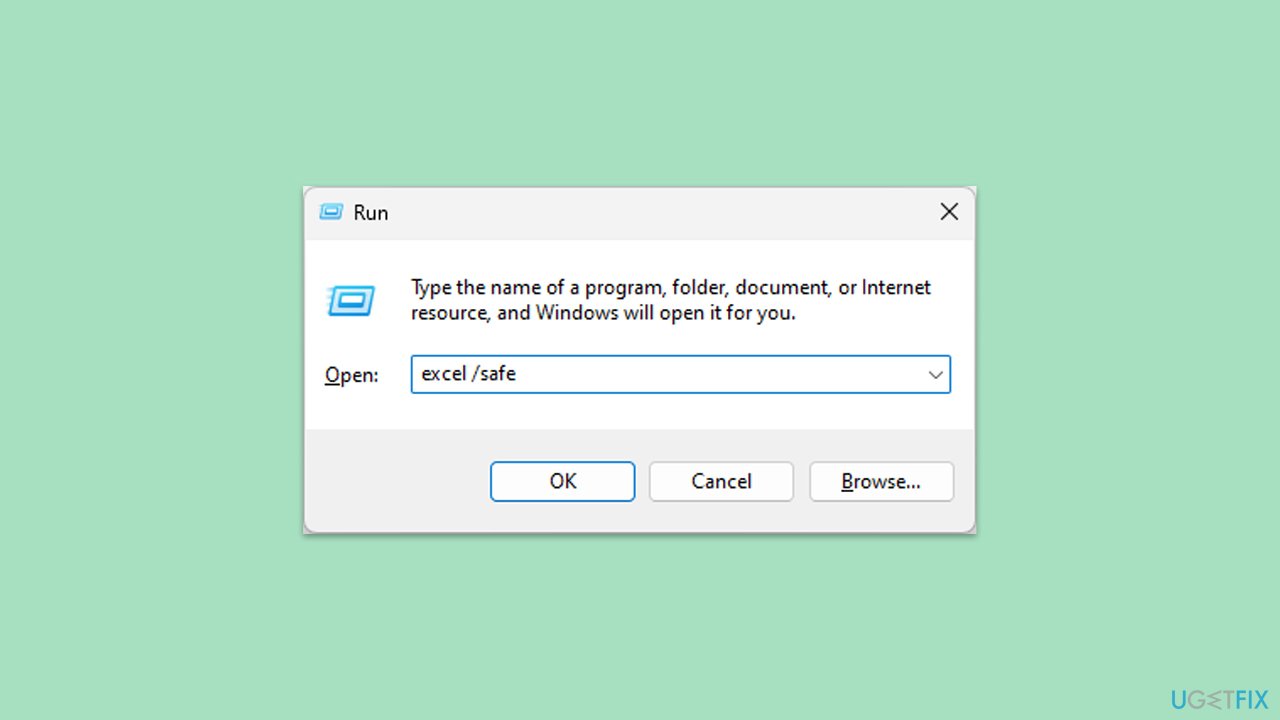
Resetting Excel settings to their default can resolve any misconfigurations that might be causing the scroll bars to disappear. You can do that by accessing the Safe Mode of the app.
- Press Win + R to open the Run dialog.
- Type excel /safe and press Enter to open Excel in Safe Mode.
- Check if the scroll bars are visible.
- If they are, close Excel and open it normally to see if the issue is resolved.
Bottom line
To fix the missing scroll bars in Excel, check the Excel settings to ensure they are enabled, make sure the scroll bar is not minimized, and consider reinstalling or repairing the Office installation. Keeping Excel and your system updated is also crucial. If these solutions do not work, further troubleshooting may be necessary.
Frequently asked questions
The scroll bar may be missing due to a minimized or hidden ribbon. Try maximizing the window or checking the ribbon settings to ensure it's fully visible.
You can restore the scroll bar by going to File > Options > Advanced, then ensuring the 'Show horizontal scroll bar' and 'Show vertical scroll bar' options are checked.
If the scroll bar is still missing, consider repairing your Office installation via Settings > Apps > Apps & features, selecting Microsoft Office, and clicking 'Modify'.




Report an issue
What's wrong with this guide? We review every report and update or remove content.
Report received — thank you. We'll review and fix it.
You need a free account to submit a report.
Be the first to comment